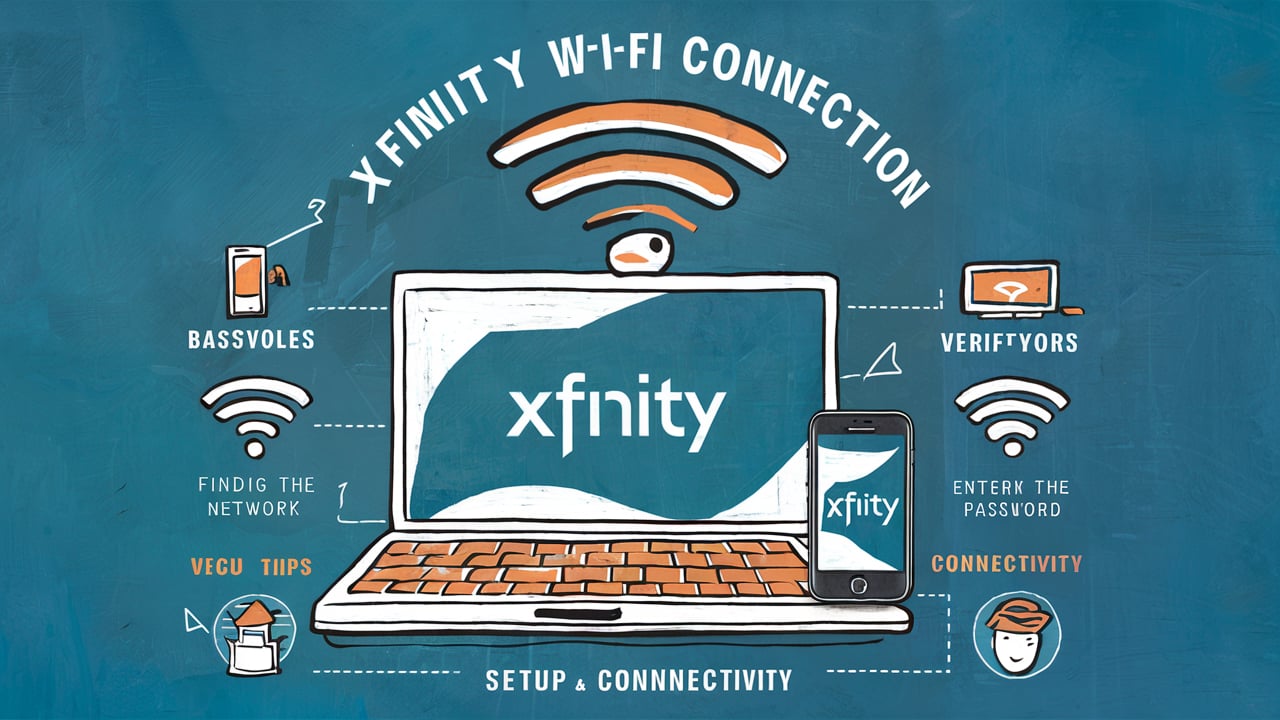
Setting up your Xfinity Wi-Fi can feel daunting, but this guide simplifies the process. Discover actionable tips and expert advice to achieve a seamless, reliable connection for all your devices, ensuring you get the most out of your internet service.
Understanding Your Xfinity Equipment
Before diving into the setup, it's crucial to familiarize yourself with the Xfinity equipment you'll be using. Xfinity offers a range of devices, primarily modems and routers, or gateway devices that combine both functions. Understanding their roles and capabilities will make the setup process smoother and help you troubleshoot more effectively down the line.
Modems vs. Routers vs. Gateways
Modems: The modem is the device that connects your home to the Xfinity internet network. It translates the signals from your Internet Service Provider (ISP) into a format your home network can understand. Think of it as the gateway to the internet.
Routers: The router takes the internet connection from the modem and distributes it to multiple devices in your home, typically via Wi-Fi or Ethernet cables. It creates your local area network (LAN) and manages traffic between your devices and the internet.
Gateways: Xfinity often provides gateway devices, which are all-in-one units that combine the functionality of both a modem and a router. This simplifies setup and reduces the number of devices you need to manage. For most new Xfinity customers, a gateway is the standard offering.
Identifying Your Xfinity Device
Your Xfinity gateway will have a model number and serial number clearly labeled on the device itself, usually on a sticker on the bottom or back. Knowing this information is helpful if you need to contact Xfinity support or consult specific troubleshooting guides. Common Xfinity gateway models include the xFi Gateway (like the TG1682G, CGM4140COM, or XB6, XB7, XB8 series), each offering different Wi-Fi standards and capabilities.
Key Features to Look For
When evaluating your Xfinity equipment, consider these features:
- Wi-Fi Standards: Newer gateways support Wi-Fi 6 (802.11ax) or Wi-Fi 6E, offering faster speeds, better performance in crowded environments, and improved efficiency compared to older Wi-Fi 5 (802.11ac) or Wi-Fi 4 (802.11n) standards. As of 2025-26, Wi-Fi 6 and 6E are becoming mainstream, with Wi-Fi 7 starting to emerge for high-end devices.
- Speed Capabilities: Ensure your gateway is capable of supporting the internet speed tier you've subscribed to from Xfinity. A bottleneck in your equipment can prevent you from reaching advertised speeds.
- Ports: Check the number and type of Ethernet ports available for wired connections, which are often faster and more stable than Wi-Fi.
Pre-Setup Checklist: Essential Preparation
A little preparation goes a long way in ensuring a smooth and successful Xfinity Wi-Fi connection setup. By completing these steps beforehand, you can avoid common pitfalls and speed up the process significantly.
Gathering Necessary Information
Before you even unbox your equipment, have the following readily available:
- Xfinity Account Number: This is essential for activation.
- Service Address: The address where the service will be installed.
- Activation Credentials: You might need a username and password, or a specific activation code provided by Xfinity.
- Contact Information: A reliable phone number and email address.
Choosing the Optimal Location for Your Gateway
The placement of your Xfinity gateway is critical for optimal Wi-Fi coverage throughout your home. Consider these factors:
- Central Location: Place the gateway as close to the center of your home as possible. This helps distribute the Wi-Fi signal evenly in all directions.
- Elevated Position: Avoid placing the gateway on the floor. An elevated position, such as on a shelf or table, allows the signal to propagate more effectively.
- Open Space: Keep the gateway in an open area, away from obstructions. Walls, furniture, large appliances (especially microwaves and refrigerators), and even aquariums can interfere with Wi-Fi signals.
- Avoid Interference: Keep the gateway away from other electronic devices that emit radio waves, such as cordless phones, Bluetooth devices, and even some older baby monitors.
- Proximity to the Outlet: Ensure the location is near a power outlet and, if you're using a separate modem and router, near the coaxial cable outlet.
Checking Your Home's Wiring and Outlets
For a stable internet connection, ensure your home's infrastructure is up to par:
- Coaxial Cable Outlet: If you're installing a new Xfinity service or moving your modem, ensure you have a functional coaxial cable outlet in the desired location. The cable should be in good condition, without kinks or damage.
- Power Outlet: The gateway requires a reliable power source. Ensure the outlet is working and not overloaded with other high-draw devices.
- Ethernet Ports (Optional but Recommended): If you plan to connect devices via Ethernet, ensure you have active Ethernet ports in the rooms where you need them.
Understanding Your Internet Speed Tier
Knowing your subscribed speed tier (e.g., 300 Mbps, 800 Mbps, Gig-speed) is important for setting expectations and troubleshooting. You can usually find this information on your Xfinity bill or by logging into your Xfinity account online. This will help you verify if your setup is achieving the speeds you're paying for.
Step-by-Step Guided Setup Process
This section provides a detailed, step-by-step guide to setting up your Xfinity Wi-Fi connection. While the exact process might vary slightly depending on your specific gateway model and service type, these steps cover the most common scenarios.
Step 1: Unboxing and Connecting the Hardware
Carefully unbox your Xfinity gateway and any accompanying cables.
- Connect the Coaxial Cable: Screw one end of the coaxial cable firmly into the cable outlet on your wall. Connect the other end to the coaxial input port on the back of your Xfinity gateway. Ensure it's hand-tightened to prevent signal loss.
- Connect the Power Adapter: Plug the power adapter into the power port on the gateway and then into a working electrical outlet.
- Connect Ethernet Cable (if applicable): If you have a separate modem and router, connect an Ethernet cable from the modem's Ethernet port to the router's WAN (Wide Area Network) or Internet port.
Step 2: Powering On and Initial Boot-Up
Once everything is connected, power on the device.
- Wait for Boot-Up: The gateway will begin its boot-up sequence. This process can take several minutes (typically 5-15 minutes). You'll see various lights on the front of the device blinking and changing.
- Observe the Status Lights: Refer to your gateway's manual or Xfinity's online resources to understand what each light indicates. Generally, you're looking for a solid "Online" or "Internet" light, which signifies a successful connection to the Xfinity network.
Step 3: Activating Your Xfinity Service
This is the crucial step where your gateway is provisioned by Xfinity.
- Connect a Device: Connect a computer or smartphone to the gateway. Initially, this might be via an Ethernet cable (if you have one handy) or by connecting to the default Wi-Fi network. The default network name (SSID) and password are often printed on a sticker on the gateway itself.
- Launch a Web Browser: Open a web browser on the connected device. You should be automatically redirected to the Xfinity activation page. If not, try navigating to www.xfinity.com/activate.
- Follow On-Screen Instructions: The activation portal will guide you through the process. You'll likely need to enter your Xfinity account number or other credentials to verify your service.
- Wait for Confirmation: The activation process can take another 5-10 minutes. The status lights on your gateway will change as it communicates with Xfinity's network. Once complete, you should see a confirmation message on your browser, and your internet connection should be active.
Step 4: Setting Up Your Custom Wi-Fi Network Name and Password
Once activated, it's highly recommended to personalize your Wi-Fi network for security and ease of use.
- Access Gateway Settings: You can typically access your gateway's settings through the Xfinity app or by typing its IP address (often 10.0.0.1) into a web browser.
- Login: Use the default administrator username and password (also usually found on the gateway sticker or in your Xfinity welcome kit) to log in.
- Navigate to Wi-Fi Settings: Look for sections labeled "Wi-Fi," "Wireless Settings," or "Network Settings."
- Change Network Name (SSID): Choose a unique and recognizable name for your Wi-Fi network. Avoid using personal information.
- Set a Strong Password: Create a strong, unique password using a combination of uppercase and lowercase letters, numbers, and symbols. This is crucial for preventing unauthorized access to your network.
- Save Changes: Apply your new settings. Your gateway may restart, and you'll need to reconnect your devices using the new network name and password.
Step 5: Connecting Your Devices
Now that your network is set up, connect your devices.
- Wi-Fi Devices: On each device (smartphone, tablet, laptop, smart TV, etc.), go to the Wi-Fi settings, find your newly named network (SSID), and enter your custom password.
- Wired Devices: For devices that support Ethernet (like desktop computers, gaming consoles, or smart TVs), connect them directly to one of the gateway's LAN ports using an Ethernet cable. This often provides a more stable and faster connection.
Optimizing Your Wi-Fi Network for Performance
Getting your Xfinity Wi-Fi connected is just the first step. To ensure you're getting the best possible performance, speed, and coverage, optimization is key. This involves understanding how Wi-Fi works and making strategic adjustments.
Understanding Wi-Fi Bands (2.4 GHz vs. 5 GHz)
Most modern Xfinity gateways broadcast on two Wi-Fi bands: 2.4 GHz and 5 GHz. Each has its advantages and disadvantages:
- 2.4 GHz Band:
- Pros: Longer range, better at penetrating solid objects (walls, floors).
- Cons: Slower speeds, more prone to interference from other devices (microwaves, Bluetooth, older cordless phones).
- 5 GHz Band:
- Pros: Faster speeds, less interference, more available channels.
- Cons: Shorter range, struggles to penetrate solid objects.
Tip: Many Xfinity gateways offer "band steering," where the gateway automatically assigns devices to the optimal band. If your gateway supports this, it's often best to leave it enabled. If not, you may see two separate network names (SSIDs), one for 2.4 GHz and one for 5 GHz, allowing you to manually choose.
Channel Selection and Congestion
Wi-Fi networks operate on specific channels. If too many networks in your area are using the same channel, it can lead to congestion and slower speeds. Your Xfinity gateway will typically select the best channel automatically, but manual adjustment can sometimes help.
How to Check and Change Channels:
- Access your gateway's settings (usually via 10.0.0.1 or the Xfinity app).
- Navigate to Wi-Fi or Wireless settings.
- Look for "Channel" or "Channel Selection."
- For the 2.4 GHz band, channels 1, 6, and 11 are generally recommended as they don't overlap.
- For the 5 GHz band, there are more non-overlapping channels, and the gateway's auto-selection is usually quite effective.
Note: Changing channels can sometimes temporarily disrupt your connection. It's best to do this during off-peak hours.
Firmware Updates
Xfinity gateways receive automatic firmware updates from Comcast to improve performance, security, and add new features. Ensure your gateway is connected to the internet so it can receive these updates. If you suspect your firmware is outdated or you're experiencing persistent issues, you can sometimes manually check for updates within the gateway's administrative interface or by contacting Xfinity support.
Network Security Best Practices
A secure network is essential for protecting your data and preventing unauthorized use of your internet connection.
- Strong Wi-Fi Password: As mentioned, use a complex password.
- Change Default Login Credentials: Always change the default administrator username and password for accessing your gateway's settings.
- WPA3 Encryption: If your gateway supports it, enable WPA3 encryption for the strongest security. If not, WPA2 is the next best option. Avoid WEP or open networks.
- Guest Network: Utilize the guest network feature if available. This allows visitors to access your Wi-Fi without giving them access to your main network and devices.
Managing Connected Devices
The more devices connected to your Wi-Fi, the more bandwidth is consumed. While Xfinity offers various speed tiers, it's good practice to manage your connected devices.
- Disconnect Unused Devices: Turn off Wi-Fi on devices that are not in use.
- Prioritize Devices: If your gateway or the Xfinity app allows for Quality of Service (QoS) settings, you can prioritize certain devices or applications (e.g., streaming, video conferencing) to ensure they receive sufficient bandwidth.
Understanding Wi-Fi Extenders and Mesh Systems
If you have a large home or areas with weak Wi-Fi signals, consider these solutions:
- Wi-Fi Extenders (Repeaters): These devices pick up your existing Wi-Fi signal and rebroadcast it, extending the range. They are generally less expensive but can sometimes halve the speed of the extended network.
- Mesh Wi-Fi Systems: These systems consist of a main router and satellite nodes placed around your home. They create a single, seamless Wi-Fi network with better performance and coverage than extenders. Xfinity offers its own mesh system, the xFi Pods, which integrate with their gateways.
Troubleshooting Common Connection Issues
Even with the best setup, you might encounter occasional internet or Wi-Fi issues. Here’s how to tackle some of the most common problems.
No Internet Connection
This is the most frustrating issue. Start with these steps:
- Check the Lights: Examine the status lights on your Xfinity gateway. Look for an "Online" or "Internet" light. If it's off, blinking, or red, there's likely a problem with the signal coming into your home or with the gateway itself.
- Reboot Your Gateway: This is the universal first step for almost any tech issue. Unplug the power adapter from your gateway, wait for 30-60 seconds, and then plug it back in. Allow several minutes for it to fully boot up and reconnect.
- Check Cable Connections: Ensure the coaxial cable is securely screwed into both the wall outlet and the gateway. Check the power cable as well.
- Check for Service Outages: Visit the Xfinity website or use the Xfinity app to check if there are any reported outages in your area.
- Test with a Wired Connection: If possible, connect a computer directly to the gateway using an Ethernet cable. If you get internet access this way, the issue is likely with your Wi-Fi signal, not the main internet connection.
- Bypass Router (if separate): If you have a separate modem and router, try connecting a computer directly to the modem via Ethernet. If this works, the problem is with your router.
Slow Internet Speeds
If your internet is connected but sluggish, consider these possibilities:
- Run a Speed Test: Use a reliable speed test tool (like Ookla Speedtest or Xfinity's own speed test) to measure your current download and upload speeds. Compare these results to your subscribed speed tier.
- Test on Different Devices and Bands: See if the slowness affects all devices or just one. Test on both the 2.4 GHz and 5 GHz bands if available.
- Check for Bandwidth Hogs: Are other devices on your network downloading large files, streaming in high definition, or engaged in intense online gaming? These activities can consume significant bandwidth.
- Move Closer to the Gateway: For Wi-Fi connections, try moving your device closer to the gateway to see if the speed improves.
- Restart Your Gateway: A simple reboot can often resolve temporary performance issues.
- Update Router Firmware: Ensure your gateway's firmware is up-to-date.
- Consider Equipment Upgrade: If your gateway is several years old, it might not be capable of handling the latest Wi-Fi standards or your current internet speed tier.
Wi-Fi Connectivity Issues (Devices Not Connecting)
If your devices can't find or connect to your Wi-Fi network:
- Verify Network Name and Password: Double-check that you are selecting the correct Wi-Fi network name (SSID) and entering the password accurately. Passwords are case-sensitive.
- Restart Your Device: Sometimes, the issue is with the device itself. Try restarting your smartphone, tablet, or computer.
- Restart Your Gateway: A reboot of the gateway can resolve temporary glitches.
- Check Signal Strength: Ensure your device is within range of the gateway. If the signal is weak, try moving closer.
- Forget and Reconnect: On your device's Wi-Fi settings, "forget" your network and then try connecting again as if it were a new network.
- Check for MAC Filtering: Ensure MAC address filtering is not enabled on your gateway, which would prevent unknown devices from connecting.
Intermittent Connection Drops
If your Wi-Fi connection keeps dropping:
- Check for Interference: Identify potential sources of interference (microwaves, cordless phones, Bluetooth devices) and move them away from the gateway.
- Channel Congestion: Try changing the Wi-Fi channel on your gateway, especially for the 2.4 GHz band.
- Overheating: Ensure your gateway has adequate ventilation and is not overheating.
- Faulty Cables: Damaged coaxial or Ethernet cables can cause intermittent issues.
- Too Many Devices: If your network is overloaded with many active devices, it can become unstable.
- Contact Xfinity Support: If the problem persists, it might indicate an issue with the signal coming into your home or with the gateway hardware itself.
Troubleshooting Table Summary
Here's a quick reference for common issues:
| Problem | Common Solutions |
|---|---|
| No Internet | Check lights, reboot gateway, check cables, check for outages. |
| Slow Speeds | Run speed test, check device usage, reboot, test wired connection. |
| Cannot Connect to Wi-Fi | Verify SSID/password, restart device/gateway, check signal strength. |
| Intermittent Drops | Check interference, change channels, check ventilation, test cables. |
Advanced Tips for Power Users
For those who want to fine-tune their Xfinity network for maximum performance and control, several advanced settings and strategies can be employed.
Configuring QoS (Quality of Service)
Quality of Service (QoS) allows you to prioritize network traffic for specific devices or applications. This is invaluable for ensuring that critical activities like video conferencing, online gaming, or streaming receive the necessary bandwidth, even when other devices are heavily utilizing the network.
How to Configure QoS:
- Access your gateway's administrative interface (usually 10.0.0.1).
- Look for a "QoS" or "Traffic Management" section.
- You can typically set priorities based on device IP addresses, MAC addresses, or specific applications/ports.
- Example: You might assign a "High" priority to your work laptop's IP address for video calls or a "Medium" priority to your gaming console.
Note: Overly aggressive QoS settings can sometimes negatively impact overall network performance, so it's best to start with moderate adjustments and test.
Using Static IP Addresses
While most home networks use dynamic IP addresses (assigned automatically by the gateway), you might have specific reasons to assign static IP addresses to certain devices. This ensures a device always has the same IP address on your local network, which can be useful for:
- Port Forwarding: If you host servers (e.g., game servers, personal web servers) or need to access devices remotely, you'll need to forward specific ports on your gateway to the static IP address of the device.
- Network Attached Storage (NAS): Devices like NAS drives often benefit from static IPs for reliable access.
- Printers: Some network printers perform better with static IPs.
How to Assign Static IPs:
- In your gateway's settings, find the DHCP server settings.
- You can often reserve an IP address within the DHCP range for a specific device's MAC address.
- Alternatively, you can manually assign a static IP address to the device itself, ensuring it falls within your network's IP range but outside the DHCP pool to avoid conflicts.
Port Forwarding and UPnP
UPnP (Universal Plug and Play): This feature allows devices on your network to automatically open ports on the router as needed. It's convenient for gaming and some applications but can be a security risk if not managed carefully.
Port Forwarding: This is a manual process where you configure your gateway to direct incoming traffic on specific ports to a particular device on your network. This is essential for many online games, VPNs, and remote access applications.
How to Configure Port Forwarding:
- Identify the specific ports required by your application or device.
- Access your gateway's administrative interface.
- Find the "Port Forwarding" or "Virtual Servers" section.
- Create a new rule, specifying the external port(s), internal port(s) (often the same), the protocol (TCP or UDP), and the internal IP address of the device you want to forward to.
Security Note: Only forward ports that are absolutely necessary, and ensure the devices receiving the forwarded traffic are secured.
DNS Server Configuration
The Domain Name System (DNS) server translates human-readable domain names (like google.com) into IP addresses. While your gateway uses DNS servers provided by Xfinity by default, you can manually configure your gateway or individual devices to use alternative DNS servers, such as Google DNS (8.8.8.8 and 8.8.4.4) or Cloudflare DNS (1.1.1.1 and 1.0.0.1).
Benefits of Alternative DNS Servers:
- Potentially Faster Resolution: Some DNS servers may be faster than your ISP's.
- Enhanced Security and Privacy: Some DNS providers offer features like malware blocking or improved privacy.
- Content Filtering: Certain DNS services allow you to block specific categories of websites.
How to Change DNS:
- Access your gateway's administrative interface.
- Look for "DNS Settings" or "Network Settings."
- Enter the IP addresses of your preferred DNS servers.
Monitoring Network Traffic
Some advanced gateways or routers offer built-in tools to monitor network traffic, showing you which devices are consuming the most bandwidth and what types of traffic are most prevalent. This can be invaluable for diagnosing performance issues or identifying unexpected network activity.
Check your gateway's interface or the Xfinity app for any traffic monitoring features.
The Xfinity App: Your Digital Control Center
The Xfinity app has become an indispensable tool for managing your Xfinity internet service. It offers a user-friendly interface to control and monitor your network without needing to access the gateway's web interface.
Key Features of the Xfinity App
The app provides a wealth of functionality:
- Network Status: Quickly check your internet connection status and speed.
- Wi-Fi Settings: View and change your Wi-Fi network name (SSID) and password.
- Connected Devices: See a list of all devices connected to your network, with the ability to pause internet access for specific devices.
- xFi Pods Management: If you use Xfinity's mesh Wi-Fi extenders (xFi Pods), you can manage their placement and performance through the app.
- Speed Tests: Run internet speed tests directly from the app.
- Device Prioritization: Some versions of the app allow you to prioritize certain devices for better performance.
- Security Features: Access security settings, including parental controls and advanced security features offered by Xfinity.
- Troubleshooting Tools: The app often includes built-in troubleshooting guides and diagnostic tools.
- Outage Information: Receive notifications about service outages in your area.
Getting Started with the Xfinity App
- Download the App: Search for "Xfinity" in your device's app store (Apple App Store or Google Play Store) and download the official Xfinity app.
- Log In: Use your Xfinity username and password to log in.
- Explore the Interface: Navigate through the different sections to familiarize yourself with its features. The main dashboard typically provides an overview of your network.
Using the App for Setup and Troubleshooting
The Xfinity app is particularly useful during the initial setup process. It can guide you through connecting your gateway and activating your service. For troubleshooting, it's often the quickest way to reboot your gateway, check for outages, or identify devices consuming excessive bandwidth.
Example: If your internet is slow, you can open the app, run a speed test, see which devices are connected, and if necessary, pause a device that's hogging bandwidth, all within minutes.
Advanced App Features (xFi Complete)
For users who subscribe to Xfinity's xFi Complete service, the app unlocks even more advanced features:
- Advanced Security: Real-time alerts for potential threats and automatic blocking of suspicious activity.
- Device Control: More granular control over device access, including setting time limits and website restrictions.
- Personalized Insights: Recommendations for optimizing your network based on your usage patterns.
The Xfinity app transforms managing your home network from a technical chore into a simple, accessible task.
Future-Proofing Your Xfinity Wi-Fi
The digital landscape is constantly evolving, with new devices and higher bandwidth demands emerging regularly. To ensure your Xfinity Wi-Fi setup remains effective for years to come, consider these future-proofing strategies.
Investing in Latest Wi-Fi Standards
As of 2025-26, Wi-Fi 6 (802.11ax) and Wi-Fi 6E are the current leading standards, offering significant improvements over Wi-Fi 5. Wi-Fi 7 is also beginning to appear in high-end devices. When choosing or upgrading your Xfinity gateway (if possible through Xfinity's equipment rental or purchase options), prioritize devices that support the latest standards.
- Wi-Fi 6: Offers better efficiency, capacity, and speed, especially in environments with many connected devices.
- Wi-Fi 6E: Adds the 6 GHz band, providing even more bandwidth and less interference for compatible devices.
- Wi-Fi 7: Promises even higher speeds, lower latency, and increased capacity, but requires compatible devices.
While not all your devices may support these standards immediately, having a future-ready gateway ensures you can take advantage of them as you upgrade your other electronics.
Considering Higher Speed Tiers
The demand for internet bandwidth continues to rise. Streaming 4K and 8K video, cloud gaming, remote work, and the proliferation of smart home devices all contribute to this increase. If you frequently experience buffering or slow speeds during peak usage, consider upgrading your Xfinity internet speed tier. This ensures your connection can handle current and future bandwidth needs.
Strategic Placement of Mesh Systems
For larger homes or those with complex layouts, a mesh Wi-Fi system (like Xfinity's xFi Pods) is almost a necessity for consistent coverage. Investing in a robust mesh system now will ensure that dead zones are eliminated and that all your devices, from smart thermostats to high-definition TVs, receive a strong, stable signal throughout your entire home.
As new devices and technologies emerge, ensure your mesh system can accommodate them.
Regularly Reviewing Your Equipment
Technology evolves rapidly. What is cutting-edge today can be outdated in a few years. Make it a habit to periodically review your Xfinity gateway and any other networking equipment you use.
- Check for Firmware Updates: Ensure your gateway is always running the latest firmware.
- Assess Performance: If you're consistently experiencing issues or not getting the speeds you expect, it might be time to consider upgrading your equipment.
- Xfinity Equipment Lifecycle: Xfinity gateways are typically leased. Xfinity periodically updates its gateway models, and you may be eligible for an upgrade as newer, more capable models become available. Check with Xfinity about their upgrade programs.
Securing Your Network Against Evolving Threats
Cybersecurity threats are also constantly evolving. Future-proofing your network means staying ahead of these threats.
- Use the Latest Encryption: WPA3 encryption is the most secure available. Ensure your gateway and devices support it.
- Regularly Update Passwords: Change your Wi-Fi password and gateway admin password periodically.
- Utilize Security Features: Leverage Xfinity's advanced security features (like xFi Complete's threat blocking) and keep them enabled.
- Be Wary of IoT Devices: Smart home devices (IoT) can be vulnerable. Ensure they are updated and consider placing them on a separate guest network if possible.
By proactively addressing these areas, you can ensure your Xfinity Wi-Fi connection remains robust, secure, and capable of meeting your digital needs well into the future.
Conclusion
Setting up your Xfinity Wi-Fi connection doesn't have to be complicated. By understanding your equipment, preparing thoroughly, following a clear step-by-step process, and implementing optimization and troubleshooting strategies, you can achieve a seamless and reliable internet experience. Remember to leverage the Xfinity app for easy management and consider future-proofing your network with the latest technologies and speed tiers. With these tips, you're well-equipped to enjoy the full potential of your Xfinity internet service, ensuring all your devices stay connected and perform at their best.