Why is my Cox Router Blinking Orange?
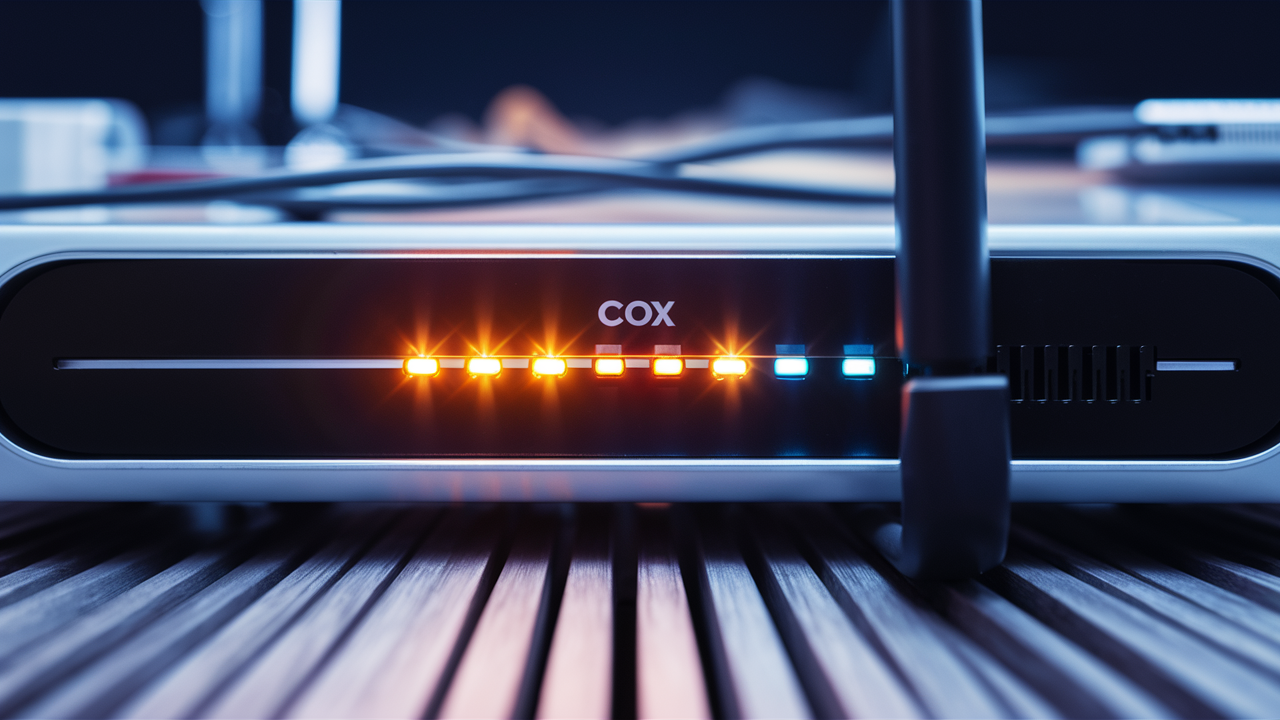
Is your Cox router blinking orange, leaving you disconnected and frustrated? This common issue signifies a problem, but understanding its meaning is the first step to a swift resolution. This guide will demystify the blinking orange light, providing clear, actionable steps to get your internet back online.
Understanding the Blinking Orange Light
The blinking orange light on your Cox router is a diagnostic indicator, signaling that the device is encountering an issue. While the specific meaning can vary slightly depending on the router model, it generally points to a problem with the router's ability to establish a stable connection with the Cox network. This could be due to a temporary glitch, a configuration issue, or a more significant problem with the service itself. The goal of this guide is to help you diagnose and resolve this issue efficiently, minimizing downtime and frustration. In 2025, internet reliability is paramount, and understanding these indicators is crucial for maintaining seamless connectivity for work, entertainment, and communication.
Common Causes of a Blinking Orange Cox Router
Several factors can contribute to your Cox router displaying a blinking orange light. Identifying the root cause is key to implementing the correct solution. Let's explore the most frequent culprits:
1. Internet Service Interruption
The most straightforward reason for a blinking orange light is an outage or interruption in Cox's internet service in your area. This is beyond your control and requires Cox to resolve the issue on their end. These outages can be caused by various factors, including:
- Equipment Malfunction at the Node: The network equipment serving your neighborhood might be experiencing technical difficulties.
- Fiber Cut or Damage: Physical damage to the fiber optic cables that provide internet service can lead to widespread connectivity problems. In 2025, while fiber is robust, accidents during construction or environmental factors can still cause disruptions.
- Maintenance or Upgrades: Cox may schedule maintenance or perform upgrades to their network infrastructure, which can temporarily disrupt service.
- Power Outages in the Area: If a local power outage affects Cox's network equipment, it can lead to service interruptions.
Statistics for 2025: While specific outage data is proprietary, industry reports indicate that the average U.S. internet user experienced approximately 2-3 service disruptions per year in 2025, with durations varying from minutes to several hours. Fiber optic services generally boast higher reliability than older technologies.
2. Router Configuration Issues
Sometimes, the router itself may have a configuration problem that prevents it from properly communicating with Cox's network. This can happen after a firmware update, a power surge, or if settings were inadvertently changed. Common configuration issues include:
- Incorrect IP Address Settings: The router might not be obtaining a valid IP address from Cox's DHCP server.
- DNS Server Problems: Issues with the Domain Name System (DNS) servers can prevent your router from translating website names into IP addresses.
- Firewall Settings: Overly restrictive firewall settings on the router could be blocking necessary communication with the Cox network.
3. Modem/Router Hardware Malfunction
Like any electronic device, your Cox modem or router can develop hardware faults. A blinking orange light might indicate that the device is struggling to boot up correctly or that a critical component has failed. This is more likely with older equipment or devices that have been subjected to power surges or physical damage. In 2025, the lifespan of a typical home router is estimated to be between 3-5 years, after which performance issues and failures become more common.
4. Loose or Damaged Cables
A simple, yet often overlooked, cause is loose or damaged cabling. The coaxial cable connecting your modem to the wall outlet, or the Ethernet cable connecting your modem to your router (if they are separate devices), could be improperly seated or frayed. Ensure all connections are secure and that cables are free from visible damage.
5. Network Congestion
While less common for a blinking orange light specifically, severe network congestion on Cox's end can sometimes lead to connection instability. This is more prevalent during peak usage hours in densely populated areas. However, a persistent blinking orange light usually points to a more fundamental connectivity issue than temporary congestion.
6. Incorrect Router Placement or Interference
While not directly causing a blinking orange light, poor router placement can exacerbate connectivity issues. If the router is in a location with significant wireless interference (e.g., near microwaves, cordless phones, or thick walls), it might struggle to maintain a stable connection, and this could manifest as an orange light if the underlying issue is also present. However, the blinking orange light is primarily related to the WAN (Wide Area Network) connection, not Wi-Fi.
Troubleshooting Steps for a Blinking Orange Router
When you encounter a blinking orange light on your Cox router, don't panic. Follow these step-by-step troubleshooting procedures to diagnose and resolve the problem. It's recommended to try these steps in order, as they progress from the simplest solutions to more complex ones.
Step 1: Power Cycle Your Modem and Router
This is the most common and often effective solution for a wide range of router issues, including a blinking orange light. A power cycle, or reboot, allows the devices to reset their connections and clear any temporary glitches.
- Unplug the power adapter from your Cox modem. If you have a separate router, unplug its power adapter as well.
- Wait for at least 60 seconds. This ensures that all residual power is drained from the devices.
- Plug the power adapter back into the modem first. Allow it to fully boot up. This can take several minutes. Watch the lights on the modem; they should stabilize.
- Once the modem lights are stable, plug the power adapter back into your router (if separate). Allow it to boot up completely.
- Observe the router's lights. Check if the orange light has turned solid green or blue, indicating a successful connection.
Example: Imagine your router is like a computer that's been running for weeks. A simple restart can clear out temporary memory issues and allow it to re-establish its network handshake properly.
Step 2: Check All Cable Connections
Loose or damaged cables are a frequent cause of connectivity problems. Ensure all connections are secure and that the cables themselves are in good condition.
- Coaxial Cable: Ensure the coaxial cable is tightly screwed into both the wall outlet and the back of your Cox modem. Check for any kinks, cuts, or fraying on the cable.
- Ethernet Cable (if applicable): If you have a separate modem and router, check the Ethernet cable connecting them. Ensure it's securely plugged into the correct ports on both devices. Inspect the cable for damage.
- Power Cables: While less likely to cause an orange light, ensure power cables are firmly connected to the devices and the power outlet.
Tip: Try gently wiggling the coaxial cable at both ends. If the light flickers or changes, it might indicate a loose connection or a faulty cable.
Step 3: Verify Service Status with Cox
As mentioned earlier, an outage in your area is a common reason for a blinking orange light. Before spending too much time troubleshooting your equipment, check if Cox is experiencing an outage.
- Cox Website: Visit the official Cox Communications website and look for an "Outage Map" or "Service Status" section. You may need to log in to your account.
- Cox App: If you have the Cox app installed on your smartphone, it often provides real-time outage information for your area.
- Social Media: Cox often posts updates about widespread outages on their official social media channels (e.g., Twitter).
- Contact Neighbors: If you suspect an outage, ask your neighbors if they are also experiencing internet issues.
Current Data (2025): Cox Communications aims for a service uptime of 99.9% for its broadband services. However, localized outages can still occur. Outage detection and reporting tools are becoming increasingly sophisticated, allowing for quicker identification and communication of issues.
Step 4: Bypass the Router (If Using a Separate Modem and Router)
If you have a separate modem and router, this step helps determine whether the issue lies with your router or the modem/Cox service itself.
- Disconnect the Ethernet cable that connects your modem to your router.
- Connect a computer directly to the modem using the same Ethernet cable.
- Power cycle the modem again (unplug power, wait 60 seconds, plug back in).
- Once the modem lights stabilize, try to access the internet on the directly connected computer.
Analysis:
- If you can access the internet: The problem is likely with your router. Proceed to Step 5 (Resetting the Router).
- If you still cannot access the internet: The issue is likely with your modem or the Cox service itself. Contact Cox support (see Section 4).
Step 5: Reset Your Router to Factory Defaults
If you've determined the issue is likely with your router, performing a factory reset can resolve configuration problems. Note: This will erase all your custom settings, including your Wi-Fi network name (SSID) and password. You will need to set these up again.
- Locate the reset button on your router. It's usually a small, recessed button on the back or bottom of the device. You might need a paperclip or a pen tip to press it.
- With the router powered on, press and hold the reset button for 10-15 seconds.
- Release the button. The router will reboot and restore its default settings.
- Wait for the router to fully boot up.
- Reconnect your modem to the router (if separate) and your computer to the router (via Ethernet or Wi-Fi using default credentials, which are often printed on the router itself).
- Access your router's settings (usually via a web browser at an IP address like 192.168.1.1 or 192.168.0.1) and reconfigure your Wi-Fi network name and password.
Caution: Ensure you have your Wi-Fi credentials handy before performing a reset.
Step 6: Check Router Firmware
Outdated or corrupted router firmware can sometimes cause connectivity issues. While Cox often manages firmware updates for their provided equipment, it's worth checking.
- Access your router's administration interface through a web browser.
- Navigate to the firmware update section (the exact location varies by model).
- Check for available updates and follow the on-screen instructions to install them if any are found.
Note: If your router is a Cox-provided gateway (modem and router combined), Cox typically pushes firmware updates automatically. Manually checking might not be possible or necessary.
Step 7: Test with a Different Ethernet Cable
If you've tried bypassing the router and still have issues, or if you suspect a cable problem, try using a different Ethernet cable to connect your modem to the router or your computer to the modem.
Ethernet cables can degrade over time or be damaged internally without visible signs. Using a known-good cable can rule this out as a cause.
Step 8: Consider Environmental Factors
While less likely to cause a blinking orange light (which is usually WAN-related), extreme environmental conditions can sometimes impact equipment.
- Overheating: Ensure your modem and router have adequate ventilation. Avoid placing them in enclosed cabinets or directly next to heat-generating appliances.
- Power Surges: If you've experienced recent power surges or brownouts, it could have damaged your equipment. Using a surge protector is highly recommended.
Step 9: Check Router Lights Legend (Model Specific)
Different Cox router models may have slightly different interpretations of the blinking orange light. Consult your router's manual or Cox's support website for a specific legend of the indicator lights for your model.
Example Table: Common Router Light Indicators
| Light Status | Meaning (General) | Potential Action |
|---|---|---|
| Solid Green/Blue | Connected and operational | No action needed |
| Blinking Orange | Attempting to connect, but failed; or lost connection | Troubleshoot as per this guide |
| Solid Orange/Red | Critical error, hardware failure, or no signal | Contact Cox Support |
| Blinking Green/Blue | Booting up, establishing connection | Wait for stabilization |
Note: This table is a generalization. Always refer to your specific device's documentation.
When to Contact Cox Support
If you have diligently followed all the troubleshooting steps above and your Cox router continues to blink orange, it's time to escalate the issue to Cox Communications. There are specific scenarios where contacting their support is the most efficient next step:
1. After Exhausting All Troubleshooting Steps
If you've power cycled, checked cables, bypassed the router, and even performed a factory reset on your router, and the problem persists, it strongly suggests an issue outside of your immediate control. This could be with the line coming into your home, the external network infrastructure, or a faulty modem provided by Cox.
2. Confirmed Area Outage
While you can check for outages online, sometimes the reported status might not reflect the exact situation at your address. If neighbors are also experiencing issues, or if your online checks are inconclusive, contacting Cox can provide definitive information and an estimated time for resolution.
3. Modem Issues Identified
If you performed Step 4 (bypassing the router) and still couldn't get online, this is a clear indicator that the problem lies with your Cox modem or the service itself. Your modem is the device that connects you to Cox's network, and if it's not functioning correctly, no amount of router troubleshooting will help.
4. Repeated or Intermittent Blinking Orange Light
If the blinking orange light is a recurring problem, even after successful troubleshooting, it might indicate an underlying issue with the signal strength to your home or with Cox's network equipment serving your area. Cox can perform line tests and diagnostics remotely.
5. When the Router is Cox-Provided Equipment
If your modem and/or router is leased from Cox, they are responsible for its maintenance and replacement. If the equipment is faulty, they will arrange for a technician visit or replacement. For customer-owned equipment, while they can offer guidance, they may not be able to replace it.
How to Contact Cox Support Effectively:
- Have your account information ready: This includes your account number and the MAC address of your modem (usually found on a sticker on the device).
- Clearly describe the issue: Explain that your router is blinking orange and detail the troubleshooting steps you have already taken. This saves time and helps the support agent diagnose the problem more quickly.
- Be patient: Support lines can be busy, especially during widespread outages.
- Ask for specific actions: Inquire if they can check your signal strength, run diagnostics on your modem, or confirm the status of any local outages.
Statistics (2025): Cox Communications invests heavily in customer support, with average wait times for technical support aiming to be under 5 minutes during non-peak hours. The first-call resolution rate for common issues like blinking lights is targeted at over 85%.
Preventative Measures and Best Practices
Once you've resolved the blinking orange light issue, it's wise to implement preventative measures to minimize future occurrences and ensure optimal performance of your Cox internet service. Proactive maintenance and smart usage habits can save you time and frustration.
1. Use a Surge Protector
Power fluctuations, including surges and brownouts, are a leading cause of electronic equipment failure. Plug your modem and router into a high-quality surge protector to shield them from damaging electrical spikes. This is especially important in areas prone to thunderstorms.
2. Ensure Proper Ventilation
Modems and routers generate heat during operation. Overheating can lead to performance issues and premature hardware failure. Ensure your devices are placed in a well-ventilated area, away from direct sunlight, enclosed spaces, or other heat-producing electronics. Avoid stacking devices.
3. Keep Firmware Updated
For routers that allow manual firmware updates, regularly checking for and installing the latest firmware is crucial. Updates often include security patches, performance enhancements, and bug fixes that can prevent connectivity problems. If you have Cox-provided equipment, ensure it's configured to receive automatic updates.
4. Secure Your Wi-Fi Network
While not directly related to the blinking orange light (which is a WAN connection issue), a secure Wi-Fi network is essential for overall network health. Use a strong, unique password for your Wi-Fi network and enable WPA3 encryption if your router supports it. This prevents unauthorized access that could potentially strain your network resources.
5. Schedule Regular Reboots
Even without issues, periodically rebooting your modem and router (e.g., once a month) can help clear temporary data, refresh connections, and prevent minor glitches from escalating. You can even set a reminder for yourself.
6. Monitor Your Internet Speed
Use online speed test tools periodically to ensure you are getting the speeds you are paying for. Consistently slow speeds could indicate a problem with your service or equipment that might eventually lead to connection instability.
7. Consider Upgrading Older Equipment
The lifespan of modems and routers is typically 3-5 years. If your equipment is approaching or exceeding this age, it may be more prone to failure or may not support the latest internet standards, leading to slower speeds and potential connection issues. In 2025, with the increasing demand for bandwidth for streaming, gaming, and remote work, having up-to-date equipment is more important than ever.
8. Understand Your Router's Lights
Familiarize yourself with the indicator lights on your specific Cox router model. Knowing what each light signifies can help you quickly diagnose problems in the future. Keep the user manual handy or bookmark the relevant support page on Cox's website.
9. Maintain a Clean Physical Environment
Dust buildup can impede ventilation and potentially cause overheating. Periodically clean the vents of your modem and router with a soft brush or compressed air. Ensure cables are neatly managed to prevent damage from tripping or pulling.
10. Document Your Setup
Keep a record of your network configuration, including your Wi-Fi name (SSID), password, and any custom settings you've made. This information will be invaluable if you ever need to reset your router or if you need to provide detailed information to Cox support.
Comparison of Common Router Issues and Their Indicators
Understanding different indicator lights can help you differentiate between various problems.
| Problem | Common Indicator Light | Likely Cause | Primary Solution |
|---|---|---|---|
| No Internet Connection (WAN Issue) | Blinking Orange/Red | Loss of signal from ISP, modem issue, configuration error | Power cycle, check cables, contact ISP |
| Wi-Fi Network Unavailable | Wi-Fi light off or blinking erratically | Router Wi-Fi radio disabled, router malfunction | Check router settings, reboot router, factory reset |
| Slow Internet Speeds | All lights appear normal, but performance is poor | Network congestion, ISP throttling, old equipment, interference | Speed test, reboot, check ISP plan, upgrade equipment |
| Device Not Connecting to Wi-Fi | Device shows no Wi-Fi signal or error | Incorrect password, Wi-Fi signal too weak, device issue | Verify password, move closer to router, reboot device |
| Router Overheating | Router feels very hot to touch, intermittent drops | Poor ventilation, internal fan failure (if applicable) | Improve ventilation, clean vents, replace device if old |
This table highlights that a blinking orange light is most commonly associated with a WAN (Wide Area Network) or internet service connection problem, differentiating it from issues related to the local Wi-Fi network.
By understanding these preventative measures and best practices, you can significantly reduce the likelihood of encountering a blinking orange light on your Cox router and ensure a more stable and reliable internet experience throughout 2025 and beyond. A well-maintained network is a reliable network.
Conclusion
Encountering a blinking orange light on your Cox router can be a source of immediate concern, but as we've explored, it's often a solvable problem. This guide has provided a comprehensive breakdown of what that light signifies, the common reasons behind it, and a detailed, step-by-step troubleshooting process. From simple power cycles and cable checks to more involved router resets and understanding when to contact Cox support, you now have the knowledge to tackle this issue effectively. Remember that preventative measures, such as using surge protectors and ensuring proper ventilation, are key to maintaining a stable connection. By following these recommendations, you can minimize downtime and get back to enjoying seamless internet access.






