What to do if Cox WiFi is not Working?
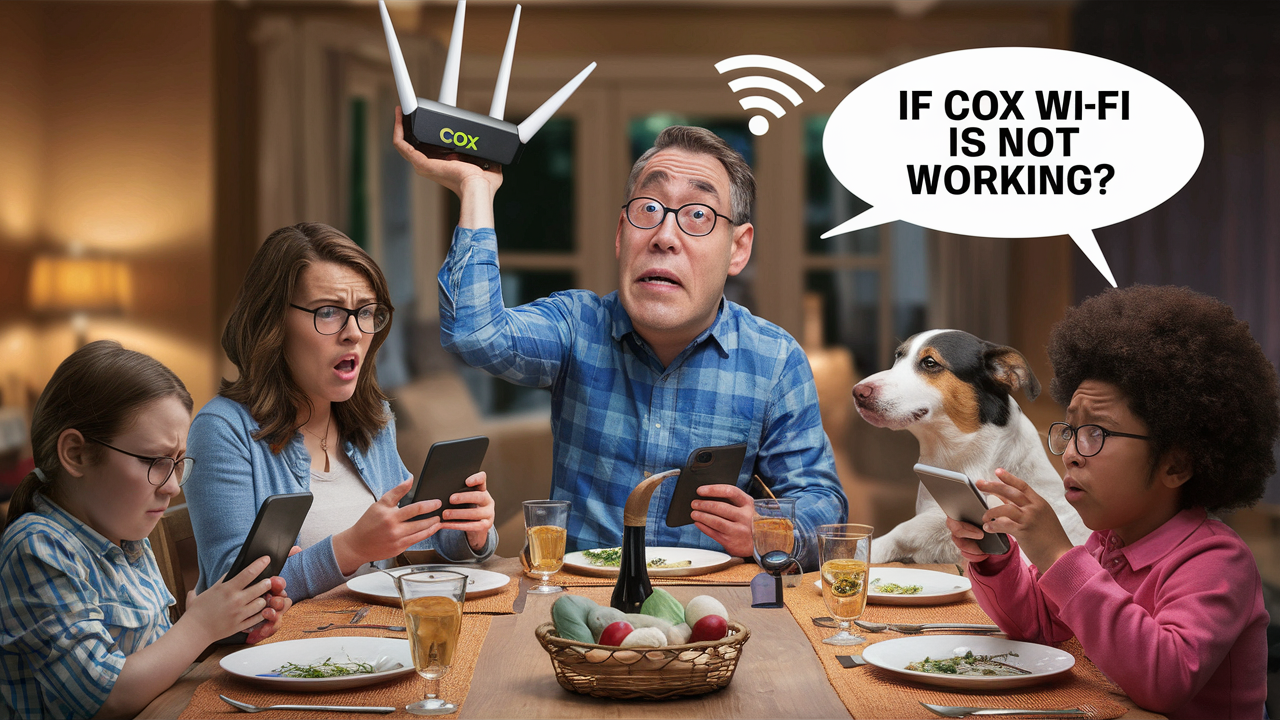
Experiencing a Cox Wi-Fi outage can be incredibly disruptive. This guide provides immediate, actionable steps to troubleshoot and resolve your Cox internet issues, helping you get back online quickly. We'll cover common causes and effective solutions to restore your connection.
Cox Wi-Fi Not Working? Your Comprehensive Troubleshooting Guide
It's a frustrating moment: you're in the middle of an important task, streaming your favorite show, or trying to connect with loved ones, and suddenly, your Cox Wi-Fi stops working. The little Wi-Fi icon shows an exclamation mark, or perhaps there's no signal at all. This comprehensive guide is designed to help you diagnose and fix common Cox internet problems, ensuring you can get back to your digital life as smoothly and quickly as possible. We'll delve into everything from simple reboots to more complex checks, providing you with the knowledge to tackle most connectivity issues yourself before needing to call customer service.
In 2025, reliable internet is not a luxury but a necessity. Whether for remote work, online education, or staying connected with family, a stable Wi-Fi connection is paramount. When Cox Wi-Fi fails, it can bring your day to a standstill. This guide will equip you with the tools and knowledge to identify the root cause of your internet problems and implement effective solutions. We aim to provide a step-by-step approach that empowers users of all technical levels to regain their internet access.
Understanding Common Cox Internet Issues
Before diving into solutions, it's crucial to understand the potential reasons why your Cox Wi-Fi might not be working. These issues can range from simple, easily fixable glitches to more complex problems requiring professional intervention. By categorizing the potential problems, you can better target your troubleshooting efforts.
Hardware Malfunctions
The most common culprits are often your modem and router. These devices, like any electronic equipment, can experience temporary glitches or permanent failures. Overheating, power surges, or simply reaching the end of their lifespan can all lead to connectivity problems. For leased equipment from Cox, a faulty modem or router is a primary suspect. For owned equipment, it's also a possibility.
Software Glitches and Firmware Issues
Both modems and routers run on firmware, a type of software embedded in the hardware. Like any software, firmware can develop bugs or become outdated, leading to performance issues or complete failure to connect. Sometimes, a simple firmware update can resolve persistent problems.
Network Congestion and Signal Interference
Your Wi-Fi signal can be affected by various factors in your environment. Other electronic devices, such as microwaves, cordless phones, and even neighboring Wi-Fi networks, can cause interference. Additionally, if too many devices are connected to your network simultaneously, it can lead to congestion and slow speeds, sometimes perceived as an outage.
Cox Service Outages
Sometimes, the problem isn't with your equipment at all. Cox, like any internet service provider (ISP), can experience local or regional outages due to maintenance, equipment failures at their end, or external factors like severe weather. These outages are beyond your control and require waiting for Cox to resolve the issue.
Configuration Errors
Incorrect settings on your router or modem, especially after a recent change or a factory reset, can prevent devices from connecting to the internet. This could include incorrect Wi-Fi passwords, network name (SSID) issues, or incorrect network configuration settings.
Physical Connection Problems
Loose or damaged cables are a surprisingly common cause of internet downtime. The coaxial cable connecting your modem to the wall outlet, or the Ethernet cable connecting your modem to your router (if they are separate devices), can become disconnected or damaged, interrupting the signal flow.
Billing and Account Issues
While less common for a sudden outage, it's worth noting that overdue bills or account suspension can lead to service disconnection. This is usually preceded by notifications from Cox.
Initial Quick Fixes: The First Steps to Take
When your Cox Wi-Fi goes down, don't panic. Start with these simple, yet often effective, troubleshooting steps. These are the most common fixes that resolve a majority of internet connectivity issues.
1. The Power Cycle (Reboot)
This is the golden rule of troubleshooting any electronic device, and your modem and router are no exception. A power cycle effectively clears temporary glitches and resets the devices. Here’s how to do it correctly:
- Unplug the power to both your modem and your router (if they are separate units). If you have a combined modem/router unit, unplug that single device.
- Wait for at least 60 seconds. This is crucial to allow the devices to fully discharge and reset.
- Plug the modem back in first. Wait for all its indicator lights to stabilize (usually 1-2 minutes). This signifies that the modem has re-established its connection with Cox's network.
- Plug the router back in (if separate). Wait for its lights to stabilize as well.
- Test your connection on a device.
This simple reboot can resolve a surprising number of issues, from slow speeds to complete connection loss.
2. Check Physical Connections
Loose cables are a frequent offender. Ensure all cables are securely plugged in:
- Coaxial Cable: This cable connects your modem to the wall outlet. Make sure it's tightly screwed into both the modem and the wall plate.
- Ethernet Cable: If you have a separate router and modem, check the Ethernet cable connecting them. Ensure it's firmly seated in the ports on both devices.
- Power Cables: Verify that the power adapters for your modem and router are securely plugged into the devices and the wall outlet or power strip.
3. Inspect Indicator Lights
Your modem and router have indicator lights that provide valuable information about their status. Consult your device's manual or Cox's support documentation for the meaning of specific lights, but generally:
- Power Light: Should be solid.
- Online/Internet Light: Should be solid or blinking steadily, indicating a connection to Cox's network. If it's off or blinking erratically, there's likely a problem with the incoming signal.
- Wi-Fi Light: Should be solid or blinking, indicating that the Wi-Fi network is broadcasting.
If critical lights like "Online" are not behaving as expected, it points towards an issue with the service from Cox or a problem with the modem itself.
4. Test with a Wired Connection
To determine if the issue is with your Wi-Fi signal or the internet connection itself, try connecting a computer directly to your modem or router using an Ethernet cable. If you can access the internet via a wired connection but not Wi-Fi, the problem is likely with your router's Wi-Fi broadcast or settings. If you still can't connect via Ethernet, the issue is more likely with the modem or the Cox service.
Advanced Troubleshooting Techniques
If the initial quick fixes don't restore your Cox Wi-Fi, it's time to delve into more advanced troubleshooting. These steps require a bit more technical understanding but can pinpoint more specific issues.
5. Access Your Router's Settings
Your router's web interface allows you to check its status, configure settings, and perform diagnostics. The process varies by router manufacturer, but generally:
- Open a web browser on a device connected to your network (wired or wireless).
- Type your router's IP address into the address bar. Common addresses include 192.168.1.1 or 192.168.0.1. You can usually find this on a sticker on the router itself or in its manual.
- Log in using your router's username and password. If you haven't changed them, default credentials are often "admin" for both, or found on the router's sticker.
Once logged in, look for sections like "Status," "Internet," or "WAN" to see if the router is receiving an IP address from the modem, which indicates a connection to Cox's network. You can also check for firmware updates within the router's settings.
6. Check for Wi-Fi Interference
Wireless interference can significantly degrade your Wi-Fi signal. Common sources include:
- Other Electronics: Microwaves, cordless phones, Bluetooth devices, baby monitors, and even some older fluorescent lights can interfere.
- Neighboring Wi-Fi Networks: In densely populated areas, multiple Wi-Fi networks can operate on the same channels, causing congestion.
- Physical Obstructions: Thick walls, metal objects, and large appliances can weaken the signal.
Solutions:
- Relocate your router: Move it to a central, open location, away from potential interference sources and obstructions.
- Change Wi-Fi channel: Most routers allow you to select different Wi-Fi channels. Use a Wi-Fi analyzer app on your smartphone to find less congested channels. For 2.4GHz, channels 1, 6, and 11 are generally recommended as they don't overlap.
- Consider a dual-band router: If you have a dual-band router (2.4GHz and 5GHz), try connecting devices to the 5GHz band, which is less prone to interference and offers higher speeds, though with a shorter range.
7. Reset Your Router to Factory Defaults
If you suspect a configuration error or have made changes that caused issues, a factory reset can revert your router to its original settings. Be aware: this will erase all your custom settings, including your Wi-Fi name (SSID) and password, so you'll need to reconfigure them afterward.
To perform a factory reset:
- Locate the reset button on your router (often a small, recessed button).
- Use a paperclip or a similar pointed object to press and hold the button for about 10-30 seconds while the router is powered on.
- The router will reboot with its default settings.
- You will then need to set up your Wi-Fi network again.
8. Test with Different Devices
If only one device is having trouble connecting, the issue might be with that specific device rather than your Cox Wi-Fi. Try connecting other devices (laptops, smartphones, tablets) to your Wi-Fi network. If other devices connect successfully, troubleshoot the problem device by restarting it, forgetting and rejoining the Wi-Fi network, or checking its network settings.
Router and Modem Specific Checks
Understanding the differences and roles of your modem and router is key to effective troubleshooting. Cox typically provides a modem, and you might have a separate router for Wi-Fi, or a combined modem/router unit (often called a gateway).
Modem vs. Router: What's the Difference?
A modem is the device that connects your home to your Internet Service Provider's (ISP) network. It translates the incoming signal (usually coaxial cable) into a format your network can use. A router takes that internet connection from the modem and creates a local network (Wi-Fi and wired ports) for your devices to connect to. If you have a Cox-provided gateway, it performs both functions.
Checking Your Cox-Provided Equipment
If you are using equipment leased from Cox, they are responsible for its maintenance and replacement if it's faulty. Ensure you know your equipment model number.
Common Cox Gateway Models and Their Lights (General Guide - consult your specific model's manual for exact meanings):
| Light Name | Status Indicator | Meaning |
|---|---|---|
| Power | Solid | Device is powered on and functioning. |
| Send/Receive (or Upstream/Downstream) | Blinking/Solid | Indicates data transmission. Solid usually means connected. |
| Online (or Internet) | Solid | Modem is connected to Cox's network. Blinking or off indicates no connection. |
| Wi-Fi (or Wireless) | Solid/Blinking | Wi-Fi network is active. |
| Ethernet | Solid/Blinking | Indicates a device is connected via Ethernet cable. |
If the "Online" or "Internet" light on your Cox modem or gateway is not solid, it strongly suggests an issue with the service coming into your home or the modem itself. This is a critical indicator to report to Cox support.
Using Your Own Router?
If you use your own router connected to a Cox modem, the troubleshooting steps might differ slightly. Ensure your modem is in "bridge mode" if you are using your own router to avoid network conflicts (double NAT). You can usually configure this through your modem's interface or by contacting Cox.
Firmware Updates
Outdated firmware can cause performance issues and security vulnerabilities. If you have a Cox gateway, Cox typically manages firmware updates remotely. If you use your own router, check the manufacturer's website for the latest firmware and follow their instructions for updating. This is often done through the router's web interface.
Checking Your Cox Account and Service Status
Sometimes, the issue is external to your home network. Checking Cox's status and your account is a vital step.
Cox Service Outage Map and Status
The most direct way to check for widespread issues is to visit Cox's official website or use their mobile app. They usually have a section for checking service status or an outage map.
How to check:
- Go to the Cox Communications website.
- Look for "Support," "Outages," or "Service Status."
- You may need to log in to your account or enter your address to check for localized outages.
Cox also often provides estimated restoration times for ongoing outages. If an outage is reported in your area, the best course of action is to wait for Cox to resolve it.
My Account Portal
Log in to your Cox My Account portal to ensure your account is in good standing. Check for any billing alerts or service notifications. While rare for sudden Wi-Fi issues, ensuring your account is active and paid is a fundamental check.
Recent Changes to Your Service
Did you recently upgrade your internet plan, move your service, or have a technician visit? Sometimes, recent changes can lead to temporary disruptions as systems are updated. If your issue started immediately after such an event, it might be related.
When to Contact Cox Support
After exhausting the self-troubleshooting steps, it's time to reach out to Cox's customer support. Knowing when and how to contact them can make the process more efficient.
Signs You Should Contact Cox
- Persistent "Online" light issues: If the "Online" or "Internet" light on your modem/gateway remains off, blinking, or shows an error after power cycling and checking cables, it indicates a problem with the signal from Cox.
- No internet access via wired connection: If even a direct Ethernet connection doesn't work after troubleshooting your router, the issue is likely with the modem or the Cox service itself.
- You've performed all previous steps: If you've rebooted, checked cables, verified lights, and tested with different devices without success.
- Cox reports an outage in your area: While you can't fix it yourself, contacting them might provide more specific details or allow you to report your specific experience if you believe it's not being addressed.
- Frequent or intermittent disconnections: If your internet is constantly dropping, even if it sometimes works, it warrants a support call.
How to Contact Cox Support Effectively
When you call Cox, be prepared to provide them with specific information to expedite the process:
- Your Account Information: Have your account number or the phone number associated with your account ready.
- Your Equipment Model: Know the make and model of your modem and router (especially if you own your equipment).
- Troubleshooting Steps You've Taken: Clearly explain what you've already tried (e.g., "I've power cycled the modem and router multiple times," "I've checked all cable connections," "The 'Online' light is off"). This prevents them from asking you to repeat basic steps.
- Specific Symptoms: Describe exactly what is happening – are there no lights, error lights, slow speeds, or complete disconnections?
Cox offers several support channels:
- Phone Support: Typically the most direct way to speak with a technician.
- Online Chat: Convenient for quick questions or if you prefer typing.
- Cox App/Website Support: Many issues can be diagnosed or reported through their digital platforms.
Be patient, as wait times can vary. If the initial support agent cannot resolve the issue, ask to speak with a supervisor or a higher-level technical support team.
What to Expect When Cox Support is Involved
Cox support may perform remote diagnostics on your modem. They might ask you to perform further troubleshooting steps. If they suspect a problem with your equipment, they may schedule a technician visit. If the issue is external to your home, they will work to resolve it on their end.
Preventative Measures for Stable Internet
Once your Cox Wi-Fi is back up and running, it's wise to implement some preventative measures to minimize future disruptions. Proactive steps can save you time and frustration.
1. Regular Equipment Maintenance
Keep your modem and router clean and well-ventilated. Dust buildup can cause overheating, which leads to performance issues and potential damage. Ensure they are placed in an open area, not enclosed in cabinets or stacked with other electronics.
2. Optimize Router Placement
As mentioned in troubleshooting, centralizing your router and keeping it away from potential interference sources is key. For larger homes, consider a mesh Wi-Fi system or Wi-Fi extenders to ensure consistent coverage throughout.
3. Secure Your Wi-Fi Network
A strong, unique password for your Wi-Fi network prevents unauthorized access, which can consume bandwidth and slow down your connection. Use WPA2 or WPA3 encryption. Regularly changing your Wi-Fi password can also be a good security practice.
4. Manage Connected Devices
Be mindful of the number of devices actively using your internet connection. If you have many devices streaming, gaming, or downloading simultaneously, it can strain your bandwidth. Consider upgrading your internet plan if you consistently experience slowdowns due to high usage.
5. Monitor Your Internet Speed
Periodically run speed tests (e.g., using Ookla Speedtest) to ensure you are receiving the speeds you are paying for. If you consistently see significantly lower speeds, it might indicate an issue with your plan, equipment, or Cox's service that needs addressing.
6. Consider Purchasing Your Own Equipment
While leasing equipment from Cox is convenient, purchasing your own modem and router can sometimes be more cost-effective in the long run and offers greater control over your network settings and firmware updates. Ensure any purchased equipment is compatible with Cox's network.
7. Stay Informed About Cox Updates
Keep an eye on any communications from Cox regarding network upgrades or maintenance in your area. Being aware of scheduled work can help you anticipate potential temporary service interruptions.
By implementing these preventative strategies, you can significantly improve the reliability and performance of your Cox Wi-Fi connection, ensuring a more stable and consistent online experience for all your devices.
Conclusion
Experiencing Cox Wi-Fi issues can be a significant inconvenience, but by systematically working through this guide, you can effectively diagnose and resolve most common problems. From simple power cycles and cable checks to more advanced router settings and interference management, you are now equipped to tackle connectivity challenges. Remember to leverage Cox's resources, such as their outage maps and customer support, when necessary. By understanding your equipment, your service, and basic troubleshooting principles, you can minimize downtime and maintain a reliable internet connection for your home or business. Don't let a Wi-Fi outage disrupt your day; take control with these actionable steps.






