What does Red Light Mean on Cox Router?
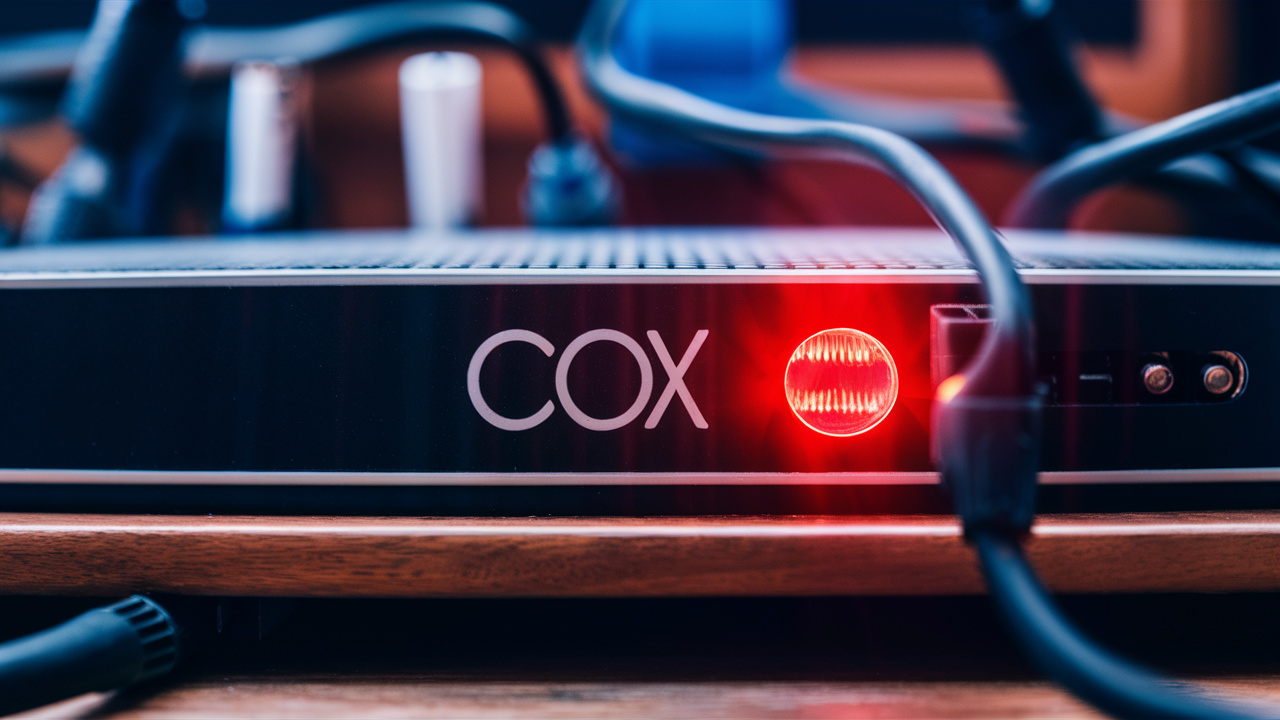
Encountering a red light on your Cox router can be a source of frustration, interrupting your internet connection. This guide provides a comprehensive breakdown of what that ominous red light signifies, common causes, and actionable solutions to get you back online swiftly. We'll demystify the blinking and solid red lights, offering clear steps for diagnosis and resolution.
Understanding the Red Light on Your Cox Router
The lights on your Cox router are designed to be diagnostic indicators, providing a visual status of the device's operation and its connection to the internet. When the power light, internet light, or even a general status light turns red, it universally signals an issue. Unlike the steady green or blue lights that indicate a healthy connection, a red light is a clear alert that something is not functioning as it should. The specific meaning can vary slightly depending on the router model, but the underlying message is consistent: there's a problem that needs attention.
For instance, a solid red light on the "Internet" or "Online" indicator typically means the router is unable to establish a connection with Cox's network. This could be due to an outage in your area, a problem with the coaxial cable connection, or an issue with the modem itself. A blinking red light might suggest a more dynamic problem, such as the router attempting to connect but failing repeatedly, or perhaps a firmware issue. Understanding these nuances is the first step in effectively diagnosing and resolving the problem. In 2025, with the increasing reliance on stable internet for remote work, online education, and entertainment, even a brief outage can be highly disruptive. Cox routers, like many other network devices, utilize a system of LED indicators to communicate their status. Recognizing the specific color and behavior of these lights is crucial for efficient troubleshooting.
Cox offers a range of router models, and while the general principles of LED indicators remain similar, the exact placement and meaning of each light can differ. For example, some newer models might have a single status light that cycles through colors to indicate different states, while older models might have dedicated lights for power, internet, Wi-Fi, and Ethernet. Regardless of the model, a red light is never a good sign. It's the universal symbol for "attention required." This guide aims to provide a comprehensive understanding of what that red light means for your specific Cox router, covering the most common scenarios and offering practical, actionable advice.
The Role of Router Lights
Router lights, or LEDs (Light Emitting Diodes), are miniature indicators that provide real-time feedback on the operational status of your internet equipment. They are the first line of defense in diagnosing connectivity issues. Each light typically corresponds to a specific function:
- Power: Indicates if the router is receiving power. A solid green or blue usually means it's on and functional. Red or no light suggests a power problem.
- Internet/Online: Shows if the router has successfully established a connection with your Internet Service Provider (ISP), in this case, Cox. A steady light (often green or blue) signifies a good connection. Red or blinking lights indicate a loss of connection or an attempt to connect.
- Wi-Fi: Confirms that the wireless network is active and broadcasting. A solid or blinking light usually means Wi-Fi is working.
- Ethernet/LAN: Indicates an active wired connection to a device. Lights here usually blink when data is being transmitted.
Understanding these basic functions is key. When a red light appears on any of these indicators, it's a signal that the corresponding function is not operating correctly. The challenge lies in pinpointing which function is failing and why. This guide will help you navigate these indicators and understand the specific implications of a red light on your Cox router.
Why Red is a Warning Sign
In the world of technology, red is almost universally recognized as a warning or error indicator. Unlike green or blue, which typically signify normal operation, or yellow/orange, which might indicate a transitional state or a minor issue, red denotes a critical problem. For your Cox router, a red light means that a vital component or connection is not functioning correctly, leading to an interruption or complete loss of internet service. This could range from a simple loose cable to a more complex network-wide issue. The urgency associated with a red light stems from its direct impact on your ability to access the internet, which is indispensable in today's connected world. In 2025, with an estimated 90% of households relying on consistent internet access for daily activities, a red light is more than an inconvenience; it's a disruption to modern life.
Common Causes of a Red Light on Your Cox Router
The appearance of a red light on your Cox router is rarely a random event. It's a symptom of an underlying issue, and understanding these common causes is the first step toward a swift resolution. These issues can range from simple physical connections to more complex network or device malfunctions. In 2025, with the increasing complexity of home networks and the higher bandwidth demands, identifying the root cause quickly is paramount to minimizing downtime.
Internet Service Outages
One of the most frequent reasons for a red light on your Cox router, particularly on the "Internet" or "Online" indicator, is an active service outage in your area. ISPs like Cox experience outages due to various reasons, including severe weather, equipment failures at their central offices, maintenance work, or damage to their infrastructure. When an outage occurs, your router cannot establish a connection with Cox's network, triggering the red light. These outages can be widespread or localized to a specific neighborhood. In 2025, the resilience of ISP infrastructure is constantly being tested by extreme weather events, making outages a persistent concern. It's essential to check if Cox has reported an outage in your vicinity before diving into router-specific troubleshooting.
Loose or Damaged Cables
The physical connection between your router and the Cox network is crucial. This typically involves a coaxial cable connecting your modem (which might be integrated into your router or a separate device) to the wall outlet. If this cable is loose, bent, kinked, or damaged, it can prevent a stable signal from reaching your router, leading to a red light. The same applies to the Ethernet cable connecting your modem to your router if they are separate units. Even a slightly dislodged cable can cause intermittent or complete loss of connection. In 2025, with the increasing popularity of mesh Wi-Fi systems and complex home networking setups, ensuring all physical connections are secure is often overlooked but remains a fundamental troubleshooting step.
Modem or Router Malfunction
Like any electronic device, modems and routers can experience malfunctions. This could be due to a hardware defect, overheating, or a software glitch. If the modem or router itself is failing, it won't be able to communicate with Cox's network, resulting in a red light. Sometimes, a simple power cycle (unplugging and plugging back in) can resolve temporary software glitches. However, if the device is genuinely malfunctioning, it may need to be replaced. In 2025, the lifespan of consumer electronics is a consideration, and older or heavily used devices are more prone to failure. Identifying whether the issue lies with the modem, the router, or the combined unit is key.
Configuration or Firmware Issues
Your router's firmware is the software that controls its operations. Outdated, corrupted, or improperly installed firmware can lead to connectivity problems. Similarly, incorrect network configuration settings can prevent the router from connecting to the internet. While Cox typically manages firmware updates remotely, sometimes these updates can fail, or a manual configuration change might have been made that is causing the issue. In 2025, with the increasing sophistication of router capabilities and security protocols, firmware integrity is more critical than ever. A failed firmware update is a less common but significant cause of router issues.
Billing or Account Problems
While less common for a red light specifically on the router, in some instances, an issue with your Cox account, such as an unpaid bill that has led to service suspension, could theoretically manifest as a connectivity problem indicated by your router's lights. Cox's system might deactivate the service at their end, preventing your modem from establishing a connection. This is usually accompanied by other notifications, but it's a possibility to consider if other troubleshooting steps fail. In 2025, with more automated billing systems, service suspension due to payment issues is a standard procedure.
Troubleshooting Step-by-Step: Bringing Your Router Back to Life
When faced with a red light on your Cox router, it's natural to feel a sense of urgency. Fortunately, many common issues can be resolved with a systematic troubleshooting approach. This guide provides a step-by-step process to help you diagnose and fix the problem, getting you back online as quickly as possible. By following these instructions, you can effectively address most red light scenarios without needing immediate technical support.
Step 1: Check for Cox Outages
Before you begin troubleshooting your equipment, it's crucial to rule out a service outage. This is the simplest and most common cause of a red internet light.
- Visit the Cox Website: Go to the official Cox Communications website (www.cox.com).
- Navigate to Support/Outage Information: Look for a "Support," "Service Status," or "Outage Information" section. You may need to log in to your account.
- Use the Outage Map/Checker: Cox typically provides an interactive map or a tool where you can enter your address to check for reported outages in your area.
- Check Social Media: Sometimes, ISPs will post updates about widespread outages on their official social media channels (e.g., Twitter).
Step 2: Inspect Physical Connections
Loose or damaged cables are a frequent culprit for connectivity issues. Ensure all connections are secure and in good condition.
- Power Cable: Make sure the power adapter is securely plugged into both the router and a working electrical outlet. Try a different outlet if you suspect the outlet itself is faulty.
- Coaxial Cable: This is the cable that brings the internet signal from your wall to your modem/router.
- Ensure it's firmly screwed into both the modem/router and the wall outlet.
- Check for any visible damage, such as kinks, cuts, or frayed wires.
- If you have a separate modem and router, ensure the Ethernet cable connecting them is also securely plugged in at both ends and shows no damage.
- Other Cables: If you have devices connected via Ethernet, check those connections as well, although this is less likely to cause a red internet light.
Step 3: Perform a Power Cycle (Reboot)
A power cycle is often referred to as a "reboot" and is the most effective first troubleshooting step for many electronic devices, including routers. It can resolve temporary software glitches and refresh the connection.
- Unplug the Router: Locate the power adapter for your Cox router and unplug it from the electrical outlet.
- Unplug the Modem (if separate): If you have a separate modem, unplug its power adapter as well.
- Wait: Leave both devices unplugged for at least 60 seconds. This allows any residual power to dissipate and ensures a full reset.
- Plug in the Modem (if separate): If you have a separate modem, plug its power adapter back in first. Wait for its lights to stabilize (usually 1-2 minutes), indicating it has reconnected to Cox's network.
- Plug in the Router: Once the modem lights are stable, plug the power adapter for your router back into the electrical outlet.
- Wait for Boot-up: Allow the router several minutes to boot up and establish a connection. Observe the indicator lights.
Step 4: Check Router Model-Specific Lights
Different Cox router models have varying LED indicator configurations. Understanding what each light means for your specific device is crucial.
- Consult Your Router's Manual: The most accurate information will be in the user manual that came with your router. If you don't have it, you can usually find a digital version on the Cox website by searching for your router's model number.
- Cox Support Website: Cox's support pages often have articles detailing the meaning of indicator lights for various modem and router models they provide.
- Common Indicators and Their Red Light Meanings:
- Power Light Red: Indicates a power issue. Ensure the adapter is connected and the outlet is working. If it persists, the router may be faulty.
- Internet/Online Light Red: This is the most common scenario. It signifies no connection to Cox's network. Causes include outages, cable issues, or modem/router problems.
- DS/US (Downstream/Upstream) Lights Red or Off: These lights indicate the connection status with the cable provider's network. Red or no light here points to a signal issue from Cox.
- Wi-Fi Light Red: Less common for internet connectivity, but can indicate an internal Wi-Fi module issue.
Step 5: Bypass the Router (If Possible)
If you have a separate modem and router, you can try bypassing the router to see if the internet connection works when directly connected to the modem. This helps determine if the router is the source of the problem.
- Disconnect Router: Unplug the Ethernet cable from your router's WAN/Internet port.
- Connect Computer Directly to Modem: Plug one end of an Ethernet cable into the Ethernet port on your modem and the other end directly into the Ethernet port on your computer.
- Power Cycle Modem: You may need to power cycle your modem again after connecting your computer directly. Unplug the modem's power, wait 30 seconds, and plug it back in. Wait for its lights to stabilize.
- Test Internet Connection: Once the modem lights are stable, try to access a website on your computer.
Advanced Troubleshooting and When to Call Cox
If the initial troubleshooting steps haven't resolved the red light on your Cox router, it's time to delve into more advanced diagnostics or consider contacting Cox for professional assistance. Sometimes, the issue requires specialized tools or knowledge that only the ISP can provide. Knowing when to escalate the problem can save you time and frustration. In 2025, Cox offers various support channels, from online chat to phone support, making it easier to get help when needed.
Checking Signal Levels
For coaxial cable connections, signal strength and quality are critical for a stable internet connection. While you can't directly adjust these, you can sometimes access diagnostic information through your modem or router's web interface.
- Access Router/Modem Interface: Open a web browser and type your router's IP address (often 192.168.0.1 or 192.168.1.1) into the address bar. Log in using your administrator credentials (usually found on a sticker on the router or in the manual).
- Find Diagnostics/Status Page: Navigate through the interface to find a "Status," "Diagnostics," or "Connection" page.
- Review Signal Levels: Look for information related to "Downstream Power," "Upstream Power," "SNR" (Signal-to-Noise Ratio), and "Corrected/Uncorrected Errors."
Resetting the Router to Factory Defaults
If you suspect a configuration issue or a persistent software glitch that a simple reboot didn't fix, performing a factory reset can restore your router to its original settings. Warning: This will erase all your custom settings, including your Wi-Fi network name (SSID) and password, so you'll need to reconfigure them afterward.
- Locate the Reset Button: Most routers have a small, recessed reset button on the back or bottom panel. You'll likely need a paperclip or a similar pointed object to press it.
- Press and Hold: With the router powered on, press and hold the reset button for about 10-15 seconds.
- Observe Lights: The router's lights should flash or change, indicating it's resetting.
- Release Button: Release the button and allow the router to reboot completely. This may take several minutes.
- Reconfigure: Once reset, you'll need to set up your Wi-Fi network name and password again, and any other custom configurations.
When to Contact Cox Support
There are several situations where contacting Cox customer support is the most efficient and effective course of action.
- Outage Confirmed: If Cox confirms an outage in your area, you'll need to wait for them to resolve it.
- Persistent Red Light After Troubleshooting: If you've gone through all the previous steps (checking cables, power cycling, checking model specifics, bypassing router) and the red light remains, it's time to call.
- Damaged Equipment: If you discover damaged cables or suspect your modem/router is physically broken, Cox can advise on replacement options.
- Poor Signal Levels: If you've checked your modem's signal levels and they appear problematic, Cox technicians can diagnose and fix external signal issues.
- No Internet When Bypassing Router: If you still have no internet connection when your computer is directly connected to the modem, the problem is almost certainly with the modem or Cox's service.
- Account Issues: If you suspect a billing or account suspension might be the cause, Cox support can clarify your account status.
What Cox Support Can Do
Cox support technicians have access to tools and information that you don't. They can:
- Remotely Diagnose: They can often check the status of your modem and connection from their end.
- Send Signals: They can send provisioning or reset signals to your modem.
- Schedule a Technician Visit: If the issue cannot be resolved remotely, they can schedule a technician to visit your home and inspect the lines and equipment.
- Replace Equipment: If your modem or router is faulty and leased from Cox, they can arrange for a replacement.
Preventative Measures and Best Practices for a Stable Connection
While troubleshooting is essential when problems arise, adopting preventative measures and best practices can significantly reduce the likelihood of encountering a red light on your Cox router in the first place. Maintaining a stable internet connection in 2025 requires a proactive approach to your home network. These strategies focus on ensuring your equipment is well-maintained, properly configured, and protected from common issues.
Proper Ventilation and Placement
Electronic devices generate heat, and routers are no exception. Overheating can lead to performance issues and premature failure.
- Avoid Enclosed Spaces: Do not place your router inside a closed cabinet, drawer, or entertainment center without adequate airflow.
- Keep Away from Heat Sources: Position your router away from direct sunlight, radiators, or other heat-generating appliances.
- Ensure Airflow: Make sure there is space around the router for air to circulate freely. Many routers have vents on the sides or bottom.
Regular Firmware Updates
Firmware is the operating system of your router. Manufacturers, including Cox, regularly release updates to improve performance, fix bugs, and enhance security.
- Automatic Updates: Many modern Cox routers are configured to update their firmware automatically. Check your router's settings or your Cox account portal to ensure this feature is enabled.
- Manual Updates: If automatic updates are not available or you prefer to manage them manually, periodically check the Cox support website for your specific router model for available firmware updates. Follow the provided instructions carefully.
Secure Your Wi-Fi Network
While not directly causing a red light on the router's internet indicator, an unsecured Wi-Fi network can lead to performance degradation and potential security risks.
- Strong Password: Use a strong, unique password for your Wi-Fi network.
- WPA2/WPA3 Encryption: Ensure your router is using the latest encryption standards (WPA2 or WPA3) for your wireless security.
- Change Default Credentials: Always change the default administrator username and password for accessing your router's settings.
Avoid Overloading Your Network
While Cox provides various internet speed tiers, connecting too many devices or running bandwidth-intensive applications simultaneously can strain your network, potentially leading to connectivity hiccups.
- Monitor Device Usage: Be mindful of how many devices are actively streaming, downloading, or gaming at the same time.
- Consider Speed Upgrades: If you consistently experience slow speeds or dropped connections with many active devices, consider upgrading your internet plan with Cox.
- Quality of Service (QoS): Some routers offer QoS settings that allow you to prioritize certain types of traffic (e.g., video conferencing over large downloads).
Periodic Equipment Checks
Make it a habit to periodically check your modem and router for any signs of wear or damage.
- Inspect Cables: Regularly check that all cables are securely connected and show no signs of damage.
- Clean Vents: Dust can accumulate on router vents, hindering airflow. Gently clean them with compressed air or a soft brush.
- Monitor Performance: Pay attention to any changes in your internet speed or connection stability. Early detection of issues can prevent more significant problems.
Consider Surge Protection
Power surges, often caused by lightning strikes or electrical grid fluctuations, can damage sensitive electronic equipment like your router and modem.
- Use a Surge Protector: Plug your modem and router into a high-quality surge protector.
- Unplug During Storms: During severe thunderstorms, consider unplugging your networking equipment from the power outlet for added protection.
Conclusion
Encountering a red light on your Cox router can be a stressful experience, but it's often a solvable problem. This comprehensive guide has illuminated the common causes, from simple cable issues and service outages to more complex equipment malfunctions. By systematically following the troubleshooting steps outlined, including checking for Cox outages, inspecting physical connections, performing power cycles, and understanding your specific router model's indicators, you can effectively diagnose and resolve many of these issues. For persistent problems, advanced steps like factory resets or checking signal levels provide further diagnostic avenues, and knowing when to contact Cox support ensures you receive professional assistance when needed. Implementing preventative measures, such as ensuring proper ventilation, keeping firmware updated, and securing your network, is key to maintaining a stable and reliable internet connection. In 2025, with our increasing reliance on connectivity, a well-maintained network is essential for seamless daily operations. Don't let a red light disrupt your digital life; empower yourself with the knowledge to keep your Cox router performing optimally.






