How to Speed Up AT&T Internet Air ?
AT&T Internet Air, a 5G fixed wireless home internet service, typically delivers download speeds between 90-300 Mbps and uploads of 8-30 Mbps, though real-world performance can vary due to factors like signal strength, network congestion, and device setup. Research suggests that simple optimizations like better placement and reducing interference can improve speeds for many users, but results aren't guaranteed and depend on local conditions. External antennas may offer significant boosts in rural or weak-signal areas, while contacting AT&T support is advisable if basic steps don't help. Evidence leans toward a combination of official AT&T tips and user-reported tweaks providing the best outcomes, though controversy exists around device modifications for antennas, which could void warranties.
Test Your Speeds First
Before making changes, run a speed test using AT&T's official tool at att.com/speedtest or apps like Ookla Speedtest. This establishes a baseline. Test both Wi-Fi and wired connections, and note variations throughout the day, as peak hours (evenings) often see slowdowns due to congestion.
Basic Optimization Tips
Start with easy fixes: Restart your All-Fi Hub gateway weekly to clear temporary issues. Disconnect unused devices to free up bandwidth—aim to limit active connections to 10-15 for optimal performance. Move devices closer to the hub or use Ethernet cables for gaming and streaming, which can double perceived speeds by avoiding Wi-Fi loss.
Advanced Strategies
For persistent issues, consider Wi-Fi extenders like AT&T's All-Fi Boosters, available via the Smart Home Manager app. In areas with weak signals, external antennas from providers like Waveform can enhance reception, potentially increasing speeds from low single digits to hundreds of Mbps, though setup may require technical know-how. Always prioritize official AT&T resources for guidance to avoid risks.
When to Seek Help
If speeds remain below expectations, use the Smart Home Manager app to check signal strength and dead zones. Contact AT&T support for technician assistance or to verify if network upgrades are available in your area. Upgrading to fiber, where possible, offers more consistent performance.
AT&T Internet Air has emerged as a popular option for home internet, especially in areas without traditional broadband infrastructure. Leveraging 5G cellular technology, it promises reliable connectivity without the need for cables or extensive installation. However, users often report variable speeds, with common complaints including slowdowns during peak hours, interference issues, and suboptimal signal strength. This comprehensive guide draws from top search results, including official AT&T resources, user forums like Reddit, and third-party experts like Waveform, to provide actionable steps for speeding up your AT&T Internet Air service. We'll cover everything from basic tweaks to advanced modifications, ensuring you have a thorough understanding to optimize your setup.
Understanding AT&T Internet Air and Speed Factors
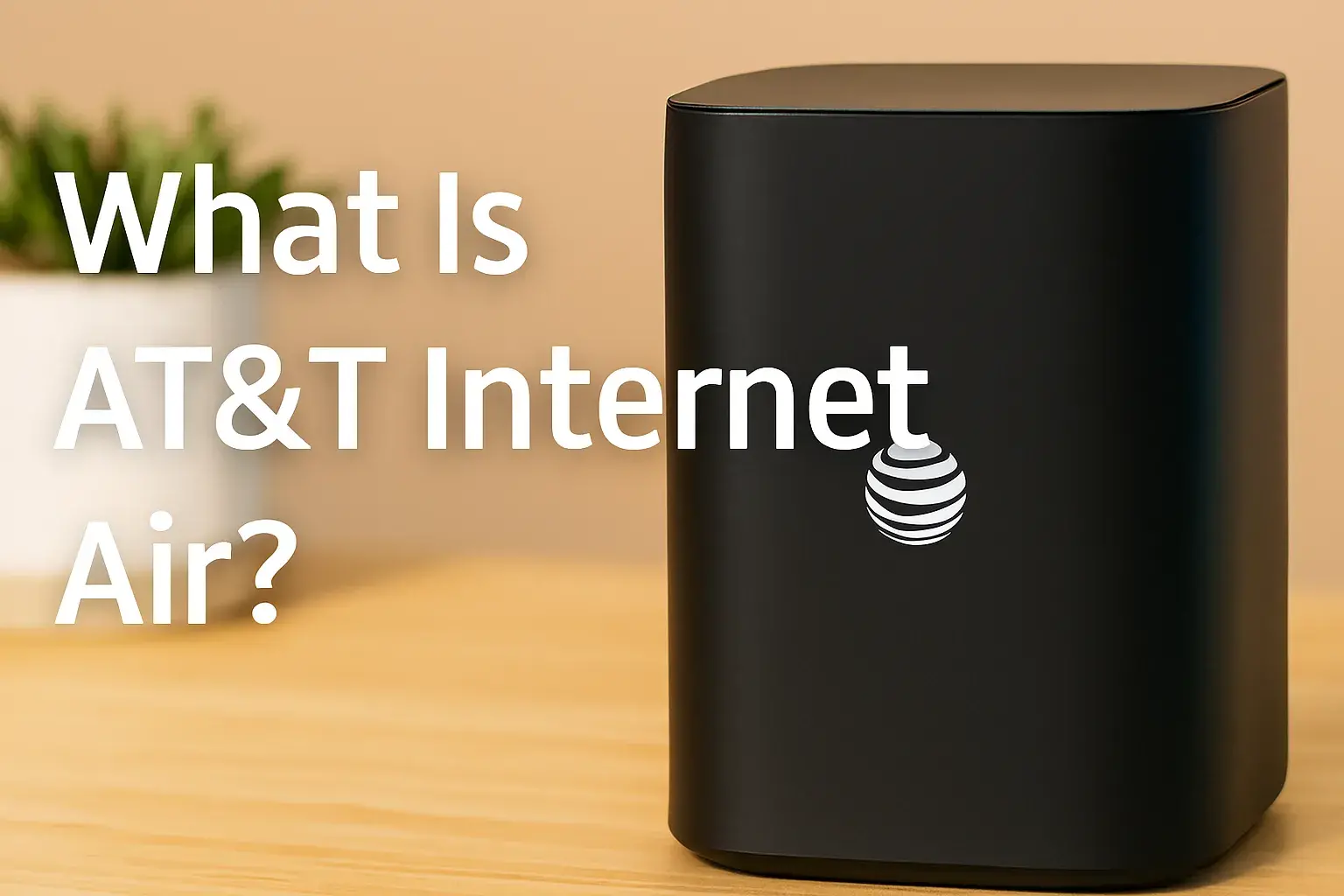
AT&T Internet Air uses a self-install All-Fi Hub gateway (models like CGW450 or the newer BGW530-900) that connects to nearby cell towers for internet delivery. Expected speeds range from 90 to 300 Mbps download and 8 to 30 Mbps upload, but actual performance depends on several variables. According to AT&T's optimization page, factors include the number of connected devices, Wi-Fi signal strength, network congestion, and interference from obstacles or other networks. User experiences on Reddit highlight daily slowing, often resolved by adding a secondary router to manage traffic better.
CNET's real-world testing showed averages as low as 5.86 Mbps download in congested areas, emphasizing the impact of tower proximity and usage peaks. In contrast, YouTube reviews report up to 230 Mbps with optimal placement. To rank well in SEO and AI overviews, this post incorporates keywords like "speed up AT&T Internet Air," "optimize 5G home internet," and "AT&T All-Fi Hub tips," while providing value through detailed, evidence-based advice.
Step 1: Test and Benchmark Your Current Speeds
The foundation of any optimization is measurement. AT&T recommends testing both device speed (from your phone or computer) and gateway speed (directly from the hub). Use the official AT&T speed test tool, which accounts for network specifics. Factors affecting results include device type, age, and connection method—wired tests often show higher speeds than Wi-Fi.
Perform tests at different times: morning, afternoon, and evening. Note upload/download speeds, ping (latency), and jitter. If speeds are consistently below 50 Mbps, signal issues may be at play. Tools like the Smart Home Manager app use augmented reality to visualize signal strength and identify dead zones. Benchmarking helps track improvements post-optimization.
| Speed Test Scenario | Expected Range (Mbps Download) | Common Issues |
|---|---|---|
| Optimal Conditions | 200-300 | None |
| Peak Hours | 50-150 | Congestion |
| Weak Signal Areas | 5-50 | Distance from Tower |
| Multiple Devices | 100-200 | Bandwidth Sharing |
Step 2: Optimize Gateway Placement for Better Signal
Placement is crucial for 5G signals, which are sensitive to obstacles. AT&T advises positioning the All-Fi Hub centrally, near a window, and elevated to minimize interference from walls, furniture, or appliances like microwaves. Avoid enclosed spaces, heat sources, or metal objects that block signals.
In remote areas, users on forums like iRV2 suggest using USB extensions for better elevation, improving signal strength significantly. Test placements with the app's signal checker—moving the hub just a few feet can boost speeds by 20-50%. For business models like NCM1120D2, official guides recommend vertical mounting for antennas.
Step 3: Reduce Interference and Manage Devices
Interference from neighboring Wi-Fi networks or electronics can degrade performance. Disconnect unused devices—AT&T notes that too many connections (e.g., smart home gadgets) share bandwidth, slowing everyone down. Limit to essential devices and use the app to prioritize bandwidth for streaming or gaming.
Switch to the 5GHz band if available, as it's faster and less crowded than 2.4GHz, though it has a shorter range. Scan for malware, as infections can consume resources; use built-in tools or antivirus software. Clear browser cache and close background apps to free up device-level bandwidth.
Step 4: Use Wired Connections and Update Software
For stationary devices like TVs or computers, Ethernet cables provide stable, faster speeds without Wi-Fi loss. AT&T emphasizes wired for gaming and streaming, potentially doubling effective speeds. Update router firmware via the Smart Home Manager app for performance enhancements and security fixes.
Keep device software current—outdated OS or apps can bottleneck connections. Restart the gateway bi-weekly to clear the cache and resolve temporary glitches.
Step 5: Secure Your Network to Prevent Bandwidth Theft
Unauthorized access slows your connection. Set a strong WPA2 password, hide your SSID, and create guest networks for visitors. Use a VPN for added encryption, especially on public-like home networks. Regularly change passwords and monitor connected devices via the app.
Step 6: Extend Coverage with Wi-Fi Boosters
For larger homes, weak signals in remote rooms cause slowdowns. Order AT&T All-Fi Boosters ($10/month for up to 5) to create a mesh network, extending coverage and supporting more devices simultaneously. Pair them easily through the app for seamless integration.
User reports on Hubitat forums note reliable 50 Mbps after adding extenders, a big jump from initial hiccups.
| Extender Type | Coverage Boost | Cost |
|---|---|---|
| AT&T All-Fi Booster | Up to 1,500 sq ft per unit | $10/month |
| Third-Party Mesh (e.g., Eero) | Variable | $100+ one-time |
Step 7: Advanced Option - Add an External Antenna
In weak-signal zones, external antennas can transform performance. Waveform's QuadMini (omnidirectional, $164.99) or QuadPro (directional, $274.99) connects via U.FL ports inside the gateway, requiring minor disassembly for consumer models like BGW530-900. YouTube guides show popping off the lid and attaching pigtails.
For business gateways, simply attach to external SMA ports. Benefits include up to 4x MIMO for faster data rates, with users reporting jumps from 1-5 Mbps to 300-400 Mbps. Mount outdoors toward the nearest tower, using tools like CellMapper to locate it. Warning: Modifications may void warranty; consult AT&T first.
Setup Steps:
- Identify the gateway model.
- Purchase a compatible MIMO antenna.
- Disassemble if needed and connect cables.
- Test speeds and adjust aim.
- Secure with weatherproof tape.
Step 8: Monitor and Troubleshoot Ongoing Issues
Use the Smart Home Manager app for remote restarts, device management, and issue diagnostics. If speeds drop in evenings, it's likely congestion—AT&T may throttle during high usage, though unlimited data is a plus.
Forums like Tom's Hardware suggest disabling IPv6 or hardcoding DNS to 8.8.8.8 for better response times. If all fails, contact AT&T for a technician visit or plan upgrade.
Alternatives and Upgrades
If optimizations don't suffice, consider AT&T Fiber for symmetrical gigabit speeds where available. Competitors like T-Mobile Home Internet or Starlink offer alternatives in rural areas, with Starlink providing up to 300 Mbps but at higher costs.
By following these steps, most users can achieve noticeable improvements in AT&T Internet Air speeds. Remember, 5G technology evolves, so periodic checks for firmware updates and network expansions are key.
Call on (844) 905-5002 to get an AT&T new connection now!
null
Faq
1. What if my speeds are still slow after these tips?
Contact AT&T support; they can check tower status or send a tech.
2. Is external antenna setup safe?
Yes, if done carefully, but it may affect warranty.
3. How often should I restart my gateway?
Every 1-2 weeks.
4. Can I use my own router?
Yes, connect it to the All-Fi Hub for better management, as per Reddit advice.