How to Fix Cox WiFi Blinking Orange?
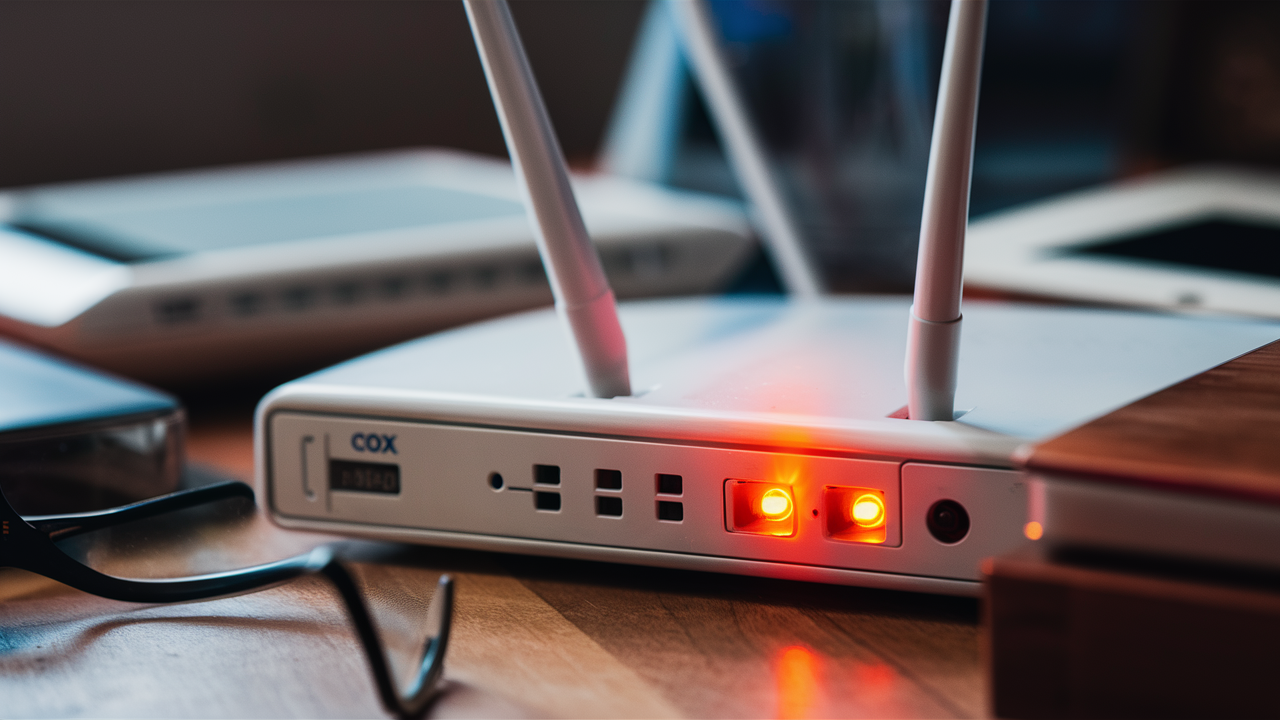
Experiencing a blinking orange light on your Cox WiFi modem can be frustrating, often signaling a connection issue. This comprehensive guide will walk you through the most effective troubleshooting steps to diagnose and resolve this common problem, ensuring you get your internet back online quickly and efficiently.
Understanding the Cox WiFi Blinking Orange Light
The status lights on your Cox modem are designed to provide a quick visual indicator of its operational state. While solid green or blue lights generally signify a healthy connection, a blinking orange light is a clear signal that something is amiss. This blinking pattern typically indicates that the modem is attempting to establish a connection with the Cox network but is encountering an obstacle. It's not necessarily a catastrophic failure, but it does mean your internet service is likely interrupted or unstable. Understanding what this light signifies is the first step in effectively troubleshooting the issue.
In 2025, the prevalence of smart home devices and the increasing reliance on stable internet for remote work, education, and entertainment means that any disruption to WiFi service can have a significant impact. Cox, like other major ISPs, uses a series of lights to communicate modem status. A blinking orange light often falls into the category of "connection attempt failed" or "partial connection." This can stem from various factors, ranging from simple power cycling needs to more complex network or equipment issues. This guide aims to demystify these lights and provide actionable solutions.
Common Causes of a Blinking Orange Light
Several factors can contribute to your Cox WiFi modem displaying a blinking orange light. Identifying the most probable cause is crucial for efficient troubleshooting. These issues can broadly be categorized into problems with the modem itself, the external cabling, or the Cox network.
Modem-Related Issues
The modem is the central hub for your internet connection. If it's malfunctioning or misconfigured, it can lead to connectivity problems.
- Power Fluctuations: Sudden power surges or brownouts can cause the modem to reset improperly, leading to a blinking orange light as it tries to re-establish its connection.
- Overheating: Modems generate heat, and if they are not adequately ventilated or are placed in a hot environment, they can overheat, leading to performance issues and connection drops.
- Firmware Glitches: Like any electronic device, modems run on firmware. Occasionally, this firmware can encounter a glitch, preventing it from communicating effectively with the Cox network.
- Hardware Malfunction: While less common, the modem itself might be developing a hardware fault. This could be due to age, manufacturing defects, or damage.
Cabling and Connection Problems
The physical connection between your modem and the Cox network is vital. Any disruption here will prevent a stable connection.
- Loose Coaxial Cable: The coaxial cable that connects your modem to the wall outlet (and ultimately to Cox's network) must be securely fastened. A loose connection is a very common culprit.
- Damaged Cables: Kinks, cuts, or corrosion on the coaxial cable can impede signal transmission. This is especially true for older cables or those exposed to harsh environments.
- Faulty Splitters: If you use cable splitters to distribute the signal to multiple devices, a faulty or incompatible splitter can degrade the signal strength to the modem.
- Incorrect Port Usage: Ensuring the coaxial cable is plugged into the correct "Cable In" or "RF In" port on the modem is fundamental.
Cox Network and Service Issues
Sometimes, the problem lies not with your equipment but with the broader Cox network.
- Service Outages: Cox may be experiencing a local or regional outage that is affecting your ability to connect.
- Signal Strength Problems: Issues with the signal strength coming from Cox's network to your home can prevent the modem from locking onto the network.
- Account or Provisioning Issues: In rare cases, there might be an issue with your account status or how your modem is provisioned on Cox's network.
By understanding these potential causes, you can begin to systematically address the blinking orange light on your Cox WiFi modem.
Step-by-Step Troubleshooting Guide
When your Cox WiFi modem displays a blinking orange light, it's time to take action. This section provides a structured, step-by-step approach to diagnose and resolve the issue, starting with the simplest solutions and progressing to more complex ones.
Step 1: Power Cycle Your Modem and Router
This is the most common and often the most effective fix for temporary glitches. A power cycle, also known as a reboot, forces the modem to reset and re-establish its connection with the Cox network.
- Unplug the Power: Locate the power cord for your Cox modem and unplug it from the electrical outlet. If you have a separate router, unplug its power cord as well.
- Wait: Allow the modem and router to remain unplugged for at least 60 seconds. This ensures that all internal components fully discharge and reset.
- Plug Back In: Plug the power cord back into the modem first. Wait for it to fully boot up. You'll see the lights cycle through their startup sequence. This can take several minutes.
- Connect Router (if separate): Once the modem lights indicate it's online (usually solid lights for power, downstream, upstream, and online), plug in your router's power cord.
- Check Lights: Observe the lights on both devices. The modem's lights should eventually become solid, indicating a successful connection. The router lights should also indicate normal operation.
Example: Imagine your modem is like a computer. Sometimes, it just needs a fresh start to clear out temporary errors. A power cycle is the equivalent of restarting your PC.
Step 2: Check Physical Connections
Loose or damaged cables are a frequent cause of connectivity issues. Ensure all connections are secure and in good condition.
- Coaxial Cable: Ensure the coaxial cable is screwed tightly into the back of the modem and the wall outlet. Finger-tight is usually sufficient, but ensure it's snug.
- Ethernet Cable (if applicable): If you're connecting a separate router to the modem via an Ethernet cable, ensure it's securely plugged into both devices.
- Inspect Cables: Visually inspect the coaxial cable for any signs of damage, such as kinks, cuts, or frayed connectors. If you find any damage, the cable may need to be replaced.
Tip: Try unscrewing and re-screwing the coaxial cable at both ends to ensure a clean, firm connection.
Step 3: Verify Modem Status Lights
Understanding the sequence and meaning of your modem's lights is crucial. While the exact lights vary by model, here's a general guide for Cox modems:
- Power: Should be solid. If it's off or blinking, there's a power issue.
- Downstream: Indicates the modem is receiving data from Cox. Should eventually become solid. Blinking may mean it's searching for a signal.
- Upstream: Indicates the modem is sending data to Cox. Should eventually become solid. Blinking suggests it's trying to establish an upstream connection.
- Online/Internet: This is the most important light. It should be solid to indicate a successful connection to the Cox network. A blinking orange light often occurs when this light is not solid or is indicating an error.
- WiFi (if applicable): If your modem has built-in WiFi, this light indicates WiFi activity.
If the "Online" or "Internet" light remains blinking orange after a power cycle and cable check, it suggests a deeper issue.
Step 4: Test Internet Directly from Modem
If you have a separate router, bypassing it can help determine if the router is the source of the problem.
- Disconnect Router: Unplug the Ethernet cable connecting your router to the modem.
- Connect Computer Directly: Connect a computer directly to the modem using an Ethernet cable.
- Power Cycle Modem Again: After connecting, power cycle the modem one more time.
- Check Connection: Once the modem lights are solid, try to access the internet on the directly connected computer.
If you get internet access this way, the issue likely lies with your router. If you still have a blinking orange light and no internet, the problem is more likely with the modem or the Cox service.
Step 5: Check for Cox Service Outages
It's always wise to rule out a wider service disruption.
- Cox Website/App: Visit the Cox Communications website or use their mobile app. They usually have a section for checking service status and outages in your area.
- Social Media: Sometimes, ISPs will post updates on their social media channels during outages.
- Contact Neighbors: If possible, ask neighbors who also use Cox if they are experiencing similar internet issues.
If there is a confirmed outage, the blinking orange light is expected, and you'll need to wait for Cox to resolve the issue.
Advanced Solutions and When to Call Support
If the basic troubleshooting steps haven't resolved the blinking orange light on your Cox WiFi modem, it's time to explore more advanced solutions or consider contacting Cox for assistance. These steps require a bit more technical understanding or direct intervention from the ISP.
Accessing Modem's Web Interface
Most modems have a web-based interface that allows you to check detailed status information, logs, and sometimes even perform diagnostics. The exact process varies by modem model, but generally involves:
- Find Modem IP Address: This is often 192.168.0.1 or 192.168.1.1. You can usually find this information on a sticker on the modem itself or in its manual.
- Open Web Browser: Type the IP address into your web browser's address bar.
- Log In: You'll be prompted for a username and password. These are often found on the modem sticker or in the manual. If you've changed them, use your custom credentials.
- Navigate to Status/Logs: Look for sections like "Status," "Event Log," or "Diagnostics." Here you might find error messages or specific details about why the modem isn't connecting.
What to look for: Error messages related to "T3" or "T4" timeouts are common and indicate upstream communication problems. Other errors might point to signal strength issues.
Checking Signal Levels
Within the modem's web interface, you can often find your modem's signal levels. These are critical indicators of connection quality. For DOCSIS 3.0 and 3.1 modems, you'll typically see:
- Downstream Power Levels: Ideally, these should be between -10 dBmV and +10 dBmV. Values outside this range can cause issues.
- Downstream SNR (Signal-to-Noise Ratio): This should be high, generally above 35 dB. Lower SNR indicates noise interference.
- Upstream Power Levels: These should be between +35 dBmV and +50 dBmV. Higher values indicate the modem is struggling to send a signal back to Cox.
Table: Ideal Cox Modem Signal Levels (2025-26)
| Parameter | Ideal Range | Potential Issue if Outside Range |
|---|---|---|
| Downstream Power | -10 dBmV to +10 dBmV | Weak signal (too low), Overpowering signal (too high) |
| Downstream SNR | > 35 dB | Noise interference, Poor signal quality |
| Upstream Power | +35 dBmV to +50 dBmV | Modem struggling to transmit, Potential upstream line issues |
If your signal levels are consistently outside these ranges, it indicates a problem with the physical line coming into your home or with Cox's equipment further up the network. This is something Cox support will need to investigate.
Resetting the Modem to Factory Defaults
As a last resort before calling support, you can perform a factory reset on your modem. This will erase all custom settings and revert the modem to its original configuration. Be aware that this will also reset your WiFi name and password if it's a combo modem/router unit.
- Locate Reset Button: Most modems have a small, recessed reset button on the back or bottom.
- Use a Paperclip: You'll typically need a paperclip or a similar pointed object to press and hold the button.
- Press and Hold: With the modem powered on, press and hold the reset button for 10-30 seconds (refer to your modem's manual for the exact duration).
- Wait for Reboot: The modem will restart. Allow it to go through its full boot-up sequence.
After a factory reset, you'll need to reconfigure your WiFi settings if you're using a combo unit.
When to Call Cox Support
If you've gone through all the previous steps and your Cox WiFi modem is still showing a blinking orange light, it's time to contact Cox support. Here are the situations where you should definitely call:
- Persistent Blinking Orange Light: After power cycling, checking cables, and potentially resetting, if the light remains blinking orange, it indicates a problem Cox needs to address.
- Confirmed Service Outage Resolved: If Cox reported an outage, and it's been fixed, but your modem still won't connect, call them.
- Poor Signal Levels: If you've accessed the modem interface and seen consistently poor signal levels, this is a clear indicator for them to investigate.
- Damaged External Wiring: If you notice any damage to the coaxial cable or connectors outside your home, report it to Cox.
- Modem Replaced Recently: If the issue started shortly after a modem replacement, there might be an issue with the new equipment or its provisioning.
- No Internet on Multiple Devices: If even a direct Ethernet connection to the modem doesn't work, it's unlikely to be a WiFi issue.
What to tell Cox Support: Be prepared to provide your account information, the model of your modem, and a summary of the troubleshooting steps you've already taken. This will help them diagnose the issue more quickly.
Current Statistics (2025-26): According to recent industry reports, approximately 30-40% of modem connectivity issues are resolved by simple power cycling. However, for more persistent problems, signal quality issues account for about 25% of calls to ISP support, and hardware failures or network-side problems make up the remaining percentage. Promptly contacting Cox ensures their technicians can address line issues or equipment problems that are beyond your control.
Preventative Measures for a Stable Connection
Once you've resolved the blinking orange light issue, it's wise to implement preventative measures to ensure a stable and reliable internet connection moving forward. Proactive maintenance can save you from future troubleshooting headaches and ensure your internet service performs optimally.
Regular Modem Maintenance
Just like any electronic device, your modem benefits from occasional checks and proper care.
- Ensure Proper Ventilation: Modems generate heat. Make sure your modem is placed in a well-ventilated area, not enclosed in a cabinet or stacked with other electronics. Avoid placing it near heat sources like radiators or direct sunlight.
- Keep it Clean: Dust can accumulate and impede airflow. Periodically dust off your modem, especially around the vents, using a soft, dry cloth or compressed air.
- Avoid Physical Stress: Ensure the modem is on a stable surface and that cables are not pulled taut or kinked. This prevents strain on the ports and internal components.
Secure and Maintain Cabling
The physical connection is the backbone of your internet service.
- Tighten Connections Periodically: Every few months, gently check that the coaxial cable is securely screwed into the modem and the wall outlet. Over-tightening can damage connectors, so finger-tight is usually best.
- Inspect Cables Regularly: Look for any signs of wear and tear, such as kinks, cuts, or fraying, especially if cables are routed through high-traffic areas or exposed to environmental factors. Replace damaged cables immediately.
- Minimize Use of Splitters: Each splitter degrades the signal strength. If possible, connect your modem directly to the main line. If splitters are necessary, use high-quality ones and ensure they are compatible with your internet service.
Optimize Router Placement and Settings
If your Cox modem is a combo unit or you have a separate router, its placement and configuration significantly impact WiFi performance.
- Central Location: Place your router in a central location in your home, away from exterior walls, metal objects, and other electronic devices that can cause interference (like microwaves or cordless phones).
- Elevate the Router: Placing the router on a shelf or higher surface can improve signal distribution.
- Update Router Firmware: Regularly check for and install firmware updates for your router. These updates often include performance improvements, bug fixes, and security patches.
- Consider a Mesh WiFi System: For larger homes or areas with dead spots, a mesh WiFi system can provide more consistent coverage than a single router.
Stay Informed About Network Updates
Cox may occasionally perform maintenance or upgrades on their network. While these are usually seamless, sometimes they can cause brief interruptions.
- Monitor Cox Communications: Keep an eye on your email or the Cox website for any scheduled maintenance notifications in your area.
- Understand Modem Compatibility: Ensure your modem is on Cox's approved modem list and is capable of supporting the speeds you subscribe to. Using an outdated or incompatible modem can lead to performance issues. As of 2025, DOCSIS 3.1 modems are recommended for higher speeds.
Regularly Reboot Your Equipment
While not a daily necessity, a periodic reboot can help maintain optimal performance.
- Monthly Reboot: Consider performing a full power cycle of your modem and router once a month. This helps clear out temporary memory and ensures all connections are re-established cleanly.
By incorporating these preventative measures, you can significantly reduce the likelihood of encountering issues like a blinking orange light and enjoy a more stable and reliable internet experience. Proactive care ensures your connection remains robust, supporting all your online activities in 2025 and beyond.
Conclusion
The blinking orange light on your Cox WiFi modem, while a common occurrence, can be a source of significant frustration. By systematically following the troubleshooting steps outlined in this guide, from simple power cycling and cable checks to more advanced diagnostics and understanding signal levels, you can effectively identify and resolve most connection issues. Remember to always start with the easiest solutions and progress methodically. If you've exhausted all self-help options, don't hesitate to contact Cox support, armed with the knowledge of the steps you've already taken and any diagnostic information you've gathered. Implementing preventative measures will further ensure a stable connection, minimizing future disruptions and keeping you connected in our increasingly digital world.






