Does Cox Provide WiFi Extenders?
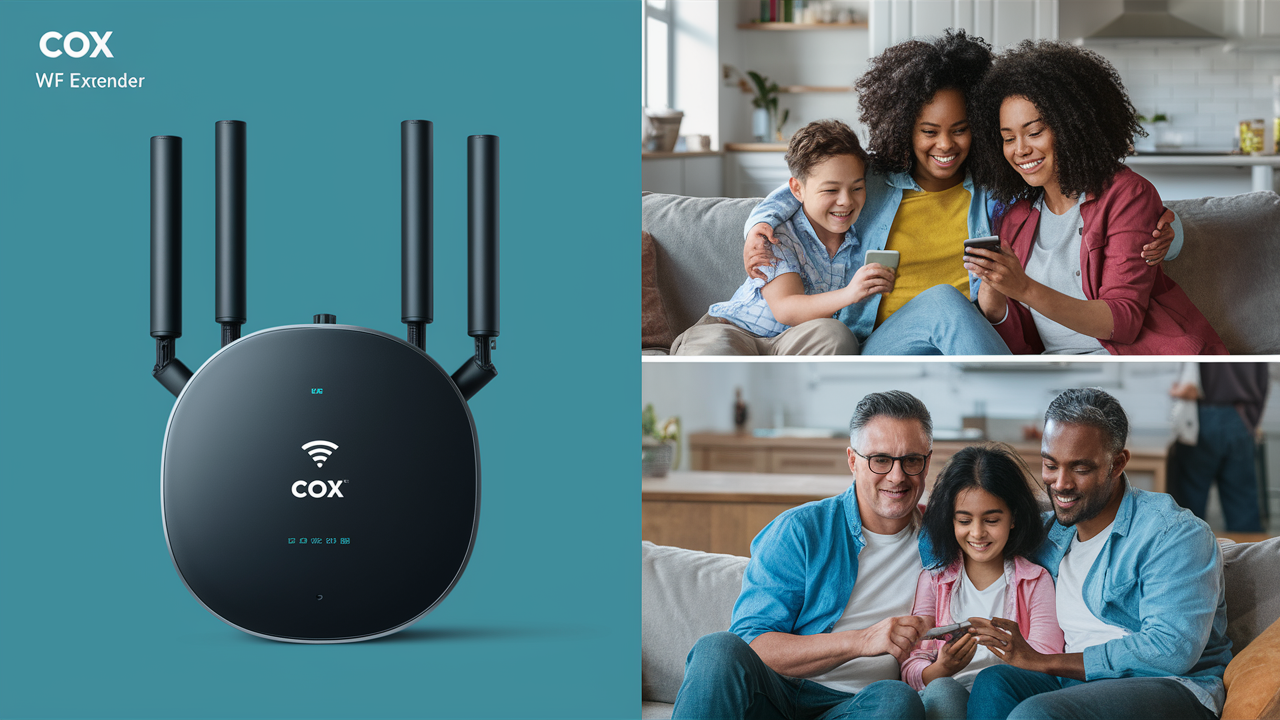
Navigating the complexities of home Wi-Fi can be frustrating, especially when dead zones plague your living space. This comprehensive guide directly addresses whether Cox Communications provides Wi-Fi extenders, offering clear solutions and alternatives to ensure seamless connectivity throughout your home.
Cox Wi-Fi Extender Availability: The Direct Answer
For many customers seeking to expand their wireless network coverage, the question of whether their Internet Service Provider (ISP) offers dedicated Wi-Fi extenders is paramount. When it comes to Cox Communications, the direct answer to whether they provide standalone "Wi-Fi extenders" in the traditional sense is generally no. Cox typically focuses on providing robust modem and router equipment as part of their service packages, and for enhanced coverage, they steer customers towards more integrated solutions like mesh Wi-Fi systems rather than simple, single-unit extenders.
This approach reflects a broader industry trend. While some ISPs might offer basic extenders, the market is increasingly shifting towards more sophisticated technologies that offer a more seamless and powerful Wi-Fi experience. Cox's strategy aims to provide a comprehensive solution that addresses Wi-Fi dead zones and weak signal areas effectively, often through rental equipment or as part of premium service tiers. Understanding this distinction is crucial for Cox subscribers looking to improve their home network's reach and performance.
Understanding Wi-Fi Boosters and Extenders
Before delving into Cox's specific offerings, it's essential to clarify what Wi-Fi boosters and extenders are and how they function. These devices are designed to combat the ubiquitous problem of Wi-Fi dead zones – areas in a home or office where the wireless signal is too weak to provide a reliable internet connection. Dead zones are often caused by physical obstructions like thick walls, metal appliances, and even the sheer distance from the primary router.
Wi-Fi Extenders (or Repeaters): These are the most common type of device marketed for extending Wi-Fi. An extender works by connecting wirelessly to your existing Wi-Fi network, then rebroadcasting that signal to cover a wider area. Think of it as a relay station for your Wi-Fi. The primary advantage of an extender is its simplicity and affordability. However, they often come with drawbacks. They typically create a separate network name (SSID), meaning you might have to manually switch between your main network and the extended network as you move around. Furthermore, extenders can sometimes halve the available bandwidth because they are simultaneously receiving and transmitting data, which can lead to slower speeds in the extended areas.
Wi-Fi Boosters: This is a more general term that can encompass various devices designed to improve Wi-Fi signal strength. While sometimes used interchangeably with "extenders," "booster" can also refer to more advanced technologies. The goal of any booster is to strengthen and expand the Wi-Fi signal, making it accessible in previously hard-to-reach locations.
Mesh Wi-Fi Systems: These represent a more modern and integrated approach to Wi-Fi coverage. A mesh system consists of a primary router and one or more satellite "nodes" or "points" that work together to create a single, seamless Wi-Fi network. Unlike traditional extenders, mesh nodes communicate with each other and the main router intelligently, ensuring that your devices automatically connect to the strongest signal as you move around. This eliminates the need to switch networks and generally provides more consistent speeds and better performance across the entire coverage area. Mesh systems are often considered the premium solution for whole-home Wi-Fi coverage.
Understanding these distinctions is key to making an informed decision about how to best enhance your Cox Wi-Fi network. While Cox may not offer standalone extenders, their focus on mesh systems and advanced equipment points towards a commitment to providing comprehensive coverage solutions.
Cox-Provided Solutions for Enhanced Wi-Fi
While Cox doesn't typically offer standalone Wi-Fi extenders as a distinct product, they do provide solutions designed to address Wi-Fi coverage issues. These solutions are often integrated into their equipment offerings or available as add-ons to their internet service plans. The primary methods Cox employs to help customers achieve better Wi-Fi coverage are through their advanced modem/router combinations and, more significantly, their mesh Wi-Fi systems.
Cox Mesh Wi-Fi Systems
Cox has embraced mesh Wi-Fi technology as its go-to solution for comprehensive home coverage. These systems are designed to eliminate Wi-Fi dead zones and provide a strong, stable internet connection throughout your entire home, regardless of its size or layout. A Cox mesh system typically includes a primary gateway (which acts as both modem and router) and one or more satellite nodes.
How it Works: The gateway connects to Cox's network, and the satellite nodes are strategically placed around your home. These nodes communicate with each other and the gateway to create a single, unified Wi-Fi network. Your devices (smartphones, laptops, smart TVs, etc.) seamlessly connect to the strongest available signal without interruption as you move from room to room. This is a significant improvement over traditional extenders, which often create separate network names and can lead to dropped connections or reduced speeds.
Benefits of Cox Mesh Systems:
- Whole-Home Coverage: Designed to blanket even large homes with reliable Wi-Fi.
- Seamless Roaming: Devices automatically switch to the strongest signal without user intervention.
- Consistent Speeds: Optimized to deliver better performance across all connected devices.
- Easy Setup and Management: Often managed through a user-friendly mobile app.
- Advanced Technology: Utilizes modern Wi-Fi standards for improved efficiency and speed.
Availability and Cost: Cox typically offers these mesh systems as a rental option, often bundled with higher-tier internet plans or as an optional add-on. The exact cost can vary based on your location, the specific plan you choose, and the number of nodes included in the system. It's advisable to check with Cox directly or visit their website for the most current pricing and availability in your area. As of 2025-26, rental fees for such systems can range from $10 to $20 per month, depending on the package.
Example Scenario: Imagine a multi-story home where the primary router is located in the basement. Without a mesh system, the second floor might experience weak Wi-Fi. With a Cox mesh system, a node placed on the first floor and another on the second floor would create a strong, unified network covering all levels, ensuring smooth streaming and browsing everywhere.
Advanced Modem/Router Combos
Cox also provides advanced modem/router combo units, often referred to as gateways. These devices integrate the modem (which connects you to Cox's network) and the router (which creates your Wi-Fi network) into a single piece of hardware. While not specifically "extenders," these advanced gateways are designed with better Wi-Fi technology than older, basic models, potentially offering improved range and performance out of the box.
Features to Look For:
- Wi-Fi 6 (802.11ax) or Wi-Fi 6E: These are the latest Wi-Fi standards, offering faster speeds, better capacity for multiple devices, and improved efficiency, especially in crowded wireless environments.
- Dual-Band or Tri-Band Technology: Supports both 2.4 GHz and 5 GHz (and sometimes 6 GHz) frequency bands, allowing for better traffic management and optimized performance for different types of devices.
- MU-MIMO (Multi-User, Multiple Input, Multiple Output): Allows the router to communicate with multiple devices simultaneously, improving overall network efficiency.
- Beamforming: Directs Wi-Fi signals towards connected devices, strengthening the connection.
Rental vs. Purchase: Cox often includes a standard gateway with their internet plans, but customers may have the option to upgrade to a more advanced model for an additional monthly fee. Alternatively, Cox may allow customers to use their own compatible modems and routers, though this can sometimes limit access to their most advanced Wi-Fi features or support. If you choose to purchase your own equipment, ensuring it meets Cox's specifications is crucial. You can find a list of compatible devices on the Cox support website.
When to Consider an Advanced Gateway: If your home is relatively small to medium-sized and your current Wi-Fi issues are minor, upgrading to a newer, more powerful gateway provided or approved by Cox might be sufficient to improve coverage without needing a separate mesh system.
When Cox Doesn't Provide Extenders: Third-Party Options
Since Cox doesn't typically offer standalone Wi-Fi extenders, many users turn to third-party solutions to bolster their home Wi-Fi network. The market is flooded with various devices designed to extend or improve wireless coverage, and understanding these options can help you find the best fit for your needs and budget.
Types of Third-Party Extenders
When considering third-party devices, you'll encounter several categories, each with its own strengths and weaknesses.
Wi-Fi Repeaters
These are the most basic form of Wi-Fi extension. A Wi-Fi repeater connects wirelessly to your existing router's signal and then rebroadcasts it. They are generally the most affordable option.
- Pros: Inexpensive, easy to set up, good for small dead zones.
- Cons: Can halve bandwidth, often create a separate network name (SSID), signal quality can degrade significantly with distance.
- Best for: Small apartments or extending Wi-Fi to a single room that's just out of reach.
Mesh Wi-Fi Systems (Third-Party)
Similar to Cox's own mesh offerings, these systems consist of a main router and satellite nodes that work together to create a single, seamless network. Popular brands include Google Nest Wifi, TP-Link Deco, Netgear Orbi, and Eero.
- Pros: Excellent whole-home coverage, seamless roaming, consistent speeds, often easy to manage via apps, supports the latest Wi-Fi standards.
- Cons: More expensive than repeaters, requires replacing your existing router (or putting it in bridge mode).
- Best for: Medium to large homes, users who want a reliable and robust Wi-Fi network with minimal hassle.
Note: If you opt for a third-party mesh system, you'll typically need to configure your Cox gateway to operate in "bridge mode." This disables its routing functions, allowing the third-party mesh router to manage your network. Consult your Cox service agreement and support resources for guidance on this process.
Powerline Adapters
These devices use your home's existing electrical wiring to transmit network data. You plug one adapter into an outlet near your router and connect it via Ethernet cable. The second adapter is plugged into an outlet in the area where you need Wi-Fi, and it can either broadcast a Wi-Fi signal or provide Ethernet ports for wired connections.
- Pros: Can provide stable connections where Wi-Fi signals struggle, bypasses thick walls, often faster than basic repeaters.
- Cons: Performance depends heavily on the quality and complexity of your home's electrical wiring, can be susceptible to electrical interference, may not work across different electrical circuits.
- Best for: Extending wired connections to devices in rooms far from the router, or creating a Wi-Fi hotspot in a specific area where Wi-Fi is weak.
Choosing the Right Third-Party Device
When selecting a third-party solution, consider the following factors:
- Home Size and Layout: For larger homes or those with many walls, a mesh system is usually the best bet. For smaller areas or single rooms, a repeater or powerline adapter might suffice.
- Number of Devices: If you have many smart home devices, gaming consoles, or streaming devices, a mesh system or a high-end Wi-Fi 6/6E repeater will handle the load better.
- Budget: Repeaters are the cheapest, followed by powerline adapters, and then mesh systems.
- Technical Comfort Level: Mesh systems are generally the easiest to set up and manage. Repeaters are also simple. Powerline adapters can sometimes require a bit more troubleshooting depending on your wiring.
- Wi-Fi Standards: Look for devices that support the latest Wi-Fi standards (Wi-Fi 6 or Wi-Fi 6E) for optimal performance, especially if your Cox gateway or existing router supports them.
Installation and Setup (Third-Party)
The setup process for third-party devices varies:
- Wi-Fi Repeaters: Typically involve plugging the device into an outlet, pressing a WPS button on your router and the repeater, or using a mobile app to connect it to your existing Wi-Fi network.
- Mesh Wi-Fi Systems: Usually involve connecting the main mesh router to your Cox gateway via Ethernet, downloading a companion app, and following on-screen instructions to place and configure the satellite nodes. If using a third-party mesh system with Cox, you'll likely need to put your Cox gateway into bridge mode first.
- Powerline Adapters: Involves plugging one adapter into an outlet near the router and connecting it via Ethernet. Then, plug the second adapter into an outlet in the desired location and either connect devices via Ethernet or set up its Wi-Fi network (if it's a Wi-Fi enabled powerline adapter).
Always refer to the manufacturer's instructions for the most accurate setup guide. For mesh systems used with Cox, be sure to check Cox's support pages for guidance on configuring their gateway for bridge mode.
Optimizing Your Cox Wi-Fi Network for Better Coverage
Even without dedicated Cox-provided extenders, you can significantly improve your home Wi-Fi coverage and performance by optimizing your existing setup. These strategies are applicable whether you're using a Cox gateway or a third-party router.
Router Placement Strategies
The location of your primary router or mesh gateway is critical. Poor placement is one of the most common reasons for weak Wi-Fi signals.
- Central Location: Place your router in a central location in your home, ideally on the same floor as the majority of your devices. This minimizes the distance the signal needs to travel in any single direction.
- Elevated Position: Routers generally broadcast signals downwards and outwards. Placing your router on a shelf or table, rather than on the floor, can improve its reach.
- Avoid Obstructions: Keep your router away from thick walls (especially concrete and brick), large metal objects (like refrigerators, filing cabinets, or mirrors), and water (like fish tanks). These materials can absorb or reflect Wi-Fi signals.
- Minimize Interference: Electronic devices like microwaves, cordless phones, Bluetooth devices, and even some older monitors can interfere with Wi-Fi signals, especially on the 2.4 GHz band. Try to keep your router away from these sources.
- Open Spaces: Avoid placing your router inside cabinets, entertainment centers, or behind furniture, as these can act as signal dampeners.
For Mesh Systems: If you're using a mesh system (either Cox's or third-party), strategic placement of the satellite nodes is equally important. Each node should be within good range of the main gateway (or another node) to ensure a strong backhaul connection, but also close enough to the areas you want to cover. Most mesh system apps provide tools to help you find optimal placement for your nodes.
Router Settings Tweaks
Your router's settings can also impact performance. While Cox gateways might have limited user-configurable settings, understanding these can still be beneficial.
- Firmware Updates: Ensure your router's firmware is up to date. Manufacturers regularly release updates that improve performance, security, and stability. Many modern routers and gateways update automatically, but it's good practice to check periodically.
- Wi-Fi Band Selection: Most modern routers are dual-band (2.4 GHz and 5 GHz). The 2.4 GHz band has a longer range but is slower and more prone to interference. The 5 GHz band is faster but has a shorter range. If you have devices that support 5 GHz and are relatively close to the router, connect them to the 5 GHz network for better speeds. Some routers allow you to set a single network name (SSID) for both bands (band steering), which automatically assigns devices to the optimal band.
- Channel Selection: Wi-Fi channels can become congested if many nearby networks are using the same channel. Most routers automatically select the best channel, but in areas with many Wi-Fi networks, manually selecting a less crowded channel (especially on the 2.4 GHz band) can sometimes improve performance. You can use Wi-Fi analyzer apps on your smartphone to identify the least congested channels.
- Transmit Power: Some advanced routers allow you to adjust the transmit power. While increasing it might seem like a good idea, it can also increase interference. It's generally best to leave this at its default setting unless you have a specific reason to change it.
- Guest Network: If available, using a guest network for visitors can help segregate their devices from your main network, potentially improving performance and security for your primary devices.
Managing Connected Devices
The number and type of devices connected to your network can significantly impact its performance. As of 2025-26, the average household has dozens of connected devices, from smartphones and laptops to smart TVs, thermostats, security cameras, and voice assistants.
- Prioritize Devices: Some routers offer Quality of Service (QoS) settings that allow you to prioritize certain devices or types of traffic (e.g., prioritize streaming or gaming over background downloads).
- Limit Unused Devices: If you have many devices that are rarely used or are constantly consuming bandwidth in the background, consider turning them off or disconnecting them from the Wi-Fi when not in use.
- Check for Bandwidth Hogs: Identify devices that might be consuming excessive bandwidth. This could be due to automatic updates, cloud backups, or background syncing.
- Secure Your Network: Ensure your Wi-Fi network is secured with a strong WPA2 or WPA3 password. An unsecured network can be accessed by unauthorized users, consuming your bandwidth and posing a security risk.
By implementing these optimization strategies, you can often achieve a more robust and reliable Wi-Fi experience, even without relying on specific "extender" hardware from Cox.
Cost Considerations: Cox vs. Third-Party
When deciding how to enhance your Wi-Fi coverage, the cost is a significant factor. Both Cox's provided solutions and third-party options come with their own pricing structures.
Cox Provided Solutions:
- Mesh Systems: Cox typically offers mesh Wi-Fi systems as a monthly rental service. As of 2025-26, this can range from approximately $10 to $20 per month, depending on the package and number of nodes. While this is an ongoing cost, it often includes maintenance and support from Cox. If the equipment malfunctions, Cox is responsible for replacement.
- Advanced Gateways: Upgrading to a more advanced modem/router combo unit from Cox might also incur a small additional monthly fee, perhaps $5 to $10 more than a standard gateway.
- Included Equipment: Basic Cox internet plans usually include a standard modem/router gateway at no extra monthly charge.
Third-Party Options:
- Wi-Fi Repeaters: These are generally the most budget-friendly option, with prices ranging from $30 to $100 for a single unit.
- Powerline Adapters: A set of two adapters can cost between $50 and $150, depending on features and speed ratings.
- Mesh Wi-Fi Systems: These are the most significant upfront investment. A basic 2-node system might start around $150-$200, while more advanced 3-node systems or those with higher performance can cost $300-$500 or more.
Long-Term Value:
- Cox Rentals: Over several years, the cumulative rental cost for a Cox mesh system could potentially exceed the upfront cost of purchasing a third-party mesh system. For example, renting a $15/month system for 3 years would cost $540.
- Third-Party Purchase: The advantage of purchasing a third-party system is that once you've paid for it, there are no further monthly charges for the hardware itself. However, you are responsible for troubleshooting and replacement if the device fails outside of its warranty period.
Considerations:
- Bundling: Sometimes, Cox may offer promotions or bundles that include mesh Wi-Fi at a reduced rate, making their rental option more competitive.
- Technical Support: With Cox rentals, you have a direct line to their technical support for issues related to the Wi-Fi equipment. With third-party devices, you'll rely on the manufacturer's support or your own troubleshooting skills.
- Flexibility: Purchasing your own equipment gives you more flexibility to upgrade or change your system as technology evolves, without being tied to your ISP's offerings.
Ultimately, the most cost-effective solution depends on your budget, how long you plan to use the service, and your comfort level with managing your own network hardware.
Troubleshooting Common Wi-Fi Issues with Cox
Experiencing Wi-Fi problems with Cox can be frustrating. Here’s a guide to troubleshooting common issues, whether you're using Cox-provided equipment or your own.
1. Slow Internet Speeds:
- Check Your Plan Speed: First, verify the internet speed you are paying for from Cox. Run a speed test (e.g., using Ookla Speedtest or Cox's own speed test tool) directly connected to your modem via Ethernet cable. If the wired speed is significantly lower than your plan, the issue might be with Cox's service or your modem.
- Restart Your Equipment: The classic "turn it off and on again" often works wonders. Unplug your modem and router (or gateway) for at least 30 seconds, then plug them back in, modem first, followed by the router after the modem has fully booted up.
- Check for Interference: As mentioned earlier, microwaves, cordless phones, and other electronics can interfere. Try moving your router or the interfering device.
- Too Many Devices: If many devices are actively using the internet simultaneously, speeds can drop. Try disconnecting some devices to see if performance improves.
- Outdated Equipment: Older modems or routers may not be able to handle the speeds of your current Cox plan or the demands of modern internet usage. Consider upgrading if your equipment is several years old.
- Check Cables: Ensure all Ethernet cables are securely connected and not damaged.
2. Wi-Fi Dead Zones or Weak Signal:
- Router Placement: Re-evaluate your router's location. Is it central, elevated, and free from obstructions?
- Mesh System Check: If you have a mesh system, ensure all nodes are properly connected and within range of each other. Use the system's app to check signal strength between nodes.
- Third-Party Extender Issues: If using a repeater or powerline adapter, ensure it's placed correctly and functioning. Sometimes, repositioning the extender can help.
- Firmware Update: Ensure your router/gateway firmware is up to date.
3. Intermittent Connectivity (Dropping Wi-Fi):
- Router Overheating: Ensure your router has adequate ventilation. Overheating can cause performance issues and drops.
- Channel Congestion: Try changing the Wi-Fi channel on your router.
- Interference: Identify and move potential sources of interference.
- Faulty Equipment: If the problem persists, your modem, router, or mesh nodes might be failing. Contact Cox support if you suspect an issue with their equipment.
- ISP Issues: While less common for intermittent drops, it's worth checking Cox's service status in your area or contacting them to rule out network issues on their end.
4. Inability to Connect to Wi-Fi:
- Check Wi-Fi is Enabled: Ensure Wi-Fi is turned on for your device and that you are selecting the correct network name (SSID).
- Correct Password: Double-check that you are entering the correct Wi-Fi password. Passwords are case-sensitive.
- Restart Devices: Restart both your router/gateway and the device you are trying to connect.
- Forget Network: On your device, try "forgetting" the Wi-Fi network and then reconnecting.
- MAC Filtering: Some routers have MAC address filtering enabled, which restricts access to only authorized devices. Ensure your device's MAC address is allowed if this feature is active.
When to Contact Cox Support:
- If wired internet speeds are consistently below your plan's advertised speeds.
- If you suspect your Cox-provided modem or gateway is malfunctioning.
- If you are experiencing widespread connectivity issues that cannot be resolved by restarting equipment or basic troubleshooting.
- If you need assistance putting your Cox gateway into bridge mode for a third-party router.
By systematically working through these troubleshooting steps, you can often resolve common Wi-Fi issues and enjoy a more stable and reliable internet connection with your Cox service.
The Future of Cox Wi-Fi Solutions
The landscape of home internet and Wi-Fi technology is constantly evolving. As consumer demand for faster, more reliable, and more pervasive wireless connectivity grows, so too will the solutions offered by Internet Service Providers like Cox Communications.
Continued Embrace of Mesh Technology: Mesh Wi-Fi systems are no longer a premium luxury; they are becoming the standard for effective whole-home coverage. Expect Cox to continue refining its mesh offerings, potentially introducing newer generations of mesh hardware that support the latest Wi-Fi standards (like Wi-Fi 7, which is emerging) and offer enhanced features such as improved backhaul capabilities, better device management, and more robust security protocols.
Integration with Smart Home Ecosystems: As smart homes become more prevalent, ISPs may explore deeper integration of their Wi-Fi solutions with smart home platforms. This could involve features that allow for easier management of connected devices, enhanced security for IoT devices, and potentially even network optimization based on smart home routines.
AI-Powered Network Management: Artificial intelligence (AI) is increasingly being used to optimize network performance. Future Cox Wi-Fi solutions might incorporate AI to dynamically manage network traffic, predict and resolve potential issues before they impact users, and automatically adjust settings for optimal performance based on usage patterns and environmental factors.
Enhanced Bandwidth and Speed: With the increasing reliance on high-bandwidth applications like 8K streaming, virtual reality, and cloud gaming, ISPs will continue to push the boundaries of internet speeds. This will necessitate Wi-Fi solutions capable of delivering those speeds wirelessly throughout the home. Technologies like Wi-Fi 6E and the upcoming Wi-Fi 7 offer the potential for significantly higher throughput and lower latency.
Customer Choice and Flexibility: While Cox will likely continue to offer its own integrated solutions, there may also be a trend towards greater flexibility for customers who prefer to use their own advanced networking equipment. This could involve clearer guidelines and better support for customers who wish to use their own routers or mesh systems, perhaps with Cox focusing more on providing the core internet connection and less on managing in-home Wi-Fi hardware.
Focus on Security: With the growing number of connected devices and the increasing sophistication of cyber threats, Wi-Fi security will remain a top priority. Future Cox solutions will likely include advanced security features, potentially offering built-in firewalls, intrusion detection, and parental controls as standard components of their Wi-Fi offerings.
In essence, the future of Cox Wi-Fi solutions points towards more intelligent, powerful, and seamlessly integrated systems designed to meet the ever-growing demands of the connected home. While standalone "extenders" may remain a niche product, the focus will continue to be on comprehensive network solutions that ensure robust coverage and performance for all users.
In conclusion, while Cox Communications doesn't offer standalone Wi-Fi extenders, they provide robust mesh Wi-Fi systems and advanced gateways designed to solve coverage issues. For users seeking alternatives, a variety of third-party repeaters, mesh systems, and powerline adapters are available. By strategically placing your router, optimizing settings, and managing connected devices, you can significantly enhance your Cox Wi-Fi network's reach and performance. Always consider your home's size, your budget, and your technical comfort level when choosing the best solution. For persistent issues, contacting Cox support or exploring third-party options are your best next steps to a seamlessly connected home.






