Does Cox Include a Router?
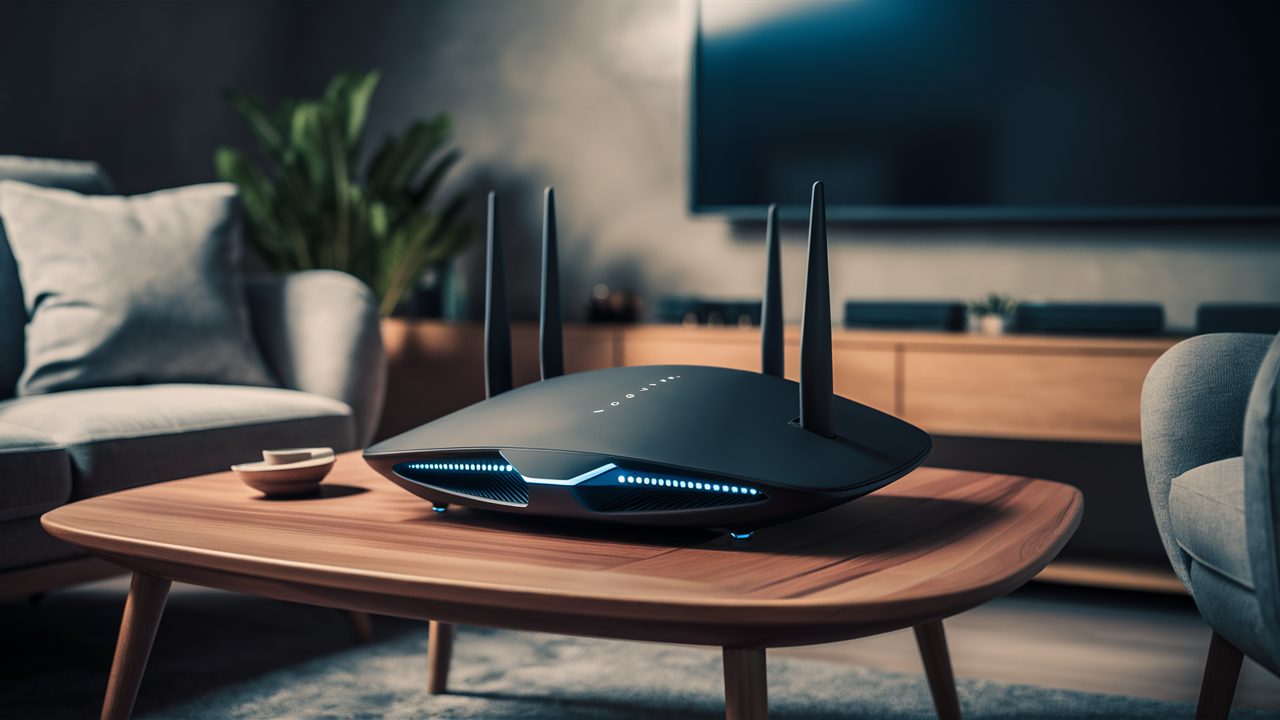
Discover if Cox Communications includes a router with their internet plans. This comprehensive guide clarifies what equipment you receive, explores rental costs, and helps you decide if buying your own modem and router is a better, more cost-effective solution for your home in 2025-26.
Does Cox Include a Router? The Direct Answer
When you sign up for Cox internet service, the question of whether a router is automatically included is a common one. The straightforward answer is: Cox does not automatically include a standalone router with every internet plan. Instead, they offer a modem, and often, a combined modem-router unit known as a gateway. Whether you receive this gateway, or just a modem, depends on the specific plan you choose and any promotional offers active at the time of signup. For many users, understanding this distinction is crucial for managing their home network and avoiding unnecessary rental fees. This article will delve into the nuances of Cox's equipment policies and guide you toward the most cost-effective and efficient solution for your internet needs in 2025-26.
Understanding Cox's Equipment Options
To fully grasp whether Cox provides a router, it's essential to understand the different types of networking hardware involved and what Cox typically supplies. This section breaks down the components and Cox's standard offerings.
Modem vs. Router: What's the Difference?
Many people use the terms "modem" and "router" interchangeably, but they serve distinct functions in your home network. Understanding these differences is key to making informed decisions about your internet equipment.
- Modem: The modem is the device that connects your home to your Internet Service Provider's (ISP) network. It translates the digital signals from your computer into analog signals that can travel over the ISP's infrastructure (like cable lines) and vice versa. Without a modem, your devices cannot access the internet from your ISP.
- Router: The router's primary job is to create a local network within your home. It takes the single internet connection provided by the modem and shares it among multiple devices (laptops, smartphones, smart TVs, etc.). Routers also provide Wi-Fi connectivity, allowing devices to connect wirelessly. They manage traffic between your devices and the internet, and between devices on your local network.
Think of it this way: the modem is the gateway to the internet from the outside world, and the router is the traffic director and distributor within your home.
What Cox Typically Provides
Cox's standard offering often includes a modem. In some cases, especially with older plans or specific promotions, you might receive a standalone modem. This modem will have Ethernet ports, allowing you to connect a single device directly via an Ethernet cable. If you want to connect multiple devices wirelessly, you would need to purchase and set up your own separate router.
However, in recent years, ISPs like Cox have increasingly moved towards providing a single, integrated device that performs both modem and router functions.
Cox's Gateway Devices Explained
A gateway is a single piece of hardware that combines the functionality of both a modem and a router. This means it connects directly to Cox's network and also broadcasts a Wi-Fi signal, allowing multiple devices to connect wirelessly. Cox often refers to these as "Wi-Fi gateways" or "modem/router combos."
When you sign up for Cox internet, especially for their higher-speed plans or if you opt for their equipment rental service, you are most likely to receive one of these gateway devices. This simplifies setup and reduces the number of boxes and cables in your home. However, it also means that if you want to use your own equipment, you'll need to ensure your purchased modem is compatible and then configure it to work with Cox, potentially bypassing their gateway entirely.
The specific model of gateway provided by Cox can vary. These devices are designed to meet the demands of their network and are typically capable of supporting the speeds offered in their plans. For instance, a Cox Panoramic Wifi Gateway, a common offering, provides robust Wi-Fi coverage and advanced features.
The Cost of Renting a Cox Router
While Cox may provide a gateway that includes router functionality, this convenience often comes with a recurring monthly fee. Understanding these costs is vital for assessing the long-term value of renting versus buying.
Average Rental Fees (2025-26)
As of 2025-26, Cox's equipment rental fees can fluctuate based on your location, the specific plan you subscribe to, and any current promotions. However, a general estimate for renting a Cox modem/router gateway typically falls between $15 to $20 per month. This fee is charged on top of your monthly internet service cost.
It's important to note that this fee is usually for a single device that serves as both modem and router. If you were to rent a separate modem and router from Cox (which is less common now), the combined cost could be higher. Always verify the exact rental fee with Cox when signing up or reviewing your bill.
Some Cox internet plans, particularly higher-tier ones, might bundle the equipment rental into the advertised price for a limited time as a promotional offer. However, once the promotion ends, the rental fee will typically be added to your monthly bill.
Long-Term Financial Implications
A monthly rental fee of $15-$20 might seem insignificant at first glance. However, when calculated over several years, the cost of renting a Cox router or gateway can become substantial.
Let's do some quick math for 2025-26:
- At $15 per month: $15/month * 12 months/year = $180 per year. Over 3 years, this amounts to $540. Over 5 years, it's $900.
- At $20 per month: $20/month * 12 months/year = $240 per year. Over 3 years, this is $720. Over 5 years, it's $1200.
These figures illustrate that after just a few years, the cumulative cost of renting equipment can easily exceed the purchase price of a high-quality, owned modem and router. This financial reality is a primary driver for many customers to consider purchasing their own networking gear.
Furthermore, rental equipment is typically leased, meaning you never own it. If you cancel your service, you must return the rented equipment to Cox. Failure to do so can result in significant unreturned equipment fees.
The Case for Buying Your Own Modem and Router
Given the recurring costs of rental equipment, many consumers find it more economical and practical to invest in their own modem and router. This approach offers several advantages that can significantly improve your internet experience and save you money in the long run.
Key Benefits of Owning Your Equipment
Owning your networking hardware provides a level of control and flexibility that renting simply cannot match. Here are the primary benefits:
- Significant Cost Savings: As demonstrated by the long-term financial analysis, purchasing your own equipment can save you hundreds, if not thousands, of dollars over the lifespan of the devices. A good quality modem might cost between $70-$150, and a robust router between $100-$250. These one-time purchases quickly pay for themselves compared to monthly rental fees.
- Better Performance and Features: Consumer-grade modems and routers are often more advanced than the basic models provided by ISPs. You can choose devices with the latest Wi-Fi standards (like Wi-Fi 6 or Wi-Fi 6E in 2025-26), faster processors, better antenna technology for improved range and speed, and more robust security features. This can lead to a more stable, faster, and wider-reaching Wi-Fi network.
- Greater Control and Customization: When you own your equipment, you have full control over its settings. You can configure advanced features like Quality of Service (QoS) to prioritize certain devices or applications, set up custom Wi-Fi networks, implement stricter parental controls, and manage your network security settings more granularly.
- No Rental Fees: The most immediate benefit is the elimination of monthly equipment rental charges from your Cox bill. This simplifies your bill and reduces your overall monthly internet service cost.
- Easy Transition: If you decide to switch ISPs in the future, your owned equipment is yours to keep and use with another compatible provider. You won't have to worry about returning equipment or incurring unreturned equipment fees.
- Future-Proofing: You can upgrade your modem or router independently as new technologies emerge, rather than being tied to the models Cox offers.
Cost Savings Analysis: Rental vs. Purchase
Let's provide a concrete comparison for 2025-26.
Scenario 1: Renting from Cox
| Item | Monthly Cost | Annual Cost | 3-Year Cost | 5-Year Cost |
|---|---|---|---|---|
| Cox Gateway Rental | $18 (average) | $216 | $648 | $1080 |
*Note: This assumes no price increases and no initial promotional period.*
Scenario 2: Purchasing Your Own Equipment
| Item | Purchase Price (2025-26 Est.) | Annual Savings vs. Rental | 3-Year Savings | 5-Year Savings |
|---|---|---|---|---|
| Compatible DOCSIS 3.1 Modem | $120 | - | - | - |
| Wi-Fi 6 Router | $180 | - | - | - |
| Total Initial Investment | $300 | - | - | - |
| Total Savings (vs. Rental) | - | $216 | $648 - $300 = $348 | $1080 - $300 = $780 |
As you can see, the initial investment of $300 for a good modem and router is recouped within approximately 17 months ($300 / $18 per month). After that, you continue to save significantly. By the end of 5 years, you could save over $780 compared to renting.
Compatibility Guide: What to Look For
Not all modems and routers are compatible with Cox's network. To ensure a smooth setup, it's crucial to select devices that meet Cox's requirements.
For Modems:
- DOCSIS Standard: Cox primarily uses DOCSIS 3.0 and DOCSIS 3.1. For most residential plans, especially those offering speeds above 100 Mbps, a DOCSIS 3.1 modem is highly recommended for future-proofing and optimal performance. DOCSIS 3.1 modems are backward compatible with DOCSIS 3.0 but offer better efficiency and capacity.
- Channel Bonding: Look for modems that support a high number of bonded channels. For DOCSIS 3.0, aim for at least 16 download and 4 upload channels (16x4). For DOCSIS 3.1, the technology is more advanced, but ensuring it supports the latest standards is key.
- Cox's Approved Device List: The most critical step is to check Cox's official list of compatible modems. You can usually find this on their website or by contacting their support. Using a modem not on this list might result in it not being activated or not performing optimally. Search for "Cox approved modems" to find the current list for 2025-26.
- Speed Support: Ensure the modem's specifications match or exceed the download and upload speeds of your Cox internet plan.
For Routers:
- Wi-Fi Standards: For new purchases in 2025-26, prioritize routers supporting Wi-Fi 6 (802.11ax). Wi-Fi 6 offers better speeds, increased capacity for multiple devices, improved performance in crowded environments, and enhanced power efficiency. Wi-Fi 6E is also emerging, offering access to the 6 GHz band for even less interference.
- Speed Ratings: Routers are rated by their combined theoretical speeds (e.g., AC1200, AX1800, AX3000). Higher numbers generally indicate better performance. Match this to your internet speed and the number of devices you'll connect.
- Coverage Area: Consider the size of your home. For larger homes, a single high-powered router or a mesh Wi-Fi system might be necessary.
- Ports: Ensure it has enough Gigabit Ethernet ports for any wired connections you might need.
- Features: Look for features like MU-MIMO (Multi-User, Multiple Input, Multiple Output), beamforming, QoS, and robust security protocols (WPA3).
Top Router Models for Cox (2025-26)
While specific models change rapidly, here are types of routers that are generally well-regarded and compatible with Cox's network for 2025-26. Always check the modem compatibility list specifically for Cox.
Recommended Modems (ensure compatibility with Cox):
- ARRIS SURFboard: Models like the SB8200 (DOCSIS 3.1) or newer variants are often recommended.
- NETGEAR: Look for their DOCSIS 3.1 modems such as the CM1000 or CM1100.
- Motorola: Models like the MB8600 or MB7621 are popular choices.
Recommended Routers (for use with your own modem or Cox's modem-only option):
- ASUS RT-AX series: Known for robust performance, user-friendly interfaces, and advanced features (e.g., RT-AX86U, RT-AX58U).
- NETGEAR Nighthawk series: Offers high-performance Wi-Fi 6 routers with excellent range (e.g., RAX45, RAX50).
- TP-Link Archer AX series: Provides a good balance of performance, features, and affordability (e.g., Archer AX73, Archer AX55).
- Mesh Wi-Fi Systems: For larger homes or areas with Wi-Fi dead spots, consider systems like eero, Google Nest Wifi, or TP-Link Deco. These create a seamless network across your entire home.
Important Note: When purchasing a modem, ensure it is specifically listed as compatible by Cox for your desired internet speed tier. You can usually find this information on the Cox website or by contacting their customer support.
Setting Up Your Own Cox-Compatible Equipment
Once you've purchased a compatible modem and router, the next step is to set them up. This process is generally straightforward, but following the correct steps ensures a smooth transition.
Step-by-Step Installation Guide
Here’s a general guide for setting up your own modem and router with Cox:
- Check Cox's Approved Device List: Before you do anything else, confirm your modem model is on Cox's official compatibility list for your service plan.
- Unplug Your Current Cox Equipment: If you are replacing existing Cox equipment (rented modem or gateway), unplug it from the power outlet and disconnect the coaxial cable.
- Connect Your New Modem:
- Screw the coaxial cable (the one that comes from your wall outlet) securely into the back of your new modem.
- Connect the modem's power adapter and plug it into a power outlet.
- Wait for the modem's indicator lights to stabilize. This typically takes a few minutes and indicates it has successfully connected to Cox's network. The lights usually indicate power, downstream, upstream, and online status.
- Activate Your New Modem:
- Once the modem is online, you'll need to activate it with Cox. This usually involves connecting a computer directly to the modem via an Ethernet cable and opening a web browser.
- You should be redirected to Cox's self-activation portal. If not, try navigating to a specific Cox activation URL (check Cox's website for the correct address).
- Follow the on-screen instructions. You may need to provide your Cox account information and the modem's MAC address (usually found on a sticker on the modem).
- Cox will provision your modem for your internet plan. This process can take up to 15 minutes.
- Connect Your Router:
- Once your modem is activated and online, disconnect the computer from the modem.
- Connect an Ethernet cable from the modem's Ethernet port to the WAN (or Internet) port on your new router.
- Connect your router's power adapter and plug it into a power outlet.
- Wait for the router's lights to indicate it's powered on and ready.
- Configure Your Router:
- Connect a device (computer or smartphone) to your router. You can do this via an Ethernet cable or by connecting to the router's default Wi-Fi network (SSID and password are often printed on the router itself).
- Open a web browser and navigate to your router's IP address (commonly 192.168.1.1 or 192.168.0.1 – check your router's manual).
- Log in using the router's default administrator username and password.
- Follow the router's setup wizard to:
- Change the default Wi-Fi network name (SSID) and password.
- Set a strong administrator password for the router itself.
- Configure any other desired settings (e.g., guest network, QoS).
- Connect Your Devices: Once your router is configured, connect your wireless devices (smartphones, tablets, laptops, smart TVs, etc.) to your new Wi-Fi network using the SSID and password you created.
Troubleshooting Common Setup Issues
If you encounter problems, here are some common issues and their solutions:
- Modem Not Activating:
- Ensure the coaxial cable is tightly screwed in at both ends.
- Check that the modem is on Cox's approved list.
- Restart the modem by unplugging the power for 30 seconds and plugging it back in.
- If self-activation fails, contact Cox technical support with your modem's MAC address.
- No Internet After Router Setup:
- Verify the Ethernet cable is securely connected between the modem's LAN port and the router's WAN/Internet port.
- Restart both the modem and the router. Power cycle the modem first, wait for it to come online, then power cycle the router.
- Ensure the router is configured correctly and has obtained an IP address from the modem. Check the router's admin interface.
- Slow Wi-Fi Speeds:
- Ensure your router is placed in a central, open location, away from obstructions and interference (microwaves, thick walls).
- Check your router's firmware and update it if necessary.
- If you have a dual-band router, ensure your devices are connecting to the 5GHz band for faster speeds (if they are close enough).
- Consider a Wi-Fi extender or mesh system if coverage is an issue.
- Can't Access Router Settings:
- Double-check the IP address and administrator credentials.
- Perform a factory reset on the router (usually by holding a small button for 10-30 seconds). This will revert it to default settings, and you'll need to reconfigure it.
For persistent issues, consult your router's manual or the manufacturer's support website. Cox support can also assist with modem-related activation and connectivity problems.
Cox Internet Plans and Equipment Bundles
The type of Cox internet plan you choose can influence your equipment needs and the decision to rent or buy. Understanding these plans is part of the overall picture.
Understanding Plan Tiers and Speed Requirements
Cox offers a range of internet plans with varying download and upload speeds. These plans are typically tiered based on performance:
- Basic/Starter Plans: Usually offer lower download speeds (e.g., 25-100 Mbps), suitable for light internet use like email, web browsing, and occasional streaming on one or two devices.
- Standard/Preferred Plans: Offer moderate speeds (e.g., 100-500 Mbps), good for households with multiple users, streaming in HD, online gaming, and video conferencing.
- High-Speed/Ultimate Plans: Provide faster speeds (e.g., 500 Mbps to 1 Gbps or more), ideal for power users, large households with many connected devices, heavy streaming (4K/8K), large file downloads, and demanding online activities.
The speed of your plan directly impacts the type of modem you need. While a DOCSIS 3.0 modem might suffice for lower-speed plans, higher-speed plans (above 300-400 Mbps) generally require a DOCSIS 3.1 modem for optimal performance and to ensure you receive the speeds you're paying for.
How Plans Affect Equipment Choice
Cox's equipment offerings are often tied to their plans.
- Bundled Equipment: When you sign up for a Cox plan, they will present you with equipment options. This often includes renting their latest gateway device. For higher-tier plans, they might even offer a promotional period where the rental fee is waived or reduced.
- Modem-Only Option: For some plans, you might be able to opt for a modem-only rental. This would require you to purchase your own router separately.
- BYOD (Bring Your Own Device): Cox strongly encourages customers to use their own compatible equipment, especially for higher speeds. This is where the compatibility list becomes crucial. If you're on a gigabit plan, you absolutely need a DOCSIS 3.1 modem capable of those speeds.
Recommendation for 2025-26: For any plan exceeding 300 Mbps, purchasing your own DOCSIS 3.1 modem is almost always the most cost-effective and performant choice. For Wi-Fi, investing in a Wi-Fi 6 router will ensure you can take full advantage of your internet speeds, especially if you have many devices.
Customer Experiences and Reviews
Understanding what other Cox customers experience can provide valuable insights into the decision of renting versus buying equipment.
Positive Experiences with Cox Equipment
Many customers appreciate the convenience of Cox's provided gateway devices.
- Simplicity: For users who are not tech-savvy, a single gateway device simplifies setup and management. They don't have to worry about compatibility issues or configuring separate devices.
- Included Support: When you rent equipment from Cox, any technical issues related to that equipment are typically covered by their support. If the device malfunctions, Cox will replace it.
- Promotional Offers: Sometimes, Cox offers attractive bundles or discounts on equipment rental for new customers or those upgrading their plans, making the rental option seem more appealing initially.
- Panoramic Wifi: Cox's Panoramic Wifi service, which utilizes their gateway devices, offers features like advanced Wi-Fi optimization, security features, and easy management via a mobile app. Some users find these features valuable enough to justify the rental cost.
Common Complaints About Rented Equipment
Conversely, there are frequent complaints regarding rented ISP equipment:
- High Recurring Costs: The most common complaint is the cumulative cost of rental fees over time, which many users feel is excessive.
- Outdated Technology: ISP-provided equipment can sometimes lag behind the latest consumer technology. Users may find their rented gateway lacks the latest Wi-Fi standards or advanced features available in retail devices.
- Performance Limitations: Rented modems and routers may not always be capable of delivering the full speeds advertised by the ISP, especially on higher-tier plans.
- Limited Customization: Users often have less control over the settings and features of rented equipment compared to their own devices.
- Poor Wi-Fi Range/Performance: While Panoramic Wifi aims to improve this, some users still report issues with Wi-Fi dead zones or inconsistent performance from rented gateways.
These common complaints highlight why many users opt to purchase their own equipment, seeking better performance, more features, and long-term cost savings.
Making the Final Decision: Rent or Buy?
The decision to rent or buy your Cox internet equipment boils down to a balance of convenience, cost, and technical needs.
Rent if:
- You are not comfortable with technology and prefer a simple, all-in-one solution with included technical support for the hardware.
- You are on a very short-term internet plan (e.g., a few months) where the cost of buying might not be recouped.
- Cox is offering an exceptionally good, long-term promotional deal on equipment rental that significantly outweighs the purchase cost.
- You specifically want access to features like Cox's Panoramic Wifi service and app management, which are tied to their gateway devices.
Buy if:
- You want to save money in the long run. The cost savings are substantial after 1-2 years.
- You desire better Wi-Fi performance, range, and features than a standard ISP gateway might offer.
- You have a faster internet plan (e.g., 300 Mbps or higher) and want to ensure you're getting the best possible speeds and stability.
- You want more control over your network settings and security.
- You plan to stay with Cox (or any ISP) for more than a couple of years.
For most users in 2025-26, especially those with moderate to high-speed internet plans, purchasing your own DOCSIS 3.1 modem and a modern Wi-Fi 6 router is the most financially prudent and technically superior option. It empowers you with better performance, greater control, and significant long-term savings, making the initial investment well worth it. Always remember to verify compatibility with Cox before making any purchase.






