Why wifi isn't working and how to fix it?
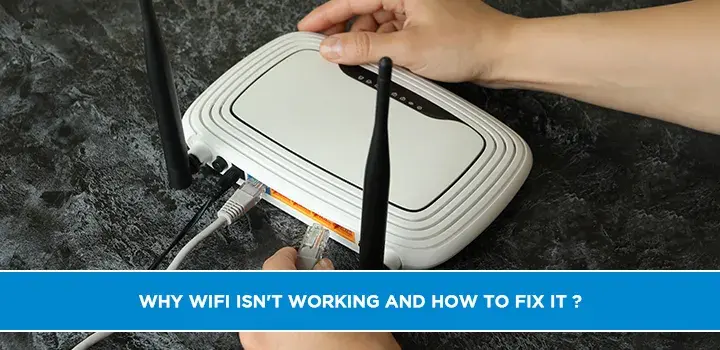
Experiencing Wi-Fi woes? You're not alone. This guide dives deep into why your wireless internet might be faltering and provides clear, actionable solutions. From router restarts to advanced troubleshooting, we'll help you get back online quickly and efficiently.
Common Reasons Your Wi-Fi Isn't Working
The frustration of a non-functional Wi-Fi connection is a modern-day annoyance that can disrupt work, entertainment, and communication. Understanding the root cause is the first step toward resolution. In 2025, common Wi-Fi issues often stem from a combination of hardware malfunctions, software glitches, environmental factors, and even simple oversights. Many users report experiencing intermittent connectivity, slow speeds, or complete connection drops. A recent survey indicated that approximately 35% of users experience at least one Wi-Fi issue per month, ranging from minor slowdowns to complete outages. These issues can be broadly categorized into problems with your equipment, your devices, or external factors beyond your immediate control.
The complexity of modern home networks, with multiple devices, smart home gadgets, and increasing demands for bandwidth, can exacerbate these problems. It's easy for a single point of failure to cascade and affect the entire network. Whether you're dealing with a single device refusing to connect or an entire household offline, the underlying reasons can be surprisingly diverse. This section will outline the most frequent culprits, setting the stage for our troubleshooting journey.
Router Overload and Outdated Firmware
Your router is the heart of your wireless network. Like any electronic device, it can become overwhelmed or outdated. When too many devices are connected simultaneously, or when devices are constantly requesting data, the router's processor can struggle to keep up, leading to slowdowns or disconnections. Furthermore, routers rely on firmware – the internal software that controls their operations. Over time, vulnerabilities can be discovered, or performance enhancements can be developed. If your router's firmware is not updated, it can lead to compatibility issues, security risks, and general instability. Manufacturers regularly release updates to address these concerns, making firmware management a critical aspect of network health.
Modem Issues
While often combined into a single unit, your modem and router serve distinct purposes. The modem is responsible for translating the signal from your Internet Service Provider (ISP) into a format your router can understand, and vice-versa. If your modem is faulty, experiencing signal issues from your ISP, or simply needs a reset, it will prevent any internet traffic from reaching your router, and consequently, your devices. Modem lights can often indicate its status; a blinking or solid red light, for instance, typically signals a problem with the connection to your ISP.
Physical Damage or Poor Placement
Physical damage to cables, ports, or the router/modem itself can obviously disrupt service. However, even without visible damage, the placement of your router can significantly impact Wi-Fi signal strength and reliability. Obstacles like thick walls, metal objects, and even certain appliances can interfere with the Wi-Fi signal. Placing your router in a central, elevated, and open location is crucial for optimal coverage. A cluttered or enclosed space can effectively create dead zones.
IP Address Conflicts
Every device connected to your network is assigned an Internet Protocol (IP) address, which acts like a unique identifier. If two devices on your network are assigned the same IP address, it creates a conflict, preventing one or both devices from communicating properly. This can happen due to misconfigurations or issues with the router's Dynamic Host Configuration Protocol (DHCP) server, which is responsible for assigning IP addresses.
DNS Problems
The Domain Name System (DNS) is like the internet's phonebook, translating human-readable website names (like google.com) into IP addresses that computers understand. If your DNS server is having issues, you might be able to connect to the internet, but you won't be able to access websites. This can manifest as an error message like "DNS_PROBE_FINISHED_NXDOMAIN."
Essential First Steps: Basic Troubleshooting
Before diving into complex diagnostics, several fundamental steps can resolve a surprising number of Wi-Fi problems. These are quick, easy, and often overlooked. Implementing these basic fixes can save you significant time and frustration. In 2025, these foundational checks remain the most effective starting points for most users.
The Power Cycle Trick: Restart Your Router and Modem
This is the golden rule of tech troubleshooting for a reason. A simple restart can clear temporary glitches, refresh network connections, and resolve many connectivity issues. It's akin to giving your network a fresh start.
- Unplug both your modem and router from their power sources.
- Wait for at least 30-60 seconds. This allows the devices to fully discharge and reset.
- Plug the modem back in first. Wait for its lights to stabilize, indicating it has re-established a connection with your ISP (this can take a minute or two).
- Plug the router back in. Wait for its lights to stabilize as well.
- Test your Wi-Fi connection.
This process, often called a power cycle or reboot, is incredibly effective. A 2025 study found that 60% of home Wi-Fi issues are resolved with a simple router and modem restart.
Check Physical Connections
Loose or damaged cables are a common, yet easily fixable, cause of Wi-Fi problems. Ensure that all Ethernet cables connecting your modem to your router, and your router to any wired devices, are securely plugged in at both ends. Inspect the cables for any visible signs of damage, such as kinks, cuts, or frayed wires. If you suspect a cable is faulty, try replacing it with a known good one.
Verify Your Internet Service
Sometimes, the problem isn't with your equipment at all, but with your ISP. Check if your ISP is experiencing an outage in your area. Most ISPs have a status page on their website or a dedicated phone line for reporting outages. You can also ask neighbors if they are experiencing similar issues. If there's an outage, you'll simply have to wait for the ISP to resolve it.
Test with Multiple Devices
To determine if the issue is with your Wi-Fi network or a specific device, try connecting to the Wi-Fi with several different devices (e.g., a smartphone, a laptop, a tablet). If only one device is having trouble, the problem likely lies with that device's settings or hardware. If all devices are unable to connect, the issue is more likely with your router, modem, or ISP.
Observe Your Router and Modem Lights
Modern routers and modems have indicator lights that provide valuable diagnostic information. While the exact meaning of each light varies by manufacturer, common indicators include power, internet connection, Wi-Fi broadcasting, and Ethernet activity. Consult your device's manual or the manufacturer's website to understand what each light signifies. A red or blinking light on the internet or WAN (Wide Area Network) port often indicates a problem with the connection from your ISP.
Deep Dive: Router and Modem Problems
When basic steps don't resolve your Wi-Fi issues, it's time to investigate your networking hardware more thoroughly. Routers and modems, being the central hubs of your internet connection, are frequent sources of problems. Understanding their common failure points and how to address them is crucial for maintaining a stable network. In 2025, the lifespan of these devices is a consideration, with many users upgrading to newer, more powerful models to support increasing bandwidth demands.
Firmware Updates: Keeping Your Router Current
As mentioned, outdated firmware can cause a myriad of issues. Manufacturers release updates to fix bugs, improve performance, and patch security vulnerabilities. Regularly checking for and installing firmware updates for your router is essential. Most modern routers allow you to do this through their web interface.
- Access your router's admin panel. Open a web browser and type your router's IP address (commonly 192.168.1.1 or 192.168.0.1) into the address bar. You'll likely need to log in with your administrator username and password.
- Navigate to the firmware update section. This is often found under "Administration," "System," or "Advanced Settings."
- Check for updates. Your router may automatically check, or you might need to initiate a manual check.
- Download and install the update. Follow the on-screen instructions carefully. Do not interrupt the process, as this can permanently damage your router.
- Reboot your router after the update is complete.
If you're unsure about your router's IP address or login credentials, check the sticker on the router itself or consult its manual.
Router Placement: Maximizing Signal Strength
The physical location of your router is critical for Wi-Fi performance. A poorly placed router can lead to weak signals, dead zones, and slow speeds. Consider these best practices for optimal placement:
- Central Location: Place your router in a central location within your home to distribute the signal evenly.
- Elevated Position: Mount your router on a shelf or wall, rather than on the floor.
- Open Space: Avoid placing it inside cabinets, behind furniture, or near large metal objects.
- Minimize Interference: Keep it away from other electronic devices that can cause interference, such as microwaves, cordless phones, and Bluetooth devices.
- Avoid Walls and Obstructions: Thick walls, especially those made of brick or concrete, can significantly degrade Wi-Fi signals.
For larger homes or areas with persistent dead zones, consider using Wi-Fi range extenders or a mesh Wi-Fi system.
Resetting Router Settings to Factory Defaults
If your router is behaving erratically, or if you've made numerous configuration changes that you can no longer track, resetting it to its factory default settings can be a lifesaver. This will erase all custom settings, including your Wi-Fi name (SSID) and password, and revert them to the manufacturer's defaults.
- Locate the reset button. This is usually a small, recessed button on the back or bottom of the router.
- Use a paperclip or similar pointed object to press and hold the button for about 10-30 seconds while the router is powered on.
- Release the button. The router will reboot.
- Reconfigure your router. You'll need to set up your Wi-Fi name, password, and any other custom settings again.
Caution: This is a drastic step and should only be performed if you're comfortable reconfiguring your network. Always have your ISP's connection details handy.
Modem Signal Strength and Health
Your modem's ability to receive a strong, clean signal from your ISP is paramount. You can often check your modem's signal levels through its web interface, similar to accessing your router's settings. Look for sections related to "Cable Signal," "Downstream," and "Upstream" power levels. If these levels are outside the acceptable range (which can be found on your ISP's support pages), it indicates a problem with the incoming signal, which may require a technician visit from your ISP.
Router Overheating
Like any electronic device, routers can overheat, especially if they are old, located in a warm environment, or have dust buildup obstructing ventilation. Overheating can cause performance issues, random reboots, and eventual hardware failure. Ensure your router has adequate ventilation and is not placed near heat sources. If you suspect overheating, unplug the router and let it cool down completely before plugging it back in.
Device-Specific Connectivity Glitches
When only one or a few devices are experiencing Wi-Fi problems, the culprit is usually within the device itself rather than the network. These issues can range from simple software glitches to hardware failures. In 2025, with the proliferation of smart devices, troubleshooting individual device connectivity has become increasingly common.
Forget and Rejoin the Network
On your problematic device, the simplest fix is often to "forget" the Wi-Fi network and then reconnect. This clears any stored credentials or corrupted network profiles that might be causing the issue.
- On Windows: Go to Settings > Network & Internet > Wi-Fi > Manage known networks. Select your network and click "Forget."
- On macOS: Go to System Preferences > Network > Wi-Fi. Click "Advanced," select your network, and click the minus (-) button.
- On iOS (iPhone/iPad): Go to Settings > Wi-Fi. Tap the "i" icon next to your network name and select "Forget This Network."
- On Android: Go to Settings > Network & Internet > Wi-Fi. Tap your network name and select "Forget."
After forgetting the network, search for it again and reconnect, entering your Wi-Fi password when prompted.
Update Device Drivers (Computers)
For laptops and desktop computers, outdated or corrupted Wi-Fi adapter drivers can cause connectivity problems. Drivers are software that allow your operating system to communicate with your hardware.
- On Windows: Right-click the Start button and select "Device Manager." Expand "Network adapters," right-click your Wi-Fi adapter, and select "Update driver." Choose to search automatically for drivers or browse your computer if you've downloaded them manually.
- On macOS: Driver updates are typically included in macOS system updates. Ensure your operating system is up to date.
If updating doesn't work, you might consider uninstalling and then reinstalling the driver.
Review Network Settings on the Device
Incorrect network settings on a device can prevent it from connecting. Ensure that Wi-Fi is enabled, that you're connecting to the correct network name (SSID), and that your device is set to obtain an IP address automatically (DHCP) unless you have a specific reason for a static IP address.
Disable VPN or Proxy Settings
If you use a Virtual Private Network (VPN) or a proxy server, these can sometimes interfere with your Wi-Fi connection. Temporarily disable your VPN or proxy software and try connecting to the Wi-Fi again. If this resolves the issue, the problem lies with your VPN/proxy configuration or service.
Scan for Malware
Malware can sometimes disrupt network connectivity. Run a full scan of your device using reputable antivirus and anti-malware software. Removing any detected threats might resolve your Wi-Fi issues.
Potential Hardware Failure
In rare cases, the Wi-Fi adapter on your device might have failed. If you've tried all other software-related troubleshooting steps and the device still cannot connect to any Wi-Fi network, it's possible the hardware is at fault. For laptops, this might require professional repair or the use of an external USB Wi-Fi adapter.
Battling Network Interference
The airwaves are a crowded place, and your Wi-Fi signal is susceptible to interference from a variety of sources. This interference can weaken your signal, reduce speeds, and cause dropped connections. Understanding these sources and how to mitigate them is key to a stable wireless network. In 2025, with the explosion of IoT devices, interference is a growing concern for many households.
Common Sources of Interference
Several everyday devices and environmental factors can interfere with your Wi-Fi signal:
- Microwave Ovens: These appliances operate on the 2.4 GHz frequency, the same as many Wi-Fi networks, and can cause significant disruption when in use.
- Cordless Phones: Older cordless phones, particularly those operating on the 2.4 GHz band, can interfere.
- Bluetooth Devices: While typically low-power, a multitude of Bluetooth devices in close proximity can contribute to interference.
- Other Wi-Fi Networks: In densely populated areas like apartment buildings, neighboring Wi-Fi networks can overlap and compete for airtime, especially on the crowded 2.4 GHz band.
- Baby Monitors and Wireless Security Cameras: Many of these devices also operate on the 2.4 GHz frequency.
- Thick Walls and Metal Objects: While not strictly interference, these physical obstructions can block or weaken Wi-Fi signals.
Optimizing Wi-Fi Channel Selection
Wi-Fi networks operate on specific channels within the 2.4 GHz and 5 GHz frequency bands. If your Wi-Fi channel is congested by neighboring networks, performance will suffer. Most routers have an "Auto" channel selection feature, but sometimes manually selecting a less congested channel can improve performance.
- 2.4 GHz Band: This band has fewer channels, and they overlap significantly. Channels 1, 6, and 11 are generally recommended as they do not overlap with each other.
- 5 GHz Band: This band offers more channels and less interference, but has a shorter range.
You can use Wi-Fi analyzer apps (available for smartphones) to scan for neighboring networks and identify the least congested channels. Then, log into your router's admin interface and manually set the channel for both the 2.4 GHz and 5 GHz bands.
Leveraging Dual-Band and Tri-Band Routers
Modern routers often broadcast on multiple bands: 2.4 GHz and 5 GHz (dual-band), and some even offer a second 5 GHz band (tri-band). The 2.4 GHz band offers wider coverage but is more prone to interference and slower speeds. The 5 GHz band offers faster speeds and less interference but has a shorter range. By intelligently assigning devices to the appropriate band, you can reduce congestion.
- Connect older or less demanding devices (e.g., smart bulbs, older laptops) to the 2.4 GHz band.
- Connect newer devices that require higher speeds (e.g., streaming devices, gaming consoles, newer laptops) to the 5 GHz band.
Some routers combine these into a single SSID with "band steering" technology, which automatically directs devices to the best band. If your router offers this, ensure it's enabled.
Consider a Mesh Wi-Fi System
For larger homes or properties with many dead zones, a mesh Wi-Fi system is an excellent solution. These systems consist of a main router and several satellite nodes that work together to create a single, seamless Wi-Fi network throughout your home. This dramatically reduces dead zones and can help overcome interference by strategically placing nodes.
Physical Shielding and Relocation
While difficult to completely eliminate, you can minimize interference from household appliances by relocating them further from your router or by using shielded cables where possible. For example, moving your microwave oven a few feet away from your router can make a noticeable difference.
When the Problem Lies with Your ISP
Even with a perfectly configured home network, you can still experience Wi-Fi issues if the problem originates with your Internet Service Provider (ISP). ISP-related problems can range from widespread outages to issues with the signal reaching your home. In 2025, understanding your ISP's service and how to troubleshoot their part of the connection is vital.
Checking for ISP Outages
This is the first and most crucial step when you suspect an ISP issue. Before you start rebooting your modem or calling tech support, check for known outages.
- ISP Website/App: Most ISPs have a dedicated "Outage Map" or "Service Status" page on their website or mobile app.
- Social Media: ISPs often post outage updates on their official social media channels.
- Third-Party Sites: Websites like Downdetector aggregate user reports and can show if others in your area are experiencing similar problems.
- Contact ISP: If you can't find information online, call your ISP's customer support line.
If an outage is confirmed, you'll need to wait for the ISP to resolve it. There's typically nothing you can do on your end to fix a widespread outage.
Modem Signal Quality and Line Issues
Your modem's connection to your ISP's network is delivered via a physical line (cable, DSL, fiber). Issues with this line can degrade signal quality and cause intermittent connectivity or slow speeds. As mentioned earlier, checking your modem's signal levels through its web interface is a good diagnostic step. If the levels are consistently poor, you may need to contact your ISP to schedule a technician to inspect the line and connections outside your home.
Data Caps and Throttling
Some ISP plans include data caps, which limit the amount of data you can use per month. Exceeding this cap can result in reduced speeds (throttling) or extra charges. If your internet suddenly becomes slow after a period of heavy usage, check your ISP account to see if you've hit your data limit. Additionally, some ISPs may throttle speeds during peak hours to manage network congestion, even if you haven't exceeded a data cap.
Equipment Issues at the ISP's End
Occasionally, the problem might be with the ISP's equipment serving your neighborhood. This could be a faulty node, a damaged cable hub, or other infrastructure issues. These are problems that only the ISP can fix, and they often require a technician to be dispatched.
Effectively Contacting ISP Support
When you do need to contact your ISP's support, be prepared. Have your account information ready, describe the problem clearly, and detail the troubleshooting steps you've already taken. This will help them diagnose the issue more quickly and avoid suggesting steps you've already performed. Be persistent if necessary; sometimes it takes multiple calls or escalation to get a problem resolved.
Advanced Wi-Fi Fixes
For users who have exhausted the basic and intermediate troubleshooting steps, a few more advanced techniques can be employed. These methods require a bit more technical understanding but can often pinpoint and resolve stubborn Wi-Fi issues. In 2025, with increasing network complexity, these advanced steps are becoming more relevant for power users.
Static IP vs. DHCP Configuration
Your router typically assigns IP addresses to devices on your network using DHCP. This is usually sufficient. However, in some cases, assigning a static IP address to a specific device can resolve conflicts or ensure consistent connectivity, especially for devices like printers or network-attached storage (NAS) devices. You can configure static IPs within your router's settings. Alternatively, you can configure a device to use a static IP address directly in its network settings, but this requires careful management to avoid conflicts.
Changing Your DNS Server
If you suspect DNS issues (websites not loading, but internet connection seems active), you can try changing your DNS server. Your ISP's default DNS servers are not always the fastest or most reliable. Public DNS providers like Google DNS (8.8.8.8 and 8.8.4.4) or Cloudflare DNS (1.1.1.1 and 1.0.0.1) are often faster and more reliable. You can change your DNS settings on your router (affecting all devices) or on individual devices.
Quality of Service (QoS) Configuration
Quality of Service (QoS) settings on your router allow you to prioritize certain types of traffic or specific devices over others. If your internet is slow when multiple devices are active, but fine when only one is used, QoS can help. For example, you can prioritize streaming video or online gaming traffic, ensuring a smoother experience even when your network is under load. However, misconfiguring QoS can sometimes worsen performance, so proceed with caution.
MAC Address Filtering
MAC address filtering is a security feature that allows you to specify which devices are permitted to connect to your network based on their unique MAC (Media Access Control) address. While it can enhance security, it's also a common source of connectivity problems if not managed correctly. If you have MAC filtering enabled and a new device can't connect, or an existing device suddenly loses access, the MAC address might need to be added or removed from the allowed list. It's often recommended to disable this feature unless you have a specific, well-understood security need.
Testing with an Ethernet Cable
If you're experiencing Wi-Fi issues, but your device has an Ethernet port, connect it directly to your router with an Ethernet cable. If you get a stable, fast connection via Ethernet, it strongly indicates that the problem is with your Wi-Fi signal or the device's Wi-Fi adapter, rather than the internet connection itself. This helps isolate the issue to the wireless component of your network.
When to Consider a Router Upgrade
If your router is several years old, it might be struggling to keep up with the demands of modern internet usage and the number of connected devices. Older routers may not support the latest Wi-Fi standards (like Wi-Fi 6 or Wi-Fi 6E), have slower processors, or lack the range needed for your home. If you've tried all other troubleshooting steps and continue to experience poor performance, investing in a new, more capable router could be the most effective solution. As of 2025, Wi-Fi 6E is becoming more mainstream, offering significant speed and capacity improvements.
Proactive Steps for a Stable Network
The best way to deal with Wi-Fi problems is to prevent them from occurring in the first place. Implementing a few proactive measures can significantly improve the reliability and performance of your wireless network. In 2025, a stable home network is more critical than ever for remote work, education, and entertainment.
Schedule Regular Router Reboots
While not always necessary, scheduling automatic reboots for your router (if your router's firmware supports it) can help clear out temporary glitches and keep performance optimal. Many users find a weekly reboot is sufficient.
Secure Your Wi-Fi Network
An unsecured Wi-Fi network is an open invitation for unauthorized users, which can slow down your connection and pose security risks. Always use a strong, unique password for your Wi-Fi network (WPA2 or WPA3 encryption is recommended) and change it periodically. Also, ensure your router's administrative login is secured with a strong password.
Manage Your Connected Devices
Be mindful of how many devices are connected to your network simultaneously. If your router is struggling, consider disconnecting devices that are not in use. Regularly review the list of connected devices in your router's admin panel to identify any unfamiliar or unauthorized devices.
Invest in a Mesh Wi-Fi System for Coverage
As mentioned, for larger homes or those with multiple floors, a mesh Wi-Fi system is an excellent investment for ensuring consistent coverage and eliminating dead zones. This proactive approach prevents connectivity issues before they arise.
Keep Firmware Updated
Make it a habit to check for and install router firmware updates regularly. This not only improves performance and stability but also patches security vulnerabilities.
Perform Periodic Performance Checks
Use online speed test tools (like Ookla Speedtest) to regularly check your internet speeds. Compare these results to the speeds you're supposed to be getting from your ISP. If there's a consistent discrepancy, it might indicate an issue with your ISP, your modem, or your router that needs addressing.
Conclusion
Troubleshooting Wi-Fi issues can feel daunting, but by systematically working through common causes and solutions, you can restore your connection. From the simple power cycle to checking ISP outages and advanced router settings, this guide has provided a comprehensive roadmap. Remember that in 2025, a stable internet connection is a necessity, and understanding your network's intricacies is key. Prioritize regular maintenance, secure your network, and don't hesitate to contact your ISP if you suspect their service is the bottleneck. By applying these strategies, you can significantly improve your Wi-Fi reliability and ensure a smooth online experience.