Why is my fiber internet so slow?
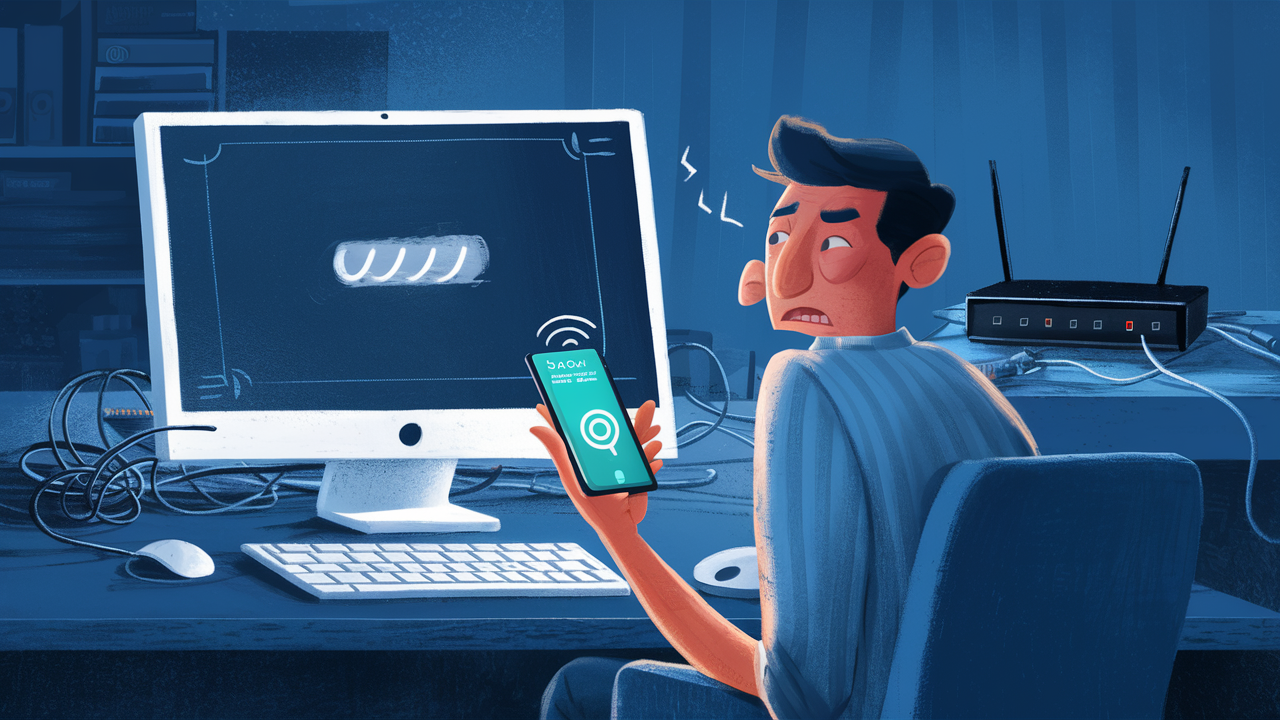
Is your lightning-fast fiber internet suddenly crawling at a snail's pace? This comprehensive guide dives deep into the common culprits behind slow fiber speeds, offering actionable solutions to diagnose and fix the problem. We'll explore everything from equipment issues to network congestion, ensuring you get back to enjoying your full bandwidth.
Understanding Slow Fiber Internet
Fiber optic internet is renowned for its incredible speed and reliability, delivering data at the speed of light. However, even the most advanced technology can experience performance degradation. When your fiber connection feels sluggish, it's frustrating, especially when you're paying for top-tier speeds. This guide aims to demystify why your fiber internet might be performing below expectations and provide concrete steps to diagnose and resolve the issue. We'll explore common bottlenecks, from your home network equipment to external factors, ensuring you can identify the root cause and enjoy the seamless connectivity you deserve.
Common Culprits Behind Slow Fiber Speeds
The perception of "slow" internet is subjective and can stem from a multitude of factors. While fiber optics themselves are incredibly fast, the entire chain from the internet backbone to your screen involves various components that can introduce delays or reduce throughput. Understanding these potential points of failure is the first step in effective troubleshooting.
Router and Modem Issues
Your modem and router are the gatekeepers of your internet connection. If they aren't performing optimally, your entire network will suffer. These devices can become bottlenecks due to several reasons:
- Outdated Hardware: Technology evolves rapidly. An older modem or router, even if it was once state-of-the-art, may not be capable of handling the speeds your fiber plan provides. For instance, a router designed for 100 Mbps might struggle to manage gigabit speeds. In 2025-26, gigabit and multi-gigabit plans are increasingly common, requiring routers that support Wi-Fi 6E or Wi-Fi 7 and have Gigabit Ethernet ports.
- Overheating: Like any electronic device, routers and modems can overheat, especially if they are in a confined space or have dust buildup. Overheating can lead to performance throttling and intermittent connectivity.
- Firmware Bugs: Router and modem manufacturers regularly release firmware updates to improve performance, patch security vulnerabilities, and add new features. Outdated firmware can contain bugs that negatively impact speed and stability.
- Hardware Malfunction: While less common, the hardware within your modem or router can degrade over time, leading to reduced performance or complete failure.
- Configuration Errors: Incorrect settings within the router's administrative interface can also lead to speed issues. This could range from QoS (Quality of Service) settings that prioritize certain traffic incorrectly to network security configurations that inadvertently slow down traffic.
Wi-Fi Limitations and Interference
While fiber brings speed to your home, the wireless connection within your home is often the weakest link. Wi-Fi is susceptible to numerous factors that can significantly reduce your perceived internet speed:
- Distance from Router: Wi-Fi signal strength diminishes with distance. The further you are from your router, the weaker the signal, leading to slower speeds and less stable connections.
- Physical Obstructions: Walls (especially concrete or brick), large appliances (microwaves, refrigerators), and even water can interfere with Wi-Fi signals, weakening them and reducing speed.
- Channel Congestion: Your Wi-Fi operates on specific radio frequency channels. If many nearby networks are using the same or overlapping channels, it creates interference, similar to multiple people trying to talk at once in a crowded room. This is particularly prevalent in apartment buildings or densely populated areas. The 2.4 GHz band is more prone to congestion than the 5 GHz or 6 GHz bands.
- Wi-Fi Standards: Older Wi-Fi standards (e.g., 802.11g, 802.11n) are inherently slower than newer ones like Wi-Fi 6 (802.11ax) and Wi-Fi 6E. If your devices and router don't support the latest standards, you won't achieve the full potential of your fiber connection. For 2025-26, Wi-Fi 6E is becoming standard for high-performance setups, and Wi-Fi 7 is emerging.
- Number of Connected Devices: Each device connected to your Wi-Fi network shares the available bandwidth. A large number of devices streaming, gaming, or downloading simultaneously can saturate your Wi-Fi, leading to slowdowns for everyone.
Your Devices Might Be the Bottleneck
It's easy to blame the internet connection when things are slow, but sometimes the issue lies with the devices you're using:
- Older Devices: Older smartphones, laptops, and smart TVs may have network adapters or processors that cannot keep up with the high speeds offered by fiber internet. Their internal components might be the limiting factor.
- Outdated Network Drivers: For computers, outdated network interface card (NIC) drivers can prevent them from achieving optimal speeds.
- Resource-Intensive Applications: If a device is running multiple demanding applications, background processes, or has a browser with dozens of tabs open, it can consume significant system resources, making the internet connection *appear* slow, even if the actual throughput is high.
- Malware Infections: As discussed later, malware can consume bandwidth and processing power, drastically slowing down your device and your perceived internet speed.
- Hardware Limitations: Even a new device might have a network card or Wi-Fi chip that is rated for lower speeds than your internet plan. For example, a laptop with an older Wi-Fi 5 (802.11ac) card might not be able to reach gigabit speeds even if your router and internet plan support it.
ISP Throttling and Network Congestion
While fiber is generally less susceptible to the congestion issues seen with older technologies like DSL or cable, external factors related to your Internet Service Provider (ISP) can still impact speeds:
- Network Congestion: Although fiber infrastructure is robust, the "last mile" connection to your home, or the broader network infrastructure in your area, can experience congestion during peak hours (evenings and weekends) when many users are online. This is less about the fiber cable itself and more about the capacity of the network equipment serving your neighborhood.
- ISP Throttling: Some ISPs may intentionally slow down certain types of traffic (like peer-to-peer file sharing or excessive streaming) or throttle speeds for users who exceed certain data caps, even on "unlimited" plans. This is often outlined in the terms of service.
- Bandwidth Caps: While less common with fiber plans, some plans might still have data caps, and exceeding them can result in significantly reduced speeds.
- Equipment Issues at the ISP: Problems with the ISP's equipment in your local area or further up the network chain can also lead to slower speeds for multiple customers.
Malware and Background Processes
Malicious software and legitimate but resource-hungry background processes can silently consume your bandwidth and processing power, making your internet feel slow:
- Malware: Viruses, spyware, and other malware can use your internet connection to send out spam, participate in botnets, or download malicious updates. This consumes bandwidth without your knowledge.
- Background Updates: Operating systems and applications frequently download and install updates in the background. While essential for security, these can temporarily consume significant bandwidth.
- Cloud Sync Services: Services like Google Drive, Dropbox, or OneDrive can use a substantial amount of bandwidth when syncing large files.
- P2P Applications: Unattended peer-to-peer file-sharing applications can consume a lot of bandwidth for both uploading and downloading.
Cabling and Physical Connection Issues
The physical infrastructure connecting your modem, router, and devices plays a crucial role. Even a small issue here can cause significant speed drops:
- Damaged Ethernet Cables: Ethernet cables can be damaged by kinks, cuts, or wear and tear. A damaged cable can lead to intermittent connectivity or significantly reduced speeds. Ensure you are using Cat 5e, Cat 6, or Cat 6a cables for speeds above 1 Gbps.
- Loose Connections: Ensure all Ethernet cables are securely plugged into their respective ports on the modem, router, and devices. A loose connection is a common cause of unexpected speed drops.
- Faulty Splitters or Connectors: If you have any additional splitters or connectors in your network setup (less common with fiber, but possible in complex home setups), these can degrade the signal.
- Fiber Optic Cable Damage: While fiber optic cables are more durable than copper, they can still be damaged by extreme bending, crushing, or cuts. If the fiber cable entering your home is damaged, it will require professional repair by your ISP.
DNS Server Settings
The Domain Name System (DNS) acts like the internet's phonebook, translating human-readable website names (like google.com) into IP addresses that computers understand. Slow DNS lookups can make it seem like your internet is slow, even if the actual data transfer speeds are fine:
- ISP's Default DNS: Your ISP's DNS servers are often the default. While usually reliable, they can sometimes be slow or overloaded, especially during peak times.
- Geographic Distance: If your ISP's DNS servers are geographically distant, lookups can take longer.
Step-by-Step Troubleshooting Guide
Now that we've explored the potential causes, let's walk through a systematic approach to diagnose and fix your slow fiber internet connection. Following these steps in order will help you pinpoint the problem efficiently.
Step 1: Perform Accurate Speed Tests
Before you do anything else, you need a baseline measurement of your internet speed. This will help you determine if you're actually getting the speeds you're paying for and track improvements.
- Use a Reliable Speed Test Tool: Websites like Speedtest.net (Ookla), Fast.com (Netflix), or Google's built-in speed test are good options.
- Test with a Wired Connection: For the most accurate results, connect a computer directly to your router using an Ethernet cable. This bypasses potential Wi-Fi issues.
- Test at Different Times: Run tests during peak hours (e.g., evenings) and off-peak hours to see if congestion is a factor.
- Perform Multiple Tests: Run several tests over a few minutes to ensure consistency and average the results.
- Compare to Your Plan: Note your download and upload speeds and compare them to the speeds advertised in your internet plan. Remember that advertised speeds are often "up to," and you might not consistently hit the maximum. However, consistently receiving less than 70-80% of your advertised speed warrants investigation.
Step 2: Restart Your Router and Modem
This is the most common and often most effective first step. A simple reboot can clear temporary glitches, memory leaks, and re-establish a clean connection with your ISP.
- Unplug Power: Unplug the power cords from both your modem and your router.
- Wait: Wait for at least 30-60 seconds. This allows the devices to fully discharge and reset.
- Plug In Modem First: Plug the power cord back into your modem. Wait for all the indicator lights to stabilize, indicating it has reconnected to your ISP's network (this can take a few minutes).
- Plug In Router: Once the modem is fully online, plug the power cord back into your router. Wait for its lights to stabilize.
- Test Again: Once both devices are fully booted up, perform another speed test.
Step 3: Test Wired vs. Wireless Connections
This step is crucial for isolating whether the problem is with your Wi-Fi or the core internet connection coming into your home.
- Connect Directly via Ethernet: As mentioned in Step 1, connect a computer directly to your router using a high-quality Ethernet cable (Cat 5e or better). Run a speed test.
- Compare Results:
- If the wired speed is significantly faster than your Wi-Fi speed, the issue is likely with your Wi-Fi network (interference, distance, router settings, or the router's Wi-Fi capabilities).
- If the wired speed is also slow and significantly lower than your plan's advertised speed, the problem might be with your modem, router, ISP, or the incoming fiber line.
Step 4: Inspect Your Devices
If your wired connection is good but Wi-Fi is slow, or if you suspect a specific device is the culprit, investigate your devices.
- Test Multiple Devices: Try performing speed tests on different devices (smartphones, tablets, laptops). If only one device is slow, the problem is likely with that specific device.
- Check Device Network Adapters: Ensure your computer's network drivers are up to date. For Wi-Fi, check if your device supports the Wi-Fi standard your router is broadcasting (e.g., Wi-Fi 5, Wi-Fi 6).
- Close Unnecessary Applications: On your computer, close any applications that might be consuming bandwidth or system resources (e.g., cloud sync services, streaming apps, torrent clients, many browser tabs).
- Restart Devices: Sometimes, a simple restart of the device experiencing slowness can resolve temporary issues.
Step 5: Optimize Router Placement and Settings
If Wi-Fi is the bottleneck, these steps can significantly improve performance:
- Router Placement:
- Central Location: Place your router in a central, open location in your home, away from walls and obstructions.
- Elevate: Place it on a shelf or table, not on the floor.
- Avoid Interference: Keep it away from microwaves, cordless phones, and other electronic devices that operate on similar frequencies.
- Router Settings:
- Update Firmware: Log into your router's administrative interface (usually by typing an IP address like 192.168.1.1 or 192.168.0.1 into your web browser) and check for firmware updates. Install them if available.
- Wi-Fi Channel Optimization: Use your router's settings to scan for the least congested Wi-Fi channels, especially on the 2.4 GHz band. Many modern routers can do this automatically. If you have a dual-band or tri-band router, ensure you are connecting to the 5 GHz or 6 GHz band for better speeds and less interference when possible.
- Wi-Fi Standard: Ensure your router is set to use the latest Wi-Fi standards (e.g., Wi-Fi 6) if your devices support them.
- QoS Settings: If your router has Quality of Service (QoS) settings, review them. Ensure they are not incorrectly prioritizing other devices or applications, thus limiting bandwidth for your primary needs. For most home users, disabling QoS or using its automatic settings is best unless you have a specific need.
- Reboot Router: After making changes, reboot your router.
- Consider a Mesh System: If you have a large home or many dead zones, a Wi-Fi mesh system can provide more consistent coverage than a single router.
Step 6: Scan for Malware and Unwanted Processes
A clean system is a fast system.
- Run Antivirus/Antimalware Scans: Use reputable antivirus and antimalware software to perform a full system scan on all your devices, especially computers. Remove any detected threats.
- Check Task Manager/Activity Monitor: On your computer, open Task Manager (Windows) or Activity Monitor (macOS) and look for any processes consuming unusually high CPU or network resources. Investigate and close any suspicious or unnecessary applications.
- Review Startup Programs: Disable unnecessary programs that launch automatically when your computer starts.
Step 7: Examine Your Physical Cables
Don't overlook the physical connections.
- Inspect Ethernet Cables: Check all Ethernet cables for visible damage, kinks, or frayed ends. Replace any suspect cables. Ensure you are using cables rated for the speeds you expect (Cat 5e for up to 1 Gbps, Cat 6/6a for higher).
- Secure Connections: Ensure all Ethernet cables are firmly plugged into their ports on the modem, router, and devices.
- Fiber Cable: If you suspect damage to the fiber optic cable itself (e.g., if it's exposed outside your home and appears damaged), do not attempt to repair it yourself. Contact your ISP immediately.
Step 8: Consider Changing DNS Servers
If your speed tests are decent but browsing feels sluggish, changing DNS servers might help.
- Choose a Public DNS Provider: Popular and reliable options include Google DNS (8.8.8.8 and 8.8.4.4) and Cloudflare DNS (1.1.1.1 and 1.0.0.1).
- Update Router Settings: Log into your router's administrative interface and find the DNS settings (usually under WAN or Internet settings). Enter the IP addresses of your chosen public DNS servers.
- Update Device Settings (Alternative): You can also change DNS settings on individual devices (Windows, macOS, iOS, Android), but changing it on the router affects all connected devices.
- Test Again: After changing DNS settings, restart your router and devices, then test your browsing speed and responsiveness.
Step 9: Contact Your Internet Service Provider (ISP)
If you've gone through all the above steps and your speed tests (especially on a wired connection) are still consistently below your plan's advertised speeds, it's time to contact your ISP.
- Provide Information: When you call, be prepared to tell them:
- Your internet plan details.
- The results of your wired speed tests (download and upload speeds, latency).
- The troubleshooting steps you've already taken (rebooting modem/router, testing wired vs. wireless, checking devices, etc.).
- The make and model of your modem and router.
- Ask Specific Questions:
- "Are there any reported outages or maintenance in my area?"
- "Can you check the signal strength and quality to my modem?"
- "Is there any equipment issue on your end that might be affecting my speeds?"
- "Can you confirm that my modem is provisioned for the correct speeds for my plan?"
- Schedule a Technician: If they cannot resolve the issue remotely, ask them to schedule a technician to visit your home and inspect the line and equipment.
Preventative Measures for Optimal Fiber Performance
Maintaining optimal fiber internet performance involves a proactive approach. By implementing these strategies, you can minimize the chances of experiencing slow speeds in the future:
- Regularly Update Router Firmware: Make it a habit to check for and install firmware updates for your router at least quarterly. This ensures you have the latest performance enhancements and security patches.
- Invest in Quality Networking Equipment: When upgrading your router or modem, choose reputable brands and models that are designed to handle your internet plan's speeds. For 2025-26, consider routers supporting Wi-Fi 6E or Wi-Fi 7 for future-proofing.
- Monitor Your Network: Periodically run speed tests, especially during peak usage times, to catch any gradual degradation in performance.
- Manage Connected Devices: Be mindful of how many devices are actively using bandwidth simultaneously. If you have many devices, consider upgrading to a router with better capacity or implementing network segmentation if possible.
- Secure Your Wi-Fi Network: Use a strong, unique password for your Wi-Fi network and enable WPA3 encryption if your devices support it. This prevents unauthorized users from consuming your bandwidth.
- Keep Devices Updated: Ensure your operating systems, network drivers, and applications are up-to-date on all your devices.
- Regularly Scan for Malware: Maintain up-to-date antivirus and antimalware software and perform regular scans.
- Organize Cables: Keep your Ethernet cables tidy and free from damage. Replace any that show signs of wear.
Conclusion: Reclaiming Your Fiber Speed
Experiencing slow fiber internet can be a perplexing issue, but by systematically troubleshooting, you can often identify and resolve the problem. We've explored a range of potential causes, from outdated hardware and Wi-Fi interference to ISP-related issues and even malware. Remember that fiber optics provide the raw speed, but the entire network path, including your home equipment and devices, must be optimized to deliver that speed effectively. By performing accurate speed tests, restarting your equipment, testing wired vs. wireless connections, and systematically checking your devices and network settings, you can pinpoint the bottleneck. Don't hesitate to contact your ISP if you suspect an issue on their end. By implementing preventative measures and staying vigilant, you can ensure your fiber connection remains fast and reliable, allowing you to enjoy seamless browsing, streaming, and gaming for years to come.