Why is AT&T internet so slow?
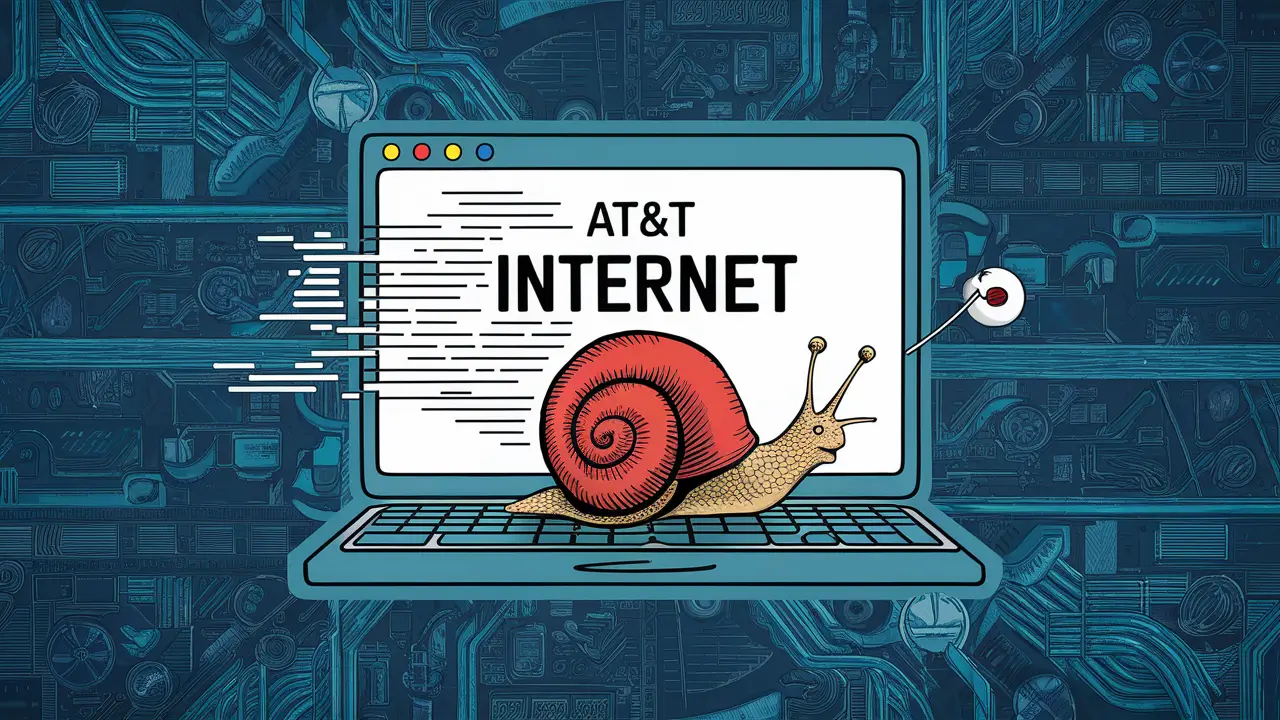
Experiencing frustratingly slow AT&T internet speeds? You're not alone. This comprehensive guide dives deep into the common culprits behind sluggish AT&T service, offering practical solutions and insights to help you diagnose and resolve the issue, ensuring a smoother online experience in 2025 and beyond.
Understanding AT&T Internet Speeds
In today's digitally driven world, a reliable and fast internet connection is no longer a luxury but a necessity. Whether you're working from home, streaming your favorite shows, gaming online, or simply browsing the web, slow internet speeds can be a significant source of frustration. AT&T, a major internet service provider in the United States, offers a range of plans and technologies to meet diverse user needs. However, many users find themselves asking, "Why is AT&T internet so slow?" This question often arises when the actual speeds experienced fall short of advertised rates, impacting daily online activities. Understanding what constitutes "fast" or "slow" internet is the first step in diagnosing and resolving these issues.
Internet speed is typically measured in megabits per second (Mbps) for both download and upload. Download speed refers to how quickly you can receive data from the internet, crucial for streaming, browsing, and downloading files. Upload speed is how quickly you can send data to the internet, important for video calls, uploading files, and online gaming. Advertised speeds are often "up to" a certain limit, meaning actual speeds can vary based on numerous factors. For 2025, a good baseline for general internet use (browsing, email, light streaming) might be around 50-100 Mbps download. For more demanding activities like 4K streaming, online gaming, and supporting multiple users and devices, speeds of 300 Mbps to 1 Gbps or higher are often recommended. If your AT&T service consistently falls below these benchmarks, it's time to investigate the underlying causes.
Common Culprits Behind Slow AT&T Internet
Several factors can contribute to your AT&T internet connection performing below expectations. Identifying the specific cause is key to finding the right solution. Let's explore the most common culprits in detail.
Your Internet Plan Limitations
Perhaps the most straightforward reason for slow AT&T internet is that your current plan simply doesn't offer the speeds you need. AT&T provides various internet plans, from basic DSL to high-speed fiber optic services. If you're on an older or lower-tier plan, especially one designed for minimal usage, it might not be equipped to handle the demands of modern internet activities. For instance, a plan offering "up to 25 Mbps" will struggle significantly with multiple users streaming HD content simultaneously or with large file downloads. By 2025, the average household has an increasing number of connected devices, and data consumption continues to rise. A plan that was adequate a few years ago might now be a bottleneck.
2025 Data Point: According to recent industry reports, the average U.S. household consumes over 400 GB of data per month, with many exceeding 1 TB. Plans with data caps or lower speed tiers may not meet this growing demand, leading to perceived slowness or even throttling once limits are reached.
Router and Modem Issues
Your modem and router are the gateways to your internet connection. If either of these devices is malfunctioning, outdated, or not properly configured, it can severely impact your speeds.
- Modem Bottleneck: The modem translates the signal from AT&T's network into a format your router can use. If your modem is old or not rated for the speeds your plan provides, it can cap your connection. For example, an older DSL modem might not be capable of handling speeds above 50 Mbps, even if your plan is for 100 Mbps.
- Router Limitations: The router distributes the internet connection throughout your home via Wi-Fi and Ethernet. Older routers, especially those not supporting newer Wi-Fi standards like Wi-Fi 6 (802.11ax), can create a bottleneck. They might also have limited processing power to handle multiple simultaneous connections, leading to slowdowns.
- Combined Modem/Router Units: Many ISPs, including AT&T, provide a single gateway device that combines both modem and router functionalities. While convenient, these all-in-one units can sometimes be less powerful or flexible than separate, high-quality devices.
Network Congestion
Network congestion occurs when too many users in a specific area are trying to access the internet simultaneously, overwhelming the available bandwidth. This is particularly common with cable internet but can also affect DSL and even fiber networks during peak usage times. Think of it like rush hour on a highway; when too many cars are on the road, traffic slows to a crawl for everyone.
2025 Trend: With the rise of remote work and online education, peak internet usage hours have become more pronounced. Evenings and weekends are prime times for congestion. If your AT&T internet slows down considerably between 6 PM and 10 PM, network congestion is a likely suspect.
Device Limitations
Sometimes, the problem isn't with your internet service or your home network, but with the devices you're using.
- Outdated Hardware: Older computers, smartphones, or tablets may have network interface cards (NICs) or processors that cannot handle high-speed internet connections. For example, a laptop with an older Wi-Fi chip might only support speeds up to 150 Mbps, regardless of your plan.
- Resource-Intensive Applications: If your device is running numerous applications in the background, performing large downloads, or has too many browser tabs open, it can consume bandwidth and processing power, making your internet seem slow.
- Malware: Viruses and malware can consume significant bandwidth and system resources, slowing down your internet and your device.
Wi-Fi Interference and Signal Strength
Wi-Fi is convenient, but it's susceptible to various issues that can degrade performance.
- Distance from Router: The further you are from your Wi-Fi router, the weaker the signal will be, leading to slower speeds.
- Physical Obstructions: Walls (especially concrete or brick), large furniture, appliances (like microwaves), and even aquariums can block or weaken Wi-Fi signals.
- Interference from Other Devices: Many household electronics operate on the same 2.4 GHz frequency band as older Wi-Fi routers, causing interference. This includes cordless phones, Bluetooth devices, baby monitors, and even neighboring Wi-Fi networks. Newer routers operating on the 5 GHz band are less prone to interference but have a shorter range.
Outdated Equipment or Firmware
Technology evolves rapidly. If your AT&T modem/router is several years old, it might not support the latest Wi-Fi standards or be capable of delivering the speeds your plan promises. Similarly, outdated firmware on your router can lead to performance issues and security vulnerabilities. Firmware is the software that controls your router's operations.
Malware and Background Processes
Malicious software (malware) or even legitimate but resource-heavy background processes on your devices can consume your internet bandwidth without your knowledge. This can include automatic software updates, cloud synchronization services (like Dropbox or Google Drive), or even cryptocurrency mining malware.
AT&T Network Outages or Maintenance
Occasionally, slow speeds or complete outages can be due to issues on AT&T's end. This could be planned maintenance to upgrade their network infrastructure or unplanned outages caused by equipment failure, weather events, or accidental damage to lines.
Physical Line or Infrastructure Problems
The physical cables connecting your home to AT&T's network can degrade over time or be damaged. This is more common with older DSL lines but can also affect fiber optic cables if they are physically compromised. Issues like corrosion, water damage, or physical breaks in the line can lead to intermittent connectivity and significantly reduced speeds.
Diagnosing Your Slow AT&T Internet
Before you can fix your slow AT&T internet, you need to pinpoint the exact cause. A systematic approach to diagnosis will save you time and frustration.
Perform a Speed Test
This is your first and most crucial diagnostic step.
- Use a Reliable Tool: Visit reputable speed test websites like Speedtest.net (Ookla), Fast.com (Netflix), or Google's speed test.
- Connect via Ethernet: For the most accurate results, connect your computer directly to your AT&T modem/router using an Ethernet cable. Wi-Fi speeds can be influenced by many factors, so an Ethernet test gives you a baseline of the speed coming into your home.
- Test at Different Times: Run tests during peak hours (evenings) and off-peak hours (mornings) to see if speeds fluctuate due to network congestion.
- Compare Results: Note down your download and upload speeds and compare them to the speeds advertised in your AT&T plan. Remember that advertised speeds are "up to" limits. A consistent shortfall of 20-30% might be acceptable, but significantly lower speeds warrant further investigation.
Check Your Plan Details
Log in to your AT&T account online or check your latest bill. Confirm the exact speeds your plan is supposed to provide. If you're unsure, AT&T's customer service can confirm this for you. Understanding your contracted speeds is essential for setting realistic expectations and identifying discrepancies.
Isolate the Problem: Wired vs. Wireless
If your Ethernet speed test shows speeds close to your plan's advertised rates, but your Wi-Fi is slow, the issue likely lies with your Wi-Fi setup. If both wired and wireless speeds are consistently low, the problem might be with your modem, router, or AT&T's service itself.
Test Different Devices
Try running speed tests on multiple devices (e.g., a newer smartphone, an older laptop, a tablet). If only one device is experiencing slow speeds, the issue is likely with that specific device (e.g., outdated hardware, malware, background processes). If all devices are slow, the problem is more likely network-wide.
Monitor Your Network Usage
Check how many devices are actively using your internet connection. Are there multiple devices streaming 4K video, downloading large files, or engaged in online gaming simultaneously? Your router's administration interface (usually accessed via a web browser by typing an IP address like 192.168.1.1 or 192.168.0.1) often provides a list of connected devices and their data usage. This can help identify bandwidth hogs.
Inspect Your Equipment
Visually inspect your modem and router. Check for any blinking lights that indicate an error or connection issue (consult your device manual for light codes). Ensure all cables are securely connected and not damaged. If you have an older modem, check its specifications to ensure it supports the speeds of your current plan.
Troubleshooting Steps to Boost AT&T Internet Speed
Once you've diagnosed the potential cause, you can implement targeted troubleshooting steps.
Restart Your Modem and Router
This is the classic "turn it off and on again" solution, and it often works wonders. A simple reboot can clear temporary glitches, refresh network connections, and resolve minor software issues.
- Unplug the power cords from both your modem and router.
- Wait for at least 60 seconds. This allows the devices to fully power down and discharge any residual power.
- Plug the modem back in first. Wait for its lights to stabilize, indicating it has reconnected to AT&T's network (this can take a few minutes).
- Plug the router back in. Wait for its lights to stabilize.
- Test your internet speed again.
Update Your Router Firmware
Outdated firmware can cause performance issues and security vulnerabilities. Most modern routers allow you to update firmware via their web interface.
- Access your router's administration page (e.g., by typing 192.168.1.1 into your browser).
- Log in with your administrator username and password.
- Look for a "Firmware Update," "Administration," or "System" section.
- Check for available updates and follow the on-screen instructions to install them. Ensure your device remains powered on during the update process.
- If you're using an AT&T-provided gateway, firmware updates are often pushed automatically, but you can sometimes check for updates manually through the gateway's interface or by contacting AT&T support.
Optimize Your Wi-Fi Settings
If Wi-Fi is the bottleneck, consider these optimizations:
- Change Wi-Fi Channel: Routers broadcast on specific channels. If your channel is crowded by neighboring networks, switching to a less congested channel can improve performance. Many routers have an "auto" setting, but manually selecting a less crowded channel (often 1, 6, or 11 on the 2.4 GHz band) can help. Use Wi-Fi analyzer apps on your smartphone to find the best channel.
- Use the 5 GHz Band: If your router and devices support it, use the 5 GHz band. It offers faster speeds and less interference than the 2.4 GHz band, though its range is shorter.
- Enable QoS (Quality of Service): If your router supports QoS, you can prioritize certain devices or applications (e.g., video streaming, gaming) to ensure they receive sufficient bandwidth.
Reduce Network Congestion
If multiple devices are consuming a lot of bandwidth, try to manage their usage.
- Schedule large downloads or updates for off-peak hours.
- Limit the number of devices streaming high-definition content simultaneously.
- Temporarily disconnect devices that are not actively in use.
- If congestion is a persistent problem during peak hours, consider upgrading your internet plan.
Consider Upgrading Your Equipment
If your modem or router is several years old, it might be time for an upgrade.
- Modem: Ensure your modem is compatible with the speeds of your AT&T plan. If you're on a fiber plan, you'll need a compatible ONT (Optical Network Terminal), which is usually provided by AT&T. For DSL, check the modem's DOCSIS version or DSL standards.
- Router: Invest in a modern Wi-Fi router that supports Wi-Fi 6 (802.11ax) or Wi-Fi 6E for the best performance and future-proofing. Look for routers with good reviews for range and speed.
- Mesh Wi-Fi Systems: For larger homes or areas with weak Wi-Fi signals, a mesh Wi-Fi system can provide consistent coverage throughout your house.
Check for Malware and Viruses
Run a full system scan with reputable antivirus and anti-malware software on all your devices. Remove any detected threats.
Position Your Router Strategically
The placement of your router significantly impacts Wi-Fi signal strength.
- Place it in a central location in your home.
- Keep it in an open area, away from obstructions like walls, large furniture, and metal objects.
- Avoid placing it near other electronics that can cause interference (microwaves, cordless phones).
- Elevate the router if possible (e.g., on a shelf).
Use a Wired Connection When Possible
For devices that require the most stable and fastest connection (e.g., gaming consoles, desktop computers for work, smart TVs for 4K streaming), use an Ethernet cable whenever possible. This bypasses potential Wi-Fi issues entirely.
Contact AT&T Support
If you've tried the above steps and your internet is still slow, it's time to contact AT&T.
- Be Prepared: Have your account information ready, along with the results of your speed tests (including wired vs. wireless, and tests at different times).
- Explain the Issue: Clearly describe the problem, when it started, and the troubleshooting steps you've already taken.
- Ask Specific Questions: Inquire about potential network issues in your area, whether your equipment is outdated or compatible, and if there are any known problems with the lines to your home.
- Request a Technician: If AT&T cannot resolve the issue remotely, request a technician visit to inspect your lines and equipment.
When to Consider Upgrading Your AT&T Internet Plan
Sometimes, the most effective solution is to upgrade your internet plan. Consider an upgrade if:
- Your current plan consistently fails to meet your household's bandwidth needs, even after troubleshooting.
- You have a growing number of connected devices.
- You frequently experience buffering or slow loading times when streaming high-definition content or gaming.
- You work from home and rely on a stable, fast connection for video conferencing and large file transfers.
- AT&T offers a significantly faster plan in your area that fits your budget.
2025 Insight: With the increasing adoption of smart home devices and the demand for higher resolution streaming (4K and 8K), many households are finding their older internet plans insufficient. Upgrading to a gigabit fiber plan, if available, can dramatically improve performance and future-proof your connection.
Understanding AT&T Internet Technologies: Fiber vs. DSL
AT&T offers internet service through different technologies, and the type of service you have significantly impacts potential speeds and reliability.
| Feature | AT&T Fiber (Fiber Optic) | AT&T Internet (DSL) |
|---|---|---|
| Speed Potential | Very High (Symmetrical speeds up to 5 Gbps or more) | Lower to Moderate (Varies greatly with distance from central office, typically up to 100 Mbps download, often less) |
| Reliability | High, less susceptible to interference and distance | Can be affected by distance, line quality, and electrical interference |
| Latency | Very Low (Excellent for gaming and real-time applications) | Higher than fiber, can impact real-time applications |
| Availability | Growing, but not available everywhere; primarily in urban and suburban areas. | Widely available, especially in areas where fiber is not yet deployed. |
| Cost | Generally higher, especially for gigabit speeds. | Typically more affordable. |
If you have AT&T DSL and are consistently experiencing slow speeds, especially if you live far from the local exchange, upgrading to AT&T Fiber is likely the most effective long-term solution for significantly faster and more reliable internet. Check AT&T's website for fiber availability in your specific area.
Future-Proofing Your Internet Connection
The internet landscape is constantly evolving. To ensure your connection remains adequate for years to come, consider these strategies:
- Opt for Fiber: If available, AT&T Fiber offers the highest speeds and lowest latency, making it the most future-proof technology.
- Invest in Wi-Fi 6/6E: A modern router supporting the latest Wi-Fi standards will better handle the increasing number of wireless devices and higher bandwidth demands.
- Consider Higher Speed Tiers: When upgrading your plan, aim for a speed tier that offers some headroom for future needs, rather than just meeting current demands.
- Regularly Assess Needs: As technology advances and your household's internet usage patterns change, periodically reassess whether your current plan and equipment are still sufficient.
By understanding the potential causes of slow AT&T internet, systematically diagnosing the issue, and implementing the appropriate troubleshooting steps, you can significantly improve your online experience. Whether it's a simple router reboot, optimizing your Wi-Fi, or considering a plan upgrade, taking proactive steps will ensure you get the most out of your AT&T service in 2025 and beyond. Don't let slow internet hold you back.
In conclusion, slow AT&T internet can stem from a variety of factors, ranging from your chosen plan's limitations and aging equipment to network congestion and Wi-Fi interference. The key to resolving this issue lies in a methodical diagnostic process. Begin by performing accurate speed tests, distinguishing between wired and wireless performance, and checking your plan's specifications. Simple yet effective troubleshooting steps like restarting your modem and router, optimizing Wi-Fi channels, and ensuring your devices are free of malware can often yield significant improvements. For those in areas served by AT&T Fiber, this technology represents the pinnacle of speed and reliability, offering a clear path to overcoming persistent slowdowns. If your current equipment is outdated, consider upgrading to a modern router that supports Wi-Fi 6/6E. Ultimately, if troubleshooting doesn't resolve the problem, contacting AT&T support for further assistance or exploring plan upgrades, particularly to fiber if available, will be your most effective route to a consistently fast and dependable internet connection.