Why does my fiber internet keep buffering?
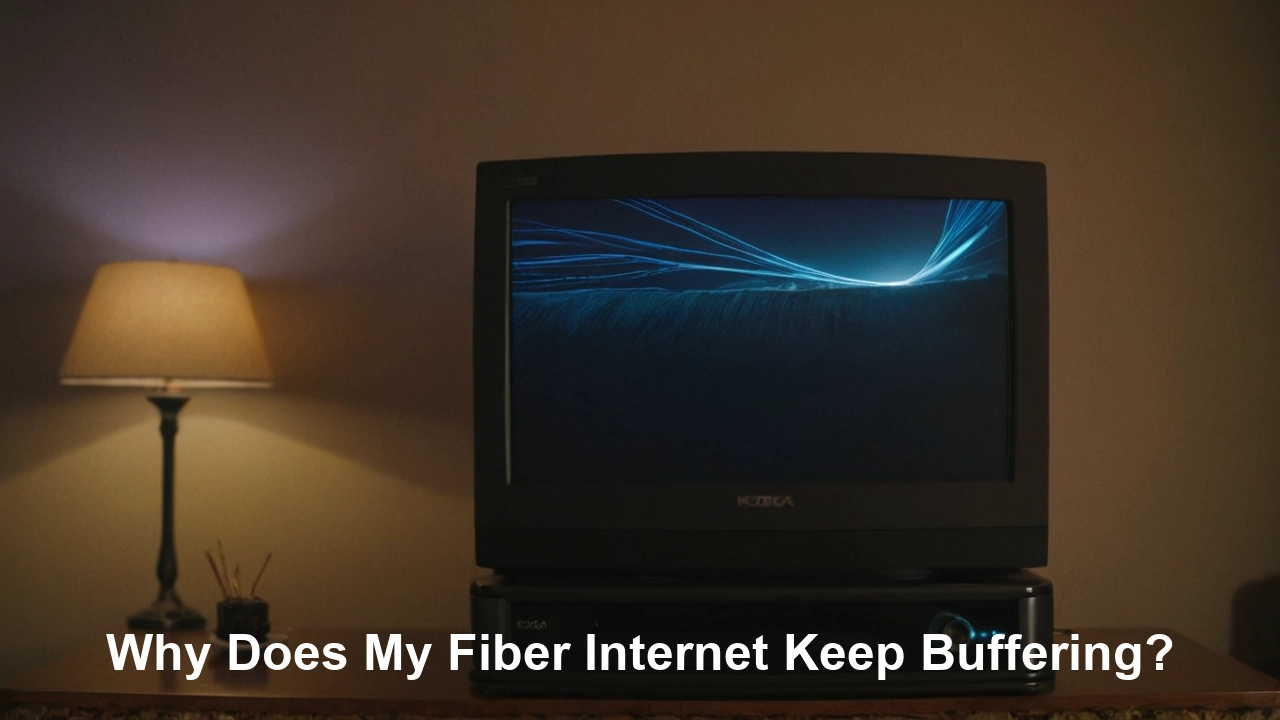
Experiencing frustrating buffering with your fiber internet? You're not alone. This comprehensive guide dives deep into the common culprits behind fiber internet buffering, offering practical solutions to restore your seamless online experience. We'll explore everything from your home network to external factors, ensuring you get back to uninterrupted streaming and browsing.
Understanding Fiber Internet and Buffering
Fiber optic internet is celebrated for its incredible speed and reliability, utilizing light pulses transmitted through glass or plastic strands. Unlike traditional copper-based DSL or cable, fiber offers symmetrical upload and download speeds and is far less susceptible to electromagnetic interference. However, even this advanced technology isn't entirely immune to buffering. Buffering, in essence, occurs when your device can't download data fast enough to maintain a continuous playback stream. This can manifest as video stuttering, audio drops, or web pages loading in slow, segmented parts. While fiber's inherent speed minimizes many common internet issues, understanding the nuances of your network and potential external factors is crucial for diagnosing and resolving persistent buffering problems.
Common Causes Within Your Home Network
The most frequent culprits for buffering often reside within your own home. These issues are typically the easiest to diagnose and fix, offering a clear path to a smoother internet experience. We'll break down the most common internal factors that can degrade your fiber connection's performance.
Router and Modem Issues
Your router and modem are the gateways to your internet connection. If they aren't performing optimally, the entire network suffers. Several issues can arise with these critical devices.
1. Outdated Firmware
Router manufacturers regularly release firmware updates to improve performance, fix bugs, and patch security vulnerabilities. Running outdated firmware can lead to slower speeds, dropped connections, and increased buffering. It's akin to running an old operating system on your computer; it might work, but it's not optimized for current demands.
2. Overheating
Modems and routers generate heat, especially when under heavy load. If a device is placed in a poorly ventilated area, like a closed cabinet or near other heat-producing electronics, it can overheat. Overheating can cause performance degradation, spontaneous reboots, and ultimately, connection instability leading to buffering.
3. Incorrect Placement
The placement of your router significantly impacts Wi-Fi signal strength. Placing it in a corner, behind furniture, or near large metal objects can obstruct the signal. For optimal performance, routers should be placed in a central, elevated location, away from obstructions and potential sources of interference.
4. Router Overload
Every router has a limit to how many devices it can effectively manage simultaneously. If you have a large number of devices connected and actively using the internet (streaming on multiple TVs, gaming, video conferencing), your router might become overloaded, leading to slower speeds and buffering for all connected devices.
5. Incorrect Configuration
While less common for users to accidentally misconfigure, incorrect settings in your router's administrative interface can impact performance. This could include incorrect Quality of Service (QoS) settings, outdated DNS servers, or even specific Wi-Fi channel selections that are heavily congested.
Wi-Fi Signal Strength and Interference
Even with a robust fiber connection to your home, a weak or interfered Wi-Fi signal can be the bottleneck. This is especially true for devices connecting wirelessly.
1. Distance from the Router
The further a device is from your router, the weaker the Wi-Fi signal will be. This weaker signal translates to slower speeds and a higher likelihood of buffering, even if your fiber connection itself is performing perfectly.
2. Physical Obstructions
Walls (especially brick or concrete), large appliances (microwaves, refrigerators), mirrors, and even aquariums can significantly degrade Wi-Fi signals. These materials absorb or reflect the radio waves, weakening the connection.
3. Wireless Interference
Your Wi-Fi operates on specific radio frequencies. Other devices in your home and your neighbors' homes can operate on the same or overlapping frequencies, causing interference. Common sources include:
- Microwave ovens
- Bluetooth devices
- Cordless phones
- Baby monitors
- Neighboring Wi-Fi networks
In 2025-26, with the proliferation of smart home devices, the 2.4 GHz band, commonly used by many of these devices, is particularly prone to congestion. The 5 GHz band offers more channels and less interference but has a shorter range.
4. Using the Wrong Wi-Fi Band
Modern dual-band routers broadcast on both 2.4 GHz and 5 GHz frequencies. The 2.4 GHz band has a longer range but is slower and more prone to interference. The 5 GHz band is faster and less congested but has a shorter range. Devices that are close to the router and require high speeds (like for 4K streaming) should ideally connect to the 5 GHz band. Older or less demanding devices might be better suited to the 2.4 GHz band.
Device Limitations and Network Congestion
The devices you use to access the internet and the collective demand on your network can also lead to buffering.
1. Older or Underpowered Devices
If your devices (smartphones, tablets, laptops, smart TVs) are several years old, their internal Wi-Fi cards or processors might not be capable of handling the full speeds of your fiber connection. They can become a bottleneck, unable to process the incoming data fast enough, leading to buffering.
2. Too Many Devices Connected
As mentioned earlier, routers have a limit. In 2025-26, the average household has over 20 connected devices, many of which are "smart" devices that are always online. When many of these devices are actively using bandwidth simultaneously, even a powerful fiber connection can feel sluggish, leading to buffering.
3. Background Processes and Updates
Many applications and operating systems perform background updates or synchronizations without your direct knowledge. These processes consume bandwidth and can contribute to buffering, especially if they occur during peak usage times.
4. Malware or Viruses
Infected devices can use your internet connection for malicious purposes, such as sending spam or participating in botnets. This hidden activity consumes bandwidth and can significantly slow down your legitimate internet usage, causing buffering.
Outdated or Faulty Equipment
Beyond just the router and modem, other equipment in your home network can be a source of problems.
1. Old Network Cables
If you use Ethernet cables to connect devices, ensure they are in good condition and of a sufficient category (Cat 5e or higher is recommended for gigabit speeds). Damaged or outdated cables can limit speeds and cause intermittent connectivity issues.
2. Faulty Network Interface Cards (NICs)
The network interface card in your computer or other devices can sometimes fail or become outdated, hindering its ability to communicate effectively with your router.
3. Issues with Wi-Fi Extenders or Mesh Systems
While designed to improve Wi-Fi coverage, poorly configured or outdated Wi-Fi extenders and mesh systems can sometimes create more problems than they solve. They can introduce latency, create dead zones, or reduce speeds if not set up correctly.
External Factors Affecting Your Fiber Connection
While internal network issues are common, sometimes the problem lies beyond your home's walls. These external factors can impact even the most robust fiber optic lines.
ISP Issues and Network Traffic
Your Internet Service Provider (ISP) plays a significant role in your connection's performance.
1. Network Congestion at the ISP Level
During peak hours (typically evenings and weekends), many users in your area will be online simultaneously. If your ISP's network infrastructure isn't robust enough to handle this surge in demand, it can lead to slower speeds and buffering for everyone connected to that local node. While fiber is less prone to congestion than cable, it's not entirely immune, especially in densely populated areas or during major events that drive online activity.
According to recent industry reports for 2025-26, ISPs are investing heavily in network upgrades, but localized congestion can still occur. For instance, a major sporting event or a popular new game release can cause temporary spikes in demand.
2. ISP Server Problems
Sometimes, the issue might not be with your local connection but with the ISP's central servers or peering points where their network connects to the wider internet. These can experience technical difficulties or maintenance that affect service quality.
3. DNS Server Issues
The Domain Name System (DNS) translates human-readable website addresses (like google.com) into IP addresses that computers understand. If your ISP's DNS servers are slow or experiencing issues, it can lead to delays in loading websites and can indirectly contribute to a feeling of slow internet or buffering, even if your actual connection speed is fine.
Physical Line Damage or Degradation
Fiber optic cables are durable, but they are not indestructible.
1. Accidental Damage
Construction work, digging, or even damage from rodents can physically sever or damage the fiber optic cables that run to your home or to the local distribution point. This is a more serious issue that requires ISP intervention.
2. Weather-Related Issues
While fiber is more resistant to weather than copper, extreme weather events like heavy storms, fallen trees, or ice accumulation can still cause physical damage to the lines or the equipment supporting them.
3. Wear and Tear
Over time, the protective sheathing of fiber optic cables can degrade, exposing the delicate glass fibers to moisture or physical stress, leading to signal loss or intermittent connectivity.
4. Installation Errors
Poorly executed installations during the initial setup of fiber service can lead to kinks, sharp bends, or improper connections in the fiber line, all of which can impede signal quality and cause performance issues over time.
Bandwidth Throttling and Data Caps
Your ISP's policies can also play a role in your internet experience.
1. Bandwidth Throttling
Some ISPs may intentionally slow down your connection speed under certain circumstances. This can happen if you exceed a certain data usage threshold, or if they are managing network traffic during peak hours. While less common with fiber plans that advertise unlimited speeds, it's a possibility with certain plans or during periods of extreme network strain.
2. Data Caps
While many fiber plans offer unlimited data, some might still have data caps. If you exceed your monthly data allowance, your ISP may significantly reduce your speeds for the remainder of the billing cycle, leading to severe buffering. Always check your plan details.
Troubleshooting Steps to Eliminate Buffering
Now that we've explored the potential causes, let's dive into actionable steps you can take to diagnose and resolve buffering issues. A systematic approach is key.
Diagnosing Your Router and Modem
Start with the heart of your home network.
1. Reboot Your Modem and Router
This is the classic IT solution for a reason. Unplug both your modem and router from power. Wait for at least 30 seconds, then plug the modem back in first. Wait for it to fully boot up (all indicator lights should be stable). Then, plug your router back in and wait for it to boot up. This simple step can resolve many temporary glitches.
2. Check Indicator Lights
Your modem and router have indicator lights that provide information about their status. Consult your device manuals to understand what each light signifies. Solid green or blue lights typically indicate a healthy connection, while blinking or red/orange lights can signal a problem.
3. Update Router Firmware
Access your router's administrative interface (usually by typing an IP address like 192.168.1.1 or 192.168.0.1 into a web browser). Look for a "Firmware Update" or "System Update" section. If an update is available, follow the on-screen instructions carefully. Ensure your router is connected via Ethernet for this process to avoid interruptions.
4. Test with a Wired Connection
To determine if the issue is with your Wi-Fi or the fiber connection itself, connect a computer directly to your router using an Ethernet cable. Run a speed test (e.g., Speedtest.net, Fast.com). If you get your full subscribed speeds via Ethernet and buffering stops, the problem is likely Wi-Fi related. If speeds are still low or buffering persists, the issue might be with your modem, router, or ISP.
5. Check Router Placement and Ventilation
Ensure your router is in a central, open location, away from obstructions and other electronics. Make sure it has adequate ventilation and isn't covered or in a confined space.
6. Factory Reset Your Router (Last Resort)
If you suspect a configuration issue and have exhausted other options, a factory reset can return your router to its default settings. Be aware that you will need to reconfigure your Wi-Fi name (SSID), password, and any other custom settings afterward. This is usually done by pressing a small, recessed button on the router for about 10-30 seconds.
Optimizing Your Wi-Fi Network
If your wired connection is fine, focus on improving your wireless experience.
1. Change Wi-Fi Channel
In your router's settings, you can often change the Wi-Fi channel. Use a Wi-Fi analyzer app on your smartphone to identify the least congested channels in your area. For the 2.4 GHz band, channels 1, 6, and 11 are generally recommended as they don't overlap. For 5 GHz, there are more non-overlapping channels available.
2. Utilize the 5 GHz Band
If your router is dual-band, ensure your devices that require high speeds are connected to the 5 GHz network. You might need to set up separate SSIDs (network names) for each band or use a router that intelligently assigns devices to the best band.
3. Consider a Wi-Fi Extender or Mesh System
If you have a large home or many dead zones, a Wi-Fi extender or a mesh Wi-Fi system can significantly improve coverage. Mesh systems are generally more effective for seamless roaming and consistent speeds across your home.
4. Reduce Interference
Move your router away from potential sources of interference like microwaves, cordless phones, and Bluetooth devices. Also, try to minimize the number of devices operating on the 2.4 GHz band simultaneously if it's heavily congested.
5. Secure Your Wi-Fi Network
Ensure your Wi-Fi network is secured with a strong WPA2 or WPA3 password. An unsecured network can be accessed by unauthorized users, consuming your bandwidth and slowing down your connection.
Managing Device Usage and Network Load
Control what's happening on your network.
1. Limit Simultaneous Streaming
If multiple devices are streaming high-definition content at the same time, it can strain your bandwidth. Try to stagger streaming sessions or reduce the video quality on some devices.
2. Prioritize Traffic with QoS
Many routers have a Quality of Service (QoS) feature that allows you to prioritize certain types of traffic or specific devices. For example, you can give your work laptop or gaming console higher priority to ensure a smoother experience for critical applications.
3. Disable Background Updates and Downloads
Check your device settings and application preferences to disable automatic updates or background downloads during peak internet usage hours. You can schedule these for times when your internet is less likely to be in use.
4. Scan for Malware
Run regular antivirus and anti-malware scans on all your devices to ensure they aren't being used for illicit activities that consume bandwidth.
5. Upgrade Devices if Necessary
If you consistently experience buffering on older devices, it might be time to consider upgrading them to newer models with better Wi-Fi capabilities and processing power.
When to Contact Your Internet Service Provider (ISP)
If you've tried the steps above and are still experiencing buffering, it's time to involve your ISP.
1. Perform a Speed Test
Before calling, run a speed test (preferably via Ethernet) and record the results. Compare these to the speeds you are supposed to be getting according to your plan. Note the time of day you performed the test.
2. Check for Local Outages
Most ISPs have a status page on their website or a dedicated app where you can check for reported outages in your area.
3. Document Your Troubleshooting Steps
Be prepared to tell the ISP what troubleshooting steps you've already taken. This will save time and help them diagnose the issue more efficiently.
4. Report Consistent Slow Speeds or Buffering
If your speed tests are consistently lower than advertised, or if you experience persistent buffering even after optimizing your home network, it's time to contact your ISP. They can check the health of the line coming into your home, test your modem remotely, and investigate potential issues on their network.
5. Inquire About Equipment Upgrades
If your modem or router is old and provided by your ISP, ask if upgrading to newer equipment might resolve your issues. In 2025-26, many ISPs are rolling out DOCSIS 4.0 modems for cable and newer Wi-Fi 6E/7 routers for fiber, which offer significant performance improvements.
Future-Proofing Your Fiber Connection
As technology evolves and our internet demands increase, taking steps to future-proof your connection is wise.
1. Invest in a High-Quality Router
Consider investing in a Wi-Fi 6, Wi-Fi 6E, or even a Wi-Fi 7 router. These newer standards offer faster speeds, better efficiency, and improved handling of multiple devices, ensuring your network can keep up with future demands.
2. Consider a Mesh Network System
For larger homes or those with challenging layouts, a mesh Wi-Fi system provides consistent coverage and performance throughout, eliminating dead zones and ensuring all your devices have a strong connection.
3. Ensure Your Devices Support Latest Standards
When purchasing new devices, look for those that support the latest Wi-Fi standards (Wi-Fi 6/6E/7) to maximize your network's potential.
4. Understand Your ISP's Offerings
Stay informed about your ISP's network upgrades and available plan speeds. As fiber technology advances, you might be able to upgrade your service for even faster speeds and better reliability.
5. Regular Equipment Maintenance
Periodically check for firmware updates for your router and modem, and consider replacing older equipment (typically every 3-5 years) to ensure you're leveraging the latest technology and performance enhancements.
By understanding the potential causes of fiber internet buffering and implementing these troubleshooting steps, you can significantly improve your online experience. From simple reboots to advanced network optimization, this guide provides a comprehensive roadmap to banish buffering and enjoy the full potential of your fiber connection.
In conclusion, persistent buffering on your fiber internet, while frustrating, is often a solvable problem. The key lies in a systematic approach, starting with your home network. By thoroughly examining your router and modem, optimizing your Wi-Fi signal, and managing device usage, you can resolve many common issues. Remember to test with a wired connection to isolate Wi-Fi problems and always keep your router firmware updated. If internal fixes don't suffice, don't hesitate to contact your ISP, armed with the knowledge of the troubleshooting steps you've already taken. Investing in quality networking equipment and staying informed about your ISP's offerings will further ensure a smooth and reliable internet experience for years to come.