What Routers Work With Xfinity?
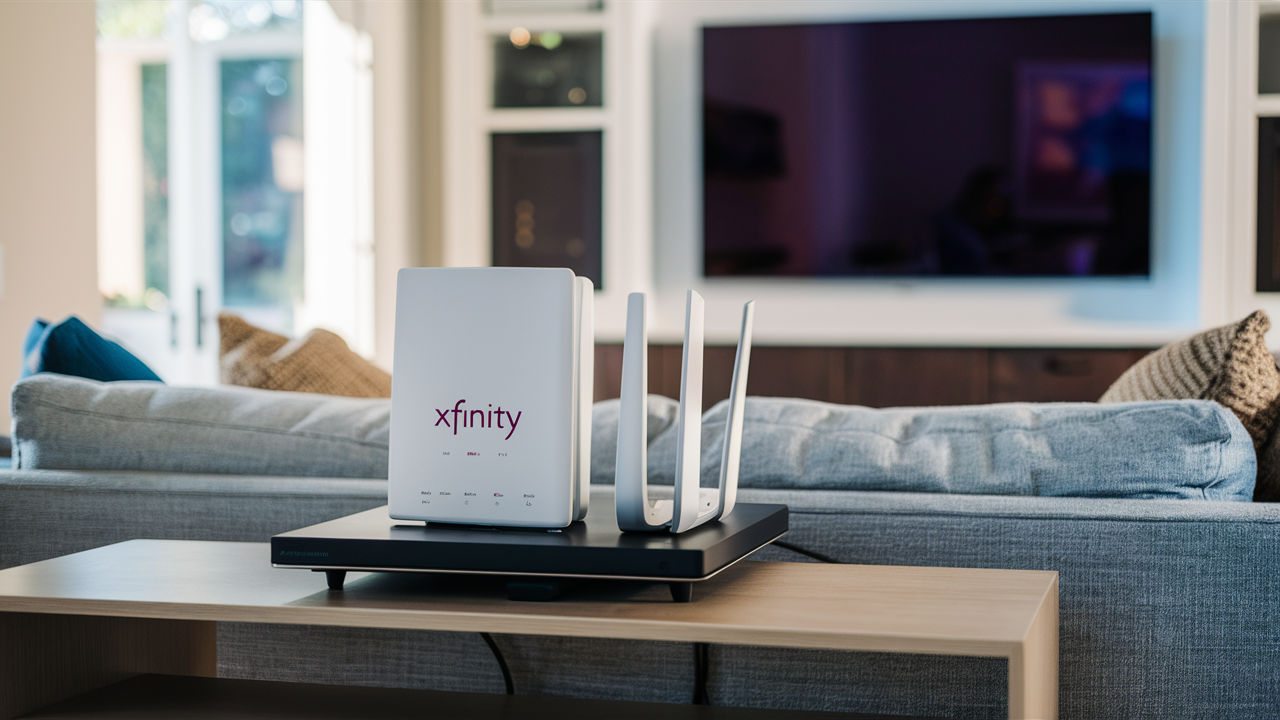
Choosing the right router for your Xfinity service can seem daunting, but it's crucial for optimal internet performance. This guide breaks down exactly which routers are compatible with Xfinity, offering insights and recommendations to ensure you get the best speeds and reliability for your home network in 2025-2026.
Understanding Xfinity Router Compatibility
When it comes to Xfinity internet, the term "router compatibility" can sometimes be a source of confusion. At its core, Xfinity requires a cable modem to establish a connection to their network. However, many users opt to use their own router for enhanced features, better Wi-Fi coverage, and to avoid monthly rental fees. The key to compatibility lies in ensuring your chosen device functions as a DOCSIS (Data Over Cable Service Interface Specification) modem. Xfinity provides a list of approved modems, and while they don't certify every router directly, they do certify modems. If you plan to use a separate modem and router, you need to ensure your modem is on Xfinity's approved list. If you're looking at a combined modem/router unit (often called a gateway), then the entire unit must be on the approved list.
As of 2025, Xfinity’s network infrastructure has advanced significantly. They support DOCSIS 3.0 and are increasingly rolling out DOCSIS 3.1, especially in areas with higher speed tiers. DOCSIS 3.1 modems are backward compatible with DOCSIS 3.0 but offer superior performance, lower latency, and greater efficiency, particularly for gigabit-speed plans. Therefore, when selecting a modem or a gateway, prioritizing DOCSIS 3.1 compatibility is a wise move for future-proofing and maximizing your internet speed. This ensures your hardware can handle the current and upcoming demands of high-speed internet, making your investment worthwhile.
It's important to distinguish between a modem and a router. A modem is the device that connects your home to your Internet Service Provider's (ISP) network, translating the signals from the cable line into a format your devices can use. A router, on the other hand, takes that internet connection from the modem and distributes it wirelessly (Wi-Fi) and via Ethernet cables to multiple devices within your home. Many Xfinity-approved gateways are combination devices that perform both functions. If you choose to buy your own separate modem and router, you'll need to ensure your modem is Xfinity-compatible, and then you can connect any compatible router to that modem. This separation offers more flexibility in choosing high-performance networking equipment.
Why Bring Your Own Router to Xfinity?
The decision to bring your own router (or modem/router combo) to Xfinity is often driven by several compelling factors. The most immediate benefit for many users is the potential for significant cost savings. Xfinity, like most ISPs, charges a monthly rental fee for their provided modem or gateway. This fee, while seemingly small, adds up considerably over time. For instance, a typical rental fee of $15 per month can amount to $180 annually. Investing in your own equipment, which can range from $100 to $300 depending on features and performance, can pay for itself within the first year, leading to long-term savings.
Beyond cost, bringing your own router often translates to superior performance and features. ISP-provided equipment is typically designed to be a one-size-fits-all solution, which means it might not be optimized for your specific needs or home environment. High-end routers purchased from retailers often boast more powerful processors, better Wi-Fi antennas, and advanced features like Quality of Service (QoS) settings, robust parental controls, advanced security features, and the latest Wi-Fi standards (like Wi-Fi 6E or Wi-Fi 7 in 2025-26). These features can lead to faster speeds, more stable connections, better coverage throughout your home, and a more secure network.
Furthermore, owning your equipment gives you complete control over your network. You are not reliant on Xfinity for firmware updates or troubleshooting their specific hardware. You can update your router's firmware at your convenience, customize network settings to your liking, and easily upgrade your equipment when new technologies emerge without needing to coordinate with your ISP. This autonomy is particularly appealing to tech-savvy users or those with specific networking requirements, such as gamers, remote workers who rely on stable connections, or households with a large number of connected devices.
The flexibility extends to troubleshooting. If you experience internet issues, you can more easily isolate whether the problem lies with Xfinity's service or your own equipment. This can streamline the support process and get you back online faster. In summary, the decision to use your own router with Xfinity is a strategic move for saving money, enhancing network performance, gaining greater control, and enjoying a more personalized internet experience.
Types of Xfinity-Compatible Routers
When considering a router for Xfinity, it's essential to understand the different types of devices and how they integrate with the Xfinity network. The primary distinction lies between standalone modems and modem/router combo units (gateways).
Standalone Modems: These devices are solely responsible for connecting to the Xfinity network. They translate the cable signal into an internet connection that can be used by a router. When you choose to use your own modem, you will need to purchase an Xfinity-approved cable modem. You can then connect any standard router to this modem. This approach offers the most flexibility, allowing you to select a top-tier router independently of your modem choice. For example, you could pair a high-performance DOCSIS 3.1 modem with a cutting-edge Wi-Fi 7 router.
Modem/Router Combo Units (Gateways): These devices combine the functionality of a cable modem and a Wi-Fi router into a single unit. Xfinity offers its own gateways, and they also allow customers to purchase compatible third-party gateways. If you opt for a combo unit, it must be on Xfinity's list of approved devices. This is because the entire unit, including the modem component, needs to be certified to work with their network. Combo units are convenient as they reduce the number of devices and cables, and simplify setup. However, they offer less flexibility in terms of upgrading individual components.
Routers for Separate Modem Setup: If you have an Xfinity-approved standalone modem (either one you own or one provided by Xfinity), you can connect almost any modern Wi-Fi router to it. The router's role is then to create your home Wi-Fi network and manage device connectivity. When selecting a router in this scenario, you'll focus on Wi-Fi standards (e.g., Wi-Fi 6, Wi-Fi 6E, Wi-Fi 7), speed capabilities, coverage area, and features like mesh networking or advanced security.
Important Note on BYOD (Bring Your Own Device): Xfinity has specific requirements for customer-owned modems. They maintain a list of approved DOCSIS 3.0 and DOCSIS 3.1 modems. You can find this list on the Xfinity website. It's crucial to check this list before purchasing any modem to ensure it will be activated on the Xfinity network. Routers themselves don't need specific Xfinity approval if they are connected to an approved modem, but their performance will depend on the modem's capabilities and your internet plan.
Key Features to Look For in a Router for Xfinity
Selecting the right router for your Xfinity service involves looking beyond just basic connectivity. Several key features can significantly impact your internet experience, especially in 2025-2026 with increasing demands for speed and bandwidth.
Wi-Fi Standards
The Wi-Fi standard dictates the speed and efficiency of your wireless network.
- Wi-Fi 6 (802.11ax): This is the current mainstream standard. It offers improved speeds, better performance in crowded environments (multiple devices), and increased efficiency compared to older standards like Wi-Fi 5 (802.11ac). If your internet plan is 300 Mbps or higher, Wi-Fi 6 is highly recommended.
- Wi-Fi 6E: This is an extension of Wi-Fi 6 that adds support for the 6 GHz band. This band is less congested, offering potentially faster speeds and lower latency for compatible devices. It's a great option for users with the latest devices and high-speed internet plans.
- Wi-Fi 7 (802.11be): Emerging in 2024-2025, Wi-Fi 7 promises even higher speeds, lower latency, and greater capacity than Wi-Fi 6E. While still new, routers supporting Wi-Fi 7 will be the most future-proof option for those seeking the absolute best performance and who have or plan to upgrade to gigabit-plus internet speeds.
Speed and Bandwidth
Ensure the router's advertised speeds are sufficient for your Xfinity plan. For plans up to 300 Mbps, a Wi-Fi 6 router is generally adequate. For gigabit speeds (1000 Mbps or higher), you'll want a router capable of handling those speeds, ideally with Wi-Fi 6E or Wi-Fi 7, and a multi-gigabit Ethernet port (2.5 Gbps or 10 Gbps) for the WAN (Wide Area Network) connection to your modem.
MU-MIMO and OFDMA
These are technologies that improve efficiency in Wi-Fi 6 and later standards.
- MU-MIMO (Multi-User, Multiple Input, Multiple Output): Allows the router to communicate with multiple devices simultaneously, rather than one at a time.
- OFDMA (Orthogonal Frequency Division Multiple Access): A key feature of Wi-Fi 6, OFDMA divides a channel into smaller sub-channels, allowing the router to communicate with multiple devices in a single transmission, significantly improving efficiency and reducing latency, especially in dense network environments.
Coverage Area and Mesh Systems
Consider the size of your home. For larger homes or those with thick walls, a single router might not provide adequate coverage.
- Mesh Wi-Fi Systems: These consist of a main router and one or more satellite nodes that work together to create a seamless Wi-Fi network throughout your home. They are ideal for eliminating dead zones and ensuring consistent speeds everywhere. Many manufacturers offer Wi-Fi 6 and Wi-Fi 6E mesh systems.
Ethernet Ports
While Wi-Fi is convenient, wired Ethernet connections offer the most stable and fastest speeds. Ensure the router has enough Gigabit Ethernet ports for your wired devices (e.g., gaming consoles, smart TVs, desktop computers). For gigabit internet plans, look for routers with at least one 2.5 Gbps or 10 Gbps WAN port to avoid bottlenecks between your modem and router.
Security Features
A router is the gateway to your home network. Look for routers with built-in security features such as WPA3 encryption, a firewall, and potentially a subscription-based security service that offers advanced threat protection and malware blocking.
Ease of Use and Management
Consider how easy the router is to set up and manage. Most modern routers come with user-friendly mobile apps that simplify configuration, parental controls, and guest network setup.
Top Router Recommendations for Xfinity (2025-2026)
Choosing the best router depends on your specific Xfinity internet speed tier, home size, and budget. Here are some top-tier recommendations for 2025-2026, focusing on performance, features, and compatibility with Xfinity's network. Remember, these routers will connect to an Xfinity-approved modem (either one you own or rent from Xfinity).
For Gigabit Speeds and Future-Proofing (Wi-Fi 7)
If you have a gigabit or multi-gigabit Xfinity plan and want the absolute latest technology, Wi-Fi 7 routers are the way to go. These offer the highest speeds, lowest latency, and greatest capacity.
- TP-Link Archer BE900: A powerhouse Wi-Fi 7 router featuring a 10 Gbps WAN port, multiple 10 Gbps Ethernet ports, and advanced features like AI-driven optimization. It's designed for the most demanding users and highest speed internet plans.
- ASUS ROG Rapture GT-7500: Geared towards gamers and power users, this Wi-Fi 7 router offers exceptional performance, robust security, and extensive customization options. It includes multi-gigabit ports and advanced QoS for prioritizing traffic.
For High-Speed Plans and Excellent Performance (Wi-Fi 6E)
Wi-Fi 6E offers a significant upgrade over Wi-Fi 6 by utilizing the 6 GHz band, providing cleaner airwaves for faster and more stable connections, especially in congested areas. These are excellent choices for multi-gigabit plans.
- Netgear Nighthawk RAXE500: A top-tier Wi-Fi 6E router that delivers blazing-fast speeds and broad coverage. It features a 2.5 Gbps WAN port and a sleek design, making it suitable for demanding households.
- TP-Link Archer AXE75: A more budget-friendly Wi-Fi 6E option that still provides excellent performance for its price point. It offers a 2.5 Gbps WAN port and good overall speed and range.
- ASUS RT-AXE7800: This router offers a great balance of performance, features, and price for Wi-Fi 6E. It includes robust security features and is well-suited for users with high-speed internet plans.
For Standard High-Speed Plans (Wi-Fi 6)
Wi-Fi 6 is still a very capable standard and is more than sufficient for many users, especially those with Xfinity plans up to 500 Mbps or even 1 Gbps if they don't require the absolute bleeding edge.
- ASUS RT-AX86U: A highly popular and powerful Wi-Fi 6 router known for its excellent performance, robust features, and gaming optimizations. It includes a 2.5 Gbps WAN port and is a great all-around performer.
- TP-Link Archer AX90: This tri-band Wi-Fi 6 router offers impressive speeds and coverage. It features a 2.5 Gbps WAN port and is a strong contender for households with many connected devices.
- Netgear Nighthawk RAX120: A high-performance Wi-Fi 6 router that provides excellent speeds and range. It's a solid choice for users who want a reliable and fast wireless network.
For Large Homes and Eliminating Dead Zones (Mesh Systems)
If you have a larger home or multiple floors, a mesh Wi-Fi system ensures consistent coverage.
- TP-Link Deco XE75 (Wi-Fi 6E Mesh): Offers excellent Wi-Fi 6E performance in a mesh system, providing high speeds and broad coverage for larger homes.
- Eero Pro 6E (Wi-Fi 6E Mesh): Amazon's Eero system is known for its ease of setup and seamless roaming. The Pro 6E version provides Wi-Fi 6E speeds throughout your home.
- Netgear Orbi RBKE963 (Wi-Fi 6E Mesh): A premium mesh system that delivers top-tier Wi-Fi 6E performance with extensive coverage and multi-gigabit backhaul for the fastest speeds between nodes.
- Google Nest Wifi Pro (Wi-Fi 6E Mesh): Integrates well with the Google ecosystem and offers strong Wi-Fi 6E performance for medium to large homes.
Important Consideration: Always check the specific speed requirements for your Xfinity plan. For example, if you have a 1.2 Gbps plan, you'll need a modem capable of handling those speeds and a router with at least a 2.5 Gbps WAN port to take full advantage of your subscription.
How to Connect Your Own Router to Xfinity
Connecting your own modem and router to Xfinity is a straightforward process, but it requires careful attention to ensure everything is set up correctly. This guide outlines the steps for using a separate, Xfinity-approved modem and your own router.
Step 1: Purchase an Xfinity-Approved Modem
This is the most critical first step. Visit the Xfinity website and check their list of compatible modems. Ensure the modem you purchase (e.g., ARRIS SURFboard SB8200, Netgear CM1000) supports DOCSIS 3.0 at a minimum, and ideally DOCSIS 3.1 for higher speed plans. Note the modem's MAC address and serial number, as you'll need them for activation.
Step 2: Connect the Modem
- Unpack your new modem.
- Connect the coaxial cable from your wall outlet to the modem's coaxial port.
- Connect the power adapter to the modem and plug it into a power outlet.
- The modem will power on and begin to connect to the Xfinity network. This process can take several minutes. Wait for the online or internet indicator light on the modem to become solid, indicating a successful connection.
Step 3: Activate Your Modem with Xfinity
You can activate your modem through several methods:
- Online Activation: Go to xfinity.com/activate on a device connected to the internet (you might need to temporarily connect a computer directly to the modem via Ethernet for this step if you don't have another internet source). Follow the on-screen prompts, which will ask for your account information and the modem's MAC address and serial number.
- Xfinity App: Download the Xfinity app on your smartphone and follow the instructions for activating a new device.
- Phone Activation: Call Xfinity customer support and request to activate your new modem.
Once activated, the modem should be online and ready to provide internet access.
Step 4: Connect Your Router to the Modem
- Ensure your new router is powered off.
- Take an Ethernet cable and connect one end to the Ethernet port on your Xfinity-approved modem.
- Connect the other end of the Ethernet cable to the WAN (or Internet) port on your new router. This port is usually colored differently or labeled distinctly from the LAN ports.
- Power on your modem first. Wait for it to fully boot up and establish a connection.
- Then, power on your router.
Step 5: Configure Your Router
- Your router will now broadcast a default Wi-Fi network. The network name (SSID) and password are usually printed on a sticker on the router itself.
- Connect a device (computer or smartphone) to this default Wi-Fi network or via an Ethernet cable to one of the router's LAN ports.
- Open a web browser and navigate to the router's default IP address (commonly 192.168.1.1 or 192.168.0.1, but check your router's manual).
- You will be prompted to log in with the router's default username and password (also found on the router or in the manual).
- Follow the router's setup wizard. This typically involves:
- Changing the default Wi-Fi network name (SSID) and password for both 2.4 GHz and 5 GHz bands.
- Setting a strong administrator password for your router.
- Configuring any advanced settings like QoS, parental controls, or guest networks if desired.
- Once configured, save your settings. Your router will reboot, and your new Wi-Fi network will be active.
Step 6: Connect Your Devices
Now, connect all your wireless devices (smartphones, tablets, laptops, smart TVs, etc.) to your newly created Wi-Fi network using the SSID and password you set up.
Note: If you are replacing an Xfinity gateway (modem/router combo), you will need to put the Xfinity gateway into "Bridge Mode" before connecting your own router. This disables its routing functions, allowing your new router to manage the network. Instructions for bridge mode vary by Xfinity gateway model and can usually be found on Xfinity's support site or by contacting their customer service.
Troubleshooting Common Router Issues with Xfinity
Even with the best equipment, you might encounter issues when using your own router with Xfinity. Here are common problems and their solutions for 2025-2026.
No Internet Connection After Setup
- Check Modem Status: Ensure your Xfinity-approved modem has a solid "Online" or "Internet" light. If not, troubleshoot the modem connection (coaxial cable, power).
- Verify Activation: Confirm your modem is activated with Xfinity. Revisit xfinity.com/activate or contact Xfinity support.
- Router WAN Connection: Make sure the Ethernet cable is securely plugged into the modem's Ethernet port and the router's WAN/Internet port. Try a different Ethernet cable.
- Router Reboot: Power cycle both your modem and router. Unplug both, wait 30 seconds, plug in the modem, wait for it to fully boot, then plug in the router.
- Router IP Address: Log into your router's interface. Check if it has received a public IP address from Xfinity. If not, there might be an issue with the modem or Xfinity's service.
Slow Internet Speeds
- Speed Test: Run a speed test (e.g., Speedtest.net) connected directly to the modem via Ethernet. If speeds are low here, the issue is likely with Xfinity's service or the modem.
- Router Placement: Ensure your router is in a central, open location, away from obstructions and sources of interference (microwaves, cordless phones).
- Wi-Fi Band Congestion: If using a dual-band router, ensure your devices are connected to the 5 GHz band for faster speeds (if within range). For Wi-Fi 6/6E/7, ensure your devices support the newer standards.
- Too Many Devices: A large number of devices simultaneously using bandwidth can slow down the network. Consider a router with better capacity or a mesh system.
- Router Firmware: Ensure your router's firmware is up to date. Check the manufacturer's website for the latest firmware.
- Modem Capability: Verify your modem is capable of handling your Xfinity plan's speed. An older DOCSIS 3.0 modem might bottleneck a gigabit plan.
Weak Wi-Fi Signal / Dead Zones
- Router Placement: As mentioned, central placement is key.
- Router Antennas: If your router has adjustable antennas, try positioning them to improve signal direction.
- Mesh System: For larger homes, a mesh Wi-Fi system is the most effective solution for consistent coverage. Ensure nodes are placed strategically.
- Router Upgrade: An older router might not have the range or power to cover your home adequately. Consider upgrading to a newer model or a mesh system.
Intermittent Wi-Fi Drops
- Interference: Other electronic devices or neighboring Wi-Fi networks can cause interference. Try changing the Wi-Fi channel in your router settings.
- Router Overheating: Ensure the router has adequate ventilation.
- Router Firmware: Outdated firmware can cause instability. Update to the latest version.
- Faulty Router: If the issue persists across all devices and locations, the router itself might be failing.
Difficulty Connecting New Devices
- Wi-Fi Password: Double-check you are entering the correct Wi-Fi password.
- Device Compatibility: Ensure the device supports the Wi-Fi standard your router is using (e.g., Wi-Fi 6, 6E). Older devices might only support Wi-Fi 5 or older.
- MAC Filtering: Check if MAC address filtering is enabled on your router. If so, you'll need to add the new device's MAC address to the allowed list.
- Guest Network: Ensure you are trying to connect to the main network, not a guest network, unless intended.
Xfinity Router Rental vs. Buying Your Own (2025-26)
The decision between renting an Xfinity modem/router combo or purchasing your own equipment is a significant one for Xfinity subscribers in 2025-2026. The financial implications and performance benefits weigh heavily on either side.
Xfinity Rental Fees
Xfinity typically charges a monthly fee for their gateway (modem/router combo) or separate modem. As of early 2025, these fees can range from $15 to $25 per month, depending on your location and the specific equipment provided. This fee covers the hardware, maintenance, and customer support for that specific device.
Pros of Renting:
- No Upfront Cost: You don't need to purchase expensive hardware.
- Easy Replacement: If the equipment fails or becomes outdated, Xfinity will replace it at no extra charge.
- Technical Support: Xfinity provides direct support for their rented equipment.
- Guaranteed Compatibility: The equipment is guaranteed to work with Xfinity's network.
Cons of Renting:
- High Long-Term Cost: Monthly fees add up significantly over time. Renting for two years can easily cost more than buying a high-quality router.
- Limited Performance: ISP-provided equipment is often mid-range and may not offer the best speeds, coverage, or advanced features compared to retail options.
- Lack of Control: You have limited control over firmware updates, security settings, and customization.
- Outdated Technology: Xfinity may not always provide the latest Wi-Fi standards (e.g., Wi-Fi 7) in their rental units promptly.
Buying Your Own Equipment
Purchasing your own modem and router (or a compatible gateway) involves an upfront investment.
Pros of Buying:
- Long-Term Savings: After the initial investment, you save money by avoiding monthly rental fees.
- Superior Performance: You can choose hardware with the latest Wi-Fi standards (Wi-Fi 6E, Wi-Fi 7), faster processors, better antennas, and advanced features tailored to your needs.
- Full Control: You have complete control over your network settings, security, and firmware updates.
- Flexibility: You can upgrade components (modem or router) independently as technology evolves.
- Wider Selection: Access to a vast market of high-quality networking devices from various manufacturers.
Cons of Buying:
- Upfront Cost: Requires a significant initial investment, which can range from $100 to $500+ for high-end gear.
- Compatibility Checks: You must ensure your modem is on Xfinity's approved list.
- Self-Support: You are responsible for troubleshooting and replacing your own equipment if it fails.
- Learning Curve: Setting up and managing advanced features may require some technical knowledge.
The 2025-2026 Verdict
For most users, especially those with higher-speed Xfinity plans (300 Mbps and above), buying your own equipment is the financially smarter and performance-enhancing choice in 2025-2026. The long-term savings are substantial, and the ability to leverage the latest Wi-Fi standards like Wi-Fi 6E and Wi-Fi 7 ensures you can take full advantage of your internet speeds. The initial investment is quickly recouped through eliminated rental fees. However, if you prefer a hassle-free experience with direct support and minimal upfront cost, renting might still be an option, though less economical in the long run. Always check the current rental fees from Xfinity and compare them against the cost of purchasing a quality, compatible modem and router.
Future-Proofing Your Xfinity Network
As internet speeds increase and the number of connected devices in our homes grows, future-proofing your Xfinity network is essential. This means investing in equipment that can handle the demands of tomorrow, not just today.
Embrace DOCSIS 3.1
For your modem, DOCSIS 3.1 is no longer just a premium feature; it's becoming the standard for high-speed internet. Xfinity is actively deploying DOCSIS 3.1 technology, which offers significantly higher throughput, lower latency, and better efficiency than DOCSIS 3.0. If you have a gigabit plan or anticipate upgrading in the future, a DOCSIS 3.1 modem is a must. It ensures your modem won't be a bottleneck for your internet speed.
Adopt Wi-Fi 6E and Wi-Fi 7
On the router side, Wi-Fi 6E and the emerging Wi-Fi 7 standards are key to future-proofing.
- Wi-Fi 6E: Utilizes the 6 GHz band, which offers more bandwidth and less interference than the crowded 2.4 GHz and 5 GHz bands. This is crucial for the increasing number of Wi-Fi 6E-compatible devices and for ensuring stable, high-speed wireless connections.
- Wi-Fi 7: Represents the next leap in wireless technology, promising multi-gigabit speeds, extremely low latency, and enhanced reliability. While still new, investing in a Wi-Fi 7 router now ensures your network is ready for the fastest internet plans and the most demanding applications of the coming years, such as high-resolution streaming, advanced AR/VR experiences, and seamless cloud gaming.
Consider Multi-Gigabit Ethernet Ports
If your Xfinity plan offers speeds of 1 Gbps or higher, your modem and router should ideally have multi-gigabit Ethernet ports (2.5 Gbps or 10 Gbps). This ensures that the connection between your modem and router, and between your router and wired devices, is not limited by older Gigabit Ethernet standards. A 10 Gbps WAN port on your router allows your router to receive the full speed from your multi-gigabit modem, and multiple 10 Gbps LAN ports allow for lightning-fast wired connections to your most demanding devices.
Invest in a Robust Mesh System
As smart homes become more integrated and devices proliferate, consistent Wi-Fi coverage throughout your entire home is paramount. A modern mesh Wi-Fi system, ideally supporting Wi-Fi 6E or Wi-Fi 7, ensures that every corner of your home receives a strong, stable signal. These systems intelligently manage traffic and provide seamless roaming, so your devices automatically connect to the strongest signal as you move around.
Prioritize Security Updates
Future-proofing also involves security. Choose routers from reputable manufacturers that have a strong track record of providing regular firmware updates to patch security vulnerabilities. Features like WPA3 encryption and built-in firewalls are standard, but look for routers that offer advanced threat protection or integrate with cybersecurity services for an extra layer of defense against evolving online threats.
Scalability
When selecting equipment, think about scalability. Can your router handle more devices in the future? Can your modem accommodate higher speed tiers if Xfinity upgrades your area? Choosing equipment that is slightly above your current needs can save you from frequent upgrades.
By carefully selecting Xfinity-approved modems with DOCSIS 3.1 and routers that support the latest Wi-Fi standards and multi-gigabit connectivity, you can build a robust and future-ready home network that will serve you well for years to come.
In conclusion, selecting the right router for your Xfinity service is a strategic decision that impacts your internet experience, costs, and network capabilities. By understanding Xfinity's compatibility requirements, prioritizing key features like Wi-Fi 6E/7 and DOCSIS 3.1, and making informed choices between renting and buying, you can optimize your home network. For 2025-2026, investing in your own DOCSIS 3.1 modem and a Wi-Fi 6E or Wi-Fi 7 router offers the best balance of performance, long-term savings, and future-proofing. Always verify modem compatibility on the Xfinity website and consider your specific speed needs and home size when selecting a router or mesh system. This proactive approach ensures a seamless, fast, and reliable internet connection for all your online activities.






