Quantum Fiber WiFi Extender: How It Works, Setup, and Coverage Benefits
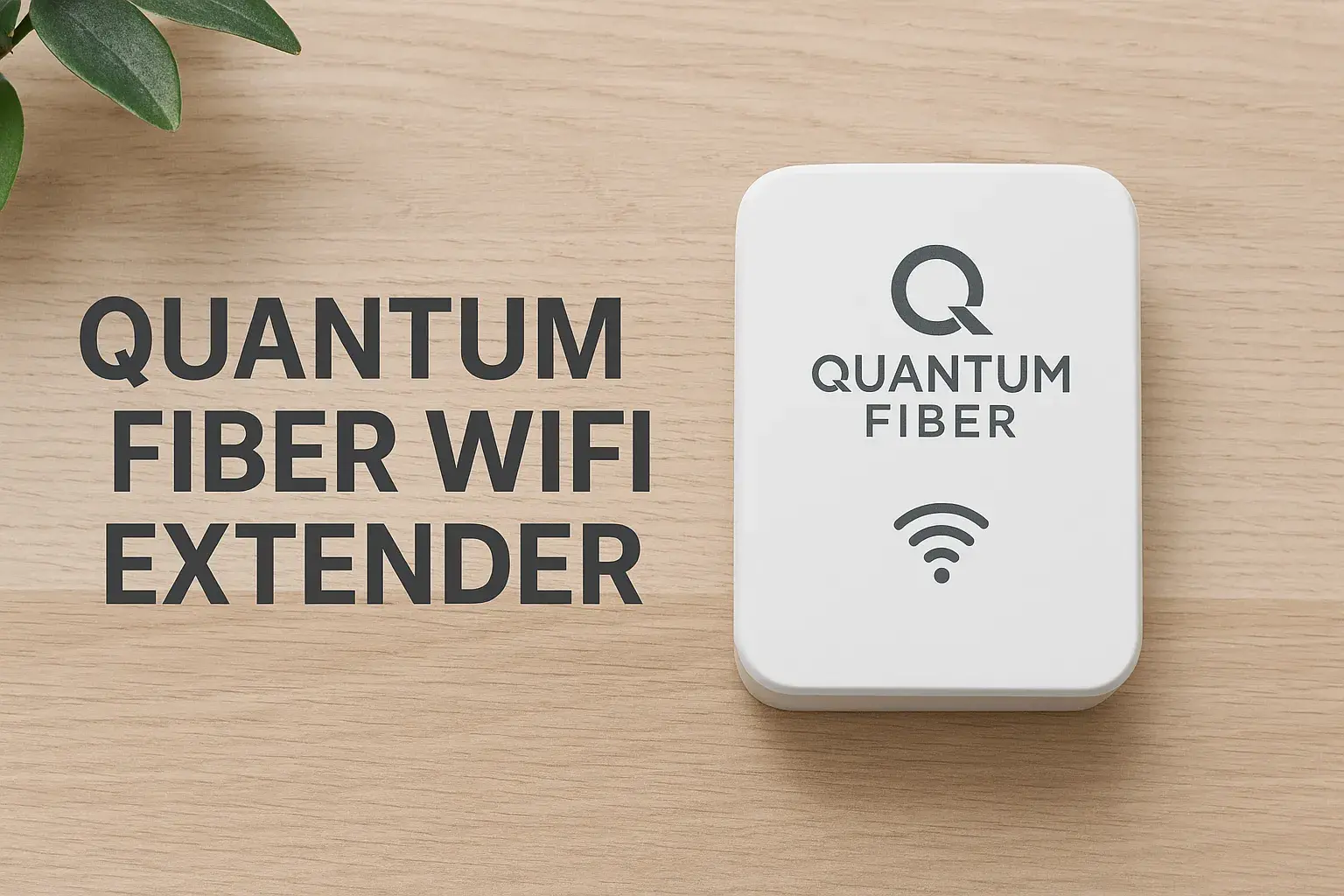
Unlock seamless connectivity throughout your home with a Quantum Fiber WiFi extender. This guide delves into how these devices amplify your existing network, their straightforward setup process, and the significant coverage benefits they deliver, ensuring no corner of your residence is left without a strong signal.
Understanding Quantum Fiber WiFi Extenders
In today's digitally driven world, a robust and reliable Wi-Fi signal is no longer a luxury but a necessity. For Quantum Fiber subscribers, this means ensuring that the high-speed internet service delivered to their home is accessible in every room, on every device, without interruption. While Quantum Fiber routers are designed to provide excellent coverage, the unique layout of homes, building materials, and the sheer number of connected devices can create Wi-Fi dead zones – areas where the signal is weak or non-existent. This is where a Quantum Fiber WiFi extender, also known as a repeater or booster, becomes an invaluable tool. These devices are engineered to capture your existing Wi-Fi signal and rebroadcast it, effectively extending the reach of your network and eliminating frustrating connectivity issues. This comprehensive guide will explore the intricacies of Quantum Fiber WiFi extenders, from their fundamental workings and setup procedures to the tangible coverage benefits they offer, empowering you to achieve a truly ubiquitous Wi-Fi experience.
How Quantum Fiber WiFi Extenders Work
The concept behind a Wi-Fi extender is elegantly simple yet remarkably effective. It acts as an intermediary device, bridging the gap between your Quantum Fiber router and the areas of your home experiencing weak Wi-Fi signals. By strategically placing an extender, you can significantly improve the reach and strength of your wireless network without needing to replace your existing router or install additional wiring. Understanding the underlying technology is key to appreciating their utility and optimizing their performance.
The Role of Access Points and Routers
Before diving into extenders, it's crucial to understand the primary components of a home network. Your Quantum Fiber router is the central hub. It receives the internet signal from your provider and broadcasts it wirelessly as a Wi-Fi network. It also manages traffic, assigning IP addresses to devices and ensuring they can communicate with each other and the internet. An access point (AP) is a device that creates a wireless local area network (WLAN), usually in an office or large commercial building, but the term is often used interchangeably with routers in a home context when discussing Wi-Fi broadcasting. The router's Wi-Fi signal strength diminishes with distance and is affected by physical obstructions like walls, floors, and even large appliances. This natural signal degradation is the primary reason for dead zones.
Extender Modes and Functionality
Quantum Fiber WiFi extenders operate by connecting wirelessly to your existing Quantum Fiber router's Wi-Fi signal. Once connected, they create a new Wi-Fi network (or extend the existing one, depending on the model and configuration) that is accessible in areas where the original signal was weak. There are generally two main modes of operation for most Wi-Fi extenders:
Repeater Mode: This is the most common mode. The extender connects to your existing Wi-Fi network and then rebroadcasts the signal. Devices then connect to the extender's network, which effectively mirrors the original network's SSID (network name) and password, or uses a slightly modified name (e.g., "MyNetwork_EXT").
Access Point (AP) Mode: In this mode, the extender is connected to your router via an Ethernet cable. It then creates a new, independent Wi-Fi access point. This can sometimes offer better performance than repeater mode because it doesn't have to share bandwidth by receiving and transmitting on the same wireless channel. However, it requires running an Ethernet cable, which might not always be feasible.
For most users seeking to eliminate dead zones without extensive cabling, repeater mode is the preferred and most straightforward solution. The extender essentially acts as a wireless bridge, picking up the Wi-Fi signal and amplifying it for further reach.
Technology Behind the Boost
At its core, a Wi-Fi extender is a wireless transceiver. It listens for the Wi-Fi signal from your Quantum Fiber router, processes it, and then transmits it again at a higher power level or on a different channel to cover a wider area. Modern extenders utilize the same Wi-Fi standards (like Wi-Fi 5/802.11ac or Wi-Fi 6/802.11ax) as your router to ensure compatibility and optimal performance. Some advanced extenders employ technologies like:
Dual-Band or Tri-Band Technology: These extenders can operate on both the 2.4 GHz and 5 GHz frequency bands (dual-band) or even an additional 5 GHz band (tri-band). This allows them to connect to your router on one band and broadcast to your devices on another, reducing interference and improving speed. For instance, an extender might connect to your router's 5 GHz band and then broadcast a 5 GHz signal to your devices, or vice versa, or even use a dedicated backhaul connection for improved performance.
Beamforming: This technology directs the Wi-Fi signal towards connected devices, rather than broadcasting it equally in all directions. This results in a stronger, more stable connection for individual devices.
MU-MIMO (Multi-User, Multiple Input, Multiple Output): This allows the extender (and router) to communicate with multiple devices simultaneously, rather than sequentially. This is particularly beneficial in households with many connected devices, improving overall network efficiency.
By leveraging these technologies, Quantum Fiber WiFi extenders can effectively overcome the limitations of your primary router's signal, ensuring a more consistent and robust internet experience across your entire home.
Setting Up Your Quantum Fiber WiFi Extender
The setup process for a Quantum Fiber WiFi extender is designed to be user-friendly, even for those who aren't tech-savvy. However, a little preparation and attention to detail can make the process smoother and ensure optimal performance from the outset. This section will guide you through the necessary steps, from initial considerations to the final placement of your extender.
Pre-Setup Considerations
Before you even unbox your extender, take a moment to assess your current network and identify the areas that need improvement. This will help you choose the right extender and place it effectively.
Identify Dead Zones: Walk around your home with a Wi-Fi analyzer app on your smartphone or simply observe where your devices struggle to maintain a stable connection. Note down these problem areas.
Know Your Network Name (SSID) and Password: You'll need this information to connect the extender to your existing Quantum Fiber Wi-Fi network.
Check Router Compatibility: While most extenders are designed to work with any standard Wi-Fi router, it's always a good idea to check the extender's specifications for compatibility, especially if you have a very new or specialized Quantum Fiber router model. Ensure the extender supports the Wi-Fi standards (e.g., Wi-Fi 5, Wi-Fi 6) used by your router for the best performance.
Power Outlet Availability: Ensure you have a readily accessible power outlet in the location where you plan to place the extender.
Step-by-Step Installation Guide
The exact steps may vary slightly depending on the brand and model of your Quantum Fiber WiFi extender, but the general process is as follows:
Power On the Extender: Plug the extender into a power outlet. Wait for it to boot up, which usually takes a minute or two. Most extenders have an indicator light that will show when they are ready for setup.
Connect to the Extender's Network: On your smartphone, tablet, or laptop, go to your Wi-Fi settings. You should see a new Wi-Fi network broadcast by the extender. This network often has a name like "TP-Link_Extender," "NETGEAR_EXT," or similar, often including the brand name. Connect to this network. You may not need a password at this stage.
Access the Setup Interface: Open a web browser on the device you used to connect to the extender's network. Type the extender's default IP address or a specific setup URL into the address bar. This information is usually found in the extender's manual or on a sticker on the device itself. Common addresses include 192.168.0.254, 192.168.1.254, or a URL like mywifiext.net.
Run the Setup Wizard: The setup interface will typically launch a wizard. Follow the on-screen prompts. The wizard will scan for available Wi-Fi networks.
Select Your Quantum Fiber Network: From the list of detected networks, select your Quantum Fiber Wi-Fi network's SSID.
Enter Your Wi-Fi Password: You will be prompted to enter the password for your Quantum Fiber Wi-Fi network. Ensure you enter it correctly.
Configure the Extender's Network Name (SSID): You will usually have the option to either use the same SSID and password as your Quantum Fiber router for a seamless roaming experience, or to create a separate SSID for the extended network (e.g., "MyHome_EXT"). For simplicity and easier device switching, using the same SSID is often preferred.
Apply Settings and Reboot: Once you've made your selections, apply the settings. The extender will then reboot and apply the configuration. This process can take a few minutes.
Verify Connection: After the extender has rebooted, check its indicator lights. They should indicate a successful connection to your Quantum Fiber router. You can also try connecting a device to the extended network and checking if you have internet access.
Optimizing Extender Placement
The effectiveness of your Quantum Fiber WiFi extender hinges on its placement. It's not as simple as just plugging it in anywhere. Here’s how to find the optimal spot:
Place it Halfway: The ideal location for your extender is roughly halfway between your Quantum Fiber router and the dead zone you want to cover. It needs to be close enough to your router to receive a strong signal, but also close enough to the dead zone to effectively rebroadcast it.
Avoid Obstructions: Just like your router, the extender's signal can be weakened by thick walls, metal objects, and other electronic devices that emit radio waves (like microwaves or cordless phones). Place it in an open area.
Consider Height: Mounting the extender at a similar height to your router (e.g., not on the floor) can improve signal propagation.
Use the Signal Indicator: Most extenders have an LED indicator that shows the strength of the connection to your router. Aim for a solid green or blue light, indicating a strong signal. If the light is red or blinking, the extender is too far from the router or too close to the dead zone.
Test Coverage: After placement, test the Wi-Fi signal strength in the previously problematic areas using your devices. You may need to slightly adjust the extender's position to achieve the best results.
By following these steps, you can successfully set up and position your Quantum Fiber WiFi extender to significantly enhance your home's wireless coverage.
Coverage Benefits and Performance
The primary motivation for investing in a Quantum Fiber WiFi extender is to expand and improve your home's wireless network coverage. The benefits extend beyond simply eliminating dead zones, impacting the overall usability and performance of your internet connection. Understanding these advantages can help you appreciate the value these devices bring to your digital life.
Eliminating Dead Zones
This is the most immediate and noticeable benefit. Dead zones are areas in your home where your Wi-Fi signal is too weak to establish a reliable connection. These can occur in basements, attics, garages, distant bedrooms, or even just around corners due to building materials like concrete, brick, or certain types of insulation. A Quantum Fiber WiFi extender acts as a signal relay. By placing it strategically, you capture the existing Wi-Fi signal from your Quantum Fiber router and rebroadcast it into these previously underserved areas. This means you can enjoy a stable connection for streaming, browsing, gaming, and working from virtually anywhere in your home, from the kitchen to the backyard patio.
Improving Signal Strength and Speed
While the primary function is coverage extension, extenders can also improve the perceived signal strength and, in some cases, speed for devices located far from the router. When a device is struggling to connect to a weak router signal, it often reduces its transmission speed to maintain a connection. By connecting to a nearby extender with a strong signal, the device can communicate more efficiently. However, it's important to manage expectations: a Wi-Fi extender does not increase the bandwidth provided by your Quantum Fiber service. It simply makes that bandwidth more accessible in more locations. In repeater mode, the extender shares its bandwidth with the router, so the theoretical maximum speed to devices connected to the extender might be slightly less than directly connected to the router. However, the practical experience is often a significant improvement because the signal is much stronger and more stable.
Handling Multiple Devices
Modern households are teeming with connected devices – smartphones, tablets, laptops, smart TVs, gaming consoles, smart home gadgets, and more. Each device consumes bandwidth and requires a stable connection. In larger homes or homes with many devices, the Quantum Fiber router can become overloaded, leading to slower speeds and dropped connections for everyone. A well-placed extender can help distribute the load. By providing a strong signal in different parts of the house, devices in those areas connect to the extender, reducing the strain on the primary router. This can lead to a more consistent and less frustrating experience for all users, especially when multiple people are streaming video, video conferencing, or gaming simultaneously.
Considerations for Large Homes
For expansive residences, a single Quantum Fiber router might simply not be enough to cover the entire area adequately. This is where extenders shine. For very large homes (e.g., over 3,000 square feet) or multi-story houses with thick walls, you might need more than one extender. Strategically placing multiple extenders in a chain-like fashion (extender 1 connects to the router, extender 2 connects to extender 1, and so on) can create a wider web of connectivity. However, it's crucial to note that each hop in the chain can introduce some latency and reduce throughput. For the most robust coverage in very large or complex homes, a mesh Wi-Fi system might be a more integrated and often higher-performing solution, but extenders offer a more budget-friendly way to improve coverage incrementally.
In summary, the coverage benefits of a Quantum Fiber WiFi extender are substantial. They directly address the common problem of Wi-Fi dead zones, improve signal strength and stability in distant areas, help manage the demands of multiple devices, and are a cost-effective solution for extending connectivity throughout larger homes.
Choosing the Right Quantum Fiber Extender
With numerous Wi-Fi extenders on the market, selecting the one that best suits your Quantum Fiber network and home environment can seem daunting. To make an informed decision, consider key features, compatibility, and your budget. This section will guide you through the essential factors to evaluate.
Key Features to Look For
Not all extenders are created equal. Here are the crucial features to prioritize:
Wi-Fi Standard Compatibility: Ensure the extender supports the same Wi-Fi standard as your Quantum Fiber router. If your router is Wi-Fi 5 (802.11ac), get a Wi-Fi 5 extender. If you have a newer Wi-Fi 6 (802.11ax) router, a Wi-Fi 6 extender will offer the best performance and future-proofing.
Dual-Band or Tri-Band: For optimal performance, especially with modern routers and devices, opt for a dual-band (2.4GHz and 5GHz) or tri-band extender. Dual-band allows the extender to connect to your router on one band and broadcast to your devices on the other, reducing interference and improving speeds. Tri-band offers an additional band, often used as a dedicated backhaul connection between the router and extender for even better performance.
Speed Ratings: Extenders are often rated with combined speeds (e.g., AC1200, AX3000). These numbers represent the theoretical maximum speeds across all bands. While these are theoretical, a higher rating generally indicates better performance. Look for speeds that complement your Quantum Fiber internet plan.
Ethernet Ports: Many extenders include one or more Ethernet ports. These are incredibly useful. You can connect wired devices (like a desktop computer or gaming console) directly to the extender, providing a stable wired connection. You can also use these ports in Access Point mode.
WPS Button: The Wi-Fi Protected Setup (WPS) button simplifies the connection process. With WPS, you can often connect the extender to your router by simply pressing the WPS button on both devices within a two-minute window, eliminating the need for manual password entry.
Management App: Some brands offer dedicated mobile apps that allow you to manage your extender settings, monitor network status, and even perform firmware updates easily from your smartphone.
Form Factor and Design: Extenders come in various shapes and sizes, from small plug-in units to larger desktop units. Consider where you plan to place it and if it will obstruct other outlets or be aesthetically pleasing.
Compatibility with Your Quantum Fiber Router
While most Wi-Fi extenders are designed to be universally compatible with any router using standard Wi-Fi protocols, there are a few nuances to consider:
Wi-Fi Standards: As mentioned, matching the Wi-Fi standard (e.g., Wi-Fi 5, Wi-Fi 6) between your Quantum Fiber router and the extender is crucial for optimal performance. A Wi-Fi 6 extender will not magically make your Wi-Fi 5 router perform at Wi-Fi 6 speeds, but it will allow your Wi-Fi 6 devices to connect to the extended network at their full potential.
Frequency Bands: Ensure the extender supports the frequency bands your Quantum Fiber router uses. Most modern routers are dual-band (2.4 GHz and 5 GHz), and extenders should ideally support both.
Security Protocols: Verify that the extender supports the same security protocols as your router, such as WPA2 or WPA3.
Proprietary Technologies: Some router manufacturers have proprietary technologies for extending Wi-Fi (like Wi-Fi Mesh systems). While extenders are generally universal, if you're considering a mesh system, sticking with the same brand as your router can sometimes offer a more seamless experience. For standalone extenders, universal compatibility is usually not an issue.
Always check the product specifications of the extender and compare them with the capabilities of your Quantum Fiber router. Quantum Fiber typically uses standard Wi-Fi equipment, so compatibility is rarely a major concern, but it's good practice to confirm.
Budget and Performance Tiers
Quantum Fiber WiFi extenders are available across a wide range of price points, generally correlating with their performance capabilities:
Entry-Level Extenders (Under $50): These are typically basic dual-band Wi-Fi 5 extenders. They are suitable for smaller homes or for extending coverage to just one or two dead zones. Performance might be limited, especially with many devices or high-bandwidth activities.
Mid-Range Extenders ($50 - $100): These often offer higher speed ratings (e.g., AC1200 to AC1750), better antenna designs for improved range, and sometimes an extra Ethernet port. They are a good balance of performance and cost for most average-sized homes.
High-Performance Extenders ($100+): This tier includes Wi-Fi 6 extenders, tri-band models, and those with advanced features like MU-MIMO and beamforming. These are ideal for larger homes, tech-heavy households, or users with very fast Quantum Fiber internet plans who want to maximize speeds throughout their property.
When choosing, consider your specific needs. Do you need to cover a large multi-story home, or just a single weak spot in the backyard? How many devices do you typically connect? Answering these questions will help you find the sweet spot between features, performance, and price for your Quantum Fiber network.
Troubleshooting Common Issues
Even with a well-chosen and properly set up Quantum Fiber WiFi extender, you might occasionally encounter issues. Fortunately, most problems are relatively easy to diagnose and resolve. This section covers common issues and their solutions.
Connection Problems
Issue: The extender is not connecting to the Quantum Fiber router, or devices cannot connect to the extender.
Check Placement: Ensure the extender is within a reasonable range of your Quantum Fiber router. If it's too far, it won't receive a strong enough signal to rebroadcast effectively. Try moving it closer to the router.
Verify Network Credentials: Double-check that you entered the correct Wi-Fi network name (SSID) and password for your Quantum Fiber network during setup. Passwords are case-sensitive.
Restart Devices: Power cycle both your Quantum Fiber router and the extender. Unplug them from power for about 30 seconds, then plug them back in. Allow them to fully boot up before attempting to reconnect.
Check Router Settings: Some advanced router settings, like MAC address filtering or firewall rules, might prevent the extender from connecting. Temporarily disable these features on your router to see if it resolves the issue. Consult your Quantum Fiber router's manual for instructions.
Reset the Extender: If all else fails, perform a factory reset on the extender. There's usually a small reset button (often recessed, requiring a paperclip) that you need to press and hold for 10-15 seconds while the device is powered on. Then, repeat the setup process from scratch.
Slow Speeds
Issue: The Wi-Fi speed through the extender is significantly slower than expected.
Extender Placement: As with connection issues, placement is critical. If the extender is too far from the router, it receives a weak signal, leading to slow speeds. If it's too far from the devices, the rebroadcast signal will also be weak. Aim for the "sweet spot" halfway between.
Bandwidth Congestion: In repeater mode, the extender uses the same wireless channel to communicate with both the router and your devices. This can halve the potential bandwidth. If you have a high-speed Quantum Fiber plan and many devices, this limitation might be noticeable. Consider using the 5GHz band for the extender's connection to the router if possible, as it offers more bandwidth than 2.4GHz.
Interference: Other wireless devices (microwaves, cordless phones, Bluetooth devices, neighboring Wi-Fi networks) can interfere with the extender's signal. Try moving the extender away from potential sources of interference. Some extenders allow you to manually select a Wi-Fi channel, which can help avoid congested channels.
Firmware Update: Ensure your extender's firmware is up to date. Manufacturers often release updates that improve performance and stability. Check the extender's management interface or the manufacturer's website.
Device Limitations: Ensure the devices connecting to the extender are capable of higher speeds and support the same Wi-Fi standards as the extender. Older devices might be the bottleneck.
Device Disconnects
Issue: Devices frequently disconnect from the Wi-Fi network when connected through the extender.
Signal Instability: This often indicates a weak or unstable connection between the extender and the router, or between the extender and the device. Re-evaluate the extender's placement for optimal signal strength.
Network Roaming Issues: If you've set up the extender with a separate SSID, devices might struggle to seamlessly switch between the router's network and the extender's network. Using the same SSID for both can sometimes improve roaming, though it can also lead to devices "sticking" to a weaker signal. Experiment with both configurations.
Power Management Settings: On your devices (especially laptops and smartphones), check their Wi-Fi power saving settings. Some aggressive power saving modes can cause Wi-Fi adapters to disconnect to save battery.
Extender Overload: If too many devices are trying to connect to a single extender simultaneously, it might become overloaded, leading to disconnects. Distribute devices across your network as much as possible.
Firmware and Driver Updates: Ensure both your extender's firmware and your devices' Wi-Fi drivers are up to date.
By systematically working through these troubleshooting steps, you can resolve most common issues and ensure your Quantum Fiber WiFi extender provides a stable and reliable connection.
Advanced Tips for Optimal Performance
Once you have your Quantum Fiber WiFi extender up and running, there are several advanced strategies you can employ to maximize its performance and ensure your home network is as robust as possible. These tips go beyond basic setup and address ongoing maintenance and network optimization.
Firmware Updates
Manufacturers regularly release firmware updates for their Wi-Fi extenders. These updates are crucial for several reasons:
Performance Improvements: Updates often include optimizations that can enhance speed, range, and stability.
Bug Fixes: They can resolve known issues and bugs that may be causing connectivity problems or performance degradation.
Security Enhancements: Firmware updates frequently patch security vulnerabilities, protecting your network from potential threats.
New Features: Occasionally, updates can introduce new functionalities or improve existing ones.
How to Update: Most modern extenders can be updated through their web-based management interface or a dedicated mobile app. Log in to your extender's settings, navigate to the firmware update section, and follow the on-screen instructions. Ensure your extender remains powered on and connected during the update process. It's a good practice to check for updates periodically, at least every few months.
Network Security Best Practices
Extending your Wi-Fi network also means extending your network's attack surface. It's vital to maintain strong security:
Strong Passwords: Use a strong, unique password for your Quantum Fiber Wi-Fi network. This password should be a combination of uppercase and lowercase letters, numbers, and symbols. Avoid easily guessable information.
WPA3 Encryption: If your Quantum Fiber router and extender support it, enable WPA3 encryption. It's the latest and most secure Wi-Fi security protocol, offering enhanced protection against brute-force attacks and other vulnerabilities. If WPA3 isn't an option, use WPA2-PSK (AES). Avoid older, less secure protocols like WEP or WPA.
Change Default Login Credentials: When setting up your extender, you'll likely be prompted to create a password for its administrative interface. Do not use the default password. Create a strong, unique password for accessing the extender's settings.
Disable WPS if Not Used: While convenient, the WPS button can be a security risk if not properly managed. If you rarely use it or don't need it, consider disabling WPS in your extender's settings to prevent potential exploitation.
Guest Network: If your Quantum Fiber router supports a guest network feature, utilize it. You can broadcast a separate Wi-Fi network for visitors, keeping them off your main network and protecting your personal devices and data.
Mesh Networking vs. Extenders
It's important to understand the difference between a Wi-Fi extender and a mesh Wi-Fi system, as they serve similar purposes but operate differently:
Wi-Fi Extenders (Repeaters): These devices connect wirelessly to your existing router and rebroadcast the signal. They are generally more affordable and simpler to set up. However, they can create a separate network name (SSID) or, if using the same SSID, devices might not seamlessly roam between the router and the extender. Performance can also be halved in repeater mode due to sharing bandwidth.
Mesh Wi-Fi Systems: A mesh system consists of a main router and one or more satellite nodes that work together to create a single, unified Wi-Fi network. Devices seamlessly roam between nodes as you move around your home, always connecting to the strongest signal. Mesh systems typically offer better performance, seamless roaming, and more advanced features, but they are generally more expensive and complex to set up than simple extenders.
When to Choose Which:
Extenders are best for: Smaller homes, budget-conscious users, targeting specific dead zones, or as a temporary solution.
Mesh systems are best for: Larger homes, multi-story houses, users who demand seamless roaming and the best possible performance, and those with many connected devices.
While extenders are effective, if you're experiencing persistent performance issues or find yourself needing multiple extenders, a mesh system might be a more robust and future-proof investment for your Quantum Fiber internet service.
Conclusion: Maximizing Your Quantum Fiber WiFi
In conclusion, a Quantum Fiber WiFi extender is a powerful and accessible tool for anyone looking to overcome the limitations of their home's wireless network. By understanding how these devices function – essentially capturing and rebroadcasting your existing signal – and following straightforward setup procedures, you can effectively eliminate frustrating Wi-Fi dead zones. The benefits are clear: improved signal strength, more reliable connections for all your devices, and a more consistent internet experience throughout your entire home, from the farthest corners to the basement.
When selecting an extender, prioritize compatibility with your Quantum Fiber router's Wi-Fi standards, consider dual-band or tri-band capabilities for optimal performance, and ensure it has features like Ethernet ports if needed. Proper placement is paramount; positioning the extender halfway between your router and the dead zone is key to its success. Remember to keep your extender's firmware updated and maintain robust network security by using strong passwords and up-to-date encryption protocols.
For those seeking the ultimate in seamless connectivity, while extenders offer a cost-effective solution, a mesh Wi-Fi system might be a more advanced alternative for very large or complex homes. However, for most users, a well-chosen and correctly configured Quantum Fiber WiFi extender represents a significant upgrade, ensuring your high-speed Quantum Fiber service reaches every room without compromise. Invest in an extender today and reclaim your entire home for a truly connected experience.