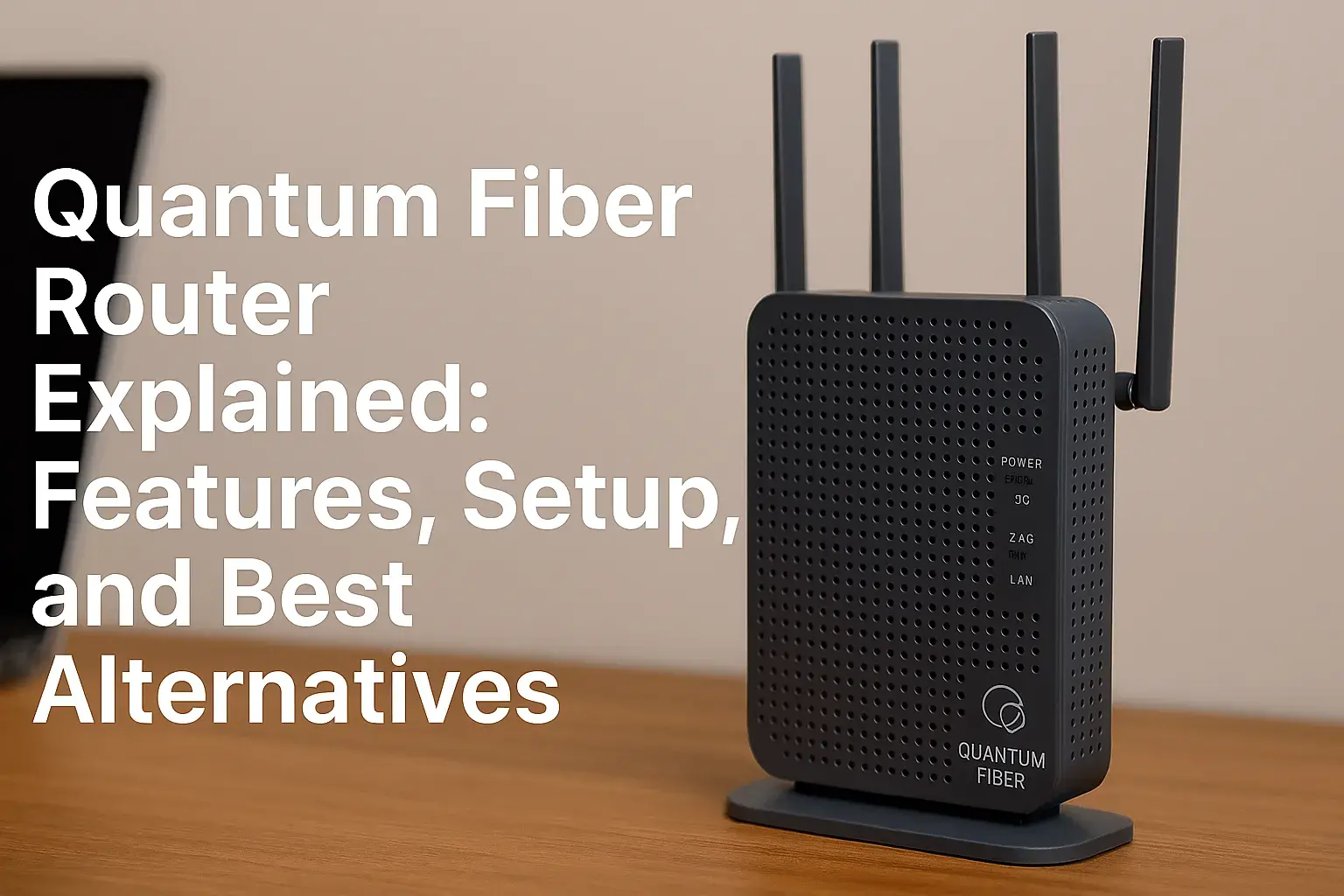
Quantum Fiber Router Explained: Features, Setup, and Best Alternatives
Understanding Quantum Fiber Routers
Dive into the core of high-speed internet with our comprehensive guide to Quantum Fiber routers. We demystify their advanced technology, essential features, and provide clear setup instructions, empowering you to maximize your online experience. Discover why Quantum Fiber is a leading choice for demanding users.
In the rapidly evolving landscape of internet connectivity, Quantum Fiber has emerged as a significant player, promising unparalleled speeds and reliability. At the heart of this advanced network lies the Quantum Fiber router, a device designed to harness the full potential of fiber optic technology. Unlike traditional cable or DSL modems, a Quantum Fiber router is specifically engineered to handle the immense data throughput and low latency that fiber optics deliver. This means smoother streaming, faster downloads, lag-free gaming, and a more responsive online experience for all your connected devices. Understanding what makes these routers tick, their unique features, and how to set them up is crucial for any subscriber looking to unlock the true power of their internet service. This guide aims to provide a thorough explanation, covering everything from the foundational technology to practical setup advice and exploring potential alternatives should they better suit your specific needs.
The term "Quantum Fiber" itself suggests a leap forward in internet technology. While the "Quantum" branding might evoke futuristic concepts, in the context of internet service, it primarily refers to a high-speed fiber optic network. Fiber optic internet uses strands of glass or plastic to transmit data as pulses of light, offering significantly higher bandwidth and lower latency compared to copper-based technologies. Quantum Fiber, often associated with providers like Quantum Fiber (a Lumen Technologies brand), aims to deliver symmetrical upload and download speeds, meaning your uploads are just as fast as your downloads – a game-changer for content creators, remote workers, and anyone who frequently shares large files. The router provided or recommended by Quantum Fiber is therefore a critical component, acting as the gateway between this ultra-fast network and your home or business devices. It’s not just a simple connection box; it’s a sophisticated piece of hardware designed to manage and distribute this high-speed connection efficiently.
For many users, the router is the most visible piece of their internet setup. When you sign up for Quantum Fiber service, you'll typically be provided with a router that is optimized for their network. This could be a proprietary device or a carefully selected third-party model. The primary function of this router is to convert the optical signal from the fiber optic network into an electrical signal that your devices can understand, and vice-versa. Beyond this fundamental role, modern routers, especially those designed for fiber, come packed with features aimed at enhancing performance, security, and user experience. These include advanced Wi-Fi standards, robust security protocols, Quality of Service (QoS) settings, and often, mesh networking capabilities. This guide will delve into these features, explain their benefits, and provide a clear path for setup and troubleshooting.
The transition to fiber optic internet, and by extension, Quantum Fiber routers, represents a significant upgrade for many households and businesses. The demands placed on home networks have grown exponentially, with more devices connecting simultaneously and an increasing reliance on bandwidth-intensive applications like 4K/8K video streaming, cloud gaming, and high-definition video conferencing. A router that cannot keep pace can become a bottleneck, negating the benefits of a fast internet plan. Therefore, understanding the capabilities of your Quantum Fiber router is not just about setting it up; it's about ensuring you are getting the most value and performance from your internet investment. We will explore the technical specifications that matter, the user-friendly interfaces that manage them, and how to make informed decisions about your network's hardware.
Key Features of Quantum Fiber Routers
Quantum Fiber routers are designed with cutting-edge technology to deliver superior performance. Explore their advanced Wi-Fi capabilities, robust security measures, and user-friendly management interfaces that ensure a seamless online experience.
The hardware provided for Quantum Fiber service is typically chosen for its ability to leverage the full capabilities of the fiber optic network. This means focusing on speed, efficiency, and advanced networking features. Let's break down the most important aspects:
Advanced Wi-Fi Standards
One of the most significant advantages of modern routers, including those used with Quantum Fiber, is their adherence to the latest Wi-Fi standards. As of 2025, this primarily means Wi-Fi 6 (802.11ax) and increasingly, Wi-Fi 6E.
Wi-Fi 6 (802.11ax): This standard offers substantial improvements over its predecessors (like Wi-Fi 5/802.11ac). Key benefits include higher speeds, increased capacity for multiple devices, better performance in crowded environments (like apartments or busy offices), improved power efficiency for connected devices, and enhanced security. Wi-Fi 6 utilizes technologies like Orthogonal Frequency Division Multiple Access (OFDMA) and Multi-User Multiple-Input Multiple-Output (MU-MIMO) to manage traffic more efficiently, allowing the router to communicate with multiple devices simultaneously and with greater precision. For a Quantum Fiber connection, which can offer speeds of 1 Gbps or even higher, Wi-Fi 6 ensures that your wireless devices can actually achieve speeds close to what your internet plan provides, without the router becoming a bottleneck.
Wi-Fi 6E: This is an extension of Wi-Fi 6 that adds support for the 6 GHz radio band. This new band is less congested than the traditional 2.4 GHz and 5 GHz bands, offering even lower latency and higher potential speeds. Devices compatible with Wi-Fi 6E can connect to this new band, experiencing a cleaner and faster wireless connection, which is particularly beneficial for demanding applications like high-resolution streaming, virtual reality, and competitive online gaming. Not all Quantum Fiber routers will support Wi-Fi 6E, but it's a feature to look for if you have compatible devices and want the absolute best wireless performance.
Gigabit Ethernet Ports
While Wi-Fi is convenient, a wired connection often provides the most stable and fastest speeds. Quantum Fiber routers are equipped with Gigabit Ethernet ports, typically supporting speeds of 10/100/1000 Mbps. This ensures that devices connected via Ethernet cable can fully utilize the high-speed internet connection. Many routers will feature multiple LAN ports, allowing you to connect several wired devices like desktop computers, gaming consoles, smart TVs, and network-attached storage (NAS) devices. Some higher-end models might even include 2.5 Gbps or 10 Gbps Ethernet ports, catering to users with extremely high-speed internet plans or those with demanding local network requirements.
Mesh Wi-Fi Capabilities
For larger homes or offices, a single router might struggle to provide consistent Wi-Fi coverage. Many Quantum Fiber routers are designed to be part of a mesh Wi-Fi system. A mesh system uses multiple nodes (a main router and satellite units) that work together to create a single, unified Wi-Fi network. This means you can roam throughout your home without experiencing dropped connections or slow speeds as your device seamlessly switches to the strongest signal. The router itself might be a mesh-capable unit, or it might be designed to work with specific Quantum Fiber mesh extenders. This feature is crucial for eliminating Wi-Fi dead zones and ensuring reliable connectivity in every corner of your space.
Advanced Security Features
With increasing online threats, router security is paramount. Quantum Fiber routers typically incorporate robust security measures to protect your network and connected devices.
WPA3 Encryption: This is the latest Wi-Fi security protocol, offering stronger encryption and authentication than WPA2. It provides enhanced protection against brute-force attacks and improves the security of your network credentials.
Firewall: Built-in firewalls help to block unauthorized access to your network from the internet.
Guest Network: This feature allows you to create a separate Wi-Fi network for visitors, keeping your main network and devices private.
Regular Firmware Updates: Quantum Fiber providers usually push automatic firmware updates to their routers, patching security vulnerabilities and improving performance. It's essential to ensure your router's firmware is always up-to-date.
Quality of Service (QoS)
Quality of Service (QoS) settings allow you to prioritize certain types of network traffic or specific devices. For example, you can prioritize video streaming or online gaming traffic over less time-sensitive activities like file downloads. This ensures that your most critical applications receive the bandwidth they need, even when your network is heavily utilized, leading to a smoother and more responsive experience for those activities. Many Quantum Fiber routers offer user-friendly interfaces to configure QoS settings.
Intuitive User Interface
Setting up and managing your network should be straightforward. Quantum Fiber routers often come with a web-based interface or a dedicated mobile app that provides an intuitive way to configure settings, monitor network activity, set up guest networks, and manage connected devices. This user-friendly approach makes advanced features accessible even to users who are not network experts.
These features collectively ensure that a Quantum Fiber router is not just a conduit for internet speed but a sophisticated hub for your digital life, providing speed, reliability, security, and ease of use.
Setting Up Your Quantum Fiber Router
Getting your Quantum Fiber router up and running is a straightforward process. Follow our step-by-step guide for a quick and easy installation, ensuring you can enjoy high-speed internet in no time.
Setting up your Quantum Fiber router is a critical step to unlocking the full potential of your high-speed internet service. While the exact steps might vary slightly depending on the specific router model provided by Quantum Fiber and your home's network configuration, the general process is designed to be user-friendly. Most Quantum Fiber installations will involve a technician who will handle the initial connection of the fiber optic line to your home and the installation of the Optical Network Terminal (ONT), which is the device that converts the light signal from the fiber into an electrical signal. The router then connects to the ONT. If you are setting up a router yourself, or if you are replacing an existing router, follow these general steps:
Step 1: Unboxing and Placement
Carefully unbox your Quantum Fiber router and its accessories. You should find the router itself, a power adapter, and an Ethernet cable.
Router Placement: Choose a central location in your home, away from obstructions like thick walls, metal objects, or large appliances that can interfere with Wi-Fi signals. Placing the router in a high, open area generally provides the best coverage. Avoid placing it near other electronic devices that emit radio waves, such as microwaves or cordless phones.
Step 2: Connecting the Router to the ONT
This is the most crucial physical connection.
Identify Ports: Locate the WAN (Wide Area Network) or Internet port on your Quantum Fiber router. This port is usually colored differently or labeled specifically. On the ONT (which is likely already installed by a technician), locate the Ethernet port that provides the internet connection.
Connect the Cables: Use the provided Ethernet cable to connect the Ethernet port on the ONT to the WAN/Internet port on your Quantum Fiber router. Ensure the cable is securely plugged into both devices.
Step 3: Powering On the Devices
Once the Ethernet cable is connected, you need to power on the ONT and then the router.
Power On ONT: If the ONT is not already powered on, plug in its power adapter and turn it on. Wait for its indicator lights to stabilize, which usually signifies it's ready.
Power On Router: Plug the power adapter into your Quantum Fiber router and then into a power outlet. Turn on the router if it has a power switch.
Wait for Boot-Up: Allow both the ONT and the router a few minutes to boot up completely. You should see various indicator lights on the router illuminate, typically including power, internet connectivity, and Wi-Fi activity. Consult your router's manual for specific light meanings.
Step 4: Initial Router Configuration
After the router has booted up, you'll need to access its administrative interface to set up your Wi-Fi network name (SSID) and password, and potentially other settings.
Connect a Device: Connect a computer or smartphone to the router. You can do this either wirelessly (using the default Wi-Fi network name and password often printed on a sticker on the router) or via an Ethernet cable connected to one of the router's LAN ports.
Access the Router Interface: Open a web browser on the connected device. Type the router's IP address into the address bar. This is commonly 192.168.1.1 or 192.168.0.1, but it can vary. Check the router's label or manual for the correct IP address.
Login: You will be prompted to enter a username and password. The default credentials are also usually found on the router's label or in its manual. It's highly recommended to change these default credentials for security reasons.
Setup Wizard: Most routers will launch a setup wizard upon first login. Follow the on-screen prompts to configure your Wi-Fi network.
Step 5: Configuring Your Wi-Fi Network
This is where you personalize your wireless network.
Network Name (SSID): Choose a unique name for your Wi-Fi network. It's good practice to use different SSIDs for the 2.4 GHz and 5 GHz bands if your router supports both, to allow devices to connect to the most appropriate band.
Wi-Fi Password (Security Key): Create a strong, unique password for your Wi-Fi network. Use a combination of uppercase and lowercase letters, numbers, and symbols. This is crucial for preventing unauthorized access to your network.
Security Protocol: Ensure you select WPA3 or WPA2/WPA3-Personal for the highest level of security.
Guest Network (Optional): If your router supports it, consider setting up a separate guest network for visitors. This keeps your main network secure and prevents guests from accessing your personal files or devices.
Step 6: Finalizing and Testing
Once you've configured your Wi-Fi settings, save them. The router will likely restart.
Reconnect Devices: On your wireless devices (smartphones, laptops, tablets), search for your new Wi-Fi network name and connect using the password you just created.
Test Internet Speed: Visit a reliable internet speed test website (e.g., Speedtest.net) to verify that you are getting the speeds you expect from your Quantum Fiber plan. Test both wired and wireless connections if possible.
Update Firmware: It's always a good idea to check for and install the latest firmware updates for your router. This can usually be done through the router's administrative interface. Firmware updates often include performance improvements and crucial security patches.
If you encounter any issues during setup, refer to the router's manual or contact Quantum Fiber customer support for assistance. With these steps, your Quantum Fiber router should be up and running, providing a fast and reliable internet connection throughout your home.
Troubleshooting Common Quantum Fiber Router Issues
Experiencing slow speeds or connectivity problems? This section offers practical solutions to common Quantum Fiber router issues, helping you maintain a smooth and reliable internet connection.
Even with advanced technology, occasional issues with your Quantum Fiber router can arise. Fortunately, many common problems can be resolved with simple troubleshooting steps. Here’s a guide to addressing some of the most frequent concerns:
No Internet Connection
This is the most frustrating issue. If your devices cannot access the internet, follow these steps:
Check Indicator Lights: Examine the lights on your Quantum Fiber router and the ONT. Look for lights indicating power, internet connectivity, and Wi-Fi status. If the internet light is off or red, there might be an issue with the service provider or the physical connection.
Restart Devices: A simple power cycle can resolve many temporary glitches.
Unplug the power from your Quantum Fiber router.
Unplug the power from your ONT.
Wait for at least 30 seconds.
Plug the power back into the ONT and wait for it to fully boot up (indicator lights stable).
Plug the power back into the router and wait for it to fully boot up.
Check Physical Connections: Ensure the Ethernet cable connecting the ONT to the router's WAN port is securely plugged in at both ends. Try using a different Ethernet cable if possible.
Test with a Wired Connection: Connect a computer directly to one of the router's LAN ports using an Ethernet cable. If you get internet access this way, the issue is likely with your Wi-Fi.
Contact Your Provider: If none of the above steps resolve the issue, there might be an outage in your area or a problem with your service. Contact Quantum Fiber customer support.
Slow Internet Speeds
If your internet seems slower than expected, consider these factors:
Test Speeds Regularly: Use a reliable speed test website (e.g., Speedtest.net) on a wired connection to get an accurate baseline of your internet speed. Compare this to your subscribed plan.
Check Wi-Fi Signal Strength: If you're experiencing slow speeds on Wi-Fi, move closer to the router. Walls, distance, and interference can degrade the signal.
Too Many Devices: A large number of devices actively using the internet simultaneously can slow down your connection. Try disconnecting some devices to see if speeds improve.
Router Placement and Interference: Ensure your router is in an optimal location, away from potential sources of interference (microwaves, cordless phones, Bluetooth devices).
Wi-Fi Band: If your router is dual-band, ensure your devices are connected to the 5 GHz band for faster speeds (if they are close enough to the router). The 2.4 GHz band has longer range but lower speeds and is more susceptible to interference.
Outdated Devices: Older devices may not support the latest Wi-Fi standards and could be limiting your speeds.
Router Firmware: Ensure your router's firmware is up-to-date. Outdated firmware can impact performance. Check your router's administrative interface for updates.
QoS Settings: If you have configured Quality of Service (QoS) settings, ensure they are not inadvertently throttling your desired traffic.
Contact Provider: If wired speeds are also significantly lower than your plan, contact Quantum Fiber support.
Wi-Fi Connectivity Issues (Intermittent Drops, Weak Signal)
These issues can be frustrating for wireless users.
Restart Router: As always, a power cycle can often resolve temporary Wi-Fi glitches.
Check Router Placement: Ensure the router is centrally located and not obstructed.
Reduce Interference: Identify and move away from potential sources of interference.
Update Firmware: Ensure your router's firmware is current.
Change Wi-Fi Channel: Routers operate on specific Wi-Fi channels. If your channel is crowded by neighboring networks, it can cause interference. Access your router's settings and try changing the Wi-Fi channel to a less congested one (e.g., 1, 6, or 11 for 2.4 GHz). Many routers have an "auto" channel selection that can be effective.
Mesh Network Issues: If you're using a mesh system, ensure all nodes are powered on and properly connected. Sometimes, restarting the entire mesh system can help.
Factory Reset: As a last resort, you can perform a factory reset on your router. This will erase all custom settings, so you'll need to reconfigure your Wi-Fi network name and password. The reset button is usually a small, recessed button on the back or bottom of the router that needs to be held down for about 10-30 seconds with a paperclip.
Cannot Access Router Settings
If you're unable to log into your router's administrative interface:
Verify IP Address: Double-check that you are using the correct IP address for your router (e.g., 192.168.1.1).
Check Connection: Ensure the device you are using to access the settings is connected to the router (either wired or wirelessly).
Correct Credentials: Verify that you are entering the correct username and password. Remember that these are case-sensitive.
Router Reset: If you've forgotten your login credentials, you may need to perform a factory reset on the router, which will revert it to its default settings, including the default login information.
Security Concerns
Protecting your network is vital.
Change Default Credentials: Always change the default administrator username and password for your router.
Use Strong Wi-Fi Password: Ensure your Wi-Fi password is strong and uses WPA3 or WPA2/WPA3-Personal encryption.
Disable WPS if not needed: Wi-Fi Protected Setup (WPS) can be a security vulnerability if not properly secured. Consider disabling it if you don't use it.
Keep Firmware Updated: Regularly check for and install firmware updates to patch security vulnerabilities.
By systematically working through these troubleshooting steps, you can resolve most common issues with your Quantum Fiber router and ensure a consistently high-performing internet connection. If problems persist, contacting Quantum Fiber customer support is the next best step.
Choosing the Best Quantum Fiber Router for Your Needs
While Quantum Fiber often provides a capable router, you might consider upgrading for enhanced features. Learn what to look for in a router to perfectly complement your fiber optic service.
Quantum Fiber typically provides a router that is optimized for their network and service speeds. For many users, the provided router will be more than adequate. However, if you have specific needs, a larger home, a high number of connected devices, or simply want to leverage the absolute latest technology, you might consider purchasing your own router or a mesh system to use with your Quantum Fiber service. This decision requires understanding what features will best serve your household.
Understanding Your Internet Speed Tier
The first step is to know your Quantum Fiber plan's speed. If you have a 1 Gbps plan, you'll need a router that can handle those speeds.
Gigabit Speeds: Look for routers with Gigabit Ethernet ports (10/100/1000 Mbps) for both WAN and LAN connections. Ensure the router's internal processing power is sufficient to manage these speeds without becoming a bottleneck, especially when multiple devices are active.
Multi-Gigabit Speeds (if applicable): If your Quantum Fiber plan offers speeds above 1 Gbps (e.g., 2 Gbps, 5 Gbps), you will need a router with multi-gigabit WAN and LAN ports (2.5 Gbps, 5 Gbps, or 10 Gbps).
Wi-Fi Standards and Bands
As discussed earlier, Wi-Fi 6 (802.11ax) and Wi-Fi 6E are the current benchmarks for high-performance wireless.
Wi-Fi 6: This is essential for most users in 2025. It offers significant improvements in speed, capacity, and efficiency over older standards. Ensure the router is Wi-Fi 6 certified.
Wi-Fi 6E: If you have devices that support Wi-Fi 6E and want the absolute lowest latency and fastest speeds in a less congested spectrum, consider a Wi-Fi 6E router. This is particularly beneficial for demanding applications like VR gaming or high-resolution video conferencing.
Dual-Band vs. Tri-Band: Most modern routers are dual-band (2.4 GHz and 5 GHz). Tri-band routers add a second 5 GHz band or a 6 GHz band (in Wi-Fi 6E), which can further improve performance by distributing traffic more effectively, especially in homes with many devices.
Coverage Area and Mesh Systems
The size and layout of your home are critical factors.
Single Router: For smaller homes or apartments (under 1500 sq ft), a single, high-quality router might be sufficient.
Mesh Wi-Fi Systems: For larger homes (over 1500 sq ft) or homes with multiple floors, thick walls, or complex layouts, a mesh Wi-Fi system is highly recommended. These systems consist of a main router and satellite nodes that work together to create a seamless, whole-home Wi-Fi network. Look for systems that are easy to set up and manage via a mobile app. Ensure the system supports the speeds of your Quantum Fiber plan.
Number of Devices and Network Load
Consider how many devices will be connected to your network simultaneously.
High Device Count: If you have many smart home devices, streaming devices, computers, and mobile phones, choose a router with robust processing power and advanced features like MU-MIMO and OFDMA (found in Wi-Fi 6) to handle the load efficiently.
Gaming and Streaming: For gamers and heavy streamers, prioritize routers with low latency, strong QoS features, and Wi-Fi 6 or 6E support.
Security Features
Security should always be a priority.
WPA3 Encryption: Ensure the router supports the latest WPA3 security protocol for enhanced protection.
Built-in Firewall and Antivirus: Some routers offer advanced security suites, including firewalls, intrusion detection, and even basic antivirus protection, which can add an extra layer of defense.
Parental Controls: If you have children, robust parental controls can help manage internet access and content.
Regular Updates: Choose a reputable brand known for providing regular firmware updates to address security vulnerabilities and improve performance.
Ease of Use and Management
A user-friendly interface can make a big difference.
Mobile App: Many modern routers come with a dedicated mobile app that simplifies setup, network monitoring, and management of settings like guest networks and parental controls.
Web Interface: Ensure the router's web-based administrative interface is intuitive and easy to navigate.
Router Brands to Consider (2025)
Reputable brands known for high-performance routers suitable for fiber optic internet include:
ASUS: Often praised for their powerful processors, advanced features, and robust firmware.
TP-Link: Offers a wide range of routers, from budget-friendly to high-end, often with good performance and features.
Netgear: Known for their Nighthawk series, which are designed for high performance and gaming.
Eero (Amazon): A popular choice for mesh Wi-Fi systems, known for their simplicity and excellent coverage.
Google Nest Wifi: Another user-friendly mesh system that integrates well with other Google services.
When choosing a router to use with Quantum Fiber, ensure it is compatible with your service. While most standard routers will work, some providers might have specific requirements or recommendations. Always check with Quantum Fiber if you plan to use your own equipment. By carefully considering these factors, you can select a router that not only matches your Quantum Fiber internet speeds but also enhances your overall home networking experience.
Alternatives to Quantum Fiber Routers
While Quantum Fiber routers are optimized for their network, explore alternative routers and mesh systems that can offer superior performance, features, or coverage for your specific needs.
Quantum Fiber's provided router is designed to work seamlessly with their fiber optic network. However, for users seeking more advanced features, better performance, or broader coverage, exploring alternative routers and mesh systems is a viable option. It's important to note that when using your own router, you will typically bypass the router provided by Quantum Fiber and connect your chosen device directly to the ONT (Optical Network Terminal). This process is often referred to as "bring your own device" (BYOD).
Understanding BYOD with Quantum Fiber
Before diving into alternatives, understand the implications of using your own router:
ONT Connection: You will need to connect your router's WAN port directly to the ONT provided by Quantum Fiber using an Ethernet cable.
Configuration: Your new router will need to be configured to obtain an IP address from Quantum Fiber's network. This usually involves setting the WAN connection type to DHCP.
No Provider Support for Your Router: Quantum Fiber support will typically only assist with issues related to their ONT and the fiber service itself. They will not troubleshoot problems with your third-party router. You will need to rely on the router manufacturer's support or online communities.
Potential for Enhanced Performance: Using a high-end router or mesh system can offer significant improvements in Wi-Fi speed, range, stability, and advanced features compared to a standard ISP-provided device.
High-Performance Standalone Routers
For users who want a single, powerful router that can handle high speeds and numerous devices, consider these options:
ASUS ROG Rapture GT-AX11000 (or newer AX/AXE models)
Often considered a top-tier gaming router, the ROG Rapture series offers exceptional performance, advanced QoS, robust security features (AiProtection Pro), and excellent Wi-Fi 6 speeds. It's ideal for users with multi-gigabit internet plans and demanding applications.
TP-Link Archer AX11000 (or newer AX/AXE models)
A strong competitor to ASUS, TP-Link's Archer series provides high speeds, advanced features like HomeShield security, and powerful processors capable of managing heavy network loads.
Netgear Nighthawk RAX120 (or newer AX/AXE models)
Netgear's Nighthawk line is renowned for its speed and performance. Routers like the RAX120 offer multi-gigabit ports and Wi-Fi 6 capabilities, making them suitable for high-speed fiber connections.
Mesh Wi-Fi Systems
Mesh systems are the go-to solution for larger homes or areas with Wi-Fi dead zones. They consist of a main router and one or more satellite nodes that work together to create a single, seamless network.
Eero Pro 6 / Eero Pro 6E
Eero is known for its user-friendly setup and excellent performance. The Pro models offer tri-band Wi-Fi 6 or 6E, providing high speeds and robust coverage. They are easy to manage via a mobile app and integrate well with Amazon Alexa.
Google Nest Wifi / Google Wifi
Google's mesh systems are also incredibly easy to set up and manage. They provide reliable Wi-Fi coverage throughout the home and integrate seamlessly with the Google ecosystem. While they might not offer the absolute highest speeds of some dedicated gaming routers, they provide a very stable and user-friendly experience for most households.
TP-Link Deco X90 / X95 (or newer AX/AXE models)
TP-Link's Deco series offers high-performance mesh Wi-Fi systems that are often more budget-friendly than some competitors while still delivering excellent speeds and coverage with Wi-Fi 6 technology.
ASUS ZenWiFi XT8 / ET8 (or newer AX/AXE models)
ASUS brings its networking expertise to mesh systems with the ZenWiFi line. These systems offer Wi-Fi 6 or 6E, robust features, and strong performance, often appealing to users who want advanced control.
Key Considerations When Choosing an Alternative
When selecting an alternative router or mesh system for your Quantum Fiber service, keep the following in mind:
Speed Compatibility: Ensure the router's WAN port and Wi-Fi capabilities can support the speeds of your Quantum Fiber plan. For 1 Gbps, look for Gigabit Ethernet and Wi-Fi 6. For multi-gigabit, you'll need multi-gigabit ports and potentially Wi-Fi 6E.
Wi-Fi Standard: Prioritize Wi-Fi 6 (802.11ax) for current needs and Wi-Fi 6E if you have compatible devices and want future-proofing and the best performance.
Coverage Needs: For larger homes, a mesh system is almost always the best choice. Calculate the square footage of your home and the number of nodes needed for adequate coverage.
Device Load: If you have a high number of connected devices, choose a router or mesh system with a powerful processor and technologies like OFDMA and MU-MIMO.
Features: Consider features like QoS, parental controls, guest network capabilities, and built-in security suites that are important to you.
Ease of Use: If you prefer a simple setup and management, look for systems with intuitive mobile apps like Eero or Google Nest Wifi.
Budget: High-end routers and mesh systems can be a significant investment. Determine your budget and find the best balance of features and performance within that range.
By carefully evaluating your needs and researching the latest offerings, you can select an alternative router or mesh system that will not only work with your Quantum Fiber service but potentially elevate your entire home networking experience beyond what the standard provider-issued equipment can offer.
Conclusion: Optimizing Your Quantum Fiber Experience
Quantum Fiber routers are integral to unlocking the full potential of your high-speed internet. By understanding their features, mastering setup, and knowing when to explore alternatives, you can ensure a consistently fast, reliable, and secure online environment for all your devices.
In the pursuit of seamless, high-speed internet, understanding your Quantum Fiber router is paramount. We've navigated the intricate features that make these devices powerful, from the latest Wi-Fi 6 and 6E standards designed to maximize throughput, to the robust security protocols safeguarding your digital life. The straightforward setup process, when followed diligently, ensures you can quickly transition to enjoying the benefits of fiber optic connectivity. Furthermore, we've armed you with the knowledge to troubleshoot common issues, transforming potential frustrations into solvable problems.
For those seeking to push the boundaries of home networking, exploring alternatives to the standard Quantum Fiber router is a smart move. Whether you opt for a high-performance standalone router or a comprehensive mesh Wi-Fi system, the key is to align the device's capabilities with your specific internet speed tier, home size, and the demands of your connected devices. Remember, while Quantum Fiber provides the exceptional service, the right router is your key to unlocking its full, uncompromised potential. By investing in understanding and optimizing your network hardware, you ensure a future-proof, high-performing online experience that keeps pace with the ever-increasing demands of modern digital life.