Quantum Fiber Pod Blinking Green: Meaning, Causes, and How to Fix It
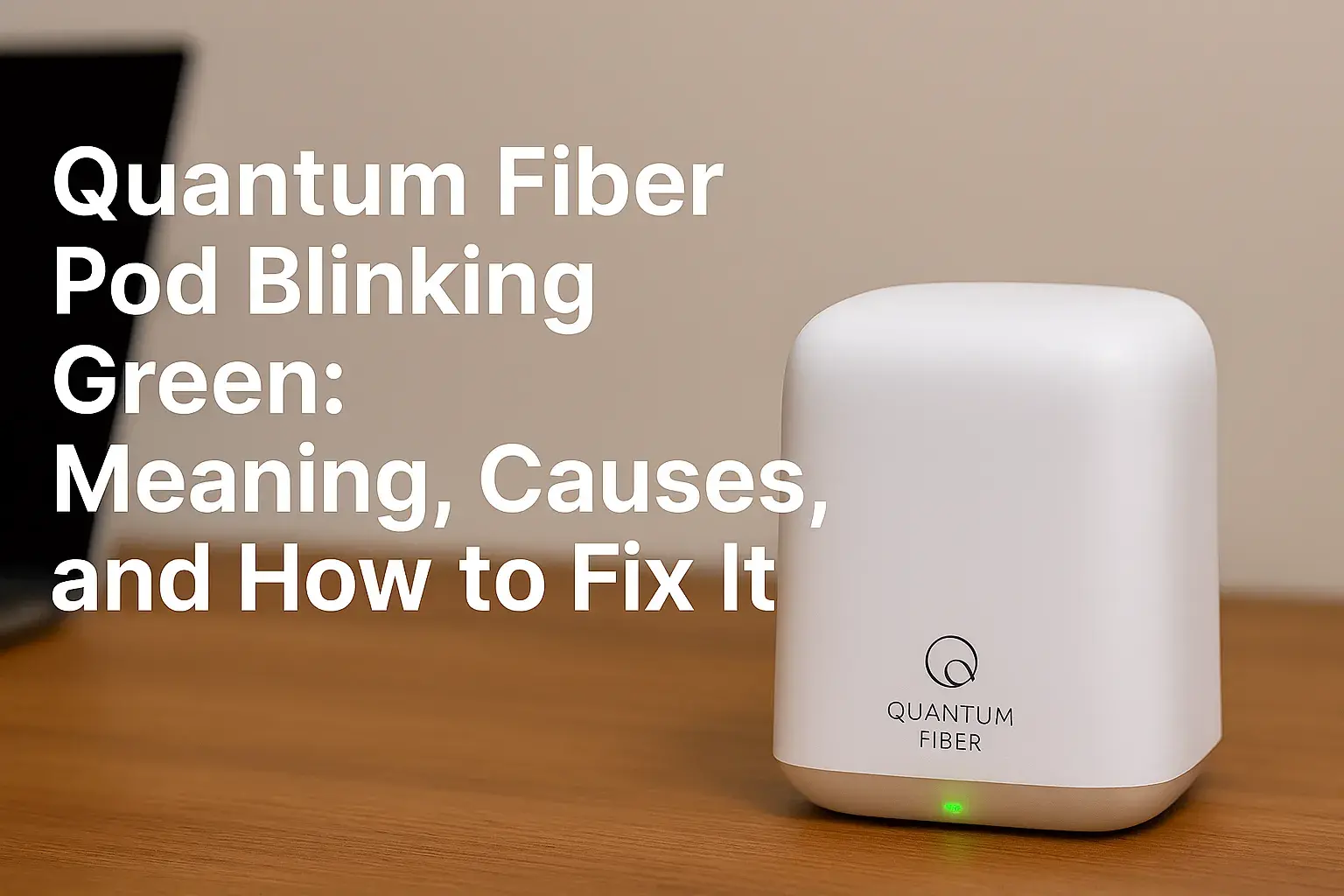
Encountering a blinking green light on your Quantum Fiber Pod can be a source of frustration. This guide provides a comprehensive explanation of what this indicator signifies, the common reasons behind it, and actionable steps to resolve the issue, ensuring your Quantum Fiber service remains uninterrupted.
Understanding the Blinking Green Light on Your Quantum Fiber Pod
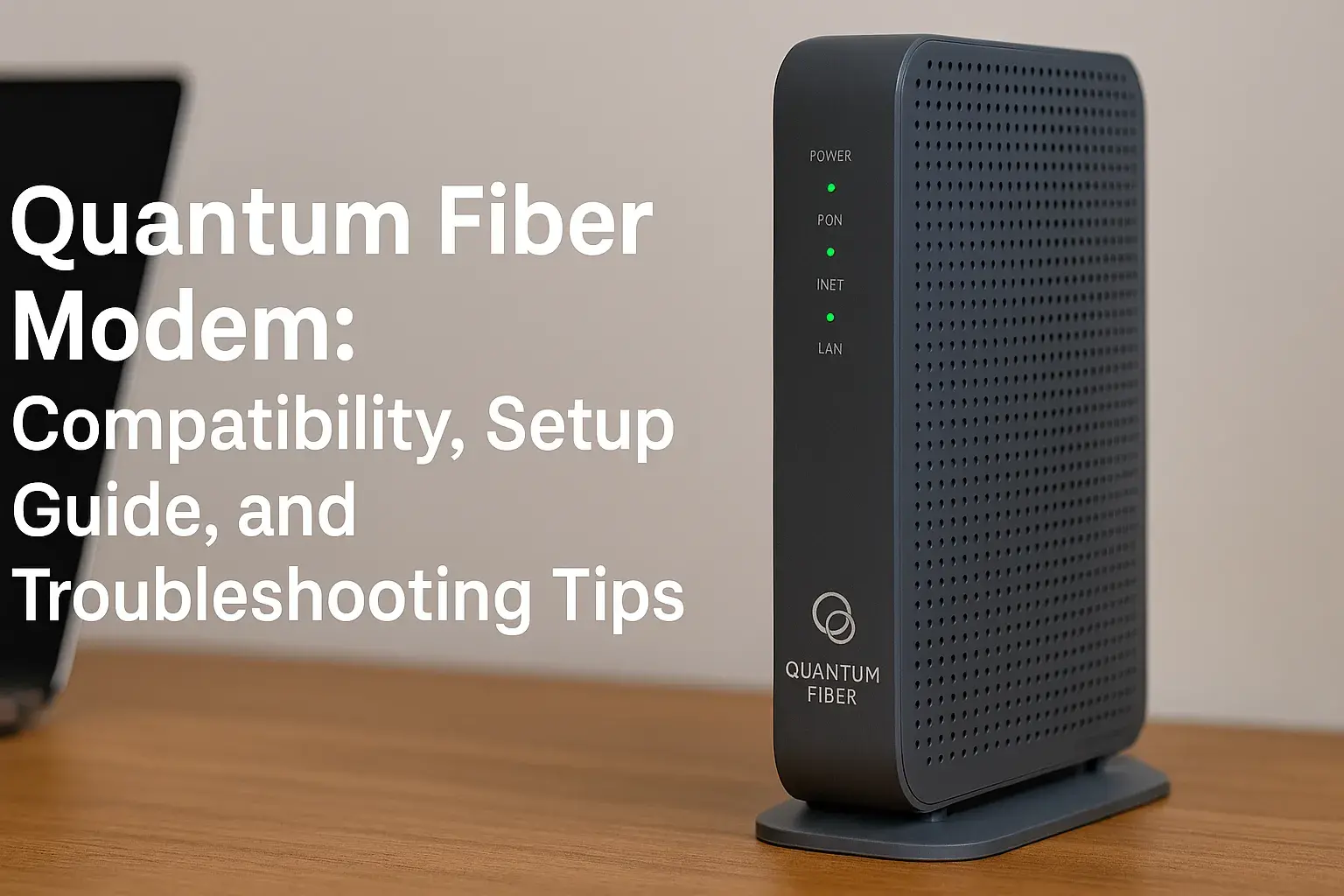
The indicator lights on your Quantum Fiber Pod are designed to provide a quick and intuitive status update. A blinking green light, in most contexts for Quantum Fiber equipment, signifies that the pod is actively trying to establish or maintain a connection. This could be with your main Quantum Fiber router, the internet service provider's network, or both. Unlike a solid green light, which typically indicates a stable, active connection, a blinking green light suggests a transitional state or a temporary issue preventing full connectivity. Understanding this distinction is the first step in diagnosing and resolving the problem. In 2025, Quantum Fiber's mesh network technology relies heavily on seamless communication between pods, and this blinking indicator is your primary cue that something is preventing that seamless flow.
Common Causes of a Blinking Green Light
Several factors can contribute to your Quantum Fiber Pod displaying a blinking green light. Identifying the root cause is crucial for effective troubleshooting. These issues can range from simple environmental factors to more complex network or hardware problems.
Internet Connection Issues
The most frequent culprit behind a blinking green light is a disruption in the internet connection itself. This could be an outage from Quantum Fiber in your area, or more commonly, an issue with the connection between your main Quantum Fiber router and the internet service. If the main router isn't receiving a stable internet signal, the pods connected to it will also struggle to maintain their status, often resulting in a blinking green light as they attempt to reconnect.
ISP Outages
While Quantum Fiber aims for high reliability, localized or regional outages can occur. These are typically temporary and resolved by the provider's network operations team. During an outage, your pods may blink green as they repeatedly try to connect to a network that is temporarily unavailable.
Router Connectivity Problems
The Quantum Fiber Pods rely on the primary Quantum Fiber router for their internet access. If the router itself is experiencing issues—perhaps it's not powered on correctly, has lost its connection to the modem, or is malfunctioning—the pods will reflect this instability. The blinking green light on a pod is a direct symptom of its inability to communicate effectively with the router, which in turn, might be struggling to get online.
Pod Registration or Sync Problems
Quantum Fiber utilizes a mesh network system where pods communicate with each other and the main router to provide seamless Wi-Fi coverage. If a pod fails to register correctly with the network, or if its synchronization with other devices is interrupted, it can result in a blinking green light. This is particularly common after initial setup, power outages, or firmware updates.
Initial Setup Failures
During the initial setup process, if a pod doesn't successfully pair with the main Quantum Fiber router, it will often blink green, indicating it's in a state of attempting to join the network. This could be due to proximity issues, incorrect setup steps, or interference.
Sync Interruptions
Even after successful setup, the dynamic nature of mesh networks means pods are constantly communicating and synchronizing. If this communication is disrupted—perhaps by a temporary network overload, a brief power flicker affecting one pod, or a software hiccup—the pod might enter a blinking green state while it attempts to re-establish its sync with the network.
Software or Firmware Glitches
Like any electronic device, Quantum Fiber Pods run on software and firmware. Occasionally, these can encounter minor glitches or bugs that affect their normal operation. A blinking green light might be the result of a temporary software error that prevents the pod from reporting its status correctly or maintaining a stable connection.
Outdated Firmware
While Quantum Fiber typically pushes automatic updates, there can be instances where firmware doesn't update correctly or becomes outdated. Older firmware versions might have compatibility issues with newer network configurations or security protocols, leading to connection instability and a blinking green light.
Temporary Software Hangs
A pod might temporarily "hang" or freeze due to a processing error. This can manifest as unusual indicator light behavior, including a blinking green light, until the software resets itself or is manually restarted.
Hardware Malfunctions
Although less common than software or connectivity issues, a hardware malfunction within the Quantum Fiber Pod itself can also cause the blinking green light. This could be due to a faulty component, damage, or wear and tear over time. In 2025, with the increasing reliance on advanced networking equipment, hardware reliability remains paramount.
Internal Component Failure
If an internal component within the pod fails, it may no longer be able to perform its intended functions, including maintaining a stable connection. The blinking green light could be a diagnostic signal indicating this failure.
Physical Damage
While pods are generally robust, physical damage from drops, extreme temperatures, or liquid exposure can compromise their internal workings, leading to persistent indicator light issues.
Power Supply Interruptions
Inconsistent or unstable power can significantly impact the performance of any electronic device, including your Quantum Fiber Pod. Brief power surges, brownouts, or even a loose power cable can cause the pod to reboot or lose its stable connection state, resulting in a blinking green light.
Loose Power Cables
A simple but often overlooked cause is a loose power connection. If the power adapter isn't firmly seated in the pod or the wall outlet, the pod might experience intermittent power loss, leading to a blinking green light.
Power Fluctuations
Unstable power from your electrical outlet, perhaps due to issues with your home's wiring or external power grid fluctuations, can cause the pod to reboot or operate erratically. The blinking green light is a sign that it's trying to recover from such an interruption.
Step-by-Step Troubleshooting Guide
When your Quantum Fiber Pod displays a blinking green light, it's time to systematically work through potential solutions. This guide will walk you through the most effective troubleshooting steps, starting with the simplest and progressing to more involved actions.
Step 1: Basic Checks and Reboots
The first and often most effective step is to perform a simple power cycle on your Quantum Fiber equipment. This can resolve many temporary glitches and re-establish connections.
Rebooting the Pod
1. Locate the Quantum Fiber Pod experiencing the blinking green light.
2. Unplug the power adapter from the pod.
3. Wait for at least 30 seconds to ensure the device has fully powered down.
4. Plug the power adapter back into the pod.
5. Allow the pod a few minutes to boot up and re-establish its connection. Observe the indicator light.
Rebooting the Router and Modem
If rebooting the pod doesn't resolve the issue, it's essential to reboot your entire Quantum Fiber network setup, starting with the modem and then the router.
1. Unplug the power cords from your Quantum Fiber modem (if separate) and your Quantum Fiber router.
2. Wait for at least 60 seconds.
3. Plug the modem back in and wait for its indicator lights to stabilize, indicating it has a connection to the internet.
4. Once the modem is stable, plug your Quantum Fiber router back in and wait for its lights to stabilize.
5. Finally, reboot your pods as described above.
This comprehensive reboot ensures that all network components re-establish their connections in the correct order.
Step 2: Verifying Physical Connections
Loose or damaged cables are a common cause of network instability. Ensure all connections are secure and in good condition.
Check Power Cables
Ensure the power adapter is securely plugged into both the Quantum Fiber Pod and a working electrical outlet. Try plugging it into a different outlet to rule out an issue with the original one.
Check Ethernet Cables (if applicable)
If your Quantum Fiber Pod uses an Ethernet cable to connect to the router or another pod, ensure the cable is firmly seated in both ports. Try using a different Ethernet cable if possible, as cables can degrade over time.
Step 3: Router and Modem Interaction
The Quantum Fiber Pods are an extension of your main Quantum Fiber router's Wi-Fi network. If the router is not functioning correctly or has lost its internet connection, the pods will also exhibit problems.
Check Router Status Lights
Examine the indicator lights on your main Quantum Fiber router. If the router itself is showing error lights or is not connected to the internet (often indicated by a specific light pattern), this is the primary issue that needs addressing. Consult your Quantum Fiber router's manual for the meaning of its specific indicator lights.
Test Internet Connection Directly
If possible, connect a device (like a laptop) directly to the Quantum Fiber router via an Ethernet cable. If you cannot access the internet this way, the problem lies with your Quantum Fiber service or modem, not the pods.
Step 4: Pod Placement and Environment
The performance of a mesh Wi-Fi system is heavily influenced by the placement of its nodes (pods). Environmental factors can also play a role.
Signal Strength and Interference
Ensure the pod is within a reasonable range of the main Quantum Fiber router or another connected pod. If it's too far, the signal may be too weak. Conversely, if it's too close, it might cause interference. Quantum Fiber recommends placing pods approximately halfway between the router and areas with weak Wi-Fi signals.
Environmental Factors
Avoid placing pods near large metal objects, microwaves, or other devices that can emit radio frequency interference. Thick walls or certain building materials can also degrade Wi-Fi signals.
Optimal Placement Example
Imagine your home is a rectangle. If your Quantum Fiber router is in the living room at one end, and you have a dead zone in the master bedroom at the other end, place a pod in a hallway or guest room roughly in the middle. This allows for optimal signal relay.
Step 5: Resetting the Quantum Fiber Pod
If a simple reboot doesn't work, a factory reset of the pod can often resolve persistent issues, especially those related to configuration or registration. Note: A factory reset will remove the pod from your network, and you will need to re-add it.
Performing a Factory Reset
1. Locate the reset button on your Quantum Fiber Pod. This is typically a small, recessed button that requires a paperclip or a similar pointed object to press.
2. With the pod powered on, press and hold the reset button for approximately 10-15 seconds. You may see the indicator lights change or flash.
3. Release the button. The pod will reboot and return to its factory default settings.
4. Once the pod has rebooted, it will likely be in a setup mode, possibly indicated by a blinking or solid white light (refer to your Quantum Fiber app or documentation for the specific indicator during setup).
5. Follow the instructions in the Quantum Fiber app to re-add the pod to your network. This usually involves scanning a QR code on the pod or selecting it from a list of available devices.
Step 6: Advanced Troubleshooting and Support
If the blinking green light persists after trying the above steps, it may indicate a more complex issue that requires professional assistance.
Checking for Firmware Updates Manually
While Quantum Fiber Pods usually update automatically, it's worth checking if there's a way to manually trigger an update through the Quantum Fiber app or your online account portal. Ensure your app is also up-to-date.
Consulting Quantum Fiber Support Resources
Quantum Fiber's official website offers extensive support documentation, FAQs, and troubleshooting guides. These resources can provide specific information related to your model of Quantum Fiber Pod and any known issues.
Contacting Quantum Fiber Customer Support
If all troubleshooting steps fail, it's time to contact Quantum Fiber customer support. They have access to advanced diagnostic tools and can identify network-level issues or determine if your pod is defective.
When contacting support, be prepared to provide:
Your account information.
The specific model of your Quantum Fiber Pod.
A detailed description of the problem, including the indicator light behavior and the steps you've already taken.
2025 Customer Support Statistics: According to recent industry reports, the average first-contact resolution rate for ISP technical support issues related to home networking equipment is around 75%. Quantum Fiber aims to exceed this by providing well-trained support agents and robust diagnostic tools.
Preventative Measures for a Stable Connection
To minimize the chances of encountering a blinking green light on your Quantum Fiber Pod in the future, consider implementing these preventative measures:
Regular Reboots: Schedule a weekly reboot of your modem, router, and pods. This can help clear temporary glitches before they become persistent problems.
Optimal Pod Placement: Ensure your pods are strategically placed to maximize signal strength and minimize interference. Refer to Quantum Fiber's guidelines for best practices.
Keep Firmware Updated: While automatic, periodically check for manual updates or ensure your app is configured to receive them promptly.
Secure Power Connections: Double-check that all power cables are firmly connected and consider using a surge protector to guard against power fluctuations.
Monitor Network Performance: Use the Quantum Fiber app to monitor your network's health. Early detection of slow speeds or connection drops can help prevent pod issues.
Avoid Environmental Interference: Keep pods away from potential sources of interference like microwaves, cordless phones, and large electronic devices.
When to Contact Quantum Fiber Support
While most blinking green light issues can be resolved with the troubleshooting steps outlined above, there are specific scenarios where contacting Quantum Fiber support is the most efficient path forward.
Persistent Blinking: If the blinking green light continues for more than 24 hours despite multiple reboots and resets, it suggests a more significant problem.
Multiple Pods Affected: If several or all of your Quantum Fiber Pods are exhibiting the blinking green light simultaneously, it points to a broader network issue that Quantum Fiber needs to address.
No Internet Connection at All: If you have no internet access on any device, and the main router also indicates no connection, the problem is likely with your Quantum Fiber service itself, not just the pods.
Physical Damage: If you suspect your Quantum Fiber Pod has been physically damaged (e.g., dropped, exposed to water), it's best to contact support for a replacement.
After Factory Reset: If you perform a factory reset and the pod still fails to connect or re-register with your network, it may be defective.
2025 Service Level Agreements: Quantum Fiber's standard service level agreements (SLAs) typically guarantee uptime and prompt resolution of network issues. Knowing your SLA can help you understand the expected response times from support.
By understanding the meaning of the blinking green light, systematically troubleshooting the common causes, and knowing when to seek professional help, you can quickly restore your Quantum Fiber network to optimal performance. This proactive approach ensures you continue to enjoy the high-speed, reliable internet service Quantum Fiber is known for.
In conclusion, a blinking green light on your Quantum Fiber Pod is a signal that requires attention, but it's rarely an insurmountable problem. By following the comprehensive troubleshooting steps, from simple reboots to factory resets, most users can resolve the issue themselves. Remember to always check your primary router and modem first, as the pods are dependent on their connectivity. If issues persist, Quantum Fiber's support team is equipped to provide further assistance. Implementing preventative measures will also contribute to a more stable and reliable home network experience throughout 2025 and beyond.