Quantum Fiber Modem: Compatibility, Setup Guide, and Troubleshooting Tips
Understanding Quantum Fiber Modems
Quantum Fiber is rapidly expanding its high-speed internet services, and at the heart of this advanced network lies the Quantum Fiber modem. This device is crucial for translating the light signals from Quantum Fiber's infrastructure into data your devices can understand. Understanding its role, compatibility, and proper setup is key to unlocking the full potential of your fiber optic internet connection. This comprehensive guide will equip you with the knowledge to navigate your Quantum Fiber modem, from initial setup to advanced troubleshooting, ensuring a seamless and high-performance online experience.
Quantum Fiber Modem Compatibility: What You Need to Know
When you sign up for Quantum Fiber service, one of the primary considerations is the modem. Compatibility is paramount to ensure your service works as intended and to avoid potential headaches. This section delves into the specifics of Quantum Fiber modem compatibility, clarifying what you can and cannot use.
Official Quantum Fiber Provided Modems
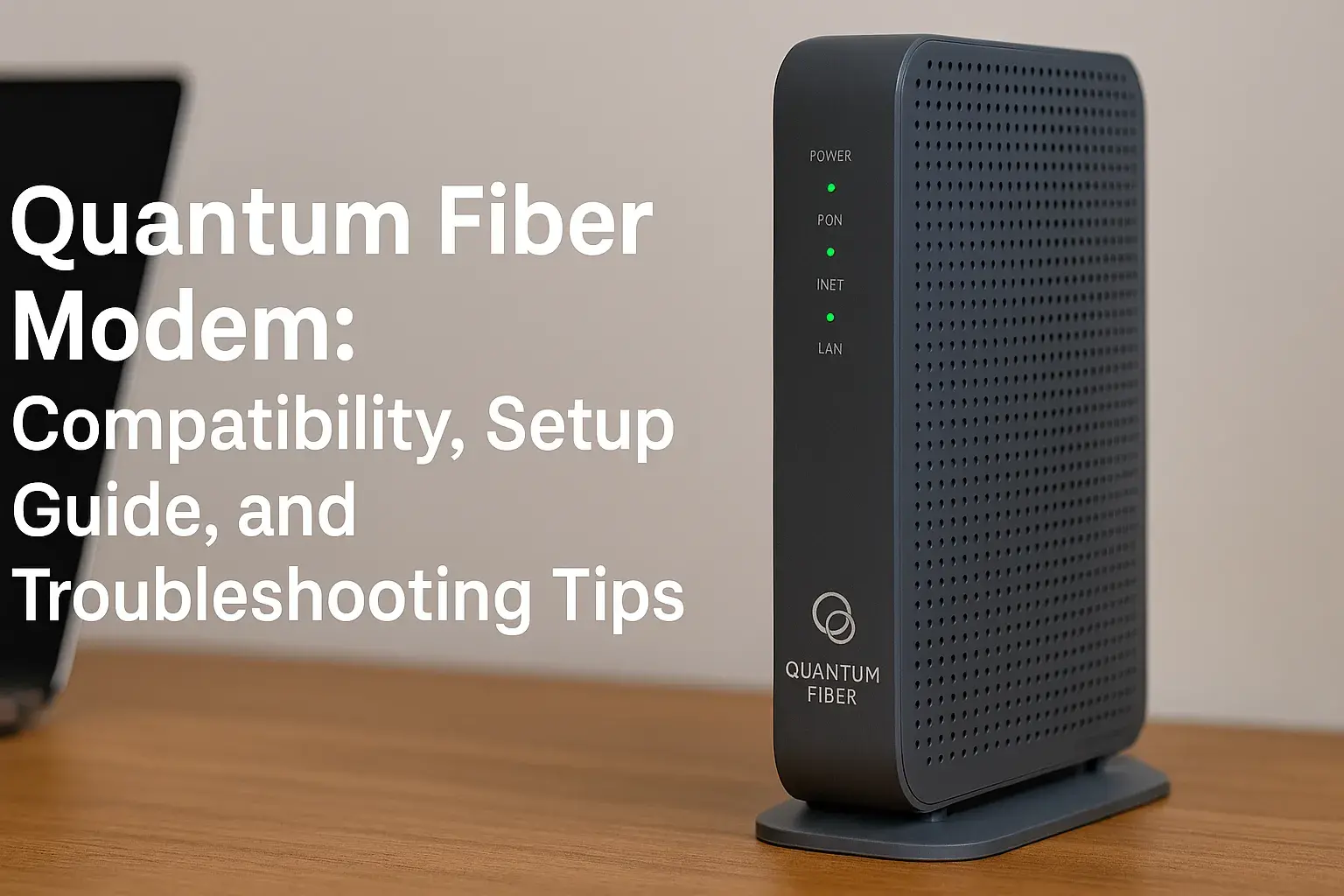
Quantum Fiber, like most internet service providers (ISPs), typically provides its customers with a modem as part of the service package. These modems are specifically chosen and configured by Quantum Fiber to work seamlessly with their network infrastructure. This ensures optimal performance, reliability, and easier technical support. When you opt for Quantum Fiber, you will likely receive a state-of-the-art Optical Network Terminal (ONT) or a modem/ONT combo unit. These devices are designed to handle the high bandwidth and low latency characteristic of fiber optic internet.
The benefits of using a Quantum Fiber-provided modem include:
Guaranteed Compatibility: The ISP has pre-tested and approved these devices for their network.
Optimized Performance: They are configured to take full advantage of the fiber optic speeds.
Simplified Setup: Often, these devices are plug-and-play, with minimal user configuration required.
Easier Troubleshooting: Quantum Fiber support staff can remotely diagnose and manage these devices.
Included in Service: Typically, the modem rental fee is either included in your monthly bill or a separate, transparent charge.
As of 2025, Quantum Fiber is committed to deploying advanced networking equipment. This often means that the provided modems support the latest Wi-Fi standards, such as Wi-Fi 6 (802.11ax) or even Wi-Fi 6E, enabling faster wireless speeds and better handling of multiple connected devices. The specific model provided might vary based on your location and the service plan you choose.
Third-Party Modem Compatibility: Can You Bring Your Own?
The question of bringing your own modem is a common one for many internet users, driven by a desire to save on rental fees or to use a preferred, higher-performance device. However, with fiber optic internet, the situation is often more restrictive than with traditional cable or DSL.
For Quantum Fiber, the answer is generally no, you cannot bring your own modem in the traditional sense. Fiber optic networks utilize a different technology than cable or DSL. Instead of a coaxial cable, fiber uses optical fibers, and the signal conversion is handled by an Optical Network Terminal (ONT).
In most fiber deployments, the ONT is a proprietary device installed by the ISP. This device is what directly connects to the fiber optic line coming into your home. Quantum Fiber may provide a combined modem/router unit that includes the ONT, or they may provide a separate ONT and a separate router. In either case, the ONT component is typically locked down and managed by Quantum Fiber.
Attempting to use a third-party modem or router in place of the Quantum Fiber-provided ONT will likely not work. The ONT needs to be provisioned by Quantum Fiber to recognize and authenticate with their network. This is a security and network management measure.
Key takeaway for 2025: While some ISPs are beginning to offer limited BYOD (Bring Your Own Device) options for fiber, Quantum Fiber currently maintains a policy where their provided equipment, particularly the ONT, is mandatory for service activation. Always confirm the latest policy with Quantum Fiber directly, as offerings can evolve.
Ethernet vs. Fiber Optic Connections
It's important to distinguish between the type of connection and the equipment used. Fiber optic internet uses light pulses transmitted through glass or plastic fibers to send data. This is fundamentally different from Ethernet, which is a networking standard for local area networks (LANs) that uses electrical signals transmitted over copper cables.
Your Quantum Fiber service brings fiber optic cable to your home. The device that terminates this fiber and converts the light signals into usable data is the ONT. From the ONT, you will typically have an Ethernet port. This Ethernet port is where you would connect a router (if the ONT is a separate unit) or where your Quantum Fiber-provided modem/router unit broadcasts your Wi-Fi signal.
So, while the core service is fiber optic, the connection from the ONT to your home network devices (like a router or directly to a computer) is often via Ethernet. This is why understanding Ethernet specifications can still be relevant when choosing a router to connect to your Quantum Fiber ONT.
Key Modem Specifications to Look For
Even though you'll likely be using Quantum Fiber's provided equipment, it's beneficial to understand the specifications of these devices to appreciate their capabilities and to make informed choices about any additional networking gear you might purchase.
When evaluating a Quantum Fiber modem (or a router you might connect to it), consider these specifications:
ONT Type: For fiber, this is the critical component. It should be capable of handling the speeds Quantum Fiber offers (e.g., 1 Gbps, 2 Gbps, or higher).
Ethernet Ports: Look for Gigabit Ethernet (10/100/1000 Mbps) ports. For multi-gigabit plans (e.g., 2 Gbps or higher), you'll want to see at least one 2.5 Gbps or 10 Gbps Ethernet port on the modem/router.
Wi-Fi Standard: As of 2025, Wi-Fi 6 (802.11ax) is standard for high-performance networks. Wi-Fi 6E offers additional benefits by utilizing the 6 GHz band, reducing interference.
Wi-Fi Bands: Dual-band (2.4 GHz and 5 GHz) is common. Tri-band (adding a second 5 GHz or a 6 GHz band) provides better performance for many devices.
MU-MIMO (Multi-User, Multiple Input, Multiple Output): This technology allows the router to communicate with multiple devices simultaneously, improving efficiency.
OFDMA (Orthogonal Frequency Division Multiple Access): Another Wi-Fi 6 feature that improves efficiency and reduces latency, especially in crowded wireless environments.
Processor and RAM: A powerful processor and sufficient RAM are crucial for handling high speeds and numerous connected devices without performance degradation.
Security Features: Look for built-in firewalls, WPA3 encryption support, and guest network capabilities.
Understanding these specs will help you appreciate the technology Quantum Fiber is deploying and how it impacts your internet experience.
Step-by-Step Quantum Fiber Modem Setup Guide
Setting up your Quantum Fiber modem is generally a straightforward process, especially when using the equipment provided by Quantum Fiber. This guide will walk you through the typical steps involved, from unboxing to getting your network online.
Unboxing and Initial Inspection
Once your Quantum Fiber service is scheduled for installation or activation, you will receive your modem (or ONT and router).
Carefully open the box. Ensure you have the modem/ONT unit, power adapter, and any included Ethernet cables.
Inspect for damage. Check all components for any signs of physical damage that may have occurred during shipping. If you find any, contact Quantum Fiber immediately.
Locate the installation guide. Quantum Fiber usually includes a quick start guide. Refer to it for any model-specific instructions.
Identify ports. Familiarize yourself with the different ports on the back of the device: power input, fiber optic input (often labeled "Fiber" or "ONT"), and Ethernet ports (LAN ports).
Connecting the Hardware
This is where the physical setup happens.
Choose a location. Place the modem/ONT in a central location if it's also your router, or near where the fiber line enters your home. Avoid enclosed spaces or areas with significant electronic interference.
Connect the fiber optic cable. This is the most critical step. The fiber optic cable will typically be terminated with a connector that plugs directly into the designated "Fiber" or "ONT" port on the Quantum Fiber device. Be gentle with the fiber cable; do not bend it sharply. If a Quantum Fiber technician is installing the service, they will handle this connection.
Connect the power adapter. Plug the power adapter into the modem/ONT and then into a wall outlet.
Connect your router (if separate). If Quantum Fiber provided a separate ONT and you are using your own compatible router, connect an Ethernet cable from the LAN port on the ONT to the WAN port on your router.
Powering On and Initial Boot-Up
Once everything is connected, it's time to power up.
Turn on the power. The modem/ONT will begin its boot-up sequence.
Observe the indicator lights. The lights on the front of the device will illuminate and change status. This process can take several minutes (often 5-15 minutes). Refer to your device's manual or the Quantum Fiber quick start guide to understand what each light signifies (e.g., Power, Fiber Link, Internet, Wi-Fi).
Wait for stable lights. You are looking for lights indicating a stable connection to Quantum Fiber's network and an active internet connection.
Connecting to the Internet
Once the modem/ONT has successfully booted and established a connection, your internet service should be active.
Direct connection (for testing). If you have a computer with an Ethernet port, you can connect it directly to one of the LAN ports on the Quantum Fiber modem/router using an Ethernet cable. Open a web browser and try to access a website.
Wi-Fi connection. If your Quantum Fiber device includes Wi-Fi capabilities, it will broadcast a wireless network. The network name (SSID) and password are often printed on a sticker on the modem itself or included in the documentation. Connect your devices (laptops, smartphones, tablets) to this Wi-Fi network using the provided credentials.
Router Configuration and Wi-Fi Setup
If your Quantum Fiber device is a combined modem/router unit, most of the Wi-Fi configuration is handled automatically or through a simple web interface.
Accessing the Web Interface: To customize your Wi-Fi network, you'll typically need to access the modem's web interface. Open a web browser on a connected device and type the modem's IP address into the address bar (commonly 192.168.1.1 or 192.168.0.1). You may need to consult your modem's manual or Quantum Fiber's support resources for the correct IP address and login credentials (username and password).
Changing Wi-Fi Name (SSID) and Password: Within the web interface, navigate to the Wireless settings. Here you can change the default Wi-Fi network name (SSID) to something unique and set a strong, secure password (using WPA2 or WPA3 encryption). It's recommended to use a combination of uppercase and lowercase letters, numbers, and symbols.
Dual-Band vs. Tri-Band: If your modem supports multiple bands (2.4 GHz and 5 GHz, or 6 GHz), you can often configure separate SSIDs for each band, or use a single SSID with band steering enabled.
If you are using your own router connected to a Quantum Fiber ONT, you will need to configure your router's WAN settings (usually set to DHCP to automatically obtain an IP address from the ONT) and then proceed with your router's Wi-Fi setup as per its manufacturer's instructions.
Advanced Settings and Security
For users who want more control, Quantum Fiber modems often offer advanced settings.
Port Forwarding: If you run servers or specific applications that require incoming connections, you might need to configure port forwarding.
DMZ (Demilitarized Zone): For specific devices that need to be accessible from the internet, though this should be used with caution as it bypasses some firewall protections.
Firewall Settings: Review and adjust firewall rules if necessary, but generally, the default settings offer good protection.
Guest Network: If available, set up a guest network for visitors to provide them internet access without giving them access to your main network.
Firmware Updates: Ensure your modem's firmware is up-to-date. Quantum Fiber often pushes these updates automatically, but you may be able to check manually through the web interface.
Always proceed with caution when changing advanced settings. Incorrect configurations can lead to network instability or security vulnerabilities. If unsure, consult Quantum Fiber support or refer to detailed guides on your specific modem model.
Troubleshooting Common Quantum Fiber Modem Issues
Even with the best equipment, occasional issues can arise. This section provides solutions to common problems you might encounter with your Quantum Fiber modem.
No Internet Connection
This is the most frustrating issue. Here's a systematic approach:
Check Modem Lights: First, examine the indicator lights on your Quantum Fiber modem. Are the Power, Fiber Link, and Internet lights solid and green (or the color indicating a good connection)? If the Fiber Link light is off or blinking, there might be an issue with the fiber optic cable connection or the Quantum Fiber network. If the Internet light is off, the modem may not be provisioned correctly or there's a network outage.
Restart the Modem: Power cycle your modem. Unplug the power adapter, wait for at least 30 seconds, and plug it back in. Allow 5-10 minutes for it to fully boot up and re-establish a connection.
Check Cable Connections: Ensure the fiber optic cable is securely plugged into the modem and the wall jack. If you have a separate router, check the Ethernet cable connecting it to the modem/ONT.
Test Direct Connection: Connect a computer directly to the modem via Ethernet cable. If you get internet this way, the issue is likely with your router or Wi-Fi setup.
Check for Outages: Visit the Quantum Fiber website or their social media channels to see if there are any reported service outages in your area.
Contact Quantum Fiber Support: If the above steps don't resolve the issue, it's time to contact Quantum Fiber. They can check your service status, remotely diagnose the modem, and dispatch a technician if necessary.
Slow Internet Speeds
Experiencing speeds lower than what you expect can be due to several factors.
Run a Speed Test: Use a reliable speed test tool (e.g., Ookla Speedtest, Fast.com) on a device connected directly to the modem via Ethernet. This eliminates Wi-Fi as a variable.
Check Your Plan: Ensure you are testing against the speeds of your subscribed Quantum Fiber plan.
Restart Modem and Router: A simple reboot can often clear up temporary performance issues.
Check for Bandwidth Hogs: Are other devices on your network downloading large files, streaming in high definition, or running intensive online games? These activities consume bandwidth.
Wi-Fi Interference: If testing over Wi-Fi, interference from other devices (microwaves, cordless phones, neighboring Wi-Fi networks) or distance from the router can degrade speeds.
Router Limitations: If you are using your own router, it might not be capable of handling the full speeds of your Quantum Fiber connection, especially for multi-gigabit plans. Ensure it has Gigabit or multi-gigabit Ethernet ports and supports modern Wi-Fi standards.
Firmware Update: Ensure your modem and router firmware are up-to-date.
Contact Quantum Fiber: If speeds are consistently slow even on a direct Ethernet connection and you've ruled out your own network, contact Quantum Fiber.
Intermittent Connectivity
This refers to your internet connection dropping in and out.
Check Physical Connections: Loose cables are a common culprit. Ensure all Ethernet and fiber optic cables are securely seated.
Overheating: Ensure the modem has adequate ventilation and is not overheating.
Power Fluctuations: If your modem is plugged into a power strip, try plugging it directly into a wall outlet to rule out issues with the strip.
Router Issues: If using your own router, it might be the source of the instability. Try connecting directly to the Quantum Fiber modem to isolate the problem.
Wi-Fi Channel Congestion: Too many devices or neighboring networks on the same Wi-Fi channel can cause drops. Try changing your Wi-Fi channel in your router settings.
ISP Equipment: In some cases, the issue might be with Quantum Fiber's equipment or the fiber line itself.
Contact Quantum Fiber: If the problem persists, it's time to involve Quantum Fiber support.
Wi-Fi Problems
Issues with your wireless network.
Can't Connect to Wi-Fi: Double-check the Wi-Fi password. Ensure you are connecting to the correct network name (SSID). Try restarting your modem/router.
Weak Wi-Fi Signal: This is often due to router placement. Move the router to a more central, open location, away from obstructions and interference. Consider a Wi-Fi extender or mesh system for larger homes.
Slow Wi-Fi Speeds: See "Slow Internet Speeds" section above. Ensure you are connecting to the 5 GHz or 6 GHz band if available for faster speeds.
Devices Not Showing Up: Restart your modem/router and the device you are trying to connect. Check if MAC filtering is enabled on your router and if your device's MAC address is allowed.
Router Reboot: A simple reboot of your Quantum Fiber modem/router can often resolve temporary Wi-Fi glitches.
Understanding Modem Lights
The indicator lights on your Quantum Fiber modem are your first line of defense in troubleshooting. While specific colors and patterns vary by manufacturer, here's a general interpretation for 2025-era fiber modems:
Light Name | Status | Meaning |
|---|---|---|
Power | Solid Green | Device is powered on and functioning correctly. |
Off | Device is not receiving power. Check power adapter and outlet. | |
Fiber Link / PON / LOS | Solid Green | Optical fiber connection is established and active. |
Blinking Green | Attempting to establish a fiber connection. | |
Red / Off | No fiber signal detected. Check fiber cable connection, or there may be an issue with the Quantum Fiber line or network. | |
Internet / WAN | Solid Green | Modem has successfully connected to the Quantum Fiber network and has internet access. |
Blinking Green | Modem is trying to obtain an IP address or authenticate with the network. | |
Off / Red | No internet connection established. May indicate a provisioning issue or network problem. | |
Wi-Fi / WLAN | Solid Green | Wi-Fi is enabled and broadcasting. |
Blinking Green | Wi-Fi activity (data being transmitted/received). | |
Off | Wi-Fi is disabled. | |
LAN (1, 2, 3, 4) | Solid Green | A device is connected via Ethernet to this port and is active. |
Blinking Green | Data is being transmitted/received on this Ethernet port. | |
Off | No device is connected or the connected device is inactive. |
Note: Specific light colors and patterns can vary. Always refer to your Quantum Fiber modem's manual for precise interpretations.
When to Contact Quantum Fiber Support
While many issues can be resolved with basic troubleshooting, there are times when you absolutely need to contact Quantum Fiber.
Persistent No Internet: If you've tried rebooting, checking cables, and testing a direct connection, and still have no internet.
Fiber Link Issues: If the Fiber Link light is consistently off or red, indicating a problem with the physical fiber connection.
Consistently Slow Speeds: If speed tests on a direct Ethernet connection are significantly lower than your subscribed plan, even after troubleshooting.
Service Outages: If you suspect a widespread outage and it's not reported on their status page.
Equipment Malfunction: If the modem shows signs of hardware failure (e.g., persistent error lights, not powering on).
Complex Network Issues: If you've exhausted basic troubleshooting and suspect a problem with Quantum Fiber's network infrastructure.
When you call Quantum Fiber support, have your account information ready and be prepared to describe the issue, the troubleshooting steps you've already taken, and the status of your modem's indicator lights. This will help them diagnose the problem more efficiently.
Optimizing Your Quantum Fiber Network
Once your Quantum Fiber service is up and running smoothly, you can take steps to optimize your network for the best possible performance and user experience.
Router Placement Matters
The location of your Wi-Fi router significantly impacts signal strength and coverage throughout your home.
Central Location: Place your router in a central area of your home to distribute the signal evenly.
Elevated Position: Routers tend to broadcast signals downwards. Placing it on a shelf or high table can improve coverage.
Avoid Obstructions: Keep the router away from thick walls (especially brick or concrete), large metal objects (like refrigerators or filing cabinets), mirrors, and aquariums, as these can block or degrade Wi-Fi signals.
Minimize Interference: Keep the router away from other electronic devices that can cause interference, such as microwaves, cordless phones, Bluetooth devices, and even some older baby monitors.
Open Air: Don't hide your router in a cabinet or closet. Ensure it has good airflow and is not enclosed.
Keeping Firmware Up-to-Date
Firmware is the software that runs on your modem and router. Keeping it updated is crucial for security, performance, and stability.
Automatic Updates: Quantum Fiber typically pushes firmware updates to their provided modems automatically. You usually don't need to do anything.
Manual Checks: If you are using your own router, or if you suspect your Quantum Fiber modem's firmware is outdated, check the manufacturer's website or the modem's web interface for update options.
Benefits: Firmware updates can include performance enhancements, bug fixes, security patches, and support for new features.
Choosing the Right Wi-Fi Channel
Wi-Fi operates on specific radio channels. If many networks in your area are using the same channel, it can lead to interference and slower speeds.
2.4 GHz Band: This band has a longer range but is more prone to interference and offers lower speeds. Channels 1, 6, and 11 are generally recommended as they do not overlap.
5 GHz Band: This band offers faster speeds and less interference but has a shorter range. It has more non-overlapping channels.
6 GHz Band (Wi-Fi 6E): Offers the most bandwidth and least interference, but requires compatible devices and has the shortest range.
Automatic Channel Selection: Most modern routers have an "auto" setting that selects the best channel.
Manual Selection: If you experience consistent Wi-Fi issues, you can use a Wi-Fi analyzer app on your smartphone to see which channels are most congested and manually select a less crowded one in your router's settings.
Wired Connections for Performance
While Wi-Fi is convenient, a wired Ethernet connection will always offer the most stable and fastest performance.
For Stationary Devices: Connect devices that don't move, such as desktop computers, smart TVs, gaming consoles, and network-attached storage (NAS) devices, via Ethernet cables.
Use Quality Cables: Ensure you are using Cat 5e, Cat 6, or Cat 6a Ethernet cables for Gigabit speeds. For multi-gigabit connections (2.5 Gbps or 10 Gbps), Cat 6a or higher is recommended.
Reduce Wi-Fi Congestion: By using wired connections for high-bandwidth devices, you free up Wi-Fi bandwidth for your mobile devices.
The Future of Quantum Fiber and Modem Technology
The telecommunications landscape is constantly evolving, and fiber optic technology is at the forefront of this evolution. Quantum Fiber is committed to delivering cutting-edge internet experiences, which means staying abreast of the latest advancements in modem and network technology.
As we look ahead to the coming years, we can expect Quantum Fiber to continue upgrading its infrastructure and the equipment it provides. This includes:
Higher Speeds: Plans offering symmetrical multi-gigabit speeds (e.g., 5 Gbps, 10 Gbps, and beyond) will become more common. This will require modems and routers capable of handling these extreme bandwidths.
Wi-Fi 7 and Beyond: While Wi-Fi 6E is current, Wi-Fi 7 (802.11be) is already emerging, promising even higher speeds, lower latency, and improved reliability through features like Multi-Link Operation (MLO). Quantum Fiber will likely adopt compatible equipment as the technology matures and becomes more widely available.
Increased Integration: We may see further integration of ONT and router functionalities, or even the development of more advanced residential gateways that manage not just internet but also smart home devices and security.
Enhanced Security: As cyber threats evolve, so too will the security features built into modems and routers, including advanced encryption and threat detection capabilities.
Sustainability: Manufacturers are increasingly focusing on energy efficiency in their devices, which will likely be a consideration for future Quantum Fiber equipment.
Quantum Fiber's investment in fiber infrastructure positions them well to deliver these future advancements. By understanding your current modem and network, you are better prepared to adapt to and benefit from these upcoming technological leaps. Staying informed about Quantum Fiber's service updates and equipment offerings will be key to maximizing your internet experience in the years to come.
In conclusion, navigating the world of Quantum Fiber modems is essential for a superior internet experience. Understanding compatibility, particularly the necessity of using ISP-provided equipment like the ONT, is the first step. Our detailed setup guide empowers you to connect your modem with confidence, while the troubleshooting tips provide practical solutions for common issues. By proactively optimizing your network through smart router placement and staying informed about firmware, you can ensure your Quantum Fiber connection performs at its peak. As technology advances, Quantum Fiber remains at the forefront, promising even faster speeds and more integrated solutions, making it an exciting time to be a fiber internet user.