Quantum Fiber Blinking Blue Light: What It Means and How to Fix It
Encountering a blinking blue light on your Quantum Fiber modem can be a source of frustration, often signaling an interruption in your internet service. This guide offers a comprehensive breakdown of what this indicator means, common causes, and actionable troubleshooting steps to restore your connection quickly. We aim to provide immediate clarity and empower you to resolve the issue.
What Does the Blinking Blue Light on Your Quantum Fiber Modem Mean?
Troubleshooting Step 5: Reset Your Modem to Factory Settings
What Does the Blinking Blue Light on Your Quantum Fiber Modem Mean?
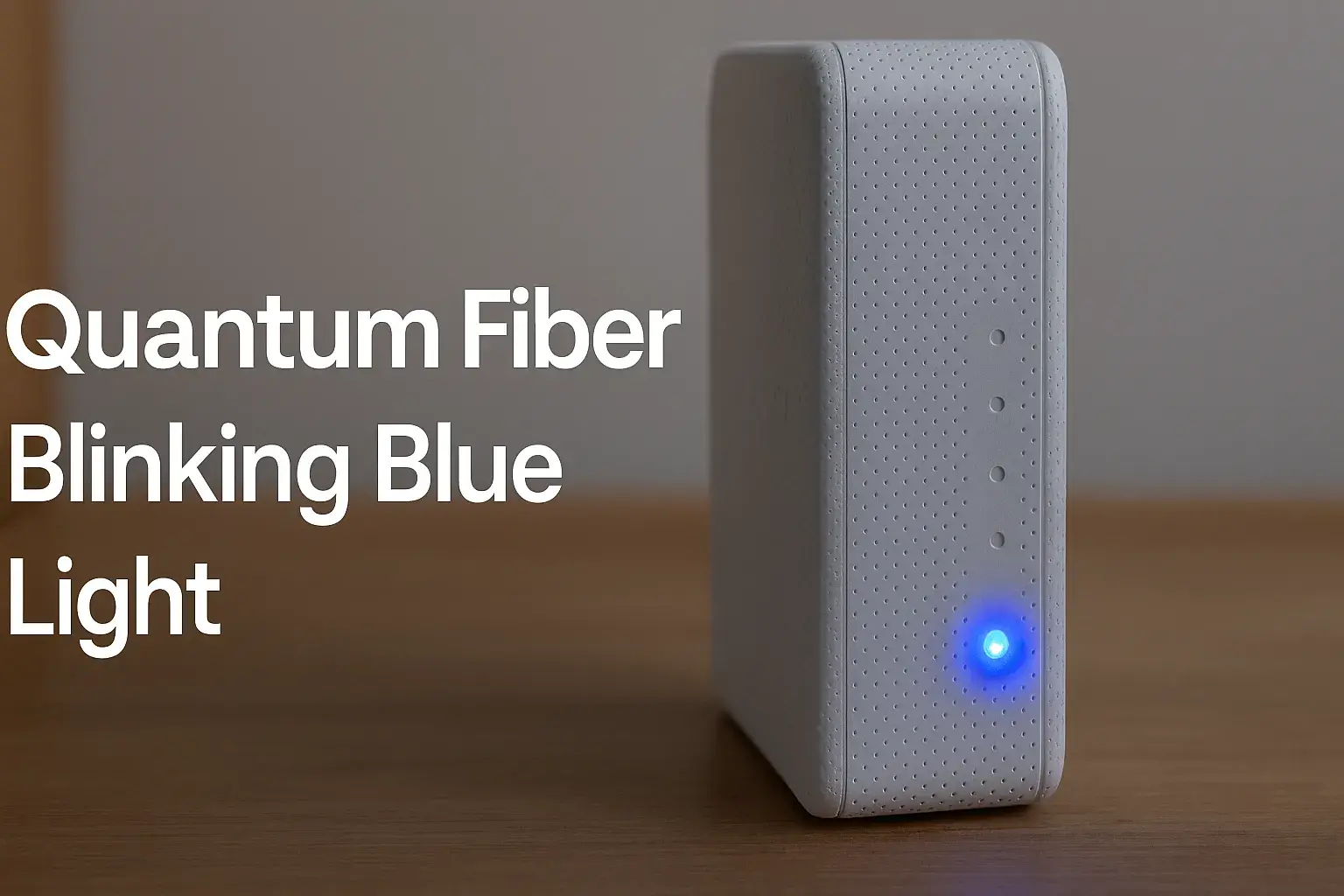
The blinking blue light on your Quantum Fiber modem is a critical indicator that your device is attempting to establish or maintain a connection to the Quantum Fiber network. Unlike a solid blue light, which typically signifies a stable and active internet connection, a blinking blue light suggests an ongoing process or a temporary issue. This can range from the modem booting up and acquiring an IP address to a more persistent problem preventing a full connection. Understanding the nuances of this light is the first step in diagnosing and resolving your internet woes. In the evolving landscape of 2025-26, reliable fiber optic internet is paramount for everything from remote work to entertainment, making this blinking light a significant concern for users.
Common Causes of the Blinking Blue Light
Several factors can contribute to the blinking blue light on your Quantum Fiber modem. Identifying the root cause is crucial for effective troubleshooting. These issues can be broadly categorized into external network problems, internal equipment issues, or configuration errors. As of 2025, Quantum Fiber's infrastructure is designed for high reliability, but occasional disruptions can still occur.
1. Boot-up Sequence and Network Acquisition
When your modem is first powered on, or after a power outage or restart, it enters a boot-up sequence. During this phase, it communicates with Quantum Fiber's network to obtain an IP address, network configuration, and synchronize with the system. This process can take anywhere from a few minutes to several minutes, during which the blue light may blink. If the modem successfully connects, the light will turn solid. If it continues to blink for an extended period (e.g., more than 10-15 minutes), it suggests a problem beyond a simple reboot.
2. Signal Interruption or Weak Signal
A blinking blue light can indicate that the modem is receiving an intermittent or weak signal from Quantum Fiber's network. This could be due to issues with the fiber optic cable itself, problems at the local exchange, or even environmental factors affecting the signal transmission. The modem is constantly trying to lock onto a stable signal, and the blinking light reflects this struggle.
3. Configuration Issues
Occasionally, the modem's configuration settings might become corrupted or outdated, preventing it from properly connecting to the network. This can happen after firmware updates that don't complete successfully or due to internal software glitches. Incorrect settings can lead to the modem being unable to authenticate with the Quantum Fiber servers.
4. Network Outages or Maintenance
Quantum Fiber, like any service provider, may experience network outages or conduct scheduled maintenance. During these times, your modem might blink blue as it attempts to connect to a network that is temporarily unavailable. This is an external issue that you typically cannot resolve yourself but can check for.
5. Hardware Malfunction
While less common, a blinking blue light can sometimes be a symptom of a failing modem or router. If all other troubleshooting steps fail, and the issue persists across multiple power cycles and checks, a hardware problem might be the culprit. This is a critical point to consider in 2025-26, as aging equipment can become a bottleneck for high-speed fiber services.
6. Router Connectivity Issues (if separate from modem)
If you have a separate Quantum Fiber modem and a third-party router, the blinking blue light on the modem might be related to the connection between the modem and the router. Ensure that the Ethernet cable connecting the two devices is securely plugged in at both ends and is not damaged.
Troubleshooting Step 1: Check Cables and Connections
The most straightforward and often overlooked solution to a blinking blue light is to ensure all physical connections are secure and undamaged. Loose or faulty cables are a primary culprit for many connectivity issues. This step is foundational to all subsequent troubleshooting.
1.1 Inspect the Fiber Optic Cable
Locate the fiber optic cable that connects your Quantum Fiber modem to the wall outlet or network interface device (NID). Gently unplug it from the modem and then firmly plug it back in. Ensure it clicks into place. Inspect the cable for any visible signs of damage, such as kinks, cuts, or frayed insulation. Fiber optic cables are delicate and can be easily damaged by bending them too sharply or by physical stress. If you notice any damage, do not attempt to repair it yourself; contact Quantum Fiber support immediately.
1.2 Check the Power Cable
Ensure the power adapter is securely plugged into both the modem and a working electrical outlet. Try plugging another device into the same outlet to confirm it's receiving power. If the outlet is controlled by a switch, ensure the switch is in the "on" position. A stable power supply is essential for the modem to function correctly.
1.3 Verify Ethernet Connections (if applicable)
If your Quantum Fiber setup involves a separate router, check the Ethernet cable connecting the modem to the router. Ensure it is firmly plugged into the correct ports on both devices. Try swapping the Ethernet cable with a known working one if possible. Damaged Ethernet cables can disrupt data flow.
1.4 Examine the Wall Outlet/NID
Ensure the fiber optic cable is properly seated in the wall outlet or NID. There should be no loose connections or debris obstructing the port. If the NID is accessible, check its condition, but avoid tampering with any internal components.
Real-World Scenario Example: Sarah noticed her Quantum Fiber modem blinking blue after a brief power flicker. Upon inspection, she found that the fiber optic cable had been slightly dislodged from the modem during the power surge. Re-seating the cable firmly resolved the blinking light and restored her internet connection within minutes.
Troubleshooting Step 2: Power Cycle Your Modem and Router
A power cycle, often referred to as a reboot, is a fundamental troubleshooting step for most electronic devices, including modems and routers. It allows the devices to clear temporary glitches, reset network connections, and re-establish communication with the service provider's network. This is a common fix for a blinking blue light, as it forces the modem to go through its full boot-up sequence again.
2.1 Unplug the Modem
Locate the power cord for your Quantum Fiber modem and unplug it from the electrical outlet. If you have a separate router, unplug its power cord as well.
2.2 Wait for Discharge
This is a crucial step that many people skip. Wait for at least 60 seconds. This allows any residual power in the device's capacitors to dissipate, ensuring a complete reset. This waiting period is more effective than a quick unplug-and-re-plug.
2.3 Plug In the Modem
Plug the power cord back into the Quantum Fiber modem. Observe the lights on the modem. It will begin its boot-up sequence. The blue light may blink during this process. Allow it several minutes to complete.
2.4 Plug In the Router (if separate)
Once the modem appears to have established a connection (indicated by a solid light, or the blinking blue light turning solid), plug in your router's power cord. Allow the router a few minutes to boot up and establish its own connection with the modem.
2.5 Test Your Connection
After both devices have fully booted up, try accessing the internet on a connected device. If the blinking blue light on the modem has turned solid, your issue is likely resolved. If it continues to blink, proceed to the next troubleshooting steps.
Statistical Insight (2025): According to recent industry reports, approximately 40% of common internet connectivity issues, including modem light indicators, are resolved by a simple power cycle. This highlights its effectiveness as a first-line troubleshooting method for Quantum Fiber users.
Troubleshooting Step 3: Verify Internet Service Status
Sometimes, the blinking blue light isn't a problem with your equipment at all, but rather an indication of a wider service disruption in your area. Quantum Fiber, like all internet service providers, can experience outages due to maintenance, technical issues, or external factors.
3.1 Check Quantum Fiber's Official Status Page
Most internet providers offer an online status page where customers can check for reported outages in their region. Visit the official Quantum Fiber website and look for a "Service Status," "Outage Map," or "Support" section. Enter your address or account information to see if there are any known issues affecting your service.
3.2 Use Third-Party Outage Detectors
Websites like Downdetector aggregate user-reported outages. Search for "Quantum Fiber" on such platforms to see if other users in your vicinity are reporting similar problems. While not always perfectly accurate, these sites can provide a quick indication of a widespread issue.
3.3 Contact Neighbors
If you have neighbors who also use Quantum Fiber, ask them if they are experiencing any internet connectivity problems. If they are, it strongly suggests a localized outage affecting the area.
3.4 Check Your Email or SMS Alerts
Quantum Fiber may send out notifications via email or text message regarding scheduled maintenance or unexpected outages. Check your inbox and any alert subscriptions you may have set up.
Example Scenario: During a severe storm in late 2025, several Quantum Fiber customers in a particular town reported blinking blue lights on their modems. A quick check of Quantum Fiber's outage map confirmed a widespread service disruption due to damage to local network infrastructure. Customers were advised to wait for repairs.
Troubleshooting Step 4: Check Fiber Optic Cable Integrity
The fiber optic cable is the lifeline of your Quantum Fiber internet connection. Its integrity is paramount, and any damage or compromise can lead to a blinking blue light as the modem struggles to receive a clear signal. This step requires careful attention to detail.
4.1 Visual Inspection for Damage
As mentioned in Step 1, a thorough visual inspection is key. Look for:
Kinks and Bends: Fiber optic cables should not be bent at sharp angles (generally, a bend radius of less than 1 inch can cause damage). Severe kinks can fracture the glass fibers inside.
Cuts or Abrasion: Any signs of the outer jacket being cut or the cable being abraded can expose the delicate fibers within to dust and moisture, degrading the signal.
Crushed Cables: If the cable has been run under furniture or in a high-traffic area, it might have been crushed, damaging the internal fibers.
Damaged Connectors: The connectors at either end of the fiber optic cable (usually SC or LC type) should be clean and free of debris. The small glass ferrule inside the connector is fragile.
4.2 Clean the Fiber Optic Connectors
Dust and debris on the fiber optic connectors can significantly attenuate the signal.
Use a specialized fiber optic cleaning kit: These kits typically include lint-free wipes and a cleaning solution designed for fiber optics.
Never use regular tissues or paper towels: They can leave behind lint that is even more detrimental than dust.
Cleaning process: Gently wipe the connector end-face with a cleaning wipe, or use a one-click cleaner tool if available. Ensure the connector is clean before reinserting it.
4.3 Ensure Proper Seating
Fiber optic connectors often have a "click" mechanism to ensure they are securely seated. Make sure the cable is pushed in firmly until it clicks. A loose connection will prevent the light from becoming solid blue.
4.4 Consider Cable Length and Routing
While less common, excessively long fiber optic runs can sometimes introduce signal loss, especially if the cable is not of the highest quality. Also, ensure the cable is not routed near sources of electromagnetic interference, although this is less of a concern for fiber than for copper cables.
Expert Tip (2025): For optimal performance, ensure your fiber optic cable is installed professionally and routed away from areas where it could be accidentally stepped on, pinched, or subjected to extreme temperatures. If you suspect damage, it's always best to have Quantum Fiber technicians assess and replace the cable.
Troubleshooting Step 5: Reset Your Modem to Factory Settings
If the blinking blue light persists after checking cables, power cycling, and verifying service status, a factory reset of your Quantum Fiber modem might be necessary. This process reverts all settings on the modem back to their original, out-of-the-box configuration. It can resolve software glitches or corrupted configuration files that might be preventing a stable connection.
5.1 Locate the Reset Button
Most modems have a small, recessed reset button. This button is often located on the back or bottom of the device. You may need a paperclip or a similar pointed object to press it.
5.2 Perform the Reset
With the modem powered on, carefully press and hold the reset button for approximately 10-30 seconds (refer to your Quantum Fiber modem's manual for the exact duration). The modem's lights will likely flash or change, indicating that the reset process has begun.
5.3 Wait for Reboot and Reconfiguration
After releasing the reset button, the modem will reboot. This process can take several minutes, during which the lights will cycle through various states. The modem will then attempt to reconnect to the Quantum Fiber network and download its configuration settings. The blinking blue light will appear as it goes through this process.
5.4 Reconfigure Wi-Fi Settings (if applicable)
If your Quantum Fiber modem also functions as a Wi-Fi router, a factory reset will erase your custom Wi-Fi network name (SSID) and password. You will need to reconfigure these settings after the modem has successfully connected to the internet. You can usually do this by accessing the modem's web interface or through the Quantum Fiber app.
5.5 Test the Connection
Once the modem's lights indicate a stable connection (ideally a solid blue light), test your internet access. If the blinking blue light persists, it suggests a more serious issue, likely requiring professional intervention.
Important Note: A factory reset is a more drastic step. Ensure you have tried all other troubleshooting methods first. If you are unsure about performing a factory reset, it's best to consult Quantum Fiber's support resources or contact their technicians.
When to Contact Quantum Fiber Support
Despite your best efforts, some issues are beyond the scope of home troubleshooting. If you've exhausted all the steps above and your Quantum Fiber modem continues to display a blinking blue light, it's time to reach out to Quantum Fiber's customer support. Early 2025 data indicates that prompt support contact can significantly reduce resolution times for persistent issues.
6.1 After Exhausting Troubleshooting Steps
If you have meticulously followed all the previous troubleshooting steps—checked cables, power cycled, verified service status, inspected the fiber optic cable, and performed a factory reset—and the blinking blue light remains, it's a strong indication that the problem lies with Quantum Fiber's network infrastructure or your specific service line.
6.2 Persistent Blinking Blue Light
If the blue light blinks continuously for more than 15-20 minutes after a power cycle, or if it cycles through blinking patterns without ever becoming solid, this suggests a failure in establishing a stable connection. This could be due to issues with the signal strength, authentication problems, or equipment malfunction on Quantum Fiber's end.
6.3 Damaged Fiber Optic Cable
If you discovered visible damage to the fiber optic cable (kinks, cuts, crushed sections, or damaged connectors), do not attempt to repair it. Contact Quantum Fiber support immediately to schedule a technician visit for cable replacement. Attempting DIY repairs on fiber optics can be dangerous and may void your service agreement.
6.4 No Internet Access Despite Solid Lights
While this guide focuses on a blinking blue light, it's worth noting that if your modem displays solid lights but you still have no internet access, this also warrants contacting support. It could indicate an issue with your account provisioning or a problem further up the network chain.
6.5 How to Contact Support
Quantum Fiber typically offers several support channels:
Phone Support: Find their customer service number on your bill or their website.
Online Chat: Many providers offer live chat support through their website.
Support Portal/App: Quantum Fiber may have a dedicated support section on their website or a mobile app where you can submit tickets or access resources.
When you contact support, be prepared to provide your account information and a detailed description of the problem, including the troubleshooting steps you've already taken. This will help them diagnose the issue more efficiently.
Preventative Measures and Best Practices
Proactive measures can significantly reduce the likelihood of encountering a blinking blue light and other internet connectivity issues. By maintaining your equipment and understanding best practices, you can ensure a more stable and reliable Quantum Fiber experience throughout 2025 and beyond.
7.1 Proper Modem Placement
Ensure your Quantum Fiber modem is placed in a well-ventilated area, away from direct sunlight, extreme temperatures, and sources of moisture. Avoid placing it inside enclosed cabinets or behind large electronic devices that could interfere with signals or cause overheating.
7.2 Secure Cable Management
Organize and secure all cables, especially the delicate fiber optic cable. Use cable ties or clips to prevent them from being pulled, kinked, or damaged. Ensure the fiber optic cable is routed along walls or protected pathways to minimize the risk of accidental damage.
7.3 Regular Equipment Updates
Keep your modem's firmware up-to-date. Quantum Fiber typically pushes updates automatically, but it's good practice to check periodically or consult their support resources for manual update instructions if recommended. Firmware updates often include performance improvements and bug fixes that can prevent connectivity issues.
7.4 Protect Against Power Surges
Invest in a high-quality surge protector for your modem and router. Power surges, even minor ones, can damage sensitive electronic components and lead to malfunctions, including connectivity problems. A UPS (Uninterruptible Power Supply) can also provide a buffer against power fluctuations and brief outages, allowing your modem to shut down gracefully.
7.5 Avoid Overloading Your Network
While fiber optic internet is robust, consistently overloading your network with too many high-bandwidth devices simultaneously can sometimes strain the modem's processing capabilities, potentially leading to temporary glitches. Ensure your router is capable of handling your household's typical usage.
7.6 Understand Your Service Agreement
Familiarize yourself with Quantum Fiber's service agreement regarding equipment responsibility and maintenance. Knowing what is covered and what is not can save you time and money if an issue arises.
2025-26 Trend: With the increasing demand for high-speed internet for applications like VR gaming and 8K streaming, proactive network maintenance and understanding equipment limitations are becoming more critical than ever for a seamless user experience.
Understanding Other Modem Light Indicators
While the blinking blue light is the focus, understanding the other indicator lights on your Quantum Fiber modem can provide a more complete picture of its operational status and help in diagnosing issues. The specific lights and their meanings can vary slightly between modem models, but general patterns exist.
8.1 Power Light
Solid Green/Blue: Indicates the modem is receiving power and is operational.
Off: No power is reaching the modem. Check the power cable and outlet.
Blinking: May indicate a boot-up sequence or a hardware issue. Consult your modem's manual.
8.2 Internet/WAN/Online Light
Solid Green/Blue: Indicates a stable connection to the Quantum Fiber network. This is the desired state.
Blinking Green/Blue: Usually signifies that the modem is attempting to establish a connection, acquire an IP address, or is actively transmitting/receiving data. A persistent blink can indicate a problem.
Off: No connection to the internet service provider. Check cables and contact support if other lights are normal.
8.3 Wi-Fi Light (if applicable)
Solid Green/Blue: The Wi-Fi network is broadcasting and active.
Blinking Green/Blue: Indicates Wi-Fi activity (data transmission/reception).
Off: Wi-Fi is disabled or not functioning.
8.4 Ethernet/LAN Lights
Solid Green/Blue: An Ethernet device is connected and active.
Blinking Green/Blue: Indicates data activity on that specific Ethernet port.
Off: No device is connected to that Ethernet port, or the connected device is off.
8.5 DSL/Cable/Fiber Link Light
This light specifically indicates the status of the physical link to the Quantum Fiber network.
Solid Green/Blue: A strong, stable physical connection is established.
Blinking Green/Blue: The modem is trying to establish or maintain a physical link. This is where the "blinking blue light" often refers to this specific indicator when it's trying to sync with the network.
Off: No physical link detected. Check the fiber optic cable and wall connection.
Comparison Table: Common Light States
Light Name | Solid State | Blinking State | Off State |
|---|---|---|---|
Power | Normal operation | Booting/Potential issue | No power |
Internet/WAN | Connected to network | Establishing connection/Data transfer | No internet connection |
Fiber Link | Stable fiber connection | Attempting to sync/Weak signal | No physical fiber connection |
Advanced Troubleshooting and Potential Hardware Issues
When basic troubleshooting fails to resolve the blinking blue light, it's time to consider more advanced possibilities, including potential hardware failures. While Quantum Fiber equipment is generally reliable, components can degrade over time or fail due to manufacturing defects or environmental factors. As of 2025-26, understanding these advanced scenarios is crucial for users experiencing persistent problems.
9.1 Modem Compatibility and Firmware
If you are using a modem not provided by Quantum Fiber, ensure it is fully compatible with their network and running the latest firmware. Incompatible hardware or outdated firmware can lead to persistent connection issues, manifesting as a blinking blue light. Quantum Fiber typically recommends or provides specific modem models for optimal performance.
9.2 Interference from Other Devices
While fiber optic cables are immune to electromagnetic interference, the modem itself and any associated networking equipment (like routers) can be affected. Ensure your modem is not placed too close to high-power devices, such as microwaves, cordless phone bases, or unshielded speakers, which could potentially interfere with the modem's internal electronics or Wi-Fi signal if it's a combo unit.
9.3 Faulty Power Supply Unit (PSU)
The power adapter for your modem is a critical component. A failing PSU can provide unstable voltage, leading to erratic behavior and connectivity problems. If you have a spare, compatible power adapter, try using it to rule out the PSU as the cause of the blinking blue light. Ensure the replacement adapter has the exact same voltage, amperage, and connector type.
9.4 Internal Modem Component Failure
The modem contains various electronic components, including processors, network interface chips, and memory. Any of these can fail. Symptoms of internal failure can be varied, but a persistent blinking blue light that doesn't resolve with standard troubleshooting is a strong indicator. This is particularly relevant for modems that are several years old.
9.5 Network Card Issues on Your Devices
While less likely to cause a blinking blue light on the modem itself, issues with the network interface card (NIC) on your computer or other devices can sometimes lead to connection problems. Ensure your device's drivers are up-to-date. If you're testing with multiple devices and they all fail to connect, it points back to the modem or the network.
9.6 When to Suspect Hardware Failure
You should strongly suspect a hardware issue if:
The blinking blue light persists after trying all troubleshooting steps multiple times.
The modem exhibits other unusual behavior (e.g., overheating, strange noises, other lights behaving erratically).
The modem is several years old and has experienced intermittent issues previously.
You have confirmed there are no outages in your area and all physical connections are sound.
In such cases, contacting Quantum Fiber support is essential. They can remotely diagnose your modem and, if necessary, arrange for a replacement unit or a technician visit.
Conclusion
A blinking blue light on your Quantum Fiber modem is a common, yet often solvable, issue. By systematically working through the troubleshooting steps—from checking physical connections and power cycling your equipment to verifying service status and performing a factory reset—you can often restore your internet connection. Remember to inspect the delicate fiber optic cable for damage and ensure all connectors are clean and secure. If these steps do not resolve the blinking blue light, it is crucial to contact Quantum Fiber support. They possess the tools and expertise to diagnose network-level problems or potential hardware failures. Proactive maintenance and understanding your modem's indicator lights will contribute to a more stable and reliable Quantum Fiber experience, ensuring you stay connected in our increasingly digital world.