Quantum Fiber App Not Working? Common Issues and Easy Fixes
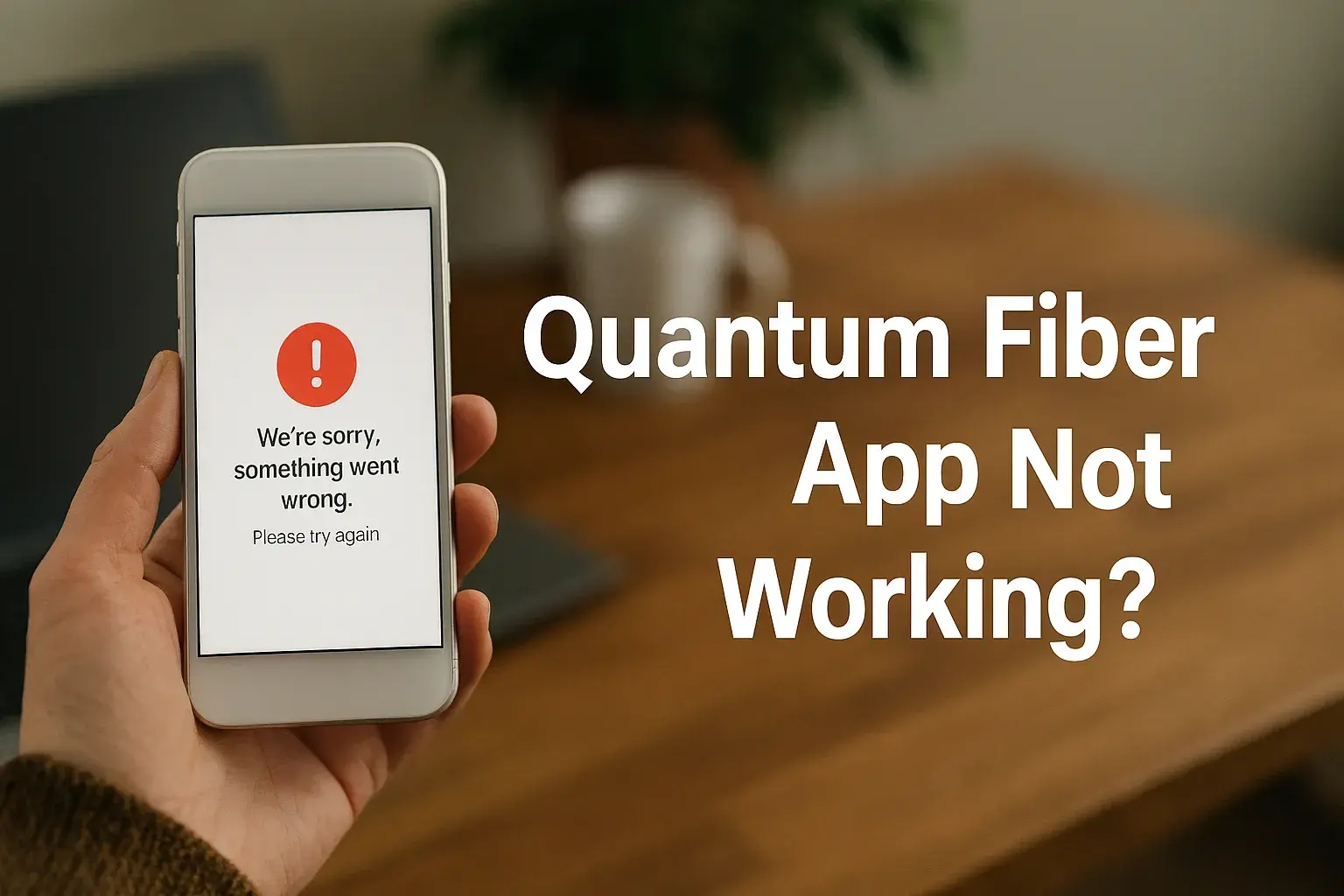
Experiencing issues with your Quantum Fiber app can be frustrating, especially when you rely on it for managing your internet service. This guide offers immediate solutions for common Quantum Fiber app malfunctions, ensuring you get back online and in control of your connection swiftly.
Understanding Quantum Fiber App Issues
The Quantum Fiber app is designed to be a user-friendly portal for managing your high-speed internet service. It allows you to monitor your connection, access support, view billing information, and even control certain aspects of your home network. When this app isn't working as expected, it can disrupt your ability to perform these essential tasks. Understanding the potential reasons behind these glitches is the first step toward resolving them. These issues can range from simple connectivity problems to more complex software or device conflicts. In 2025, with the increasing reliance on seamless digital connectivity, a malfunctioning app can feel like a significant roadblock. Quantum Fiber, known for its commitment to advanced internet solutions, aims for a smooth user experience, making app issues a priority to address.
Why Apps Like Quantum Fiber's Might Malfunction
Several factors can contribute to an application failing to perform optimally. These can be broadly categorized into issues related to the app itself, the user's device, the internet connection, or the Quantum Fiber network.
- App-Specific Glitches: Software bugs, outdated versions, or temporary server-side problems can all cause the app to misbehave.
- Device Compatibility and Performance: The app might not be fully compatible with your smartphone or tablet's operating system, or your device might be experiencing performance issues that affect app operation.
- Internet Connectivity: A weak or unstable internet connection on your device can prevent the app from communicating effectively with Quantum Fiber's servers.
- Account-Related Issues: Sometimes, problems with your Quantum Fiber account itself, such as pending updates or verification issues, can manifest as app malfunctions.
- Permissions and Settings: Incorrect app permissions or conflicting device settings can also lead to unexpected behavior.
The Importance of a Functional Quantum Fiber App
In today's digital landscape, managing your internet service efficiently is paramount. The Quantum Fiber app serves as a central hub for this management. It's not just about convenience; it's about control and timely access to information. For instance, during peak usage times in 2025, understanding your bandwidth usage through the app can help you optimize your network for gaming or streaming. Similarly, quick access to support through the app can resolve minor issues before they escalate, minimizing downtime. A reliable app ensures you can:
- Monitor real-time internet speeds and performance metrics.
- Access billing statements and make payments easily.
- Troubleshoot common network problems remotely.
- Manage Wi-Fi settings and connected devices (if applicable).
- Receive important service updates and notifications from Quantum Fiber.
When the app fails, these functionalities become inaccessible, leading to user frustration and potential disruption.
Common Quantum Fiber App Problems and Their Causes
Identifying the specific issue you're facing is key to finding the right solution. While the Quantum Fiber app is generally robust, users can encounter a variety of problems. Here, we break down some of the most frequent complaints and their likely underlying causes. Understanding these common pitfalls will help you diagnose the problem more effectively.
Login and Authentication Errors
One of the most basic, yet frustrating, issues is being unable to log into the Quantum Fiber app. This can manifest as incorrect password messages, account lockout, or simply the app failing to recognize your credentials.
- Cause: Incorrect username or password entry, caps lock being on, account suspension or deactivation, or a temporary server issue on Quantum Fiber's end.
- 2025 Context: With increased cybersecurity measures, stricter password policies and multi-factor authentication (MFA) protocols are common. Misunderstanding these can lead to login failures.
App Crashing or Freezing
If the Quantum Fiber app frequently closes unexpectedly (crashes) or becomes unresponsive (freezes), it significantly hinders usability.
- Cause: Outdated app version, conflicts with other apps on your device, insufficient device memory or processing power, corrupted app cache, or a bug within the app itself.
- 2025 Context: As apps become more feature-rich, they demand more from device resources. Older smartphones or tablets might struggle to keep up, leading to performance issues.
Slow Loading Times and Unresponsive Features
You might be able to open the app, but certain screens take an eternity to load, or buttons don't respond when tapped.
- Cause: Poor internet connection on your device, high server load on Quantum Fiber's end, outdated app version not optimized for current network conditions, or background processes on your device consuming resources.
- 2025 Context: With the proliferation of 5G and advanced Wi-Fi standards, users expect near-instantaneous responses. Slow app performance can be particularly jarring.
Inaccurate Information Displayed
The app might show incorrect data, such as outdated billing information, incorrect speed test results, or a status that doesn't reflect your actual service.
- Cause: Data synchronization issues between the app and Quantum Fiber's backend servers, outdated app version not receiving the latest data updates, or a caching problem where the app is displaying old information.
- 2025 Context: Real-time data is crucial. Inaccurate usage or billing data can lead to confusion and mistrust.
Connectivity Issues Within the App
Some users report that while their phone has internet, the Quantum Fiber app itself cannot connect to the service or perform network-related functions.
- Cause: App permissions for network access are denied or restricted, firewall settings on your device or router blocking the app, or VPNs interfering with the app's connection.
Update Failures
When Quantum Fiber releases an update for its app, you might encounter problems trying to install it.
- Cause: Insufficient storage space on your device, unstable internet connection during download, or conflicts with the existing app installation.
Troubleshooting Table: Common Issues vs. Likely Causes
To quickly pinpoint potential causes, consult the table below. This provides a concise overview of frequent problems and their most probable origins.
| Problem | Likely Cause(s) |
|---|---|
| Cannot Log In | Incorrect credentials, account lock, server issue, MFA setup error. |
| App Crashing/Freezing | Outdated app, device resource issues, app cache corruption, software bug. |
| Slow Loading/Unresponsive | Poor device internet, server load, outdated app, device resource drain. |
| Inaccurate Data | Sync issues, outdated app, caching problems. |
| App Cannot Connect to Service | Denied network permissions, firewall/VPN interference. |
| Update Failures | Low device storage, unstable internet, installation conflict. |
Step-by-Step Troubleshooting Guide
When the Quantum Fiber app isn't working, a systematic approach to troubleshooting can save you time and frustration. Start with the simplest solutions and gradually move to more complex ones. This guide will walk you through the most effective steps to get your app back in working order.
Step 1: Basic Checks – The Quick Fixes
Before diving deep, perform these fundamental checks. Often, the solution is surprisingly simple.
-
Check Your Internet Connection:
Ensure your smartphone or tablet is connected to a stable Wi-Fi network or has a strong cellular data signal. Try opening another app or website to confirm your device has general internet access. If your device's internet is also problematic, the issue might lie with your network, not just the Quantum Fiber app.
-
Restart Your Device:
A simple reboot can resolve many temporary software glitches. Turn your phone or tablet off completely, wait for about 30 seconds, and then turn it back on. This clears temporary memory and can refresh system processes.
-
Check for App Updates:
Open your device's app store (Google Play Store for Android, App Store for iOS) and search for the Quantum Fiber app. If an update is available, install it. Developers frequently release updates to fix bugs and improve performance.
-
Check for Operating System Updates:
Ensure your device's operating system (iOS or Android) is up to date. Sometimes, app compatibility issues arise from an outdated OS. Navigate to your device's settings to check for system updates.
Step 2: App-Specific Troubleshooting
If the basic checks don't resolve the issue, focus on the app itself.
-
Force Close the App:
On most smartphones, you can force close an app by swiping it away from the recent apps view. This ensures the app is completely shut down, not just minimized. Re-open the app afterward.
-
Clear App Cache and Data (Android):
For Android users, clearing the app's cache can resolve issues caused by corrupted temporary files.
- Go to Settings > Apps (or Applications) > Quantum Fiber.
- Tap on "Storage" or "Storage & Cache."
- Select "Clear Cache."
- If the issue persists, you can try "Clear Data" (this will log you out and reset app settings, so use with caution).
-
Reinstall the App:
Uninstall the Quantum Fiber app from your device. Then, go to your device's app store, search for it again, and reinstall it. This ensures you have a fresh, uncorrupted installation.
-
Verify App Permissions:
Ensure the Quantum Fiber app has the necessary permissions to function correctly. This typically includes network access.
- Go to your device's Settings > Apps > Quantum Fiber > Permissions.
- Make sure permissions like "Network access" or "Internet" are enabled.
Step 3: Device and Network Environment Checks
Sometimes, the problem lies with your device's configuration or network environment.
-
Check Date and Time Settings:
Ensure your device's date and time are set to automatic. Incorrect time settings can sometimes cause authentication and connectivity issues with apps.
-
Disable VPN or Proxy:
If you are using a Virtual Private Network (VPN) or a proxy server, try disabling it temporarily. These services can sometimes interfere with app connectivity. If the app works without the VPN/proxy, you may need to configure your VPN settings or contact your VPN provider.
-
Check Firewall/Security Software:
If you have any third-party firewall or security apps installed on your device, they might be blocking the Quantum Fiber app. Temporarily disable them to see if the app starts working. If it does, you'll need to configure the security software to allow the Quantum Fiber app.
-
Test on a Different Network:
If you're on Wi-Fi, try using the app on your cellular data connection, or vice-versa. If the app works on one network but not the other, it points to an issue with the specific network. If it fails on both, the problem is likely with the app or your device.
Step 4: Account and Login Specifics
If login issues persist, focus on your account credentials.
-
Reset Your Password:
If you suspect you're having trouble with your password, use the "Forgot Password" or "Reset Password" option on the Quantum Fiber login page or within the app's login screen. Follow the instructions sent to your registered email address.
-
Verify Account Status:
Ensure your Quantum Fiber account is active and in good standing. Sometimes, billing issues or account maintenance can temporarily restrict app access. Check your email for any notifications from Quantum Fiber regarding your account.
Troubleshooting Flowchart (Conceptual)
To visualize the process, consider this simplified flowchart:
Start → Basic Checks (Internet, Restart Device, App/OS Updates) → If Fixed, End → If Not Fixed, proceed to App-Specific Checks (Force Close, Clear Cache, Reinstall, Permissions) → If Fixed, End → If Not Fixed, proceed to Device/Network Checks (Date/Time, VPN, Firewall, Different Network) → If Fixed, End → If Not Fixed, proceed to Account Checks (Password Reset, Account Status) → If Fixed, End → If Still Not Fixed, Contact Quantum Fiber Support.
Advanced Solutions and When to Contact Support
While the troubleshooting steps above cover most common issues, sometimes you might encounter persistent problems that require more in-depth solutions or direct assistance. Knowing when to escalate is crucial to avoid wasting time and to get the most efficient resolution.
When to Consider Advanced Solutions
If you've diligently followed all the previous troubleshooting steps and the Quantum Fiber app still isn't working, it's time to consider more advanced actions or seek professional help. These situations might include:
- Persistent Crashing Despite Reinstallation: If the app crashes immediately after a fresh install, it might indicate a deeper conflict with your device's operating system or other installed software.
- Specific Error Codes: If the app displays a specific error code (e.g., "Error 403," "Connection Timeout 500"), this code is a valuable piece of information that can help Quantum Fiber support diagnose the problem.
- Inability to Access Critical Features: If you cannot access essential functions like billing or account management for an extended period, it warrants further investigation.
- App Behavior on Multiple Devices: If the app is not working on one device but works fine on another, it strongly suggests a device-specific issue. If it fails on all your devices, it points towards an account or network-wide problem.
Advanced Troubleshooting Techniques
These steps are for users comfortable with slightly more technical adjustments.
Factory Reset (Last Resort for Device Issues
Disclaimer: A factory reset will erase all data, apps, and settings from your device, returning it to its original state. Back up all your important data before proceeding.
If you suspect a deep-seated software conflict on your device that's affecting multiple apps, including Quantum Fiber, a factory reset might be necessary.
- For Android: Go to Settings > System > Reset options > Erase all data (factory reset).
- For iOS: Go to Settings > General > Transfer or Reset iPhone > Erase All Content and Settings.
After the reset, reinstall the Quantum Fiber app and set up your device again. This is a drastic step but can resolve persistent software conflicts.
Checking Router Settings (If App Controls Network Features
If the Quantum Fiber app has features that interact directly with your Quantum Fiber router (e.g., Wi-Fi settings, device management), and these features are not working, the issue might be with the router itself or its configuration.
- Restart Your Router: Unplug your Quantum Fiber router from power, wait 30 seconds, and plug it back in. Allow it a few minutes to fully boot up.
- Check Router Firmware: Ensure your router's firmware is up to date. This is usually managed through the router's web interface or sometimes via the Quantum Fiber app itself (if it's partially working). Consult your Quantum Fiber documentation for how to check and update firmware.
- Router IP Address Conflicts: While rare for app-specific issues, ensure no other devices on your network are using the same IP address range as the router's management interface.
Network Reset on Device
This resets your device's Wi-Fi settings, cellular settings, and VPN settings to their defaults. You will need to re-enter Wi-Fi passwords after performing this.
- For Android: Go to Settings > System > Reset options > Reset Wi-Fi, mobile & Bluetooth.
- For iOS: Go to Settings > General > Transfer or Reset iPhone > Reset > Reset Network Settings.
This can resolve underlying network configuration issues on your device that might be impacting the app.
When to Contact Quantum Fiber Support
If you've exhausted all the above troubleshooting steps and the Quantum Fiber app is still not working, it's time to reach out to Quantum Fiber's customer support. You should contact them immediately if:
- The app is completely unusable: You cannot log in, navigate, or perform any essential functions.
- You encounter persistent error codes: Especially if these codes are not easily explained by online resources.
- You suspect an issue with your Quantum Fiber service or account: The app might be a symptom of a larger problem with your internet connection or billing.
- You've performed a factory reset or network reset and the problem persists: This indicates the issue is likely not with your device's configuration but with the app, the network, or your account.
- The issue started immediately after a Quantum Fiber service change or outage: This suggests a direct link to their network operations.
What to Have Ready When Contacting Support
To make your support call as efficient as possible, have the following information ready:
- Your Quantum Fiber Account Number: This is essential for them to identify your service.
- The Make and Model of Your Device: (e.g., iPhone 15 Pro, Samsung Galaxy S24 Ultra).
- Your Device's Operating System Version: (e.g., iOS 17.5, Android 14).
- The Quantum Fiber App Version: You can usually find this in the app's settings or on your device's app store listing.
- A Detailed Description of the Problem: Explain what happens, when it started, and any error messages you see.
- The Troubleshooting Steps You've Already Taken: This prevents them from asking you to repeat steps you've already completed.
- Current Date and Time: This helps support correlate issues with server logs.
By being prepared, you can help Quantum Fiber support diagnose and resolve your app issue more quickly.
Optimizing Your Quantum Fiber Experience
Beyond just fixing app issues, ensuring a smooth overall Quantum Fiber experience involves proactive steps. This includes optimizing your home network, understanding your service, and leveraging the app effectively when it's working. By focusing on these areas, you can minimize future disruptions and maximize the benefits of your high-speed internet.
Home Network Best Practices
Your Quantum Fiber connection is only as good as the network it's connected to within your home.
- Router Placement: Position your Quantum Fiber router in a central, open location, away from obstructions, electronics that can cause interference (like microwaves), and metal objects. For optimal Wi-Fi coverage in 2025, consider mesh Wi-Fi systems for larger homes.
- Wi-Fi Channel Optimization: If your router allows, you can manually select less congested Wi-Fi channels. Many routers do this automatically, but if you experience slow Wi-Fi, this could be a factor.
- Secure Your Wi-Fi Network: Always use a strong, unique password for your Wi-Fi network and enable WPA3 encryption if your router supports it. This prevents unauthorized access that can slow down your connection and pose security risks.
- Regular Router Reboots: As mentioned in troubleshooting, a weekly or bi-weekly router reboot can help maintain optimal performance by clearing its memory and refreshing its connections.
- Wired Connections for Critical Devices: For devices that require the most stable and fastest connection (e.g., gaming consoles, desktop computers, smart TVs), use an Ethernet cable directly to the router whenever possible.
Understanding Your Quantum Fiber Service
Knowledge is power when it comes to managing your internet.
- Know Your Speed Tiers: Understand the download and upload speeds associated with your Quantum Fiber plan. This helps you set realistic expectations and identify if you're consistently receiving less than you're paying for.
- Monitor Usage (When App Works): Use the Quantum Fiber app to keep an eye on your data consumption, especially if you have any data caps or tiered pricing. This helps avoid unexpected charges or throttling.
- Be Aware of Service Level Agreements (SLAs): Familiarize yourself with Quantum Fiber's SLA, which outlines their commitment to uptime and performance. This is useful if you experience prolonged outages.
- Understand Equipment: Know the model of your Quantum Fiber modem/router. This information is vital when contacting support or troubleshooting.
Leveraging the Quantum Fiber App Effectively
When the app is functioning correctly, it's a powerful tool.
- Set Up Notifications: Configure the app to notify you of important updates, scheduled maintenance, or potential service disruptions in your area.
- Utilize Speed Tests: Regularly perform speed tests through the app to monitor your connection's performance and compare it against your subscribed plan.
- Explore Network Management Tools: If your app offers features like parental controls, guest network setup, or device prioritization, explore these to enhance your home network's usability and security.
- Access Self-Help Resources: The app often provides direct links to FAQs, knowledge bases, and troubleshooting guides specific to Quantum Fiber services.
- Keep App and OS Updated: As emphasized before, maintaining up-to-date software is the best defense against many app-related problems.
2025-26 Trends in Home Internet Management
The way we manage our home internet is constantly evolving. In 2025-26, expect to see:
- Increased AI Integration: Apps will likely become more proactive, using AI to predict potential issues, optimize network performance automatically, and offer personalized troubleshooting advice.
- Enhanced IoT Device Management: With the continued growth of smart home devices, apps will offer more robust tools for managing and securing these connected devices.
- Simplified Network Segmentation: Easier ways to create separate networks for guests, IoT devices, or high-priority traffic will become standard.
- Focus on Security: As cyber threats evolve, apps will play a larger role in providing built-in security features, threat detection, and simplified security management for home networks.
- Greater Interoperability: Apps may begin to integrate more seamlessly with other smart home platforms and voice assistants for more unified control.
By staying informed about these trends and implementing best practices, you can ensure your Quantum Fiber experience remains seamless and efficient, even as technology advances.
Conclusion
Navigating the occasional hiccup with the Quantum Fiber app is a common experience, but one that can be overcome with the right knowledge. This comprehensive guide has equipped you with the understanding of why these issues arise, a detailed step-by-step troubleshooting process, and insights into advanced solutions and when to seek expert help. By systematically addressing login errors, app crashes, slow performance, and connectivity problems, you can restore full functionality to your essential management tool.
Remember to start with the simplest fixes, such as checking your internet connection, restarting your device, and updating the app and your operating system. If these don't suffice, delve into app-specific solutions like clearing cache, reinstalling, and verifying permissions. For persistent issues, advanced techniques and understanding your home network's role are key. Crucially, always be prepared with your account details and a clear description of the problem when contacting Quantum Fiber support, ensuring a swift resolution.
By proactively optimizing your home network and staying informed about your Quantum Fiber service, you can minimize the likelihood of future app malfunctions. Embrace the power of the Quantum Fiber app when it's working – use it to monitor performance, manage your account, and enhance your overall internet experience. With these strategies, you're well-prepared to tackle any Quantum Fiber app issues and maintain a reliable, high-speed connection.