Is Bluepeak Down? How to Troubleshoot and Stay Connected
Experiencing an outage with BluePeak Internet? This comprehensive guide offers immediate solutions to diagnose and resolve connectivity issues. We'll walk you through essential troubleshooting steps, explain common causes, and provide strategies to minimize downtime, ensuring you stay connected when it matters most.
Understanding BluePeak Outages
When your BluePeak internet connection falters, it can be incredibly frustrating. The immediate thought often is, "Is BluePeak down?" This section aims to clarify what constitutes an outage, distinguish it from individual connectivity problems, and set the stage for effective troubleshooting. Understanding the nature of the issue is the first step toward resolution.
Defining an Internet Outage
An internet outage, in the context of a service provider like BluePeak, refers to a widespread disruption of service affecting a significant number of users within a particular geographic area. This is distinct from a personal connectivity issue that might stem from your home network equipment, your device, or a single cable fault.
Outages can be caused by a variety of factors, ranging from technical malfunctions within BluePeak's infrastructure to external events like severe weather, power grid failures, or even accidental damage to fiber optic lines. Identifying whether your problem is localized or part of a larger network issue is crucial for determining the appropriate course of action.
Distinguishing Between Localized Issues and Network-Wide Problems
Before assuming BluePeak is down, it's vital to rule out common household-level problems. These include:
- Router/Modem Malfunctions: Your networking equipment might need a simple reboot.
- Device-Specific Issues: The problem might be with your computer, phone, or tablet, not the internet service itself.
- Wi-Fi Signal Strength: Poor signal can mimic an outage, especially in larger homes or areas with interference.
- Loose Cables: A dislodged Ethernet or coaxial cable can disrupt service.
If you've checked these and your service is still out, or if you hear from neighbors that they are also experiencing issues, it's more likely to be a BluePeak network problem. This guide will help you systematically investigate both possibilities.
Common Causes of BluePeak Downtime
Understanding the potential reasons behind a BluePeak outage can help you anticipate issues and appreciate the complexity of maintaining a robust internet network. These causes can be broadly categorized into infrastructure-related problems, external factors, and planned maintenance.
Infrastructure and Equipment Failures
The backbone of any internet service provider's operation is its network infrastructure. This includes fiber optic cables, routers, switches, and data centers. Failures within this complex system are a primary driver of outages.
- Fiber Optic Cable Damage: These are the high-speed highways for internet data. Accidental cuts during construction, natural disasters, or even animal activity can sever these lines, impacting service for entire regions. According to industry reports from 2025, fiber cuts remain a leading cause of widespread internet disruptions, accounting for an estimated 30-40% of major outages.
- Router and Switch Malfunctions: These devices manage the flow of data. A hardware failure or software glitch in a critical router can create bottlenecks or completely halt traffic. Redundancy systems are in place, but a cascade failure can still occur.
- Power Outages at Key Facilities: BluePeak's network relies on a constant power supply. If a power outage affects a central office or a critical data center, it can disable a significant portion of their network. Backup generators and Uninterruptible Power Supplies (UPS) are standard, but prolonged outages can overwhelm these systems.
- Overload and Bandwidth Issues: During peak usage times, especially with increased demand for streaming and online gaming, network infrastructure can become overloaded. While providers aim to provision sufficient bandwidth, unexpected surges or insufficient capacity can lead to slowdowns or complete service interruptions.
External Factors and Environmental Influences
Beyond BluePeak's direct control, external forces can significantly impact service reliability.
- Severe Weather Events: High winds, lightning strikes, heavy snow, and ice storms can damage physical infrastructure, including overhead cables and transmission towers. For providers relying on aerial cable deployment, this is a perennial concern.
- Natural Disasters: Earthquakes, floods, and wildfires can cause widespread destruction to network components, leading to prolonged and extensive outages. The recovery process in such scenarios can be lengthy and complex.
- Third-Party Interference: Construction crews accidentally digging up and severing underground cables are a common, albeit frustrating, cause of outages. Similarly, unauthorized tampering or vandalism can disrupt service.
- Cybersecurity Incidents: While less common for causing physical "down" states, sophisticated Distributed Denial of Service (DDoS) attacks can overwhelm network resources, making the service unusable for legitimate customers.
Planned Maintenance and Upgrades
Sometimes, what appears to be an outage is actually scheduled maintenance. Internet service providers regularly perform upgrades and repairs to their network to improve performance and reliability.
- Network Upgrades: Installing new equipment, upgrading to faster fiber optic lines, or expanding capacity often requires temporary service shutdowns. BluePeak, like other providers, typically notifies customers in advance of planned maintenance, often via email or their website.
- Software Updates: Critical network hardware requires regular software updates to patch security vulnerabilities and improve functionality. These updates may necessitate brief service interruptions.
It's important to check for any "planned maintenance" notifications from BluePeak before assuming a complete outage. You can usually find this information on their official website or through their customer support channels.
Step-by-Step Troubleshooting Guide
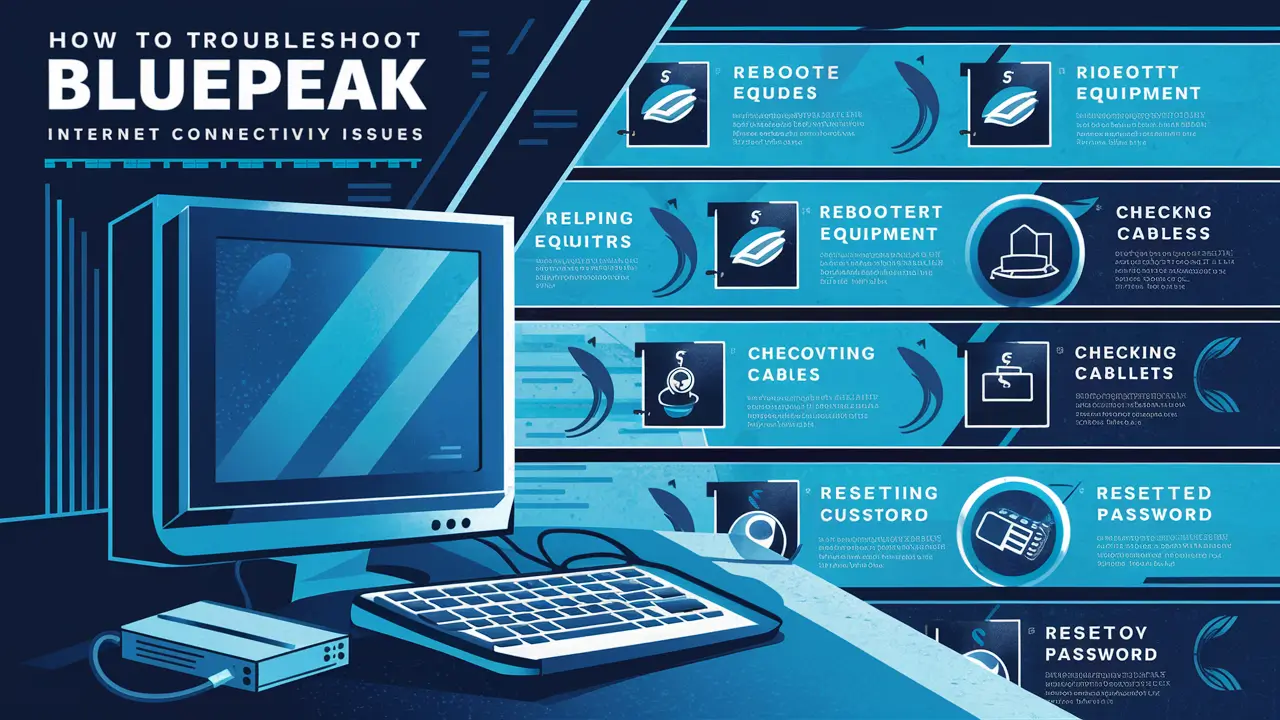
When your BluePeak internet isn't working, a systematic approach is key. This guide will walk you through the most common and effective troubleshooting steps, starting with the simplest solutions and progressing to more involved checks. Following these steps can help you quickly identify the problem and potentially restore your connection without needing to contact customer support.
Step 1: Check Your Equipment Lights
Your modem and router are the gateways to your internet connection. The lights on these devices provide crucial diagnostic information.
- Modem Lights: Look for lights indicating power, upstream/downstream signal lock, and internet connectivity. A solid power light is essential. If the upstream or downstream lights are blinking or off, it indicates a signal issue from BluePeak. The internet or online light should be solid if you have a connection.
- Router Lights: The power light should be on. The internet or WAN (Wide Area Network) light typically indicates the connection status from the modem. If this light is off or red/orange, the router isn't receiving an internet signal. Wi-Fi lights indicate your wireless network is broadcasting.
What to look for: Consult your modem and router manuals or BluePeak's support site for the specific meaning of each light and color. A blinking "internet" or "online" light often signifies that the device is trying to establish a connection but failing.
Step 2: Reboot Your Modem and Router
This is the most common fix for many internet issues and often resolves temporary glitches.
- Unplug the power from both your modem and your router.
- Wait for at least 30-60 seconds. This allows the devices to fully discharge and reset.
- Plug the modem back in first. Wait for its lights to stabilize, indicating it has reconnected to the BluePeak network (this can take 2-5 minutes).
- Plug the router back in. Wait for its lights to stabilize.
- Test your internet connection on a device.
Why it works: Rebooting clears temporary memory and can resolve software conflicts or minor hardware hiccups within the devices.
Step 3: Check Physical Connections
Loose or damaged cables can easily disrupt your internet service.
- Coaxial Cable (if applicable): Ensure it's securely screwed into the back of the modem and the wall outlet. Check for any visible damage to the cable.
- Ethernet Cables: Verify that Ethernet cables connecting your modem to your router, and your router to any wired devices, are firmly plugged in at both ends. Try swapping out Ethernet cables if you suspect one might be faulty.
- Power Cables: Ensure all power cables are securely connected to the devices and the wall outlet.
Action: Gently unplug and re-plug each cable to ensure a solid connection. If you have spare cables, try replacing suspect ones.
Step 4: Test with a Wired Connection
If you're primarily using Wi-Fi, the issue might be with your wireless signal rather than the internet service itself.
- Connect a computer directly to your router using an Ethernet cable.
- Disable Wi-Fi on that computer to ensure it's using the wired connection.
- Try to access the internet.
If it works: The problem is likely with your Wi-Fi network (e.g., router placement, interference, or router settings). If it doesn't work, the issue is likely with the internet service or the modem.
Step 5: Test Multiple Devices and Websites
This helps isolate whether the problem is with a specific device or a particular website.
- Try connecting to the internet with a different device (e.g., a smartphone, tablet, or another computer).
- Attempt to visit several different, well-known websites (e.g., Google.com, BBC.com, CNN.com).
If only one device is affected: The problem lies with that specific device's network settings or hardware. If only one website is inaccessible but others work, that website might be experiencing its own issues.
Step 6: Check for BluePeak Service Outages
Now it's time to check if BluePeak itself is experiencing a wider outage.
- Visit the BluePeak Website: Look for a "Service Status," "Outage Map," or "Support" section. Many providers have a dedicated page for reporting and tracking outages.
- Use a Mobile Hotspot: If your home internet is down, use your smartphone's mobile data to access the BluePeak website or social media pages.
- Check Social Media: Search for "BluePeak" on platforms like Twitter (X) or Facebook. Customers often report outages there, and providers may post updates.
- Contact BluePeak Support: If you can't find information online, call BluePeak's customer service line. They will be able to confirm if there's a known outage in your area.
Note: Be prepared for longer wait times if a widespread outage is occurring.
Advanced Troubleshooting Techniques
If the basic steps haven't resolved your BluePeak internet issues, and you suspect it's not a widespread outage, you can delve into more advanced troubleshooting. These techniques require a bit more technical familiarity but can pinpoint complex problems.
Checking Your IP Address and DNS Settings
Your device needs an IP address to communicate on the network, and DNS (Domain Name System) servers translate website names into IP addresses.
- On Windows: Open Command Prompt and type
ipconfig. Look for your IP address, subnet mask, and default gateway. If the IP address starts with 169.254, it indicates your device is not getting a valid IP from the router. - On macOS: Go to System Settings > Network > Wi-Fi (or Ethernet) > Details > TCP/IP. Check your IP address.
- DNS Flush: Sometimes, DNS cache issues can prevent access to websites. In Command Prompt (Windows), type
ipconfig /flushdns. On macOS, the command varies by OS version but often involves Terminal commands likesudo dscacheutil -flushcache; sudo killall -HUP mDNSResponder.
If your IP address is invalid: This points to a problem with your router or modem obtaining an IP from BluePeak. If you can access websites after a DNS flush, the issue was likely with cached DNS information.
Accessing Your Router's Admin Interface
Most routers have a web-based interface where you can check settings, view connected devices, and run diagnostics.
- Find your router's IP address (often listed as the "Default Gateway" in
ipconfigor Network Settings). Common addresses include 192.168.1.1 or 192.168.0.1. - Open a web browser and type the router's IP address into the address bar.
- Log in using your router's username and password (often found on a sticker on the router itself, or in its manual).
Within the interface:
- Check WAN/Internet Status: Look for connection status, IP address assigned by BluePeak, and signal strength if available.
- View Connected Devices: See if your devices are listed and have valid IP addresses.
- Run Diagnostics: Some routers have built-in ping or traceroute tools.
- Firmware Updates: Ensure your router's firmware is up to date. Outdated firmware can cause performance and security issues.
Testing with a Different DNS Server
If you suspect DNS issues are causing specific website access problems, you can temporarily switch to a public DNS server like Google DNS or Cloudflare DNS.
- Google DNS: Primary DNS: 8.8.8.8, Secondary DNS: 8.8.4.4
- Cloudflare DNS: Primary DNS: 1.1.1.1, Secondary DNS: 1.0.0.1
You can configure these in your router's settings (under WAN or Internet settings) or on individual devices in their network adapter properties. If switching DNS servers resolves the issue, it suggests BluePeak's default DNS servers might be experiencing problems.
Checking Your Modem's Signal Levels
For cable internet users, signal levels are critical. These can often be viewed through the modem's admin interface or sometimes via a dedicated diagnostic page.
Look for:
- Downstream Power Level: Typically between -7 dBmV and +7 dBmV.
- Downstream SNR (Signal-to-Noise Ratio): Should be above 30 dB.
- Upstream Power Level: Typically between +35 dBmV and +50 dBmV.
Values outside these ranges can indicate noise, signal degradation, or a weak signal, pointing to issues with the line coming into your home or the external network infrastructure. If you see consistently poor signal levels, it's a strong indicator that BluePeak needs to investigate the physical line.
Using Ping and Traceroute Tools
These command-line tools help diagnose network latency and identify where connection problems might be occurring.
- Ping: Sends small packets of data to a server and measures the time it takes for a response.
ping google.com. High ping times or packet loss indicate network congestion or issues. - Traceroute (or Tracert on Windows): Shows the path (hops) your data takes to reach a destination server and the latency at each hop.
tracert google.com. If a specific hop shows extremely high latency or stops responding, it can pinpoint a problematic router or segment in the network path.
Interpreting results: Consistent high latency or packet loss to your default gateway suggests a problem between your router and BluePeak's network. Issues further down the traceroute path might indicate problems within BluePeak's core network or beyond.
What to Do If BluePeak is Truly Down
Once you've exhausted individual troubleshooting steps and confirmed with reliable sources that BluePeak is indeed experiencing a widespread outage, your focus shifts from fixing your personal connection to managing the situation and staying informed. This section provides actionable advice for navigating a confirmed BluePeak outage.
Gathering Information and Staying Updated
The first priority is to understand the scope and estimated resolution time of the outage.
- Official BluePeak Channels: Continuously monitor BluePeak's official website, customer portal, and any dedicated outage alert pages.
- Social Media: Follow BluePeak's official social media accounts (Twitter/X, Facebook) for real-time updates. Also, check local community groups or forums where other affected users might be sharing information.
- Text/Email Alerts: If you've signed up for BluePeak's notification service, check for any alerts they might be sending out.
- Customer Support Line: While they may be overwhelmed, calling customer support can sometimes provide the latest official information or allow you to report your experience, which helps them gauge the outage's impact.
Key information to look for: The affected area, the suspected cause of the outage, and an estimated time for service restoration (ETR). Be aware that ETRs are often estimates and can change.
Documenting the Outage
Keeping a record of the outage can be beneficial, especially if it's prolonged or frequently recurring.
- Start Time: Note the exact time you first noticed the issue or confirmed the outage.
- Duration: Track how long the outage lasts.
- Impact: Record any specific services affected (e.g., internet, TV if bundled) and the impact on your household or business.
- Communication: Note any communication received from BluePeak, including outage notifications and ETR updates.
This documentation can be useful if you need to request service credits or discuss recurring issues with BluePeak customer service later.
Considering Temporary Alternatives for Connectivity
Depending on your needs, you might require temporary solutions to maintain connectivity during an extended BluePeak outage.
- Mobile Hotspot: If you have a smartphone with a good data plan, use its hotspot feature to connect laptops and other devices. Be mindful of data limits.
- Public Wi-Fi: Libraries, coffee shops, and community centers often offer free Wi-Fi. This is a good option for essential tasks but may not be suitable for sensitive work.
- Neighbor's Wi-Fi (with permission): If you have a good relationship with a neighbor, you might be able to temporarily share their Wi-Fi.
- Portable Hotspot Devices: For more consistent mobile connectivity, consider a dedicated portable hotspot device if you anticipate frequent or lengthy outages.
Important Note: Always ensure you are using secure Wi-Fi networks, especially when handling sensitive information.
When to Escalate the Issue
If an outage is unusually long, recurs frequently, or seems to be impacting only your specific location within a broader area that is supposedly restored, it might be time to escalate.
- Contact BluePeak Technical Support: After service is restored, contact their technical support to report persistent issues or inquire about the cause of prolonged downtime.
- File a Complaint: If you are unsatisfied with BluePeak's response or the frequency of outages, you can consider filing a complaint with relevant consumer protection agencies or telecommunications regulators in your region.
- Consider Other Providers: If service reliability is a persistent problem, research alternative internet service providers in your area.
A consistent pattern of outages can significantly impact productivity and daily life, so don't hesitate to seek resolution or explore other options if necessary.
Preventative Measures and Staying Connected
While you can't control BluePeak's network infrastructure, you can take steps to improve your own home network's resilience and ensure you have backup options. Proactive measures can significantly reduce the impact of future internet disruptions.
Optimizing Your Home Network
A well-configured home network is less prone to issues and can better handle varying conditions.
- Invest in Quality Equipment: A reliable modem and a powerful, up-to-date router can make a significant difference. Consider routers with Wi-Fi 6 or Wi-Fi 6E for better performance and range.
- Router Placement: Position your router in a central, open location away from obstructions like thick walls, metal objects, and other electronics that can cause interference (e.g., microwaves, cordless phones).
- Mesh Wi-Fi Systems: For larger homes, a mesh Wi-Fi system can provide consistent coverage and eliminate dead zones, ensuring a stable connection throughout your property.
- Regular Firmware Updates: Keep your router and modem firmware updated. Manufacturers release updates to improve performance, security, and stability.
- Secure Your Wi-Fi: Use a strong WPA3 or WPA2 password to prevent unauthorized access, which can consume bandwidth and slow down your network.
Establishing Redundant Connectivity Options
Having a backup internet source is the most effective way to ensure you remain connected during an outage.
- Mobile Hotspot Strategy: Ensure your smartphone plan includes sufficient data for tethering. Understand how to quickly enable and use your phone's hotspot feature.
- Secondary Internet Service: For critical needs (e.g., remote work, home security systems), consider a secondary internet connection from a different provider if available. This could be DSL, fixed wireless, or even satellite internet as a backup.
- Portable Hotspot Devices: Dedicated MiFi devices offer a more robust mobile hotspot solution than a smartphone, often with larger data allowances and better battery life.
Understanding Service Level Agreements (SLAs) and Credits
Some internet service providers offer Service Level Agreements (SLAs) that guarantee a certain level of uptime. While residential plans rarely have formal SLAs, it's worth understanding what BluePeak's terms of service say about outages.
- Check Your Contract: Review your BluePeak service agreement for any clauses related to service interruptions and compensation.
- Request Service Credits: If you experience prolonged or frequent outages, contact BluePeak customer service to inquire about service credits for the downtime. Keep records of outages to support your claim.
- Monitor Outage Trends: If you notice a pattern of frequent outages, this information can be valuable when discussing your service with BluePeak or considering other providers.
Preparing for the Worst-Case Scenario
For essential services, consider how you will maintain connectivity for critical functions.
- Offline Work: For remote workers, download necessary files and prepare for periods of offline work.
- Communication Devices: Ensure you have alternative ways to communicate, such as charged mobile phones and perhaps a landline if available.
- Emergency Preparedness: In areas prone to natural disasters, having a plan that includes communication and connectivity backups is part of overall emergency preparedness.
By implementing these preventative measures, you can significantly enhance your ability to stay connected, even when your primary BluePeak internet service is disrupted.
BluePeak Service Reliability Statistics (2025-26)
Assessing the reliability of an internet service provider is crucial for making informed decisions. While specific, granular data for BluePeak's service reliability can be proprietary and vary by region, we can look at industry benchmarks and general trends for 2025-26 to provide context. These statistics highlight the challenges and advancements in maintaining consistent internet connectivity.
Industry Benchmarks for Internet Uptime
The telecommunications industry generally aims for high levels of uptime, often measured in "nines."
- 99.9% Uptime: This translates to approximately 8.76 hours of downtime per year.
- 99.99% Uptime (Four Nines): This equates to about 52.56 minutes of downtime per year.
- 99.999% Uptime (Five Nines): This is the gold standard, allowing for only about 5.26 minutes of downtime per year. This level is typically reserved for mission-critical infrastructure like financial trading systems or emergency services.
For residential internet services, achieving four nines (99.99%) is considered excellent. Many providers aim for this, but actual performance can fluctuate due to the factors discussed earlier.
Factors Influencing BluePeak's Reliability (2025-26 Projections)
BluePeak's reliability in the 2025-26 period will be influenced by several key factors:
- Infrastructure Investment: Providers that heavily invest in upgrading to fiber optic networks tend to exhibit higher reliability due to fiber's resilience and capacity. BluePeak's investment in its fiber-to-the-home (FTTH) expansion, if ongoing, will be a positive indicator.
- Network Modernization: Replacing aging copper infrastructure with newer technologies (like DOCSIS 3.1/4.0 for cable or advanced fiber architectures) reduces the likelihood of equipment failures and performance degradation.
- Geographic Coverage: Providers serving areas with less extreme weather or fewer geological hazards may experience fewer weather-related outages. Dense urban areas might face more construction-related disruptions.
- Customer Density: Higher customer density in an area can sometimes put more strain on network nodes during peak usage, potentially leading to more performance issues if capacity is not adequately managed.
- Proactive Maintenance and Monitoring: Companies with robust network monitoring systems and proactive maintenance schedules are better equipped to identify and address potential issues before they cause widespread outages.
Reported Outage Trends (2025-26)
Based on industry analysis and forecasts for 2025-26:
- Fiber Resilience: Fiber optic networks continue to demonstrate superior reliability compared to older technologies, with fewer susceptibility to electromagnetic interference and physical degradation.
- Cybersecurity Threats: While not always causing physical downtime, the increasing sophistication of cyberattacks remains a concern that can impact service availability and performance.
- Supply Chain Impacts: Global supply chain issues, which have persisted, can sometimes affect the timely replacement of critical network components, potentially extending repair times for certain types of outages.
- Climate Change Impacts: An increase in the frequency and intensity of extreme weather events globally is projected to continue impacting network infrastructure, leading to more weather-related disruptions for all providers, including BluePeak.
Where to find specific data: For the most accurate, region-specific data on BluePeak's reliability, customers should look for independent network performance reports, consumer reviews, and any official uptime statistics BluePeak may choose to publish. Regulatory bodies in some regions also collect and publish ISP performance data.
In conclusion, while BluePeak strives for consistent service, like all internet providers, it is susceptible to various disruptions. By understanding these potential causes and implementing the troubleshooting steps and preventative measures outlined in this guide, you can effectively manage connectivity issues and minimize downtime. Always remember to check for official outage notifications and consider backup solutions for critical connectivity needs.