How can I Watch Cox Cable without a Box?
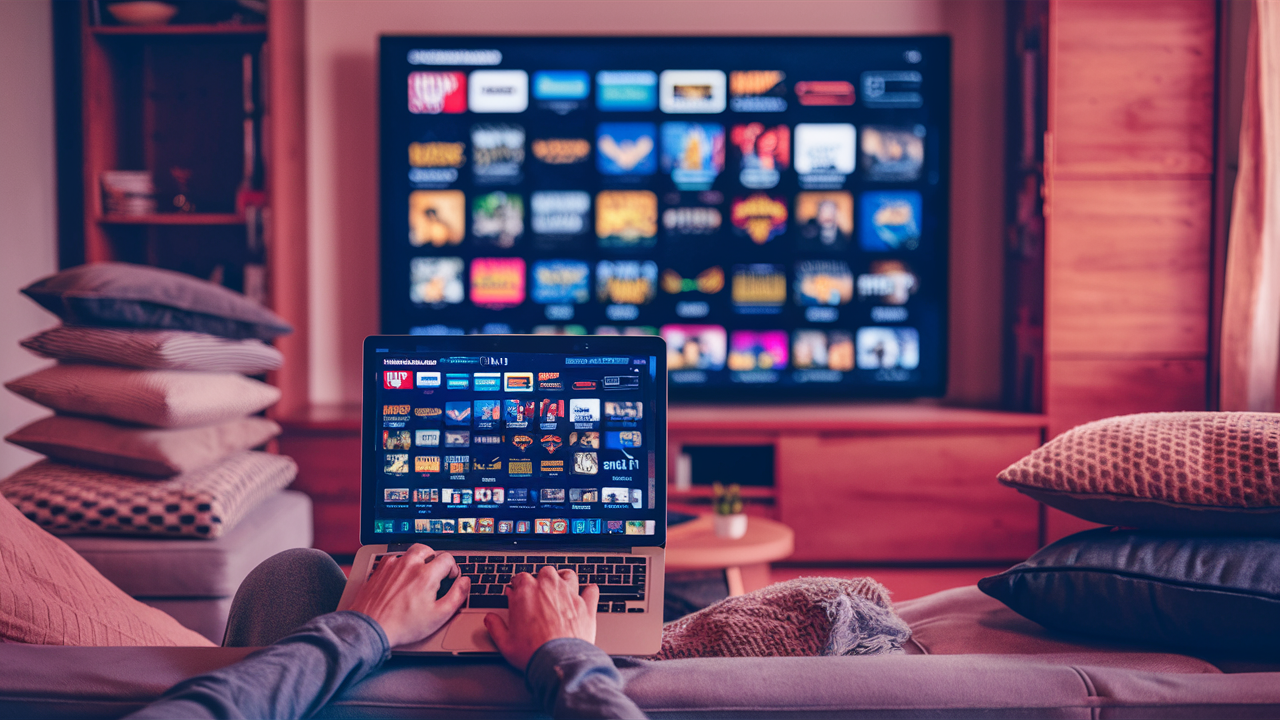
Discover how to ditch the cable box and stream your favorite Cox channels directly to your devices. This guide offers a comprehensive look at modern solutions for watching Cox cable without traditional hardware, saving you money and offering greater flexibility in 2025-26.
Introduction: The Evolving Landscape of Cable Viewing
The traditional cable box, once a ubiquitous fixture in living rooms, is rapidly becoming a relic of the past. Consumers in 2025-26 are increasingly seeking flexibility, cost savings, and a more streamlined viewing experience. For Cox Communications customers, this often translates to a desire to watch their favorite channels without the need for bulky, expensive cable boxes. This comprehensive guide will delve into the various methods and strategies available to achieve just that. We'll explore official Cox offerings, explore viable third-party alternatives, and provide practical advice to ensure a seamless transition to a box-less viewing future. Whether you're looking to cut down on equipment rental fees, simplify your home entertainment setup, or gain access to your programming on more devices, understanding how to watch Cox cable without a box is key to unlocking a more modern and adaptable entertainment experience.
Understanding Cox Cable Without a Box
The concept of "watching Cox cable without a box" can mean a few different things, and it's crucial to differentiate them to manage expectations and choose the right solution. At its core, it signifies moving away from the traditional coaxial cable connection and dedicated set-top box provided by Cox, towards internet-based streaming solutions. This shift is driven by several factors:
- Equipment Rental Fees: Cox, like most cable providers, charges monthly fees for each cable box rented. Eliminating these boxes directly reduces your monthly bill. In 2025, the average cost for a standard cable box rental can range from $8 to $15 per month per box, with DVRs often costing more. For households with multiple TVs, these costs can quickly add up, potentially reaching $30-$60 or more annually per TV.
- Flexibility and Portability: Traditional cable boxes are tethered to a specific TV and location. Streaming allows you to watch your content on a variety of devices, including smart TVs, smartphones, tablets, computers, and streaming sticks, whether you're at home or on the go (with appropriate subscriptions).
- On-Demand and Cloud DVR: Many modern streaming solutions offer robust on-demand libraries and cloud-based DVR services, often providing a more user-friendly experience than older DVR hardware.
- Technological Advancements: The proliferation of high-speed internet and the increasing power of smart devices have made internet-based streaming a viable and often superior alternative to traditional cable.
It's important to note that "without a box" doesn't necessarily mean "without a subscription" to Cox's services. In most cases, you will still need to subscribe to a Cox internet plan and potentially a specific TV package to access their content. The methods discussed below focus on how to access that content without the physical Cox-provided set-top box.
Cox Internet Requirements for Streaming
Before diving into specific solutions, understanding the internet requirements is paramount. Streaming live TV, especially in high definition (HD) or 4K, consumes significant bandwidth. Cox offers various internet speed tiers, and choosing the right one is critical for a buffer-free experience. For a smooth streaming experience in 2025-26, consider these general guidelines:
- Basic Streaming (SD/HD): A minimum of 5-10 Mbps per stream is recommended. This is suitable for a single stream in standard or high definition.
- HD Streaming (Multiple Devices): For multiple HD streams simultaneously, or if you have several people in your household streaming at once, 25-50 Mbps is a more comfortable baseline.
- 4K Streaming and Heavy Usage: If you plan to stream in 4K, or if your household has numerous devices connected and actively using the internet (gaming, video conferencing, multiple streams), 100 Mbps or higher is advisable. Cox's Gigablast plans, offering speeds up to 1 Gbps, are ideal for power users.
It's also worth noting that Cox's network congestion, especially during peak hours, can sometimes impact speeds. While advertised speeds are often "up to," real-world performance can vary. Many users find that subscribing to a speed tier slightly higher than the minimum recommendation provides a more consistent experience.
Understanding IPTV and Streaming
Cox's offerings, and many alternatives, fall under the umbrella of Internet Protocol Television (IPTV). Unlike traditional broadcast or cable signals, IPTV delivers television content over the internet. This allows for more interactive features, on-demand content, and the ability to stream across various devices. When you watch Cox through an app or a streaming service, you are essentially utilizing their IPTV infrastructure. This is distinct from "cord-cutting" where users abandon traditional cable providers entirely in favor of over-the-top (OTT) streaming services like Netflix, Hulu, or YouTube TV. This guide focuses on accessing Cox's specific channel lineup, which may or may not involve a full cord-cut.
Official Cox Streaming Options
Cox Communications has recognized the shift in consumer preferences and offers several official ways to access their TV programming without a traditional set-top box. These methods leverage their existing infrastructure and your Cox internet connection.
Cox Contour App and Stream Player
The primary official method for watching Cox TV without a box is through the Cox Contour App. This app is available on a wide range of smart TVs, streaming devices, and mobile platforms. It allows subscribers to access their subscribed channels, live TV, on-demand content, and DVR recordings directly through an internet connection.
- Availability: The Contour app is generally available on devices like Apple TV, Roku, Amazon Fire TV, Chromecast with Google TV, iOS devices (iPhones and iPads), and Android devices. Many newer smart TVs from brands like Samsung, LG, and Vizio also have the app pre-installed or available for download.
- Functionality: With the Contour app, you can watch live TV channels included in your subscription package, access a library of on-demand movies and shows, and manage your DVR recordings if you have a Contour DVR service. You can also use it to set parental controls and manage your account.
- Stream Player: For televisions that are not "smart" or do not natively support the Contour app, Cox offers the Cox Stream Player. This is a small, dedicated streaming device that connects to your TV via HDMI and connects to your home's Wi-Fi network. It essentially turns any TV into a smart TV capable of running the Contour app and other streaming applications. This is Cox's direct replacement for the traditional cable box for individual TVs. It requires a monthly rental fee, but it's often presented as a more modern and flexible alternative to older set-top boxes. The rental fee for a Stream Player in 2025 typically ranges from $7 to $12 per month.
Step-by-Step Setup for Cox Contour App:
- Ensure Cox Internet Service: You must have an active Cox internet subscription.
- Subscribe to a Cox TV Package: Your TV subscription plan will determine which channels are available through the app.
- Download the Contour App: On your smart TV or streaming device, navigate to your device's app store (e.g., Apple App Store, Google Play Store, Amazon Appstore, Roku Channel Store) and search for "Cox Contour." Download and install the app.
- Log In: Open the Contour app and log in using your Cox account credentials (username and password). If you don't have online credentials, you'll need to set them up through the Cox website.
- Start Streaming: Once logged in, you should see your subscribed channels and content. Navigate through the interface to watch live TV, browse on-demand options, or access your DVR recordings.
Step-by-Step Setup for Cox Stream Player:
- Order the Stream Player: Contact Cox customer service or visit their website to order a Stream Player. You will likely need to provide your account information.
- Connect the Stream Player: Once received, connect the Stream Player to your TV using an HDMI cable and plug in the power adapter.
- Initial Setup: Turn on your TV and select the correct HDMI input. The Stream Player will guide you through an initial setup process, which includes connecting to your home Wi-Fi network and logging in with your Cox account credentials.
- Access Contour App: The Contour app will be pre-installed or easily accessible on the Stream Player's home screen. Log in and begin streaming.
Pros of Official Cox Options:
- Guaranteed access to your subscribed channels.
- Seamless integration with your Cox account and DVR.
- Official support from Cox for troubleshooting.
- Often included or available at a lower cost than multiple traditional boxes.
Cons of Official Cox Options:
- Requires an active Cox internet subscription.
- May still involve a monthly rental fee for the Stream Player.
- Channel selection is limited to your subscribed Cox TV package.
- App availability might be limited on older smart TV models.
Cox TV Online
While the Contour app is the modern primary interface, Cox also historically offered a web-based portal for streaming TV. This is less common now as the app is prioritized, but some users might still access it. Cox TV Online allows you to stream live TV channels and access on-demand content directly through a web browser on your computer. This is a convenient option for those who primarily use their computers for entertainment and wish to avoid dedicated streaming devices for their PCs.
To use Cox TV Online, you would typically navigate to a specific Cox portal, log in with your Cox credentials, and then access the streaming interface. The channel availability and functionality are usually consistent with the Contour app, reflecting your subscribed TV package.
Third-Party Streaming Alternatives to Consider
For some users, the goal of watching Cox cable without a box might also involve exploring alternatives that offer more flexibility in channel selection or a different pricing structure. While Cox's official apps are the most direct way to access *their* programming, some third-party services can complement or, in some cases, replace aspects of a traditional cable subscription. However, it's crucial to understand that these services typically do not carry the exact same lineup as your Cox cable package and often require you to cut the cord entirely from Cox's TV services.
Live TV Streaming Services
These services offer a bundle of live channels delivered over the internet, similar to cable TV but without the box. They are a popular alternative for those looking to "cord-cut." While they won't directly stream your *Cox* channels, they can replace the need for a Cox TV subscription altogether if their channel offerings meet your needs.
Popular Options in 2025-26:
- YouTube TV: Known for its comprehensive channel lineup, unlimited cloud DVR, and user-friendly interface. Offers a wide array of broadcast, cable news, sports, and entertainment channels. Pricing in 2025-26 typically ranges from $70-$80 per month.
- Hulu + Live TV: Combines live TV channels with Hulu's extensive on-demand library, including originals. A strong contender for those who also want access to Hulu's streaming content. Pricing is often around $75-$85 per month, with ad-free options for on-demand content.
- Sling TV: A more customizable and budget-friendly option. Sling offers two base packages (Orange and Blue) that can be combined or customized with various add-on "Extras" for specific channel categories (sports, kids, news, etc.). Base packages start around $40-$55 per month, making it one of the most affordable live TV streaming services.
- DirecTV Stream: Offers multiple tiers of packages, including some that come with regional sports networks (RSNs), which are often missing from other services. Pricing can be higher, starting around $70-$100 per month, depending on the package.
Comparison Table: Live TV Streaming Services (2025-26 Estimates)
| Service | Starting Price (Monthly) | Key Features | DVR | Device Support |
|---|---|---|---|---|
| YouTube TV | ~$75 | Unlimited Cloud DVR, 3 simultaneous streams, extensive channel lineup | Unlimited Cloud DVR | Roku, Apple TV, Fire TV, Chromecast, Smart TVs, Mobile, Web |
| Hulu + Live TV | ~$75 | Live TV + Hulu On-Demand Library, 2 simultaneous streams (upgradable) | 9-Month Cloud DVR | Roku, Apple TV, Fire TV, Smart TVs, Mobile, Web |
| Sling TV | ~$40 (Base Orange/Blue) | Customizable packages, 2-3 simultaneous streams depending on package | 50 Hours (Free, upgradable to 200) | Roku, Apple TV, Fire TV, Smart TVs, Mobile, Web |
| DirecTV Stream | ~$70 | Multiple packages, some with RSNs, 3 simultaneous streams | Unlimited Cloud DVR (with Choice package and above) | Roku, Apple TV, Fire TV, Smart TVs, Mobile, Web |
Note: Prices are estimates for 2025-26 and can vary based on promotions, package selections, and regional availability.
Using Network Apps with Cable Login
Many individual cable networks (e.g., ESPN, CNN, HGTV, Discovery) offer their own dedicated apps. If you subscribe to a Cox TV package that includes these channels, you can often log into these network apps using your Cox account credentials. This allows you to stream content from that specific network, often including live feeds and on-demand episodes, directly through the network's app. This is a great way to access content outside of the main Contour app or to get more detailed content from a specific channel you enjoy.
Example: If you have the ESPN channel in your Cox package, you can download the ESPN app, select Cox as your provider, and log in with your Cox username and password to watch live ESPN, ESPN2, and other ESPN networks, along with on-demand content.
Over-the-Air (OTA) Antennas
For local broadcast channels (ABC, CBS, NBC, FOX, PBS), an Over-the-Air (OTA) antenna is a completely free and box-less solution. Modern digital antennas can pick up crystal-clear HD signals from local networks within a certain range. This is an excellent supplement to any streaming strategy, as it provides access to major network programming without any subscription fees or internet bandwidth usage. The quality of reception depends heavily on your geographic location relative to broadcast towers and the type of antenna used.
Pros of Third-Party Alternatives:
- Greater flexibility in channel selection.
- Potential for cost savings if you can replace your entire Cox TV subscription.
- Access to exclusive content on some platforms.
- Often a more modern and intuitive user interface.
Cons of Third-Party Alternatives:
- Requires a separate internet subscription (which you likely already have with Cox).
- Channel lineups differ significantly from Cox packages; you might lose channels you want.
- Regional sports networks can be a major pain point, as not all services carry them.
- Can become expensive if you subscribe to multiple services.
- No direct integration with Cox's DVR or account management.
Device Compatibility and Setup: Making it Work
The success of watching Cox cable without a box hinges on having compatible devices and setting them up correctly. The good news is that the ecosystem of streaming-capable devices is vast and continues to grow.
Popular Streaming Devices
These devices act as intermediaries, connecting to your TV and home network to run streaming apps. Most support the Cox Contour app and a wide array of other streaming services.
- Smart TVs: Modern televisions from brands like Samsung, LG, Sony, Vizio, and TCL often have built-in operating systems (e.g., Tizen, webOS, Android TV/Google TV, Roku TV) that allow you to download streaming apps directly.
- Streaming Sticks/Boxes: These are small, plug-in devices that connect to your TV's HDMI port.
- Roku Devices: Roku Express, Roku Streaming Stick, Roku Ultra. Known for their simple interface and wide app selection.
- Amazon Fire TV Devices: Fire TV Stick, Fire TV Cube. Integrate well with Amazon's ecosystem and Alexa voice control.
- Apple TV: A premium streaming box offering a sleek interface, integration with Apple devices, and strong performance.
- Google Chromecast with Google TV: Combines Chromecast's casting capabilities with a full Google TV interface and remote.
- Gaming Consoles: PlayStation (PS4, PS5) and Xbox (Xbox One, Xbox Series X/S) consoles often have dedicated apps for streaming services, including some that might support the Contour app or popular third-party options.
- Mobile Devices: Smartphones and tablets (iOS and Android) are fully capable of running streaming apps. Many can also cast content to your TV using Chromecast or AirPlay.
Setting Up Your Streaming Device
The general process for setting up most streaming devices is similar:
- Connect to TV: Plug the device into an available HDMI port on your TV. For streaming sticks, plug them directly into the TV's HDMI port; for boxes, use an HDMI cable.
- Connect to Power: Plug the device into a power outlet.
- Connect to Wi-Fi: Turn on your TV and select the correct HDMI input. The device will boot up and guide you through connecting to your home Wi-Fi network. You'll need your Wi-Fi password.
- Sign In/Create Account: You may need to create an account for the device's ecosystem (e.g., Roku account, Amazon account, Apple ID, Google Account) or sign into an existing one.
- Download Apps: Navigate to the device's app store and search for the Cox Contour app or any other desired streaming apps. Download and install them.
- Log In to Apps: Open each app and log in with your respective service provider credentials (e.g., Cox account for Contour, individual service logins for Netflix, Hulu, etc.).
Optimizing Your Home Network
A robust home network is the backbone of a good streaming experience. Consider these tips:
- Router Placement: Position your Wi-Fi router in a central location, away from obstructions like thick walls, metal objects, and other electronics that can cause interference.
- Wi-Fi Extenders/Mesh Systems: If you have a large home or dead spots, consider using Wi-Fi extenders or a mesh Wi-Fi system to ensure strong signal strength throughout your house.
- Wired Connection (Ethernet): For the most stable and fastest connection, especially for your primary streaming device (like a smart TV or streaming box), use an Ethernet cable to connect it directly to your router whenever possible.
- Update Router Firmware: Ensure your router's firmware is up to date. Manufacturers regularly release updates to improve performance and security.
- Bandwidth Management: Be mindful of other devices consuming bandwidth. If multiple people are streaming, gaming, or video conferencing simultaneously, you might experience slowdowns. Consider upgrading your internet speed if this is a frequent issue.
Cost Analysis and Value Proposition
One of the primary drivers for seeking box-less solutions is cost savings. Let's break down the potential financial benefits.
Comparing Equipment Rental Fees
Traditional Cox cable setups often involve renting multiple set-top boxes. In 2025, these fees can add up significantly:
- Standard Set-Top Box: $8 - $12 per month per box.
- DVR Set-Top Box: $12 - $20 per month per box.
A household with 3 TVs, each requiring a box, could easily spend $24 - $36 per month on standard boxes, or upwards of $36 - $60 per month if one or more are DVRs. Over a year, this amounts to $288 - $720+ just for equipment rental.
By switching to the Cox Contour app on existing smart devices or using a single Cox Stream Player ($7-$12/month), you can drastically reduce these costs. If you eliminate 2-3 traditional boxes and use the app, you could save $15-$45+ per month.
Calculating Total Cost of Ownership
When evaluating the cost of watching Cox without a box, consider the following components:
- Cox Internet Subscription: This is a prerequisite for most box-less solutions.
- Cox TV Subscription: You still need a TV package to access Cox's channels.
- Cox Stream Player Rental (if applicable): $7-$12/month.
- Third-Party Streaming Service Subscription (if applicable): $40-$85+/month.
- One-time Purchase of Streaming Devices (if needed): $30-$150 per device (e.g., Roku, Fire TV Stick, Apple TV). These devices typically last for several years.
Scenario 1: Using Cox Contour App on Existing Devices
You already own smart TVs or streaming devices.
- Cox Internet + Cox TV Package + $0 (for streaming devices) = Monthly Cost
- Savings: Eliminates rental fees for multiple traditional boxes.
Scenario 2: Using Cox Stream Player
- Cox Internet + Cox TV Package + $7-$12/month (Stream Player) = Monthly Cost
- Savings: Eliminates rental fees for multiple traditional boxes, potentially cheaper than multiple older boxes.
Scenario 3: Cord-Cutting with a Third-Party Service
- Cox Internet + Third-Party Live TV Service ($75/month) + $0-$50 (for streaming devices) = Monthly Cost
- Savings: Eliminates Cox TV subscription and equipment rental fees. Potential savings depend on the cost of your previous Cox TV package.
Example Calculation (2025):
A household previously paying $150/month for Cox TV (including 2 standard boxes at $10 each) and $80/month for internet, totaling $230/month.
- Option A (Contour App on Smart TVs): Cox Internet ($80) + Cox TV Package (assume $130 without boxes) = $210/month. Savings: $20/month.
- Option B (Cox Stream Player): Cox Internet ($80) + Cox TV Package ($130) + Stream Player ($10) = $220/month. Savings: $10/month.
- Option C (YouTube TV): Cox Internet ($80) + YouTube TV ($75) = $155/month. Savings: $75/month. (This assumes you no longer need Cox TV service).
The value proposition is clear: by strategically adopting box-less solutions, consumers can achieve significant monthly savings, greater flexibility, and a more modern entertainment experience. The key is to accurately assess your channel needs and leverage existing technology where possible.
Understanding Bandwidth Costs
While you save on equipment, remember that streaming consumes internet data. Cox generally offers unlimited data on most of its internet plans, but it's always wise to confirm this with your specific plan details. If your plan has data caps, heavy streaming could lead to overage charges. In 2025, most residential Cox internet plans come with unlimited data, but some legacy or promotional plans might differ.
Troubleshooting Common Issues and Support
Even with the best setup, you might encounter occasional issues. Here's how to troubleshoot common problems and where to find support.
Common Streaming Problems and Solutions
- Buffering/Lagging:
- Cause: Slow internet speed, network congestion, or weak Wi-Fi signal.
- Solution: Restart your modem and router. Ensure your internet speed meets recommendations. Move your router to a more central location or use a Wi-Fi extender. Connect your streaming device via Ethernet if possible. Close other bandwidth-heavy applications.
- App Crashing/Not Loading:
- Cause: App bug, outdated software, or device memory issues.
- Solution: Force close and reopen the app. Restart your streaming device. Check for app updates in your device's app store. Clear the app's cache (if your device allows). Ensure your device's operating system is up to date.
- No Picture/Sound:
- Cause: HDMI cable issue, incorrect TV input, or audio settings.
- Solution: Check that your HDMI cable is securely connected at both ends. Ensure your TV is set to the correct HDMI input. Verify audio output settings on your streaming device and TV.
- Login Issues:
- Cause: Incorrect username/password, account expired, or service outage.
- Solution: Double-check your Cox login credentials. Reset your Cox password if necessary. Verify your Cox TV subscription is active. Check Cox's service status page for outages.
- Poor Video Quality (Pixelation):
- Cause: Insufficient internet bandwidth or temporary network issues.
- Solution: Similar to buffering solutions – check internet speed, restart network equipment, and ensure a stable connection.
Where to Find Support
When self-troubleshooting doesn't resolve the issue, you'll need to contact support:
- Cox Communications Support: For issues related to your Cox account, internet service, Contour app login, or Stream Player hardware, contact Cox customer support directly. They can be reached via phone, online chat, or through their website. Their support pages often have FAQs and troubleshooting guides specific to their services.
- Device Manufacturer Support: If the problem appears to be with your smart TV, streaming stick, or other device (e.g., the device itself is malfunctioning, or apps are generally unstable), contact the manufacturer's support.
- App Developer Support: For issues specific to a third-party streaming app (e.g., YouTube TV, Hulu), check the app's help section or contact their dedicated support channels.
When contacting support, be prepared to provide details about your setup, the specific problem you're experiencing, and any troubleshooting steps you've already taken. This will help them diagnose and resolve your issue more efficiently.
The Future of Cox Streaming
The trend towards internet-based delivery of television content is irreversible. Cox Communications, like other major providers, is investing heavily in its digital infrastructure and streaming capabilities. We can expect several developments in the coming years:
- Enhanced App Functionality: The Cox Contour app and Stream Player will likely see continuous updates, introducing new features, improving user interfaces, and potentially expanding device compatibility.
- Integration with Smart Home Devices: Expect deeper integration with voice assistants and smart home ecosystems, allowing for more seamless control of your TV viewing experience.
- More Flexible Packaging: While Cox may continue to offer traditional bundles, there might be a move towards more modular or à la carte options for TV channel packages, allowing customers to build their ideal lineup more precisely.
- Competition from Virtual MVPDs: The rise of services like YouTube TV and Hulu + Live TV will continue to challenge traditional cable models. Cox will need to remain competitive in pricing and features to retain subscribers who might otherwise "cord-cut."
- Focus on Broadband: As video consumption shifts online, the core of Cox's business will increasingly be its broadband internet service. Their TV offerings will likely be designed to complement and leverage this robust internet infrastructure.
- Potential for 8K Streaming: As 8K televisions become more mainstream, streaming providers, including Cox, will likely begin exploring and offering 8K content delivery, requiring even higher internet speeds.
For consumers, this future promises more choice, greater control over their entertainment, and potentially lower costs. The ability to watch Cox channels without a physical box is not just a convenience; it's a sign of the industry's evolution towards a more connected and adaptable future.
Conclusion: Embracing the Box-less Future with Cox
The days of being tethered to a bulky, expensive cable box are fading, and Cox Communications is providing pathways for its customers to embrace this modern era of entertainment. By leveraging the official Cox Contour app on your existing smart devices or utilizing the Cox Stream Player, you can effectively watch your favorite channels without the traditional hardware, significantly reducing equipment rental fees and gaining viewing flexibility. For those seeking a complete shift, third-party live TV streaming services offer robust alternatives, though careful consideration of channel lineups and costs is essential. Optimizing your home network and understanding device compatibility are key to a seamless experience. In 2025-26, the transition to box-less viewing with Cox is not only feasible but also a financially savvy move, offering a more adaptable and cost-effective way to enjoy your television programming. Make the smart choice today and step into the future of home entertainment.