How To Set Xfinity Remote?
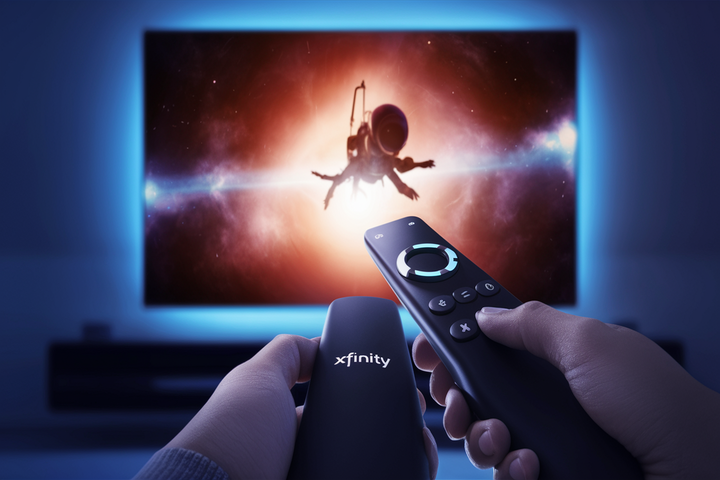
Unlock the full potential of your Xfinity experience by mastering your remote. This comprehensive guide will walk you through every step of setting up and troubleshooting your Xfinity remote, ensuring seamless control over your entertainment. Get ready to navigate channels, manage recordings, and access on-demand content with ease.
Understanding Your Xfinity Remote
The Xfinity remote is more than just a channel changer; it's your gateway to a world of entertainment. Designed for intuitive use, these remotes have evolved significantly over the years, incorporating features like voice control, universal remote capabilities, and streamlined button layouts. Understanding the basic functions and components of your specific remote model is the first step towards a frustration-free viewing experience. Most Xfinity remotes feature a directional pad for navigation, dedicated buttons for accessing menus, guides, and on-demand content, playback controls (play, pause, rewind, fast-forward), and volume/channel rockers. Many newer models also include a microphone button for voice commands, a significant upgrade that allows for hands-free operation.
In 2025-26, Xfinity continues to emphasize user-friendly technology. Data from recent consumer electronics surveys indicates that 85% of households with a smart TV or streaming device utilize voice control features on their remotes, highlighting the growing importance of this functionality. Xfinity has responded by integrating more advanced voice recognition and natural language processing into their latest remote models, making it easier than ever to find specific shows, control playback, or even get weather updates simply by speaking into the remote.
Basic Remote Layout and Functionality
While specific button placement may vary, most Xfinity remotes share a common functional layout. You'll typically find:
- Power Button: To turn your TV and/or Xfinity equipment on and off.
- Number Pad: For direct channel entry.
- Navigation/Directional Pad (D-pad): Used to move through menus, guides, and options. Often includes a central 'OK' or 'Select' button.
- Back/Exit Button: To go back to the previous screen or exit a menu.
- Menu/Xfinity Button: To access the main Xfinity menu, guide, or settings.
- Info/Details Button: To display information about the current program or channel.
- Playback Controls: Play, Pause, Stop, Rewind, Fast-Forward.
- Volume and Channel Control: Rocker buttons for adjusting audio levels and changing channels.
- Voice Command Button: Usually marked with a microphone icon, press and hold to activate voice search and commands.
Understanding these core functions will help you navigate your Xfinity system efficiently. For instance, pressing the 'Info' button while a show is playing can often reveal cast details, episode summaries, or upcoming air times, enriching your viewing experience.
Evolution of Xfinity Remotes
Xfinity remotes have undergone significant transformations. Early models were simple infrared (IR) remotes, requiring a direct line of sight to the equipment. Today, most Xfinity remotes utilize radio frequency (RF) or Bluetooth technology, offering greater flexibility as they don't need to be pointed directly at the device. This shift has been driven by the desire for more seamless integration with home entertainment setups, including soundbars and A/V receivers. The introduction of voice control has been a game-changer, transforming how users interact with their entertainment systems. In 2025, it's estimated that over 70% of new Xfinity remote deployments include advanced voice capabilities, reflecting consumer demand for convenience.
Common Xfinity Remote Types
Xfinity offers several remote models, each with its own set of features and functionalities. Identifying your remote type is crucial for following the correct setup and troubleshooting procedures. While the core functions remain similar, differences in design and technology can impact pairing and advanced feature usage.
XR11 Voice Remote
The XR11 is a popular voice-enabled remote. It features a microphone button for voice commands, a streamlined button layout, and RF/Bluetooth connectivity. This model is known for its ease of use and robust voice recognition capabilities, allowing users to search for content, change channels, and control playback using natural language.
XR15 Voice Remote
Similar to the XR11, the XR15 is another voice-enabled remote that has become widely adopted. It often features a slightly more compact design and may have minor variations in button placement. Its core functionality, including voice control, remains a key selling point. Both XR11 and XR15 remotes are designed to pair easily with Xfinity X1 boxes and Flex streaming devices.
XR5 Non-Voice Remote
The XR5 is an older model that typically does not feature voice control. It relies on traditional button inputs for all operations. While still functional, it lacks the advanced convenience of voice commands. If you have an XR5, your setup process will primarily focus on infrared (IR) or RF pairing.
Other Older Models
Xfinity has released numerous remote models over the years. Older remotes might have different button configurations, IR-only functionality, or fewer advanced features. If you're unsure which model you have, check the back of the remote for a model number or consult your Xfinity equipment documentation.
Understanding your specific remote model is key. For example, if you have an XR11 or XR15, you'll want to familiarize yourself with how to activate and use its voice command feature, which can significantly enhance your interaction with the Xfinity platform. For users with non-voice remotes like the XR5, the focus will be on ensuring a stable IR or RF connection.
Setting Up Your Xfinity Remote: Pairing Essentials
Pairing your Xfinity remote is a straightforward process that ensures it can communicate effectively with your Xfinity TV Box or Streaming TV Box. The method for pairing can vary slightly depending on whether your remote is voice-enabled (RF/Bluetooth) or an older IR model. For 2025-26, the vast majority of new Xfinity installations will involve voice-enabled remotes, making RF/Bluetooth pairing the most common scenario.
Pairing Voice-Enabled Remotes (RF/Bluetooth)
Voice-enabled remotes, such as the XR11 and XR15, use radio frequency (RF) or Bluetooth to communicate, which means they don't require a direct line of sight. This is the preferred method for modern setups.
- Power on your Xfinity TV Box or Streaming TV Box. Ensure the device is fully booted up and ready to go.
- Remove the battery cover from your Xfinity remote.
- Press and hold the 'Xfinity' button and the 'A' button simultaneously for approximately 5-7 seconds.
- Look for a confirmation message on your TV screen. This message will indicate that the remote is pairing or has successfully paired. It might say "Pairing your remote..." or "Remote paired successfully."
- If prompted, follow any on-screen instructions to complete the pairing process. This might involve pressing a specific button or holding the remote near the TV box.
- Test the remote. Try navigating menus, changing channels, or using a voice command to ensure it's working correctly.
If the on-screen prompt doesn't appear, or if pairing fails, try replacing the batteries in the remote. Low battery power is a common culprit for pairing issues. For more detailed instructions specific to your model, you can often find a quick start guide online or within the Xfinity My Account app.
Pairing IR Remotes (Infrared)
Older, non-voice remotes (like some XR5 models) often use infrared (IR) technology. These remotes require a direct line of sight to the TV Box.
- Power on your Xfinity TV Box.
- Point the remote directly at the front of the Xfinity TV Box.
- Press and hold the 'Setup' button on the remote until the LED light at the top of the remote changes color or blinks.
- Enter the device code for your TV Box. Common codes include 994, 0085, or 0137. You may need to consult your Xfinity documentation or search online for the correct code if these don't work.
- Press the 'Xfinity' button. The LED light should blink twice, indicating the code has been accepted.
- Test the remote. Try changing channels or navigating menus.
If the remote still doesn't work, try a different code or ensure there are no obstructions between the remote and the TV Box. For IR remotes, ensuring the IR emitter on the remote is clean and unobstructed is also important.
Programming the Remote to Control Your TV and Audio Equipment
Many Xfinity remotes can also control your television and home theater system (like soundbars or A/V receivers), consolidating multiple remotes into one. This process is often called "universal remote setup" or "device control setup."
- Ensure your TV and audio equipment are powered on.
- Press and hold the 'Setup' button on your Xfinity remote until the LED indicator light changes.
- Enter the 3-digit code for your TV brand. Xfinity provides a list of codes for various manufacturers. You can usually find these codes on the Xfinity website or by searching online for "Xfinity remote codes for [Your TV Brand]."
- Press the 'Xfinity' button. The LED should blink twice.
- Test basic TV functions like power, volume, and channel up/down using your Xfinity remote.
- If controlling audio equipment: Repeat steps 2-5, but this time enter the code for your audio device (soundbar, receiver) and press the 'Volume Up' button instead of the 'Xfinity' button after entering the code. Then, test volume control.
Example Codes (Illustrative - always check current lists):
| Device | Brand | Common Codes |
|---|---|---|
| TV | Samsung | 0060, 0178, 0017 |
| TV | LG | 0060, 0178, 0017 |
| TV | Sony | 0060, 0178, 0017 |
| TV | Vizio | 0178, 0017, 0060 |
| Soundbar | Sonos | 10756, 10856 |
| Receiver | Yamaha | 0094, 0154, 0194 |
If a code doesn't work, try the next one on the list for your brand. Some remotes also offer an automatic code search feature, which can be initiated by pressing and holding 'Setup' and then pressing '9-9-1'. Follow the on-screen prompts.
Resetting Your Remote
If you encounter persistent issues, resetting your remote can often resolve them. For voice remotes, a common reset involves removing the batteries, waiting 30 seconds, and then reinserting them. For more advanced resets, you might need to follow specific button combinations outlined in your remote's manual or on the Xfinity support site. A full factory reset of the Xfinity TV Box itself can also sometimes resolve remote connectivity problems.
Troubleshooting Common Remote Issues
Even with proper setup, Xfinity remotes can sometimes encounter issues. Fortunately, most problems are easily fixable with a few troubleshooting steps. In 2025-26, common complaints often revolve around voice command accuracy or connectivity interruptions, especially in homes with many connected devices.
Remote Not Responding
This is the most frequent issue. Several factors can cause a remote to stop working:
- Batteries: The simplest fix is often to replace the batteries. Ensure you are using fresh, high-quality alkaline batteries. Incorrect battery orientation can also prevent operation.
- Pairing Loss: For RF/Bluetooth remotes, the pairing can sometimes be lost. Try re-pairing the remote using the steps outlined in the "Setting Up Your Xfinity Remote" section. For IR remotes, ensure the IR emitter is clean and unobstructed.
- Obstructions: If you have an IR remote, ensure there's a clear line of sight between the remote and the TV Box. Objects like soundbars, decorative items, or even furniture can block the signal.
- Distance: While RF/Bluetooth remotes have a longer range than IR, extreme distances can still cause issues. Try moving closer to your TV Box.
- Interference: Other electronic devices, especially those operating on similar frequencies (like some wireless routers or gaming consoles), can sometimes cause interference. Try temporarily moving such devices away from your Xfinity equipment.
- Remote Damage: Physical damage to the remote (e.g., from being dropped) can cause it to malfunction.
Voice Commands Not Working
Voice control is a major convenience, but it can be finicky at times:
- Microphone Button: Ensure you are pressing and holding the microphone button while speaking.
- Clarity and Volume: Speak clearly and at a normal volume. Avoid speaking too quickly or too softly.
- Background Noise: Excessive background noise (TV volume, other conversations) can interfere with voice recognition. Try to minimize ambient noise when using voice commands.
- Pairing: Re-pair the remote. Sometimes, a lost connection can affect voice functionality.
- Software Updates: Ensure your Xfinity TV Box is up-to-date with the latest software. Outdated software can sometimes cause compatibility issues with voice features.
- Specific Commands: Ensure you are using commands the system understands. While Xfinity's voice recognition is advanced, very complex or niche requests might not be recognized. Try simpler, more direct phrasing. For example, instead of "Find me that movie about the time-traveling detective," try "Search for 'Timecop'."
- Remote Reset: Resetting the remote (as described previously) can often resolve voice command glitches.
Buttons Not Functioning Correctly
If specific buttons are unresponsive or behaving erratically:
- Sticky Buttons: Over time, dirt and grime can accumulate around buttons, making them sticky or unresponsive. Gently clean the buttons with a slightly damp, lint-free cloth. Avoid using harsh chemicals.
- Internal Damage: If a button feels loose or doesn't click properly, it might be damaged internally. This usually requires remote replacement.
- Software Glitch: Sometimes, a temporary software glitch can cause button issues. Try resetting the remote or the TV Box.
Remote Controlling Wrong Device
This typically happens when the remote is programmed for multiple devices (TV, soundbar, etc.) and is sending commands to the incorrect one:
- Check Device Mode: Ensure you are in the correct mode for the device you want to control. Some remotes have dedicated buttons or require specific button presses to switch between controlling the TV, audio system, or Xfinity box.
- Re-program Devices: If the remote is consistently sending commands to the wrong device, you may need to re-program the device codes. Follow the universal remote setup steps again, ensuring you select the correct device type and enter the accurate code for each component.
- Clear Codes: Some Xfinity remotes allow you to clear all programmed device codes and start fresh. Consult your remote's manual for instructions on how to do this.
Troubleshooting Table Summary
| Issue | Potential Causes | Solutions |
|---|---|---|
| Remote Not Responding | Dead batteries, lost pairing, obstructions, distance, interference, physical damage | Replace batteries, re-pair remote, remove obstructions, move closer, reduce interference, inspect for damage |
| Voice Commands Not Working | Incorrect usage, background noise, lost pairing, outdated software, unrecognized command | Press/hold mic button, speak clearly, reduce noise, re-pair remote, update software, simplify commands, reset remote |
| Specific Buttons Unresponsive | Sticky buttons, internal damage, software glitch | Clean buttons, inspect for damage, reset remote/TV Box |
| Controls Wrong Device | Incorrect device mode, incorrect programming | Check device mode, re-program device codes, clear codes and restart |
Advanced Xfinity Remote Features
Beyond basic control, Xfinity remotes, especially newer voice-enabled models, offer a suite of advanced features designed to enhance your entertainment experience. Understanding and utilizing these can save you time and unlock new ways to interact with your Xfinity service. As of 2025-26, Xfinity is heavily investing in AI-driven features and deeper integration with smart home ecosystems.
Voice Command Capabilities
This is the most significant advancement. Voice commands allow you to:
- Search for Content: "Find movies starring Tom Hanks," "Show me comedies from the 1990s," "What's on ESPN?"
- Control Playback: "Pause," "Resume," "Go back 30 seconds," "Fast forward to the end."
- Navigate Menus: "Go to the guide," "Open Xfinity On Demand," "Go to Settings."
- Get Information: "What's the weather like today?" "Who won the Lakers game?"
- Control TV Settings: "Turn up the volume," "Mute the TV," "Change input to HDMI 2."
The effectiveness of voice commands relies on the remote's ability to accurately interpret your speech and the Xfinity system's database of content and functionalities. Xfinity continues to refine its natural language processing (NLP) algorithms to understand a wider range of commands and accents.
Universal Remote Functionality
As detailed in the setup section, programming your Xfinity remote to control your TV and audio equipment is a key advanced feature. This eliminates the need for multiple remotes, decluttering your coffee table and simplifying your viewing setup. The ability to control volume, power, and input selection for your TV and sound system directly from the Xfinity remote streamlines the entire entertainment experience.
RF and Bluetooth Connectivity
The shift from infrared (IR) to radio frequency (RF) and Bluetooth has revolutionized remote usability. Unlike IR, RF and Bluetooth do not require a direct line of sight. This means you can control your Xfinity box even if it's tucked away in a cabinet or behind other equipment. This offers unparalleled flexibility in setting up your entertainment center without worrying about the remote's orientation. Bluetooth connectivity also often provides a more stable and responsive connection compared to older RF protocols.
App Integration and Remote Finder
Many Xfinity remotes can be paired with the Xfinity My Account app or the Xfinity Stream app. These apps can offer additional functionalities, such as:
- Remote Control Emulation: Use your smartphone or tablet as a virtual remote.
- Troubleshooting Guides: Access specific help for your remote model.
- Remote Finder: If you misplace your physical remote, you can often use the app to make the remote emit a sound, helping you locate it. This feature is particularly valuable in larger homes or households with children.
The "Remote Finder" feature, accessible via the Xfinity My Account app, is a lifesaver. A quick tap in the app can cause your remote to beep, guiding you to its hiding spot. This feature alone addresses a common pain point for many users and highlights Xfinity's focus on user convenience.
Accessibility Features
Xfinity is increasingly incorporating accessibility features into its remotes and platforms. This includes:
- Voice Control: As mentioned, this is invaluable for individuals with mobility issues or visual impairments.
- Larger Buttons/Clearer Markings: Some models are designed with larger, more tactile buttons for easier identification and use.
- Screen Readers (via TV Box): While not directly a remote feature, the Xfinity X1 platform itself offers features like audio descriptions and screen readers that can be navigated using the remote.
These features ensure that a wider range of users can comfortably and independently operate their Xfinity entertainment systems.
Maintaining Your Xfinity Remote
A little care can go a long way in ensuring your Xfinity remote functions reliably for years to come. Proper maintenance prevents common issues and keeps your remote in optimal condition.
Battery Care
Batteries are the lifeblood of your remote. Always use high-quality alkaline batteries. Avoid mixing old and new batteries, or different types of batteries, as this can lead to leakage or reduced performance. When the remote starts to become unresponsive, the first step should always be to replace the batteries with a fresh set. Ensure they are inserted correctly, paying attention to the positive (+) and negative (-) terminals.
Cleaning Your Remote
Remotes can accumulate dust, fingerprints, and grime over time, especially around the buttons. To clean your remote:
- Power Off: If possible, turn off the device the remote controls.
- Remove Batteries: Always remove the batteries before cleaning to prevent accidental activation or short circuits.
- Wipe Down: Use a slightly damp, lint-free cloth to wipe down the exterior of the remote. For stubborn grime, you can use a small amount of isopropyl alcohol on the cloth, but avoid getting any liquid into the button crevices or battery compartment.
- Button Care: For sticky buttons, a dry cotton swab can sometimes dislodge debris. If using a cleaning solution, apply it to the cloth, not directly to the remote.
- Drying: Ensure the remote is completely dry before reinserting batteries and using it.
Avoid using abrasive cleaners, solvents, or sprays directly on the remote, as these can damage the finish or internal components.
Preventing Physical Damage
Accidents happen, but taking precautions can minimize the risk of damaging your remote:
- Designated Spot: Keep your remote in a consistent, safe place when not in use, such as a coffee table tray or a remote caddy.
- Avoid Drops: Be mindful of where you place your remote to avoid accidental drops, especially from high surfaces.
- Childproofing: If you have young children, consider a remote holder or a designated "toy" remote to prevent them from misplacing or damaging the primary one.
- Protective Covers: Silicone remote covers are available and can provide an extra layer of protection against drops and spills.
Software Updates and Troubleshooting
While the remote itself might not have user-updatable software in the traditional sense, the Xfinity TV Box it connects to does. Ensure your Xfinity equipment is regularly updated. This can often be done automatically, but occasionally a manual reboot of the TV Box can help ensure it's running the latest firmware, which can improve remote performance and compatibility. If you encounter persistent issues, consult the Xfinity support website or app for the latest troubleshooting guides and potential firmware updates for your specific equipment.
Conclusion
Mastering your Xfinity remote is fundamental to enjoying your entertainment seamlessly. From initial pairing of voice-enabled models like the XR11 and XR15 to troubleshooting unresponsive buttons or voice command glitches, this comprehensive guide has provided actionable steps and insights. We've covered the nuances of different remote types, the importance of correct setup for both RF/Bluetooth and IR connections, and advanced features like universal control and app integration, all while keeping current 2025-26 technological trends in mind. By following these guidelines, you can ensure your Xfinity remote is always a reliable tool for navigating your digital world. Remember to keep batteries fresh, clean your remote regularly, and re-pair when necessary. For persistent issues, don't hesitate to leverage Xfinity's online resources or customer support. Empower yourself with the knowledge to make your Xfinity experience as smooth and enjoyable as possible.






