How To Self Install Xfinity?
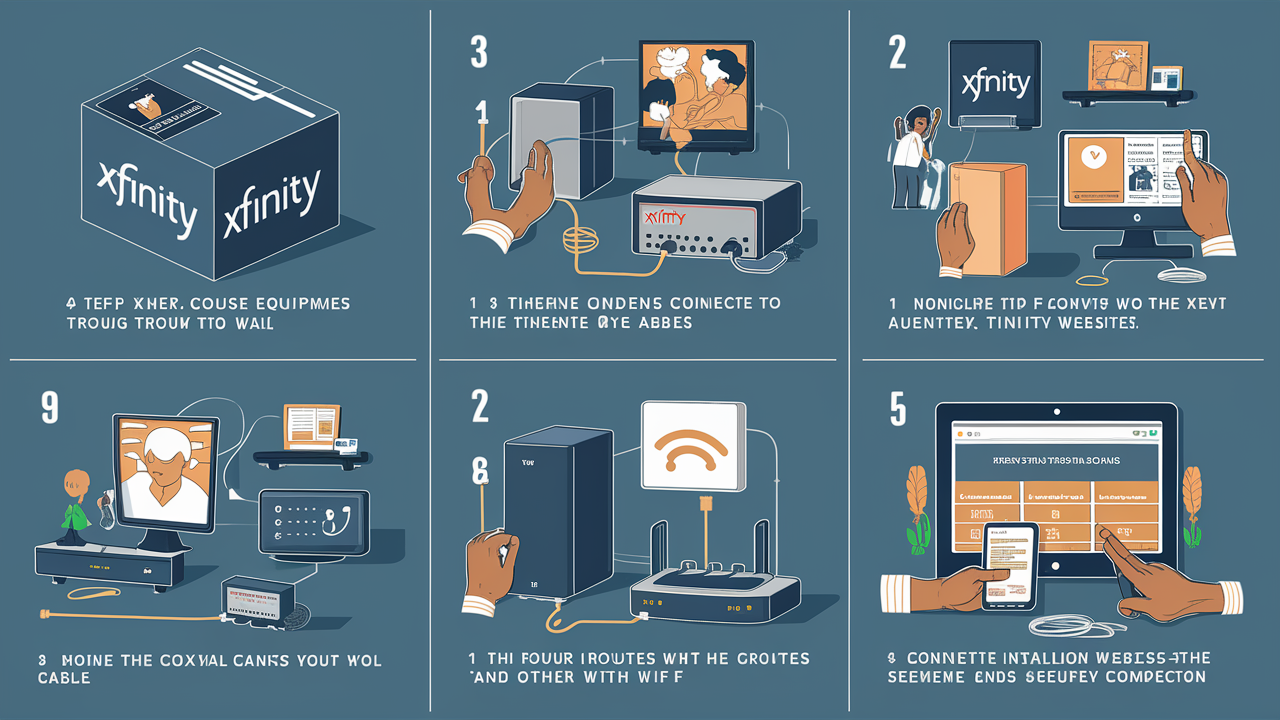
Ready to ditch the technician appointment and save time? This comprehensive guide details how to self-install Xfinity internet and TV services, offering a clear, step-by-step process for a smooth setup. We'll cover everything you need to know to get connected efficiently, empowering you to take control of your home entertainment.
Introduction: The Xfinity Self-Install Advantage
In today's fast-paced world, convenience and control are paramount. Xfinity's self-installation option offers precisely that for new and existing customers looking to set up their internet and TV services. This method empowers you to bypass scheduling technician appointments, saving valuable time and potentially money. This guide is designed to walk you through every facet of the Xfinity self-install process, ensuring a smooth, efficient, and successful setup for your home.
What is Xfinity Self-Install?
Xfinity Self-Install is a service offered by Comcast (the parent company of Xfinity) that allows customers to set up their internet modems, Wi-Fi routers, and TV equipment themselves, without the need for a professional technician visit. This program is designed for situations where the necessary wiring and outlets are already in place and functional within the home. Xfinity provides a comprehensive self-install kit containing all the necessary hardware, tools, and clear instructions to guide you through the setup process.
The core idea behind self-installation is to democratize the setup process, giving customers the flexibility to choose when and how they get connected. This is particularly beneficial for individuals who are comfortable with basic technology, have a good understanding of their home's existing cable infrastructure, or simply want to avoid the waiting times and potential scheduling conflicts associated with professional installations. By taking charge of the installation, you gain immediate access to your new services once everything is connected and activated.
Is Xfinity Self-Install Right for You?
Determining if Xfinity self-install is the best route for your new service depends on a few key factors. The primary consideration is the existing infrastructure in your home. If you are moving into a property that has previously had Xfinity service, or if the necessary coaxial cable outlets are already present and in good condition, self-installation is likely a viable and excellent option. You should also assess your comfort level with basic technology and following instructions. The self-install kits are designed to be user-friendly, but a general familiarity with connecting cables and powering on devices is beneficial.
Consider the following questions to help you decide:
- Are there existing Xfinity cable outlets in the rooms where you plan to place your modem and TV boxes?
- Are these outlets easily accessible and appear to be in good condition (no visible damage)?
- Do you have a basic understanding of how to connect cables (e.g., coax cables, Ethernet cables, power cords)?
- Are you comfortable following step-by-step instructions, possibly referring to online guides or videos?
- Do you want to avoid scheduling a technician appointment and potentially pay a lower installation fee?
If you answered "yes" to most of these questions, then Xfinity self-install is very likely the right choice for you. It offers a faster, more flexible, and often more cost-effective way to get your Xfinity services up and running. However, if your home lacks the necessary outlets, requires new wiring, or if you're not confident in your ability to perform the setup, a professional installation might be a better fit.
Eligibility and What to Expect
Xfinity determines eligibility for self-installation based on several factors, primarily related to the readiness of your home's infrastructure. Generally, if your home has previously had Xfinity service and the existing wiring is in good condition, you will likely be eligible. This means that the coaxial cable outlets are present, functional, and accessible. Xfinity aims to make self-installation available to the largest possible customer base, but certain situations necessitate a professional visit.
When you might NOT be eligible for self-install:
- New Construction or No Prior Service: If your home has never had Xfinity service, new wiring may need to be run, which requires a professional.
- Damaged or Missing Outlets: If existing outlets are damaged, non-functional, or completely missing, a technician will need to install or repair them.
- Complex Home Setups: Homes with intricate wiring systems, multiple levels, or very large square footage might benefit from a professional assessment to ensure optimal signal strength throughout.
- Specific Equipment Needs: In some rare cases, specialized equipment might be required that is not included in the standard self-install kit.
What to expect if you are eligible:
Upon ordering Xfinity services and confirming your eligibility for self-install, you will receive a self-install kit. This kit is typically shipped directly to your home and arrives a few days before your service activation date. The kit contains all the necessary equipment (modem, router, TV boxes if applicable), cables, and a detailed instruction manual. You'll also be provided with access to online resources, including video tutorials and troubleshooting guides, to assist you during the setup process. The activation process is usually done online or via a mobile app, and you'll receive a specific date and time window for your service to go live.
Gathering Your Xfinity Self-Install Kit
The Xfinity Self-Install Kit is your all-in-one solution for setting up your new internet and/or TV services. It's designed to be comprehensive, so you should have everything you need within the box. Upon receiving your kit, it's crucial to unpack it immediately and verify that all components are present and undamaged. This proactive step can save you significant time and frustration down the line.
Typical Contents of an Xfinity Self-Install Kit:
- Modem/Gateway: This is the device that connects your home to the Xfinity network. It may be a standalone modem or a gateway that combines modem and Wi-Fi router functionalities.
- Power Cords: For the modem/gateway and any other electronic devices.
- Coaxial Cable: This is the cable that connects your modem/gateway (and TV boxes) to the wall outlet. You'll usually receive one or more of these.
- Ethernet Cable: Used to connect devices directly to your modem/router for a wired internet connection, or to connect your modem to a separate router if that's how your kit is configured.
- TV Set-Top Box(es) (if applicable): For Xfinity TV service, you'll receive one or more digital adapters or cable boxes.
- Remote Control(s): For your TV set-top box(es).
- HDMI Cable(s): To connect your TV box to your television.
- Mounting Hardware (sometimes): For securing your modem or router if needed.
- Instruction Manual: A printed guide detailing the setup process.
- Welcome Packet: May contain account information and activation instructions.
Before you begin, ensure you have:
- A working television: To view setup instructions and confirm TV service activation.
- A smartphone or computer: For the online activation process.
- A Phillips head screwdriver (sometimes): For securing coaxial cable connections, though most modern connectors are hand-tightened.
- A clear, accessible location for your modem/gateway: Preferably near the main cable outlet and a power source.
- Your Xfinity account credentials: Username and password, which you'll need for activation.
Take a moment to familiarize yourself with each component. The instruction manual will often label each item, making it easier to identify as you proceed. If anything is missing or damaged, contact Xfinity customer support immediately to arrange for replacements before you start the installation.
Step-by-Step Guide to Xfinity Internet Self-Install
Setting up your Xfinity internet service via self-install is a straightforward process designed for efficiency. Follow these steps carefully to ensure a successful connection.
Step 1: Choose Your Location
Select a central location for your modem/gateway. Ideally, this should be near the main cable outlet in your home and close to where you'll primarily use your Wi-Fi. Avoid placing it in enclosed spaces, near large metal objects, or behind other electronic devices that can cause interference.
Step 2: Connect the Coaxial Cable
Locate the coaxial cable outlet on your wall. Screw one end of the provided coaxial cable securely into this outlet. Then, connect the other end of the coaxial cable to the "Cable In" or "RF In" port on the back of your Xfinity modem/gateway. Ensure both connections are finger-tight.
Step 3: Power Up the Modem/Gateway
Connect the power adapter to your modem/gateway and plug it into a working electrical outlet. The device will begin to power on. You'll see a series of lights on the front of the modem/gateway. These lights indicate the status of the connection. Refer to your instruction manual for the specific sequence of lights you should expect.
Step 4: Wait for the Modem/Gateway to Initialize
This process can take anywhere from 5 to 15 minutes, sometimes longer. The modem/gateway needs to connect to the Xfinity network, download configuration settings, and establish a stable connection. The lights will typically blink and change color as it goes through these stages. You are looking for a solid "Online" or "Internet" light, indicating a successful connection to the network.
Step 5: Connect Your Devices
Once the modem/gateway is online, you can connect your devices. For a wired connection, use an Ethernet cable to connect your computer or other device directly to one of the Ethernet ports on the modem/gateway. For a wireless connection, you'll need to connect to the Wi-Fi network broadcast by your Xfinity gateway. The network name (SSID) and password are usually found on a sticker on the gateway itself, or within your welcome packet.
Step 6: Activate Your Service
This is a critical step. You will need to activate your modem/gateway through Xfinity's online portal or mobile app. Ensure your computer or smartphone is connected to the gateway (either via Ethernet or Wi-Fi). Open a web browser and navigate to the Xfinity activation website (often xfinity.com/activate or a similar URL provided in your kit). Follow the on-screen prompts, which will typically involve logging into your Xfinity account and confirming your equipment.
Step 7: Test Your Connection
After activation, test your internet connection by visiting a few websites. If you experience any issues, refer to the troubleshooting section of this guide or the Xfinity support resources.
Step-by-Step Guide to Xfinity TV Self-Install
Setting up Xfinity TV service with a self-install kit is also designed to be user-friendly. If you've ordered TV service alongside internet, or as a standalone package, follow these steps.
Step 1: Position Your TV Box
Place your Xfinity TV set-top box near your television and a power outlet. Ensure it has adequate ventilation and is not obstructed.
Step 2: Connect the Coaxial Cable
Connect one end of the coaxial cable to the cable outlet on your wall. Connect the other end to the "Cable In" or "RF In" port on the back of your Xfinity TV box. If you are connecting multiple TV boxes, ensure each has its own dedicated cable run from a splitter or directly from the wall outlet if available.
Step 3: Connect to Your TV
Use the provided HDMI cable to connect the "HDMI Out" port on your TV box to an available HDMI input port on your television. If your TV doesn't have HDMI ports, you may need to use older connection types like component or composite cables, though HDMI is recommended for the best picture quality.
Step 4: Power On the TV Box
Connect the power adapter to your TV box and plug it into a power outlet. Turn on your television and select the correct HDMI input source that corresponds to the port you used for the connection. The TV box will power on and begin its startup sequence.
Step 5: Wait for the TV Box to Initialize
Similar to the modem, the TV box will go through an initialization and download process. This can take several minutes. You'll see status messages or a progress bar on your TV screen. The box needs to connect to the Xfinity network and download channel guides and software updates.
Step 6: Activate Your TV Service
Once the TV box has completed its startup sequence, you will likely be prompted to activate your service. This is often done through an on-screen menu on your TV or by visiting the Xfinity activation website (xfinity.com/activate) on a separate device. You may need to log in to your Xfinity account. Follow the prompts to link the TV box to your account and activate your TV channels.
Step 7: Channel Scan and Setup
After activation, your TV box may perform an automatic channel scan. If not, you might need to initiate this through the TV box's settings menu. Once channels are found, you can begin navigating your programming guide and setting up your preferences.
Step 8: Connect to Your Xfinity Home Network (if applicable)
If your TV box also offers streaming apps or requires internet connectivity for advanced features, ensure it's connected to your Xfinity Wi-Fi network or via an Ethernet cable to your Xfinity gateway.
Connecting Your Equipment
The physical connection of your Xfinity equipment is the most tangible part of the self-install process. It involves ensuring all cables are properly seated and secured. Here’s a breakdown of the common connections you’ll make:
Coaxial Cable Connections
This is the backbone of your Xfinity service. The coaxial cable carries the signal from the wall outlet to your modem/gateway and TV boxes. It's a round cable with a central copper wire and a threaded connector.
- From Wall to Device: Screw the female end of the coaxial cable onto the corresponding "Cable In" or "RF In" port on your Xfinity device. Ensure it's snug but avoid over-tightening, which can damage the connector.
- From Device to Wall: Similarly, connect the other end to the coaxial wall outlet.
- Splitters: If you need to connect multiple devices from a single outlet, you'll use a coaxial splitter. Connect the cable from the wall to the input port of the splitter, and then run separate cables from the output ports of the splitter to each of your devices. Note that each split can slightly reduce signal strength, so use splitters judiciously.
Ethernet Cable Connections
Ethernet cables provide a stable, wired internet connection. They are typically used to connect computers, gaming consoles, or smart TVs directly to your router or gateway for optimal performance.
- Modem/Gateway to Device: Plug one end of the Ethernet cable into a LAN (Local Area Network) port on your Xfinity gateway (usually labeled 1, 2, 3, 4). Plug the other end into the Ethernet port on your computer or other device.
- Router to Modem (if separate): If you have a separate router and modem, the Ethernet cable connects the modem's LAN port to the router's WAN (Wide Area Network) or Internet port.
HDMI Cable Connections
For Xfinity TV service, HDMI cables are the standard for connecting your set-top box to your television. They transmit both high-definition video and audio signals.
- TV Box to TV: Connect one end of the HDMI cable to the "HDMI Out" port on your Xfinity TV box. Connect the other end to an available "HDMI In" port on your television. Make a note of which HDMI port you use on your TV (e.g., HDMI 1, HDMI 2).
Power Connections
Each Xfinity device (modem, gateway, TV box) requires its own power adapter and a connection to a working electrical outlet. Ensure you use the power adapter that came with each specific device.
Important Considerations:
- Cable Management: Once connected, take a moment to neatly organize your cables. This improves aesthetics and reduces the risk of accidental disconnections. Use zip ties or cable sleeves if needed.
- Secure Connections: Ensure all cable connections are firm. Loose connections are a common cause of intermittent service issues.
Activating Your Service
Activation is the final, crucial step that brings your Xfinity internet and TV services to life. Xfinity uses an online activation portal, which is designed to be user-friendly and guide you through the process. This step typically occurs after all physical connections have been made.
Online Activation Process:
- Connect to the Network: Ensure your computer or smartphone is connected to your new Xfinity gateway, either via an Ethernet cable or by connecting to the Wi-Fi network (using the default SSID and password found on the gateway or in your kit).
- Navigate to the Activation Website: Open a web browser on your connected device and go to the Xfinity activation page. The most common URL is xfinity.com/activate. Your kit's instructions will confirm the correct URL.
- Log In to Your Account: You will be prompted to log in using your Xfinity username and password. If you are a new customer and haven't set these up yet, you may need to create them during this process.
- Identify Your Equipment: The system will attempt to identify the MAC address of your modem/gateway. This is a unique hardware identifier. Sometimes, you may need to manually enter this information, which is usually printed on a sticker on the device itself.
- Follow On-Screen Prompts: The activation portal will guide you through a series of steps. This may include confirming your service plan, setting up your Wi-Fi network name (SSID) and password, and verifying your account details.
- Wait for Confirmation: Once you complete the steps, the system will process your activation request. This can take a few minutes. You will receive a confirmation message on the screen, and your internet service should become active. For TV services, the activation may also trigger a channel scan or guide download on your set-top box.
Mobile App Activation:
Xfinity also offers a mobile app (like the Xfinity app) that can often facilitate the activation process. Download the app, log in with your account credentials, and look for an "Activate Equipment" or similar option. The app can provide real-time status updates and guide you through the steps.
What if Activation Fails?
If you encounter issues during activation, don't panic. Common reasons for failure include:
- Incorrect Equipment Information: Double-check that you've entered the correct MAC address or serial number.
- Connectivity Issues: Ensure your device is properly connected to the Xfinity network.
- System Delays: Sometimes, there can be a slight delay in the system recognizing new equipment. Try restarting your modem/gateway and attempting activation again after 15-20 minutes.
- Account Issues: Ensure your account is active and in good standing.
If problems persist, the next step is to contact Xfinity customer support for assistance. They can remotely check your connection and troubleshoot the activation process.
Troubleshooting Common Self-Install Issues
While Xfinity self-install is designed to be straightforward, occasional hiccups can occur. Knowing how to troubleshoot common problems can save you time and frustration. Here are some frequent issues and their solutions:
1. No Internet Connection After Activation
- Check Lights: Examine the lights on your modem/gateway. Refer to your manual to understand what each light signifies. A solid "Online" or "Internet" light usually indicates a successful connection to the Xfinity network. If it's blinking or off, there's a connection problem.
- Verify Cable Connections: Ensure the coaxial cable is securely connected to both the wall outlet and the modem/gateway. Check that the Ethernet cable (if used) is properly plugged in.
- Restart Equipment: Unplug the power from your modem/gateway, wait 30 seconds, and plug it back in. Allow it to fully reboot (5-10 minutes). This can resolve temporary network glitches.
- Check Activation Status: Revisit the xfinity.com/activate portal to ensure the activation process completed successfully.
- Test with a Wired Connection: If you're relying on Wi-Fi, try connecting a computer directly to the modem/gateway with an Ethernet cable. This helps determine if the issue is with the internet signal or your Wi-Fi setup.
2. Slow Internet Speeds
- Run a Speed Test: Use an online speed test tool (like Ookla Speedtest or Xfinity's own speed test) while connected via Ethernet for the most accurate results.
- Check for Network Congestion: Too many devices using the internet simultaneously can slow things down. Try disconnecting some devices.
- Router Placement: If you're using a separate router or the gateway's Wi-Fi, ensure it's placed centrally and away from obstructions or interference sources (microwaves, cordless phones).
- Update Router Firmware: If you have a separate router, ensure its firmware is up-to-date.
- Check Your Plan: Verify that your current internet plan speed meets your needs.
3. Wi-Fi Connectivity Issues (No Signal or Dropping Connections)
- Restart Your Gateway: Power cycle your Xfinity gateway.
- Check Wi-Fi Password: Ensure you are using the correct Wi-Fi password.
- Signal Strength: Move closer to the gateway to see if the signal improves. If it does, you may need a Wi-Fi extender or a more powerful router.
- Interference: Other electronic devices can interfere with Wi-Fi signals. Try moving your gateway away from microwaves, Bluetooth devices, or other wireless routers.
- Channel Congestion: In dense areas, Wi-Fi channels can become crowded. Access your gateway's settings (usually via 10.0.0.1 in a web browser) to change the Wi-Fi channel.
4. TV Box Not Working (No Picture, No Sound, Error Messages)
- Check Connections: Ensure HDMI and coaxial cables are securely connected.
- Correct TV Input: Verify that your TV is set to the correct HDMI input source.
- Restart TV Box: Unplug the power from the TV box, wait 30 seconds, and plug it back in.
- Check Activation: Ensure the TV box has been successfully activated through the Xfinity portal.
- Signal Issues: If multiple TVs are affected, the problem might be with the incoming signal.
5. Equipment Not Recognized During Activation
- Verify MAC Address/Serial Number: Double-check that you've entered the correct identifier from the sticker on your equipment.
- Ensure Power: Make sure the equipment is powered on and has had sufficient time to boot up.
- Try a Different Browser/Device: Sometimes browser compatibility issues can arise.
- Contact Support: If the equipment is still not recognized, contact Xfinity support. They can manually provision the device.
When troubleshooting, always refer to the specific instruction manual that came with your Xfinity kit, as it will contain model-specific information.
Tips for a Successful Installation
To ensure your Xfinity self-installation goes as smoothly as possible, here are some expert tips that go beyond the basic instructions:
- Read Everything First: Before you touch any cables, thoroughly read the entire instruction manual provided in your self-install kit. Familiarize yourself with the steps and the equipment.
- Choose Your Location Wisely: For your modem/gateway, consider not just proximity to the outlet but also central placement for optimal Wi-Fi coverage throughout your home. Avoid basements or far corners if possible.
- Clear the Workspace: Ensure the area around the wall outlet and where you plan to place your equipment is clean and accessible. This makes connections easier and safer.
- Verify Outlet Functionality: If possible, test the coaxial outlet beforehand. If you have an old Xfinity device, you could briefly connect it to confirm it receives a signal.
- Use All Provided Cables: Stick to the cables included in your kit. Using older or incompatible cables can lead to performance issues.
- Finger-Tight is Key: For coaxial connections, tighten them by hand until snug. Over-tightening can damage the connectors and the outlet.
- Patience During Boot-Up: Modems and TV boxes take time to initialize. Resist the urge to unplug them if they seem slow; allow them the full 5-15 minutes (or more) to connect to the network.
- Have Your Account Info Ready: Keep your Xfinity username, password, and account number handy for the activation process.
- Download the Xfinity App: The Xfinity app can be invaluable for managing your account, troubleshooting, and sometimes even guiding you through activation.
- Test Thoroughly: After activation, don't just check one website. Test multiple sites, try streaming video, and if you have TV service, browse through several channels to ensure everything is working as expected.
- Document Your Setup: Take a photo of the sticker with your Wi-Fi network name (SSID) and password for easy reference.
- Know When to Call for Help: If you've followed all the steps and are still experiencing significant issues, don't hesitate to contact Xfinity customer support. It's better to get professional help than to struggle for hours.
- Consider Future Needs: If you anticipate needing stronger Wi-Fi in certain areas, think about where you might place a Wi-Fi extender or mesh system later on.
By following these tips, you can significantly increase your chances of a hassle-free and successful Xfinity self-installation.
Comparing Self-Install vs. Professional Install
Choosing between self-install and professional installation for your Xfinity services involves weighing convenience, cost, and technical requirements. Both options have their merits, and the best choice depends on your individual circumstances.
Xfinity Self-Install
Pros:
- Cost Savings: Self-install typically has a much lower or even no installation fee compared to a professional install.
- Flexibility and Speed: You can install the service on your schedule, often receiving equipment within a few days and getting connected immediately after setup. No need to wait for a technician's appointment window.
- Empowerment: You gain a better understanding of your home's network setup.
- Environmentally Friendly: Reduces travel for technicians.
Cons:
- Requires Basic Technical Skill: You need to be comfortable following instructions and connecting cables.
- Limited to Existing Infrastructure: Only viable if the necessary wiring and outlets are already in place and functional.
- Potential for Frustration: If issues arise, troubleshooting can be time-consuming for the user.
- No Complex Wiring: Cannot be used for new wiring installations or troubleshooting complex signal issues.
Xfinity Professional Install
Pros:
Cons:
- Higher Cost: Professional installation fees are significantly higher than self-install fees.
- Scheduling Required: You must schedule an appointment and be home during a specific time window, which can be inconvenient.
- Potential for Delays: Technician availability can sometimes lead to longer wait times for installation.
When to Choose Which:
Choose Self-Install if:
- Your home already has Xfinity outlets.
- You are comfortable with basic technology and following instructions.
- You want to save money and time.
- You are moving into a property that previously had Xfinity service.
Choose Professional Install if:
- Your home has never had Xfinity service, or requires new wiring.
- Existing outlets are damaged or missing.
- You are not comfortable with technical setup or troubleshooting.
- You want the assurance of an expert installation, especially for complex home layouts.
In 2025-26, Xfinity continues to push for self-installation where feasible, recognizing the benefits for both the customer and the company. However, professional installation remains a vital service for those who need it.
Cost Savings and Benefits in 2025-26
The economic landscape of home services continues to evolve, and Xfinity's self-installation option remains a significant draw for budget-conscious consumers in 2025-26. The primary benefit is direct cost savings. While professional installation fees can range from $80 to $100 or more, self-installation fees are often substantially lower, sometimes even waived as a promotional offer for new customers. This immediate saving can be a deciding factor for many households.
Beyond the upfront installation cost, self-installation offers:
- Time Savings: Avoiding technician appointments frees up your schedule. Instead of waiting for a multi-hour window, you can complete the setup at your convenience, often within an hour or two. This is invaluable for busy individuals and families.
- Control Over Setup: You decide where your equipment is placed, which can be crucial for optimizing Wi-Fi coverage or integrating with existing home entertainment systems.
- Reduced Service Interruption: For existing customers upgrading equipment or adding services, self-installation minimizes downtime. You can often swap out old equipment for new, activate it, and be back online with minimal disruption.
- Access to Promotions: Xfinity frequently offers special deals and discounts for customers who opt for self-installation, further enhancing the value proposition. These can include bill credits or bundled service discounts.
In 2025-26, with increasing emphasis on digital connectivity for work, education, and entertainment, getting online quickly and affordably is more important than ever. Xfinity's self-install program directly addresses this need, providing a practical and economical solution for a vast majority of new and existing customers. The ongoing development of user-friendly kits and online activation tools ensures that this benefit will continue to be accessible and appealing.
The Future of Xfinity Installation
The trend towards empowering consumers with more control over their home technology setup is set to continue and expand within Xfinity's service offerings. Looking ahead to 2025-26 and beyond, we can anticipate several key developments in how Xfinity services are installed:
- Enhanced Self-Install Kits: Kits will likely become even more streamlined, possibly incorporating augmented reality (AR) guidance through the Xfinity app. Imagine pointing your phone at a cable outlet and having an AR overlay show you exactly where to plug in the cable.
- AI-Powered Troubleshooting: Advanced AI chatbots and virtual assistants will become more sophisticated, capable of guiding users through complex troubleshooting scenarios with greater accuracy, potentially resolving issues that previously required a human agent.
- Simplified Activation Processes: Activation might move towards even more automated, "plug-and-play" experiences, perhaps leveraging QR codes or simplified device pairing technologies to reduce the steps required for users.
- Modular Equipment: We might see more modular equipment designs, allowing users to easily swap out or upgrade specific components (like a Wi-Fi module) without replacing the entire unit.
- Remote Diagnostics and Proactive Support: Xfinity will likely enhance its ability to remotely diagnose potential issues with customer equipment before they become critical problems, proactively reaching out with solutions or automated fixes.
- Continued Push for Self-Service: The company will continue to invest in making self-service options the primary method for common tasks, reserving professional installations for genuinely complex or necessary situations. This aligns with industry-wide shifts towards efficiency and customer autonomy.
- Integration with Smart Home Ecosystems: Future installations might involve more seamless integration with existing smart home devices, with guided setup processes that help users connect their Xfinity services to their broader smart home network.
The overarching goal is to make the customer experience as frictionless and empowering as possible. While professional installations will always have a role, the future of Xfinity installation is undeniably geared towards the DIY customer who values speed, convenience, and control.
Conclusion: Your Empowered Xfinity Setup
Successfully self-installing Xfinity internet and TV services is well within reach for most users, offering a compelling blend of cost savings, flexibility, and control. By carefully following the step-by-step guides, understanding your equipment, and leveraging the provided resources, you can bypass the traditional technician appointment and get connected on your own terms. Remember to verify your eligibility, unpack your kit thoroughly, and pay close attention during the activation process. Should you encounter any issues, the troubleshooting tips and advice provided here should equip you to resolve most common problems. As Xfinity continues to innovate, the self-install experience is only set to become more intuitive and user-friendly, empowering you to manage your home entertainment and connectivity with confidence. Embrace the self-install advantage and enjoy your seamless Xfinity setup!






