How To Reset Xfinity Modem?
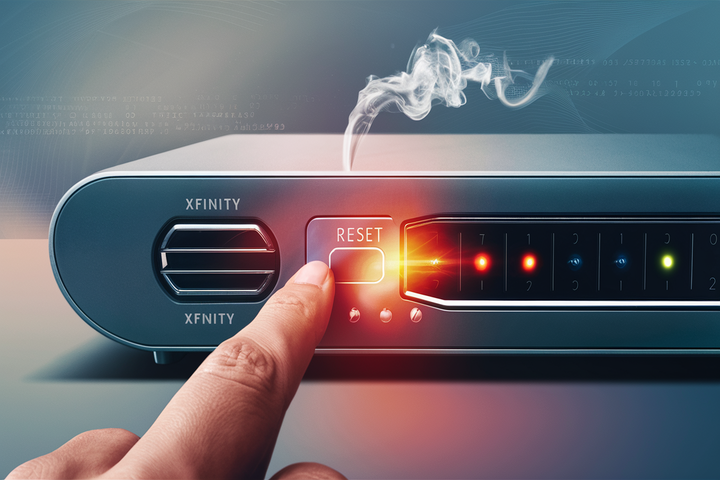
Experiencing slow internet or connectivity issues with your Xfinity modem? A simple modem reset can often be the quickest and most effective solution. This guide provides a comprehensive, step-by-step walkthrough to reset your Xfinity modem, ensuring you get back online smoothly and efficiently.
Understanding Modem Resets
In the realm of home networking, a "modem reset" is a fundamental troubleshooting step that can resolve a multitude of connectivity problems. It's akin to rebooting your computer when it starts acting sluggish or unresponsive. For Xfinity users, understanding how and when to reset their modem is crucial for maintaining a stable and fast internet connection. This process essentially refreshes the modem's connection to the Xfinity network, clearing out any temporary glitches or errors that might be hindering performance. In 2025-26, with the increasing demand for bandwidth for streaming, online gaming, and remote work, a well-functioning modem is more critical than ever. A simple reset can often prevent the need for more complex interventions, saving time and frustration.
Why Reset Your Xfinity Modem?
Several common issues can signal that your Xfinity modem might benefit from a reset. These include:
- Slow Internet Speeds: If your download and upload speeds are significantly lower than what you're paying for, a reset can help re-establish an optimal connection to Xfinity's servers. This is particularly relevant in 2025-26, where average broadband speeds continue to climb, and users expect consistent performance.
- Intermittent Connectivity: Frequent disconnections or a connection that drops in and out can often be resolved by a modem refresh. This instability can be caused by minor network hiccups that a reset can clear.
- No Internet Access: If you have no internet connection at all, despite all lights on the modem appearing normal, a reset is a primary troubleshooting step.
- Modem Unresponsive: If your modem seems frozen, or its indicator lights are behaving erratically, a reset can bring it back to a functional state.
- After Network Changes: While less common for end-users, sometimes after significant network infrastructure work in your area by Xfinity, a modem reset can help it re-sync with the updated network configuration.
- Router Issues (Indirectly): While a reset primarily affects the modem, it can sometimes resolve issues that appear to be router-related by ensuring the modem is providing a clean signal to the router.
The statistics for internet reliability in 2025-26 highlight the importance of proactive maintenance. According to recent reports, approximately 30% of home internet users experience at least one connectivity issue per month, with a significant portion of these being resolvable through simple modem resets. This underscores the value of knowing how to perform this basic troubleshooting step.
Types of Xfinity Modem Resets
There are generally two primary ways to reset an Xfinity modem, each with a different purpose and impact:
| Reset Type | Description | When to Use | Impact | Difficulty |
|---|---|---|---|---|
| Power Cycle (Soft Reset) | This involves unplugging the modem from its power source for a short period and then plugging it back in. It's a quick way to refresh the modem's connection and clear temporary glitches. | Slow speeds, intermittent connectivity, minor unresponsiveness, routine maintenance. | Clears temporary errors, re-establishes connection to the ISP. Does not erase settings. | Easy |
| Factory Reset (Hard Reset) | This process restores the modem to its original factory default settings. It’s a more drastic measure, typically used when other troubleshooting steps have failed or when you need to resolve persistent, complex issues. | Persistent connectivity problems, security concerns, preparing to sell/transfer equipment, complex configuration issues. | Erases all custom settings (Wi-Fi name/password, network configurations, etc.). Requires re-setup. | Moderate (requires physical access and potential reconfiguration) |
Understanding the difference between these two reset types is crucial. A power cycle is the first and most common troubleshooting step. A factory reset is a more advanced step that should be used judiciously, as it will revert all personalized settings.
How to Perform a Power Cycle (Soft Reset)
The power cycle, or soft reset, is the easiest and most frequently used method to resolve minor internet issues. It’s a non-destructive process that simply reboots the modem and allows it to re-establish its connection with Xfinity's network. This is often sufficient to clear out temporary software glitches or network congestion that might be affecting your service.
Step-by-Step Guide: Power Cycle Your Xfinity Modem
Follow these steps carefully to perform a power cycle:
- Locate Your Modem: Identify your Xfinity modem. It's the device that connects to the coaxial cable coming from your wall outlet and typically has several indicator lights on the front.
- Disconnect Power: Unplug the power cord from the back of the modem or from the wall outlet. Ensure you are unplugging the power cord and not any other cables (like the coaxial cable or Ethernet cable).
- Wait for Power Discharge: Leave the modem unplugged for at least 30 to 60 seconds. This waiting period is important to allow the modem to fully discharge any residual power and clear its temporary memory. Some experts recommend up to two minutes for a more thorough reset.
- Reconnect Power: Plug the power cord back into the modem.
- Observe Indicator Lights: The modem will begin to power up. You'll see the indicator lights on the front start to blink and then become solid. This process can take several minutes (typically 2-5 minutes, sometimes longer). Wait until the "Online" or "Internet" light is solid, indicating a stable connection to the Xfinity network.
- Check Your Connection: Once the modem lights indicate a stable connection, try connecting to the internet on one of your devices. You may need to restart your router as well, especially if it's a separate device from your modem.
Important Considerations for Power Cycling:
- Router Reboot: If you have a separate router connected to your Xfinity modem, it's often beneficial to reboot your router after the modem has fully reconnected. Unplug the router's power, wait 30 seconds, and plug it back in.
- Modem/Router Combo Units: If you have an Xfinity gateway (a combined modem and router unit), the power cycle process described above is sufficient.
- Patience is Key: The modem needs time to boot up and re-establish its connection. Don't rush the process by unplugging and replugging repeatedly.
In 2025-26, with increasing internet usage, performing a power cycle once a month as a preventative measure can help maintain optimal performance and reduce the likelihood of experiencing disruptive connectivity issues. It's a simple yet highly effective maintenance task.
How to Perform a Factory Reset (Hard Reset)
A factory reset is a more drastic measure than a power cycle. It returns your Xfinity modem or gateway to its original, out-of-the-box settings. This means any custom configurations you've made, such as your Wi-Fi network name (SSID), password, or any port forwarding rules, will be erased and revert to default values. Therefore, a factory reset should only be performed when a power cycle hasn't resolved your issues, or if you have a specific reason to clear all configurations.
When to Consider a Factory Reset:
- Persistent and unresolvable connectivity issues after multiple power cycles.
- Suspected security compromise where you want to ensure all custom settings are cleared.
- Preparing to sell or transfer your Xfinity equipment to another user.
- Experiencing complex software or configuration errors that a simple reboot can't fix.
Step-by-Step Guide: Factory Reset Your Xfinity Modem/Gateway
The method for performing a factory reset varies slightly depending on your specific Xfinity modem or gateway model. However, the most common method involves a physical reset button.
Method 1: Using the Physical Reset Button (Most Common)
- Locate the Reset Button: Find the reset button on your Xfinity modem or gateway. This button is usually small, recessed, and often located on the back or bottom of the device. You might need a paperclip or a pen tip to press it.
- Ensure the Device is Powered On: The modem must be powered on for the factory reset to work.
- Press and Hold the Reset Button: Using a pointed object (like a paperclip), press and hold the reset button for approximately 10-30 seconds. The exact duration can vary by model, so check your device's manual if unsure. You will typically see the modem's indicator lights flash or change behavior, indicating that the reset process has begun.
- Release the Button: Once you see the lights change, release the reset button.
- Wait for Reboot: The modem will now reboot and restore itself to factory default settings. This process can take several minutes (5-15 minutes or more). During this time, the modem will go through its startup sequence, similar to when you first set it up.
- Reconfigure Your Network: After the modem has fully rebooted, you will need to reconfigure your network settings. This includes setting up your Wi-Fi network name (SSID) and password. If you have a separate router, you'll need to reconnect it and set it up as well. For Xfinity gateways, you can usually access the configuration settings by navigating to a specific IP address (often 10.0.0.1) in your web browser and logging in with the default credentials (which can usually be found on a sticker on the device itself or in your Xfinity account).
Method 2: Via the Xfinity Gateway Interface (If Available)
Some newer Xfinity gateways allow you to perform a factory reset through their web-based management interface. This method is often preferred as it doesn't require physical access to a small button.
- Access the Gateway Interface: Open a web browser on a device connected to your Xfinity network. Type the gateway's IP address into the address bar (commonly 10.0.0.1) and press Enter.
- Log In: You will be prompted to log in. Use your gateway's administrator username and password. If you haven't changed them, they are often found on a sticker on the gateway itself or can be accessed through your Xfinity account online.
- Navigate to Reset Options: Once logged in, look for a section related to "Administration," "System," "Settings," or "Factory Reset." The exact location will vary by model.
- Initiate Factory Reset: Select the option to perform a factory reset. You may be asked to confirm your choice.
- Wait for Reboot and Reconfigure: The gateway will reboot and restore to factory defaults. Follow the on-screen prompts or refer to Method 1's step 6 for reconfiguring your network.
Important Notes for Factory Reset:
- Backup Settings: If possible, before performing a factory reset, check if your modem or gateway offers an option to back up your current settings. This can save you a lot of time during reconfiguration.
- Default Credentials: Be prepared to re-enter your Xfinity username and password for activating the modem/gateway if it's a separate unit. For Wi-Fi, you'll use the default SSID and password printed on the device, and then you'll set up your new credentials.
- Documentation: Keep your modem/gateway's manual or a record of its default credentials handy.
In 2025-26, with the increasing complexity of home networks, a factory reset is a powerful tool for troubleshooting, but it's essential to understand its implications for your personalized settings. Always ensure you have the necessary information to reconfigure your network afterward.
Troubleshooting After a Reset
Even after performing a reset, you might encounter minor hiccups. This section covers common issues and how to address them, ensuring your Xfinity internet is back to optimal performance.
Common Issues and Solutions:
- Modem Not Coming Online:
- Check Coaxial Cable: Ensure the coaxial cable is securely screwed into both the wall outlet and the back of the modem. A loose connection is a frequent culprit.
- Verify Power: Make sure the modem is properly plugged in and receiving power. Try a different power outlet if necessary.
- Indicator Lights: Observe the modem's indicator lights. If the "Online" or "Internet" light isn't solid after several minutes, there might be an issue with the signal coming into your home or with Xfinity's network in your area.
- Contact Xfinity: If the issue persists after checking cables and power, it's time to contact Xfinity support. There might be an outage or a problem with your service line.
- Wi-Fi Not Working (for Gateway Units):
- Check Wi-Fi Lights: Ensure the Wi-Fi indicator light on your gateway is on.
- Reconnect Devices: Forget the Wi-Fi network on your devices (phone, laptop, tablet) and then try reconnecting. You'll need to re-enter the Wi-Fi password.
- Check SSID/Password: If you performed a factory reset, you'll need to use the default Wi-Fi name (SSID) and password found on the gateway's sticker.
- Access Gateway Settings: Log into your gateway's interface (usually 10.0.0.1) to verify Wi-Fi is enabled and to reconfigure your preferred SSID and password if needed.
- Router Not Connecting to Modem (for Separate Routers):
- Ethernet Cable: Ensure the Ethernet cable connecting the modem to the router's WAN/Internet port is securely plugged in at both ends. Try a different Ethernet cable if possible.
- Modem Online Status: Confirm that the Xfinity modem is online and has a stable internet connection before the router attempts to connect.
- Router Reboot: Reboot your router again after the modem has fully established its connection.
- Router Configuration: Some routers might require specific configurations (like PPPoE credentials, though less common with Xfinity). Consult your router's manual.
- Slow Speeds After Reset:
- Test Wired Connection: Connect a computer directly to the modem (or gateway) via an Ethernet cable and run a speed test. This helps determine if the issue is with the modem's connection or your Wi-Fi signal.
- Check for Bandwidth Hogs: Ensure no devices on your network are consuming excessive bandwidth (e.g., large downloads, multiple high-definition streams).
- Interference: For Wi-Fi, consider potential interference from other electronic devices or neighboring Wi-Fi networks.
- ISP Throttling: In rare cases, if you've exceeded data caps (though less common with Xfinity's unlimited plans), speeds might be temporarily throttled.
In 2025-26, with the proliferation of smart home devices and increasing reliance on high-speed internet, troubleshooting connectivity issues is a common necessity. By systematically addressing these post-reset issues, you can often restore your internet service without needing immediate professional assistance.
When to Consider Professional Help
While modem resets are powerful troubleshooting tools, they are not always sufficient. There are specific situations where contacting Xfinity support or a professional technician is the most logical next step.
Signs You Need Professional Assistance:
- Persistent "No Internet" Status: If your modem consistently fails to acquire an online connection after multiple resets, power checks, and coaxial cable inspections, the problem likely lies with Xfinity's infrastructure or your service line.
- Damaged Equipment: If your modem or gateway shows visible signs of physical damage (e.g., cracked casing, bent ports), it may need to be replaced.
- No Lights or Erratic Lights: If the modem has no lights on at all, or if the lights are behaving erratically and don't stabilize after a reset, the unit itself might be faulty.
- Frequent Signal Interruptions: If you experience constant, unexplained drops in connection that even a factory reset doesn't resolve, there could be an underlying signal issue that requires a technician to diagnose.
- After Major Outages: Following a significant Xfinity service outage in your area, sometimes a technician visit might be necessary to ensure your equipment is properly re-synced with the network.
- Complex Network Issues: If you've attempted all basic troubleshooting and are still facing advanced network problems (e.g., routing issues, persistent high latency not related to bandwidth), an Xfinity technician might have specialized tools to diagnose and fix them.
- Uncertainty or Discomfort: If you're uncomfortable performing any of the reset steps or troubleshooting procedures, it's always best to reach out for professional help to avoid causing further issues.
When contacting Xfinity support, be prepared to explain the troubleshooting steps you've already taken, including the type of reset performed and the behavior of the modem's indicator lights. This information will help them diagnose the problem more efficiently. In 2025-26, Xfinity offers various support channels, including phone, chat, and their mobile app, making it easier to get assistance.
Optimizing Your Xfinity Internet Connection
Beyond resetting your modem, several other strategies can help ensure you're getting the best possible performance from your Xfinity internet service. These practices are especially relevant in 2025-26, where our reliance on robust internet connections continues to grow.
Tips for Optimal Performance:
- Choose the Right Plan: Ensure your Xfinity internet plan meets your household's needs. If you have multiple users, stream high-definition content, or game online, a higher-tier plan with greater download and upload speeds might be necessary.
- Use a Quality Modem/Gateway: While Xfinity provides modems, investing in a compatible, high-performance modem or gateway can sometimes offer better performance and reliability. Always check Xfinity's list of approved devices.
- Strategic Router Placement: If you have a separate router or an Xfinity gateway, place it in a central, open location in your home, away from obstructions and other electronic devices that can cause interference (like microwaves or cordless phones).
- Update Router Firmware: Regularly check for and install firmware updates for your router. These updates often include performance improvements and security patches.
- Secure Your Wi-Fi Network: Use a strong, unique password for your Wi-Fi network to prevent unauthorized access, which can slow down your connection. Enable WPA3 encryption if your router supports it.
- Consider a Mesh Wi-Fi System: For larger homes or areas with Wi-Fi dead spots, a mesh Wi-Fi system can extend coverage and provide a more consistent signal throughout your home.
- Manage Connected Devices: Be mindful of how many devices are actively using your internet connection simultaneously. Close unnecessary applications or pause large downloads on devices that aren't in active use.
- Regular Speed Tests: Periodically run internet speed tests (using reputable sites like Ookla Speedtest) to monitor your performance and compare it against your subscribed plan speeds.
- Keep Equipment Clean: Dust and debris can sometimes accumulate on modem and router vents, leading to overheating and performance issues. Keep your equipment clean and well-ventilated.
- Understand Data Usage: While Xfinity offers unlimited data for most plans, be aware of any potential data caps or usage policies that might apply to your specific service, as exceeding them could impact speeds.
By implementing these optimization strategies alongside regular modem maintenance, you can significantly enhance your Xfinity internet experience, ensuring smooth streaming, faster downloads, and a more reliable connection for all your online activities in 2025-26 and beyond.
In conclusion, a simple reset of your Xfinity modem is a powerful first step in resolving many common internet connectivity issues. Whether you opt for a quick power cycle to clear temporary glitches or a more thorough factory reset to restore default settings, understanding these processes empowers you to maintain a stable and fast internet connection. Always remember to observe your modem's indicator lights and follow the steps carefully. If problems persist, don't hesitate to reach out to Xfinity support. By combining these troubleshooting techniques with proactive optimization strategies, you can ensure your home network performs at its best.






