How to Reset a Quantum Fiber Modem: Step-by-Step Troubleshooting Guide
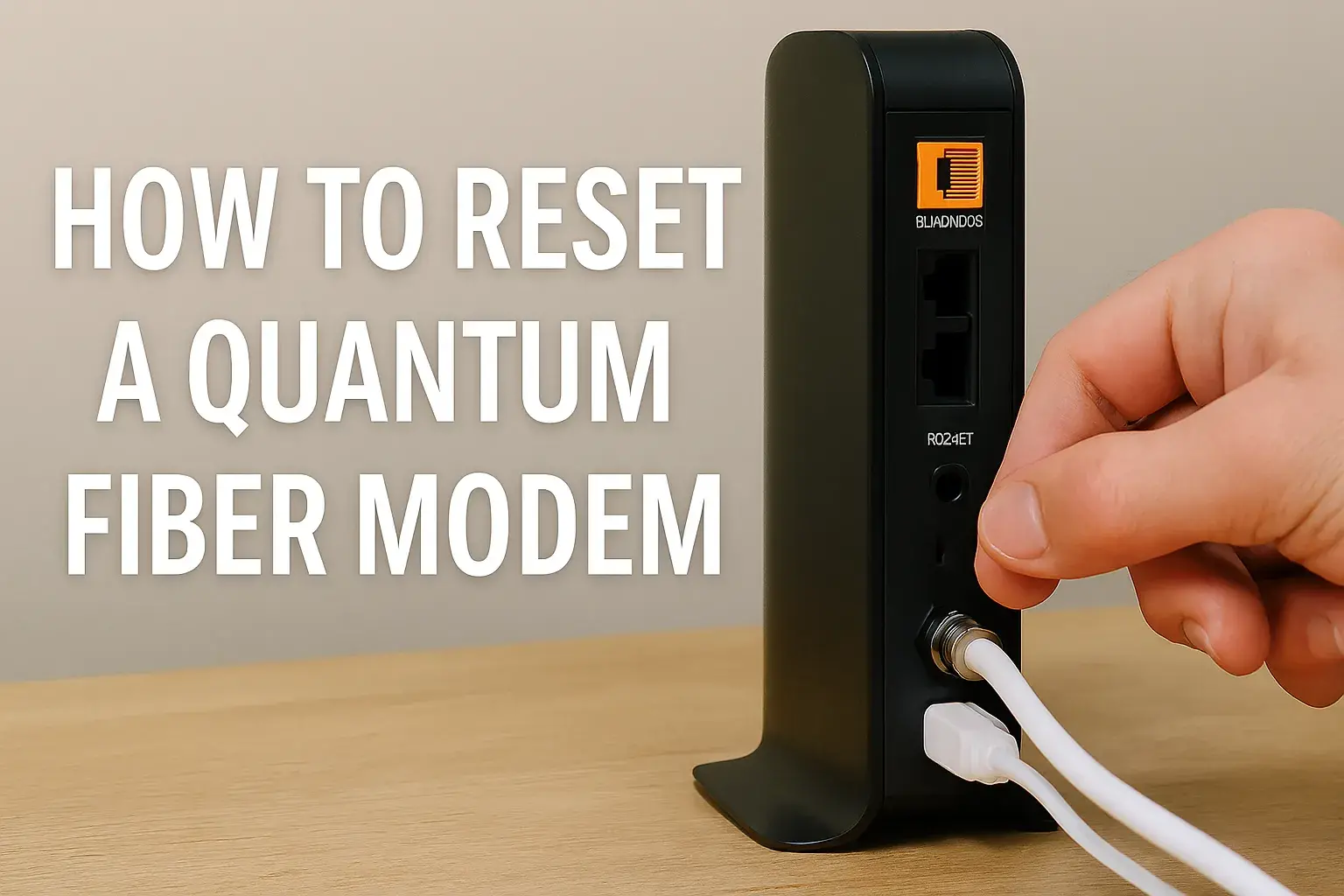
Experiencing slow internet or connectivity issues with your Quantum Fiber modem? A simple reset can often resolve these problems. This guide provides a comprehensive, step-by-step approach to successfully reset your Quantum Fiber modem, ensuring you get back online quickly and efficiently. We cover the 'why' and 'how' of modem resets.
Understanding Modem Resets: Why and When
In the digital age, a stable and fast internet connection is no longer a luxury but a necessity. For Quantum Fiber subscribers, this means relying on their Quantum Fiber modem to deliver seamless connectivity. However, like any electronic device, modems can sometimes encounter glitches, leading to slow speeds, dropped connections, or complete outages. One of the most effective and frequently recommended first-line troubleshooting steps for these issues is a modem reset. But what exactly is a modem reset, and when should you consider performing one? This section delves into the core of modem resets, explaining their purpose and identifying the common scenarios that warrant this action.
A modem reset, often referred to as a power cycle, is essentially a reboot of your modem. It involves disconnecting the modem from its power source for a brief period and then reconnecting it. This process forces the modem to clear its temporary memory (RAM), close any errant processes, and re-establish a fresh connection with your Internet Service Provider's (ISP) network. Think of it like restarting your computer when it becomes sluggish; it clears out temporary data and allows the system to start anew, often resolving minor software conflicts or performance degradations.
The primary goal of a modem reset is to refresh the device's state and its connection to the Quantum Fiber network. This can resolve a multitude of common internet problems. For instance, if you're experiencing intermittent connectivity, where your internet connection drops in and out, a reset can help re-stabilize the link. Similarly, if your internet speeds have significantly degraded without any apparent reason, a reset might clear up network congestion or a faulty handshake with the ISP's equipment. Many users also find that a reset can resolve issues where devices on their network can't obtain an IP address or connect to the internet, even though the modem appears to be functioning.
According to recent industry reports for 2025-2026, an estimated 60-70% of common home internet connectivity issues can be resolved with a simple power cycle of the modem and router. This statistic underscores the efficacy and importance of this basic troubleshooting step. It's a non-invasive procedure that doesn't require technical expertise and can save you the time and hassle of contacting customer support for minor issues.
When should you consider a modem reset?
Slow Internet Speeds: If your download and upload speeds are consistently lower than what you expect or what your Quantum Fiber plan promises.
Intermittent Connectivity: When your internet connection frequently drops or is unreliable.
No Internet Access: If all devices on your network are unable to connect to the internet, and the modem's indicator lights suggest a problem.
Device Connection Issues: When new devices can't connect to your Wi-Fi network or obtain an IP address.
Modem Unresponsiveness: If the modem's interface is inaccessible or the device seems frozen.
After a Power Outage: Sometimes, after a power interruption, modems can get into an unstable state and require a reset to reconnect properly.
Before Contacting Support: It's almost always the first step recommended by ISP technical support, so performing it proactively can save time.
Understanding these scenarios will help you determine if a modem reset is the appropriate solution for your Quantum Fiber internet problems. The following sections will guide you through the process, ensuring you can perform it correctly and effectively.
Preparing for the Reset
Before you dive into the actual steps of resetting your Quantum Fiber modem, taking a few moments to prepare can ensure a smoother and more effective process. This preparation phase is crucial for gathering necessary information, understanding potential impacts, and ensuring you have the right tools or knowledge at hand. Ignoring these preliminary steps can lead to confusion, extended downtime, or even the need to contact support unnecessarily.
The first and most critical aspect of preparation is understanding what a reset entails. As discussed, a standard power cycle is a safe procedure. However, there are also factory resets, which are more drastic and will revert your modem to its original default settings, erasing any custom configurations you might have made. It's essential to know which type of reset you intend to perform. For most common issues, a simple power cycle is sufficient and recommended. A factory reset should generally be a last resort, typically performed when advised by technical support or when other troubleshooting methods have failed.
Gathering Necessary Information:
For a standard power cycle, you won't need much. However, if you are considering a factory reset or anticipate needing to reconfigure your network, it's wise to have the following information readily available:
Wi-Fi Network Name (SSID) and Password: If you have customized your Wi-Fi name or password, ensure you have these details. A factory reset will revert to the default credentials printed on the modem.
Custom Network Settings: If you have set up any port forwarding, static IP addresses, or other advanced network configurations, note these down. These will be lost during a factory reset.
Quantum Fiber Account Information: While not directly needed for the reset itself, having your account number and contact details handy is always a good idea in case you need to contact Quantum Fiber support afterward.
Identifying Your Modem:
Quantum Fiber typically provides specific modem models. While the reset process is largely universal, knowing your exact model can be helpful if you need to consult the manufacturer's documentation or Quantum Fiber's specific support pages. The model number is usually found on a sticker on the bottom or back of the modem. For example, you might have a Calix GigaCenter or a similar advanced gateway device. Familiarize yourself with its physical appearance and the location of its ports and buttons.
Understanding the Impact:
It's important to realize that resetting your modem will temporarily interrupt your internet service for all connected devices. This includes wired and wireless connections. If you are in the middle of an important video conference, online gaming session, or downloading a large file, it's best to postpone the reset until a more convenient time. The downtime is usually brief, typically lasting between 2 to 10 minutes, but it's good to be aware.
Physical Access and Tools:
Ensure you have physical access to your modem. It's usually located where the Quantum Fiber line enters your home. You will need to be able to reach the power cord and any reset buttons. For a standard power cycle, no tools are required. For a factory reset, you might need a paperclip or a thin, pointed object to press and hold a recessed reset button.
Environmental Considerations:
Make sure the modem is in a well-ventilated area. Overheating can cause performance issues, and while a reset is unlikely to be affected by this, good practice dictates ensuring your equipment is functioning in optimal conditions. Also, ensure the modem is connected to a reliable power outlet.
By taking these preparatory steps, you'll be well-equipped to perform the modem reset confidently and efficiently, minimizing any potential disruption and maximizing the chances of resolving your internet issues.
The Standard Power Cycle Reset: Step-by-Step
The standard power cycle is the most common and recommended method for resetting your Quantum Fiber modem. It's a simple, non-destructive process that resolves a wide array of connectivity issues. This section provides a clear, step-by-step guide to performing this essential troubleshooting technique. Following these instructions carefully will help you refresh your modem and re-establish a stable internet connection.
This method involves disconnecting the modem from its power source, waiting for a specific duration, and then reconnecting it. The waiting period is crucial as it allows the modem's internal components and memory to fully discharge and reset. This is distinct from simply unplugging and immediately plugging back in, which may not be sufficient to clear all temporary errors.
Step 1: Identify Your Quantum Fiber Modem and Router (if separate)
Locate your Quantum Fiber modem. In many Quantum Fiber installations, the modem and router are integrated into a single device, often called a gateway. If you have a separate router connected to the modem, you will typically need to power cycle both devices, though the modem is the primary focus for resolving ISP-level connection issues.
Step 2: Disconnect the Power Cord from the Modem
Carefully unplug the power adapter from the back of your Quantum Fiber modem. If you have a separate router, unplug its power cord as well. It's important to disconnect the power itself, not just turn off the device using a power button, as some devices may retain a standby power state.
Step 3: Wait for at Least 60 Seconds
This is a critical step. Allow the modem to remain unplugged for a full minute. This duration is sufficient to ensure that all residual power dissipates from the internal components, effectively clearing the modem's temporary memory and any active processes. Rushing this step can negate the benefits of the reset.
Step 4: Reconnect the Power Cord to the Modem
After the 60-second waiting period, plug the power adapter back into the Quantum Fiber modem. If you have a separate router, plug its power adapter back in as well. It's generally recommended to power on the modem first, wait for it to fully boot up, and then power on the router. This ensures the modem has established its connection before the router attempts to communicate with it.
Step 5: Wait for the Modem to Boot Up and Connect
Observe the indicator lights on the front of your Quantum Fiber modem. These lights will typically flash and change as the modem powers on, initializes, and attempts to establish a connection with the Quantum Fiber network. This process can take anywhere from 2 to 5 minutes, sometimes longer. You are looking for the lights that indicate power, downstream connection, upstream connection, and internet connectivity to become solid and stable (the exact lights and their meaning can vary by model, but typically there's a power light, a DSL/Cable/Fiber sync light, and an internet/online light).
Step 6: Verify the Internet Connection
Once the modem's indicator lights show a stable internet connection, try connecting to the internet from one of your devices. Open a web browser and try to visit a reliable website like Google.com. If you have multiple devices, check a few to ensure the connection is restored across your network.
Step 7: Test Your Speed (Optional but Recommended)
To confirm that the reset has resolved any speed issues, you can run an internet speed test. Use a reputable service like Ookla Speedtest or Fast.com. Compare the results to your expected speeds. For Quantum Fiber subscribers in 2025-2026, average advertised speeds often range from 300 Mbps to over 1 Gbps, depending on the plan. Running a test will give you concrete data.
Important Considerations:
Separate Router: If you have a separate router, ensure it is also powered on and functioning correctly after the modem has established its connection. The router distributes the internet connection wirelessly and to wired devices.
Modem Lights: Consult your Quantum Fiber modem's user manual or Quantum Fiber's support website if you are unsure about the meaning of specific indicator lights.
Persistence: If the internet connection does not restore after a power cycle, do not repeat the process multiple times in quick succession. This can sometimes overload the modem or network. Instead, proceed to more advanced troubleshooting steps.
The standard power cycle is a fundamental troubleshooting step that resolves a significant percentage of common internet problems. By following these steps diligently, you can effectively reset your Quantum Fiber modem and often restore your internet service quickly.
Advanced Troubleshooting: Reset Options
While the standard power cycle is highly effective for most common issues, sometimes a deeper reset is required to resolve persistent problems. Quantum Fiber modems, like other advanced networking devices, often offer more than just a simple power cycle. These advanced options include factory resets, which revert the modem to its original default settings. This section explores these advanced reset methods, when to use them, and the implications of performing them.
It's crucial to understand the difference between a power cycle and a factory reset. A power cycle simply reboots the device and refreshes its connection. A factory reset, on the other hand, wipes all custom configurations and settings, returning the modem to the state it was in when you first received it. This can be a powerful troubleshooting tool, but it also means you will need to reconfigure your network settings afterward.
When to Consider Advanced Reset Options:
Persistent Connectivity Issues: If a power cycle doesn't resolve ongoing problems like slow speeds, frequent disconnections, or inability to connect.
Configuration Errors: If you suspect that a misconfiguration of network settings (e.g., IP address conflicts, incorrect DNS settings, problematic firewall rules) is causing issues.
Firmware Glitches: In rare cases, a firmware issue might cause erratic behavior that a simple reboot cannot fix. A factory reset can sometimes help re-establish a clean firmware state.
Before Replacing the Modem: If you've exhausted all other troubleshooting steps and are considering replacing the modem, a factory reset is often a prerequisite before returning or exchanging the device.
When Advised by Support: Quantum Fiber technical support may instruct you to perform a factory reset as part of their diagnostic process.
The Factory Reset: A Deeper Dive
A factory reset is a more drastic measure. It will erase:
Your custom Wi-Fi network name (SSID) and password.
Any custom DNS settings.
Port forwarding rules.
DHCP reservation settings.
Any other advanced network configurations you may have made.
After a factory reset, your modem will revert to the default SSID and password printed on the device label. You will need to reconnect all your devices using these default credentials and then reapply any custom settings you require.
Methods for Performing a Factory Reset:
There are typically two primary ways to perform a factory reset on most modems, including those provided by Quantum Fiber:
1. Physical Reset Button:
Most modems have a small, recessed reset button. This button is often labeled "Reset" and is usually located on the back or bottom of the device. It's designed to be pressed with a thin, pointed object like a paperclip, a pen tip, or a SIM card ejector tool.
Step-by-Step for Physical Reset Button:
Locate the Reset Button: Find the recessed reset button on your Quantum Fiber modem.
Ensure the Modem is Powered On: The modem must be powered on for the factory reset to function correctly.
Press and Hold the Button: Using your paperclip or similar tool, gently press and hold the reset button. You may feel a slight click.
Maintain Pressure: Continue holding the button down for approximately 10 to 30 seconds. The exact duration can vary by model, so consult your modem's documentation if unsure.
Observe Indicator Lights: While holding the button, watch the indicator lights on the front of the modem. They will likely flash, change color, or go out and then come back on, signaling that the reset process has begun.
Release the Button: Once you observe the lights indicating a reset, release the button.
Wait for Reboot: The modem will now reboot and perform a factory reset. This process can take several minutes, similar to the initial boot-up after a power cycle. The indicator lights will go through their startup sequence.
Reconfigure: Once the modem has fully rebooted, it will be back to its factory default settings. You will need to connect to the default Wi-Fi network (using the credentials on the modem label) and reapply any custom network settings.
2. Via the Modem's Web Interface or App:
Many modern Quantum Fiber gateways provide an option to perform a factory reset through their administrative web interface or a dedicated mobile app. This method is often preferred as it's less physically demanding and can be done remotely if you have access to the network.
Step-by-Step for Web Interface/App Reset:
Access the Modem's Interface: Open a web browser on a device connected to your Quantum Fiber network (preferably via Ethernet cable for stability) and navigate to the modem's IP address (commonly 192.168.1.1 or 192.168.0.1, or a specific Quantum Fiber address). Alternatively, open the Quantum Fiber mobile app.
Log In: You will be prompted to log in with the modem's administrator username and password. These are often found on the modem's label or in its documentation.
Navigate to Reset/Administration Settings: Look for sections labeled "Administration," "System," "Maintenance," "Factory Reset," or similar. The exact location varies by device model and firmware.
Initiate Factory Reset: Select the option to perform a factory reset. You will likely be prompted to confirm your choice, as this action is irreversible.
Confirm and Wait: Confirm the reset. The modem will then reboot and perform the factory reset. This process can take several minutes.
Reconfigure: Once the modem has rebooted, it will be at factory defaults. You will need to reconfigure your network settings as described above.
Cautionary Note:
Performing a factory reset should be done with care. Ensure you have the necessary information (like default Wi-Fi credentials) and are prepared to reconfigure your network. If you are unsure about any step, it's always best to consult your modem's manual or contact Quantum Fiber support.
Resetting Your Quantum Fiber Modem via the App
Quantum Fiber aims to provide a user-friendly experience, and this extends to managing your home network. Many modern Quantum Fiber gateways are equipped with companion mobile applications that allow for convenient control and troubleshooting. Resetting your modem through the dedicated Quantum Fiber app can be one of the simplest and most efficient methods, especially if you prefer managing your network from your smartphone or tablet.
These apps are designed to offer a streamlined interface, abstracting away the complexities of traditional web-based modem management. They typically provide access to key features like network status, connected devices, Wi-Fi settings, and importantly, diagnostic tools that include modem reset functionalities.
Prerequisites for Using the App:
Quantum Fiber Gateway: You must have a Quantum Fiber gateway that is compatible with the mobile app. Most current Quantum Fiber devices should support this feature.
Mobile Device: A smartphone or tablet running a compatible operating system (iOS or Android).
App Installation: The Quantum Fiber app must be downloaded and installed from your device's app store (e.g., Apple App Store, Google Play Store).
Account Setup: You will likely need to create an account or log in with your Quantum Fiber service credentials to access and manage your modem through the app.
Connection to the Network: For most operations, your mobile device needs to be connected to your Quantum Fiber Wi-Fi network.
Step-by-Step Guide to Resetting via the App:
The exact steps may vary slightly depending on the specific Quantum Fiber app version and your device's operating system, but the general process is as follows:
Step 1: Download and Open the Quantum Fiber App
If you haven't already, download the official Quantum Fiber app from your device's app store. Once installed, open the app.
Step 2: Log In to Your Account
Enter your Quantum Fiber username and password to log in. If you are setting up the app for the first time, you may need to follow on-screen instructions to link your account to your modem.
Step 3: Navigate to Network Settings or Device Management
Once logged in, you will typically see a dashboard or a list of services associated with your account. Look for an option related to your "Gateway," "Modem," "Network," or "Device Management." Tap on this option to access the controls for your Quantum Fiber modem.
Step 4: Locate the Reset Function
Within the modem management section, browse through the available options. You are looking for a function that allows you to reset or restart your modem. This might be labeled as:
"Restart Modem"
"Reboot Gateway"
"Reset Device"
"Troubleshoot" (which may contain a reset option)
Note that the app might offer a simple "Restart" which is equivalent to a power cycle, or it might offer a "Factory Reset" option. Be sure to select the appropriate one for your needs. For most common issues, a "Restart" is sufficient.
Step 5: Initiate the Reset Process
Tap on the chosen reset option. The app will likely present a confirmation prompt, warning you that your internet connection will be temporarily interrupted. Read the prompt carefully and confirm that you wish to proceed.
Step 6: Wait for the Modem to Reboot
The app will indicate that the reset process has begun. Your modem will then go through its reboot sequence. This typically takes a few minutes. The app may provide real-time updates on the modem's status, showing when it's restarting, connecting, and back online.
Step 7: Verify the Connection
Once the app indicates that the modem is back online, test your internet connection. You can try browsing a website on your mobile device or another connected device. The app might also have a built-in network test or speed test function.
Important Considerations When Using the App:
"Restart" vs. "Factory Reset": Be mindful of the difference. A "Restart" or "Reboot" is a power cycle. A "Factory Reset" will erase all custom settings. For most users, a simple restart is the first step.
App Permissions: Ensure the Quantum Fiber app has the necessary permissions on your mobile device to manage network settings.
Internet Dependency: While you are using the app to reset the modem, the app itself relies on a working internet connection to communicate with the modem. If your internet is completely down and the modem is unresponsive, the app might not be able to perform the reset. In such cases, a physical power cycle might be necessary.
Updates: Keep the Quantum Fiber app updated to the latest version to ensure you have access to all features and bug fixes.
Using the Quantum Fiber app for modem resets offers a modern, convenient way to troubleshoot your internet connection. It empowers users with direct control over their network devices, making it easier to resolve common issues without needing to physically interact with the modem or navigate complex web interfaces.
Resetting Your Quantum Fiber Modem via the Web Interface
For users who prefer a more traditional approach or when the mobile app isn't an option, accessing your Quantum Fiber modem's web interface provides a comprehensive way to manage and troubleshoot your network. This method offers direct access to the modem's settings and functions, including the ability to perform both simple restarts and full factory resets.
The web interface is essentially a control panel for your modem, accessible through any web browser on a device connected to your Quantum Fiber network. It provides detailed information about your connection, Wi-Fi settings, security options, and advanced configurations. While it might seem more technical than using an app, it offers a robust set of tools for troubleshooting.
Prerequisites for Using the Web Interface:
Quantum Fiber Gateway: You need a Quantum Fiber gateway that is accessible via a web browser.
Connected Device: A computer, laptop, tablet, or smartphone connected to your Quantum Fiber network. A wired Ethernet connection is often recommended for stability during configuration changes.
Web Browser: Any standard web browser (e.g., Chrome, Firefox, Safari, Edge).
Modem's IP Address: You need to know the IP address of your modem. The most common default IP addresses are 192.168.1.1 or 192.168.0.1. If these don't work, check your modem's documentation or label. Quantum Fiber may also provide a specific IP address.
Administrator Login Credentials: You will need the username and password to log into the modem's administrative interface. These are often found on a sticker on the modem itself, or in the initial setup documentation provided by Quantum Fiber. Common defaults include "admin" for both username and password, or variations thereof.
Step-by-Step Guide to Resetting via the Web Interface:
Step 1: Connect to Your Quantum Fiber Network
Ensure the device you are using to access the web interface is connected to your Quantum Fiber network. For the most reliable experience, connect your computer directly to the modem using an Ethernet cable. If using Wi-Fi, ensure you are connected to your Quantum Fiber Wi-Fi network.
Step 2: Open a Web Browser and Enter the Modem's IP Address
Launch your preferred web browser. In the address bar, type the IP address of your Quantum Fiber modem (e.g., 192.168.1.1) and press Enter. If you're unsure of the IP address, you can often find it by checking your computer's network settings (e.g., "Default Gateway" on Windows or macOS).
Step 3: Log In to the Modem's Interface
You will be presented with a login screen. Enter the administrator username and password for your modem. If you have never changed them, try the default credentials. If you have changed them and forgotten, you may need to perform a factory reset using the physical button (as described in the advanced troubleshooting section) to regain access.
Step 4: Navigate to the Reset or Reboot Section
Once logged in, you'll need to find the section that controls system functions or troubleshooting. The exact location and naming conventions vary significantly between modem manufacturers and firmware versions. Look for menu items such as:
System
Administration
Maintenance
Troubleshooting
Utilities
Within these sections, you should find options for:
Reboot Gateway / Restart Device: This performs a standard power cycle.
Factory Reset / Restore Defaults: This performs a full factory reset.
Step 5: Select and Initiate the Reset Type
For a Simple Restart (Power Cycle):
Click on the "Reboot Gateway" or "Restart Device" option.
You will likely be asked to confirm your action. Click "OK" or "Confirm."
The modem will then reboot, and your internet connection will be temporarily lost.
For a Factory Reset:
Click on the "Factory Reset" or "Restore Defaults" option.
Read the warning message carefully. A factory reset will erase all custom configurations.
You will be prompted to confirm. Click "OK," "Confirm," or "Apply."
The modem will reboot and revert to its original factory settings. This process takes longer than a simple reboot.
Step 6: Wait for the Modem to Complete the Reset and Reboot
Regardless of the reset type, the modem will go through its boot-up sequence. The indicator lights will flash as it initializes and reconnects to the Quantum Fiber network. This process can take anywhere from 2 to 10 minutes. Do not interrupt the modem during this time.
Step 7: Verify the Connection and Reconfigure (if necessary)
Once the modem's indicator lights show a stable internet connection, test your internet access. If you performed a factory reset, you will need to reconnect your devices using the default Wi-Fi SSID and password found on the modem's label. You will also need to reapply any custom network settings you had previously configured.
Tips for Using the Web Interface:
Document Changes: If you make custom settings, keep a record of them so you can easily reapply them after a factory reset.
Security: Always change the default administrator password for your modem's web interface to a strong, unique password to enhance network security.
Firmware Updates: While in the web interface, check for any available firmware updates for your modem. Keeping firmware up-to-date can improve performance and security.
Browser Compatibility: If one browser doesn't display the interface correctly, try another.
Accessing your Quantum Fiber modem via its web interface provides a powerful way to manage your network. By following these steps, you can effectively use this tool to reset your modem and resolve various connectivity issues.
Post-Reset Steps and Verification
Successfully resetting your Quantum Fiber modem is only half the battle. To ensure the reset has resolved your issues and to confirm your network is functioning optimally, a series of post-reset steps and verification checks are essential. This phase helps you confirm the fix, re-establish your personalized network settings, and rule out any lingering problems. Neglecting these steps might leave you with an unresolved issue or a poorly configured network.
The primary goal of post-reset verification is to confirm that the internet connection is stable, the speeds are as expected, and all your devices can connect and operate normally. This involves more than just seeing if a webpage loads; it requires a thorough check of your network's health.
Step 1: Confirm Modem Initialization and Indicator Lights
After the modem has completed its reboot cycle (which can take 2-10 minutes), carefully observe the indicator lights on the front panel. The lights should indicate a stable power connection, a successful link to the Quantum Fiber network (often labeled DSL, Cable, PON, or Fiber), and an active internet connection (often labeled Internet, Online, or WAN). If any of these critical lights are blinking erratically, are off, or are a different color than usual (e.g., red or amber), it might indicate a persistent problem. Consult your modem's manual for the specific meaning of each light.
Step 2: Test Internet Connectivity on Multiple Devices
Connect at least two different devices to your network (e.g., a smartphone and a laptop) and test their internet access. Try browsing different websites, including those that typically load quickly. This helps ensure the issue wasn't specific to a single device or its network adapter.
Step 3: Perform Internet Speed Tests
To quantitatively assess the effectiveness of the reset, conduct internet speed tests. Use reputable online speed test services like:
Fast.com (powered by Netflix)
Run these tests on both wired (Ethernet) and wireless (Wi-Fi) connections if possible. Compare the results to the speeds advertised in your Quantum Fiber plan. For 2025-2026 plans, speeds can range significantly, but you should see a noticeable improvement if speed was the issue. For example, if you have a 1 Gbps plan, you'd expect download speeds in the high hundreds of Mbps, and upload speeds often in the hundreds of Mbps as well.
Step 4: Verify Wi-Fi Network Name (SSID) and Password
If you performed a factory reset, your Wi-Fi network name (SSID) and password will have reverted to the default settings printed on your modem. You will need to reconnect all your wireless devices using these default credentials. It's highly recommended to then log back into your modem's web interface or app to reconfigure your Wi-Fi to your preferred, secure name and password.
Step 5: Reapply Custom Network Settings (if applicable)
If you had previously configured custom network settings such as:
Port forwarding rules for gaming consoles or servers.
Static IP addresses for specific devices.
DHCP reservation settings.
Custom DNS server addresses.
Firewall rules.
You will need to reapply these settings. Access your modem's web interface or app and navigate to the relevant sections to re-enter this information. This is a critical step for users who rely on these advanced configurations.
Step 6: Check Connected Devices List
Log into your modem's web interface or app and check the list of connected devices. Ensure that only your devices are listed and that all your legitimate devices are recognized and connected. This can help identify any unauthorized access attempts.
Step 7: Test Specific Applications and Services
If you were experiencing issues with specific applications (e.g., video streaming, online gaming, VoIP calls), test them again to see if the problem is resolved. This targeted testing provides a more direct confirmation of the fix.
Step 8: Monitor Over Time
While immediate verification is important, it's also wise to monitor your connection over the next few hours or days. Sometimes, issues may reappear after a period of use. If problems resurface, it might indicate a more complex underlying issue that requires further investigation or support.
Troubleshooting During Verification:
No Internet After Reset: If the internet light remains off or red, double-check all cable connections. If using a factory reset, ensure you've correctly re-entered any required Quantum Fiber credentials (though typically not needed for modem-only resets). If the issue persists, it may be a problem with Quantum Fiber's service in your area or a hardware failure.
Slow Speeds Persist: If speed tests are still low, try connecting a device directly to the modem via Ethernet to rule out Wi-Fi interference. If wired speeds are also slow, the issue might be with the modem itself or the Quantum Fiber service line.
Wi-Fi Issues: If devices can't connect to Wi-Fi after reconfiguring, ensure you've entered the password correctly. Try changing the Wi-Fi channel or band (2.4 GHz vs. 5 GHz) in your modem's settings.
By diligently performing these post-reset steps and verification checks, you can confidently confirm that your Quantum Fiber modem has been successfully reset and your internet connection is back to optimal performance. This thorough approach minimizes the chances of recurring issues and ensures a smooth online experience.
Common Issues and Solutions After Reset
While resetting your Quantum Fiber modem is a powerful troubleshooting tool, it's not always a magic bullet. Sometimes, even after a successful reset, you might encounter new or persistent issues. Understanding these common post-reset problems and their solutions can save you time and frustration. This section covers typical scenarios that users face after performing a modem reset and provides actionable steps to address them.
It's important to remember that a modem reset primarily addresses issues related to the modem's internal state and its connection to the ISP's network. Problems related to your internal network (Wi-Fi interference, router issues, device problems) or Quantum Fiber's external infrastructure might require different solutions.
Issue 1: Cannot Connect to Wi-Fi After Reset
Cause: If you performed a factory reset, the Wi-Fi name (SSID) and password reverted to defaults. You might be trying to connect with old credentials, or there could be a Wi-Fi configuration issue.
Solutions:
Verify Default Credentials: Check the sticker on your Quantum Fiber modem for the default Wi-Fi SSID and password. Ensure you are using these exact credentials.
Reconnect Devices: Forget your Quantum Fiber network on each device (smartphone, laptop, tablet) and then reconnect using the default credentials.
Reconfigure Wi-Fi: Log into your modem's web interface or app and set a new, custom Wi-Fi name and password. Ensure you choose a strong password.
Check Wi-Fi Band: If your modem broadcasts both 2.4 GHz and 5 GHz bands, ensure you are trying to connect to the correct one, especially if you renamed them differently.
Issue 2: Internet is Still Slow or Intermittent
Cause: The reset might not have cleared a deeper issue, or the problem lies outside the modem's immediate control.
Solutions:
Test Wired Connection: Connect a computer directly to the modem using an Ethernet cable. If speeds are good via Ethernet but poor over Wi-Fi, the issue is likely with your Wi-Fi signal or router (if separate).
Check for Wi-Fi Interference: Other electronic devices (microwaves, cordless phones, Bluetooth devices, neighboring Wi-Fi networks) can interfere with your Wi-Fi signal. Try repositioning your modem/router or changing the Wi-Fi channel in the modem's settings.
Check Router (if separate): If you have a separate router, it might be the bottleneck. Try power cycling your router as well, or check its firmware for updates.
Verify Quantum Fiber Service: There might be an outage or maintenance in your area. Check Quantum Fiber's official status page or contact their support.
Modem Hardware Issue: If all troubleshooting fails, the modem itself might be faulty.
Issue 3: Certain Devices Cannot Connect to the Internet
Cause: IP address conflicts, firewall settings, or device-specific issues.
Solutions:
Restart the Device: Sometimes, the issue is with the device itself. Try restarting the specific device that cannot connect.
Renew IP Address: On the problematic device, try renewing its IP address. On Windows, this can be done via Command Prompt with `ipconfig /release` followed by `ipconfig /renew`. On macOS, it's in Network Preferences under Advanced > TCP/IP.
Check DHCP Settings: Ensure your modem's DHCP server is enabled and has a sufficient range of IP addresses available. This is usually configured in the modem's web interface.
Firewall Settings: Temporarily disable any firewall software on the device or in the modem's settings to see if it resolves the issue. If it does, you'll need to adjust the firewall rules.
MAC Address Filtering: Check if your modem or router has MAC address filtering enabled. If so, ensure the device's MAC address is allowed.
Issue 4: Modem Lights Indicate a Problem (e.g., Red or Amber Light)
Cause: This typically signifies a connection issue with Quantum Fiber's network or a hardware fault with the modem.
Solutions:
Check Cable Connections: Ensure all cables (power, fiber optic, Ethernet) are securely plugged in and undamaged.
Verify Service Status: Check Quantum Fiber's website or app for any reported outages in your area.
Contact Quantum Fiber Support: If the lights indicate a persistent error after a reset, it's time to contact Quantum Fiber support. They can remotely diagnose the issue and may need to dispatch a technician.
Issue 5: Unable to Access Modem's Web Interface
Cause: Incorrect IP address, login credentials, or network configuration issues.
Solutions:
Verify IP Address: Double-check the modem's IP address. Try both 192.168.1.1 and 192.168.0.1.
Use Ethernet: Connect directly to the modem via Ethernet cable.
Clear Browser Cache: Sometimes, browser cache can cause issues. Clear your browser's cache and cookies.
Try a Different Browser: Use an alternative web browser.
Factory Reset: If you've forgotten the administrator password and cannot access the interface, a physical factory reset will revert the login credentials to their defaults, allowing you to regain access.
Issue 6: Devices Can't Obtain an IP Address
Cause: The DHCP server on the modem is not functioning correctly or is disabled.
Solutions:
Check DHCP Status: Log into the modem's web interface and verify that the DHCP server is enabled.
Restart DHCP Service: Some modems allow you to restart the DHCP service independently.
Check IP Address Pool: Ensure the DHCP server has a sufficient range of IP addresses to assign.
Factory Reset: If DHCP issues persist, a factory reset will reinitialize the DHCP server.
By understanding these common post-reset issues and their corresponding solutions, you can effectively troubleshoot and resolve most problems that arise after resetting your Quantum Fiber modem, ensuring a stable and efficient internet experience.
When to Contact Quantum Fiber Support
While this guide empowers you with the knowledge to reset your Quantum Fiber modem and troubleshoot many common issues, there are specific situations where contacting Quantum Fiber's official support is the most efficient and necessary course of action. Knowing when to escalate is as important as knowing how to troubleshoot yourself. Attempting to resolve complex issues without expert assistance can lead to wasted time and potential further complications.
Quantum Fiber's support team has access to advanced diagnostic tools, network monitoring systems, and specific knowledge about their infrastructure and the equipment they provide. They can identify problems that are beyond the scope of home troubleshooting, such as network-wide issues, equipment malfunctions, or service line problems.
Situations Warranting Contacting Quantum Fiber Support:
Persistent Modem Errors: If, after performing a power cycle and even a factory reset, your modem's indicator lights consistently show an error (e.g., a solid red or amber light for internet connectivity, or blinking lights that don't stabilize), this strongly suggests a problem with the Quantum Fiber service or the modem itself.
No Internet Service for Extended Periods: If you have no internet access, and basic troubleshooting steps like power cycling your modem and router do not restore service, it's time to call support. This is especially true if multiple devices are affected and the modem lights indicate no connection.
Recurring Connectivity Issues: If you find yourself needing to reset your modem frequently (e.g., daily or multiple times a week) to maintain a stable connection, it indicates an underlying problem that a simple reset cannot fix. This could be related to signal degradation, faulty equipment, or network congestion.
Speed Issues That Persist After Troubleshooting: If you've performed speed tests (both wired and wireless), confirmed no Wi-Fi interference, and tested with different devices, yet your internet speeds remain significantly below your subscribed plan's capabilities, Quantum Fiber support can investigate potential line issues or network performance problems affecting your service.
After a Major Service Interruption: If there has been a known outage in your area and service has been restored, but your modem is still not connecting properly, support can help verify your connection and troubleshoot any lingering issues.
When Advised to Do So: If you have gone through the troubleshooting steps provided by Quantum Fiber's online resources or automated support systems and they direct you to speak with a live agent, follow their guidance.
Suspected Equipment Malfunction: If your modem appears physically damaged, is making unusual noises, or is behaving erratically in ways not covered by standard troubleshooting, it might be failing. Support can help diagnose if the unit needs replacement.
Issues with Quantum Fiber Specific Services: If you are experiencing problems with any specific services provided by Quantum Fiber beyond basic internet access (e.g., managed Wi-Fi services, voice services if bundled), their support team is the primary point of contact.
If You Are Uncomfortable with Advanced Settings: While this guide aims to be comprehensive, some users may feel uncomfortable performing factory resets or reconfiguring advanced network settings. In such cases, it's perfectly acceptable to contact support for assistance.
When a Factory Reset Doesn't Resolve the Problem: If you've performed a factory reset and reconfigured your network, but the original problem (or a new one) persists, it suggests the issue is not a simple configuration error.
What to Have Ready When You Call Support:
To make your support call as efficient as possible, have the following information and details ready:
Your Quantum Fiber Account Number: This helps them quickly access your service details.
Modem Model and Serial Number: Usually found on a sticker on the modem.
Description of the Problem: Be specific about the issue you are experiencing (e.g., "internet drops every hour," "download speeds are consistently below 50 Mbps on a 1 Gbps plan").
Troubleshooting Steps You've Already Taken: Mention that you have already performed a power cycle, a factory reset, and checked indicator lights. This prevents them from asking you to repeat steps you've already completed.
Modem Indicator Light Status: Be prepared to describe the color and behavior of each indicator light on your modem.
Any Error Messages: Note down any specific error messages you see on your devices or in the modem's interface.
Time of Day the Issue Occurs: If the problem is intermittent, note when it happens most frequently.
By being prepared and understanding when to reach out, you can ensure that your Quantum Fiber internet service issues are resolved effectively and efficiently, leveraging the expertise of Quantum Fiber's support team when necessary.
Optimizing Your Quantum Fiber Connection Beyond Reset
While resetting your Quantum Fiber modem is a crucial troubleshooting step, achieving optimal internet performance involves more than just periodic reboots. For Quantum Fiber subscribers in 2025-2026, maximizing the benefits of their high-speed fiber connection requires a holistic approach that considers hardware, network configuration, and usage habits. This section explores various strategies to enhance your internet speed, stability, and overall user experience, going beyond the basic modem reset.
Fiber optic internet, like Quantum Fiber, offers incredible potential for speed and low latency. However, this potential can be limited by factors within your home network. By implementing these optimization techniques, you can ensure you're getting the most out of your Quantum Fiber service.
1. Optimize Your Wi-Fi Network:
Wi-Fi is often the bottleneck in home networks, even with a fast fiber connection. Quantum Fiber gateways often include Wi-Fi capabilities, but for optimal performance, consider these points:
Router Placement: Position your modem/router in a central, open location, away from obstructions like thick walls, metal objects, and other electronic devices that can cause interference. Elevating the router can also improve signal distribution.
Utilize the 5 GHz Band: If your modem/router supports dual-band Wi-Fi (2.4 GHz and 5 GHz), use the 5 GHz band for devices that are close to the router and require high speeds (e.g., streaming devices, gaming consoles). The 2.4 GHz band offers better range but is more susceptible to interference and offers lower speeds.
Channel Selection: In crowded Wi-Fi environments, manually selecting a less congested Wi-Fi channel in your modem's settings can significantly improve performance. Use Wi-Fi analyzer apps to identify the best channels.
Mesh Wi-Fi Systems: For larger homes or areas with Wi-Fi dead zones, consider investing in a mesh Wi-Fi system. These systems use multiple nodes to create a seamless, strong Wi-Fi network throughout your entire home, often outperforming single routers.
Firmware Updates: Regularly check for and install firmware updates for your Quantum Fiber gateway and any separate routers or mesh systems. Updates often include performance enhancements and security patches.
2. Wired Connections for Critical Devices:
For devices that demand the highest speeds and lowest latency, a wired Ethernet connection is always superior to Wi-Fi. Quantum Fiber'