How To Reprogram An Xfinity Remote?
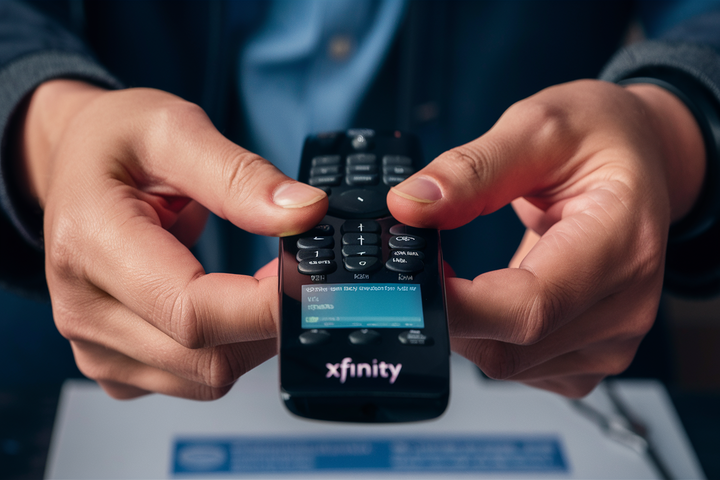
Struggling with an unresponsive or misbehaving Xfinity remote? This comprehensive guide will walk you through the essential steps to reprogram your Xfinity remote, ensuring seamless control over your entertainment system. We cover common issues, troubleshooting tips, and detailed instructions for various remote models, getting you back to enjoying your favorite shows without interruption.
Understanding Your Xfinity Remote
Xfinity remotes are designed to be the central hub for your home entertainment experience, controlling not just your TV but often your cable box, soundbar, and even other audio-visual equipment. These devices have evolved significantly, from simple channel changers to sophisticated voice-activated controllers. Understanding the type of remote you have is the first step in effectively troubleshooting and reprogramming it. Most modern Xfinity remotes utilize a combination of infrared (IR) and radio frequency (RF) technology. IR is line-of-sight, similar to older remote controls, while RF allows for control without direct line of sight, which is crucial for voice commands and controlling devices hidden in cabinets. The ability to reprogram these remotes ensures that they remain compatible with your ever-changing home theater setup and that you can re-establish control when issues arise. As of 2025, Xfinity continues to update its remote technology, with an increasing emphasis on voice control and integration with smart home ecosystems, making the ability to troubleshoot and reprogram these devices more critical than ever.
Common Xfinity Remote Issues
Before diving into reprogramming, it's helpful to understand the common problems users encounter with their Xfinity remotes. These issues can range from minor inconveniences to complete loss of functionality, often leading users to search for "how to reprogram an Xfinity remote."
- Unresponsive Buttons: Individual buttons or the entire remote may stop working. This can be due to dirt, wear and tear, or a software glitch.
- Inability to Control TV/Other Devices: The remote might control the Xfinity box but not the TV's power, volume, or input settings, or vice-versa. This is a frequent sign that the remote's programming for those devices has been lost or corrupted.
- Voice Command Issues: Voice commands not being recognized, being interpreted incorrectly, or not activating at all. This can be a pairing issue or a problem with the remote's microphone or software.
- Pairing Problems: The remote may lose its connection to the Xfinity box, especially after a power outage or when setting up new equipment.
- Interference: Other electronic devices in the vicinity can sometimes interfere with the remote's signal, particularly RF remotes.
- Battery Depletion: While seemingly obvious, low batteries can cause erratic behavior, including unresponsiveness and intermittent functionality.
In 2025, with the proliferation of smart home devices, users are also reporting more complex issues where the Xfinity remote might conflict with other universal remotes or smart hubs. Understanding these common pain points helps in diagnosing whether a simple battery change or a full reprogramming is necessary.
Preparing to Reprogram Your Remote
Successful reprogramming hinges on a few crucial preparation steps. Skipping these can lead to frustration and wasted time. Ensure you have the following ready before you begin:
- Identify Your Remote Model: This is paramount. Look for model numbers printed on the back or inside the battery compartment (e.g., XR11, XR15, XR5). Knowing your model will allow you to follow the most accurate reprogramming instructions.
- Check and Replace Batteries: Always start with fresh, high-quality batteries. Weak batteries are a common culprit for remote malfunctions and can interfere with the reprogramming process. Ensure they are inserted correctly, observing polarity.
- Ensure Clear Line of Sight (for IR): If your remote uses infrared, ensure there are no obstructions between the remote and the device it's trying to control (e.g., the TV or cable box).
- Locate Your TV's Manufacturer and Model Number: For programming the remote to control your TV's power and volume, you'll need to know the brand of your TV (e.g., Samsung, LG, Sony) and potentially its model number. This information is usually found on the back of the TV or in its user manual.
- Have Your Xfinity Equipment Ready: Ensure your Xfinity cable box or gateway is powered on and functioning correctly.
- Clear the Area: Minimize potential interference from other wireless devices, especially if you're experiencing RF-related issues.
As of 2025, Xfinity's support documentation often guides users to check for software updates on their Xfinity box before attempting remote reprogramming, as sometimes the box's software is the source of the communication issue.
Reprogramming Methods for Xfinity Remotes
There are several ways to reprogram an Xfinity remote, depending on the issue and the remote model. We'll cover the most common and effective methods.
Method 1: The Quick Reset/Pairing Method
This method is often used to re-establish the connection between the remote and the Xfinity box, especially after a power cycle or if the remote has become unresponsive. It's particularly useful for RF remotes.
- Power Cycle Your Xfinity Box: Unplug the power cord from your Xfinity cable box or gateway. Wait for at least 30 seconds, then plug it back in. Allow it to fully reboot (this may take a few minutes).
- Initiate Pairing on the Remote: While the Xfinity box is booting up, press and hold the Setup button on your Xfinity remote until the light at the top of the remote turns solid or blinks (depending on the model).
- Press and Hold the Xfinity Button: Immediately after, press and hold the Xfinity button (usually a silver button with the Xfinity logo).
- Press the 'i' Button: While still holding the Xfinity button, press and hold the 'i' button (information button) on the remote.
- Release Buttons: Continue holding both the Xfinity and 'i' buttons until the light on the remote flashes twice. This indicates the remote has been paired successfully with the Xfinity box.
- Test Functionality: Try using your remote to navigate menus or change channels on your Xfinity box.
This method is designed to reset the remote's connection to the primary Xfinity device. It's a quick fix for many pairing-related issues and is a good first step before attempting more complex reprogramming.
Method 2: The Manual Setup for TV Control
This method is used when you want your Xfinity remote to control your TV's power, volume, and input settings. This process involves entering specific codes for your TV manufacturer.
- Turn on Your TV: Ensure your television is powered on.
- Press and Hold Setup: On your Xfinity remote, press and hold the Setup button until the LED light at the top of the remote turns solid.
- Enter the Device Code: For TV control, press the TV button. Then, enter the 4-digit code for your TV's brand. If you don't know the code, you can often find it on Xfinity's website or by searching online for "[Your TV Brand] Xfinity remote codes." Some common codes include:
- Samsung: 1275, 1175
- LG: 1171, 1017
- Sony: 1004, 1049
- Vizio: 1178, 1068
- Sharp: 1074, 1086
- Confirm Code Entry: The LED light on the remote should blink twice to confirm the code has been accepted.
- Test Volume and Power: Point the remote at your TV and try pressing the Volume Up and Volume Down buttons. If the volume changes, the remote is successfully controlling your TV's audio. Then, try pressing the Power button to turn the TV off and on.
- If it Doesn't Work, Try Another Code: If the initial code doesn't work, repeat steps 2-5 with a different code for your TV brand. You may need to try several codes before finding one that is compatible.
- If Still Unsuccessful, Use the Auto-Search Feature: If you can't find the correct code, you can use the remote's auto-search function.
- Press and hold Setup until the light is solid.
- Press TV.
- Press and hold the Xfinity button until the light blinks twice.
- Point the remote at your TV and repeatedly press the Channel Up button. The remote will cycle through codes.
- When your TV turns off, immediately press the Setup button. The light will blink twice, confirming the code.
- Turn your TV back on and test volume and power.
This method is essential for consolidating control and reducing the number of remotes on your coffee table. By 2025, many users are looking to control soundbars and AV receivers as well, and this manual setup process can often be extended to those devices by selecting the appropriate device button (e.g., AUX or AUDIO) and using the corresponding codes.
Method 3: Advanced Troubleshooting and Factory Reset
If the above methods don't resolve your issues, a factory reset might be necessary. This will erase all custom programming and return the remote to its default state, requiring you to re-pair and re-program it.
For Voice Remotes (XR11, XR15, etc.):
- Remove Batteries: Take the batteries out of the remote.
- Press and Hold Setup: Press and hold the Setup button on the remote for 15-20 seconds. This helps discharge any residual power.
- Reinsert Batteries: Put the batteries back into the remote.
- Initiate Pairing: Follow the steps in Method 1 to re-pair the remote with your Xfinity box.
- Re-program TV Controls: If you were previously controlling your TV, you will need to repeat Method 2 to re-establish those settings.
For Older Remotes or if the above doesn't work:
- Power Cycle Xfinity Box: Unplug your Xfinity box and wait 30 seconds.
- Press and Hold Power and Mute: On the remote, press and hold the Power button and the Mute button simultaneously for about 5 seconds.
- Release Buttons: Release both buttons. The light at the top should blink twice.
- Re-pair: Proceed with pairing the remote to your Xfinity box as described in Method 1.
- Re-program TV Controls: Re-program TV controls using Method 2 if needed.
A factory reset is a more drastic step but can resolve persistent glitches or corrupted settings that simpler methods cannot fix. It's often the last resort before contacting support or considering a replacement remote.
Reprogramming Specific Xfinity Remote Models
While the general methods apply to most Xfinity remotes, some models have slight variations or specific features that are worth noting.
Xfinity XR11 Voice Remote
The XR11 is a popular voice-enabled remote. Its primary programming involves pairing with the Xfinity box. For TV control, it follows Method 2 closely.
Key Pairing Steps for XR11:
- Ensure the Xfinity box is on.
- Press and hold the Setup button until the LED turns red.
- Press and hold the Xfinity button.
- Press and hold the 'i' button.
- Release when the LED blinks twice.
For TV control, use the TV button and then enter the 4-digit code or use the auto-search as described in Method 2.
Xfinity XR15 Voice Remote
The XR15 is a newer iteration of the voice remote, often found with newer Xfinity X1 equipment. Its programming is very similar to the XR11.
Key Pairing Steps for XR15:
- Ensure the Xfinity box is on.
- Press and hold the Setup button until the LED turns red.
- Press and hold the Xfinity button.
- Press and hold the 'i' button.
- Release when the LED blinks twice.
TV control programming for the XR15 also follows Method 2, utilizing the TV button and device codes or auto-search.
Xfinity XR5 Remote
The XR5 is an earlier model, often a precursor to the voice remotes. It primarily uses IR and RF signals.
Key Programming Steps for XR5:
- Pairing: For RF pairing, press and hold Setup until the light turns solid, then press and hold Xfinity and 'i' until the light blinks twice.
- TV Control: Press and hold Setup until the light is solid. Press TV. Enter the 4-digit code for your TV brand. Test functionality.
The XR5 might require more manual code entry compared to newer voice remotes, but the principles remain the same.
Older Xfinity Remotes
Older Xfinity remotes, such as the XR2 or basic IR remotes, may have simpler programming methods. Often, they rely solely on IR and require manual code entry for TV control.
General Steps for Older Remotes:
- Power on TV.
- Press and hold Setup until the light indicator is solid.
- Press the device button (e.g., TV, CBL).
- Enter the 4-digit code for your device.
- Test the remote's functionality.
If manual codes fail, older remotes might not have an auto-search feature, making it more challenging to find compatible codes. In such cases, consulting Xfinity's legacy support documentation or contacting support directly is advisable.
Troubleshooting After Reprogramming
Even after a successful reprogramming, you might encounter lingering issues. Here's how to address them:
- Remote Still Unresponsive:
- Check Batteries: Ensure they are new and inserted correctly.
- Line of Sight: For IR control, ensure no obstructions.
- Distance: For RF, ensure you are within range.
- Interference: Move away from other wireless devices.
- TV Control Not Working (Power/Volume):
- Incorrect Code: Try a different code for your TV brand. Use the auto-search if available.
- Device Selection: Ensure you pressed the correct device button (e.g., TV) before entering codes.
- Compatibility: Some TVs, especially older or very new models, might not be fully compatible with all remote codes.
- Voice Commands Not Working:
- Re-pair: Perform Method 1 again to ensure a solid connection.
- Microphone Obstruction: Ensure the microphone hole on the remote isn't blocked.
- Xfinity Box Software: Ensure your Xfinity box has the latest software updates.
- Remote Controls Multiple Devices Erratically:
- Device Conflicts: If you've programmed multiple devices, ensure there are no conflicting codes. Resetting and re-programming one device at a time can help isolate the issue.
- Factory Reset: Consider a full factory reset (Method 3) and start programming from scratch.
In 2025, many users are integrating smart home devices, and sometimes the Xfinity remote might clash with other universal remotes or smart home hubs. If you're using a third-party device to control your TV or audio system, try disabling it temporarily to see if the Xfinity remote functions correctly on its own.
When to Contact Xfinity Support
While this guide covers most scenarios, there are times when professional assistance is necessary. Contact Xfinity support if:
- None of the Reprogramming Methods Work: You've tried all the steps, including factory resets, and the remote remains non-functional.
- Remote is Physically Damaged: Cracked casing, unresponsive buttons due to physical damage, or battery corrosion.
- Persistent Pairing Issues: The remote repeatedly fails to pair with the Xfinity box, even after troubleshooting.
- Specific Equipment Compatibility Questions: You have a unique setup (e.g., a rare TV model, complex AV receiver) and can't find compatible codes or instructions.
- You Suspect a Faulty Remote: If you've exhausted all troubleshooting steps and suspect the remote itself is defective, Xfinity support can arrange for a replacement.
Xfinity support agents have access to advanced diagnostic tools and specific knowledge about their equipment and remote models, which can be invaluable for complex or persistent problems. They can also confirm if your current remote model is still supported or if an upgrade is recommended. As of 2025, Xfinity's online chat support and app-based diagnostics are often the quickest ways to get initial assistance.
Optimizing Your Xfinity Remote Experience
Beyond just getting your remote to work, optimizing its use can significantly enhance your entertainment experience. Consider these tips:
- Utilize Voice Commands: For voice-enabled remotes, explore the full range of voice commands. You can search for shows, change channels, control playback, get sports scores, and even control smart home devices. Practice saying commands clearly and concisely.
- Program Multiple Devices: If your remote supports it, take the time to program it to control your TV, soundbar, and Blu-ray player. This reduces clutter and simplifies operation.
- Keep Firmware Updated: Ensure your Xfinity box and gateway are always running the latest firmware. This often includes updates for remote compatibility and performance.
- Regularly Clean Your Remote: Dust and grime can accumulate on buttons, affecting responsiveness. Use a slightly damp cloth (not wet) and a mild cleaner to wipe down the remote periodically.
- Create a "Remote Zone": Designate a specific place for your remote when not in use to avoid misplacing it.
- Explore Xfinity App Features: The Xfinity My Account app often provides remote control functionalities, diagnostic tools, and guides that can complement your physical remote.
By actively engaging with your Xfinity remote's capabilities and maintaining it properly, you ensure a smooth and enjoyable interaction with your home entertainment system. The advancements in remote technology in recent years, including improved voice recognition and broader device compatibility, mean that a well-functioning remote is more important than ever for a seamless viewing experience in 2025 and beyond.
Conclusion
Reprogramming an Xfinity remote might seem daunting, but by following these detailed steps, you can overcome most common issues and restore full control over your entertainment system. Whether it's a simple pairing reset, manual TV code entry, or a factory default, this guide provides a comprehensive roadmap. Remember to identify your remote model, use fresh batteries, and test thoroughly after each step. For persistent problems, don't hesitate to leverage Xfinity's support resources. With a properly functioning remote, you can fully immerse yourself in the content you love, enjoying a seamless and integrated home entertainment experience.






