How To Program Xfinity Remote To Cable Box?
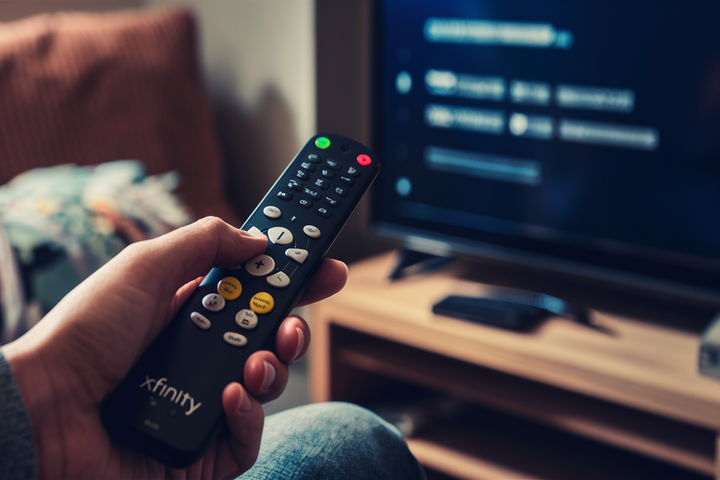
Struggling to connect your Xfinity remote to your cable box? This comprehensive guide provides the exact steps, troubleshooting tips, and essential information you need to program your Xfinity remote efficiently. Get back to enjoying your favorite shows without the hassle of setup issues.
Understanding Your Xfinity Remote
Xfinity offers a variety of remote controls, each designed to enhance your TV viewing experience. From basic remotes that control power, volume, and channel changes to advanced voice-activated models that allow for seamless navigation and content discovery, understanding your specific remote is the first step to successful programming. The most common Xfinity remotes include the XR11, XR15, and XR16 series. Each has a slightly different button layout and programming sequence, but the core principles remain the same. For instance, the XR11 is known for its dedicated Netflix button, while the XR15 and XR16 often feature improved voice recognition and a more streamlined design. In 2025, Xfinity continues to innovate, with newer models focusing on greater integration with smart home devices and personalized content recommendations.
These remotes are engineered to communicate with your Xfinity cable box (also known as a set-top box or gateway) to control various functions. This communication typically happens via infrared (IR) signals or radio frequency (RF) signals. Older models primarily used IR, requiring a direct line of sight. Newer models, particularly those with voice control, utilize RF, which offers greater flexibility as it doesn't require a direct line of sight and can even control devices in other rooms within your home network. Understanding whether your remote is IR or RF can sometimes help in troubleshooting. Generally, if your remote has voice command capabilities, it's an RF remote.
The primary goal of programming your remote is to establish a reliable connection between the remote and your cable box. This connection ensures that when you press a button on your remote, the correct command is sent and executed by the cable box, whether it's changing the channel, adjusting the volume, accessing the guide, or using voice commands. Without proper programming, your remote might only control basic functions or, in some cases, none at all, leaving you unable to interact with your Xfinity service effectively.
The evolution of Xfinity remotes reflects the broader trends in home entertainment. As streaming services have become more prevalent, Xfinity remotes have adapted to offer easier access to these platforms. Many modern remotes include dedicated buttons for popular streaming apps like Netflix, Hulu, or Peacock. Voice control has also become a standard feature, allowing users to search for shows, change channels by name, or even get weather updates using simple voice commands. This shift means that successful programming isn't just about basic functionality; it's about unlocking the full potential of your Xfinity entertainment system.
Preparing for Programming
Before you begin the programming process, a few preparatory steps will ensure a smooth and successful setup. These steps are crucial for avoiding common pitfalls and making the entire experience as efficient as possible.
Check Your Equipment
Ensure your Xfinity cable box is powered on and functioning correctly. You should see a display on the box or the TV indicating it's active. Also, verify that your Xfinity remote has fresh batteries. Low battery power is a frequent culprit behind programming failures or intermittent remote functionality. For most Xfinity remotes, standard AA or AAA batteries are used. If you're unsure, check the battery compartment for markings.
Identify Your Remote Model
As mentioned earlier, Xfinity uses several remote models. Identifying yours is important because the exact button sequences can vary slightly. Look for a model number printed on the back or inside the battery compartment of your remote. Common models include XR11, XR15, and XR16. Knowing your model will allow you to find specific instructions if the general guide doesn't work perfectly.
Locate Your Cable Box's MAC Address or Serial Number (If Required)
In some instances, especially during initial setup or if you're pairing the remote with a new device, you might need your cable box's MAC address or serial number. This information is typically found on a sticker on the cable box itself. However, for standard remote programming to the cable box, this is usually not required. This step is more relevant for advanced network configurations or troubleshooting.
Ensure a Clear Line of Sight (for IR remotes)
If your Xfinity remote is an older IR model, ensure there are no obstructions between the remote and the cable box's IR sensor. This means no furniture, decorative items, or even excessive glare from windows that might interfere with the signal. While most newer Xfinity remotes use RF, it's a good practice to be mindful of this, especially if you're experiencing connectivity issues.
Understand Your TV's Input
While programming the remote to the cable box is the primary focus, ensure your TV is set to the correct input source for your cable box (e.g., HDMI 1, HDMI 2). This is a basic step, but it’s often overlooked when troubleshooting. If the cable box isn't displaying on your TV, the remote programming won't appear to be working, even if it's correctly paired.
By taking these preliminary steps, you significantly increase your chances of a successful and straightforward remote programming experience. It minimizes the chances of encountering unexpected issues and allows you to proceed with confidence.
Step-by-Step Programming Guide
Programming your Xfinity remote to your cable box is a straightforward process. While the exact button presses might vary slightly depending on your remote model, the general procedure is consistent. We'll cover the most common methods.
Method 1: Automatic Code Search (Most Common)
This method is designed to automatically find the correct code for your cable box.
- Power on your Xfinity cable box and your TV. Ensure both devices are on and ready.
- Press and hold the "Setup" button on your Xfinity remote. This button is usually located near the top of the remote. Continue holding it until the light at the top of the remote turns green or begins to blink.
- Press and hold the "TV" button (or the device button for your cable box, often labeled "CBL" or "Xfinity"). Hold this button until the light at the top of the remote turns solid green.
- Release the "TV" button.
- Point the remote at your cable box and press and hold the "Power" button. Continue holding the "Power" button until your cable box turns off. This might take several seconds.
- As soon as the cable box turns off, immediately release the "Power" button. This action locks in the code that turned off your device.
- Press the "Xfinity" button (or the "Cable" button) to turn your cable box back on.
- Test basic functions: Try changing channels using the channel up/down buttons and adjusting the volume. If these functions work, your remote is successfully programmed to your cable box.
If this method doesn't work, proceed to Method 2.
Method 2: Manual Code Entry (If Automatic Search Fails)
This method requires you to manually enter a specific code for your cable box model. You'll need a list of codes, which can usually be found in your Xfinity remote's user manual or on the Xfinity website.
- Power on your Xfinity cable box and your TV.
- Press and hold the "Setup" button on your Xfinity remote until the light at the top turns solid green.
- Press and hold the "TV" button (or the device button for your cable box, often labeled "CBL" or "Xfinity"). Hold this button until the light at the top of the remote turns solid green.
- Release the "TV" button.
- Enter the 5-digit code for your cable box. You can find these codes by searching online for "Xfinity remote codes for [your cable box model]" or by checking your remote's manual. Common codes for Xfinity cable boxes include 10037, 10178, 10463, and 11758. As you enter each digit, the light at the top of the remote should blink. After entering the fifth digit, the light should turn solid green.
- Point the remote at your cable box and press the "Power" button. If the code is correct, your cable box should turn off.
- Press the "Xfinity" button (or the "Cable" button) to turn your cable box back on.
- Test basic functions: Verify that channel changing and volume control are working. If not, repeat steps 2-7 with the next code on your list.
Method 3: Voice Control Pairing (For XR11, XR15, XR16, and newer models)
Many modern Xfinity remotes are voice-enabled and pair automatically or with a simple voice command.
- Ensure your Xfinity cable box is powered on.
- Press and hold the "Voice" button (microphone icon) on your remote.
- Speak clearly into the remote: "Pair remote."
- Follow any on-screen prompts that appear on your TV. The system will guide you through the pairing process.
- Once paired, test voice commands: Try saying "What's on TV?" or "Tune to CNN."
If you are using a remote that controls both your TV and cable box, you may need to program it for your TV as well. The process is similar, but you would select "TV" instead of "CBL" or "Xfinity" in the steps above, and use TV-specific codes. For example, common TV codes for Samsung might be 10060, 10701, 10848, 11758. For LG, common codes include 10178, 10848, 11758. Always refer to the specific code lists provided by Xfinity or your TV manufacturer for the most accurate codes.
Programming Specific Remote Models
While the general methods above cover most scenarios, here are slight variations for popular Xfinity remote models:
XR11 Remote
The XR11 is a popular voice remote. The primary programming method involves pressing and holding the "Setup" button until the light turns green, then pressing and holding the "TV" button until the light turns green. After that, you'll typically use the automatic search method by pressing "Power" and observing the cable box. For voice pairing, simply press and hold the microphone button and say "Pair remote."
XR15 Remote
The XR15 is a more compact and streamlined remote. The programming process is very similar to the XR11. Press and hold "Setup" until the light turns green, then press and hold "TV" until the light turns green. Use the automatic search by holding "Power." Voice pairing is initiated by holding the microphone button.
XR16 Remote
The XR16 is an even newer model, often featuring enhanced voice capabilities and a sleeker design. The programming sequence remains largely the same: "Setup" then "TV" (or "CBL"), followed by the automatic search. Voice pairing is also done via the microphone button.
It's important to note that Xfinity frequently updates its equipment and software. If you encounter issues, consulting the official Xfinity support website or contacting customer service is always recommended for the most current instructions.
Troubleshooting Common Issues
Even with clear instructions, programming issues can arise. Here are some common problems and their solutions to help you get your Xfinity remote working correctly.
Remote Not Responding
Cause: Dead batteries, incorrect programming, or interference.
Solution:
- Replace Batteries: This is the most common fix. Ensure you're using fresh, high-quality batteries.
- Reprogram: Try the programming steps again, carefully following each instruction. Pay close attention to the light indicators on the remote.
- Check for Obstructions: If you have an IR remote, ensure a clear line of sight to the cable box.
- Reset the Remote: Some remotes can be reset by removing the batteries for a minute, then reinserting them.
Cable Box Not Turning Off/On During Setup
Cause: Incorrect code entered, or the remote is not successfully communicating.
Solution:
- Try Different Codes: If you used manual code entry, try other codes listed for your cable box model.
- Wait Longer: During the automatic search, ensure you hold the "Power" button long enough for the cable box to register the command and turn off.
- Verify Cable Box Functionality: Ensure your cable box is powered on and functioning independently of the remote.
Voice Commands Not Working
Cause: Remote not paired, microphone issues, or poor internet connection.
Solution:
- Re-pair the Remote: Follow the voice control pairing steps again.
- Check Internet Connection: Voice commands rely on an active internet connection. Ensure your Xfinity gateway is online.
- Speak Clearly: Ensure you are speaking directly into the microphone with clear enunciation.
- Update Remote Firmware: In rare cases, remote firmware updates might be necessary. Contact Xfinity support.
Remote Controls TV, But Not Cable Box (or vice versa)
Cause: Remote programmed for the wrong device or incomplete programming.
Solution:
- Reprogram for Cable Box: Ensure you selected the correct device (CBL, Xfinity) during the programming steps. If you programmed for the TV, you'll need to repeat the process and select the cable box.
- Check Device Buttons: Make sure you're pressing the correct device button (e.g., "CBL" or "Xfinity") before attempting to control the cable box functions.
Remote Light Blinking Red
Cause: This usually indicates a low battery or a failed command.
Solution:
- Replace Batteries: This is the most likely solution.
- Reprogram: If batteries are fresh, try reprogramming the remote.
A table comparing common issues and solutions can be helpful:
| Issue | Potential Cause | Solution |
|---|---|---|
| Remote not responding | Dead batteries, interference | Replace batteries, reprogram, check obstructions |
| Cable box won't turn off/on | Incorrect code, poor communication | Try different codes, ensure cable box is on, wait longer during search |
| Voice commands not working | Not paired, internet issue | Re-pair remote, check internet, speak clearly |
| Controls TV but not cable box | Incorrect device programmed | Reprogram for cable box, check device buttons |
| Red blinking light | Low battery, failed command | Replace batteries, reprogram |
If you've exhausted these troubleshooting steps, it might be time to contact Xfinity customer support. They can provide model-specific advice or arrange for a replacement remote if yours is faulty.
Advanced Remote Features
Beyond basic channel and volume control, modern Xfinity remotes offer a suite of advanced features designed to enhance your viewing experience. Understanding and utilizing these can significantly improve how you interact with your entertainment system.
Voice Control Capabilities
The most prominent advanced feature is voice control. By simply pressing and holding the microphone button and speaking a command, you can:
- Search for Content: "Find action movies," "Show me comedies starring Tom Hanks," or "What's new on Netflix?"
- Navigate Channels: "Go to ESPN," "Tune to channel 5," or "Last channel."
- Control Playback: "Play," "Pause," "Rewind 30 seconds." (Functionality may vary by app/service).
- Access Apps: "Open Peacock," "Launch YouTube."
- Get Information: "What's the weather?" or "What time is it?"
The effectiveness of voice control depends on the clarity of your commands and the sophistication of the remote's voice recognition software. Xfinity is continuously improving its AI for more natural language understanding.
Backlit Buttons
Many advanced remotes, especially those designed for home theater setups, feature backlit buttons. This is incredibly useful for navigating your remote in low-light conditions without needing to turn on additional lights, which can disrupt the viewing atmosphere. Typically, the backlight activates when you pick up the remote or press a button.
Programmable Shortcut Buttons
Some Xfinity remotes include programmable buttons that can be set to launch specific applications or perform custom actions. For example, you might program a button to directly open your favorite streaming service or to execute a sequence of commands. This feature allows for personalized shortcuts, saving you time and effort. Check your remote's manual for instructions on how to assign custom functions to these buttons.
IR and RF Control Modes
As discussed, most modern Xfinity remotes utilize RF for controlling the cable box, offering greater flexibility. However, they often retain IR capabilities to control other devices like your TV, soundbar, or Blu-ray player. Understanding how to switch between these modes or how the remote automatically selects the correct mode is key. For instance, when you press "TV Power," it sends an IR signal to your TV, while pressing "Guide" sends an RF signal to your cable box.
Device Control Beyond Cable Box
Many Xfinity remotes can be programmed to control not just your cable box but also your TV, home theater receiver, and soundbar. This consolidation allows you to use a single remote for most of your entertainment system's functions, reducing clutter and simplifying operation. The programming for these devices follows a similar process to programming the cable box, often involving selecting the device type and then using either automatic code search or manual code entry.
In 2025, Xfinity is further integrating its remotes with smart home ecosystems, allowing for more complex interactions, such as controlling smart lights or thermostats through voice commands initiated from the remote. This trend highlights the remote's evolution from a simple input device to a central hub for home entertainment and control.
Xfinity Remote Compatibility and Updates
Ensuring your Xfinity remote is compatible with your equipment and up-to-date is crucial for optimal performance. Xfinity's ecosystem is dynamic, with new devices and software updates released regularly.
Remote Model Compatibility
Not all Xfinity remotes are compatible with all Xfinity cable boxes or TV equipment. Generally, newer remotes are designed to work with current gateway models, while older remotes might have limited functionality with the latest equipment. For example, a brand-new voice remote might not fully support a very old set-top box. Conversely, older, non-voice remotes will lack the advanced features of newer models.
Key Compatibility Points:
- Voice Remotes (XR11, XR15, XR16, etc.): Designed for modern Xfinity X1 platform and newer gateways. They use RF for primary communication with the cable box.
- Standard IR Remotes: Older models that rely on infrared signals. They might work with a wider range of equipment but lack advanced features like voice control.
If you recently upgraded your Xfinity service or equipment, you might receive a new remote. Always check the Xfinity website or your service agreement for compatibility information regarding your specific remote and cable box model.
Software and Firmware Updates
Xfinity remotes, especially the voice-enabled RF models, receive periodic software and firmware updates. These updates are typically pushed automatically to your remote when it's connected to your Xfinity network and the cable box is active.
What Updates Do:
- Improve Voice Recognition: Updates often enhance the accuracy and understanding of voice commands.
- Fix Bugs: Address any glitches or performance issues that may have arisen.
- Add New Features: Introduce new functionalities or improve existing ones.
- Enhance Compatibility: Ensure seamless operation with new Xfinity equipment or software releases.
You usually don't need to do anything to initiate these updates. However, ensuring your remote is in its charging dock (if applicable) or has fresh batteries and that your cable box is powered on and connected to the internet will facilitate the update process. If you suspect your remote is not updating or is experiencing persistent issues, contacting Xfinity support might be necessary.
Pairing with Multiple Devices
As mentioned, many Xfinity remotes can control your TV, soundbar, and receiver in addition to the cable box. The process of pairing with these additional devices is similar to programming the cable box, often involving a device-specific code search. It's essential to ensure you are using the correct codes for each device. For instance, programming a Samsung TV requires different codes than programming an LG TV.
In 2025, Xfinity is also exploring deeper integration with third-party smart home devices, potentially allowing remotes to control smart plugs, thermostats, and lighting systems directly through unified commands. This signifies a move towards a more cohesive smart home experience managed through a single, familiar interface.
Keeping your remote's compatibility in mind and understanding that it receives updates ensures you're getting the most out of your Xfinity service. If you ever feel your remote isn't performing as expected, checking for compatibility and ensuring it's up-to-date are excellent first steps before diving into troubleshooting.
Maximizing Your Xfinity Experience
Programming your Xfinity remote is just the first step toward a seamless entertainment experience. By leveraging its full capabilities and understanding how it integrates with your Xfinity service, you can unlock a world of convenience and personalized content.
Explore Xfinity X1 Platform Features
Your Xfinity remote is designed to work with the Xfinity X1 platform, which offers a rich set of features beyond traditional cable TV.
- Universal Search: Use your voice remote to search across live TV, On Demand, and streaming apps simultaneously. Simply say, "Search for [show title]" or "Find movies starring [actor]."
- Personalized Recommendations: X1 learns your viewing habits and suggests shows and movies you might like.
- Integrated Apps: Access popular streaming services like Netflix, Hulu, YouTube, Peacock, and more directly from your X1 interface.
- DVR Functionality: Record your favorite shows, manage your recordings, and watch them on any Xfinity X1 device in your home.
- Xfinity Stream App: Take your Xfinity TV experience on the go with the Xfinity Stream app, allowing you to watch live TV and On Demand content on your mobile devices.
The remote acts as your primary interface to all these features, making it essential to have it programmed and functioning correctly.
Utilize Voice Commands Effectively
Don't underestimate the power of voice control. It's not just for simple commands; it's for efficient navigation and discovery.
- Be Specific: Instead of "Find movies," try "Find action movies from the 1990s."
- Use Actor/Director Names: "Show me movies directed by Christopher Nolan."
- Control Your TV: Many voice remotes can also control TV functions like input selection or picture settings.
As of 2025, Xfinity's voice recognition is among the best in the industry, capable of understanding a wide range of natural language queries.
Integrate with Smart Home Devices
For users with compatible smart home devices, Xfinity is increasingly enabling remote integration. You might be able to control smart lights, thermostats, or locks using voice commands through your Xfinity remote. Check your Xfinity app or account settings for current integration capabilities. This convergence simplifies managing your home environment.
Regular Maintenance
To ensure your remote continues to perform optimally:
- Keep Batteries Fresh: As highlighted in troubleshooting, this is paramount.
- Keep Remote Clean: Wipe down your remote regularly with a dry or slightly damp cloth to keep buttons responsive.
- Ensure Connectivity: For RF remotes, ensure your Xfinity gateway is powered on and connected to the internet, as this is crucial for updates and voice commands.
By actively engaging with the features your Xfinity remote and X1 platform offer, you transform your television viewing from a passive activity into an interactive and personalized entertainment experience. The ease of use and advanced functionality are designed to put you in complete control.
Conclusion
Successfully programming your Xfinity remote to your cable box is a fundamental step in unlocking the full potential of your Xfinity entertainment system. We've walked through understanding your remote, preparing for the setup, detailed step-by-step programming guides for various methods, and comprehensive troubleshooting for common issues. Whether you're using an older IR remote or a state-of-the-art voice-activated model like the XR15 or XR16, the principles of pairing remain consistent. Remember to always start with fresh batteries and ensure your cable box is powered on. If automatic programming fails, don't hesitate to try manual code entry or leverage the intuitive voice pairing features available on newer remotes. By following these instructions and utilizing the advanced features like voice search and app integration, you can significantly enhance your daily viewing experience. For the most current information and specific guidance, always refer to Xfinity's official support resources.






