How To Pair Xfinity Remote With Tv?
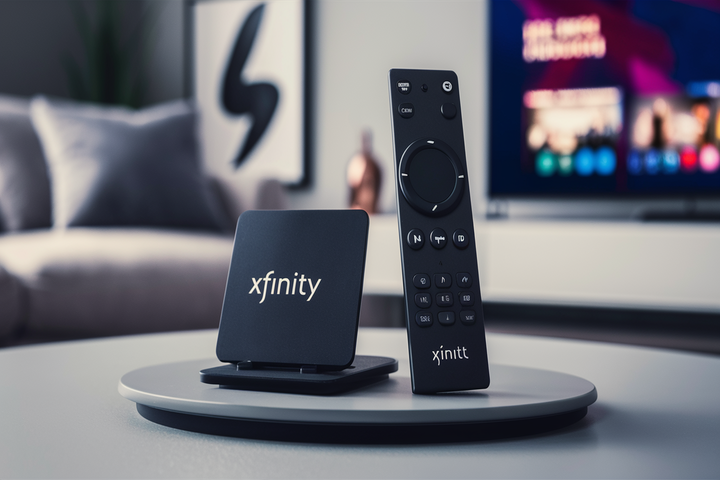
Unlock seamless control of your entertainment with our comprehensive guide on pairing your Xfinity remote with your TV. This article provides step-by-step instructions, troubleshooting tips, and essential insights to ensure a smooth connection, enhancing your viewing experience. Get ready to command your channels effortlessly.
Understanding Your Xfinity Remote and TV Compatibility
In the ever-evolving landscape of home entertainment, the Xfinity remote has become a central hub for managing your television, streaming devices, and even smart home accessories. However, the initial setup, particularly the pairing process, can sometimes be a point of confusion for users. This section aims to demystify the different types of Xfinity remotes and the crucial aspect of TV compatibility, ensuring you have the foundational knowledge before diving into the pairing procedures.
Types of Xfinity Remotes
Xfinity offers a variety of remote controls, each with its own set of features and functionalities. Understanding which remote you have is the first step towards successful pairing. The most common types include:
- XR Series Remotes (e.g., XR5, XR11, XR15, XR16): These are the workhorses of Xfinity remotes. They typically feature voice control capabilities, allowing you to search for content, change channels, and adjust settings using spoken commands. The XR15 and XR16 are among the newer models, offering enhanced ergonomics and responsiveness.
- Basic Remotes (e.g., XR2): While less feature-rich, these remotes are straightforward and reliable for basic TV control. They usually lack voice command functionality but are excellent for users who prefer a simpler interface.
- Remote with RF (Radio Frequency) Capabilities: Many modern Xfinity remotes, especially the XR series, utilize RF technology. This is a significant advantage over older infrared (IR) remotes because RF signals do not require a direct line of sight to the device, meaning you can control your TV and set-top box even from another room or if they are tucked away in a cabinet.
TV Compatibility and Pairing Modes
The pairing process primarily involves establishing a communication link between your Xfinity remote and your television or Xfinity set-top box. For most Xfinity remotes, the initial pairing is with the Xfinity cable box itself. Once this is established, the remote can often be programmed to control basic TV functions like power, volume, and input selection via IR codes. This is often referred to as "TV pairing" or "TV control setup."
Key considerations for TV compatibility:
- TV Brand: Xfinity remotes have a vast database of IR codes for thousands of TV brands. The success of pairing often depends on whether your TV brand is recognized by the remote's programming. Major brands like Samsung, LG, Sony, Vizio, and TCL are almost universally supported.
- IR vs. RF Control: As mentioned, newer remotes use RF for communicating with the Xfinity box. However, for controlling the TV's power, volume, and input, they typically revert to IR. This means the remote needs to be pointed towards the TV's IR sensor for these functions to work, even if it's an RF-enabled remote.
- CEC (Consumer Electronics Control): Some modern TVs and Xfinity boxes support CEC, a feature that allows devices connected via HDMI to control each other. While not directly part of the remote pairing process, CEC can sometimes interfere with or complement remote control functions. It's often best to ensure CEC is configured correctly on your TV if you encounter unusual behavior.
In 2025, the integration between smart TVs and set-top boxes continues to deepen. Many users are looking for a single remote solution. While Xfinity remotes excel at controlling the Xfinity ecosystem, they can also be programmed to manage essential TV functions, reducing the need for multiple remotes. The primary goal of pairing is to ensure that your remote can send the correct signals to both your Xfinity box and your television.
Common Xfinity Remote Pairing Methods
The method used to pair your Xfinity remote can vary depending on the specific remote model and the device you are trying to control. Most commonly, users need to pair their remote with their Xfinity X1 or Flex box. However, programming the remote to control the TV's power, volume, and input is also a frequent requirement. This section outlines the primary methods employed by Xfinity for remote pairing.
Pairing with the Xfinity Box (X1/Flex)
This is the most fundamental pairing process and is essential for the remote to communicate with your Xfinity equipment. For most modern Xfinity remotes (especially XR series), this is often an automatic process when you first set up your equipment or replace a remote. If it doesn't happen automatically, or if you're trying to re-pair a remote, here's the general approach:
- Power Cycle: Ensure your Xfinity cable box or streaming device is powered on.
- Press and Hold Buttons: For RF remotes, you'll typically press and hold the "Xfinity" button and the "A" button (the button below the microphone icon) simultaneously for about 3-5 seconds.
- Confirmation: A message should appear on your TV screen indicating that the remote is pairing or has been paired. Some remotes might have an LED indicator that flashes or changes color.
- Voice Command Test: Once paired, try a voice command to confirm the connection. For example, say "What's on TV?" or "Tune to CNN."
Note: The exact button combination might slightly vary between specific XR models. Always refer to the on-screen prompts or your remote's user manual if unsure.
Pairing with the TV (IR Control Setup)
Once your remote is paired with the Xfinity box, you'll likely want to program it to control your TV's basic functions. This involves sending specific infrared (IR) codes to your television. Xfinity remotes have a built-in process for this:
- Access TV Setup: On your Xfinity X1 or Flex box, navigate to the settings menu. This is typically done by pressing the "Gear" icon or by saying "Settings" into the remote. Then, navigate to "Device Settings" or "Remote Settings."
- Select "Pair Remote": Look for an option like "Pair Remote," "TV Setup," or "Program Remote."
- Choose TV Control: Select the option to control your TV (as opposed to just the Xfinity box).
- Enter TV Brand: You will be prompted to enter your TV brand. You can usually do this by typing it in or selecting it from a list.
- Code Entry/Automatic Search:
- Manual Code Entry: If you know the specific IR codes for your TV brand, you can enter them. Xfinity often provides a list of codes online or within the setup menu.
- Automatic Code Search: This is the most common and user-friendly method. The remote will cycle through a series of codes, and you'll be asked to press the "Volume Up" button or "Channel Up" button on your remote when the TV responds (e.g., turns off, changes volume). The remote will then test the code.
- Confirmation: Once a working code is found, you'll be asked to confirm. Test the power, volume, and input buttons to ensure they function correctly.
Universal Remote Functionality
Many Xfinity remotes are designed to act as universal remotes, meaning they can be programmed to control other devices like soundbars, Blu-ray players, or streaming sticks (e.g., Apple TV, Roku) in addition to your TV and Xfinity box. The process for programming these devices is similar to TV pairing, usually found within the "Device Settings" or "Remote Settings" menu. You'll select the type of device (e.g., "Soundbar") and then follow the prompts to identify your device brand and test the codes.
Bluetooth Pairing (for specific devices)
While most Xfinity remotes use RF for the box and IR for the TV, some newer models or specific setups might involve Bluetooth. For instance, if you're using an Xfinity Flex box with a streaming device that supports Bluetooth control, the remote might offer Bluetooth pairing options. This is less common for direct TV control but can be relevant for secondary devices. The pairing process would typically involve putting the Bluetooth device into pairing mode and then searching for it within the remote's settings or the device's Bluetooth menu.
By understanding these different methods, users can confidently approach the pairing process for their Xfinity remote, ensuring it works seamlessly with their entire home entertainment setup.
Step-by-Step Pairing Guide: Voice Remotes
Xfinity voice remotes, such as the XR15 and XR16 models, offer a sophisticated yet user-friendly experience. Their primary advantage lies in voice control, but they also excel at controlling your TV and other devices. This guide focuses on the most common scenario: pairing a voice remote with your Xfinity X1 or Flex box, and then programming it to control your TV's basic functions. We'll assume you have a relatively new Xfinity voice remote and a modern TV.
Part 1: Pairing Your Voice Remote with the Xfinity Box (X1/Flex)
This step is crucial for enabling voice commands and full control of your Xfinity services. For many, this happens automatically upon setup. If not, follow these steps:
- Ensure Your Xfinity Box is On: Make sure your Xfinity X1 DVR or Flex streaming TV Box is powered on and connected to your TV.
- Locate the Remote: Have your Xfinity voice remote in hand.
- Press and Hold Specific Buttons: On your remote, press and hold the "Xfinity" button (usually a blue button with the Xfinity logo) and the "A" button (the button located directly below the microphone icon) simultaneously.
- Hold for 3-5 Seconds: Continue holding both buttons until you see a message on your TV screen indicating that the remote is pairing or has successfully paired. The LED light on the remote may also flash or change color to confirm.
- Release Buttons: Once the on-screen confirmation appears, release the buttons.
- Test Voice Commands: To confirm the pairing, try pressing the microphone button and saying a command, such as "What's the weather?" or "Tune to channel 100." If the remote responds, it's successfully paired with your Xfinity box.
What if it doesn't work?
- Ensure the remote has fresh batteries.
- Try moving closer to the Xfinity box. While RF works through walls, initial pairing might be more reliable when closer.
- If you have multiple Xfinity remotes, ensure you're using the correct one.
- If you are still experiencing issues, you might need to reset the remote or the Xfinity box. Consult the Xfinity support website or app for specific reset instructions for your equipment.
Part 2: Programming Your Voice Remote to Control Your TV (Power, Volume, Input)
This process allows your Xfinity remote to control your television's essential functions, effectively turning it into a universal remote for your primary entertainment devices.
- Navigate to Settings: On your Xfinity X1 or Flex box, press the "Gear" icon on your remote, or say "Settings" into the microphone.
- Select Device Settings: Use the directional pad on your remote to navigate to "Device Settings" and press the "OK" or "Select" button.
- Choose Remote Settings: Within Device Settings, select "Remote Settings" and press "OK."
- Select TV Setup: You should see an option like "Pair Remote" or "TV Setup." Choose this option.
- Select "Control TV": The system will likely ask if you want to control the TV. Confirm this selection.
- Enter Your TV Brand: You will be presented with a list of TV manufacturers. Use the directional pad to find your TV brand (e.g., Samsung, LG, Sony, Vizio, TCL) and press "OK." If your brand isn't listed, you may need to select "Other" or look for an option to manually enter codes.
- Follow On-Screen Prompts for Code Search:
- Automatic Search: The most common method. The remote will begin sending IR codes to your TV. You will be instructed to press the "Volume Up" button on your remote when your TV responds (e.g., the volume display appears on your TV screen, or the TV powers off if testing power).
- Wait for TV Response: Keep pressing "Volume Up" periodically until your TV reacts in the way the on-screen instructions describe (e.g., the TV turns off, or the volume changes).
- Confirm Code: Once your TV responds, the system will usually ask you to press a specific button (often "OK" or "Select") to confirm the code.
- Test Functions: After confirmation, the remote will likely prompt you to test the power, volume, and input buttons. Point the remote at your TV and try turning it on/off, adjusting the volume, and changing the input source.
- Manual Code Entry (if automatic fails): If the automatic search doesn't find a working code, you may need to enter codes manually. Xfinity provides a list of codes on their support website, or you might find them by searching online for "[Your TV Brand] Xfinity remote codes." Enter the 4- or 5-digit code using the number pad on your remote. After entering a code, test the functions. Repeat with different codes until successful.
- Finalize Setup: Once all functions are working correctly, confirm the setup. Your Xfinity voice remote should now control your TV's power, volume, and input, alongside its voice capabilities for Xfinity services.
Part 3: Advanced Settings and Troubleshooting
Adjusting Volume Control: By default, the volume buttons on your Xfinity remote will control your TV's volume. If you prefer the remote to control the volume of your soundbar or A/V receiver, you can usually configure this within the "Remote Settings" menu under "Audio Control."
Troubleshooting TV Control: If some TV functions aren't working:
- Line of Sight: Ensure the remote is pointed directly at the TV's IR sensor.
- IR Blaster: Some TVs have IR blasters that can interfere. Check your TV's settings.
- Re-program: Go back through the TV setup process and try different codes.
- Check Compatibility: Verify that your specific TV model is supported by Xfinity remotes.
This comprehensive guide should enable you to successfully pair your Xfinity voice remote with both your Xfinity box and your television, providing a streamlined and powerful entertainment control experience.
Troubleshooting Common Pairing Issues
Even with straightforward instructions, pairing an Xfinity remote can sometimes present challenges. Whether it's failing to connect to the Xfinity box or struggling to program TV controls, these issues are common. This section provides detailed troubleshooting steps to help you overcome these hurdles and get your remote working perfectly.
Remote Not Pairing with Xfinity Box (X1/Flex)
This is often indicated by the remote not responding to voice commands or not controlling the Xfinity interface at all.
- Check Batteries: This is the most frequent culprit. Replace the batteries with fresh ones, ensuring they are inserted correctly.
- Line of Sight (for initial RF pairing): While RF doesn't require line of sight for normal operation, initial pairing can sometimes be sensitive. Try pairing when the remote is in the same room and relatively close to the Xfinity box.
- Correct Button Combination: Double-check that you are pressing the correct buttons for your remote model. For XR series remotes, it's typically the "Xfinity" button + "A" button. Consult your remote's manual or the Xfinity support site if unsure.
- Press and Hold Duration: Ensure you are holding the buttons down for the required 3-5 seconds. Releasing too early or holding too long can prevent pairing.
- On-Screen Prompts: Pay close attention to the messages on your TV screen. They provide vital feedback on the pairing process.
- Reset the Remote: Many Xfinity remotes can be reset. This usually involves removing the batteries, waiting a minute, and then reinserting them. Some models may have a specific reset button or sequence.
- Reset the Xfinity Box: If the remote reset doesn't work, try power cycling your Xfinity X1 or Flex box. Unplug the power cord from the back of the box, wait for 30-60 seconds, and then plug it back in. Once the box has fully rebooted, try pairing the remote again.
- Check for Interference: While less common with RF, strong wireless signals from other devices in close proximity could potentially interfere. Try temporarily turning off other wireless devices.
- Pairing with Multiple Devices: If you have multiple Xfinity boxes or other Xfinity equipment, ensure you are trying to pair the remote with the correct device.
Remote Not Controlling TV Functions (Power, Volume, Input)
This issue arises when the remote is paired with the Xfinity box but doesn't operate your television.
- Verify TV Pairing Process: Ensure you followed the steps correctly within the Xfinity settings menu (Settings > Device Settings > Remote Settings > TV Setup).
- Correct TV Brand Selection: Double-check that you selected the exact brand of your television. Even slight variations can cause issues.
- Line of Sight for IR: Remember that TV control uses infrared (IR). You must point the remote directly at the TV's IR sensor, which is usually located on the front bezel. Ensure nothing is blocking the sensor.
- Test Different Codes: If the automatic code search didn't work, or if some functions work but others don't, try the manual code entry. Search online for "[Your TV Brand] Xfinity remote codes" to find a list of compatible IR codes. Try entering a few different codes for your brand.
- Volume Control Configuration: If volume buttons don't work, ensure you haven't accidentally configured the remote to control a soundbar or A/V receiver instead of the TV. Check the "Audio Control" settings within "Remote Settings."
- Input Selection: If the input button doesn't cycle through your TV's inputs, try a different code or re-run the TV setup process.
- TV's IR Sensor: Ensure the TV's IR sensor is clean and not obstructed by stickers or smudges.
- Check TV Settings: Some TVs have settings that can affect external remote control, such as "CEC" (Consumer Electronics Control) or specific IR settings. Consult your TV's manual.
- Remote Age/Damage: If the remote is old or has been physically damaged, the IR emitter might be faulty.
Voice Commands Not Working
If the remote pairs successfully but voice commands fail:
- Check Microphone Button: Ensure you are pressing the microphone button before speaking.
- Speak Clearly: Speak clearly and at a normal volume. Avoid background noise.
- Ensure Pairing with Xfinity Box: Voice commands are processed by the Xfinity box. If the remote isn't properly paired with the box, voice commands won't work. Revisit Part 1 of the pairing guide.
- Internet Connection: Voice commands require an active internet connection for your Xfinity box. Check your internet service.
- Software Updates: Ensure your Xfinity box and remote firmware are up to date. Xfinity typically pushes updates automatically, but sometimes a manual check or reboot can help.
- Remote Reset: Try resetting the remote.
Remote is Unresponsive or Laggy
A slow or unresponsive remote can be frustrating.
- Batteries: Low batteries are a common cause of sluggish performance.
- Distance and Obstructions: For IR functions, distance and obstructions are key. For RF, ensure you are within range of the Xfinity box.
- Interference: Other electronic devices can sometimes cause interference.
- Remote Reset: Resetting the remote can clear temporary glitches.
- Xfinity Box Performance: If the Xfinity box itself is slow or experiencing issues, it can impact remote responsiveness. Reboot the box.
By systematically working through these troubleshooting steps, most common Xfinity remote pairing and functionality issues can be resolved, allowing you to enjoy a seamless entertainment experience.
Advanced Tips and Features
Once your Xfinity remote is successfully paired and programmed, you can unlock its full potential with advanced features and tips. These go beyond basic control and can significantly enhance your viewing and interaction experience. In 2025-26, the integration of smart home technology and personalized content discovery is at the forefront of remote capabilities.
Leveraging Voice Control for Enhanced Discovery
Voice control is the star of modern Xfinity remotes. Beyond simple channel changes, here's how to use it effectively:
- Content Search: Instead of browsing, ask for specific shows, movies, actors, or genres. Examples: "Find action movies starring Tom Cruise," "Show me comedies from the 90s," "What's on FX right now?"
- App Integration: If you have streaming apps installed on your X1 or Flex box (like Netflix, Hulu, Peacock), you can launch them by voice: "Open Netflix." You can also search within apps: "Search for 'The Crown' on Netflix."
- Live TV Navigation: "Go to channel 5," "Last channel," "Guide."
- DVR Control: "Record 'The Mandalorian'," "What's recording?" "Play my recordings."
- Settings and Information: "What's the weather?" "What time is it?" "Show me sports scores."
- Personalization: Some systems learn your preferences over time. The more you use voice commands, the better the remote can suggest content.
Programming for Multiple Devices
Your Xfinity remote is designed to be a universal controller. Beyond your TV, you can often program it for:
- Soundbars and A/V Receivers: If you use external audio equipment, you can program the remote's volume buttons to control it. Navigate to Settings > Device Settings > Remote Settings > Audio Control. You'll follow a similar process to TV setup, selecting your audio device brand and testing codes.
- Blu-ray/DVD Players: For basic functions like play, pause, and stop, you can often program these devices. Look for "Device Settings" and an option to add a new device.
- Streaming Devices (e.g., Apple TV, Roku): While Xfinity Flex is a streaming device itself, if you use other dedicated streaming boxes, you might be able to program your Xfinity remote for basic navigation, though full functionality might be limited.
Tip: Always keep a list of the codes you used for each device, in case you need to re-program or troubleshoot later.
Customizing Remote Settings
Explore the "Remote Settings" menu for further customization:
- Volume Lock: You can often "lock" the volume control to a specific device (e.g., always control the soundbar volume, even when controlling the TV's power). This is found under "Audio Control."
- LED Indicator: Some remotes allow you to adjust the behavior of the LED indicator light.
- Accessibility Features: Check for any accessibility options that might enhance usability for individuals with specific needs.
Utilizing RF and IR Capabilities
Understand how your remote uses RF and IR:
- RF (Radio Frequency): Used for communicating with the Xfinity box. This means you don't need line of sight. You can control your Xfinity box from another room or if it's hidden in a cabinet.
- IR (Infrared): Used for controlling your TV and other devices. This requires a direct line of sight to the device's IR sensor. If your TV is in a closed cabinet, ensure there's a way for the IR signal to reach it (e.g., through a glass door or an IR repeater).
Using the Xfinity My Account App
The Xfinity My Account app (available for iOS and Android) offers additional remote functionalities:
- Virtual Remote: The app often includes a virtual remote that you can use on your smartphone or tablet to control your Xfinity box. This is incredibly useful if you misplace your physical remote.
- Troubleshooting and Support: The app can provide diagnostic tools, allow you to reboot your equipment remotely, and offer quick access to support resources.
- Content Discovery: Browse and schedule recordings from your mobile device.
Understanding CEC (Consumer Electronics Control)
CEC is a feature of HDMI that allows devices to control each other. For example, turning on your TV might also turn on your Xfinity box, or vice-versa. While convenient, CEC can sometimes conflict with remote programming. If you experience unexpected behavior (e.g., the TV turning on by itself), try disabling CEC in your TV's settings. You can usually find this under HDMI settings or device control.
Remote Finder Feature
Many Xfinity voice remotes include a "Remote Finder" feature. If you misplace your remote, you can activate this feature through your Xfinity box's settings or the Xfinity My Account app. The remote will emit a sound to help you locate it. This is a lifesaver for busy households!
By mastering these advanced tips, you can transform your Xfinity remote from a simple channel changer into a powerful command center for your entire home entertainment system.
Maintaining Your Xfinity Remote
A well-maintained remote control ensures longevity and consistent performance. Just like any electronic device, your Xfinity remote benefits from basic care. Proper maintenance can prevent common issues, extend its lifespan, and keep it functioning optimally for years to come. In 2025-26, with remotes becoming more sophisticated, understanding their upkeep is increasingly important.
Battery Management
- Use Quality Batteries: Always opt for reputable brands of alkaline batteries. Cheap or old batteries can lead to weak signals, intermittent performance, and even corrosion within the battery compartment.
- Replace Batteries Promptly: Don't wait until the remote completely stops working. When you notice sluggish performance, infrequent response, or dim LED indicators, it's time for fresh batteries.
- Battery Compartment Cleaning: Periodically (e.g., every 6-12 months), open the battery compartment and inspect the contacts. If you see any white or greenish powdery residue (corrosion), gently clean it off with a pencil eraser or a cotton swab lightly dampened with rubbing alcohol. Ensure the contacts are completely dry before reinserting batteries.
- Proper Insertion: Always ensure batteries are inserted with the correct polarity (+/-) as indicated inside the compartment.
Cleaning the Remote
Your remote is handled frequently, accumulating dust, fingerprints, and potential spills. Regular cleaning is essential for hygiene and functionality.
- Power Off (if applicable): While most remotes don't have a power button, it's good practice to remove batteries before any deep cleaning to prevent accidental button presses.
- Surface Cleaning: Use a soft, lint-free cloth (like a microfiber cloth) slightly dampened with water or a mild, non-abrasive cleaning solution (e.g., a diluted mixture of water and mild dish soap, or an electronics-specific cleaner). Wring out the cloth thoroughly to avoid excess moisture.
- Wipe Down: Gently wipe down the entire surface of the remote, including the buttons and casing.
- Button Crevices: For cleaning around and between buttons, use a cotton swab lightly dampened with water or rubbing alcohol. Be careful not to let liquid seep into the internal components.
- Avoid Harsh Chemicals: Never use abrasive cleaners, solvents, ammonia-based cleaners, or aerosol sprays directly on the remote, as these can damage the plastic and markings.
- Drying: After cleaning, ensure the remote is completely dry before reinserting batteries or using it. You can let it air dry for a few minutes or gently pat it dry with a clean, dry cloth.
Physical Care
- Avoid Drops and Impacts: While remotes are generally durable, repeated drops can loosen internal components, damage buttons, or crack the casing. Try to handle the remote with care.
- Keep Away from Liquids: Spills can be disastrous for electronics. Keep drinks and food away from your remote control. If a spill occurs, immediately remove the batteries and dry the remote thoroughly.
- Storage: When not in use, store the remote in a designated place, such as a coffee table tray or a drawer, to prevent it from being misplaced or damaged.
- Protective Covers: Consider using a silicone remote cover. These are inexpensive, readily available, and provide protection against dust, minor spills, and scratches. They can also improve grip.
Software and Firmware Updates
Xfinity remotes, especially voice-enabled models, often receive firmware updates pushed by Comcast. These updates can improve performance, add new features, or fix bugs.
- Automatic Updates: Most updates happen automatically when the remote is paired with the Xfinity box and the box is connected to the internet.
- Ensure Connectivity: For updates to occur, your Xfinity box needs to be powered on and connected to the internet.
- Check for Issues: If you notice new problems after an update, or if you suspect an update is needed, consult the Xfinity support website or app for guidance. Sometimes, a simple reboot of the Xfinity box can help facilitate pending updates.
Troubleshooting Common Wear-and-Tear Issues
- Sticky Buttons: If a button becomes sticky or unresponsive due to residue, try cleaning around it with a slightly dampened cotton swab. If it persists, it might indicate internal wear.
- Worn-Out Buttons: Over extensive use, the markings on buttons can wear off. This is primarily cosmetic but can make identification harder. Protective covers can help prevent this.
- Battery Corrosion: As mentioned, regular inspection and cleaning of the battery contacts can prevent and address corrosion.
By following these simple maintenance tips, you can ensure your Xfinity remote remains a reliable and effective tool for controlling your home entertainment for the long haul.
The Future of Xfinity Remote Technology
The evolution of the Xfinity remote is a testament to the rapid advancements in home entertainment and smart technology. As we look towards 2025-26 and beyond, the trends suggest even more sophisticated, integrated, and intuitive control experiences. Xfinity is not just about delivering content; it's about creating a seamless ecosystem where technology fades into the background, and user interaction becomes effortless.
Enhanced AI and Machine Learning Integration
Expect Xfinity remotes to become even smarter, leveraging Artificial Intelligence (AI) and Machine Learning (ML) to personalize the user experience. This means:
- Proactive Content Recommendations: Remotes will learn your viewing habits, preferred times, and even moods to suggest content before you even ask. This could go beyond simple "If you liked X, you'll like Y" to more nuanced predictions based on a wider range of data points.
- Contextual Voice Commands: AI will enable more natural, conversational interactions. You might be able to say, "Make it quieter for this scene," and the remote will understand to adjust volume specifically for a dramatic moment in a movie, rather than just a general volume decrease.
- Predictive Troubleshooting: AI could potentially monitor remote performance and proactively alert users to potential issues or even self-correct minor glitches.
Deeper Smart Home Integration
The Xfinity remote is already a gateway to smart home control. Future iterations will likely expand this capability significantly:
- Unified Control Hub: Imagine controlling your lights, thermostat, smart locks, and security cameras directly from your Xfinity remote, with voice commands or intuitive on-screen menus. This would reduce the need for multiple smart home apps and remotes.
- Scene Automation: Users will be able to create custom "scenes" (e.g., "Movie Night," "Good Morning") that trigger multiple smart home devices simultaneously, along with TV settings. "Movie Night" could dim the lights, lower the blinds, and set the TV to the correct input and picture mode.
- Voice Assistants Integration: While Xfinity has its own voice assistant, future remotes might offer more seamless integration with popular third-party voice assistants like Alexa or Google Assistant, allowing users to choose their preferred platform.
Advanced Haptics and Biometrics
The physical interaction with the remote could also see significant upgrades:
- Advanced Haptic Feedback: Beyond simple vibrations, future remotes might use sophisticated haptics to simulate textures or provide more nuanced feedback, making interactions feel more tactile and responsive.
- Biometric Authentication: For secure access to profiles, purchases, or sensitive content, remotes could incorporate fingerprint scanners or even facial recognition technology, making personalized experiences more secure and easier to manage.
Ergonomics and Sustainable Design
As technology advances, so does the focus on user comfort and environmental responsibility.
- Ergonomic Refinements: Remotes will continue to be designed for maximum comfort and ease of use, with improved button placement and materials.
- Sustainable Materials: There will be an increased emphasis on using recycled and sustainable materials in remote manufacturing, aligning with growing consumer demand for eco-friendly products.
- Longer Battery Life and Energy Efficiency: Efforts will be made to improve battery efficiency and explore alternative power sources, potentially including kinetic charging or more efficient solar cells.
Augmented Reality (AR) Integration
While still in its nascent stages for remotes, AR could offer novel ways to interact with your entertainment:
- AR Overlays: Imagine pointing your remote at the TV and seeing AR overlays with additional information about a show, actor bios, or interactive elements related to the content.
- Gesture Control: Future remotes might incorporate motion sensors that allow for gesture-based control, adding another layer of intuitive interaction.
The "Invisible" Remote
Ultimately, the goal for many tech companies, including Xfinity, is to make technology as unobtrusive as possible. This could mean:
- Ubiquitous Voice Control: Voice control might become so advanced and integrated that a physical remote becomes less necessary for many tasks.
- Integration into Other Devices: Remote functionalities could be integrated into smart speakers, wearables, or even smart displays, making the dedicated remote a secondary or optional device.
The future of the Xfinity remote is bright, promising a more intelligent, integrated, and personalized entertainment experience. As technology continues to evolve, these devices will become even more central to how we interact with our digital lives.
In conclusion, mastering the pairing process for your Xfinity remote is a fundamental step towards unlocking a world of seamless entertainment. Whether you're connecting to your Xfinity box for the first time or programming your remote to control your TV's essential functions, this comprehensive guide has provided the knowledge and steps needed. Remember to troubleshoot patiently if issues arise, and explore the advanced features to truly maximize your remote's capabilities. With a little effort, your Xfinity remote will become an indispensable tool for navigating your digital life.






