How to fix wifi no internet connection?
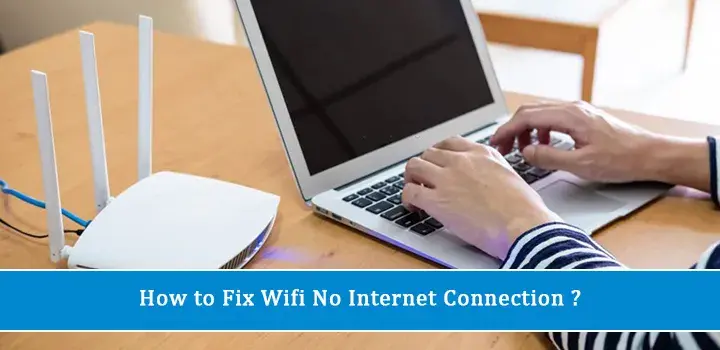
Experiencing a "Wi-Fi no internet connection" error can be incredibly frustrating, halting productivity and disconnecting you from the digital world. This comprehensive guide provides a step-by-step approach to diagnose and resolve your Wi-Fi issues, ensuring you regain internet access quickly and efficiently.
Wi-Fi No Internet Connection: The Ultimate Troubleshooting Guide
In today's hyper-connected world, a stable internet connection is not a luxury; it's a necessity. Whether you're working remotely, streaming your favorite shows, or simply browsing the web, a sudden "Wi-Fi no internet connection" error can bring everything to a grinding halt. This guide is designed to equip you with the knowledge and actionable steps to systematically diagnose and resolve most common Wi-Fi connectivity problems. We'll cover everything from simple checks to more advanced network configurations, ensuring you can get back online with minimal downtime.
Understanding the "Wi-Fi No Internet Connection" Problem
Before diving into solutions, it's crucial to understand what "Wi-Fi no internet connection" actually means. This error typically indicates that your device is successfully connected to your Wi-Fi network (you see the Wi-Fi symbol), but it cannot communicate with the wider internet. This disconnect can stem from various points in your home network, from your device itself, to your router, modem, or even your Internet Service Provider (ISP).
Common Causes for No Internet Access:
- Device Issues: Problems with your computer, smartphone, or tablet's network adapter or software.
- Router Malfunctions: The router might be frozen, misconfigured, or experiencing a hardware issue.
- Modem Problems: The modem, which bridges your home network to your ISP, could be offline or malfunctioning.
- ISP Outages: Your Internet Service Provider might be experiencing a service interruption in your area.
- Configuration Errors: Incorrect network settings on your device or router.
- Physical Connections: Loose or damaged Ethernet cables.
- Interference: Other electronic devices or physical obstructions can disrupt Wi-Fi signals.
The Difference Between Wi-Fi and Internet:
It's important to distinguish between your Wi-Fi network and the internet itself. Your Wi-Fi network is the local area network (LAN) that allows your devices to communicate wirelessly with each other and with your router. The internet is the global network of computers that your router connects to via your modem. When you have "Wi-Fi no internet connection," your Wi-Fi network is likely working, but the link to the internet is broken.
2025 Connectivity Landscape:
As of 2025, the reliance on stable internet connectivity has never been higher. With the proliferation of smart home devices, remote work becoming a norm for many, and the increasing demand for high-bandwidth streaming and gaming, even a few hours without internet can be disruptive. Statistics from early 2025 indicate that average household internet usage has increased by approximately 15% year-over-year, highlighting the critical nature of maintaining consistent connectivity.
Step 1: The Essential First Checks
Before you start troubleshooting, performing a few simple checks can often resolve the issue without complex steps. These basic checks are the most common culprits for a "Wi-Fi no internet connection" scenario.
Verify Other Devices:
The first and most critical step is to determine if the problem is isolated to your current device or affects your entire network. Try connecting to the Wi-Fi network with another device, such as a smartphone, tablet, or a different computer. If other devices can access the internet, the problem likely lies with the specific device you are currently using. If no devices can connect, the issue is more likely with your router, modem, or ISP.
Check the Wi-Fi Icon:
Look at the Wi-Fi icon on your device. Does it show a strong signal? Does it have an exclamation mark or a cross through it? These visual cues can provide immediate insight. A strong signal with no indicators suggests a connection to the router, but a lack of internet. An exclamation mark often means you're connected to the router but not the internet.
Confirm Wi-Fi is Enabled:
On your device, ensure that Wi-Fi is actually turned on. It might sound obvious, but it's easy to accidentally disable Wi-Fi, especially on laptops or smartphones.
Check for Airplane Mode:
Similarly, ensure that Airplane Mode is turned off. Airplane mode disables all wireless communications, including Wi-Fi and cellular data.
Inspect Physical Cables (If Applicable):
If you are using a wired Ethernet connection to your router or modem, check that the Ethernet cable is securely plugged into both your device and the router/modem. Try a different Ethernet cable if you have one available.
Step 2: The Power Cycle Solution
The "reboot" or "power cycle" is the IT equivalent of a magic wand for many network issues. It forces all devices in your network chain to reset and re-establish connections, often clearing temporary glitches. This is the most frequently recommended first troubleshooting step for a reason – it works.
The Correct Power Cycling Procedure:
Follow these steps precisely for the most effective reboot:
- Unplug the Router: Disconnect the power adapter from your Wi-Fi router.
- Unplug the Modem: Disconnect the power adapter from your modem. If you have a combined modem/router unit, you only need to unplug that one device.
- Wait: Leave both devices unplugged for at least 60 seconds. This allows any residual power to drain and ensures a complete reset.
- Plug in the Modem: Reconnect the power adapter to your modem. Wait for its indicator lights to stabilize (usually 1-2 minutes), indicating it has re-established a connection with your ISP.
- Plug in the Router: Reconnect the power adapter to your Wi-Fi router. Wait for its indicator lights to stabilize (another 1-2 minutes).
- Test Connection: Once both devices appear to be fully operational, try connecting to the internet with your device.
Why This Works:
During operation, network devices can accumulate temporary errors or get stuck in a state that prevents proper data flow. A power cycle clears the device's memory and forces it to re-initialize its network connection from scratch, often resolving transient issues.
When to Power Cycle:
Perform a power cycle whenever you encounter a "Wi-Fi no internet connection" error, or if your internet speeds have been unusually slow. It's also a good practice to do this periodically, perhaps once a month, as a preventative measure.
Step 3: Device-Specific Troubleshooting
If you've confirmed that other devices can connect to the internet, the problem is likely with the specific device you're using. Here's how to troubleshoot common issues on various devices.
Troubleshooting on Windows PCs:
1. Run the Network Troubleshooter:
Windows has a built-in troubleshooter that can automatically detect and fix common network problems.
- Right-click on the Wi-Fi icon in the system tray (bottom-right corner).
- Select "Troubleshoot problems."
- Follow the on-screen prompts.
2. Forget and Reconnect to the Wi-Fi Network:
This clears any saved, potentially corrupted, network profile.
- Go to Settings > Network & Internet > Wi-Fi.
- Click "Manage known networks."
- Select your Wi-Fi network and click "Forget."
- Then, scan for networks again, select yours, and re-enter the password.
3. Update Network Adapter Drivers:
Outdated or corrupted drivers can cause connectivity issues.
- Right-click the Start button and select "Device Manager."
- Expand "Network adapters."
- Right-click your Wi-Fi adapter and select "Update driver."
- Choose "Search automatically for drivers."
4. Reset Network Settings:
This will remove and reinstall all network adapters and reset networking components to their default settings.
- Go to Settings > Network & Internet > Status.
- Scroll down and click "Network reset."
- Click "Reset now" and confirm. Your PC will restart.
Troubleshooting on macOS:
1. Run Wireless Diagnostics:
macOS includes a built-in tool to help diagnose Wi-Fi issues.
- Hold down the Option key and click the Wi-Fi icon in the menu bar.
- Select "Open Wireless Diagnostics..."
- Follow the on-screen instructions.
2. Forget and Reconnect to the Wi-Fi Network:
- Go to System Settings (or System Preferences) > Network.
- Select Wi-Fi in the left sidebar.
- Click the "Details..." button next to your network name.
- Click "Forget This Network..." and confirm.
- Reconnect to the network by selecting it from the Wi-Fi menu and entering the password.
3. Renew DHCP Lease:
This refreshes your IP address from the router.
- Go to System Settings (or System Preferences) > Network.
- Select Wi-Fi, then click "Details..."
- Go to the TCP/IP tab.
- Click "Renew DHCP Lease."
Troubleshooting on Smartphones (iOS/Android):
1. Toggle Wi-Fi Off and On:
A simple toggle can often resolve temporary glitches.
2. Forget and Reconnect to the Wi-Fi Network:
- iOS: Settings > Wi-Fi > tap the "i" icon next to your network > Forget This Network.
- Android: Settings > Network & Internet (or Connections) > Wi-Fi > tap your network > Forget (or Unsave).
3. Reset Network Settings:
- iOS: Settings > General > Transfer or Reset iPhone > Reset > Reset Network Settings.
- Android: Settings > System > Reset options > Reset Wi-Fi, mobile & Bluetooth (or similar wording).
Note: Resetting network settings will erase all saved Wi-Fi passwords and Bluetooth pairings.
4. Check for Software Updates:
Ensure your device's operating system is up to date.
Step 4: Deep Dive into Router and Modem Issues
If multiple devices are experiencing the "Wi-Fi no internet connection" problem, the issue likely lies with your router, modem, or the connection between them. This section delves into diagnosing and resolving these hardware-related problems.
Check Router and Modem Lights:
Your router and modem have indicator lights that provide crucial information about their status. Refer to your device's manual for specific meanings, but generally:
- Power Light: Should be solid, indicating the device is powered on.
- Internet/WAN Light: Should be solid or blinking, indicating a connection to your ISP. If it's off or red, there's a problem with the ISP connection.
- Wi-Fi/WLAN Light: Should be blinking, indicating wireless activity.
- Ethernet Lights: If connected via Ethernet, these lights should be on or blinking.
If the Internet/WAN light is off or red, the problem is likely with your ISP's service or the cable connecting your modem to the wall jack.
Inspect Physical Connections:
Ensure all cables are securely connected:
- Modem to Wall: The coaxial cable (for cable internet) or phone line (for DSL) should be firmly screwed in or plugged into the wall jack and the modem.
- Modem to Router: An Ethernet cable should connect the modem's LAN port to the router's WAN/Internet port. Ensure it's clicked into place on both ends.
- Router to Devices (if wired): Ethernet cables should be securely plugged into the router's LAN ports and your devices.
Try replacing any suspect Ethernet cables. Damaged cables are a common cause of intermittent connectivity.
Access Your Router's Admin Panel:
The router's admin panel provides detailed status information and configuration options. The process to access it is generally:
- Ensure your device is connected to your Wi-Fi network (even if there's no internet).
- Open a web browser.
- Type your router's IP address into the address bar. Common IP addresses are 192.168.1.1 or 192.168.0.1. You can find this on a sticker on the router or in its manual.
- Enter your router's username and password. These are also usually on the router's sticker or in the manual. If you've changed them and forgotten, you may need to reset the router.
Once logged in, look for a "Status," "Internet," or "WAN" section. This will tell you if the router is receiving an IP address from the modem, which is a good indicator of whether the modem is communicating with the ISP.
Check for Firmware Updates:
Outdated router firmware can lead to performance issues and security vulnerabilities. Within the router's admin panel, look for a "Firmware Update" or "System Update" option and install any available updates.
Router Placement and Interference:
While not directly causing a "no internet" issue, poor router placement can lead to weak signals and dropped connections, which can sometimes be misinterpreted. Ensure your router is in a central, open location, away from obstructions like thick walls, metal objects, and other electronic devices (microwaves, cordless phones) that can cause interference.
Router vs. Modem: What's the Difference?
Understanding the roles of your router and modem is key to effective troubleshooting.
| Component | Primary Function | Common Issues | Troubleshooting Steps |
|---|---|---|---|
| Modem | Connects your home network to your Internet Service Provider (ISP). Translates signals from your ISP into a format your router can understand. | No internet signal from ISP, blinking internet light, device offline. | Power cycle, check physical connections to wall and router, contact ISP. |
| Router | Creates your local Wi-Fi network, assigns IP addresses to devices, and directs traffic between your devices and the internet (via the modem). | No Wi-Fi signal, slow Wi-Fi, devices connected to Wi-Fi but no internet, network congestion. | Power cycle, check firmware, reset to factory defaults, check Wi-Fi settings. |
Step 5: Navigating Network Settings
Incorrect network settings on your device or router can prevent internet access. This section covers common settings to check.
Check IP Address and DNS Settings:
Your device needs an IP address to communicate on the network. Most home networks use DHCP (Dynamic Host Configuration Protocol) to automatically assign IP addresses. If DHCP is disabled or not working correctly, your device might not get an IP address.
- On your device: In your Wi-Fi settings, ensure that your device is set to obtain an IP address and DNS server address automatically (DHCP). If you have manually entered IP addresses, double-check them for accuracy or switch back to automatic.
- On your router: Access your router's admin panel and ensure that the DHCP server is enabled and configured with a valid IP address range.
Understanding DNS:
The Domain Name System (DNS) translates website names (like google.com) into IP addresses that computers understand. If your DNS servers are not working correctly, you won't be able to access websites, even if your internet connection is otherwise fine.
- Automatic DNS: Usually, your router will provide DNS servers from your ISP.
- Manual DNS: You can manually configure DNS servers, such as Google DNS (8.8.8.8 and 8.8.4.4) or Cloudflare DNS (1.1.1.1 and 1.0.0.1). This can sometimes resolve connectivity issues if your ISP's DNS servers are experiencing problems. You can change this setting on your device or on your router.
To change DNS on your router, log into its admin panel, find the WAN or Internet settings, and look for DNS server options. To change it on your device, you'll find it in the advanced TCP/IP settings for your network connection.
Check for IP Address Conflicts:
An IP address conflict occurs when two devices on the same network are assigned the same IP address. This can disrupt connectivity for one or both devices. If you've manually assigned IP addresses, ensure they are unique. If using DHCP, restarting your router and modem should resolve most conflicts.
Firewall and Antivirus Interference:
Sometimes, overly aggressive firewall or antivirus software on your device can block internet access. Temporarily disabling your firewall or antivirus software (be cautious and re-enable it afterward) can help determine if it's the cause. If disabling it resolves the issue, you'll need to adjust the software's settings to allow internet access.
Step 6: Advanced Troubleshooting Techniques
If the previous steps haven't resolved your "Wi-Fi no internet connection" issue, it's time to explore more advanced troubleshooting methods.
Ping Test:
A ping test sends small data packets to a specific IP address or domain name to check for connectivity and measure response times. It's a fundamental network diagnostic tool.
- On Windows: Open Command Prompt (search for "cmd"). Type
ping google.comand press Enter. - On macOS: Open Terminal (Applications > Utilities > Terminal). Type
ping google.comand press Enter.
Interpreting Results:
- Successful Pings: If you receive replies with "time=XXms," your device can reach the internet. The problem might be with specific applications or websites.
- "Request timed out" or "Destination host unreachable": This indicates a connectivity problem between your device and the target server. If you can ping your router's IP address (e.g., 192.168.1.1) but not an external site like google.com, the issue is likely with your modem or ISP.
Traceroute (or tracert):
Traceroute maps the path that data packets take from your device to a destination server, showing each "hop" (router) along the way. This can help pinpoint where the connection is failing.
- On Windows: Open Command Prompt. Type
tracert google.comand press Enter. - On macOS: Open Terminal. Type
traceroute google.comand press Enter.
Look for asterisks (*) or timeouts at a particular hop. If the trace stops early or shows many timeouts, it indicates a problem at that point in the network path.
Check Router Logs:
Many routers store system logs that can provide valuable diagnostic information about connection errors, firmware issues, or security events. Access your router's admin panel and look for a "System Log" or "Logs" section.
Reset Router to Factory Defaults:
This is a more drastic step that erases all custom settings and restores the router to its original out-of-the-box configuration. You will need to reconfigure your Wi-Fi network name (SSID), password, and any other custom settings afterward.
To reset, locate the small reset button on the back or bottom of your router. With the router powered on, use a paperclip or a similar pointed object to press and hold the button for about 10-30 seconds (refer to your router's manual for the exact duration). The router will reboot, and you'll need to set it up again.
Test with a Wired Connection:
If you're primarily using Wi-Fi, try connecting a computer directly to your router using an Ethernet cable. If you get internet access via Ethernet but not Wi-Fi, the problem is definitely with your router's wireless capabilities or your device's Wi-Fi adapter. If you still have no internet via Ethernet, the issue is likely with the router's connection to the modem or the modem/ISP itself.
Check for ISP Outages:
Sometimes, the problem isn't with your equipment at all. Your ISP might be experiencing an outage in your area. You can usually check this by:
- Visiting your ISP's website on a mobile device using cellular data.
- Calling your ISP's customer support line.
- Checking community forums or social media for reports of outages in your region.
Step 7: Knowing When to Seek Professional Assistance
After exhausting the troubleshooting steps above, if you're still facing a "Wi-Fi no internet connection" issue, it's time to consider seeking external help. There are several avenues for professional support.
Contact Your Internet Service Provider (ISP):
If you suspect the problem lies with your ISP's service or the line coming into your home, this is your primary point of contact. They can:
- Check for outages in your area.
- Remotely diagnose your modem's connection status.
- Schedule a technician visit to inspect the external lines and equipment.
Be prepared to explain the troubleshooting steps you've already taken. This will help them diagnose the issue more efficiently.
Consult Your Router Manufacturer:
If you've determined the issue is with your router (e.g., it's faulty, outdated, or you're struggling with its configuration), contacting the manufacturer's support can be beneficial. They can offer:
- Specific troubleshooting for their hardware.
- Guidance on firmware updates or advanced settings.
- Information on warranty claims if the router is defective.
Seek Local IT Support:
For complex home network setups or if you're uncomfortable performing advanced troubleshooting yourself, a local IT support technician can be invaluable. They can:
- Diagnose and fix issues with your router, modem, and network configuration.
- Optimize your Wi-Fi signal for better coverage.
- Set up new network equipment.
- Provide ongoing network maintenance.
When to Consider New Equipment:
Network equipment, especially routers, has a lifespan. If your router is several years old (5+ years), it might not be capable of supporting the speeds or number of devices common in 2025. Older modems may also struggle with newer internet technologies. If your equipment is consistently failing after troubleshooting, it might be time to invest in newer, more capable hardware.
Preventative Measures for a Stable Connection
Once you've resolved your "Wi-Fi no internet connection" issue, implementing a few preventative measures can help avoid future disruptions and ensure a consistently stable internet experience.
Regularly Reboot Your Network:
As mentioned, a simple power cycle can prevent many issues. Consider setting a weekly or bi-weekly reminder to reboot your modem and router.
Keep Firmware Updated:
Check for and install firmware updates for your router and modem regularly. Manufacturers release updates to fix bugs, improve performance, and patch security vulnerabilities.
Optimize Router Placement:
Ensure your router is in a central, elevated, and open location in your home, away from potential sources of interference.
Secure Your Wi-Fi Network:
Use a strong, unique password for your Wi-Fi network (WPA2 or WPA3 encryption) to prevent unauthorized access, which can slow down your connection or even lead to security breaches.
Consider a Mesh Wi-Fi System:
For larger homes or areas with Wi-Fi dead zones, a mesh Wi-Fi system can provide seamless coverage throughout your entire property, eliminating signal drops.
Monitor Your Internet Usage:
Understand your household's internet demands. If you have many devices streaming, gaming, or working simultaneously, your current internet plan might be insufficient, leading to performance issues that can sometimes manifest as connection drops.
Test Your Speeds Periodically:
Use online speed test tools to check your internet speed regularly. If your speeds consistently fall below what you're paying for, contact your ISP.
Maintain Your Devices:
Keep your devices' operating systems and network drivers updated. Regularly scan for malware, which can sometimes interfere with network connectivity.
By following these preventative measures, you can significantly reduce the likelihood of encountering a "Wi-Fi no internet connection" error and enjoy a more reliable and robust internet experience throughout 2025 and beyond.
In conclusion, a "Wi-Fi no internet connection" problem, while disruptive, is often resolvable with a systematic approach. By starting with basic checks, performing power cycles, and methodically working through device-specific and hardware-related issues, you can regain connectivity. Remember to leverage advanced tools like ping tests and router logs when necessary. If all else fails, don't hesitate to contact your ISP or professional IT support. Implementing preventative measures will ensure a smoother online experience moving forward.