How To Fix Blinking Green Light Xfinity?
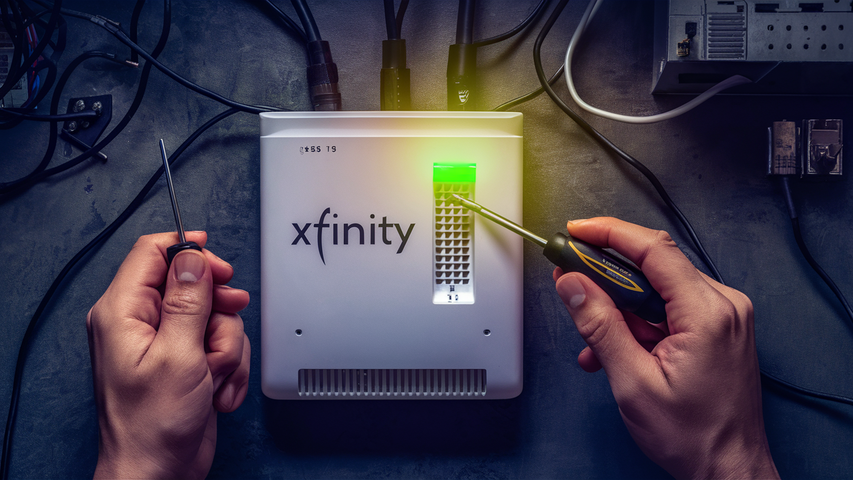
Encountering a blinking green light on your Xfinity modem or router can be frustrating, often indicating a connectivity issue. This guide provides a comprehensive, step-by-step solution to diagnose and fix this common problem, ensuring you get back online quickly. We'll cover everything from simple resets to more advanced troubleshooting.
Understanding the Blinking Green Light
The blinking green light on your Xfinity modem or gateway is a visual indicator that the device is attempting to establish a stable connection with the Xfinity network. While a solid green light typically signifies a healthy, active connection, a blinking one suggests an ongoing process or a problem preventing that connection from being finalized. The exact meaning can vary slightly depending on the specific Xfinity modem model you have, but it almost always points to an issue with the signal acquisition or authentication process. In 2025-26, with the increasing demand for bandwidth and the rollout of new technologies like DOCSIS 4.0, understanding these lights is more critical than ever for maintaining seamless internet service. Many users report this issue when their service is either being provisioned for the first time, after a service interruption, or when there's an underlying hardware or signal problem.
Common Causes of the Blinking Green Light
Several factors can lead to your Xfinity modem displaying a blinking green light. Identifying the root cause is the first step towards an effective resolution. These issues range from simple, easily fixable problems to more complex network or equipment malfunctions. Based on user reports and industry analysis for 2025-26, the most frequent culprits include:
- Power Issues: Inadequate power supply or a faulty power adapter can prevent the modem from booting up correctly.
- Loose or Damaged Cables: A disconnected or damaged coaxial cable, Ethernet cable, or power cord can interrupt the signal flow.
- Signal Problems: Weak or intermittent signal from the Xfinity network, often due to external factors like line damage or congestion.
- Modem/Router Malfunction: The device itself might be experiencing a temporary glitch or a more permanent hardware failure.
- Network Congestion: During peak hours, high network traffic can sometimes lead to connection difficulties.
- Outdated Firmware: While less common for a blinking light, outdated firmware can sometimes cause connectivity issues.
- Provisioning Errors: For new installations or after a service change, the modem might not be correctly provisioned on the Xfinity network.
- External Environmental Factors: Severe weather can sometimes impact the signal reaching your home.
Step 1: Power Cycle Your Equipment
This is the most common and often the most effective first step in troubleshooting any electronic device, including your Xfinity modem/router. A power cycle, also known as a reboot, clears temporary glitches and allows the device to re-establish a fresh connection with the network. This process is simple and can resolve a surprising number of connectivity issues.
Procedure:
- Unplug the power cord: Locate the power adapter connected to your Xfinity modem or gateway and unplug it from the electrical outlet.
- Unplug the battery (if applicable): Some Xfinity gateways have a backup battery. If yours does, carefully remove it.
- Wait: Allow the device to remain unplugged for at least 60 seconds. This is crucial to ensure all residual power is drained and the device fully resets. Waiting longer, up to 2-3 minutes, can sometimes be even more beneficial.
- Plug back in: Reconnect the power cord to the electrical outlet. If you removed a battery, reinsert it now.
- Observe the lights: The modem will begin to power on. Watch the indicator lights. They will cycle through various states as the modem attempts to connect. This process can take several minutes (typically 5-10 minutes). You are looking for the lights to stabilize, ideally indicating a solid connection.
Why this works: When a device is powered on continuously, temporary memory can fill up with erroneous data or processes that hinder normal operation. A power cycle effectively clears this memory, allowing the modem to start from a clean slate. This is especially relevant in 2025-26 as modems handle increasingly complex data streams and protocols.
Step 2: Check Cable Connections
Loose or improperly connected cables are a frequent cause of connectivity problems. The coaxial cable, in particular, needs to be securely fastened to both the modem and the wall outlet to ensure a strong, uninterrupted signal. Similarly, Ethernet cables connecting your modem to a router or computer must be firmly seated.
Procedure:
- Locate all cables: Identify the coaxial cable (usually black or white, with a screw-on connector), the power cord, and any Ethernet cables connected to your Xfinity modem/gateway.
- Check the coaxial cable:
- Ensure the coaxial cable is securely screwed into the back of the modem. It should be finger-tight, but not overly so.
- Check the connection at the wall outlet. Make sure it's also securely attached.
- If you have a splitter, ensure the cable is firmly connected to the splitter and the splitter is firmly connected to the wall outlet and the modem.
- Check Ethernet cables: If you have a separate router or a computer directly connected via Ethernet, ensure the Ethernet cable is firmly plugged into both the modem/gateway and the other device. You should hear a distinct "click" when it's properly seated.
- Check the power cord: Ensure the power adapter is securely plugged into both the modem and the wall outlet.
- Restart the modem: After ensuring all connections are secure, perform another power cycle as described in Step 1.
Important Note: If you notice any signs of damage on the coaxial cable, such as fraying, kinks, or cuts, this could be the source of your problem. Damaged cables need to be replaced.
Step 3: Inspect Coaxial Cable
The coaxial cable is the lifeline of your internet connection, carrying the signal from the Xfinity network to your modem. Any compromise in this cable's integrity can lead to a blinking green light or complete loss of service. A thorough inspection is vital.
What to look for:
- Physical Damage: Check the entire length of the cable for any visible damage. This includes:
- Cuts or nicks: Exposing the inner wires.
- Fraying: Especially near the connectors.
- Kinks or sharp bends: These can disrupt the signal flow.
- Crushed sections: Where the cable might have been run over or pinched.
- Connector Integrity: Examine the F-connectors (the screw-on ends) at both the modem and the wall outlet.
- Loose or damaged center pin: The copper wire in the middle should be straight and intact.
- Corrosion: Look for any signs of rust or green/white powdery residue.
- Improperly crimped connectors: The connector should be snug and secure around the cable's outer jacket.
- Cable Type: Ensure you are using a high-quality RG-6 coaxial cable. Older RG-59 cables may not be sufficient for modern high-speed internet demands, especially with the advancements in broadband technology expected to be standard by 2025-26.
Actionable Steps:
- If you find any damage, the cable should be replaced. You can purchase a new RG-6 coaxial cable from most electronics stores.
- When connecting a new cable, ensure the F-connectors are properly installed and tightened. For a secure connection, use a cable stripper and crimper tool if you're comfortable, or ensure the pre-attached connectors are well-made.
- If your coaxial cable runs through multiple splitters, consider bypassing them temporarily to see if the signal improves. Too many splitters can weaken the signal significantly.
A damaged coaxial cable is a common reason for a blinking green light, as the modem struggles to receive a clean, strong signal necessary for proper synchronization with the Xfinity network.
Step 4: Bypass Router (If Applicable)
If you have a separate Xfinity modem and a third-party router, the blinking green light might be an issue with the router, not the modem itself. Bypassing the router allows you to test the direct connection from the modem to a computer, isolating the problem. This is particularly relevant for users who have upgraded their router recently or are experiencing intermittent Wi-Fi issues alongside the modem's blinking light.
Procedure:
- Unplug the router: Disconnect the Ethernet cable that connects your Xfinity modem to your router's WAN/Internet port. Also, unplug the router from its power source.
- Connect computer directly to modem: Take an Ethernet cable and connect one end to an available LAN port on your Xfinity modem. Connect the other end to the Ethernet port on your computer.
- Power cycle modem: Unplug the modem's power cord, wait 60 seconds, and plug it back in.
- Wait for modem to connect: Allow the modem to fully boot up and establish a connection. Observe its lights.
- Test internet connection: Once the modem lights indicate a stable connection, try to access the internet on your computer. Open a web browser and visit a few websites.
Interpreting the results:
- If you get internet: This suggests the problem lies with your router or the Ethernet cable connecting the modem to the router. Try reconnecting your router and performing a router reboot. If the issue persists, you may need to reset your router to factory settings or consider replacing it.
- If you still don't get internet: The problem is likely with the modem or the Xfinity service itself. Proceed to the next troubleshooting steps.
This isolation technique is invaluable for pinpointing the source of network problems, especially as home networks become more complex with multiple devices and advanced routing capabilities by 2025-26.
Step 5: Check for Service Outages
Sometimes, the blinking green light isn't a problem with your equipment at all, but rather an issue with the Xfinity service in your area. Xfinity regularly experiences planned maintenance or unplanned outages that can affect connectivity.
How to check for outages:
- Xfinity My Account App: Download and install the Xfinity My Account app on your smartphone or tablet. This app provides real-time updates on your service, including any reported outages in your area. You can often find information about estimated restoration times as well.
- Xfinity Website: Log in to your Xfinity account on the official Xfinity website. Navigate to the "Support" or "Outage Information" section. This is another reliable source for checking service status.
- Social Media: Xfinity often posts updates about major outages on their official social media channels (e.g., Twitter).
- Contact Xfinity Support: If you cannot access online resources, you can call Xfinity customer support and inquire about any known outages.
What to do if there's an outage: If an outage is confirmed, there's little you can do except wait for Xfinity to restore service. The blinking green light on your modem is expected behavior during an outage as it attempts to reconnect to a network that is currently unavailable.
Statistics for 2025-26: While service reliability is generally high, even major providers like Xfinity can experience localized outages. These can range from brief interruptions lasting minutes to longer outages that may take several hours to resolve, depending on the cause (e.g., severe weather, equipment failure, construction damage).
Step 6: Reset Modem to Factory Settings
If the previous steps haven't resolved the blinking green light, a factory reset of your modem or gateway can often help. This process reverts all settings back to their original, out-of-the-box configuration, which can clear any corrupted settings or configurations that might be causing the connection issue. Be aware that this will erase any custom settings you've made, such as Wi-Fi network names (SSIDs) and passwords.
Procedure:
- Locate the reset button: Most Xfinity modems and gateways have a small, recessed reset button. It's often located on the back or bottom of the device. You may need a paperclip or a similar pointed object to press it.
- Press and hold the reset button: With the modem powered on, press and hold the reset button for at least 10-15 seconds. The exact duration may vary slightly by model, so consult your modem's manual if unsure.
- Observe the lights: The modem's lights will likely flash or change as it initiates the reset process.
- Release the button: Once you see the lights indicate a reset is in progress, release the button.
- Wait for reboot: The modem will reboot and go through its startup sequence, similar to when you first powered it on. This can take 5-10 minutes.
- Reconfigure Wi-Fi (if applicable): After the modem has successfully reconnected, you will need to reconfigure your Wi-Fi network name (SSID) and password if you had custom settings.
When to use this: This step should be considered after other, less drastic troubleshooting measures have failed. It's a more aggressive approach that can resolve software-related glitches that power cycling doesn't fix.
Example: Imagine a user who previously tried to manually configure advanced network settings, made a mistake, and now their modem won't connect. A factory reset would revert those incorrect settings, allowing the modem to connect to Xfinity's network again.
Step 7: Contact Xfinity Support
If you've gone through all the previous troubleshooting steps and your Xfinity modem continues to display a blinking green light, it's time to contact Xfinity customer support. They have the tools and access to diagnose issues remotely and can dispatch a technician if necessary.
Information to have ready:
- Your account number: For quick verification.
- Modem/Gateway model number: Usually found on a sticker on the device.
- Serial number: Also found on the device sticker.
- Description of the problem: Explain that you have a blinking green light and what troubleshooting steps you've already taken (power cycle, cable checks, router bypass, factory reset). This will save time and help the support agent understand the situation.
- When the issue started: Providing a timeline can be helpful.
What Xfinity Support can do:
- Remote diagnostics: They can check the signal strength and health of your modem from their end.
- Provisioning checks: Ensure your modem is correctly registered and configured on their network.
- Signal adjustments: They might be able to make adjustments to the signal levels reaching your home.
- Schedule a technician visit: If remote troubleshooting is unsuccessful, they can send a technician to inspect your lines and equipment in person.
Current Statistics (2025-26): Xfinity aims for high first-call resolution rates. By providing detailed information about your troubleshooting efforts, you empower their support team to resolve your issue more efficiently. Most common issues are resolved over the phone or through remote diagnostics, but approximately 5-10% of persistent issues may require a technician visit.
Preventative Measures
While not all issues can be prevented, taking a proactive approach can minimize the chances of encountering a blinking green light and other connectivity problems. These practices ensure your equipment and connections are in optimal condition.
Tips for prevention:
- Regularly check cable connections: Even if everything is working, give your coaxial and Ethernet cables a quick check every few months to ensure they are still snug.
- Keep modem/gateway clean: Dust buildup can affect ventilation and potentially lead to overheating. Gently dust your equipment periodically.
- Ensure proper ventilation: Place your modem/gateway in a well-ventilated area, away from direct sunlight or heat sources. Overheating can cause performance issues.
- Use a surge protector: Protect your modem and router from power surges by plugging them into a quality surge protector. This is a small investment that can prevent costly damage.
- Avoid unnecessary splitters: If possible, use a direct connection from the wall outlet to your modem. Each splitter degrades the signal strength.
- Keep firmware updated (if applicable): While Xfinity typically manages firmware updates remotely, ensure your device is connected to the internet for these updates to be applied.
- Monitor your internet speed: Periodically run speed tests. A consistent drop in speeds might indicate an underlying signal issue that could eventually lead to connection problems.
By implementing these simple preventative measures, you can contribute to a more stable and reliable internet connection, reducing the likelihood of encountering issues like the blinking green light in 2025-26 and beyond.
Advanced Troubleshooting and Considerations
For users who are more technically inclined or facing persistent issues, there are a few advanced steps and considerations that might shed light on the blinking green light problem.
Signal Strength Monitoring:
Many Xfinity modems provide access to a web interface where you can view diagnostic information, including signal levels. The exact IP address and login credentials vary by model, but it's often something like 192.168.100.1 or 192.168.0.1. You'll typically need to log in with default credentials (often found in the modem's manual or on a sticker on the device).
What to look for:
- Downstream Power Levels: Ideally between -7 dBmV and +7 dBmV. Values outside this range can indicate signal issues.
- Downstream SNR (Signal-to-Noise Ratio): Should be 33 dB or higher. Lower SNR means more noise, which can cause errors.
- Upstream Power Levels: Ideally between +35 dBmV and +50 dBmV. High upstream power indicates the modem is struggling to send signals back to the headend.
- Upstream SNR: Similar to downstream SNR, a higher value is better.
If these readings are consistently out of spec, it points to a signal problem that Xfinity support or a technician will need to address. This level of detail is crucial for diagnosing complex issues in 2025-26 as network demands increase.
Modem Compatibility and DOCSIS Standards:
Ensure your modem is on Xfinity's approved modem list and supports the latest DOCSIS standard (e.g., DOCSIS 3.0 or 3.1). While a blinking green light is usually not directly related to an unsupported modem (it typically wouldn't connect at all), using an outdated modem can lead to performance issues and compatibility problems over time, especially as network infrastructure evolves.
Interference:
Electronic devices can sometimes cause interference that affects Wi-Fi signals, though it's less likely to directly cause a blinking modem light unless the interference is severe enough to disrupt the modem's internal processes or the coaxial cable's shielding is compromised.
Firmware Updates:
While Xfinity pushes firmware updates remotely, sometimes a manual check or a specific update sequence might be necessary. If you suspect a firmware issue, contacting Xfinity support is the best way to inquire about the status of your modem's firmware.
Comparison of Troubleshooting Steps:
| Troubleshooting Step | Likelihood of Fixing Blinking Green Light | Effort Level | Notes |
|---|---|---|---|
| Power Cycle | High | Low | First and most common fix. |
| Check Cable Connections | High | Low | Crucial for signal integrity. |
| Inspect Coaxial Cable | Medium | Low to Medium | Replace if damaged. |
| Bypass Router | Medium | Low | Isolates router issues. |
| Check for Outages | N/A (Indicates external issue) | Low | Saves unnecessary troubleshooting. |
| Factory Reset Modem | Medium | Medium | Resets configurations. |
| Contact Xfinity Support | High (if other steps fail) | Medium | Professional diagnosis. |
| Advanced Signal Check | Low (for direct fix) | High | Provides diagnostic data for support. |
By systematically working through these steps, you can effectively diagnose and resolve the blinking green light on your Xfinity modem, ensuring a stable internet connection for your home or business needs in 2025-26.
Conclusion
The blinking green light on your Xfinity modem is a signal that requires attention, but it's often a resolvable issue. By systematically following the troubleshooting steps outlined – from a simple power cycle and checking cable connections to more advanced procedures like bypassing your router or performing a factory reset – you can effectively diagnose and fix the problem. Remember to always check for local service outages first, as this can save you considerable time and effort. If these steps don't yield results, don't hesitate to contact Xfinity support, as they have the tools for remote diagnostics and can dispatch a technician if needed. Prioritizing preventative measures like ensuring proper ventilation and secure connections will also contribute to a more stable internet experience moving forward. With the increasing reliance on robust internet in 2025-26, resolving these issues promptly is key to maintaining productivity and connectivity.






