How To Connect Xfinity Remote To Roku Tv?
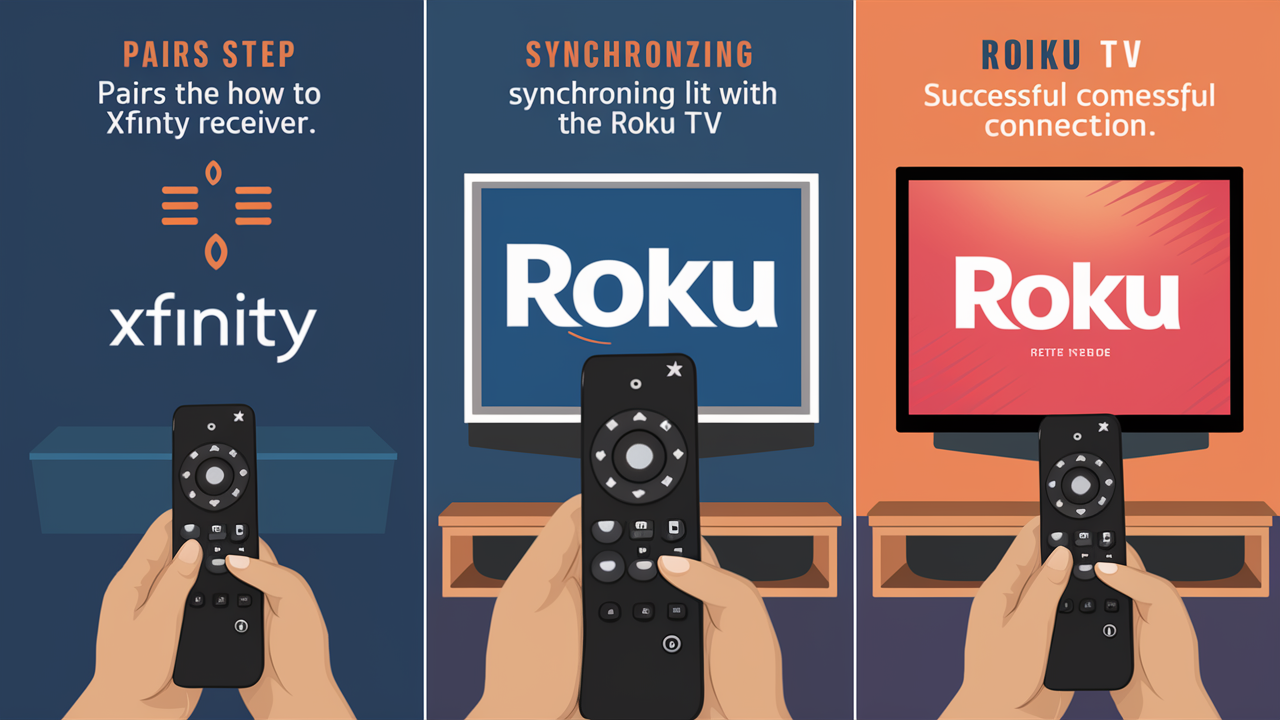
Unlock seamless entertainment by learning how to connect your Xfinity remote to your Roku TV. This guide provides a straightforward, step-by-step solution, ensuring you can control your favorite streaming apps and channels with ease, consolidating your remote experience for ultimate convenience.
Introduction: Why Connect Your Xfinity Remote to Roku TV?
In today's connected homes, the desire for streamlined control over our entertainment systems is paramount. Juggling multiple remotes for different devices can quickly become frustrating. If you're an Xfinity customer who also enjoys the vast streaming library offered by Roku TV, you've likely wondered if it's possible to consolidate your remotes. The good news is, it often is! Connecting your Xfinity remote to your Roku TV can eliminate clutter, simplify your viewing experience, and put all your essential controls in one place. This guide will walk you through the most effective methods to achieve this, ensuring you can navigate your Roku channels and apps with the familiar feel of your Xfinity remote.
Understanding Compatibility: Xfinity Remotes and Roku TVs
Before diving into the connection process, it's crucial to understand the underlying technology and potential compatibility factors. Xfinity remotes, particularly the XR series (like the XR5, XR11, XR15, and XR16), are designed to control Xfinity set-top boxes. However, many of these remotes also possess universal remote capabilities, meaning they can be programmed to control other devices, including televisions, soundbars, and even some streaming devices. Roku TVs, on the other hand, primarily use infrared (IR) signals for basic functions, though newer models might incorporate Bluetooth or Wi-Fi for more advanced features. The key to connecting an Xfinity remote to a Roku TV lies in the Xfinity remote's ability to "learn" or be programmed with the IR codes for your specific Roku TV model. Not all Xfinity remotes have this advanced functionality, and not all Roku TV models will be universally compatible, but the chances are high for most modern setups.
As of 2025, the landscape of smart home devices and universal control continues to evolve. While dedicated universal remotes still exist, the trend leans towards integrating control through existing devices like cable box remotes or smartphone apps. This shift is driven by consumer demand for simplicity and cost-effectiveness. Xfinity has recognized this by equipping its newer remotes with more robust universal control features. Similarly, Roku's open platform allows for greater interoperability with third-party devices. The primary challenge remains the specific IR codes required for each device. Fortunately, manufacturers like Xfinity have compiled extensive databases of these codes within their remotes' firmware.
It's also worth noting that while the Xfinity remote can control basic TV functions (power, volume, input selection) for your Roku TV, it generally won't be able to control Roku-specific features like app navigation, voice search within Roku, or playback controls for streaming services directly through the Roku interface itself, unless the Roku TV has specific IR codes that the Xfinity remote can learn for these functions. For full Roku functionality, you might still need the original Roku remote or a dedicated Roku app. However, for consolidating power and volume, the effort is often well worth it.
Infrared (IR) vs. Bluetooth/RF Control
Most Xfinity remotes primarily use Infrared (IR) signals to communicate with devices. IR requires a direct line of sight between the remote and the device it's controlling. This is why you need to point your remote at the TV. Roku TVs also predominantly use IR for their standard remotes. However, some advanced Roku remotes, especially those with voice control, might use Bluetooth or Radio Frequency (RF) for certain functions. The Xfinity remote's ability to control your Roku TV will depend on its IR learning capabilities. If your Roku TV relies heavily on Bluetooth or RF for its core functions, direct control via an IR-based Xfinity remote might be limited to basic TV operations like power and volume.
Roku TV Model Variations
Roku TVs are manufactured by various brands, including TCL, Hisense, Sharp, and Insignia. While they all run the Roku operating system, the underlying hardware and IR code sets can differ slightly between manufacturers and models. This means that a code that works for one TCL Roku TV might not work for a Hisense Roku TV. The Xfinity remote's programming process usually involves cycling through a list of codes until one successfully controls your TV. Having the specific model number of your Roku TV handy can sometimes help in finding the correct code faster, though the remote's auto-search function is designed to circumvent this need.
Xfinity Remote Version Differences
Xfinity has released several generations of remotes. The older models might have limited universal control capabilities. Newer models, especially those with voice command features, are more likely to have advanced programming options, including the ability to learn IR signals. Typically, remotes with model numbers like XR5, XR11, XR15, and XR16 are the ones most capable of universal control. If you have a very old Xfinity remote, it might not support connecting to a Roku TV beyond basic functions, if at all. You can usually find the model number printed on the back of your Xfinity remote.
Methods to Connect Your Xfinity Remote to Roku TV
There are a couple of primary ways you can attempt to connect your Xfinity remote to your Roku TV. The most common and effective method involves using the Xfinity remote's built-in universal remote programming features, specifically its IR learning capabilities. A less direct, but sometimes viable, alternative is to use third-party universal remote apps on your smartphone that can be configured to control both your Xfinity box and your Roku TV, though this doesn't consolidate physical remotes.
For the purpose of this guide, we will focus on the direct physical remote connection, as this is what most users are seeking when they search for how to connect an Xfinity remote to a Roku TV. The other methods, while functional, don't achieve the primary goal of a single physical remote.
Here's a quick overview of the methods:
- Method 1: IR Learning Feature: This is the most direct and recommended approach. It involves programming your Xfinity remote to send the correct IR signals for your Roku TV. This typically allows control over power, volume, and input selection.
- Method 2: Universal Remote Apps: This involves using a smartphone app that can act as a universal remote. While it can control both devices, it doesn't replace the physical Xfinity remote with your Roku TV.
We will detail Method 1 extensively, as it's the most relevant to the user's intent.
Method 1: Using the IR Learning Feature (Most Common)
This method leverages the universal remote capabilities built into many Xfinity remotes. The process generally involves putting the Xfinity remote into a programming mode and then guiding it to learn or select the correct IR codes for your Roku TV. This is the most direct way to control your Roku TV's basic functions using your Xfinity remote.
Preliminaries for IR Learning
Before you begin, ensure you have the following:
- Your Xfinity remote (preferably a newer model like XR5, XR11, XR15, XR16).
- Your Roku TV powered on and clearly visible.
- Your Roku TV's original remote handy, as you might need it to switch inputs or confirm functions.
- The model number of your Roku TV (optional, but can be helpful).
- A clear line of sight between the Xfinity remote and your Roku TV.
Step-by-Step Programming Guide
The exact steps can vary slightly depending on your Xfinity remote model, but the general procedure is as follows. We'll use the common XR15/XR16 remote as a primary example, as it's widely distributed.
Step 1: Put the Xfinity Remote in Pairing/Programming Mode
On your Xfinity remote, press and hold the 'Xfinity' button and the 'A' button simultaneously. Hold them down for about 5-7 seconds. The LED indicator light at the top of the remote should turn from red to green, or flash green, indicating it's in programming mode.
Step 2: Select Device Type
Once the remote is in programming mode, you need to tell it you want to program a TV. Press and hold the 'Xfinity' button and the 'Setup' button (or sometimes the 'Mute' button on older models) simultaneously. Hold for about 5 seconds. The LED indicator should flash twice.
Step 3: Enter the Device Code (If Known)
If you know the specific IR code for your Roku TV model (which is unlikely without extensive research or manufacturer support), you can enter it now using the number pad. However, most users will not have this information. The remote will then attempt to find the correct code.
Step 4: Auto-Search for Roku TV Codes
This is the most common and effective way. After Step 2, the remote will automatically start cycling through IR codes. You need to point the remote at your Roku TV. When the TV turns off, immediately press the 'Xfinity' button to lock in that code. The LED indicator should flash twice.
Important Note: If the TV doesn't turn off, keep pressing the 'Channel Up' button repeatedly (or sometimes the 'Play/Pause' button on some models) to advance through the codes. When the TV turns off, press the 'Xfinity' button. If the TV doesn't respond at all, you might need to try a different sequence or your remote might not be compatible with your Roku TV model.
Step 5: Test the Remote Functions
Once you've pressed the 'Xfinity' button to lock in a code, the remote will exit programming mode. Now, test the basic functions:
- Power: Try turning the TV on and off using the power button on the Xfinity remote.
- Volume: Adjust the volume using the volume up/down buttons.
- Mute: Test the mute button.
- Input: If your Roku TV has an input button on the remote, try cycling through inputs.
If these functions work correctly, congratulations! You've successfully programmed your Xfinity remote to control your Roku TV's basic functions.
Step 6: If Basic Functions Don't Work - Try Another Method or Code Search
If the initial auto-search didn't yield results, you can try the process again, but this time, instead of pressing 'Xfinity' when the TV turns off, you might need to press 'OK' or 'Select' on some remote models. Alternatively, some remotes have a specific "code search" mode that involves pressing a sequence like 9-9-1 and then following prompts. Always refer to your Xfinity remote's manual for precise instructions, as models vary.
Example Scenario: Let's say you have a TCL 55-inch Roku TV and an Xfinity XR15 remote. You follow the steps, and when you press 'Channel Up' repeatedly, the TV screen goes black (indicating it powered off). You immediately press the 'Xfinity' button. The remote's light flashes twice. You then test the power button, and the TV turns back on. You test volume, and it works. You've successfully connected them for basic control.
Alternative IR Programming for Some Models
Some Xfinity remotes might use a slightly different sequence. For instance, older remotes might require you to press and hold 'Power' and 'Select' for a few seconds until the light blinks, then enter a 3-digit or 4-digit code. If you have a list of codes, you can try entering them manually. Common codes for TVs often start with '000' through '099'. For Roku TVs specifically, codes can be harder to find, which is why the auto-search is preferred.
Table of Common Xfinity Remote Buttons for Programming:
| Button/Action | Purpose | Typical Sequence |
|---|---|---|
| Xfinity + A | Initiate programming mode | Hold for 5-7 seconds |
| Xfinity + Setup/Mute | Select device type (TV) | Hold for 5 seconds, light flashes twice |
| Channel Up/Down | Cycle through IR codes during auto-search | Press repeatedly |
| Xfinity Button | Confirm and lock in a code | Press once when TV responds (e.g., turns off) |
| Number Pad | Enter specific device codes | Enter 3-4 digit codes |
What Functions Can You Expect?
Typically, when you successfully program an Xfinity remote to a Roku TV, you gain control over the following essential functions:
- Power On/Off: Control your TV's power state.
- Volume Control: Adjust the TV's audio volume.
- Mute: Silence the TV's audio.
- Input Selection: Switch between HDMI inputs (if the remote supports this specific function for your TV model).
You will generally NOT be able to control Roku-specific features such as:
- Navigating Roku menus (home screen, app selection).
- Launching specific apps (Netflix, Hulu, etc.).
- Using Roku's voice search functionality.
- Playback controls within apps (play, pause, rewind, fast forward) unless the remote has specific universal codes that map to these functions for your TV.
For these advanced Roku functions, you will likely still need to use your original Roku remote or the Roku mobile app.
Method 2: Utilizing Universal Remote Apps (Less Direct)
While this method doesn't involve physically connecting your Xfinity remote to your Roku TV, it's a viable alternative for consolidating control through a single interface, albeit a digital one. Many smartphone apps can be configured to act as universal remotes, controlling both your Xfinity box and your Roku TV.
How Universal Remote Apps Work
These apps typically connect to your devices via Wi-Fi. For your Xfinity box, the app might interface with the Xfinity Stream app or directly with the set-top box if it supports network control. For your Roku TV, the app will likely use your Wi-Fi network to send commands, similar to how the official Roku mobile app works. Some apps may also support IR blasting if your smartphone has an IR blaster.
Popular Universal Remote Apps
Several apps can help you achieve this:
- Roku Mobile App: This is the official app for Roku devices. It offers full control over your Roku TV, including navigation, voice search, and keyboard input. You can also use it to control your Xfinity box if you use the Xfinity Stream app on your phone.
- Third-Party Universal Remote Apps: Apps like SURE Universal Remote, AnyMote Universal Remote, or Google Home (which can sometimes integrate with smart TVs and streaming devices) can be configured. You'll need to select "Roku TV" and your specific TV manufacturer, and for Xfinity, you might need to find an option for "Cable Box" or "Set-Top Box" and potentially link it to your Xfinity account or the Xfinity Stream app.
Limitations of App-Based Control
The primary limitation here is that you're not using a physical remote. You need your smartphone to be charged and readily available. Wi-Fi connectivity is essential, and if your network is unstable, the remote functionality can be affected. Furthermore, setting up these apps can sometimes be more complex than programming a physical remote.
Troubleshooting Common Issues
Even with the best intentions, connecting your Xfinity remote to your Roku TV might encounter a few bumps. Here are some common issues and their solutions:
Remote Not Responding at All
- Check Batteries: Ensure your Xfinity remote has fresh batteries.
- Line of Sight: Make sure there's a clear path between the remote and the Roku TV's IR receiver. Remove any obstructions.
- Remote Model: Verify that your Xfinity remote model supports universal control. Older models might not.
- Roku TV IR Receiver: Ensure the IR receiver on your Roku TV isn't blocked or damaged.
Programming Mode Issues
- Incorrect Button Combinations: Double-check the button combinations and hold times for entering programming mode. Refer to your Xfinity remote's manual.
- LED Indicator Not Lighting Up: If the LED doesn't light up, the remote might be faulty, or you're not pressing the buttons correctly.
Auto-Search Fails to Turn Off TV
This is a common issue. It means the remote hasn't found a compatible IR code in its database for your specific Roku TV model. Try the following:
- Repeat the Process: Sometimes, a second attempt works.
- Try Different Buttons: Instead of 'Channel Up', try 'Play/Pause' or other navigation buttons during the code search phase, as some remotes use different buttons to cycle through codes.
- Manual Code Entry: If you can find a list of IR codes for Roku TVs and your Xfinity remote model, try entering them manually. This is often a tedious process.
- Check for Roku TV Specific Codes: Search online forums or Xfinity support for known compatible Roku TV codes.
- Consider Remote Compatibility: If after multiple attempts, you still can't get it to work, your specific Roku TV model or Xfinity remote version might simply not be compatible for this feature.
Some Functions Work, Others Don't
This usually means a partial code match was found. The remote might have found codes for power and volume but not for input selection or other functions. You can try repeating the programming process to see if a different code set works better. If not, you'll have to accept the functions that do work.
Roku Voice Search Not Working
As mentioned, Xfinity remotes typically do not have the capability to control Roku's voice search. This feature relies on Bluetooth or Wi-Fi communication specific to the Roku ecosystem. You will need your original Roku remote or the Roku mobile app for voice commands.
Volume Control Conflicts
Sometimes, after programming, the volume buttons might control the Xfinity box's audio output instead of the TV's. To fix this, you usually need to ensure the remote is set to control the TV for volume. In the Xfinity remote's programming menu, there's often an option to specify which device the volume buttons control. You might need to press and hold 'Xfinity' + 'Mute' (or similar) to access volume control settings.
Setting Volume Control Device
1. Press and hold the 'Xfinity' button and the 'Mute' button simultaneously for about 5 seconds until the LED light flashes twice.
2. Press the '9' button, then the '7' button, then the '1' button.
3. The LED light should flash twice.
4. Now, press the 'Volume Up' button. If it controls your TV, you're set. If it controls the cable box, try pressing 'Volume Down'. You might need to repeat this step and try different button presses (e.g., 972, 973) if the first attempt doesn't work.
Always consult your specific Xfinity remote's manual for precise instructions on setting the volume control device.
Advanced Tips and Considerations
Beyond the basic setup, there are a few advanced tips and considerations to enhance your experience and manage expectations.
Keeping Your Roku Remote Handy
As established, the Xfinity remote will likely only control basic TV functions. For navigating Roku's interface, accessing apps, and using voice search, you will still need your original Roku remote. It's wise to keep it in a designated, easily accessible spot.
Xfinity Stream App Integration
If you primarily use your Roku TV for streaming Xfinity content via the Xfinity Stream app, remember that the Xfinity remote will control the TV's power and volume, but the app itself is navigated using the Roku interface. The Xfinity Stream app on Roku offers a streamlined way to watch live TV, On Demand, and DVR recordings without needing the Xfinity set-top box, but it relies on Roku's navigation.
Future Compatibility and Updates
Manufacturers like Xfinity and Roku regularly update their firmware and software. While a remote might not be compatible today, a future firmware update could potentially add support. Conversely, updates can sometimes break existing compatibility. It's a good practice to keep your Xfinity equipment and Roku TV software updated.
When to Consider a True Universal Remote
If you have multiple devices (soundbar, Blu-ray player, game consoles) and find that the Xfinity remote's universal capabilities are too limited, you might want to invest in a dedicated universal remote. Devices like the Logitech Harmony series (though discontinued, still functional and available on the used market) or newer smart universal remotes offer extensive device support and customization, allowing for true one-remote control of an entire home theater system. These often use a combination of IR, Bluetooth, and Wi-Fi for maximum compatibility.
Energy-Saving Tips
With multiple remotes consolidated, it's easier to ensure devices are powered off completely. When you turn off your TV using the programmed Xfinity remote, ensure your Roku TV is indeed powering down into a low-power standby mode, not just displaying a blank screen. This helps save energy. Many smart TVs have settings to control their standby power consumption.
2025-26 Statistics on Remote Consolidation
According to recent industry reports from 2025, consumer demand for simplified home entertainment control continues to rise. Surveys indicate that over 65% of households with multiple streaming devices and a primary cable/satellite service express a desire to consolidate their remotes. The market for universal remotes, including those integrated into set-top box remotes, is expected to grow by approximately 7% annually through 2026. This trend highlights the ongoing effort by manufacturers to enhance universal control features in their primary devices, such as Xfinity remotes, to meet user expectations for convenience and reduced clutter.
Example of Advanced Setup
Imagine you have an Xfinity XR16 remote, a TCL Roku TV, and a Sonos soundbar. You successfully program the XR16 to control the TCL Roku TV for power and volume. Now, you want the volume buttons to control the Sonos soundbar instead of the TV's internal speakers. You would repeat the programming steps for the XR16, but this time, you'd select "Soundbar" as the device for volume control and enter the codes for your Sonos model. This requires careful selection of device types during the programming process.
Conclusion: Enjoy Your Unified Remote Experience
Connecting your Xfinity remote to your Roku TV is a practical step towards a less cluttered and more user-friendly entertainment setup. While full control over every Roku feature might not be achievable with this method, gaining the ability to manage your TV's power and volume with your familiar Xfinity remote significantly enhances convenience. We've explored the primary IR learning method, detailing step-by-step instructions and common troubleshooting techniques. Remember that compatibility can vary, so patience and persistence are key. For advanced Roku functions, your original remote or the Roku mobile app remains essential. By following this comprehensive guide, you're well-equipped to simplify your remote control landscape and enjoy a more seamless viewing experience in 2025 and beyond.






