How to Connect Cox WiFi to TV?
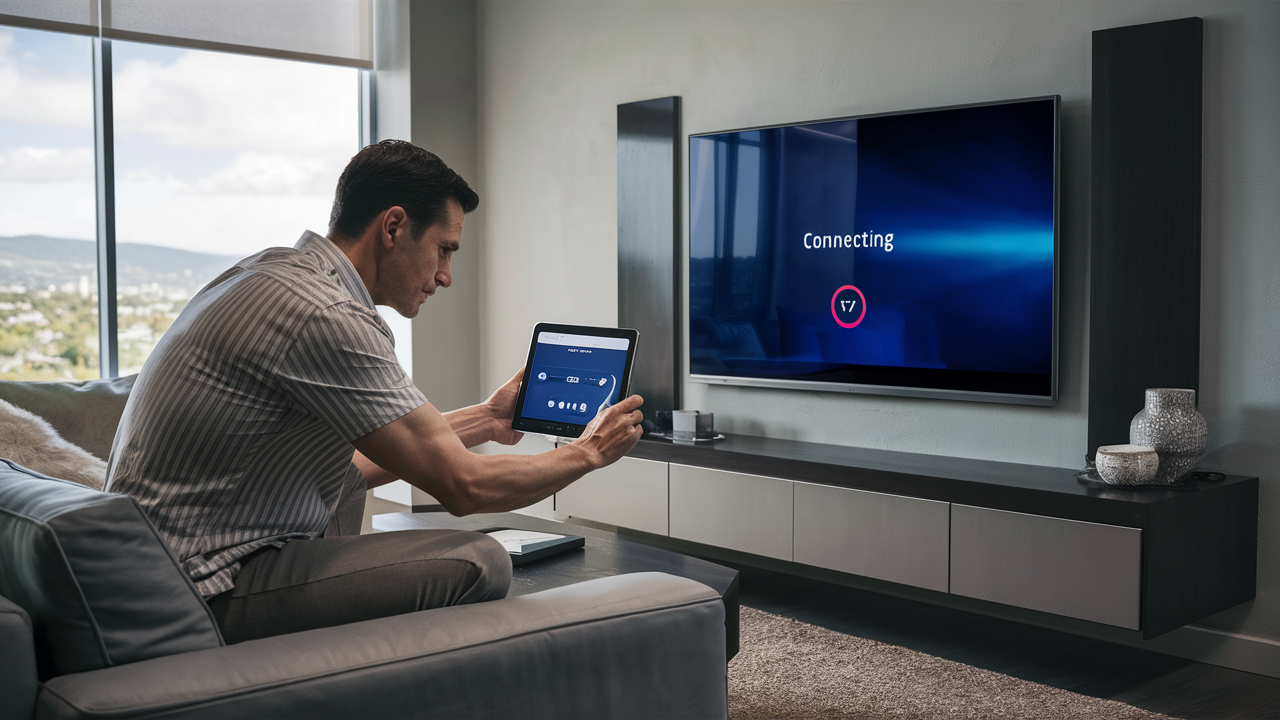
Connecting your Cox Wi-Fi to your TV is a straightforward process that unlocks a world of streaming and smart TV features. This guide will walk you through the essential steps, ensuring a seamless connection for an enhanced viewing experience.
What is Cox Wi-Fi and Why Connect It to Your TV?
Cox Communications is a major internet service provider in the United States, offering high-speed internet services to millions of households. Their Wi-Fi service, powered by their provided modems/routers, creates a wireless network within your home. Connecting your television to this Cox Wi-Fi network is crucial for accessing a plethora of modern entertainment options. This includes streaming services like Netflix, Hulu, Disney+, and Amazon Prime Video, as well as utilizing the smart features of your TV, such as web browsing, app stores, and smart home integration. In 2025-26, a stable Wi-Fi connection is no longer a luxury but a necessity for a fully functional home entertainment system.
Understanding Your Cox Wi-Fi Router
Your Cox Wi-Fi router is the central hub of your home's wireless network. It receives the internet signal from Cox and broadcasts it wirelessly, allowing your devices, including your TV, to connect. Understanding its basic components and indicators can be helpful for troubleshooting and ensuring optimal performance.
Key Components and Indicators
Most Cox routers feature several indicator lights that provide information about the status of your internet connection and network. While models can vary, common lights include:
- Power Light: Indicates the router is receiving power.
- Internet/Online Light: Shows that the router is successfully connected to the Cox network. A solid light usually means a good connection.
- Wi-Fi/Wireless Light: Confirms that the Wi-Fi signal is active and broadcasting.
- Ethernet Ports: If your router has these, they are for wired connections, which can sometimes offer more stability than Wi-Fi.
Knowing what these lights mean can help you quickly diagnose if the issue lies with your Cox service or your home network. For detailed information specific to your router model, it's always best to consult the Cox support website or the user manual that came with your equipment.
Router Placement for Optimal Signal
The physical location of your Cox router significantly impacts the strength and reach of your Wi-Fi signal. For the best performance when connecting your TV, consider these placement tips:
- Central Location: Place the router in a central area of your home, away from exterior walls.
- Elevated Position: Routers often broadcast signals downwards and outwards. Placing it on a shelf or table, rather than the floor, can improve coverage.
- Avoid Obstructions: Keep the router away from large metal objects, thick walls (especially brick or concrete), and appliances that can cause interference (like microwaves or cordless phones).
- Proximity to TV: While not always feasible, placing the router closer to your TV can ensure a stronger, more stable connection, especially for high-bandwidth activities like 4K streaming.
In 2025-26, with the increasing prevalence of 4K and even 8K content, optimizing your Wi-Fi signal strength is more critical than ever for a buffer-free viewing experience.
Pre-Connection Checklist: What You'll Need
Before you begin the process of connecting your TV to your Cox Wi-Fi, ensure you have the following essentials ready. This will make the setup process smoother and more efficient.
Essential Items
- Your Cox Wi-Fi Network Name (SSID): This is the name of your wireless network that appears when you search for available Wi-Fi networks. It's often printed on a sticker on your Cox router.
- Your Cox Wi-Fi Password: This is the security key required to join your network. It's also usually found on the router's sticker.
- Your TV's Remote Control: You'll need this to navigate your TV's menus and input information.
- Your TV's User Manual (Optional but Recommended): If you're unsure about navigating your TV's network settings, the manual can provide specific instructions for your model.
- A Stable Cox Internet Connection: Ensure your Cox internet service is active and working correctly. Check the indicator lights on your router.
Identifying Your Network Details
Locating your Wi-Fi network name (SSID) and password is the most crucial first step. For most Cox customers, these details are printed on a label affixed to the side or bottom of their provided modem/router. It typically looks something like this:
| Label Field | Example | Description |
|---|---|---|
| Network Name (SSID) | Cox_WiFi_12345 | This is the name you'll see when searching for Wi-Fi networks. |
| Password/Key | AbC123XyZ789 | This is the passphrase to connect to your network. |
If you've changed your network name or password and forgotten them, or if the label is missing or illegible, you can usually access this information by logging into your Cox My Account portal online or by contacting Cox customer support. It's a good practice to set a strong, unique password to protect your network from unauthorized access.
Connecting Smart TVs to Cox Wi-Fi
Modern smart TVs are designed with built-in Wi-Fi capabilities, making the connection process relatively straightforward. The exact steps can vary slightly between brands (Samsung, LG, Sony, TCL, Vizio, etc.), but the general principles are the same. By 2025-26, most smart TVs will have intuitive, user-friendly network setup wizards.
Step-by-Step Guide for Smart TVs
- Power On Your TV: Turn on your smart TV and ensure it's connected to power.
- Access Network Settings: Using your TV remote, navigate to the 'Settings' menu. This is often represented by a gear icon. Within Settings, look for an option like 'Network,' 'Network Settings,' 'Internet Connection,' or 'Wi-Fi.'
- Select Network Type: Choose 'Wireless' or 'Wi-Fi' as your connection type.
- Scan for Networks: Your TV will begin scanning for available Wi-Fi networks. This may take a few moments.
- Choose Your Cox Network: From the list of detected networks, find and select your Cox Wi-Fi network name (SSID).
- Enter Your Password: A virtual keyboard will appear on your screen. Carefully enter your Cox Wi-Fi password using your remote. Pay close attention to capitalization, as passwords are case-sensitive.
- Connect: Select 'Connect,' 'Join,' or a similar option. Your TV will attempt to connect to your Cox Wi-Fi network.
- Confirmation: Once successfully connected, your TV will display a confirmation message, often indicating 'Connected' or 'Internet Connected.' You may also see a Wi-Fi symbol in the status bar.
- Test the Connection: Open a streaming app (like YouTube or Netflix) or try browsing the web to ensure the internet connection is working properly.
Brand-Specific Examples (General Guidance)
While the core process is similar, here's a general idea for popular brands:
- Samsung: Settings > General > Network > Open Network Settings > Wireless > Select your network and enter password.
- LG: Settings > Network > Wi-Fi Connection > Select your network and enter password.
- Sony (Android TV/Google TV): Settings > Network & Internet > Wi-Fi > Select your network and enter password.
- TCL (Roku TV): Settings > Network > Set up connection > Wireless > Select your network and enter password.
- Vizio: Menu > Network > Network Connection > Wireless > Select your network and enter password.
Always refer to your specific TV model's on-screen prompts for the most accurate instructions. For 2025-26 models, expect even more streamlined setup processes, possibly including QR code scanning for quicker password entry.
Connecting Non-Smart TVs to Cox Wi-Fi
If you have a traditional television that isn't "smart," you can still bring internet connectivity and streaming capabilities to it. This typically involves using an external streaming device that connects to your TV and then to your Cox Wi-Fi network. By 2025-26, these devices are more affordable and powerful than ever.
Using Streaming Devices
Several popular streaming devices can transform your non-smart TV into a smart TV. The most common ones include:
- Amazon Fire TV Stick: Plugs into your TV's HDMI port and connects to Wi-Fi.
- Roku Streaming Stick/Box: Similar to Fire TV, offering access to a vast library of apps.
- Google Chromecast: Allows you to "cast" content from your smartphone, tablet, or computer to your TV over Wi-Fi.
- Apple TV: A more premium streaming box with advanced features.
- Gaming Consoles: PlayStation and Xbox consoles also have built-in apps for streaming services and can connect to your Wi-Fi.
Step-by-Step Guide for Streaming Devices
The general process for connecting a streaming device to your Cox Wi-Fi is as follows:
- Connect the Device: Plug your streaming device into an available HDMI port on your TV. Connect its power adapter to a power source.
- Power On TV and Select Input: Turn on your TV and use your TV remote to select the correct HDMI input source for the streaming device.
- Follow On-Screen Setup: The streaming device will guide you through its initial setup process. This usually involves selecting a language and region.
- Connect to Wi-Fi: When prompted, select your Cox Wi-Fi network name (SSID) from the list of available networks.
- Enter Password: Use the streaming device's remote or on-screen keyboard to enter your Cox Wi-Fi password.
- Complete Setup: Follow any remaining on-screen instructions, which may include signing into accounts (e.g., Amazon, Google, Roku) or updating the device's software.
- Access Content: Once setup is complete, you can browse the device's interface, download streaming apps, and start watching.
Alternative: Using a Gaming Console
If you own a PlayStation, Xbox, or Nintendo Switch, you can leverage its internet capabilities for streaming:
- Connect Console to TV: Ensure your gaming console is connected to your TV via HDMI.
- Access Network Settings: Navigate to the console's settings menu and find the 'Network' or 'Internet' settings.
- Set Up Wireless Connection: Choose the option to set up a wireless (Wi-Fi) connection.
- Select Your Cox Network: Scan for available networks and select your Cox Wi-Fi SSID.
- Enter Password: Input your Cox Wi-Fi password.
- Test Connection: The console will test the connection. Once confirmed, you can access streaming apps like Netflix, Hulu, and others available on the console's platform.
For 2025-26, consider devices that support Wi-Fi 6 or 6E for faster speeds, especially if you're streaming in 4K HDR or plan to use multiple devices simultaneously.
Troubleshooting Common Connection Issues
Even with a clear guide, you might encounter issues when connecting your TV to Cox Wi-Fi. Here are some common problems and their solutions. By 2025-26, many of these issues will be resolvable with quick, automated diagnostics.
No Wi-Fi Network Found
- Check Router: Ensure your Cox router is powered on and the Wi-Fi light is illuminated.
- Router Placement: If your TV is far from the router, the signal might be too weak. Try moving the router closer or consider a Wi-Fi extender.
- Restart Router: Unplug your Cox router from the power outlet, wait 30 seconds, and plug it back in. Wait a few minutes for it to fully boot up.
- Check TV Settings: Make sure you're in the correct Wi-Fi settings menu on your TV.
Incorrect Password Error
This is the most frequent issue. Passwords are case-sensitive.
- Double-Check: Carefully re-enter your Wi-Fi password, paying close attention to uppercase and lowercase letters, numbers, and symbols.
- Verify Password: If possible, check the password on another device that's already connected, or retrieve it from your Cox account.
- Reset Router (Last Resort): If you've forgotten your password and cannot retrieve it, you might need to perform a factory reset on your Cox router. This will revert it to its default settings, and you'll need to reconfigure your network name and password. Contact Cox for guidance on this.
Connected but No Internet Access
This indicates your TV is connected to your router, but the router isn't connected to the internet.
- Check Router Lights: Look at the 'Internet' or 'Online' light on your Cox router. If it's off or blinking red, there's likely an issue with your Cox service.
- Restart Everything: Power cycle your TV, your streaming device (if applicable), and your Cox router in that order. Wait for each device to fully boot up before proceeding.
- Test Other Devices: See if other devices in your home (phones, computers) can access the internet. If not, the problem is with your Cox service, and you should contact Cox support.
- Check for Outages: Visit the Cox Outage Map or contact them to see if there's a known service interruption in your area.
Slow Streaming Speeds
This can be frustrating, especially for high-definition content.
- Check Speed: Run an internet speed test on your TV or a connected device. Compare the results to the speed you're paying for from Cox.
- Reduce Network Load: Too many devices using the internet simultaneously can slow things down. Try disconnecting some devices temporarily.
- Router Placement: Ensure your router is placed optimally, away from interference and obstructions.
- Update Router Firmware: Check your Cox account portal or contact Cox to see if your router's firmware needs an update.
- Consider a Wired Connection: If possible, connect your TV directly to the router using an Ethernet cable for the most stable and fastest connection.
- Upgrade Your Plan/Equipment: If your speeds are consistently low, you might need a faster internet plan from Cox or consider upgrading your router if it's an older model.
Device-Specific Issues
If only one device is having trouble connecting, the issue might be with the device itself.
- Restart the Device: A simple restart often resolves temporary glitches.
- Forget Network: On your TV or streaming device, go to network settings, find your Cox network, and select 'Forget Network.' Then, try reconnecting from scratch.
- Check for Updates: Ensure your TV's or streaming device's software is up to date.
For 2025-26, many Cox routers will offer advanced diagnostics through their app, allowing users to troubleshoot issues remotely or with guided steps. Always keep your Cox router firmware updated for the best performance and security.
Optimizing Your Cox Wi-Fi for Streaming
Streaming high-definition video, especially 4K and HDR content, demands a robust and stable Wi-Fi connection. With the continued rise of streaming services and the increasing quality of content in 2025-26, optimizing your Cox Wi-Fi for this purpose is essential for a buffer-free experience.
Understanding Bandwidth Requirements
Different streaming qualities require varying amounts of bandwidth. Here's a general guideline:
| Video Quality | Recommended Minimum Speed | Typical Data Usage per Hour |
|---|---|---|
| Standard Definition (SD) | 3 Mbps | ~1.5 GB |
| High Definition (HD) | 5 Mbps | ~3 GB |
| 4K Ultra HD (UHD) | 25 Mbps | ~7 GB |
These are minimums. For a smooth experience, especially with multiple devices, it's wise to have speeds significantly higher than these minimums. Cox offers various internet plans, and choosing one that meets your household's streaming needs is crucial.
Tips for Better Streaming Performance
- Prioritize Your TV: If your router supports Quality of Service (QoS) settings, configure it to prioritize traffic to your TV or streaming device. This ensures that streaming data gets precedence over other internet activities.
- Use the 5GHz Band: Most modern Cox routers broadcast on both 2.4GHz and 5GHz bands. The 5GHz band offers faster speeds and less interference, making it ideal for streaming, though its range is shorter. Ensure your TV or streaming device is connected to the 5GHz network if it's within range.
- Minimize Interference: Keep your router away from other electronic devices that can cause interference, such as microwaves, cordless phones, and Bluetooth devices.
- Reduce Simultaneous Streaming: If multiple people in your household are streaming simultaneously, it can strain your bandwidth. Consider scheduling streaming for different times or opting for lower quality on secondary devices.
- Update Router Firmware: As mentioned, keeping your router's firmware updated is vital for performance and security.
- Consider a Wi-Fi Extender or Mesh System: If you have a large home or dead spots where the Wi-Fi signal is weak, a Wi-Fi extender or a mesh Wi-Fi system can significantly improve coverage and signal strength to your TV. Mesh systems are particularly effective for larger homes and offer seamless roaming.
- Wired Connection (Ethernet): For the absolute best streaming performance, connecting your TV directly to your Cox router via an Ethernet cable is always recommended. This eliminates potential Wi-Fi interference and provides the most stable connection. In 2025-26, ensure your Ethernet cable is Cat 5e or Cat 6 for optimal speeds.
Choosing the Right Cox Internet Plan for Streaming
Cox offers a range of internet plans. For a household that frequently streams in HD or 4K, a plan with at least 100 Mbps download speed is recommended. For households with multiple 4K streamers and heavy internet users, plans starting from 300 Mbps or higher would be more appropriate. Always check the current offerings and speeds available in your specific area on the Cox website.
Advanced Tips and Considerations for 2025-26
As we move further into the mid-2020s, internet connectivity and home entertainment are evolving rapidly. Here are some advanced tips and considerations to ensure your Cox Wi-Fi connection to your TV is future-proof and optimized for the latest technologies.
Wi-Fi 6 and Wi-Fi 6E
By 2025-26, Wi-Fi 6 (802.11ax) and Wi-Fi 6E are becoming increasingly common. Wi-Fi 6 offers significant improvements in speed, efficiency, and capacity, especially in crowded network environments. Wi-Fi 6E extends this by utilizing the 6 GHz band, offering even more bandwidth and less interference.
- Check Your Router: If your Cox router supports Wi-Fi 6 or 6E, ensure your TV or streaming device is also compatible to take full advantage of these speeds.
- Benefits: Even if your TV isn't Wi-Fi 6/6E compatible, a Wi-Fi 6/6E router can still improve overall network performance by managing traffic more efficiently for all connected devices.
Static IP Addresses for Advanced Users
While most home users don't need a static IP address, some advanced applications or services might benefit from one. A static IP address remains the same, unlike a dynamic IP address which can change. If you're running a home server or need consistent remote access to your network, you might consider inquiring with Cox about static IP options, though these often come with an additional fee.
Network Security Best Practices
With increased connectivity comes increased risk. In 2025-26, robust network security is paramount.
- Strong Passwords: Always use a strong, unique password for your Cox Wi-Fi network. Avoid common words or easily guessable combinations.
- WPA3 Encryption: If your router and devices support it, use WPA3 encryption for the highest level of security. WPA2 is still widely used and secure if implemented correctly.
- Guest Network: Consider setting up a separate guest network for visitors. This keeps them off your main network, protecting your personal devices and data.
- Regularly Update Devices: Keep your TV, streaming devices, and router firmware updated to patch security vulnerabilities.
Considerations for Multiple 4K/8K Streams
The advent of 8K content is on the horizon, and 4K streaming is now commonplace. If your household plans to stream multiple 4K or even 8K streams simultaneously, you'll need a Cox internet plan with very high bandwidth (e.g., 500 Mbps or higher) and a router capable of handling such demands. A mesh Wi-Fi system is also highly recommended for consistent coverage across a large home.
Smart Home Integration
Your TV is increasingly becoming a hub for your smart home. Ensure your Cox Wi-Fi network is robust enough to support not only your streaming needs but also other smart devices like smart speakers, thermostats, and security cameras. A stable and fast connection is key to seamless smart home operation.
Future-Proofing Your Setup
When purchasing new TVs or streaming devices in 2025-26, look for models that support the latest Wi-Fi standards (Wi-Fi 6/6E), higher bandwidth requirements, and advanced video codecs. This will ensure your setup remains relevant and capable for years to come.
Connecting your TV to Cox Wi-Fi is a foundational step for modern home entertainment. By understanding your router, following the correct connection steps for your TV type, and knowing how to troubleshoot common issues, you can ensure a smooth and enjoyable streaming experience. Remember to optimize your network for streaming, especially with the increasing demand for high-definition content. For the best performance, consider wired connections where possible and ensure your Cox internet plan meets your household's needs. By staying informed about the latest Wi-Fi technologies and security practices, you can future-proof your home entertainment setup.
In conclusion, successfully connecting your TV to Cox Wi-Fi is achievable with a systematic approach. Whether you have a smart TV or a traditional one, the process involves identifying your network credentials, navigating your device's settings, and entering the correct information. For smart TVs, it's a direct Wi-Fi connection. For non-smart TVs, external streaming devices are the key. Troubleshooting common issues like password errors or no internet access often involves simple restarts or verifying router status. Optimizing your Cox Wi-Fi for streaming, particularly with the increasing prevalence of 4K content, means ensuring sufficient bandwidth, minimizing interference, and potentially utilizing the 5GHz band or a wired connection. By following these steps and staying aware of advancements like Wi-Fi 6/6E, you'll unlock the full potential of your television for immersive entertainment in 2025-26 and beyond. Always refer to your specific device manuals and Cox support for model-specific guidance.