How Many Mbps Do I Need for Amazon Prime?
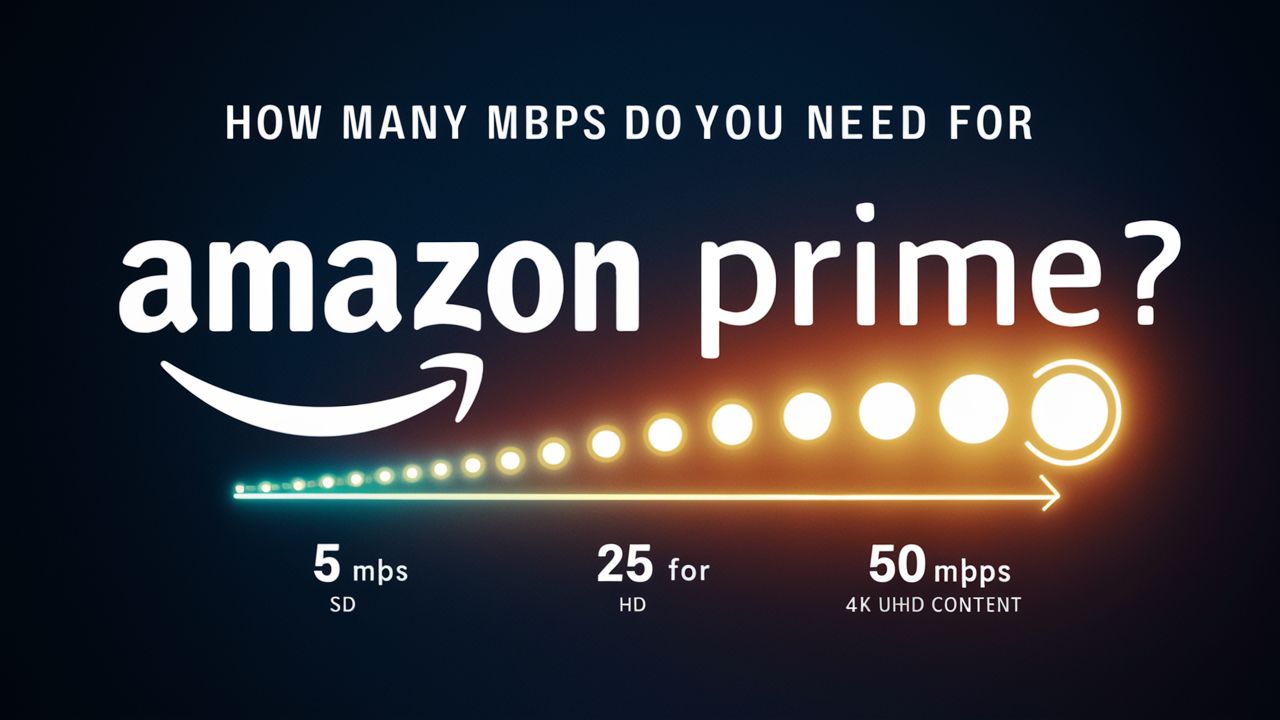
Understanding the right internet speed is crucial for a seamless Amazon Prime Video experience. This guide will demystify the Mbps requirements for streaming, ensuring you can enjoy your favorite shows and movies without frustrating buffering. We'll break down what you truly need for various scenarios in 2025-26.
Understanding Mbps and Streaming Quality
Before diving into specific numbers for Amazon Prime Video, it's essential to grasp what "Mbps" actually means in the context of internet speed. Mbps stands for Megabits per second, a unit of measurement for data transfer rate. When you're streaming video, your internet connection is constantly downloading small packets of data that make up the video stream. The faster your connection (i.e., the higher your Mbps), the more data can be downloaded per second, leading to a smoother, higher-quality viewing experience.
Think of your internet connection as a pipe. The width of the pipe determines how much water (data) can flow through it at any given time. Mbps is the measure of that pipe's width. A higher Mbps means a wider pipe, allowing for more data to flow, which is critical for high-definition and ultra-high-definition video content.
Streaming quality is directly tied to the amount of data required to render the video. Lower resolutions like Standard Definition (SD) require less data, while higher resolutions like 4K Ultra HD (UHD) demand significantly more. Buffering, the dreaded pause that interrupts your viewing, occurs when your internet connection can't download data fast enough to keep up with the video playback.
In 2025-26, with the prevalence of 4K content and the increasing adoption of smart TVs and streaming devices capable of displaying these higher resolutions, understanding your Mbps needs has become more important than ever. It's not just about avoiding buffering; it's about unlocking the full visual fidelity that modern content and devices offer.
Data Rates and Resolution Explained
The relationship between resolution and data rate is fundamental to understanding streaming requirements.
- Standard Definition (SD): Typically around 480p. This is the lowest common resolution for streaming and requires the least amount of bandwidth. It's suitable for smaller screens or when bandwidth is severely limited.
- High Definition (HD): Usually 720p or 1080p. This is the most common resolution for streaming today and offers a significant improvement in picture quality over SD. It's the standard for most broadcast television and is what many users consider the baseline for a good viewing experience.
- Full High Definition (FHD): Specifically 1080p. This is the highest common HD resolution and provides a crisp, clear picture, especially on larger screens.
- Ultra High Definition (UHD) / 4K: Typically 2160p. This resolution offers four times the number of pixels as Full HD, resulting in incredibly sharp and detailed images. It's becoming increasingly common for new releases and premium content.
- 8K: The next frontier, offering even higher resolutions. While not yet widely adopted for streaming due to bandwidth demands and device availability, it's on the horizon.
The higher the resolution, the more data needs to be processed and transmitted. This is why a stable, high-speed internet connection is paramount for enjoying content in its intended quality.
Internet Speed vs. Bandwidth
It's worth noting that "internet speed" and "bandwidth" are often used interchangeably, but they refer to slightly different concepts. Bandwidth is the maximum amount of data that can be transmitted over your internet connection in a given time. Speed, on the other hand, is how quickly that data is transferred. Your Mbps rating is essentially a measure of your available bandwidth. A higher Mbps means you have more bandwidth available for your devices to use.
Amazon Prime Video's Official Recommendations (and Reality)
Amazon, like most streaming services, provides official minimum and recommended internet speed guidelines for its Prime Video service. These are crucial starting points, but it's important to understand that they represent a baseline for a single stream and don't always account for the complexities of real-world home networks.
As of 2025-26, Amazon Prime Video's general recommendations are as follows:
- For Standard Definition (SD) streaming: 1 Mbps
- For High Definition (HD) streaming: 5 Mbps
- For Ultra High Definition (UHD) / 4K streaming: 15 Mbps
These numbers are what Amazon suggests are sufficient for a smooth viewing experience. However, the "reality" often differs. These figures are typically for a single, dedicated stream with no other devices consuming bandwidth on your network. In a typical household in 2025-26, multiple devices are often connected simultaneously, from smartphones and tablets to gaming consoles and other smart home devices.
Therefore, while 5 Mbps might be technically enough for one person to watch HD Prime Video, if your kids are also streaming on their tablets, or someone is downloading a large file, that 5 Mbps connection will quickly become a bottleneck, leading to buffering and a degraded experience for everyone.
Furthermore, these recommendations are often the absolute minimum. To ensure a consistently excellent experience, especially for 4K content, it's wise to aim for speeds comfortably above these minimums. This provides a buffer for fluctuations in your internet service and the demands of other connected devices.
The Importance of Buffer Speed
The concept of "buffer speed" is critical. When you stream, your device downloads a small amount of video ahead of time, creating a buffer. This buffer allows playback to continue smoothly even if there are momentary dips in your internet speed. If your internet speed is consistently at the bare minimum required for a certain quality, there's no buffer, and any minor interruption will cause buffering. Having a speed that is 1.5x to 2x the recommended speed for your desired quality provides that essential buffer.
Amazon Prime Video vs. Other Streaming Services
It's also useful to note that these recommendations are generally in line with other major streaming services like Netflix, Hulu, and Disney+. For instance, Netflix recommends:
- SD: 0.5 Mbps
- HD: 5 Mbps
- UHD: 25 Mbps
As you can see, Amazon's 15 Mbps for 4K is slightly lower than Netflix's 25 Mbps. This doesn't necessarily mean Amazon's 4K is less demanding, but rather that their encoding and delivery methods might differ, or their recommendations are more conservative. For optimal performance across all platforms, it's generally best to aim for speeds that exceed the highest recommendations from any single service you use frequently.
Mbps Needs for Different Streaming Quality Tiers
Let's break down the specific Mbps requirements for Amazon Prime Video based on the quality you desire, considering a modern household in 2025-26 where multiple devices are likely in use. These are not just minimums but recommended speeds for a good experience.
Standard Definition (SD) Streaming
Amazon's Recommendation: 1 Mbps
Realistic Need for a Single Stream: 1-2 Mbps
Realistic Need for a Household (2025-26): While technically possible with 1-2 Mbps for a single stream, if you have other devices active (e.g., someone browsing the web, a smart speaker streaming music), you'll want at least 3-5 Mbps dedicated to your Prime Video stream to avoid interruptions. SD is rarely the desired quality for most users in 2025-26, especially on modern displays.
High Definition (HD) Streaming (1080p)
Amazon's Recommendation: 5 Mbps
Realistic Need for a Single Stream: 5-7 Mbps
Realistic Need for a Household (2025-26): This is where things get more relevant for the average user. For a smooth HD experience on Amazon Prime Video, without significant buffering and while other devices are in use, aim for a minimum of 10-15 Mbps. This provides a good buffer and ensures that background activities on other devices don't cripple your Prime Video stream. If multiple people are streaming HD content simultaneously, you'll need to multiply this requirement.
Full High Definition (FHD) Streaming (1080p)
Amazon's Recommendation: 5 Mbps (often grouped with general HD)
Realistic Need for a Single Stream: 7-10 Mbps
Realistic Need for a Household (2025-26): For a reliable FHD experience, especially if you have a larger TV or are sitting closer to it, 15-20 Mbps is a safer bet. This ensures that the higher detail of 1080p is delivered without compromise, even with other household internet usage.
Ultra High Definition (UHD) / 4K Streaming
Amazon's Recommendation: 15 Mbps
Realistic Need for a Single Stream: 15-20 Mbps
Realistic Need for a Household (2025-26): For 4K streaming on Amazon Prime Video, the 15 Mbps recommendation is a starting point. To truly enjoy the crispness and detail of 4K without interruptions, and to account for other devices on your network, you should aim for a minimum of 25-35 Mbps. If multiple 4K streams are happening concurrently, or if you have heavy download/upload activity, you might need 50 Mbps or more. The higher the quality of the 4K stream (e.g., HDR content often requires more data), the more speed you'll benefit from.
Simultaneous Streams and Total Household Needs
This is the most critical aspect for modern households. If you have a family of four, and two people want to watch 4K Prime Video, one wants to stream HD on another device, and someone else is on a video call for work, your total bandwidth needs skyrocket.
Let's illustrate with a common scenario in 2025-26:
- Person 1: Amazon Prime Video in 4K (approx. 25-35 Mbps)
- Person 2: Another streaming service in HD (approx. 5-10 Mbps)
- Person 3: Video conference for work (approx. 5-10 Mbps upload/download)
- Person 4: Browsing social media, streaming music (approx. 2-5 Mbps)
- Smart Home Devices: Security cameras, smart speakers, etc. (can add up, 5-10 Mbps)
In this example, the total *minimum* bandwidth needed would be around 42-70 Mbps. However, internet speeds fluctuate, and applications can sometimes demand more. Therefore, for a comfortable experience, a plan of 100 Mbps or higher is often recommended for such households to ensure smooth performance across all activities.
| Streaming Quality | Amazon's Minimum | Recommended for Single Stream | Recommended for Household (2025-26) |
|---|---|---|---|
| SD (480p) | 1 Mbps | 1-2 Mbps | 3-5 Mbps |
| HD (720p/1080p) | 5 Mbps | 5-7 Mbps | 10-15 Mbps |
| FHD (1080p) | 5 Mbps | 7-10 Mbps | 15-20 Mbps |
| UHD / 4K (2160p) | 15 Mbps | 15-20 Mbps | 25-35 Mbps+ |
Beyond Mbps: Other Factors Affecting Your Streaming Performance
While Mbps is the primary metric for internet speed, it's not the only factor that determines how well Amazon Prime Video (or any streaming service) performs on your network. Several other elements can significantly impact your viewing experience, often more than a slight variation in download speed. Understanding these can help you troubleshoot issues even when your advertised Mbps seems sufficient.
Latency (Ping)
Latency, often referred to as "ping," measures the time it takes for a data packet to travel from your device to a server and back. It's measured in milliseconds (ms). While high Mbps is crucial for the *amount* of data, low latency is vital for the *responsiveness* of your connection. For streaming, extremely high latency isn't usually a deal-breaker like it is for online gaming, but very high ping can still contribute to lag and delayed buffering. A ping under 50ms is generally considered good for most online activities, including streaming.
Jitter
Jitter refers to the variation in the delay of received data packets. In simpler terms, it's the inconsistency in latency. High jitter means that packets are arriving at irregular intervals, which can cause choppy audio, video stuttering, and dropped frames, even if your average Mbps is high. Imagine a conveyor belt carrying items; jitter is like the belt speeding up and slowing down erratically.
Wi-Fi vs. Ethernet
The way your device connects to your router plays a huge role.
- Ethernet: A wired Ethernet connection is almost always superior to Wi-Fi. It provides a more stable, direct connection to your router, eliminating interference and signal degradation. If you're experiencing streaming issues on a smart TV or streaming device, connecting it directly via Ethernet cable is often the first and most effective troubleshooting step.
- Wi-Fi: Wireless connections are susceptible to interference from other electronic devices, physical obstructions (walls, furniture), and the distance from your router. The Wi-Fi standard your router and device use (e.g., Wi-Fi 5, Wi-Fi 6, Wi-Fi 6E) also impacts maximum speeds and efficiency. Older standards or a weak Wi-Fi signal can severely limit the actual speed reaching your device, even if your internet plan offers high Mbps.
Router Quality and Placement
Your router is the central hub of your home network. An old, underpowered, or poorly configured router can become a bottleneck, regardless of your internet service provider's (ISP) speed.
- Router Age and Technology: Routers from 2018-2020 or earlier might not be capable of handling the speeds of modern internet plans or the demands of multiple devices. Look for routers supporting Wi-Fi 6 (802.11ax) or Wi-Fi 6E for the best performance in 2025-26.
- Router Placement: For optimal Wi-Fi coverage, your router should be placed in a central, open location, away from obstructions, thick walls, and sources of interference like microwaves or cordless phones.
- Firmware Updates: Ensure your router's firmware is up-to-date. Manufacturers release updates to improve performance, security, and stability.
Number of Connected Devices
As discussed, every device connected to your network consumes a portion of your available bandwidth. Smart home devices, IoT gadgets, gaming consoles, smartphones, tablets, laptops, and other smart TVs all contribute to the overall network load. The more devices you have actively using the internet simultaneously, the more bandwidth you'll need.
ISP Throttling and Network Congestion
Sometimes, your internet speed can be affected by factors outside your home.
- ISP Throttling: Some ISPs may intentionally slow down certain types of traffic or limit speeds during peak hours, especially if you're on a data cap or an older plan.
- Network Congestion: During peak hours (typically evenings and weekends), your ISP's network infrastructure can become congested, leading to slower speeds for everyone in your area.
Device Performance
The device you're streaming on also matters. An older smartphone or a budget smart TV might struggle to decode and play high-bitrate 4K video smoothly, even with a fast internet connection. Ensure your streaming devices are capable of handling the quality you're trying to achieve.
| Factor | Impact on Streaming | Ideal Scenario |
|---|---|---|
| Latency (Ping) | Affects responsiveness, can contribute to lag. | Low (under 50ms) |
| Jitter | Causes choppy audio, stuttering, dropped frames. | Low (consistent latency) |
| Connection Type | Wi-Fi can be slower and less stable than Ethernet. | Ethernet preferred, strong Wi-Fi signal (Wi-Fi 6/6E) |
| Router Quality | An old router can bottleneck speeds. | Modern, high-performance router |
| Number of Devices | Each device consumes bandwidth. | Fewer active devices, or higher total bandwidth |
How to Calculate Your Specific Mbps Needs
To determine the ideal internet speed for your household, it's best to go beyond generic recommendations and perform a simple calculation based on your typical usage patterns. This personalized approach ensures you're not overpaying for speed you don't need or, more commonly, underpaying and suffering from poor streaming quality.
Step 1: Inventory Your Devices and Usage
Make a list of all internet-connected devices in your home. Then, consider how each device is typically used, especially during peak entertainment hours.
- How many people typically stream video at the same time?
- What is the primary streaming quality (SD, HD, 4K) for each person?
- Are there other bandwidth-intensive activities happening simultaneously (e.g., online gaming, large file downloads/uploads, video conferencing)?
- What smart home devices are constantly connected and potentially consuming data (e.g., security cameras, smart thermostats)?
Step 2: Estimate Bandwidth Per Activity
Use the estimates provided earlier (or Amazon's official recommendations as a baseline) to assign an approximate Mbps requirement to each primary activity. Remember to use the "Recommended for Household" figures where applicable.
Example Calculation:
- Household Member 1: Amazon Prime Video in 4K = 30 Mbps (using a generous figure for buffer)
- Household Member 2: Netflix in HD = 10 Mbps
- Household Member 3: Online Gaming (downloading updates) = 20 Mbps
- Household Member 4: Browsing, social media, music streaming = 5 Mbps
- Smart Home Devices (cumulative): 5 Mbps
Total Estimated Need: 30 + 10 + 20 + 5 + 5 = 70 Mbps
Step 3: Add a Buffer for Fluctuations and Future Growth
Internet speeds are rarely constant. ISPs can experience congestion, and your own network might have temporary issues. It's wise to add a buffer of at least 20-30% to your calculated total. For the example above:
70 Mbps * 1.25 (25% buffer) = 87.5 Mbps
In this scenario, an internet plan of 100 Mbps would be a suitable choice, providing ample room for smooth streaming and other activities. If you anticipate adding more devices or increasing your streaming quality in the future, consider opting for an even higher tier.
Step 4: Test Your Current Speed
Before upgrading or selecting a new plan, it's crucial to test your current internet speed. Use reputable online speed test tools (like Speedtest.net by Ookla, Fast.com by Netflix, or Google's speed test). Run these tests at different times of the day (especially during peak evening hours) to get an accurate picture of your actual performance.
How to interpret speed test results:
- Download Speed: This is the most important metric for streaming. It shows how fast you can receive data from the internet.
- Upload Speed: This is important for video calls, uploading files, and online gaming. While less critical for streaming Prime Video, it's still a component of your overall internet service.
- Ping/Latency: As discussed, this measures responsiveness.
Compare your test results to your calculated needs. If your current speed is consistently below your required Mbps, it's time to consider an upgrade.
Step 5: Consider Your ISP's Offerings
Once you have a target Mbps range, research the plans offered by your internet service provider. Look for plans that meet or exceed your calculated needs, including the buffer. Pay attention to any data caps, as exceeding them can lead to throttling or extra charges. For most heavy streaming households in 2025-26, unlimited data plans are highly recommended.
By following these steps, you can confidently determine the Mbps that's right for your Amazon Prime Video streaming and overall household internet usage.
Optimizing Your Network for Amazon Prime Video
Even with a sufficient internet plan, your home network's configuration and health are paramount for a smooth Amazon Prime Video experience. Optimizing your network can often resolve buffering issues and improve overall streaming quality without needing to upgrade your internet speed.
1. Position Your Router Wisely
The physical location of your router significantly impacts Wi-Fi signal strength.
- Central Location: Place your router in a central area of your home, ideally on an elevated surface, away from walls and obstructions.
- Avoid Interference: Keep the router away from large metal objects, microwaves, cordless phones, and other electronics that can cause interference.
- Minimize Walls: Each wall and floor the Wi-Fi signal has to penetrate weakens it.
2. Use a Wired Ethernet Connection When Possible
As mentioned, Ethernet is the gold standard for stable, high-speed connections.
- Smart TVs and Streaming Devices: If your primary streaming device (e.g., smart TV, streaming box like Roku or Apple TV) has an Ethernet port, connect it directly to your router with a high-quality Ethernet cable. This eliminates Wi-Fi variables entirely.
- Gaming Consoles: If you also game, an Ethernet connection is crucial for low latency and stable downloads.
3. Upgrade Your Router
If your router is several years old, it might be a bottleneck.
- Wi-Fi 6 (802.11ax): For 2025-26, a Wi-Fi 6 or Wi-Fi 6E router is highly recommended. These offer faster speeds, better efficiency, and improved performance in crowded Wi-Fi environments.
- Mesh Wi-Fi Systems: If you have a large home or areas with weak Wi-Fi, a mesh Wi-Fi system can provide consistent coverage throughout your house, eliminating dead zones.
4. Update Router Firmware
Router manufacturers regularly release firmware updates to improve performance, security, and stability.
- Check Manufacturer's Website: Log into your router's administrative interface (usually via a web browser) and look for a firmware update option.
- Automatic Updates: Some modern routers offer automatic firmware updates, which is the most convenient option.
5. Prioritize Streaming Traffic (QoS)
Quality of Service (QoS) settings on your router allow you to prioritize certain types of traffic or specific devices.
- Enable QoS: If your router supports QoS, configure it to give higher priority to your streaming devices or to video streaming traffic in general. This ensures that Prime Video gets the bandwidth it needs, even when other devices are heavily using the network.
- Device Prioritization: Some routers allow you to simply select a device (like your main TV) and mark it as a high-priority device.
6. Reduce Network Congestion
Be mindful of how many devices are actively using your network, especially during peak streaming times.
- Limit Background Downloads: Pause large downloads or updates on other devices while you're trying to stream Prime Video.
- Turn Off Unused Devices: If a device isn't being used, turn it off or disconnect it from the Wi-Fi to free up bandwidth.
- Smart Device Management: Consider scheduling non-essential updates for smart home devices during off-peak hours.
7. Secure Your Wi-Fi Network
An unsecured Wi-Fi network can be exploited by unauthorized users, consuming your bandwidth and slowing down your connection.
- Strong Password: Use a strong, unique password for your Wi-Fi network (WPA2 or WPA3 encryption).
- Change Default Credentials: Always change the default administrator username and password for your router.
8. Restart Your Modem and Router
This simple step can resolve many temporary network glitches.
- Power Cycle: Unplug both your modem and router, wait for 30-60 seconds, and then plug them back in, starting with the modem first. Wait for them to fully boot up before testing your connection.
9. Consider a Wi-Fi Extender or Mesh System
If you have dead zones or weak Wi-Fi signals in certain parts of your home, a Wi-Fi extender or a mesh Wi-Fi system can significantly improve coverage. Mesh systems are generally more effective for larger homes and provide a more seamless experience.
By implementing these optimization strategies, you can create a robust and efficient home network that maximizes your internet speed and ensures a buffer-free Amazon Prime Video streaming experience.
Troubleshooting Common Amazon Prime Video Streaming Issues
Even with the best internet speeds and network setup, you might occasionally encounter issues while streaming Amazon Prime Video. Here's a guide to troubleshooting common problems, from buffering to playback errors.
1. Buffering and Stuttering
This is the most frequent complaint.
- Check Your Internet Speed: Run a speed test (e.g., Speedtest.net, Fast.com) on the device you're streaming on. Ensure it meets the recommended Mbps for your desired quality.
- Restart Your Modem and Router: A simple power cycle can resolve many temporary network issues.
- Close Other Bandwidth-Heavy Applications: Shut down any downloads, uploads, or other streaming services running on other devices.
- Try an Ethernet Connection: If you're on Wi-Fi, switch to a wired Ethernet connection if possible.
- Reduce Streaming Quality: Temporarily lower the video quality in Prime Video settings (e.g., from 4K to HD, or HD to SD) to see if the issue resolves. If it does, your internet speed is likely the culprit.
- Check Router Placement and Interference: Ensure your router is optimally placed and not experiencing interference.
- Update Your Device's Software: Ensure your smart TV, streaming device, or browser is up-to-date.
2. "Playback Error" or "Content Not Available" Messages
These errors can be frustrating and point to various issues.
- Check Amazon's Service Status: Sometimes, the problem is with Amazon Prime Video itself. Check social media or their help pages for any reported outages.
- Restart the Prime Video App/Browser: Force close the app or refresh your browser tab.
- Clear Browser Cache and Cookies: If streaming via a web browser, clearing your cache and cookies can resolve playback issues.
- Check Your Internet Connection: Ensure you have a stable internet connection. Try accessing other websites to confirm.
- Log Out and Log Back In: Sign out of your Amazon Prime account on the device and then sign back in.
- Update the Prime Video App: Ensure you have the latest version of the app installed.
- Check Device Compatibility: Ensure your device is supported by Amazon Prime Video for the content you're trying to watch.
3. Poor Video or Audio Quality (Pixelated, Choppy, Muffled)
This is often related to insufficient bandwidth or network instability.
- Run a Speed Test: Confirm your download speed is adequate.
- Check for Jitter: Use a speed test that also reports ping and jitter. High jitter is a common cause of this issue.
- Use Ethernet: A wired connection is less prone to the fluctuations that cause poor quality.
- Lower Streaming Quality: As a temporary fix, reduce the video quality in Prime Video settings.
- Restart Network Equipment: Modem and router restart.
4. Device Not Connecting to Prime Video
If your device simply won't connect to the service.
- Verify Internet Connectivity: Ensure the device is connected to your Wi-Fi or Ethernet and has internet access. Try browsing other sites.
- Check Date and Time Settings: Incorrect date and time settings on a device can sometimes cause connection issues with secure services.
- Restart the Device: A simple reboot can fix temporary software glitches.
- Reinstall the Prime Video App: Uninstalling and then reinstalling the app can resolve corrupted installation files.
- Check for VPN or Proxy Interference: If you're using a VPN or proxy, try disabling it to see if it resolves the connection issue.
5. Amazon Prime Video App Crashing
If the app is repeatedly closing unexpectedly.
- Update the App and Device OS: Ensure both the Prime Video app and your device's operating system are up-to-date.
- Clear App Cache and Data: On mobile devices or some smart TVs, you can clear the app's cache and data (this will likely require you to log back in).
- Check Device Storage: Ensure your device has sufficient free storage space.
- Reinstall the App: A clean reinstall can fix corrupted app files.
When to Contact Your ISP
If you've tried the troubleshooting steps above and are consistently experiencing slow speeds, buffering, or connection issues, it might be time to contact your Internet Service Provider (ISP). Be prepared to tell them:
- Your internet plan speed.
- The results of your speed tests (download, upload, ping).
- The troubleshooting steps you've already taken.
- When the issues started occurring.
Your ISP can check for line issues, network problems in your area, or problems with your modem.
Future-Proofing Your Internet Speed for Streaming
The world of digital content is constantly evolving, with resolutions, bitrates, and streaming technologies pushing the boundaries of what's possible. As an SEO strategist and content creator focused on providing value, it's essential to look ahead and consider how to future-proof your internet speed for an optimal Amazon Prime Video experience and beyond.
The Trend Towards Higher Resolutions and Bitrates
In 2025-26, 4K streaming is commonplace, and HDR (High Dynamic Range) content is becoming standard for premium titles. HDR significantly enhances color depth, contrast, and brightness, leading to a more lifelike viewing experience. However, HDR content often requires higher bitrates than standard 4K, meaning more data needs to be transmitted.
Looking further ahead, 8K content is already being produced and tested. While widespread adoption is still some years away due to the massive bandwidth requirements and the need for compatible displays and infrastructure, it's a clear direction for the future of high-fidelity entertainment. If 4K streaming today requires 25-35 Mbps for a smooth experience, 8K could easily demand 50-100 Mbps or more per stream.
Increasing Number of Connected Devices
The "Internet of Things" (IoT) continues to expand. Smart homes are becoming more integrated, with more devices constantly connected and communicating. From smart appliances and advanced security systems to augmented reality (AR) and virtual reality (VR) experiences that are starting to enter the mainstream consumer market, the demand on home networks will only grow. Each of these devices, even if it consumes only a small amount of bandwidth individually, adds up when you have dozens of them operating simultaneously.
Advancements in Streaming Technology
Streaming providers are continuously innovating to deliver better quality and efficiency. Technologies like AV1 (AOMedia Video 1) are becoming more prevalent. AV1 is an open, royalty-free video coding format designed to deliver high-quality video at lower bitrates than older codecs like H.264 and HEVC. While this can lead to more efficient streaming, it also means that as content providers adopt these newer, more efficient codecs, the demand for bandwidth for a given quality level might eventually decrease or remain stable, but the overall push for higher quality (e.g., higher frame rates, more immersive audio) will likely continue to drive bandwidth needs upwards.
What This Means for Your Internet Plan
Given these trends, simply meeting today's recommended speeds might not be enough for the next 3-5 years.
- Aim Higher Than You Need Today: If your household calculation suggests 100 Mbps is sufficient now, consider a plan that offers 150 Mbps or 200 Mbps. This provides a significant buffer for future demands.
- Prioritize Unlimited Data: Data caps are becoming increasingly anachronistic for heavy internet users. Ensure your plan has unlimited data to avoid unexpected charges or throttling as your usage increases.
- Invest in a Modern Router: A router supporting Wi-Fi 6E or the upcoming Wi-Fi 7 standard will be better equipped to handle the increased speeds and device density of the future. A robust mesh system is also a wise investment for large or complex homes.
- Consider Fiber Optic Internet: Where available, fiber optic internet offers symmetrical upload and download speeds and is generally more future-proof than cable or DSL. It's less susceptible to congestion and offers the highest potential speeds.
- Monitor Your Usage: Keep an eye on your internet usage patterns and your ISP's plan offerings. As technology advances, ISPs will introduce faster plans, and you may find it beneficial to upgrade periodically.
By taking a proactive approach and investing in a robust internet connection and network infrastructure today, you can ensure that your Amazon Prime Video streaming, and all your other online activities, remain smooth and enjoyable for years to come. The goal is not just to meet current needs but to anticipate future advancements in digital entertainment and connectivity.
Conclusion
In conclusion, determining the right Mbps for Amazon Prime Video streaming in 2025-26 involves understanding your desired quality, the number of devices in your household, and accounting for other network activities. While Amazon's official recommendations serve as a baseline (1 Mbps for SD, 5 Mbps for HD, 15 Mbps for 4K), a realistic household in today's connected world needs significantly more.
For a smooth HD experience with other devices active, aim for 10-15 Mbps, and for 4K streaming, a minimum of 25-35 Mbps is recommended, with higher speeds being ideal for multiple simultaneous streams or heavy network usage. Factors like latency, jitter, Wi-Fi quality, and router performance also play crucial roles.
To ensure optimal streaming, we recommend calculating your household's specific needs by inventorying devices and usage, adding a buffer for fluctuations, and considering future technological advancements. Investing in a plan that comfortably exceeds your current requirements, along with a robust home network, will future-proof your entertainment experience. Don't hesitate to test your current speeds and optimize your network by using Ethernet connections where possible and ensuring your router is up-to-date.
By following these guidelines, you can confidently select the right internet speed and setup to enjoy Amazon Prime Video in all its glory, free from the frustration of buffering.