How many devices can I connect to AT&T fiber router?
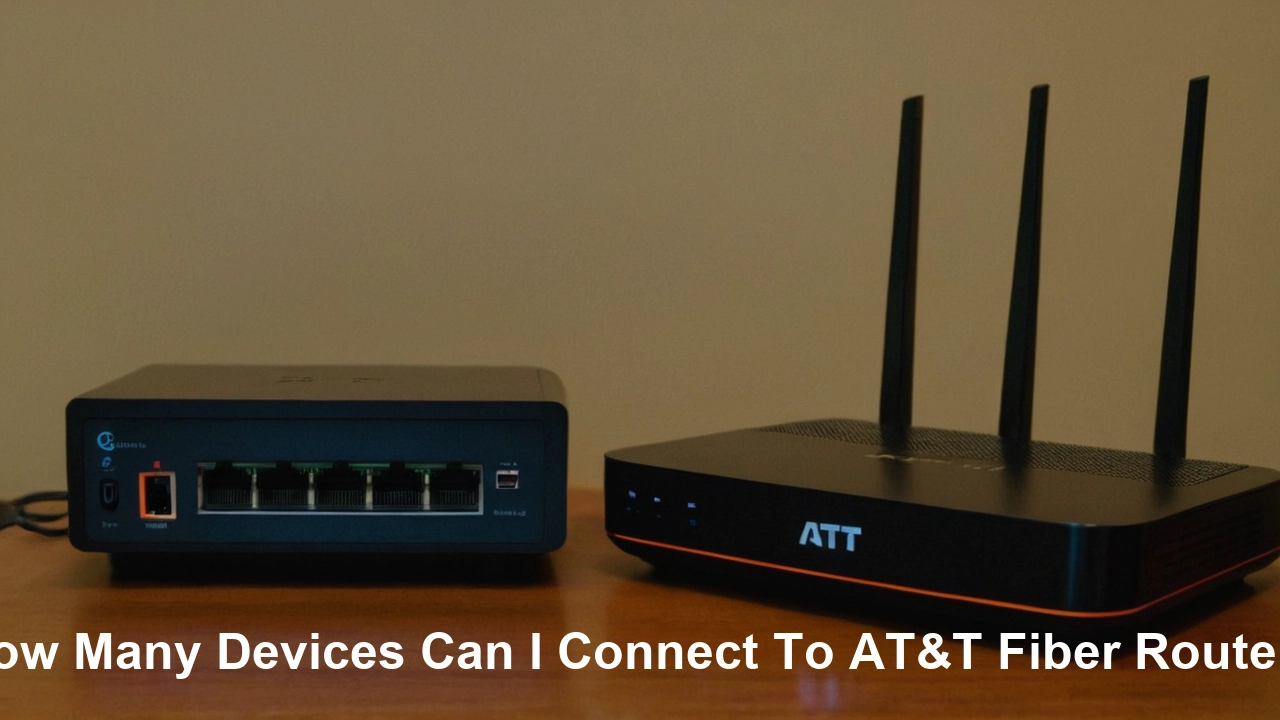
Understanding the device limit on your AT&T Fiber router is crucial for a seamless home network experience. This guide dives deep into the official specifications and practical considerations, helping you determine how many devices you can connect for optimal performance in 2025-26.
Understanding Device Limits on AT&T Fiber Routers
When you sign up for AT&T Fiber internet, you're likely provided with a gateway device that serves as your modem and Wi-Fi router. A common question that arises is: "How many devices can I connect to my AT&T Fiber router?" The answer isn't a single, fixed number but rather a dynamic capacity influenced by several factors. In 2025-26, with the ever-increasing number of smart home devices, streaming services, and remote work demands, understanding these limits is more important than ever. AT&T, like other internet service providers, aims to provide a robust and reliable connection, but there are inherent technical limitations to any router's ability to manage simultaneous connections.
The primary considerations revolve around the router's hardware capabilities, specifically its processing power and memory, and the Wi-Fi standard it employs. These determine how efficiently it can handle the data traffic from multiple connected devices. While AT&T doesn't typically advertise a strict, hard-coded "device limit" that will abruptly cut off connections, exceeding a router's practical capacity will lead to performance degradation. This can manifest as slow internet speeds, dropped connections, and general unreliability across all your devices. Therefore, the goal is not just to connect as many devices as possible, but to connect them while maintaining a satisfactory user experience for everyone in your household.
This comprehensive guide will break down the technical aspects, explore the specific router models you might encounter with AT&T Fiber, and offer practical advice for optimizing your network to support a growing number of connected gadgets. We'll delve into the nuances of Wi-Fi bands, network congestion, and the impact of different types of device usage. By the end of this article, you'll have a clear understanding of your AT&T Fiber router's capabilities and how to manage your home network effectively in 2025-26.
AT&T Fiber Router Models and Their Capacities
AT&T utilizes a range of gateway devices for its Fiber internet service, and the specific model you receive can influence the number of devices it can effectively handle. While AT&T often upgrades its hardware, the most common gateways in use in 2025-26 are typically designed to support modern internet demands. It's important to note that AT&T generally provides a single gateway that combines modem and router functionalities, simplifying setup for users.
Common AT&T Fiber Gateway Models
While specific model numbers can vary and are updated periodically, here are some gateway types commonly associated with AT&T Fiber, along with their general capabilities:
1. AT&T Smart Home Manager (BGW Series - e.g., BGW210, BGW320
The BGW series gateways are prevalent in AT&T Fiber installations. These devices are generally robust and designed to support a significant number of connected devices. They typically feature dual-band Wi-Fi (2.4 GHz and 5 GHz) and support modern Wi-Fi standards like Wi-Fi 5 (802.11ac) or Wi-Fi 6 (802.11ax) in some of the newer models.
- Estimated Device Capacity: These gateways are generally capable of handling 30-50+ devices concurrently without significant performance degradation, assuming moderate usage patterns. The BGW320, often equipped with Wi-Fi 6, can handle even more devices more efficiently due to its advanced technology.
- Key Features: Dual-band Wi-Fi, Gigabit Ethernet ports, Wi-Fi 6 support (on select models), integrated firewall, and network management features accessible via the AT&T Smart Home Manager app.
2. AT&T NVG Series (e.g., NVG599, NVG510
Older models, such as those in the NVG series, might still be in use in some areas or for customers who haven't upgraded their equipment. These gateways are generally less capable than the BGW series, especially in handling a high density of devices or demanding applications.
- Estimated Device Capacity: These models are typically recommended for around 15-25 devices. Pushing beyond this number can lead to noticeable slowdowns, particularly if multiple devices are actively using the internet simultaneously.
- Key Features: Dual-band Wi-Fi (though older standards might be present), Ethernet ports, and basic network management.
How Router Model Impacts Device Count
The primary differences between these models lie in their processing power, RAM, and Wi-Fi technology. Newer gateways, like the BGW320 with Wi-Fi 6, are engineered with more advanced chipsets and beamforming technology that can manage connections more efficiently. Wi-Fi 6, for instance, introduces technologies like OFDMA (Orthogonal Frequency Division Multiple Access) and MU-MIMO (Multi-User, Multiple-Input, Multiple-Output) which significantly improve the router's ability to communicate with multiple devices simultaneously, reducing latency and increasing overall throughput for each connected device.
Older routers, relying on older Wi-Fi standards (like 802.11n), have less sophisticated methods for managing multiple connections. They might serve devices sequentially rather than simultaneously, leading to bottlenecks when many devices are active. Therefore, if you have a large number of smart home devices, multiple smartphones, tablets, laptops, and streaming boxes, upgrading to a newer AT&T Fiber gateway (if available and applicable) can make a substantial difference in network performance.
To identify your current gateway model, you can usually find the information printed on a sticker on the device itself, or by logging into the AT&T Smart Home Manager app or web portal. Knowing your model is the first step in understanding its limitations and potential.
Factors Influencing Device Connection
The number of devices you can connect to your AT&T Fiber router isn't solely determined by the router's model. Several other crucial factors come into play, significantly impacting network performance and the practical limit of simultaneous connections. Understanding these elements will help you diagnose potential issues and optimize your home network for a smoother experience in 2025-26.
1. Wi-Fi Band Usage (2.4 GHz vs. 5 GHz)
Most modern AT&T Fiber routers broadcast on two Wi-Fi bands: 2.4 GHz and 5 GHz. Each has its own characteristics:
- 2.4 GHz Band: Offers a longer range and better penetration through walls and obstacles. However, it has a lower maximum speed and is more prone to interference from other devices (microwaves, Bluetooth devices, cordless phones) and neighboring Wi-Fi networks. It's suitable for devices that don't require high bandwidth, such as smart plugs, thermostats, and older smart TVs.
- 5 GHz Band: Provides significantly higher speeds and less interference, making it ideal for bandwidth-intensive activities like streaming 4K video, online gaming, and large file downloads. Its range is shorter, and it struggles more with penetrating solid objects. Devices like modern smartphones, laptops, gaming consoles, and high-definition streaming devices benefit most from this band.
Impact on Device Count: By strategically assigning devices to the appropriate band, you can distribute the network load. If all devices are trying to connect to the less capable 2.4 GHz band, congestion will occur much faster, limiting the effective number of devices. Separating devices and utilizing both bands is key to maximizing capacity.
2. Device Bandwidth Requirements
Not all devices consume the same amount of internet bandwidth. A smart thermostat that only sends small updates periodically uses negligible bandwidth, while a 4K streaming device or a gaming console actively downloading large updates can consume several megabits per second (Mbps) or even gigabits per second (Gbps).
- High Bandwidth Devices: Smart TVs (streaming 4K/8K), gaming consoles (online multiplayer, downloads), high-definition video conferencing, multiple simultaneous video streams.
- Medium Bandwidth Devices: Laptops browsing the web, social media, standard definition streaming, video calls on tablets.
- Low Bandwidth Devices: Smart plugs, smart bulbs, smart thermostats, wireless printers (when idle), smart speakers (for voice commands).
Impact on Device Count: A network with many high-bandwidth devices will reach its capacity much faster than a network with predominantly low-bandwidth devices. If you have 10 devices all streaming 4K video, you'll experience issues far sooner than if you have 10 devices all performing basic web browsing.
3. Network Congestion and Interference
Network Congestion: This refers to the overall traffic on your Wi-Fi network. When too many devices are actively transmitting or receiving data simultaneously, the router's resources (processing power and bandwidth) become strained. This is particularly true if multiple devices are performing data-intensive tasks at the same time.
Interference: In addition to other Wi-Fi networks in your vicinity (especially on the 2.4 GHz band), household appliances like microwaves, cordless phones, and even Bluetooth devices can interfere with Wi-Fi signals. This interference can degrade signal quality, leading to slower speeds and dropped connections, effectively reducing the number of devices that can reliably connect.
Impact on Device Count: Both congestion and interference reduce the efficiency of your router. Even if your router technically supports 50 devices, if the network is heavily congested or experiencing significant interference, you might only get stable performance from 20-30 devices.
4. Router Hardware Limitations
As discussed in the previous section, the router's internal hardware is a fundamental limit. More powerful processors and greater amounts of RAM allow the router to manage more connections and data streams simultaneously. Older or less powerful routers simply cannot handle the overhead of managing dozens of active connections, even if the internet connection itself is very fast.
Impact on Device Count: This is the baseline limitation. A router designed for a small home might struggle with 20 devices, while a high-end, modern router can comfortably manage 50 or more. AT&T's Fiber gateways are generally designed to be robust, but there's still a ceiling based on the specific hardware installed.
5. Wired vs. Wireless Connections
While most devices connect wirelessly, using wired Ethernet connections for stationary, high-bandwidth devices like desktop computers, gaming consoles, and smart TVs can significantly offload traffic from the Wi-Fi network. Ethernet connections are generally more stable and faster than Wi-Fi.
Impact on Device Count: By reducing the number of devices relying solely on Wi-Fi, you free up wireless bandwidth and router resources for devices that truly need wireless connectivity (e.g., smartphones, tablets, smart home sensors). This can effectively increase the number of devices your Wi-Fi network can comfortably support.
By considering these factors, you can better understand why your network might be performing slowly or experiencing connection issues, even if you haven't technically hit a hard "device limit." It's about managing the available resources efficiently.
Optimizing Your Network for More Devices
As the number of connected devices in our homes continues to grow in 2025-26, optimizing your AT&T Fiber network is essential for ensuring smooth performance for everyone. Whether you're a tech enthusiast with a plethora of smart gadgets or a family juggling multiple streaming devices, a few strategic adjustments can make a significant difference. Here's how to get the most out of your AT&T Fiber router and support a higher density of devices.
1. Utilize Both Wi-Fi Bands Strategically
As mentioned, your AT&T Fiber router likely broadcasts on both 2.4 GHz and 5 GHz bands. The key is to assign devices to the band that best suits their needs and proximity to the router.
- 5 GHz for Speed and Proximity: Connect devices that require high bandwidth and are located relatively close to the router to the 5 GHz band. This includes smartphones, laptops, tablets, smart TVs (for 4K streaming), and gaming consoles.
- 2.4 GHz for Range and Less Demanding Devices: Devices that are further away from the router or don't require high speeds are better suited for the 2.4 GHz band. This includes smart home devices like thermostats, smart plugs, smart bulbs, and older smart devices.
Actionable Tip: In your router's settings (accessible via the AT&T Smart Home Manager app or web portal), you can often give the 2.4 GHz and 5 GHz networks different names (SSIDs). This allows you to manually select which network each device connects to, ensuring better control over band distribution.
2. Implement Wired Ethernet Connections
For stationary devices that demand consistent, high-speed internet, a wired Ethernet connection is almost always superior to Wi-Fi. It bypasses Wi-Fi congestion and interference entirely.
- Identify Candidates: Prioritize connecting desktop computers, gaming consoles, smart TVs, streaming boxes (like Apple TV or Roku), and Network Attached Storage (NAS) devices via Ethernet.
- Router Ports: Ensure your AT&T Fiber gateway has enough available Ethernet ports. If not, consider purchasing a network switch to expand your wired connectivity options.
Actionable Tip: Run Ethernet cables directly from your router or switch to these devices. This not only improves their performance but also frees up valuable wireless bandwidth for your mobile devices.
3. Prioritize and Manage Device Traffic (QoS)
Quality of Service (QoS) is a feature found in many routers that allows you to prioritize certain types of traffic or specific devices over others. This is invaluable for ensuring that critical applications or devices receive the bandwidth they need, even when the network is busy.
- Set Priorities: If your AT&T router supports QoS, you can configure it to prioritize streaming services, video conferencing, or gaming. You can also assign higher priority to specific devices, such as a work laptop.
- Bandwidth Allocation: Some QoS settings allow you to allocate a minimum or maximum bandwidth to specific devices or applications.
Actionable Tip: Consult your AT&T Smart Home Manager app or router settings to see if QoS is available and how to configure it. Prioritizing video conferencing for remote work or online gaming for entertainment can prevent frustrating lag and buffering.
4. Update Router Firmware
Router manufacturers, including AT&T, regularly release firmware updates to improve performance, fix bugs, and enhance security. Keeping your AT&T Fiber gateway's firmware up-to-date is crucial for optimal operation.
- Automatic Updates: Many modern AT&T gateways are set to update automatically.
- Manual Check: It's still a good practice to periodically check for firmware updates through the AT&T Smart Home Manager app or by logging into the router's web interface.
Actionable Tip: Ensure your router is set to receive automatic updates. If you suspect performance issues, manually checking for and installing the latest firmware is a good troubleshooting step.
5. Optimize Wi-Fi Channel Selection
Wi-Fi networks operate on specific channels within the 2.4 GHz and 5 GHz bands. If your router is using a crowded channel, it can lead to interference and slower speeds. While many routers have an "auto" channel selection feature, manually selecting a less congested channel can sometimes improve performance.
- Use Wi-Fi Analyzer Apps: Download a Wi-Fi analyzer app on your smartphone or tablet. These apps can scan your environment and show you which channels are being used by neighboring networks.
- Select Less Crowded Channels: For the 2.4 GHz band, channels 1, 6, and 11 are generally recommended as they don't overlap. For the 5 GHz band, there are more non-overlapping channels available.
Actionable Tip: After identifying less congested channels, log into your router's settings and manually set the Wi-Fi channel for both the 2.4 GHz and 5 GHz bands. Experiment to find the best settings for your environment.
6. Consider a Mesh Wi-Fi System (If Necessary)
If you have a large home or multiple floors, the Wi-Fi signal from a single router might not reach all areas effectively. In such cases, a mesh Wi-Fi system can extend your network's coverage and improve performance for devices located far from the main router.
- How it Works: A mesh system consists of a main router and satellite nodes placed around your home. They create a single, unified Wi-Fi network, allowing devices to seamlessly connect to the strongest signal.
- Compatibility: While you can use a mesh system with your AT&T Fiber gateway (often by putting the AT&T gateway in "bridge mode"), ensure compatibility and follow setup instructions carefully.
Actionable Tip: If you consistently experience weak Wi-Fi signals in certain parts of your home, a mesh system is a worthwhile investment. Research reputable brands like Google Nest Wifi, Eero, or TP-Link Deco.
7. Limit Background Activity and Unnecessary Devices
Some devices consume bandwidth even when you're not actively using them. Automatic updates, cloud syncing, and background data usage can add up.
- Disable Auto-Updates: For non-critical devices, consider disabling automatic software or app updates and performing them manually when needed.
- Turn Off Unused Devices: If you have many smart home devices that aren't in use, consider turning them off or disabling their network connectivity temporarily.
Actionable Tip: Regularly review the list of connected devices in your AT&T Smart Home Manager app and identify any that might be consuming excessive bandwidth in the background. Disconnect or disable them if they aren't essential.
By implementing these optimization strategies, you can significantly improve your AT&T Fiber network's ability to handle a large number of devices, ensuring a stable and fast internet connection for all your connected gadgets in 2025-26.
Troubleshooting Connection Issues
Even with the best optimization strategies, you might occasionally encounter connection issues with your AT&T Fiber router, especially as you add more devices. Slow speeds, dropped connections, or devices failing to connect can be frustrating. This section provides a step-by-step approach to troubleshooting common problems in 2025-26.
1. The Classic Reboot
Before diving into complex solutions, always start with the simplest fix: rebooting your router and modem (if they are separate units). This can resolve temporary glitches and refresh network connections.
- Unplug the power adapter from your AT&T Fiber gateway.
- If you have a separate modem, unplug its power as well.
- Wait for at least 30-60 seconds.
- Plug the modem back in (if applicable) and wait for its lights to stabilize (usually 1-2 minutes).
- Plug the AT&T Fiber gateway back in and wait for its lights to stabilize (usually 2-3 minutes).
- Once the gateway is fully booted, test your connection.
When to Use: This is the first step for almost any connectivity issue, from slow speeds to a complete lack of internet.
2. Check Your Internet Speed
Verify if the issue is with your Wi-Fi or the internet service itself. Run a speed test from a device connected directly to the router via Ethernet and then from a device connected via Wi-Fi.
- Use Reputable Speed Test Sites: Websites like Speedtest.net or Fast.com are good options.
- Compare Results: If your Ethernet speed test is significantly lower than your subscribed AT&T Fiber plan speed, the issue might be with AT&T's service or your gateway. If the Wi-Fi speed is much lower than the Ethernet speed, the problem likely lies with your Wi-Fi network.
When to Use: To diagnose whether the problem is with your Wi-Fi or the incoming internet connection.
3. Verify Device Connectivity and Status
Sometimes, a single device might be causing network strain or experiencing its own issues.
- Check Device Wi-Fi Status: Ensure the device's Wi-Fi is enabled and showing a strong signal.
- Restart the Device: Reboot the problematic device.
- Disconnect Unnecessary Devices: Temporarily disconnect some of your less critical devices to see if performance improves for the remaining ones. This helps identify if you've exceeded your router's practical capacity.
When to Use: If only one or a few devices are experiencing problems, or if performance degrades when a specific device is active.
4. Examine Router Settings and Lights
The lights on your AT&T Fiber gateway can provide valuable clues about its operational status.
- Consult AT&T Documentation: Refer to AT&T's support website or your gateway's manual for a breakdown of what each light indicator means.
- Check for Errors: Look for any red or blinking lights that might indicate a problem with the internet connection, Wi-Fi, or the device itself.
- Review Wi-Fi Settings: Ensure both 2.4 GHz and 5 GHz bands are enabled and broadcasting.
When to Use: To quickly assess the router's overall health and identify potential hardware or connection issues.
5. Investigate Wi-Fi Interference and Channel Congestion
As discussed earlier, interference can severely impact Wi-Fi performance.
- Relocate Router: Ensure your router is placed in a central, open location, away from large metal objects, thick walls, and potential sources of interference like microwaves.
- Change Wi-Fi Channel: Use a Wi-Fi analyzer app to find a less congested channel and manually set it in your router's settings.
When to Use: If you notice intermittent connectivity, slow speeds, or dropped connections, especially in specific areas of your home.
6. Check for Firmware Updates
Outdated firmware can lead to performance issues and security vulnerabilities.
- Access Router Settings: Log into your AT&T Smart Home Manager app or router web interface.
- Check for Updates: Navigate to the firmware update section and check for the latest version. Install it if available.
When to Use: As a regular maintenance step or when experiencing unexplained performance issues.
7. Consider Your Device Load
If you've tried the above steps and are still experiencing issues, it's possible you are genuinely exceeding the practical capacity of your router with the number and type of devices you have connected.
- Audit Your Devices: Make a list of all devices connected to your network.
- Assess Usage: Note which devices are most active and what they are doing (streaming, gaming, browsing).
- Implement Optimization: Revisit the optimization strategies discussed in the previous section, focusing on wired connections, band separation, and QoS.
When to Use: If performance issues consistently occur when many devices are active, or if you have a very large number of smart home devices.
8. Contact AT&T Support
If you've exhausted all troubleshooting steps and are still experiencing problems, it's time to contact AT&T customer support.
- Provide Details: Be prepared to explain the issues you're facing, the troubleshooting steps you've already taken, and your AT&T Fiber gateway model.
- Remote Diagnostics: AT&T support can often perform remote diagnostics on your line and gateway to identify issues that you cannot resolve on your own.
- Equipment Replacement: If your gateway is found to be faulty, AT&T may arrange for a replacement.
When to Use: As a last resort, after you've performed all possible troubleshooting on your end.
By systematically working through these troubleshooting steps, you can effectively diagnose and resolve most common connection issues with your AT&T Fiber network, ensuring a more reliable experience for all your connected devices.
Future-Proofing Your AT&T Fiber Setup
The landscape of home technology is constantly evolving, with new devices and services emerging at a rapid pace. As we look ahead to the coming years, ensuring your AT&T Fiber setup can handle future demands is a smart investment. This involves not just considering current device limits but anticipating the increasing bandwidth needs and the proliferation of connected technologies. Future-proofing your network means building a robust foundation that can adapt to technological advancements and the growing number of devices you'll likely own in 2025-26 and beyond.
1. Understand Your Internet Plan's Capacity
While your router has a device limit, the speed of your AT&T Fiber plan is the ultimate bottleneck for overall network performance. As more devices consume bandwidth and applications demand higher speeds (e.g., 8K streaming, cloud gaming, advanced VR), your current plan might become insufficient.
- Assess Current Usage: Monitor your typical internet usage. Are you frequently hitting peak speeds? Do you experience buffering during high-demand periods?
- Consider Future Needs: Think about how many more smart devices you plan to acquire, whether you'll be supporting more remote workers or students, and the emergence of new bandwidth-intensive technologies.
- Upgrade if Necessary: If your current plan is consistently maxed out or likely to be in the near future, consider upgrading to a higher-speed AT&T Fiber plan. This provides more headroom for all your devices.
Actionable Tip: Regularly check your internet speed using reliable speed test tools. If your speeds are consistently lower than advertised, especially during peak hours, it might be time to investigate your plan or contact AT&T.
2. Embrace Wi-Fi 6/6E and Beyond
Wi-Fi 6 (802.11ax) and its successor, Wi-Fi 6E, are designed to handle a higher density of devices more efficiently than older standards. If your current AT&T Fiber gateway supports Wi-Fi 6 or 6E, you're already in a good position.
- Wi-Fi 6 Benefits: Improved efficiency, lower latency, better performance in congested environments, and increased capacity for multiple devices.
- Wi-Fi 6E Advantages: Adds the 6 GHz band, which is less congested and offers even higher speeds and lower latency, providing a dedicated highway for compatible devices.
- Check Your Gateway: Verify if your AT&T Fiber gateway supports Wi-Fi 6 or 6E. If not, and you have a significant number of compatible devices, inquire about potential hardware upgrades from AT&T.
Actionable Tip: If your router supports Wi-Fi 6/6E and you have newer devices (smartphones, laptops, etc.) that also support these standards, ensure they are configured to use the newer Wi-Fi bands for optimal performance.
3. Invest in Quality Network Hardware
While AT&T provides a gateway, for larger homes or more complex network needs, supplementing with high-quality networking equipment can be beneficial.
- Mesh Wi-Fi Systems: As mentioned, these are excellent for extending coverage and managing a large number of devices across a wide area. Look for systems that support the latest Wi-Fi standards.
- Managed Switches: For advanced users, a managed network switch can offer more control over traffic, VLANs (Virtual Local Area Networks), and Quality of Service settings, further optimizing network performance and security.
- Ethernet Cabling: Ensure your home is wired with at least Cat 5e or, ideally, Cat 6 or Cat 6a Ethernet cables for future-proofing wired connections.
Actionable Tip: When purchasing any networking hardware, prioritize devices that support the latest Wi-Fi standards (Wi-Fi 6/6E) and have robust features for managing multiple devices and traffic.
4. Secure Your Network
As the number of connected devices increases, so does the potential attack surface for cyber threats. Robust security measures are paramount.
- Strong Passwords: Use strong, unique passwords for your Wi-Fi network and router administration.
- WPA3 Encryption: If your router and devices support it, use WPA3 encryption for the strongest wireless security. If not, WPA2 is the next best option.
- Guest Network: Utilize the guest network feature on your router for visitors or less trusted devices. This isolates them from your main network.
- Regular Firmware Updates: Keep your router firmware updated to patch security vulnerabilities.
- Firewall: Ensure your router's firewall is enabled and properly configured.
Actionable Tip: Regularly review your connected devices and remove any that you no longer recognize or use. Consider implementing network segmentation if your router supports it.
5. Plan for Smart Home Expansion
The Internet of Things (IoT) is rapidly expanding. Smart thermostats, lighting, security cameras, voice assistants, and appliances are becoming commonplace.
- Bandwidth Consumption: While individual IoT devices often consume little bandwidth, dozens or hundreds of them can add up.
- Network Segmentation: For advanced users, creating separate VLANs for IoT devices can enhance security and prevent them from impacting the performance of your primary devices.
- Router Capabilities: Ensure your router has the processing power and Wi-Fi capacity to handle a growing number of these devices.
Actionable Tip: When purchasing new smart home devices, consider their power consumption and any potential network impact. Look for devices that offer energy-saving modes or efficient network communication.
6. Consider Network Management Tools
As your network grows in complexity, tools that help you monitor and manage it become invaluable.
- AT&T Smart Home Manager: Leverage the features of the AT&T Smart Home Manager app for device management, speed tests, and basic troubleshooting.
- Third-Party Apps: Explore advanced network scanning and management apps for deeper insights into your network traffic and device performance.
Actionable Tip: Make it a habit to periodically check your network's status through these management tools. Proactive monitoring can help you identify potential issues before they become major problems.
By adopting a forward-thinking approach and implementing these future-proofing strategies, you can ensure your AT&T Fiber setup remains efficient, secure, and capable of meeting the ever-increasing demands of modern connected living for years to come.
In conclusion, the question of "how many devices can I connect to my AT&T Fiber router?" doesn't have a single, definitive answer. It's a dynamic capacity influenced by your specific AT&T gateway model, the Wi-Fi standard it uses, and how you manage your network. In 2025-26, with the average household boasting dozens of connected devices, understanding these factors is crucial. By strategically utilizing Wi-Fi bands, implementing wired connections, optimizing device traffic, and keeping your equipment updated, you can significantly enhance your network's performance and support a high density of devices. Should you encounter issues, a systematic troubleshooting approach, starting with simple reboots and progressing to more advanced diagnostics, will help resolve most problems. For long-term reliability and to accommodate future technological growth, consider your internet plan's speed, embrace newer Wi-Fi standards like Wi-Fi 6/6E, and prioritize network security. By taking these proactive steps, you can ensure a robust, efficient, and future-ready AT&T Fiber network.