How can I improve my ATT router?
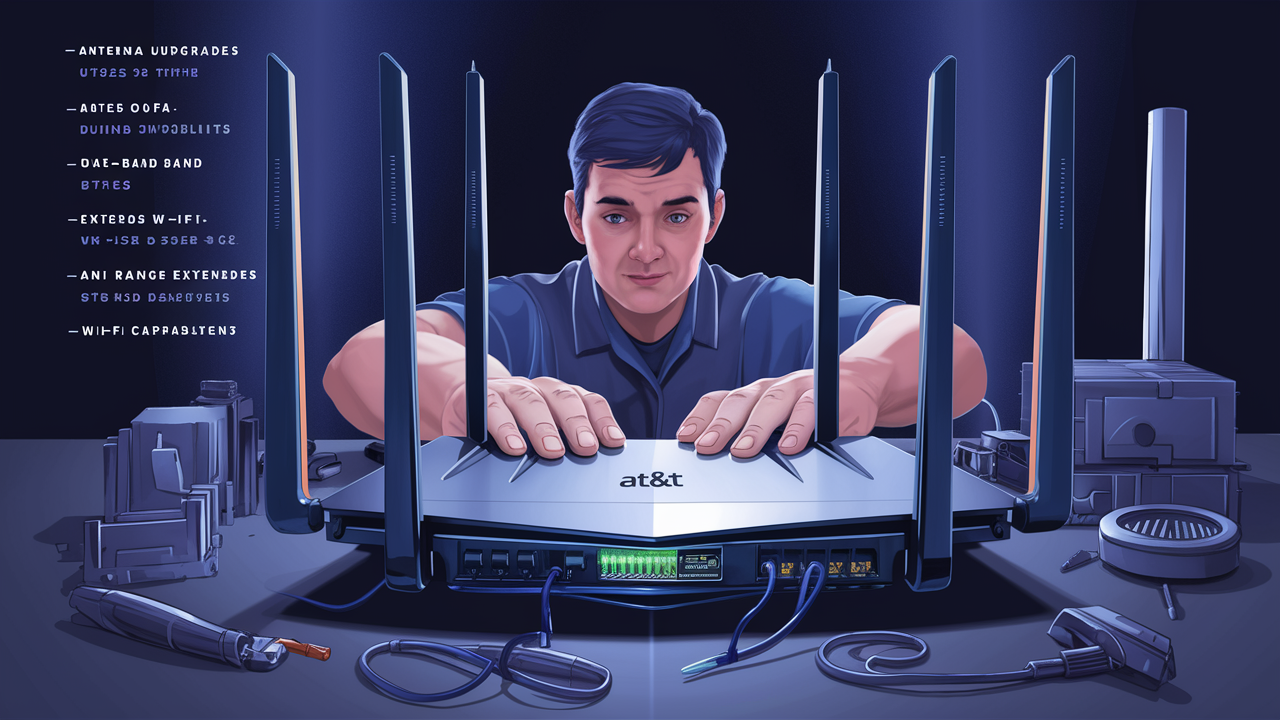
Struggling with slow internet speeds or unreliable Wi-Fi from your AT&T router? This comprehensive guide reveals the most effective strategies to boost your AT&T router's performance, ensuring a faster, more stable connection for all your devices. Discover practical tips and advanced techniques to optimize your home network.
Understanding Your AT&T Router
Before diving into optimization techniques, it's crucial to understand the core components and functionalities of your AT&T router. Most AT&T internet plans utilize a gateway device that combines modem and router functionalities. These devices, such as the AT&T Nighthawk or Pace models, are designed to provide a seamless internet experience, but their performance can be influenced by various factors. Understanding the difference between your internet plan's advertised speed and the actual speeds you experience is the first step. Speeds are typically measured in megabits per second (Mbps) for downloads and uploads. Factors like Wi-Fi interference, router placement, the number of connected devices, and the router's age can all impact real-world performance. In 2025, with the increasing demand for bandwidth from streaming 4K content, online gaming, and remote work, optimizing your router is more critical than ever. Many users overlook the basic settings that can significantly improve their network's efficiency. For instance, knowing whether you have an AT&T Fiber connection or a DSL connection will influence the type of router and potential speeds you can achieve. AT&T Fiber, for example, offers significantly higher speeds than DSL, and optimizing for Fiber requires a different approach.
AT&T routers, like most home networking devices, operate on specific Wi-Fi standards. The most common standards you'll encounter are Wi-Fi 5 (802.11ac) and Wi-Fi 6 (802.11ax). Wi-Fi 6 offers substantial improvements in speed, capacity, and efficiency, especially in environments with many connected devices. Understanding which standard your router supports is key to leveraging its full potential. Newer AT&T gateways are increasingly equipped with Wi-Fi 6 capabilities, but older models might be limited to Wi-Fi 5. This distinction directly impacts the maximum wireless speeds you can achieve. Furthermore, your router broadcasts Wi-Fi signals on two main frequency bands: 2.4 GHz and 5 GHz. The 2.4 GHz band offers a longer range and better penetration through walls but is more susceptible to interference and offers lower speeds. The 5 GHz band provides faster speeds and less interference but has a shorter range. Effectively managing these bands is a cornerstone of improving your AT&T router's performance.
The firmware on your router is the software that controls its operation. Like any software, firmware can have bugs or become outdated, leading to performance issues. AT&T typically pushes firmware updates automatically, but sometimes manual checks or reboots can resolve minor glitches. Keeping your router's firmware up-to-date is a fundamental step in ensuring optimal performance and security. For 2025-26, AT&T is actively rolling out firmware updates to support new Wi-Fi standards and security protocols, making this an ongoing maintenance task. Understanding your router's model number (e.g., BGW210, Pace 5268AC) is also beneficial, as specific troubleshooting steps or known issues might be associated with particular models. This knowledge empowers you to find relevant support articles or community discussions more effectively. A well-understood router is a well-optimized router, and this foundational knowledge sets the stage for all subsequent improvement strategies.
Router Models and Their Capabilities
AT&T offers a range of gateway devices, and their capabilities vary significantly. For instance, the AT&T Pace 5268AC is a common model for DSL and some fiber connections, supporting Wi-Fi 5. In contrast, newer AT&T Fiber installations often come with the AT&T Nighthawk (Netgear AX8 10-Gigabit), which boasts Wi-Fi 6 capabilities and support for multi-gigabit speeds. Understanding which model you have is paramount. The Nighthawk, for example, is designed to handle the high bandwidth of AT&T's fastest Fiber plans, offering superior performance for demanding applications. Older models, while functional, might bottleneck your internet speed, especially if you're subscribed to a high-tier plan. Identifying your router model can usually be done by looking at the device itself or by logging into its administrative interface. This information is crucial for determining what features you can expect and what limitations you might face. For 2025, users with older routers might consider an upgrade if their plan supports speeds beyond what their current hardware can deliver.
Each router model has a maximum theoretical throughput. For Wi-Fi 5 (802.11ac) routers, this might be around 1 Gbps, shared across all connected devices. Wi-Fi 6 (802.11ax) routers can theoretically reach speeds of several Gbps, but these are distributed more efficiently. The actual speeds you experience will always be lower due to overhead, interference, and the capabilities of your client devices. Knowing your router's capabilities helps set realistic expectations. For example, if you have an AT&T Fiber 1 Gig plan but an older Wi-Fi 5 router, you will likely not achieve speeds close to 1 Gbps wirelessly, even if your wired connection is capable. This is a common point of confusion for many users and a key area where understanding your hardware pays dividends. The continuous evolution of Wi-Fi technology means that hardware compatibility is a constant consideration for maximizing internet performance.
Understanding Internet Speed Metrics
Internet speed is often described using terms like Mbps (megabits per second) and Gbps (gigabits per second). A megabit is 1/1000th of a gigabit. So, 1000 Mbps equals 1 Gbps. When AT&T advertises a "1 Gig" plan, it means up to 1000 Mbps download speed. However, this is the speed delivered to your modem/gateway. The speed you get on your devices, especially wirelessly, will be less. Latency, often measured in milliseconds (ms), is another crucial metric, especially for real-time applications like online gaming and video conferencing. High latency means a delay between sending a command and receiving a response, which can make these activities frustrating. Ping is a common way to measure latency. For 2025-26, with the rise of cloud gaming and immersive online experiences, low latency is becoming as important as raw speed for many users. Understanding these metrics helps you diagnose whether a problem is with your overall internet service or specifically with your Wi-Fi network's performance.
Basic Troubleshooting and Optimization
Many performance issues with your AT&T router can be resolved with simple, fundamental steps. These are often overlooked but can yield significant improvements. The most common and effective first step is a power cycle. This involves unplugging both your modem (if separate) and your router from the power outlet, waiting for about 30 seconds, and then plugging them back in. Allow them a few minutes to fully boot up. This simple reboot can clear temporary glitches, refresh network connections, and resolve minor performance degradations. It’s akin to restarting your computer when it acts up. For 2025, with networks becoming more complex, this basic step remains surprisingly effective for resolving intermittent slowdowns or connection drops. It’s a quick, no-cost solution that should be part of any user’s regular network maintenance routine.
Another fundamental optimization is ensuring your router is placed in an optimal location. Routers broadcast Wi-Fi signals in all directions. Placing your router in a central, elevated, and open location within your home will maximize its coverage. Avoid placing it in corners, behind large furniture, near metal objects, or close to other electronics that can cause interference (like microwaves, cordless phones, or Bluetooth devices). For instance, placing your AT&T gateway in a basement closet will severely limit its wireless reach. Ideally, the router should be in a spot where it has a clear line of sight to the areas where you most frequently use your devices. This simple physical adjustment can dramatically improve Wi-Fi signal strength and stability throughout your home, a crucial factor in 2025 as more devices rely on consistent wireless connectivity.
Keeping your router's firmware updated is another critical basic step. While AT&T often pushes updates automatically, it's good practice to check periodically. You can usually do this by accessing your router's administrative interface via a web browser. Log in using your router's IP address (often 192.168.1.254 or similar) and your administrator credentials. Look for a "Firmware Update" or "System Update" section. Keeping firmware current ensures you have the latest performance enhancements, bug fixes, and security patches. This is particularly important in 2025-26 as new security threats emerge and Wi-Fi technology evolves. Outdated firmware can be a significant bottleneck and a security vulnerability.
Power Cycling Your AT&T Router
The process of power cycling, or rebooting, your AT&T router is straightforward but essential. First, locate your AT&T gateway device. Unplug the power adapter from the back of the router and from the electrical outlet. If you have a separate modem, unplug that as well. Wait for at least 30 seconds. This allows any residual power to dissipate and ensures the device completely resets. Then, plug the modem back in first (if applicable) and wait for its indicator lights to stabilize, signifying a connection. After the modem is fully online, plug your AT&T router back in. Allow several minutes for the router to boot up completely and re-establish its Wi-Fi network. This simple action can resolve a surprising number of connectivity and speed issues by clearing temporary memory and re-initializing network processes. For 2025, this is the first troubleshooting step recommended by most IT professionals for home networks.
Optimizing Router Placement
The physical location of your AT&T router has a profound impact on Wi-Fi signal strength and reach. Here are key considerations for optimal placement:
- Central Location: Position the router as close to the center of your home as possible to distribute the signal evenly.
- Elevated Position: Place the router on a shelf or table, rather than on the floor. Radio waves tend to travel downwards.
- Open Space: Avoid enclosing the router in cabinets, behind furniture, or in corners. Obstructions weaken the signal.
- Minimize Interference: Keep the router away from other electronic devices that emit radio waves, such as microwaves, cordless phones, Bluetooth speakers, and even some older televisions.
- Avoid Metal and Thick Walls: Metal objects and dense materials like brick or concrete can significantly block Wi-Fi signals.
By following these guidelines, you can extend the effective range of your Wi-Fi network and improve speeds for devices further away from the router. This is especially relevant in 2025 as smart home devices proliferate and require consistent connectivity throughout the house.
Checking and Updating Firmware
Outdated firmware can lead to poor performance, security vulnerabilities, and compatibility issues. AT&T gateways typically update automatically, but it's wise to verify. To check for updates:
- Open a web browser on a device connected to your AT&T network.
- Type your router's IP address into the address bar. Common addresses are 192.168.1.254 or attgateway.com.
- Log in using your administrator username and password. (These are often found on a sticker on the router itself or in your AT&T account information.)
- Navigate to the "Device," "System," or "Settings" menu.
- Look for an option like "Firmware Update," "Software Update," or "Check for Updates."
- If an update is available, follow the on-screen instructions to install it. Ensure the router remains powered on during the update process.
Regularly checking and updating your router's firmware is a critical maintenance task for 2025-26 to ensure optimal performance and security.
Advanced Router Settings and Configuration
Beyond basic troubleshooting, delving into your AT&T router's advanced settings can unlock significant performance gains. This involves understanding Wi-Fi channels, band steering, and Quality of Service (QoS) settings. These configurations allow you to fine-tune your network for your specific needs, ensuring critical applications receive the bandwidth they require. In 2025, with the increasing complexity of home networks and the demand for high-quality streaming and gaming, mastering these settings is key to a superior internet experience. It’s important to note that AT&T sometimes locks down certain advanced settings on their provided gateways, but there are still several areas where users can make impactful adjustments.
Managing Wi-Fi Channels
Your Wi-Fi network operates on specific channels within the 2.4 GHz and 5 GHz frequency bands. If too many networks in your vicinity are using the same channel, it can lead to interference and slower speeds. Think of it like a highway with too many cars; traffic slows down. The 2.4 GHz band has fewer channels and is more prone to congestion, especially from non-Wi-Fi devices. The 5 GHz band offers more channels and is generally less congested, but has a shorter range.
2.4 GHz Channels: The most common channels are 1, 6, and 11. These channels do not overlap with each other. Ideally, you want to select one of these three channels that is least used by your neighbors. You can use Wi-Fi analyzer apps (available for smartphones) to scan for nearby networks and see which channels are most congested.
5 GHz Channels: The 5 GHz band has many more non-overlapping channels, making congestion less of an issue. However, selecting a less crowded channel can still be beneficial. Some routers offer automatic channel selection, which can be effective, but manual selection can sometimes yield better results.
To change Wi-Fi channels, you'll need to access your router's administrative interface. Look for Wireless settings, then Channel Selection. Experiment with different channels, particularly 1, 6, or 11 for 2.4 GHz, and observe if your Wi-Fi performance improves. This is a critical optimization for 2025-26, especially in densely populated areas like apartment buildings.
Understanding and Configuring Band Steering
Many modern routers, including newer AT&T gateways, support "band steering." This feature allows the router to automatically assign devices to the optimal Wi-Fi band (2.4 GHz or 5 GHz) based on signal strength, speed, and device capability. The goal is to direct less demanding devices to the 2.4 GHz band, freeing up the faster 5 GHz band for devices that can take advantage of its higher speeds. If your router has band steering enabled, it might present a single Wi-Fi network name (SSID) for both bands. While convenient, sometimes manual control can be better. If you're experiencing issues with devices not connecting to the preferred band, you might consider disabling band steering and creating separate SSIDs for your 2.4 GHz and 5 GHz networks. This allows you to manually connect devices to the band that best suits their needs. For example, connect your smart TV or gaming console to the 5 GHz network for optimal performance, while your smart thermostat or older laptop might connect to the 2.4 GHz network for better range.
Quality of Service (QoS) Settings
Quality of Service (QoS) is a feature that allows you to prioritize certain types of network traffic or specific devices over others. This is incredibly useful for ensuring that critical applications, such as video conferencing, online gaming, or streaming, have sufficient bandwidth and low latency, even when other devices on your network are heavily utilizing the internet. For example, if you're on an important video call and someone else in your household starts downloading a large file, QoS can ensure your video call remains smooth and uninterrupted.
Accessing QoS settings usually involves logging into your router's admin interface and finding a section labeled "QoS," "Traffic Management," or "Prioritization." You can typically prioritize based on device (e.g., your work laptop) or application (e.g., VoIP, gaming). Some routers offer pre-set profiles, while others allow for granular manual configuration. In 2025-26, with the increasing reliance on stable internet for work and education, QoS is an indispensable tool for managing your home network effectively. Be cautious when configuring QoS, as overly aggressive prioritization can starve other devices of bandwidth. It’s often best to start with simple device prioritization for critical devices.
Ethernet vs. Wi-Fi Prioritization
For the most stable and fastest connection, a wired Ethernet connection is almost always superior to Wi-Fi. If your AT&T gateway has multiple Ethernet ports, consider using them for devices that are stationary and require the highest performance, such as desktop computers, gaming consoles, or smart TVs. This not only provides a more reliable connection but also frees up Wi-Fi bandwidth for mobile devices. If your router supports QoS, you can often prioritize Ethernet traffic as well, ensuring that wired devices get the best possible performance. Even with Wi-Fi 6, the inherent limitations of wireless transmission mean that Ethernet remains the gold standard for critical applications. In 2025, many high-end routers are offering multi-gigabit Ethernet ports, further emphasizing the importance of wired connections for maximizing speed.
Optimizing Your Wi-Fi Signal
Even with a powerful router, Wi-Fi signals can degrade over distance and through obstacles. Optimizing your Wi-Fi signal involves understanding how to extend its reach and minimize interference. This is crucial for ensuring a consistent and fast connection throughout your entire home. In 2025, with the rise of smart home technology and the need for seamless connectivity across multiple rooms, effective Wi-Fi optimization is more important than ever. This section will cover methods like using Wi-Fi extenders, mesh systems, and understanding the differences between Wi-Fi bands.
Using Wi-Fi Extenders and Access Points
If your AT&T router's Wi-Fi signal doesn't reach all areas of your home, Wi-Fi extenders or access points can help.
- Wi-Fi Extenders (or Repeaters): These devices capture your existing Wi-Fi signal and rebroadcast it, extending the range. They are generally easy to set up but can sometimes halve the bandwidth of the extended network, as they are both receiving and transmitting on the same band.
- Access Points (APs): An access point connects to your router via an Ethernet cable and creates a new Wi-Fi network. This is a more robust solution than an extender, as it doesn't suffer from the same bandwidth limitations. For optimal performance, running an Ethernet cable from your AT&T router to an access point in a dead zone is highly recommended.
Considering a Mesh Wi-Fi System
Mesh Wi-Fi systems are a more advanced solution for larger homes or those with challenging layouts. A mesh system consists of a main router and one or more satellite nodes that work together to create a single, seamless Wi-Fi network. Devices automatically connect to the strongest node as you move around your home, providing consistent coverage and speeds. Many mesh systems offer features like advanced QoS, parental controls, and robust security. While they can be more expensive than extenders, mesh systems offer superior performance and ease of use for comprehensive home coverage. For 2025, mesh systems are increasingly becoming the standard for users seeking to eliminate Wi-Fi dead zones and ensure reliable connectivity everywhere.
When choosing a mesh system, ensure it's compatible with your AT&T gateway. You can often configure your AT&T gateway in "IP Passthrough" or "DMZplus" mode, effectively turning off its routing functions and allowing the mesh system to handle all routing and Wi-Fi duties. This prevents double NAT issues and ensures optimal performance. Consult your AT&T service agreement or support documentation for the best way to integrate a third-party mesh system.
Leveraging the 5 GHz Band
As mentioned earlier, the 5 GHz band offers faster speeds and less interference than the 2.4 GHz band, but it has a shorter range and is less effective at penetrating solid objects. To maximize its benefits:
- Connect High-Bandwidth Devices: Use the 5 GHz band for devices that require high speeds and are relatively close to the router, such as streaming devices (smart TVs, Apple TV), gaming consoles, and laptops used for downloading large files or video editing.
- Reduce Congestion: By offloading these high-bandwidth devices to the 5 GHz band, you reduce congestion on the 2.4 GHz band, which can improve performance for other devices that rely on its longer range.
- Consider Separate SSIDs: If your router allows, creating separate SSIDs for the 2.4 GHz and 5 GHz networks can give you more control over which devices connect to which band. This is especially useful if band steering isn't working optimally for your setup.
In 2025, with the increasing demand for high-definition streaming and online gaming, effectively utilizing the 5 GHz band is crucial for a responsive internet experience.
Hardware Considerations and Upgrades
While optimizing your existing AT&T router is important, sometimes the hardware itself is the limiting factor. Understanding when to consider an upgrade or supplementary hardware can save you from unnecessary frustration. This section will explore the limitations of older AT&T gateways and the benefits of upgrading to newer technology or adding compatible hardware.
When to Upgrade Your AT&T Gateway
AT&T periodically updates its gateway hardware to support newer internet technologies and Wi-Fi standards. If you have an older AT&T gateway (e.g., a model that only supports Wi-Fi 4 or Wi-Fi 5), it might be a bottleneck for your internet plan, especially if you have AT&T Fiber with speeds of 500 Mbps or higher. Newer gateways often feature Wi-Fi 6 or Wi-Fi 6E, which offer significantly improved speeds, capacity, and efficiency, particularly in environments with many connected devices. For 2025-26, AT&T is increasingly deploying Wi-Fi 6E capable gateways for its fastest Fiber tiers. If your current gateway is several years old and you're not achieving speeds close to your subscribed plan, especially wirelessly, it might be time to inquire with AT&T about a hardware upgrade. Be aware that AT&T may charge a monthly equipment fee for newer gateways.
Using Your Own Router with AT&T Internet
In some cases, AT&T allows you to bypass their provided gateway and use your own high-performance router. This is often done by configuring the AT&T gateway into a "pass-through" or "DMZplus" mode, where it essentially acts only as a modem, and your own router handles all the routing, Wi-Fi, and network management. This approach gives you complete control over your network hardware and allows you to leverage the advanced features of a premium third-party router, such as Wi-Fi 6E, advanced QoS, and robust security features. For 2025, this is an increasingly popular option for tech-savvy users who want the best possible performance and customization. However, it's crucial to check AT&T's policy on using third-party equipment and ensure you understand the setup process, as it can be more complex than using the provided gateway.
If you opt for this route, consider routers that support the latest Wi-Fi standards (Wi-Fi 6 or Wi-Fi 6E) and have sufficient processing power to handle your internet speed. Look for routers with MU-MIMO (Multi-User, Multiple Input, Multiple Output) and OFDMA (Orthogonal Frequency-Division Multiple Access) technologies, which are key features of Wi-Fi 6 and improve efficiency when multiple devices are connected.
Ethernet Cabling and Upgrades
While often overlooked, the quality and type of Ethernet cabling in your home can also impact network performance, especially for wired connections. If you have older Cat 5 cables, they might not be capable of supporting gigabit speeds or higher. Upgrading to Cat 5e, Cat 6, or Cat 6a cables can ensure your wired connections are not a bottleneck. For homes with AT&T Fiber plans offering multi-gigabit speeds (e.g., 2 Gbps or 5 Gbps), ensuring your internal Ethernet infrastructure can support these speeds is essential. This might involve running new cables or upgrading existing network jacks. In 2025, with the widespread availability of multi-gigabit internet, investing in high-quality Ethernet cabling is a worthwhile consideration for maximizing wired performance.
Managing Network Traffic and Security
A well-performing network isn't just about speed; it's also about stability and security. Managing who and what is connected to your network, and protecting it from threats, are vital aspects of overall network health. In 2025, with the increasing number of connected devices in homes (IoT devices, smart appliances, etc.) and the evolving landscape of cyber threats, robust traffic management and security practices are paramount.
Identifying and Managing Connected Devices
Your AT&T router's administrative interface usually provides a list of all devices currently connected to your network. Regularly reviewing this list is a good practice. You can identify unknown devices, which could indicate unauthorized access to your Wi-Fi. Most routers allow you to block specific devices from connecting. Additionally, you can set up MAC address filtering, which allows only devices with specific, registered MAC addresses to connect to your network. While this adds a layer of security, it can be cumbersome to manage, especially with many devices. For 2025, a strong, unique Wi-Fi password is the primary defense against unauthorized access.
Understanding which devices are consuming the most bandwidth can also help in optimizing your network. If a particular device is constantly downloading or streaming large amounts of data, and it's not critical, you might consider limiting its bandwidth usage through QoS settings or scheduling its high-bandwidth activities for off-peak hours. This proactive management ensures that your essential services remain performant.
Securing Your Wi-Fi Network
Securing your Wi-Fi network is non-negotiable. Here are the key steps:
- Change Default Passwords: Immediately change the default administrator password for your AT&T router. This is crucial for preventing unauthorized access to your router's settings.
- Use Strong Wi-Fi Encryption: Ensure your Wi-Fi network is using WPA2 or WPA3 encryption. WPA3 is the latest and most secure standard, offering enhanced protection against brute-force attacks. Avoid older WEP encryption, which is easily compromised.
- Create a Strong, Unique Wi-Fi Password: Use a long, complex password that includes a mix of uppercase and lowercase letters, numbers, and symbols. Avoid easily guessable information like names or birthdays.
- Guest Network: If your AT&T router supports it, set up a separate guest network for visitors. This keeps your main network secure and prevents guests from accessing your personal devices.
In 2025, with the proliferation of smart home devices, many of which have weaker security protocols, securing your main Wi-Fi network is more important than ever. A compromised network can be used to launch attacks on other devices or individuals.
Understanding Firewall Settings
Your AT&T router has a built-in firewall that acts as a barrier between your home network and the internet, blocking unauthorized access and malicious traffic. Most AT&T gateways have their firewalls enabled by default and configured for optimal security. While advanced users might explore custom firewall rules, for the average user, ensuring the firewall is enabled and using the default settings is generally sufficient for protection in 2025-26. Avoid disabling the firewall unless you have a specific, well-understood reason and are implementing alternative security measures. Understanding that the firewall is active provides an additional layer of confidence in your network's security posture.
Troubleshooting Persistent Issues
Sometimes, even after implementing the above strategies, you might still encounter persistent problems with your AT&T router. This section provides guidance on how to diagnose and resolve more stubborn issues, including when to contact AT&T support.
Diagnosing Slow Internet Speeds
If you're consistently experiencing slow internet speeds, it's important to isolate the cause.
- Test Wired vs. Wireless: Connect a computer directly to your AT&T router using an Ethernet cable and run a speed test (e.g., Speedtest.net). Compare this speed to a speed test performed wirelessly on the same device. If the wired speed is significantly faster, the issue is likely with your Wi-Fi. If both are slow, the problem might be with your AT&T service or the gateway itself.
- Test Multiple Devices: Check speeds on different devices. If only one device is slow, the issue might be with that specific device.
- Check for Bandwidth Hogs: Ensure no single device or application is consuming all your bandwidth (as discussed in the traffic management section).
- Test at Different Times: Internet speeds can fluctuate based on network congestion in your area. Test speeds during different times of the day.
Resolving Intermittent Connection Drops
Intermittent connection drops can be frustrating and difficult to diagnose.
- Check Router Lights: Observe the indicator lights on your AT&T gateway. Consult your router's manual or AT&T support to understand what each light signifies. Unusual blinking or solid red lights often indicate a problem with the connection to AT&T's network.
- Check Cables: Ensure all cables (power, Ethernet, coaxial, or fiber optic) are securely connected and not damaged. Loose connections are a common cause of intermittent drops.
- Router Overheating: Ensure your router has adequate ventilation and is not overheating. Overheating can cause performance issues and random reboots.
- Firmware Issues: As mentioned, ensure your firmware is up-to-date. Sometimes, a specific firmware version can cause instability.
When to Contact AT&T Support
If you've tried the troubleshooting steps above and are still experiencing significant performance issues, it's time to reach out to AT&T customer support. You should contact them if:
- Your wired internet speeds are consistently lower than your subscribed plan.
- You suspect an issue with the AT&T service line or equipment provided by AT&T.
- You are experiencing frequent connection drops that cannot be resolved through basic troubleshooting.
- You need to request a firmware update or a gateway replacement.
- You are unable to access your router's administrative interface to perform troubleshooting steps.
When you contact AT&T support, be prepared to provide details about the troubleshooting steps you've already taken, your router model, your internet plan, and the specific issues you're experiencing. This will help them diagnose the problem more efficiently. For 2025, AT&T's support teams are well-equipped to handle common gateway and connectivity issues, but providing them with clear, concise information is key to a swift resolution.
Factory Resetting Your Router
As a last resort for persistent software-related issues, you can perform a factory reset on your AT&T router. This will revert all settings back to their original default state. Warning: This will erase all your custom configurations, including your Wi-Fi network name (SSID) and password. You will need to set these up again after the reset. To perform a factory reset, you typically need to locate a small reset button on the back or bottom of the router. Press and hold this button with a paperclip for about 10-30 seconds while the router is powered on. Consult your specific AT&T gateway's manual for precise instructions. A factory reset can resolve deep-seated software glitches but should only be performed after exhausting other troubleshooting methods. For 2025, this is a powerful tool but requires careful consideration due to the loss of custom settings.
In conclusion, improving your AT&T router's performance is achievable through a combination of understanding your hardware, implementing basic optimization techniques, configuring advanced settings, and ensuring your network is secure. By systematically addressing these areas, you can significantly enhance your internet speed, stability, and overall online experience. Remember that consistent maintenance and staying informed about your AT&T service and router capabilities are key to a high-performing home network in 2025 and beyond.