Does Cox Provide a Modem and Router?
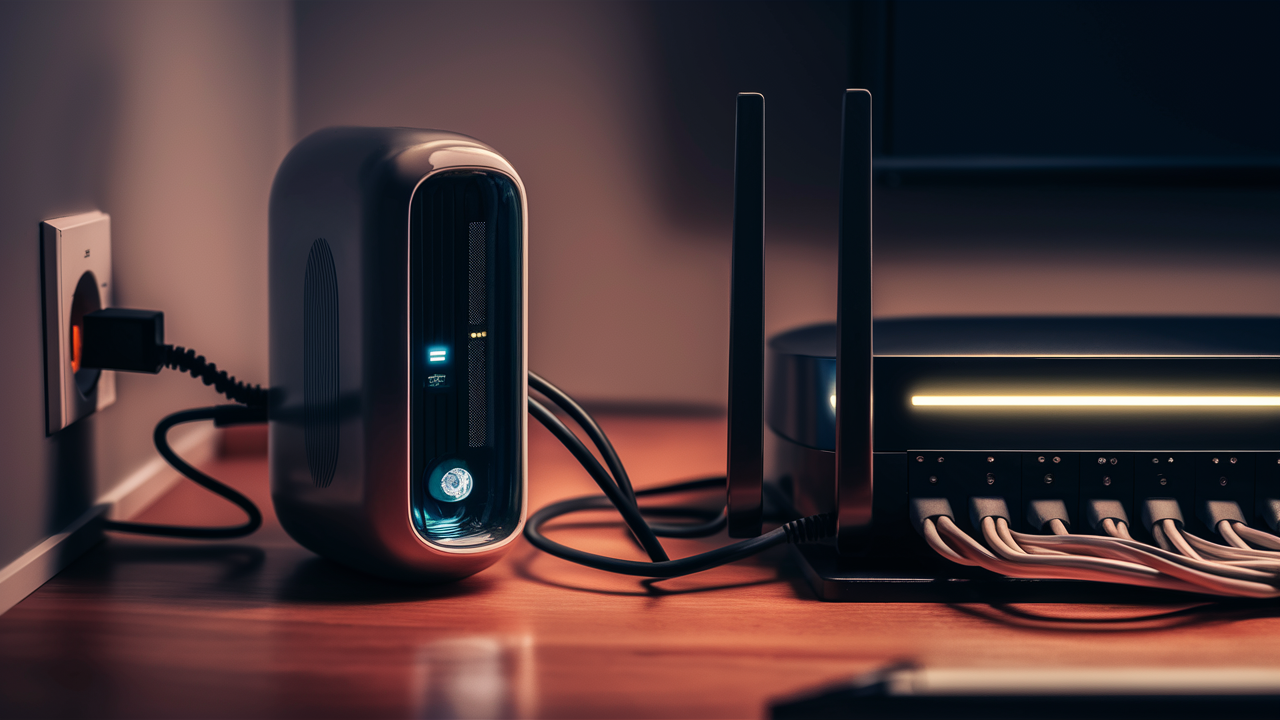
Cox Communications, a leading internet service provider, offers both modem and router solutions to its subscribers. Understanding whether Cox provides these essential devices, and the options available, is crucial for a seamless home internet experience. This guide delves into Cox's equipment offerings, rental versus purchase decisions, and essential considerations for optimizing your internet setup.
Cox Equipment Overview: Modems and Routers Explained
Before diving into Cox's specific offerings, it's essential to understand the fundamental roles of a modem and a router in your home network. These two devices, often combined into a single unit, are the backbone of your internet connectivity. A modem acts as the translator, converting the signal from your Internet Service Provider (ISP) – in this case, Cox – into a format your devices can understand. It connects directly to the coaxial cable (or fiber optic line for some Cox services) entering your home. The router, on the other hand, creates a local network within your home. It takes the internet connection from the modem and shares it wirelessly (via Wi-Fi) and through Ethernet cables to all your connected devices, such as computers, smartphones, smart TVs, and gaming consoles. Modern internet setups often feature a gateway, which is a single device that combines the functionality of both a modem and a router.
Does Cox Provide a Modem and Router? The Direct Answer
Yes, Cox Communications does provide both modems and routers to its customers. You have the option to rent equipment directly from Cox, or you can purchase your own compatible modem and router and use them with your Cox internet service. This dual approach offers flexibility, allowing subscribers to choose the option that best suits their budget, technical comfort level, and specific internet needs. For many users, especially those new to setting up home networks or who prefer a hassle-free experience, renting from Cox is a straightforward solution. However, purchasing your own equipment can offer long-term cost savings and greater control over your network's capabilities.
Cox-Provided Equipment Options: What's Available?
Cox offers a range of equipment choices, catering to different service tiers and user preferences. These options generally fall into a few categories: modem-only devices, combined modem-router gateway units, and standalone routers.
Modem-Only Options
In some cases, Cox may offer a modem-only device. This is a good option if you already own a high-quality Wi-Fi router and prefer to use your own for network management and Wi-Fi performance. A modem-only unit will connect to Cox's network and provide an Ethernet port for your router to connect to. This separation allows for independent upgrades of your modem and router, which can be beneficial if one component is limiting your internet speed or features. However, it's important to ensure that any modem you choose, whether rented from Cox or purchased independently, is certified for use with Cox's network and supports the speeds of your subscribed internet plan.
Modem-Router Gateway Combo Units
The most common option provided by Cox is a gateway device, which integrates both modem and router functionalities into a single unit. These "all-in-one" devices simplify setup and reduce the number of devices and cables needed. Cox typically offers several models of gateways, each with varying capabilities in terms of Wi-Fi standards (e.g., Wi-Fi 5, Wi-Fi 6), number of Ethernet ports, and maximum supported speeds. These are often the default equipment provided when you sign up for a new Cox internet plan. For a standard home setup with a moderate number of devices and typical internet usage, a Cox gateway is usually sufficient.
Dedicated Cox Wi-Fi Routers
While Cox primarily focuses on providing modems and gateways, they may also offer standalone Wi-Fi routers as an add-on rental. These are typically for users who have a separate modem (either rented from Cox or their own) and want to upgrade their Wi-Fi capabilities without replacing their modem. These routers are designed to work seamlessly with Cox's network infrastructure and are often newer models that support advanced Wi-Fi features like Wi-Fi 6 or 6E, providing faster speeds and better performance for a larger number of connected devices.
Renting vs. Buying Cox Equipment: A Cost-Benefit Analysis
Deciding whether to rent your modem and router from Cox or purchase your own is a significant decision that impacts your monthly bills and long-term costs. Each approach has its pros and cons.
Advantages of Renting Cox Equipment
- Convenience and Simplicity: When you rent from Cox, the equipment is pre-configured to work with their network. Setup is usually straightforward, and if you encounter issues, Cox support can often diagnose and resolve problems remotely or provide a replacement unit. This is particularly appealing for users who are not technically inclined.
- No Upfront Cost: Renting eliminates the need for a large initial investment in hardware. You pay a monthly fee, which is often bundled into your internet bill.
- Automatic Upgrades: If Cox releases new, more advanced equipment, renters may have the option to upgrade their devices, ensuring they can take advantage of the latest technology and network improvements without purchasing new hardware.
- Technical Support: Renting includes access to Cox's technical support for the rented equipment. If the device malfunctions, Cox will typically replace it at no extra charge.
Disadvantages of Renting Cox Equipment
- Long-Term Cost: The monthly rental fees, while seemingly small, add up significantly over time. Over several years, the cumulative cost of renting can far exceed the purchase price of a comparable device. For example, a typical rental fee of $15 per month amounts to $180 per year, or $540 over three years.
- Limited Choice: You are restricted to the models that Cox offers for rent. These may not always be the latest or most feature-rich options available on the market.
- Performance Limitations: Rental equipment might not always be the most powerful or up-to-date, potentially limiting your internet speeds or Wi-Fi coverage, especially if you have a high-speed internet plan or a large home.
Advantages of Buying Your Own Equipment
- Long-Term Cost Savings: While there's an upfront investment, purchasing your own modem and router will almost always be more cost-effective in the long run. After the initial purchase, you eliminate the monthly rental fees. For instance, a good quality modem might cost $100-$200, and a router $150-$300, which can be recouped within 1-2 years of rental savings.
- Greater Choice and Customization: You have access to a vast array of models from various manufacturers, allowing you to choose equipment that precisely matches your needs, whether it's a high-performance router for gaming, a mesh Wi-Fi system for a large home, or a modem that supports the highest speeds offered by Cox.
- Enhanced Features and Performance: You can select devices with the latest Wi-Fi standards (e.g., Wi-Fi 6E, Wi-Fi 7), advanced security features, better range, and more robust performance than what might be offered for rent.
- Flexibility: If you move or switch ISPs (and the new ISP uses similar technology like DOCSIS for cable internet), you can take your equipment with you, avoiding the need to rent new devices.
Disadvantages of Buying Your Own Equipment
- Upfront Cost: The initial purchase price for a good modem and router can be substantial, ranging from a few hundred dollars to over $500 for high-end systems.
- Compatibility Verification: You are responsible for ensuring that the modem you purchase is compatible with Cox's network and supports your subscribed internet speed tier. Cox maintains a list of approved modems, and using an unapproved device may result in connectivity issues or service denial. (See our guide on Cox equipment compatibility)
- Technical Responsibility: You are responsible for setting up, configuring, and troubleshooting your own equipment. While many devices are plug-and-play, advanced configurations or troubleshooting may require more technical knowledge.
- Upgrade Costs: When new technologies emerge, you'll need to purchase new hardware to take advantage of them, whereas renters might have an upgrade path through their ISP.
Key Factors to Consider When Choosing Your Cox Equipment
Selecting the right modem and router is paramount to enjoying a reliable and fast internet experience. Several factors should guide your decision, whether you opt to rent from Cox or buy your own.
Internet Speed Tiers
Cox offers various internet speed plans, from basic browsing speeds to ultra-fast gigabit connections. Your modem and router must be capable of handling the speeds of your subscribed plan. For instance, if you subscribe to a 500 Mbps plan, your modem should support at least 500 Mbps (and ideally have some headroom), and your router should have Gigabit Ethernet ports and a Wi-Fi standard capable of delivering high speeds wirelessly. Using an underpowered modem or router can create a bottleneck, preventing you from reaching the speeds you're paying for. For plans above 1 Gbps, you'll need DOCSIS 3.1 modems, which are becoming more common.
Device Compatibility
If you decide to buy your own modem, it's crucial to verify its compatibility with Cox. Cox maintains a list of approved modems on their website. Using a modem not on this list can lead to service issues. Similarly, ensure your router is compatible with your modem and your internet service. Most modern routers are compatible with any standard modem, but it's always wise to check specifications.
Home Size and Layout
The size and layout of your home significantly impact Wi-Fi coverage. For smaller apartments or single-story homes, a standard gateway or router might suffice. However, for larger homes, multi-story residences, or homes with thick walls or unusual layouts, you might need a more powerful router or a mesh Wi-Fi system. Mesh systems use multiple nodes placed throughout your home to create a seamless, strong Wi-Fi signal, eliminating dead zones. Cox offers mesh Wi-Fi solutions as part of their rental packages, but you can also purchase third-party mesh systems.
Number of Connected Devices
The more devices you have connected to your network simultaneously – smartphones, laptops, tablets, smart TVs, smart home devices, gaming consoles – the more strain is placed on your router. Modern routers, especially those supporting Wi-Fi 6 or Wi-Fi 6E, are designed to handle a larger number of simultaneous connections more efficiently. If you have a smart home ecosystem or a household with many users and devices, investing in a router capable of managing high device density is essential.
Budget
Your budget will play a significant role in your decision. Renting offers a lower upfront cost but higher long-term expenses. Buying requires a larger initial investment but leads to savings over time. When buying, consider the total cost of a modem and router combination. You can find decent entry-level options for under $200, mid-range for $200-$400, and high-performance systems for $400+. Balance your budget with the features and performance you need.
Technical Expertise
If you're comfortable with technology and enjoy setting up and managing your own network, buying your own equipment offers more control and customization. You can tweak settings, prioritize traffic, and implement advanced security measures. If you prefer a plug-and-play experience and want to rely on your ISP for support, renting from Cox might be the better choice.
Setting Up Your Cox Equipment: A Step-by-Step Guide
Whether you've rented equipment from Cox or purchased your own, the setup and activation process is generally straightforward.
Installation Process
For Rented Cox Equipment:
- Receive Equipment: Cox will either ship the equipment to you or provide it at a local service center. It typically includes a modem/gateway, power cord, and Ethernet cable.
- Connect the Modem:
- Locate the coaxial cable outlet in your home.
- Screw the coaxial cable from the wall tightly into the back of the modem.
- Connect the power adapter to the modem and plug it into a wall outlet.
- If you have a separate router, connect one end of the Ethernet cable to the modem's Ethernet port and the other end to the router's WAN/Internet port.
- Power On: Turn on the modem and router (if separate). Wait for the indicator lights on the modem to stabilize, usually indicating a stable internet connection. This can take several minutes.
For Purchased Equipment:
- Verify Compatibility: Ensure your purchased modem is on Cox's approved device list and supports your internet speed tier.
- Connect the Modem: Follow the same steps as above for connecting the coaxial cable and power.
- Connect Your Router (if separate): If you bought a standalone router, connect it to your modem's Ethernet port.
- Power On: Power on both devices and wait for the indicator lights to stabilize.
Activation Steps
Once your equipment is physically connected, you'll need to activate it with Cox.
Using the Cox App or Website:
- Download the Cox App: The easiest way to activate is often through the Cox app on your smartphone.
- Log In or Create Account: Log in to your existing Cox account or create a new one if prompted.
- Follow Activation Prompts: The app or Cox's website will guide you through the activation process. You may need to enter your account information or the modem's MAC address (found on a sticker on the device).
- Self-Activation Portal: If you don't use the app, you'll likely be directed to a self-activation portal via a web browser on a device connected to your new network (initially via Ethernet cable). This portal will detect your modem and guide you through activation.
- Wait for Confirmation: The activation process can take a few minutes. You'll receive a confirmation once your service is active.
Troubleshooting Activation: If you encounter issues during activation, restart your modem and router, and try again. If problems persist, contact Cox customer support.
Optimizing Your Cox Internet Performance
Having the right equipment is only half the battle; optimizing its placement and settings can significantly improve your internet experience.
Router Placement
The location of your Wi-Fi router is critical for signal strength and coverage.
- Central Location: Place your router in a central location in your home, away from exterior walls.
- Elevated Position: Position the router on a shelf or table, rather than on the floor, to help the signal propagate more effectively.
- Avoid Obstructions: Keep the router away from large metal objects, mirrors, and appliances that can interfere with Wi-Fi signals (e.g., microwaves, cordless phones).
- Minimize Walls: The fewer walls and floors between your router and your devices, the stronger the signal will be.
Firmware Updates
Manufacturers regularly release firmware updates for modems and routers to improve performance, fix bugs, and patch security vulnerabilities.
- Automatic Updates: Many modern gateways and routers receive automatic firmware updates from the manufacturer or ISP.
- Manual Updates: If you have your own equipment, check the manufacturer's website periodically for updates or access your router's administrative interface to check for and install updates. For Cox-rented equipment, firmware updates are typically managed by Cox.
Network Security
Protecting your home network is vital.
- Strong Wi-Fi Password: Use a strong, unique password for your Wi-Fi network (WPA2 or WPA3 encryption is recommended).
- Change Default Credentials: If you're using your own router, change the default administrator username and password to prevent unauthorized access to your router's settings.
- Guest Network: If your router supports it, set up a separate guest network for visitors to keep your main network secure.
- Enable Firewall: Ensure your router's built-in firewall is enabled.
Understanding Wi-Fi Bands
Most modern routers broadcast on two main Wi-Fi bands: 2.4 GHz and 5 GHz.
- 2.4 GHz: Offers a longer range and better penetration through walls but has slower speeds and is more prone to interference from other devices.
- 5 GHz: Provides faster speeds and less interference but has a shorter range.
For devices close to the router that require high speeds (e.g., streaming devices, gaming consoles), connect them to the 5 GHz band. For devices further away or that don't require high speeds (e.g., smart bulbs, older laptops), the 2.4 GHz band is suitable. Some routers offer a single network name (SSID) that automatically directs devices to the best band (band steering).
Troubleshooting Common Cox Equipment Issues
Even with the best equipment, you might encounter occasional internet issues. Here are some common problems and their solutions.
No Internet Connection
- Check Lights: Examine the indicator lights on your modem and router. Solid lights usually indicate a stable connection, while blinking or off lights suggest a problem.
- Restart Equipment: The most common fix is to power cycle your modem and router. Unplug both devices, wait 30 seconds, plug the modem back in, wait for it to fully boot up (lights stable), then plug in the router.
- Check Cables: Ensure all cables (coaxial, Ethernet, power) are securely connected.
- Check Cox Service Status: Visit the Cox website or use the app to check if there are any reported outages in your area.
- Contact Cox Support: If the issue persists, contact Cox customer service.
Slow Internet Speeds
- Run a Speed Test: Use a reliable speed test tool (e.g., Ookla Speedtest) on a device connected via Ethernet to your router to get an accurate reading.
- Check Your Plan: Ensure the speeds you're getting are consistent with your subscribed Cox plan.
- Restart Equipment: A simple reboot can sometimes resolve temporary performance issues.
- Reduce Network Load: Temporarily disconnect some devices to see if performance improves.
- Check Modem/Router Capabilities: Ensure your modem and router are capable of handling your subscribed speeds. An older DOCSIS 3.0 modem might struggle with gigabit speeds.
- Wi-Fi Interference: If speeds are slow only on Wi-Fi, try moving closer to the router or connecting to the 5 GHz band.
- Consider an Upgrade: If your equipment is old or not rated for your speed tier, it might be time to upgrade (either by renting a better Cox device or purchasing your own).
Wi-Fi Connectivity Problems
- Restart Router: Power cycle your router.
- Check Router Placement: Ensure the router is in an optimal location.
- Update Router Firmware: Ensure your router has the latest firmware.
- Change Wi-Fi Channel: Some routers allow you to manually select a Wi-Fi channel to avoid interference from neighboring networks.
- Consider a Mesh System: If you have dead zones, a mesh Wi-Fi system can significantly improve coverage.
- Check Device Wi-Fi Adapter: Ensure the Wi-Fi adapter on your device is functioning correctly and updated.
Future Trends in Internet Equipment
The landscape of internet equipment is constantly evolving. We are seeing a continued push towards higher speeds and more robust connectivity solutions. Key trends include:
- Wi-Fi 7: The next generation of Wi-Fi, Wi-Fi 7 (802.11be), promises even higher speeds, lower latency, and increased capacity, especially beneficial for demanding applications like augmented reality (AR), virtual reality (VR), and cloud gaming.
- DOCSIS 4.0: For cable internet providers like Cox, DOCSIS 4.0 is the next significant step, enabling symmetrical upload and download speeds and supporting multi-gigabit internet tiers over existing coaxial cable infrastructure. This means faster and more consistent performance for all users.
- Increased Integration of AI and Machine Learning: Future modems and routers will likely incorporate more AI capabilities to optimize network performance, manage traffic more intelligently, enhance security, and provide more proactive troubleshooting.
- Mesh and Whole-Home Wi-Fi Solutions: As homes become more connected with an increasing number of smart devices, the demand for seamless, whole-home Wi-Fi coverage will continue to grow, driving the adoption of advanced mesh systems.
- Enhanced Security Features: With the rise of cyber threats, future equipment will incorporate more sophisticated built-in security features, including advanced firewalls, intrusion detection, and parental controls, often managed through user-friendly apps.
These advancements will continue to shape how we interact with the internet, making reliable and high-performance equipment more critical than ever.
In conclusion, Cox Communications does indeed provide both modems and routers, offering subscribers the choice to rent equipment directly from them or to purchase their own compatible devices. While renting provides convenience and immediate access, purchasing your own modem and router often proves more cost-effective in the long run, offering greater flexibility and access to cutting-edge technology. Carefully consider your internet speed needs, home size, the number of devices you use, and your budget when making this decision. By understanding your options and optimizing your equipment's setup and performance, you can ensure a robust and reliable internet connection for all your online activities with Cox.