Does ATT internet need a router?
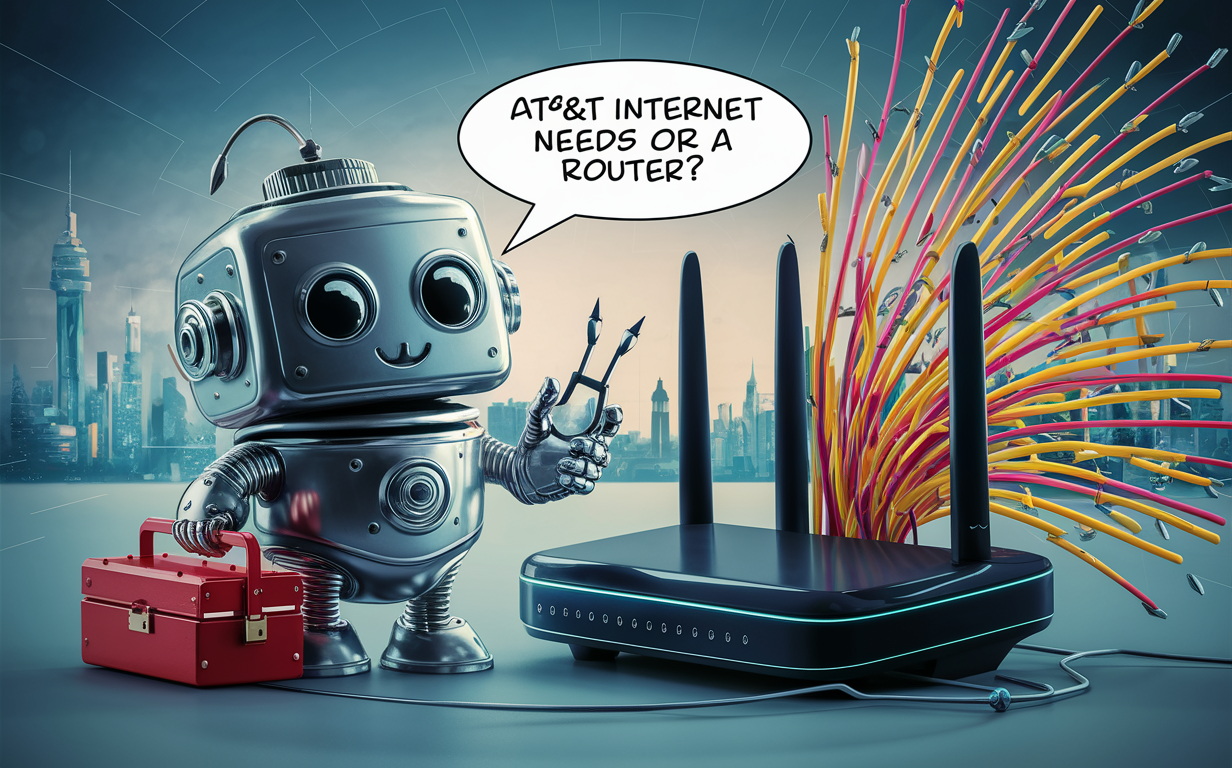
Navigating the world of internet service can be confusing, especially when it comes to equipment. This guide clarifies whether AT&T internet requires a router, detailing the essential role of these devices and how to make the best choice for your home network.
Understanding AT&T Internet Equipment
When you sign up for internet service with a major provider like AT&T, one of the first questions that arises is about the equipment you'll need. This typically involves a modem and a router. Historically, these were separate devices, each performing a distinct but crucial function in bringing the internet from the outside world into your home and then distributing it to your various devices. The modem's primary role is to translate the signal from your internet service provider (ISP) – whether it comes through cable lines, fiber optic cables, or DSL phone lines – into a format your home network can understand. The router, on the other hand, takes that internet connection and shares it among multiple devices, creating a local area network (LAN) and often providing Wi-Fi connectivity. In recent years, ISPs have increasingly consolidated these functions into a single device, often called a "gateway" or "modem/router combo." This integration aims to simplify setup for customers and streamline support for the ISP. Understanding the specific equipment AT&T provides is key to understanding whether you need an additional router.
AT&T, like many other ISPs, offers a range of internet technologies, including fiber optic (AT&T Fiber), DSL (AT&T Internet), and fixed wireless. The type of service you have will influence the equipment provided and the network setup. For instance, AT&T Fiber uses a different type of equipment than traditional DSL. For fiber, a device called an Optical Network Terminal (ONT) is typically installed, which then connects to the AT&T gateway. For DSL, the gateway often directly connects to the phone line. The complexity of these connections and the specific functionalities of the provided equipment are central to answering the question of whether an additional router is necessary. As of 2025-2026, AT&T continues to push its fiber network, which generally offers higher speeds and more reliable performance, influencing the types of gateways deployed.
The decision to use AT&T's provided equipment or to purchase your own router often comes down to a balance of convenience, cost, and performance needs. While AT&T's gateways are designed to work seamlessly with their network and are generally reliable for basic internet use, power users, those with larger homes, or individuals with specific networking requirements might find benefits in using a third-party router. This could involve enhanced Wi-Fi coverage, more advanced security features, better Quality of Service (QoS) controls, or simply a more robust and customizable network experience. Understanding the capabilities and limitations of AT&T's standard offerings is the first step in making an informed decision about your home network setup.
Does AT&T Internet Need a Router? The Definitive Answer
The straightforward answer to whether AT&T internet *needs* a router is: it depends on the equipment AT&T provides and how you intend to use your internet connection. In most modern AT&T internet installations, the device provided by AT&T, often referred to as an AT&T Gateway, functions as both a modem and a router. This means it handles the task of connecting to AT&T's network and simultaneously broadcasts a Wi-Fi signal, allowing multiple devices in your home to connect wirelessly. Therefore, for the average user who simply wants to get online and connect a few devices via Wi-Fi, the AT&T Gateway alone is often sufficient.
However, it's crucial to understand that "need" can be interpreted in different ways. If your AT&T service comes with a gateway that includes Wi-Fi capabilities, you technically don't *need* to buy a separate router to get internet access on your devices. The gateway performs the essential routing functions. But, if you have specific requirements that the AT&T gateway doesn't meet, then you might *choose* to use your own router, either in conjunction with or instead of the AT&T gateway's routing functions. This is where the nuance lies. For example, if the Wi-Fi signal from the AT&T gateway doesn't reach all corners of your home, or if you need more advanced network management features, a dedicated router or a mesh Wi-Fi system might be a necessary addition to achieve your desired performance and coverage.
To be precise, the AT&T gateway acts as the bridge between AT&T's network and your home network. It receives the internet signal and then creates your private network, assigning IP addresses to your devices and managing traffic. Without this routing function, whether performed by the AT&T gateway or a separate router, your devices would not be able to communicate with each other or access the internet simultaneously. The modem function within the gateway is what connects you to AT&T's infrastructure. So, while you always need a modem (or an equivalent like an ONT for fiber), the router function is often integrated into the AT&T-provided device. As of 2025, AT&T gateways are designed to be plug-and-play for most users, encompassing both modem and router capabilities.
Let's break down the scenarios:
- Scenario 1: Standard AT&T Internet (DSL or Fiber) with a Gateway. In this case, the AT&T Gateway typically has built-in Wi-Fi and routing capabilities. You do not *need* a separate router. The gateway connects to the AT&T network and broadcasts your Wi-Fi.
- Scenario 2: AT&T Internet without a Wi-Fi enabled Gateway. This is less common with newer installations but historically possible with older DSL modems that only provided Ethernet ports. In such a situation, you would absolutely need a separate router to create a Wi-Fi network and connect multiple devices.
- Scenario 3: AT&T Fiber with an ONT and a separate AT&T Gateway. The ONT converts the fiber signal to an Ethernet signal, and the AT&T Gateway then takes that Ethernet connection and provides routing and Wi-Fi. Again, the gateway handles the routing.
Therefore, for the vast majority of AT&T customers today, the AT&T Gateway serves the purpose of a router, eliminating the immediate need for an additional purchase. The question then shifts from "do I need one?" to "can I benefit from having my own?"
AT&T Gateway vs. Router: What's the Difference?
To truly understand if you need an additional router, it's essential to differentiate between an AT&T Gateway and a standalone router. While they perform overlapping functions, their origin and typical feature sets can differ significantly. An AT&T Gateway is the piece of equipment provided by AT&T that connects your home to their internet network. It's designed by or for AT&T to be compatible with their specific service technologies (DSL, Fiber, etc.) and to offer a streamlined user experience.
AT&T Gateway:
- Integrated Device: As mentioned, most AT&T Gateways are combo devices that integrate modem and router functionalities. This means they handle the signal translation from AT&T's network (modem function) and then create your local network, manage IP addresses, and broadcast Wi-Fi (router function).
- ISP-Specific: They are designed and often managed by AT&T. This means AT&T can remotely manage, update, and troubleshoot these devices.
- Simplicity Focused: AT&T Gateways are typically configured for ease of use. They offer basic Wi-Fi settings and often have limited advanced customization options available to the end-user. The goal is to get most customers online quickly and reliably without needing technical expertise.
- Potential Limitations: While capable for everyday use, they might not offer the highest Wi-Fi speeds, the most extensive coverage, or the most granular control over network settings compared to high-end standalone routers.
- Cost Structure: AT&T often includes the Gateway in the monthly service fee, or charges a one-time equipment fee. Some customers may have the option to purchase their own modem/router, but this is less common with fiber and more restricted than in the past for DSL.
Standalone Router:
- Dedicated Functionality: A standalone router's primary job is to create and manage a local network. It takes an internet connection (usually from a separate modem or gateway) and distributes it to multiple devices, providing Wi-Fi and wired Ethernet ports.
- User-Owned and Controlled: You purchase and own a standalone router. This gives you complete control over its settings, firmware updates, and features.
- Advanced Features: High-end standalone routers often boast superior Wi-Fi technology (e.g., Wi-Fi 6E, Wi-Fi 7), more powerful processors for better performance, wider coverage areas, and advanced features like robust Quality of Service (QoS) settings, VPN support, guest networks, parental controls, and sophisticated security protocols.
- Flexibility: You can choose a router that best fits your specific needs, whether that's extreme gaming performance, extensive smart home device support, or maximum coverage for a large property.
- Cost: You pay an upfront cost for the router, which can range from under $100 for basic models to over $500 for premium, high-performance units.
How they interact:
If you have an AT&T Gateway that you are satisfied with, you don't need a separate router. However, if you decide to use your own router, you typically have two main options:
- Bridge Mode: You can often configure the AT&T Gateway to operate in "bridge mode." In this mode, the gateway essentially disables its routing and Wi-Fi functions and acts solely as a modem, passing the internet connection directly to your standalone router. Your standalone router then handles all network management, Wi-Fi broadcasting, and device connections. This is the preferred method for maximizing performance and control with your own router.
- Double NAT (Not Recommended): You can connect your standalone router to one of the LAN ports on the AT&T Gateway. In this setup, both the AT&T Gateway and your router will try to manage the network (a situation called Double Network Address Translation or Double NAT). This can lead to connectivity issues, slow speeds, and problems with certain applications or online gaming. AT&T generally advises against this configuration.
In summary, the AT&T Gateway is often a combined modem and router. A standalone router is a separate device dedicated to routing and Wi-Fi. The key difference lies in ownership, control, and the depth of features available. For most users, the AT&T Gateway is sufficient. For those seeking enhanced performance, coverage, or control, a standalone router can be a valuable addition, often used in conjunction with the AT&T Gateway in bridge mode.
Understanding Your AT&T Gateway Features
AT&T provides gateways that are designed to be the central hub of your home network. While specific models may vary, most modern AT&T Gateways offer a suite of features aimed at providing a reliable internet connection and a functional Wi-Fi network. Understanding these features will help you determine if they meet your needs or if a supplemental device is warranted. As of 2025-2026, AT&T continues to update its gateway technology to support higher speeds, particularly for its fiber optic services.
Key Features of AT&T Gateways:
- Modem Functionality: This is the core function, enabling your home to connect to AT&T's network. For DSL, it connects to the phone line; for Fiber, it connects to the ONT (which is connected to the fiber line). It translates the incoming signal into data that your devices can use.
- Router Functionality: The gateway creates your private local area network (LAN). It assigns unique IP addresses to each device connected to your network (via Wi-Fi or Ethernet) and manages the flow of data between these devices and the internet.
- Wi-Fi Broadcasting: Most AT&T Gateways broadcast a Wi-Fi signal, allowing wireless devices like smartphones, laptops, tablets, and smart TVs to connect to the internet without cables. Newer models support dual-band (2.4 GHz and 5 GHz) Wi-Fi, and some may even offer tri-band capabilities for better performance and less interference. Support for Wi-Fi 6 (802.11ax) is becoming increasingly common in their higher-end gateways, offering faster speeds and improved efficiency for multiple connected devices.
- Ethernet Ports: Gateways typically come with several Ethernet ports (usually 4) on the back. These allow you to connect devices directly to the gateway using an Ethernet cable, which can provide a more stable and faster connection for devices like desktop computers, gaming consoles, or smart TVs.
- Basic Network Management: AT&T Gateways usually offer a web-based interface (accessible by typing an IP address like 192.168.1.254 into a web browser) where you can perform basic tasks. This might include changing your Wi-Fi network name (SSID) and password, viewing connected devices, and sometimes setting up port forwarding.
- Security Features: They include built-in firewalls to protect your network from unauthorized access. They also support WPA2 or WPA3 security protocols for your Wi-Fi network to encrypt your wireless traffic.
- Remote Management: AT&T technicians can often access your gateway remotely to diagnose issues, perform updates, or make configuration changes, which can speed up troubleshooting.
- Smart Home Integration (Limited): Some newer gateways may have limited smart home capabilities, such as basic voice control integration or the ability to manage connected devices through a dedicated app.
What might be missing or limited:
- Advanced Wi-Fi Control: While they offer Wi-Fi, you typically have limited control over channel selection, transmit power, or advanced beamforming settings.
- Mesh Networking Capabilities: Most AT&T Gateways do not natively support creating a seamless mesh Wi-Fi network with multiple access points to extend coverage throughout a large home. For this, you'd need a separate mesh system.
- High-Performance Networking: For users with extremely high bandwidth needs, demanding online gaming, or a very large number of connected devices, the built-in Wi-Fi or routing capabilities of a standard AT&T Gateway might become a bottleneck.
- Granular QoS Settings: While some QoS features might be present, they are often less sophisticated than those found on dedicated routers, which allow for precise prioritization of traffic for specific applications or devices.
- VPN Client/Server Functionality: Most AT&T Gateways do not support acting as a VPN client or server, which is a feature some advanced users desire for enhanced privacy or secure remote access.
Example: AT&T Fiber Gateway (e.g., BGW320 series):
A common gateway for AT&T Fiber is the BGW320. This device is a high-performance gateway that includes:
- Integrated ONT for direct fiber connection.
- Wi-Fi 6 (802.11ax) support for faster wireless speeds and better performance with multiple devices.
- Multiple Ethernet ports for wired connections.
- A web interface for basic management.
While the BGW320 is a powerful device, a user with a very large home might still experience Wi-Fi dead zones. In such a case, adding a mesh Wi-Fi system would be beneficial. Similarly, a professional gamer might want a router with more advanced QoS settings to ensure their gaming traffic is always prioritized.
Understanding these features allows you to assess if the AT&T Gateway is a perfect fit for your household's internet usage patterns and technological expectations. If it falls short in any critical area, it's time to consider your options for a separate router.
When You Might Need Your Own Router
While AT&T's provided gateways are designed to be comprehensive solutions for most users, there are several compelling reasons why you might consider purchasing and setting up your own router. These reasons often stem from a desire for enhanced performance, broader coverage, greater control, or specific networking features that the standard AT&T equipment may not offer. As home networks become more complex with an increasing number of connected devices, these needs are becoming more common.
Here are the primary scenarios where a personal router can significantly improve your internet experience:
1. Extended Wi-Fi Coverage for Larger Homes or Complex Layouts:
- Problem: The Wi-Fi signal from a single AT&T Gateway might not reach all corners of a large house, a multi-story dwelling, or a home with thick walls or unusual layouts. This results in "dead zones" with weak or no signal.
- Solution: A powerful standalone router, especially a mesh Wi-Fi system, can provide much more robust and consistent Wi-Fi coverage. Mesh systems use multiple nodes placed strategically throughout your home to create a single, seamless network, ensuring strong signal strength everywhere. Even a high-end single router can offer stronger signal penetration and wider reach than a basic gateway.
- 2025-26 Trend: With the continued rise of smart home devices and remote work, reliable Wi-Fi coverage in every room is no longer a luxury but a necessity.
2. Superior Wi-Fi Performance and Speed:
- Problem: AT&T Gateways, while functional, may not always offer the latest Wi-Fi technology or the highest performance. If you have many devices simultaneously streaming high-definition content, gaming online, or performing large file transfers, you might experience slowdowns or buffering.
- Solution: Purchasing a router that supports the latest Wi-Fi standards like Wi-Fi 6E or even the emerging Wi-Fi 7 can provide significantly faster speeds, lower latency, and better handling of multiple devices compared to older gateway Wi-Fi technologies. High-end routers also often feature more powerful processors and better antenna designs for optimal performance.
- Example: A gamer might upgrade to a router specifically designed for gaming, offering features like traffic prioritization for gaming packets, ensuring a smoother, lag-free experience.
3. Advanced Network Management and Control:
- Problem: AT&T Gateways typically offer limited options for customizing your network. You might want more control over Quality of Service (QoS) to prioritize specific devices or applications, set up custom DNS servers, manage parental controls more granularly, or create separate guest networks with specific access rules.
- Solution: Dedicated routers, especially those from brands known for their advanced features, provide a much deeper level of control. You can fine-tune settings for optimal performance, enhance security, and tailor the network to your family's specific needs.
- Example: A parent might want to easily schedule internet access times for their children's devices or block certain websites, features that are often more robust on a third-party router.
4. Enhanced Security Features:
- Problem: While AT&T Gateways have built-in security, they might not offer the most cutting-edge protection or the specific security features you desire, such as integrated antivirus scanning, intrusion prevention systems, or advanced VPN client capabilities.
- Solution: Many high-end routers come with advanced security suites, often subscription-based, that provide real-time threat detection, malware blocking, and protection against various online attacks. For users who frequently use VPNs, a router that can act as a VPN client or server offers a convenient way to secure all devices on the network simultaneously.
5. Future-Proofing and Technology Adoption:
- Problem: ISPs update their gateways periodically, but you might want to adopt new networking technologies before AT&T offers them in their standard equipment.
- Solution: Buying your own router allows you to stay on the cutting edge of networking technology. If a new standard emerges that offers significant benefits, you can upgrade your router independently of your ISP's equipment refresh cycle.
6. Avoiding Equipment Rental Fees (If Applicable):
- Problem: In some cases, AT&T may charge a monthly fee for their gateway equipment. While this is becoming less common, especially with fiber, it's a potential cost.
- Solution: If you can purchase your own router and use it in bridge mode with the AT&T gateway (acting solely as a modem), you might save money on monthly rental fees over the long term. However, check AT&T's policy carefully, as they may restrict the use of third-party modems for certain services. For fiber, you generally cannot replace the ONT, so the gateway is often the only part you can swap for routing functions.
7. Specific Device Compatibility or Performance Needs:
- Problem: Certain older or specialized devices might have compatibility issues with ISP-provided equipment, or you might have a specific need for features like dedicated Ethernet ports for high-performance wired connections to multiple devices.
- Solution: A custom router can be chosen to meet these specific requirements, ensuring all your devices can connect reliably and perform optimally.
In essence, if your internet needs extend beyond basic browsing, streaming, and email for a few devices within a moderate-sized home, investing in your own router is often a worthwhile upgrade. It empowers you with greater control, better performance, and a more robust and secure home network.
Choosing the Right Router for Your Needs
Selecting a new router can feel overwhelming given the vast array of options available. To make an informed decision, it's crucial to align the router's features with your specific internet usage, home size, and budget. Here’s a breakdown of key factors to consider when choosing a router to complement or replace your AT&T Gateway's routing functions:
1. Wi-Fi Standard:
- Wi-Fi 5 (802.11ac): Still common and adequate for basic needs, but older. Offers dual-band (2.4GHz and 5GHz).
- Wi-Fi 6 (802.11ax): The current mainstream standard. Offers faster speeds, better efficiency for multiple devices, improved performance in crowded environments, and longer battery life for connected devices. Essential for households with many smart devices or heavy streaming.
- Wi-Fi 6E: An extension of Wi-Fi 6 that adds a new 6GHz band. This band is less congested, offering even faster speeds and lower latency, ideal for demanding applications like high-end gaming or VR. Requires compatible devices.
- Wi-Fi 7 (802.11be): The latest emerging standard. Promises significant speed increases, lower latency, and greater capacity. While still new and expensive, it represents the future of wireless networking.
Recommendation: For most users in 2025-26, Wi-Fi 6 is the sweet spot for performance and value. If you have very demanding needs or want to future-proof extensively, consider Wi-Fi 6E.
2. Router Type:
- Traditional Router: A single unit that broadcasts Wi-Fi from a central location. Best for smaller homes or apartments.
- Mesh Wi-Fi System: Consists of a main router and one or more satellite nodes that work together to create a single, seamless Wi-Fi network. Ideal for medium to large homes, multi-story houses, or homes with Wi-Fi dead zones.
- Gaming Router: Optimized for low latency, high speeds, and features like QoS to prioritize gaming traffic. Often more expensive.
Recommendation: For larger homes or those experiencing coverage issues, a Mesh Wi-Fi System is highly recommended. For smaller spaces, a powerful traditional router might suffice.
3. Speed and Bandwidth Support:
- Your router's speed rating (e.g., AC1900, AX3000, AX6000) indicates its theoretical maximum combined throughput across all bands.
- Ensure the router's speed capabilities match or exceed your AT&T internet plan's speed. For gigabit fiber, you'll want a router capable of delivering those speeds wirelessly and via Ethernet.
- Consider the number of bands: Dual-band (2.4GHz and 5GHz) is standard. Tri-band (2.4GHz, 5GHz, and another 5GHz or 6GHz band) offers more capacity and less interference, especially in busy environments.
Recommendation: For AT&T plans above 300 Mbps, aim for an AX3000 or higher rated Wi-Fi 6 router or a robust mesh system.
4. Number of Ethernet Ports and Speed:
- Most routers have 3-4 LAN Ethernet ports. Ensure this is sufficient for your wired devices.
- Look for Gigabit Ethernet ports (10/100/1000 Mbps) for fast wired connections. Some high-end routers may offer multi-gigabit ports (2.5Gbps or 5Gbps) for future-proofing or extreme performance needs.
Recommendation: Gigabit Ethernet ports are essential for most users. Consider multi-gigabit if you have specific high-speed wired needs.
5. Advanced Features:
- Quality of Service (QoS): Allows you to prioritize traffic for specific devices or applications (e.g., gaming, video conferencing).
- Parental Controls: Features to manage internet access for children, block websites, or set time limits.
- Guest Network: Allows you to create a separate Wi-Fi network for visitors, keeping your main network secure.
- VPN Support: Ability to connect the router to a VPN service for network-wide encryption or to act as a VPN server for remote access.
- Security Features: Built-in firewalls, intrusion prevention, antivirus scanning (often via subscription).
Recommendation: Prioritize features that directly address your pain points. If you have a large family, robust parental controls and guest network capabilities are valuable. For gamers, QoS is key.
6. Budget:
- Entry-level (under $100): Basic Wi-Fi 5 or entry-level Wi-Fi 6 routers. Suitable for smaller homes and basic internet use.
- Mid-range ($100 - $250): Good quality Wi-Fi 6 routers, potentially entry-level mesh systems. Offers a balance of performance and features.
- High-end ($250+): Premium Wi-Fi 6/6E routers, advanced mesh systems, or specialized gaming routers. For users with demanding needs, larger homes, or those seeking the latest technology.
Recommendation: Invest in the best router you can afford that meets your primary needs. A mid-range Wi-Fi 6 router or mesh system is often the best value for most households in 2025-26.
Popular Brands to Consider (2025-26):
- Mesh Systems: Eero (Amazon), Google Nest Wifi, TP-Link Deco, Netgear Orbi.
- Traditional/Gaming Routers: ASUS, Netgear Nighthawk, TP-Link Archer, Linksys.
By carefully evaluating these factors, you can choose a router that not only works seamlessly with your AT&T internet but also significantly enhances your overall home networking experience.
Setting Up Your Router with AT&T
Once you've chosen a router, the next step is integrating it with your AT&T internet service. The process typically involves configuring the AT&T Gateway and then setting up your new router. For the best performance and to avoid network conflicts, it's highly recommended to put your AT&T Gateway into "bridge mode" if possible. This disables its routing and Wi-Fi functions, allowing your standalone router to manage your entire network.
Important Note: AT&T's policies and the availability of bridge mode can vary by service type (DSL vs. Fiber) and specific gateway model. Always check AT&T's official support documentation or contact their customer service for the most accurate instructions for your specific equipment.
Step 1: Prepare Your AT&T Gateway (Bridge Mode Configuration)
- Access the Gateway's Interface: Open a web browser on a computer connected to the AT&T Gateway via Ethernet or Wi-Fi. Type the gateway's IP address into the address bar. Common addresses are 192.168.1.254 or att.net.
- Log In: You'll be prompted for a username and password. This information is usually found on a sticker on the gateway itself or in the AT&T documentation.
- Locate Bridge Mode Settings: Navigate through the gateway's settings menu. Look for options like "Firewall," "NAT/Gaming," "IP Passthrough," or "Bridge Mode." The exact location and terminology vary significantly.
- Enable Bridge Mode/IP Passthrough: Select the option to enable bridge mode or IP Passthrough. You will likely need to specify which device (your new router's MAC address) should receive the public IP address. You may need to find your new router's MAC address first.
- Save and Reboot: Save your changes. The AT&T Gateway will likely reboot. Once it restarts, its routing and Wi-Fi features will be disabled.
If Bridge Mode is Not Available:
If your AT&T Gateway does not support bridge mode, you have a less ideal option: connecting your router to the gateway and disabling the gateway's Wi-Fi. Your new router will then be behind the AT&T Gateway's firewall, creating a "Double NAT" situation. This can cause issues with some online services and gaming. To mitigate this:
- Disable AT&T Gateway Wi-Fi: Log into the AT&T Gateway interface and find the Wi-Fi settings. Turn off both the 2.4GHz and 5GHz bands.
- Connect Your Router: Connect one of the LAN ports on your new router to one of the LAN ports on the AT&T Gateway.
- Configure Your Router: Set up your new router as usual. It will get a private IP address from the AT&T Gateway, and then it will assign its own private IP addresses to your devices.
Step 2: Set Up Your New Router
- Connect Your Router: If you enabled bridge mode on the AT&T Gateway, connect the WAN/Internet port of your new router to the Ethernet port on the AT&T Gateway that is now providing the internet signal. If you are not using bridge mode, connect your router's WAN port to one of the AT&T Gateway's LAN ports.
- Power On: Power on your new router.
- Access Router Setup: Connect a computer to your new router using an Ethernet cable or via its default Wi-Fi network (details are usually in the router's manual). Open a web browser and navigate to the router's setup IP address (e.g., 192.168.0.1, 192.168.1.1, or a specific URL like tplinkwifi.net).
- Follow the Setup Wizard: Most routers have an intuitive setup wizard that guides you through the process. This typically includes:
- Setting up your Wi-Fi Network: Choose a unique network name (SSID) and a strong password (WPA2 or WPA3 security).
- Setting an Administrator Password: Create a strong password for accessing your router's settings.
- Configuring Internet Connection: In most cases, your router will automatically detect the connection type (DHCP) and obtain an IP address from the AT&T Gateway. If you are in bridge mode, this should be a public IP address. If not, it will be a private IP from the AT&T Gateway.
- Firmware Update: Once the initial setup is complete, check for and install any available firmware updates for your router. This is crucial for security and performance.
- Connect Your Devices: Connect your computers, smartphones, smart TVs, and other devices to your new Wi-Fi network using the SSID and password you created.
Step 3: Testing Your Network
- Check Internet Connectivity: Visit a few websites to ensure you can access the internet on devices connected via Wi-Fi and Ethernet.
- Speed Test: Run an internet speed test (e.g., Speedtest.net) on a device connected wirelessly and via Ethernet to verify you are getting speeds close to your AT&T plan's advertised speeds.
- Wi-Fi Signal Strength: Walk around your home to check the Wi-Fi signal strength in different areas.
If you encounter issues, refer to your router's manual, AT&T's support resources, or the manufacturer's support website for troubleshooting tips. Proper setup ensures you get the most out of your AT&T internet service and your new router.
Troubleshooting Common Router Issues with AT&T
Even with a well-configured network, you might encounter occasional issues. Here are some common problems when using a router with AT&T internet and how to troubleshoot them:
1. No Internet Connection (Router Connected, but No Access)
- Check the AT&T Gateway: Ensure the AT&T Gateway is powered on and shows a stable internet connection (indicator lights). If not, troubleshoot the AT&T connection first.
- Verify Bridge Mode: If using bridge mode, confirm the AT&T Gateway is indeed in bridge mode and its Wi-Fi is off. If not, reconfigure it.
- Check Router WAN Status: Log into your router's interface and check the WAN (Internet) status. It should show a connected status and an IP address. If it's not obtaining an IP, there might be an issue with the AT&T Gateway's configuration or its connection.
- Restart Devices: Power cycle both your AT&T Gateway and your router. Unplug them, wait 30 seconds, and plug them back in, starting with the AT&T Gateway.
- Check Cables: Ensure all Ethernet cables are securely plugged into the correct ports and are not damaged.
- MAC Address Cloning (If Necessary): In some rare cases, your router might need to clone the MAC address of the AT&T Gateway (or the device that was previously connected). This setting is usually found in the router's WAN settings.
2. Slow Internet Speeds
- Test Wired vs. Wireless: Perform speed tests on a device connected directly to your router via Ethernet. If speeds are good wired but slow wirelessly, the issue is likely with the Wi-Fi.
- Wi-Fi Interference: Other devices (microwaves, cordless phones, Bluetooth devices) or neighboring Wi-Fi networks can cause interference. Try changing the Wi-Fi channel in your router's settings.
- Router Placement: Ensure your router is in a central, open location, away from obstructions and other electronics.
- Too Many Devices: If you have a very large number of devices connected, especially if they are all active, your router or internet plan might be a bottleneck.
- Outdated Router: An older router might not be able to keep up with your AT&T internet speed. Consider upgrading.
- Check AT&T Plan: Ensure your AT&T plan speed is sufficient for your needs.
3. Wi-Fi Dead Zones or Weak Signal
- Router Placement: As mentioned, optimize router placement.
- Mesh System Issues: If using a mesh system, ensure nodes are placed correctly (not too far apart, not too close). Check the mesh system's app for node status and signal strength between nodes.
- Router Upgrade: A more powerful router or a mesh system is the solution here.
- Check Router Settings: Ensure Wi-Fi channels are not overly congested.
4. Double NAT Errors (If Not Using Bridge Mode)
- Symptoms: Problems with online gaming, port forwarding issues, some VPN connections failing, or devices not being discoverable on the network.
- Solution: The best solution is to enable bridge mode on your AT&T Gateway. If that's not possible, try disabling the Wi-Fi on the AT&T Gateway and ensuring your router is configured correctly. Some routers have a "NAT Passthrough" setting that might help, but it's not a true fix for Double NAT.
5. Difficulty Accessing Router Settings
- Correct IP Address: Double-check the IP address you are using to access the router's interface.
- Connected Device: Ensure your computer is connected to the router's network (either via Ethernet or Wi-Fi) when trying to access settings.
- Router Reset: If you've forgotten your router's administrator password, you may need to perform a factory reset. This will erase all your custom settings, and you'll need to set up the router again from scratch. The reset button is usually a small, recessed button on the back or bottom of the router that needs to be held down for about 10-15 seconds.
6. Specific Device Connectivity Issues
- Reboot Device: Sometimes, the issue is with the specific device. Try restarting the problematic device.
- Forget and Reconnect: On the device, try "forgetting" the Wi-Fi network and then reconnecting.
- Router Firmware: Ensure your router's firmware is up to date.
- Device Compatibility: Very old devices might have issues with newer Wi-Fi standards.
When troubleshooting, always make one change at a time and test to see if the issue is resolved. This systematic approach helps pinpoint the cause of the problem. For persistent issues, consulting the support resources for both AT&T and your router manufacturer is highly recommended.
The Future of Home Networking and AT&T
The landscape of home networking is in constant evolution, driven by increasing demands for speed, capacity, and seamless connectivity. AT&T, as a major internet service provider, is at the forefront of these changes, both in terms of the infrastructure it deploys and the equipment it offers to customers. As we look ahead to 2025-2026 and beyond, several key trends are shaping the future of home networking, and AT&T's role within it.
1. Ubiquitous Fiber Optic Expansion:
AT&T has been heavily investing in its fiber optic network, and this trend is set to continue. Fiber offers significantly higher speeds and lower latency than traditional DSL or even cable. As fiber becomes more widespread, the gateways provided by AT&T will need to support these ultra-high speeds, likely pushing towards multi-gigabit internet plans becoming the norm for many households. This will necessitate routers capable of handling these speeds, both wirelessly and via wired connections.
2. Advancements in Wi-Fi Technology:
The development of Wi-Fi standards is relentless. While Wi-Fi 6 and Wi-Fi 6E are current leaders, Wi-Fi 7 is already emerging, promising even greater speeds, lower latency, and enhanced efficiency. AT&T's future gateways will likely incorporate these newer Wi-Fi technologies to provide the best possible wireless experience. This also means that consumers looking to maximize their home network performance will increasingly opt for routers and devices that support these latest standards, further driving the adoption of Wi-Fi 7.
3. The Rise of Mesh and Whole-Home Wi-Fi Solutions:
As homes become "smarter" with more connected devices, the need for consistent and robust Wi-Fi coverage everywhere is paramount. Mesh Wi-Fi systems, which create a unified network across a large area, are becoming increasingly popular and will likely be a standard offering or a strong recommendation from ISPs like AT&T. Future AT&T gateways might integrate more advanced mesh capabilities or work more seamlessly with third-party mesh systems.
4. Increased Focus on Security and Privacy:
With the growing number of connected devices and the increasing sophistication of cyber threats, home network security is a critical concern. ISPs like AT&T are likely to integrate more advanced security features directly into their gateways, potentially offering managed security services, advanced firewalls, and intrusion detection systems. Consumers will also seek out routers that offer robust security features, including VPN support and regular firmware updates.
5. Software-Defined Networking and AI Integration:
The future of networking involves more intelligent and automated management. AT&T's gateways and network infrastructure will likely leverage AI and machine learning to optimize performance, predict and resolve issues proactively, and manage network traffic more efficiently. This could lead to self-optimizing Wi-Fi networks and more personalized network experiences for users.
6. The Role of the ISP-Provided Gateway:
While AT&T will continue to provide gateways, the debate over using ISP equipment versus third-party routers will persist. As AT&T deploys more advanced gateways with integrated Wi-Fi 7 and robust security, they may become even more compelling for the average user. However, for power users seeking ultimate control, specialized features, or the very latest technology, the option to use their own high-end router, likely in conjunction with the AT&T gateway in bridge mode, will remain valuable.
7. Internet of Things (IoT) and Device Density:
The sheer number of IoT devices in homes is exploding. From smart thermostats and lighting to security cameras and appliances, these devices require reliable connectivity. Future networks and routers will need to handle this increased device density without compromising performance. AT&T's network infrastructure and gateway technology will need to adapt to support this growing ecosystem.
In conclusion, the future of home networking with AT&T points towards faster speeds, more comprehensive coverage, enhanced security, and greater intelligence. While AT&T's provided gateways will continue to evolve and offer more integrated solutions, the choice between relying solely on ISP equipment and investing in a high-performance third-party router will depend on individual user needs and preferences for control and cutting-edge technology. The key takeaway is that robust, reliable, and secure home networking is becoming increasingly essential, and AT&T is poised to play a significant role in delivering it.
Conclusion
In summary, the question of whether AT&T internet requires a router is nuanced. For the vast majority of users in 2025-26, the AT&T Gateway provided with your service acts as both a modem and a router, meaning you likely do not *need* to purchase a separate router to get online. These integrated devices are designed for convenience and to handle typical household internet demands, including Wi-Fi connectivity for multiple devices.
However, the decision to *add* your own router hinges on your specific needs. If you experience Wi-Fi dead zones in a larger home, require superior Wi-Fi speeds for demanding applications like high-end gaming or 4K streaming, desire more advanced network management and security features, or wish to stay at the forefront of networking technology, investing in a standalone router or a mesh Wi-Fi system is a highly recommended upgrade. Configuring your AT&T Gateway into bridge mode is the optimal way to integrate your own router, ensuring it manages your network efficiently and avoids potential conflicts.
By understanding the capabilities of your AT&T Gateway and comparing them against your household's internet usage patterns and future aspirations, you can make an informed choice. Whether you stick with the provided gateway or enhance your network with your own equipment, the goal is to achieve a stable, fast, and secure internet experience tailored to your life. Always consult AT&T's latest documentation and your router manufacturer's guidelines for the most accurate setup and troubleshooting advice.