Does AT&T internet come with WiFi?
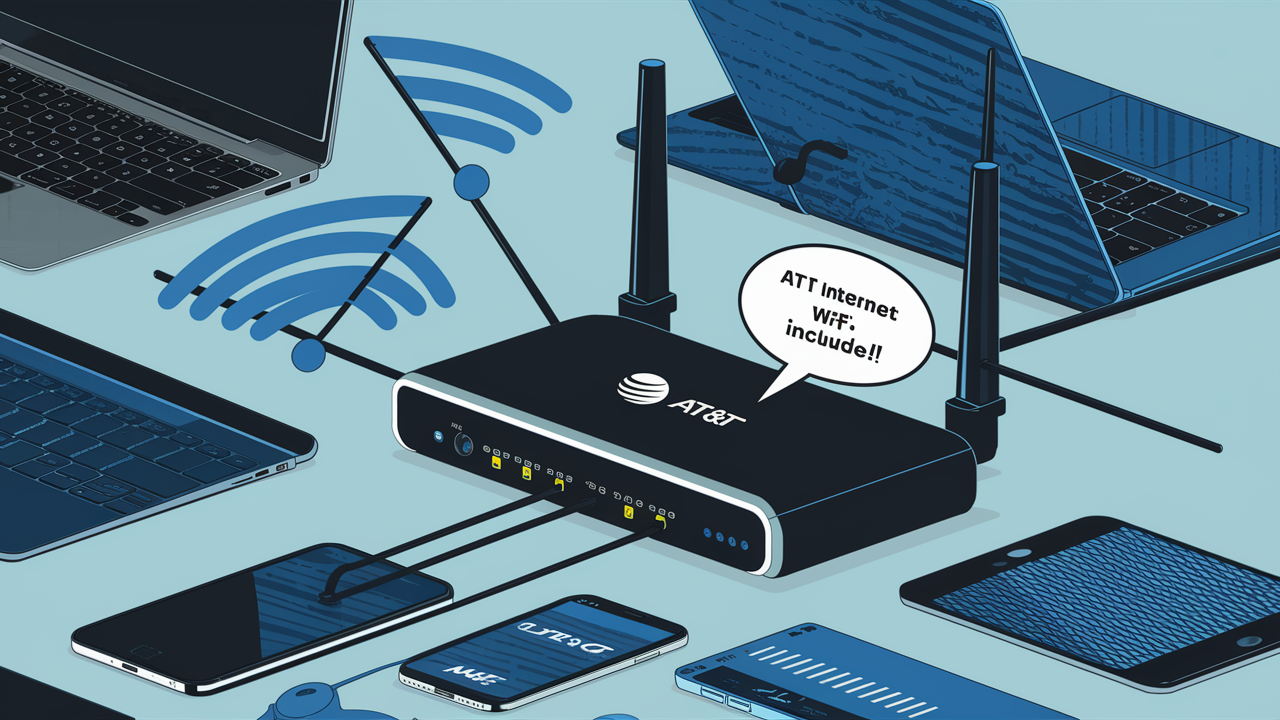
Discover if AT&T Internet service includes a Wi-Fi router, understand the types of equipment provided, and learn how to maximize your home network. This comprehensive guide addresses your core question and explores everything you need to know for a seamless AT&T internet experience in 2025-26.
Does AT&T Internet Come with Wi-Fi? The Definitive Answer
Yes, in most cases, AT&T Internet service packages are designed to provide Wi-Fi connectivity. When you sign up for AT&T Internet, the company typically provides a device that acts as both a modem (to connect to their network) and a router (to create a Wi-Fi network within your home). This integrated device is often referred to as a "gateway." This means you generally don't need to purchase a separate Wi-Fi router from AT&T; it's part of the standard equipment bundle. The primary goal of AT&T is to ensure that once their internet service is active in your home, your devices can connect wirelessly without the need for additional purchases for basic Wi-Fi functionality.
Understanding AT&T Internet Equipment: Routers, Modems, and Gateways
To fully grasp how AT&T Internet delivers Wi-Fi, it's crucial to understand the hardware involved. The terminology can sometimes be confusing, with terms like modem, router, and gateway being used interchangeably. However, they represent distinct functions within your home network. AT&T aims to simplify this by often providing a single device that handles multiple roles.
Types of AT&T Equipment Provided
AT&T utilizes different types of equipment depending on the internet technology deployed in your area and the specific service plan you choose. The most common devices provided are gateways, which are all-in-one units.
- AT&T Gateway: This is the most prevalent device provided by AT&T for their internet services, especially for fiber optic (AT&T Fiber) and high-speed DSL connections. A gateway integrates the functions of a modem and a router. The modem component connects your home to AT&T's network, translating the incoming internet signal. The router component then creates a wireless (Wi-Fi) network and a wired network (via Ethernet ports) for your devices to connect to. These gateways are designed to offer robust Wi-Fi coverage and manage multiple connected devices simultaneously. For 2025-26, AT&T is increasingly deploying advanced gateways that support the latest Wi-Fi standards, such as Wi-Fi 6 and Wi-Fi 6E, to ensure faster speeds and better performance for connected devices.
- Modem (for DSL): In some older DSL deployments or specific service areas where a full gateway might not be necessary or available, AT&T might provide a standalone modem. This modem's sole function is to connect your home to the AT&T network via the telephone line. In such cases, you would need to provide your own Wi-Fi router to create a wireless network. However, this is becoming less common as AT&T upgrades its infrastructure and pushes for gateway-based solutions.
- Fixed Wireless Equipment: For AT&T's Fixed Wireless Internet service, the equipment typically includes an outdoor antenna or receiver that captures the wireless signal from a nearby AT&T tower. This outdoor unit is then connected via Ethernet cable to an indoor gateway or router provided by AT&T, which broadcasts the Wi-Fi signal within your home. The specific indoor unit will function as a router to enable Wi-Fi connectivity.
It's important to note that the exact model of the gateway can vary based on the technology (e.g., Fiber vs. U-verse) and the region. AT&T continuously updates its equipment to support higher speeds and better Wi-Fi performance. For instance, newer gateways are optimized for the gigabit speeds offered by their fiber plans, ensuring that the Wi-Fi network can keep up with the incoming internet speed.
Gateway vs. Modem-Router Combo: What's the Difference?
The terms "gateway" and "modem-router combo" are often used interchangeably, and for good reason – they perform very similar functions. However, there's a subtle distinction in how AT&T and the industry generally refer to them.
- Modem: This device's primary job is to translate the incoming internet signal from your Internet Service Provider (ISP) into a format that your home network can understand. It's the bridge between your home and the wider internet.
- Router: This device takes the internet connection from the modem and "routes" it to multiple devices within your home, both wired (via Ethernet) and wireless (via Wi-Fi). It manages traffic, assigns IP addresses, and creates your local network.
- Modem-Router Combo: This is a single device that combines the functionality of both a modem and a router. It simplifies setup and reduces the number of devices you need.
- Gateway: AT&T typically uses the term "gateway" to describe their all-in-one modem-router devices. It signifies a comprehensive solution that acts as the entry point and distribution hub for your internet service. A gateway often includes advanced features like Wi-Fi management, parental controls, and diagnostics tools, all integrated into one unit. For AT&T Fiber customers, the gateway is crucial for delivering the high-speed internet to all their connected devices wirelessly. For 2025-26, AT&T's gateways are designed to support multi-gigabit speeds and the latest Wi-Fi protocols, ensuring a seamless experience for demanding applications like 4K streaming, online gaming, and video conferencing.
In essence, when AT&T provides you with a "gateway," they are providing you with a device that acts as both your modem and your Wi-Fi router. This is the standard offering for most of their internet plans, ensuring that Wi-Fi is readily available upon installation.
How AT&T Wi-Fi Works with Your Service
The integration of Wi-Fi into AT&T Internet service is designed for user convenience. Once your internet service is installed and activated, the provided AT&T gateway automatically establishes a Wi-Fi network, allowing your devices to connect wirelessly.
The Installation Process: What to Expect
The installation process for AT&T Internet typically involves a technician visiting your home to set up the service. The specifics depend on the type of internet technology being installed.
- Fiber Optic (AT&T Fiber): A technician will run a fiber optic cable from the AT&T network to your home and connect it to a small Optical Network Terminal (ONT). The ONT is then connected to the AT&T gateway (which includes the router functionality) via an Ethernet cable. The technician will ensure the gateway is online and broadcasting a Wi-Fi signal. They will usually assist in connecting your primary devices or guide you through the process.
- DSL (IPDSL/U-verse): For DSL, the technician will connect the AT&T gateway to the existing phone line jack in your home. The gateway will then establish a connection to the AT&T network. The technician will verify the internet connection and set up the Wi-Fi network.
- Fixed Wireless: An outdoor antenna will be mounted on your home to receive the signal from an AT&T tower. This antenna is wired to an indoor AT&T gateway or router, which then provides your home with Wi-Fi. The technician will ensure optimal signal strength and configure the Wi-Fi network.
During the installation, the technician will typically:
- Install and connect any necessary outdoor or indoor equipment.
- Connect the AT&T gateway to the service line.
- Power on the gateway and ensure it establishes an internet connection.
- Configure the Wi-Fi network name (SSID) and password. This information is usually printed on a sticker on the gateway itself, but you can often change it later through the gateway's administrative interface.
- Test the internet connection on a few devices to confirm functionality.
The goal of the installation is to get you online with both wired and wireless access as smoothly as possible. For 2025-26, AT&T is emphasizing faster installation times and ensuring that customers can immediately benefit from the high speeds their plans offer, with Wi-Fi being a central component of this delivery.
Setting Up Your AT&T Wi-Fi Network
Once the AT&T technician has completed the installation, your Wi-Fi network is usually ready to go. The default network name (SSID) and password are often printed on a label on the AT&T gateway device itself.
Connecting Your Devices:
- On your device (smartphone, tablet, laptop, smart TV, etc.), go to the Wi-Fi settings.
- Look for the network name (SSID) that matches the one printed on your AT&T gateway.
- Select the network and enter the password when prompted.
Customizing Your Network (Recommended):
While the default settings work, it's highly recommended to customize your Wi-Fi network name and password for security and ease of use. You can do this by accessing the AT&T gateway's administrative interface.
- Find the Gateway's IP Address: This is often 192.168.1.254, but you can usually find it printed on the gateway or by checking your connected device's network settings.
- Open a Web Browser: Type the gateway's IP address into the address bar and press Enter.
- Log In: You'll be prompted for a username and password. These are also typically found on the gateway's sticker or in the AT&T documentation.
- Navigate to Wi-Fi Settings: Once logged in, look for sections labeled "Wi-Fi," "Wireless," or "Network Settings."
- Change SSID and Password: You can rename your Wi-Fi network (SSID) to something unique and create a strong, memorable password. It's advisable to use a mix of uppercase and lowercase letters, numbers, and symbols.
- Save Changes: After making your changes, be sure to save them. Your gateway will likely restart, and you'll need to reconnect your devices using the new network name and password.
For 2025-26, AT&T gateways often come with user-friendly mobile apps (like the AT&T Smart Home Manager app) that simplify these setup and customization tasks, allowing you to manage your Wi-Fi network from your smartphone.
Choosing the Right AT&T Plan for Your Needs
Selecting the appropriate AT&T Internet plan is crucial for ensuring you get the speeds and features that best suit your household's internet usage habits. AT&T offers a variety of plans based on different technologies and speed tiers.
Internet Speeds and Tiers in 2025-26
AT&T's speed offerings have significantly expanded, especially with the continued rollout of their fiber optic network. In 2025-26, you'll find plans ranging from basic speeds suitable for light usage to ultra-high speeds designed for power users and large households.
- Entry-Level Speeds (e.g., up to 100 Mbps): Ideal for single users or small households with basic internet needs like email, web browsing, social media, and occasional streaming of standard-definition content. These speeds are often available via DSL or fixed wireless.
- Mid-Tier Speeds (e.g., 300 Mbps - 500 Mbps): A good balance for most households. These speeds can comfortably support multiple users streaming HD or 4K content simultaneously, online gaming, video conferencing, and downloading larger files. These are commonly available with AT&T Fiber.
- High-Speed Tiers (e.g., 1 Gig Mbps or higher): For households with very high internet demands. This includes multiple simultaneous 4K/8K streamers, extensive online gaming, large file transfers, smart home devices, and remote work scenarios requiring robust connectivity. AT&T Fiber offers plans up to 5 Gig Mbps in many areas.
It's important to check AT&T's website for availability in your specific address, as the highest speed tiers are predominantly offered through their fiber optic network.
Fiber vs. DSL vs. Fixed Wireless: Which is Best?
The underlying technology of your AT&T Internet service significantly impacts performance, reliability, and available speeds.
- AT&T Fiber (Fiber Optic): This is AT&T's premium internet service, offering the fastest and most reliable speeds. Fiber optic cables transmit data using light signals, which allows for incredibly high bandwidth, low latency, and immunity to electromagnetic interference.
- Pros: Symmetrical upload and download speeds (e.g., 1 Gig up and 1 Gig down), extremely low latency, highly reliable, future-proof technology.
- Cons: Availability is limited to areas where AT&T has deployed its fiber infrastructure.
- DSL (Digital Subscriber Line): This technology uses existing copper telephone lines to deliver internet. Speeds vary greatly depending on the distance from the AT&T central office and the quality of the copper lines.
- Pros: Widely available in many areas where fiber is not.
- Cons: Slower speeds compared to fiber, asymmetrical speeds (download is much faster than upload), performance can degrade with distance, susceptible to interference.
- Fixed Wireless: This service uses wireless signals to connect your home to a nearby AT&T tower. It's often an option in rural or underserved areas where traditional wired infrastructure is difficult to deploy.
- Pros: Can provide higher speeds than DSL in some rural areas, faster deployment than laying new cables.
- Cons: Speeds and reliability can be affected by weather conditions, line-of-sight to the tower, and network congestion. Upload speeds are typically lower than download speeds.
For most users seeking the best experience in 2025-26, AT&T Fiber is the preferred choice due to its superior speed, reliability, and low latency. If Fiber isn't available, evaluate the speeds offered by DSL or Fixed Wireless in your area.
Data Allowances and Potential Overages
Historically, AT&T had data caps on many of its internet plans. However, in recent years, the company has moved towards unlimited data for many of its services, particularly its fiber offerings.
- AT&T Fiber: Most AT&T Fiber plans come with unlimited data. This means you can stream, game, download, and browse without worrying about hitting a data limit or incurring overage charges. This is a significant advantage for heavy internet users.
- DSL and Fixed Wireless: Some DSL and Fixed Wireless plans might still have data allowances. If your plan includes a data cap, it's crucial to monitor your usage. Exceeding your allowance can result in throttled speeds or additional charges, which can be costly.
Checking Your Data Usage: If your plan has a data allowance, AT&T provides tools to monitor your usage, often through their website or the AT&T Smart Home Manager app. It's essential to be aware of your allowance and usage patterns to avoid unexpected costs or service interruptions. For 2025-26, the trend is strongly towards unlimited data for most residential internet services, making it less of a concern for many customers. Always verify the data policy for the specific plan and technology available at your address.
Optimizing Your AT&T Wi-Fi Network for Peak Performance
Having a high-speed internet connection is only half the battle; ensuring your Wi-Fi network can deliver that speed effectively throughout your home is equally important. Optimizing your AT&T Wi-Fi setup can significantly improve your online experience.
Router Placement Tips for Maximum Coverage
The physical location of your AT&T gateway (your Wi-Fi router) plays a critical role in signal strength and coverage.
- Central Location: Place your gateway as close to the center of your home as possible. This allows the Wi-Fi signal to radiate outwards evenly in all directions. Avoid placing it in a corner or at one end of the house.
- Open Space: Keep the gateway in an open area, free from obstructions. Walls (especially brick or concrete), large furniture, metal objects, and appliances can weaken the Wi-Fi signal.
- Elevated Position: Place the gateway on a shelf or table, rather than on the floor. This helps the signal travel further and more effectively.
- Away from Interference: Certain electronic devices can interfere with Wi-Fi signals. Keep your gateway away from microwaves, cordless phones, Bluetooth devices, and other routers if possible.
- Avoid Basements and Attics: These locations are generally not ideal for Wi-Fi coverage as they are often out of the way and can be shielded by floors and ceilings.
If you have a larger home or persistent dead spots, consider using a Wi-Fi mesh system or range extenders. While AT&T gateways are becoming more powerful, a dedicated mesh system can provide superior whole-home coverage for 2025-26's increasingly connected homes.
Securing Your AT&T Wi-Fi Network
Securing your Wi-Fi network is paramount to protecting your personal data and preventing unauthorized access to your internet connection.
- Change Default Credentials: As mentioned earlier, always change the default Wi-Fi network name (SSID) and password. Choose a strong, unique password that is difficult to guess.
- Use WPA3 Encryption: Most modern AT&T gateways support WPA3 encryption, which is the latest and most secure Wi-Fi security protocol. If your gateway supports it, enable WPA3. If not, use WPA2-AES. Avoid older, less secure options like WEP or WPA.
- Enable Network Name (SSID) Broadcast: While some suggest hiding your SSID, it offers minimal security benefit and can complicate connection for legitimate users. It's generally better to keep it broadcasted and rely on a strong password.
- Guest Network: If your AT&T gateway supports a guest network, use it for visitors. This creates a separate Wi-Fi network with its own password, isolating guest devices from your main network and devices.
- Firmware Updates: Ensure your AT&T gateway's firmware is up to date. AT&T typically pushes these updates automatically, but it's good to check periodically through the gateway's administrative interface or the Smart Home Manager app. Firmware updates often include security patches.
- MAC Address Filtering (Advanced): For advanced users, MAC address filtering can restrict network access to only devices with registered MAC addresses. However, this can be cumbersome to manage and is not foolproof.
Regularly reviewing your connected devices in the gateway's settings can also help you identify any unfamiliar devices on your network.
Understanding Wi-Fi Bands (2.4 GHz vs. 5 GHz)
Modern AT&T gateways are dual-band, meaning they broadcast Wi-Fi signals on two different frequency bands: 2.4 GHz and 5 GHz. Understanding the differences can help you optimize device connections.
- 2.4 GHz Band:
- Pros: Longer range, better penetration through walls and obstacles.
- Cons: Slower speeds, more prone to interference from other devices (microwaves, Bluetooth, etc.), fewer available channels, leading to potential congestion in crowded areas.
Best for: Devices that are further from the router, older devices that only support 2.4 GHz, and devices that don't require high speeds (e.g., smart home devices like thermostats, smart plugs).
- 5 GHz Band:
- Pros: Faster speeds, less interference, more available channels.
- Cons: Shorter range, less effective at penetrating walls and obstacles.
Best for: Devices that are closer to the router, devices that require high speeds (e.g., 4K streaming, online gaming, large file downloads), and newer devices that support 5 GHz.
Many AT&T gateways offer "band steering," which automatically connects your devices to the optimal band based on signal strength and device capabilities. For 2025-26, AT&T is increasingly deploying gateways that support Wi-Fi 6 and Wi-Fi 6E, which offer even more advanced features and performance improvements across both bands, and introduce the 6 GHz band for Wi-Fi 6E.
Troubleshooting Common Wi-Fi Issues
Even with the best equipment, you might encounter occasional Wi-Fi problems. Here are some common issues and how to address them:
- Slow Speeds:
- Restart your AT&T gateway (unplug it for 30 seconds, then plug it back in).
- Move closer to the router.
- Check if multiple devices are consuming bandwidth simultaneously.
- Ensure your device's Wi-Fi drivers are up to date.
- If using DSL, check your distance from the AT&T central office.
- Test speeds with a wired Ethernet connection to rule out Wi-Fi issues.
- No Internet Connection:
- Check the lights on your AT&T gateway to ensure it has a connection to the AT&T network.
- Restart your gateway.
- Check if other devices are experiencing the same issue.
- Verify your account is active and there are no service outages in your area (check AT&T's website or app).
- Wi-Fi Signal Drops:
- Ensure your gateway is not overheating.
- Check for interference from other devices.
- Try repositioning your gateway.
- If you have a large home, consider a mesh network or extender.
- Cannot Connect to Wi-Fi:
- Double-check the Wi-Fi password.
- Ensure you are connecting to the correct network name (SSID).
- Restart your device and the gateway.
- Check if your device's Wi-Fi is enabled.
If you continue to experience issues, AT&T's customer support or the AT&T Smart Home Manager app can provide further diagnostic tools and assistance.
Leveraging AT&T Wi-Fi Hotspots
Beyond your home network, AT&T provides access to a vast network of public Wi-Fi hotspots, which can be a valuable resource for staying connected on the go.
What Are AT&T Wi-Fi Hotspots?
AT&T Wi-Fi Hotspots are wireless internet access points located in various public places, such as coffee shops, restaurants, retail stores, airports, and public transportation hubs. These hotspots are made available through partnerships AT&T has with businesses and public venues. For AT&T Internet customers, and often for AT&T mobile customers, these hotspots provide a convenient way to access the internet without using your mobile data or needing a separate Wi-Fi connection. In 2025-26, the AT&T hotspot network continues to expand, offering a reliable connectivity option for users outside their homes.
How to Find and Connect to AT&T Hotspots
Connecting to an AT&T Wi-Fi Hotspot is generally straightforward.
- Finding Hotspots:
- AT&T Hotspots App: Download the official AT&T Wi-Fi Hotspots app from your device's app store. This app allows you to search for nearby hotspots, view their locations on a map, and get directions.
- AT&T Website: AT&T's website also provides a hotspot locator tool where you can enter your location or zip code to find available hotspots.
- Connecting:
- For AT&T Internet Customers: If you have an AT&T Internet plan, you can typically log in to the AT&T Wi-Fi Hotspots network using your AT&T account credentials. The network name is usually "attwifi." Once you select this network on your device, you'll be prompted to log in.
- For AT&T Mobile Customers: Many AT&T mobile plans include access to the Wi-Fi hotspot network. Similar to internet customers, you'll connect to the "attwifi" network and log in with your AT&T mobile account information.
- For Non-AT&T Customers: In some locations, AT&T Wi-Fi Hotspots may offer limited free access or require a paid pass for non-customers.
Using these hotspots can be particularly beneficial for saving your mobile data allowance or when you need a stable internet connection while away from home. For 2025-26, AT&T continues to invest in expanding its hotspot coverage, making it a valuable perk for its subscribers.
Comparing AT&T Internet with Wi-Fi to Competitors
When evaluating internet providers, it's useful to compare AT&T's offerings, particularly regarding their Wi-Fi provision, against those of other major ISPs.
Key Features Comparison Table
This table provides a general comparison of AT&T's Wi-Fi provision against other major providers for 2025-26. Specific features and availability can vary by region and plan.
| Feature | AT&T | Competitor A (e.g., Spectrum/Xfinity) | Competitor B (e.g., Verizon Fios/Google Fiber) |
|---|---|---|---|
| Wi-Fi Router Included | Yes (Gateway) | Yes (Modem/Router Combo or Gateway) | Yes (Gateway for Fiber, may vary for others) |
| Wi-Fi Technology (Standard) | Wi-Fi 5/6 (Wi-Fi 6E on higher tiers) | Wi-Fi 5/6 | Wi-Fi 5/6/6E (depending on provider and plan) |
| Equipment Fee | Often included in plan price for Fiber; may have separate fee for DSL/other | Varies; often a monthly rental fee | Often included for Fiber; may vary |
| Public Wi-Fi Hotspots | Extensive network | Extensive network (e.g., Xfinity hotspots) | Varies; some providers offer limited access |
| Data Caps (Typical for Fiber) | Unlimited | Often Unlimited | Often Unlimited |
Pricing and Value Considerations
When comparing AT&T to competitors, consider the total cost of ownership, not just the advertised monthly price.
- Equipment Costs: While AT&T often includes the gateway in its Fiber plans, other providers might charge a monthly rental fee for their modem/router. This fee can add up significantly over time. Buying your own compatible router can sometimes be more cost-effective, but ensure it meets the provider's requirements.
- Installation Fees: Look out for one-time installation fees. Some providers waive these fees during promotional periods.
- Promotional Pricing: Many ISPs offer introductory discounts for the first 12-24 months. Understand the price increase after the promotional period ends.
- Bundling: AT&T offers bundles with TV (DirecTV Stream) and mobile services. Bundling can sometimes lead to overall savings, but always compare the total cost against purchasing services separately.
- Performance vs. Price: While AT&T Fiber offers top-tier speeds, its availability is limited. For areas where only DSL is available, compare its speeds and pricing against competitors' DSL or fixed wireless offerings. The value is in getting the best possible performance for your budget in your specific location.
For 2025-26, the competitive landscape is intense, with providers vying for customers through speed, reliability, and bundled offerings. Always check the latest deals and plans directly from AT&T and its competitors for your address.
The Future of AT&T Internet and Wi-Fi Technology
The telecommunications industry is in constant evolution, with AT&T at the forefront of deploying next-generation technologies to enhance internet and Wi-Fi capabilities.
Upcoming Technologies and Innovations
The focus for the coming years is on increased speed, lower latency, and more intelligent network management.
- Wi-Fi 7: While Wi-Fi 6E is becoming more common in high-end devices and gateways, the next major standard, Wi-Fi 7 (IEEE 802.11be), is on the horizon. Wi-Fi 7 promises even higher speeds (potentially multi-gigabit), lower latency, and improved reliability, especially in congested environments, by utilizing wider channels and more advanced modulation techniques. AT&T will likely integrate Wi-Fi 7 into its gateway offerings as the technology matures and device support grows.
- 5G Integration: AT&T is a major player in 5G mobile technology. While not directly part of home internet, advancements in 5G, particularly Fixed Wireless Access (FWA) powered by 5G, could offer competitive alternatives or supplements to traditional wired broadband in certain areas.
- AI and Machine Learning: Expect to see more AI and machine learning integrated into AT&T's network management and customer-facing tools. This can lead to proactive issue detection, optimized network performance, and more personalized customer experiences through apps like Smart Home Manager.
- Increased Fiber Deployment: AT&T continues to expand its fiber optic footprint, aiming to bring gigabit and multi-gigabit speeds to more households. This expansion is critical for supporting the increasing demand for bandwidth from emerging applications.
Impact on Home Networking
These technological advancements will have a profound impact on how we use the internet at home:
- Seamless Connectivity for More Devices: With faster Wi-Fi standards and more robust gateways, homes will be able to support an ever-increasing number of connected devices – from smart appliances and wearables to advanced home security and entertainment systems – without performance degradation.
- Enhanced Immersive Experiences: Technologies like virtual reality (VR), augmented reality (AR), and holographic communication will become more feasible and widespread, requiring the low latency and high bandwidth that future AT&T internet and Wi-Fi will provide.
- Smarter Homes: The proliferation of IoT (Internet of Things) devices will be further enabled by more reliable and faster home networks. AI-powered home management systems will become more sophisticated, optimizing energy usage, security, and daily routines.
- Remote Work and Education Evolution: High-speed, low-latency internet will continue to be the backbone of effective remote work and online education, supporting higher quality video conferencing, faster access to cloud-based tools, and more interactive learning experiences.
AT&T's commitment to network upgrades ensures that its customers will be well-positioned to take advantage of these future innovations in connectivity.
Conclusion: Your AT&T Internet and Wi-Fi Essentials
To definitively answer the question: yes, AT&T Internet service is designed to come with Wi-Fi capability. The company primarily provides an all-in-one gateway device that functions as both a modem and a Wi-Fi router, ensuring immediate wireless connectivity upon installation. This integrated approach simplifies setup and makes it easy for users to get online.
Understanding the equipment provided, the different plan options available (especially the benefits of AT&T Fiber), and how to optimize your home network are key to maximizing your internet experience. For 2025-26, AT&T continues to invest in its infrastructure, offering increasingly faster speeds and more reliable Wi-Fi technology. By following best practices for router placement, network security, and understanding Wi-Fi bands, you can ensure your AT&T internet service performs at its best. Furthermore, leveraging AT&T's extensive public Wi-Fi hotspot network provides added convenience when you're on the go.
Recommendation: When signing up for AT&T Internet, prioritize AT&T Fiber if available in your area for the best performance. Ensure you understand the equipment provided and take the recommended steps to secure and optimize your Wi-Fi network. Regularly check for firmware updates and consider AT&T's bundled services if they align with your needs for potential savings. Your AT&T internet service, complete with Wi-Fi, is your gateway to the digital world, and with the right knowledge, you can make the most of it.