Does AT&T fiber use a router?
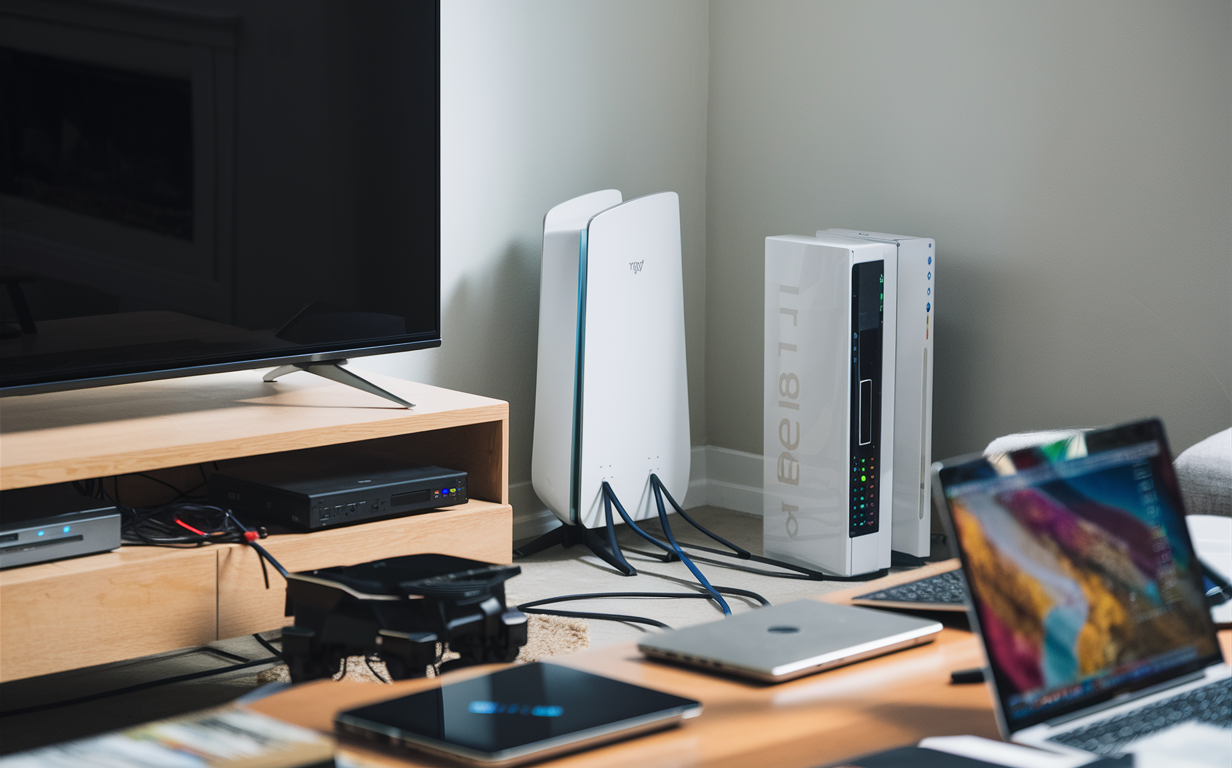
Understanding your AT&T Fiber setup is crucial for optimal home internet. This guide directly answers whether AT&T Fiber uses a router, explaining the technology, equipment involved, and how to manage your network for the best performance. Get clarity on your AT&T Fiber connection today.
Does AT&T Fiber Use a Router? The Core Answer
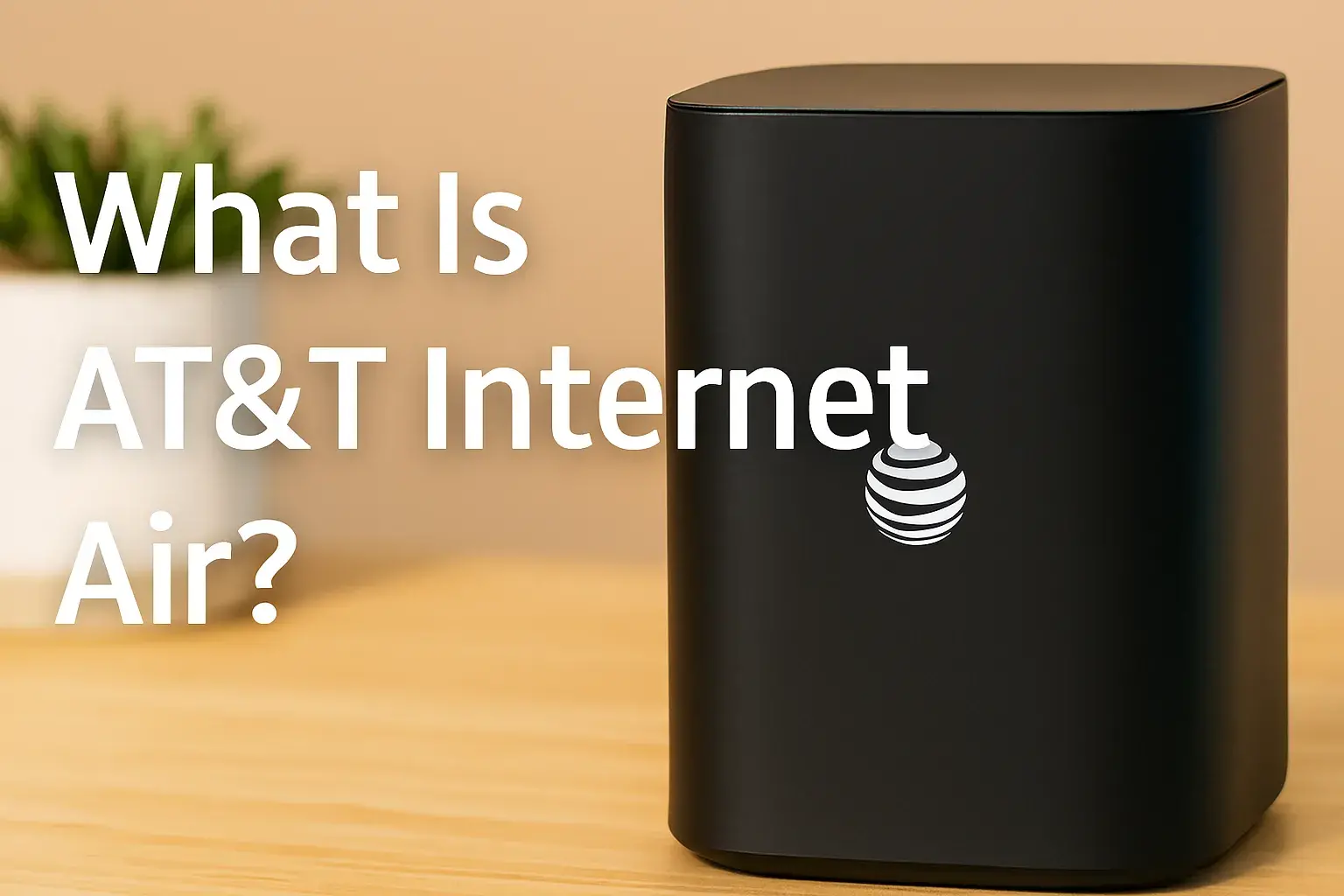
Yes, AT&T Fiber internet service absolutely involves a device that performs the functions of a router. However, AT&T typically provides a single, integrated unit called a "Gateway" which combines the modem, router, and Wi-Fi access point into one piece of equipment. This means that while you might not be using a separate, standalone router in the traditional sense, the core routing functionalities are present and essential for your AT&T Fiber connection to work.
For many users, the AT&T Gateway is sufficient for their home networking needs. It handles the connection to the AT&T fiber network, assigns IP addresses to your devices, manages traffic, and broadcasts your Wi-Fi signal. However, advanced users or those with larger homes or specific networking requirements might consider adding their own router for enhanced control, performance, or features. This guide will delve into the specifics of AT&T Fiber's equipment and how it functions as a router.
Understanding AT&T Fiber Equipment: Gateway vs. Router
To fully grasp whether AT&T Fiber uses a router, it's vital to distinguish between a modem, a router, and a gateway. In older internet technologies like DSL or cable, these functions were often separated into distinct devices. A modem would translate the signal from the internet service provider (ISP) into a format your network could understand, and a separate router would then manage the local network, assign IP addresses, and provide Wi-Fi.
However, with the advent of fiber optics and the evolution of networking technology, ISPs like AT&T have increasingly opted for integrated devices. These are commonly referred to as "Gateways." A gateway is essentially a multi-function device that consolidates the capabilities of a modem, router, and Wi-Fi access point into a single unit. This simplifies installation and setup for the end-user, reducing the number of boxes and cables required.
When you get AT&T Fiber, the primary device installed is this AT&T Fiber Gateway. It's the central hub of your home network. It connects directly to the AT&T fiber optic line and then distributes the internet connection to all your wired and wireless devices. Therefore, the question isn't whether AT&T Fiber *uses* routing technology, but rather *how* it's implemented. The AT&T Gateway performs all the critical routing functions.
Gateway Functionality Explained
The AT&T Fiber Gateway performs several key roles that are synonymous with a router:
- Modem Functionality: It converts the optical signals from the AT&T fiber network into electrical signals that your devices can use, and vice-versa. This is the "modem" part of the gateway.
- Router Functionality: It manages your local network (LAN). This includes assigning unique IP addresses to each connected device (computers, smartphones, smart TVs, etc.) using DHCP (Dynamic Host Configuration Protocol). It also acts as a firewall, protecting your home network from unauthorized access from the internet. Furthermore, it directs traffic between your devices and the internet, ensuring data packets reach their intended destinations.
- Wi-Fi Access Point: Most AT&T Gateways broadcast a Wi-Fi signal, allowing your wireless devices to connect to the internet without cables. They typically support dual-band Wi-Fi (2.4 GHz and 5 GHz) for optimal performance and range.
- Network Address Translation (NAT): This is a fundamental routing function that allows multiple devices on your local network to share a single public IP address provided by AT&T.
Without these routing functions, your devices would not be able to communicate with each other or access the internet. So, in essence, the AT&T Fiber Gateway *is* your router, integrated with other necessary components.
Types of AT&T Gateways (2025-26 Models)
AT&T continually updates its hardware to support the latest technologies and offer improved performance. As of 2025-26, the primary gateway models you're likely to encounter with AT&T Fiber include:
- AT&T Fiber Gateway (e.g., NVG599, BGW210, BGW320): These are the most common gateways. They are designed to handle the high speeds of fiber optic internet, often supporting Wi-Fi 6 (802.11ax) for faster wireless speeds and better performance in crowded Wi-Fi environments. The BGW320, for instance, is a highly capable unit with advanced Wi-Fi 6 capabilities and a built-in 5Gbps Ethernet port for ultra-fast wired connections.
- Smart Home Manager App Integration: Regardless of the specific model, AT&T Gateways are typically managed through the AT&T Smart Home Manager app. This app allows users to monitor their network, manage connected devices, set up guest Wi-Fi networks, perform speed tests, and troubleshoot common issues. This app acts as a user-friendly interface for the gateway's router and Wi-Fi settings.
The specific model you receive may depend on your location, the speed tier you subscribe to, and the availability of equipment at the time of installation. However, all these models will perform the essential modem, router, and Wi-Fi functions.
Do I Need My Own Router with AT&T Fiber?
For the vast majority of AT&T Fiber customers, the provided AT&T Gateway is more than sufficient and eliminates the need for a separate router. However, there are specific scenarios where investing in your own high-performance router can offer significant advantages.
When the AT&T Gateway is Enough
The AT&T Fiber Gateway is designed to be a robust, all-in-one solution. It's generally adequate if:
- Your home is of average size: The Wi-Fi signal from the gateway can cover most standard-sized homes effectively.
- You have a moderate number of devices: If you have a typical number of smartphones, laptops, tablets, and smart home devices, the gateway can handle the load.
- You don't require advanced networking features: For basic internet browsing, streaming, and general use, the gateway's built-in features are perfectly fine.
- You prefer simplicity: The all-in-one nature of the gateway means less equipment to manage and fewer potential points of failure.
- You are on lower speed tiers: While AT&T Fiber offers very high speeds, if you're subscribed to plans below 1 Gbps, the gateway's capabilities are usually more than enough.
AT&T's latest gateways are quite powerful, often supporting Wi-Fi 6 and capable of handling multi-gigabit speeds. For many users, this means they won't experience bottlenecks from the gateway itself.
Scenarios Requiring a Separate Router
You might consider adding your own router if you experience any of the following:
- Larger Homes or Difficult Layouts: If your home is large, has multiple floors, or features thick walls that impede Wi-Fi signals, the gateway's built-in Wi-Fi might not provide adequate coverage in all areas. A dedicated, high-powered router or a mesh Wi-Fi system can extend your network's reach.
- High Number of Connected Devices: If you have a smart home with dozens of connected devices, or a large family with many users simultaneously streaming, gaming, or downloading, a more powerful router might offer better traffic management and performance.
- Demanding Network Activities: For serious gamers, users who frequently transfer large files, or those running home servers, a router with advanced Quality of Service (QoS) settings, better Ethernet port speeds (e.g., 2.5Gbps or 10Gbps), and superior processing power can make a difference.
- Desire for Advanced Features: Some users prefer the granular control offered by third-party routers, such as advanced firewall settings, VPN support, custom DNS configurations, parental controls beyond what the AT&T app offers, or the ability to create multiple SSIDs.
- Need for Specific Wi-Fi Standards: While AT&T gateways are upgrading, you might want the absolute latest Wi-Fi standard (e.g., Wi-Fi 6E or Wi-Fi 7, as they become more prevalent) for maximum speed and efficiency with compatible devices.
- Performance Bottlenecks: If you have a multi-gigabit AT&T Fiber plan (e.g., 2 Gbps or 5 Gbps) and your devices connected via Ethernet to the gateway are not achieving those speeds, it might indicate the gateway's internal routing or Ethernet port capabilities are limiting you. In such cases, a router with faster Ethernet ports (like 2.5Gbps or 10Gbps) and more powerful routing hardware could be beneficial.
It's important to note that if you choose to use your own router, you will typically need to configure the AT&T Gateway into "bridge mode" to avoid network conflicts and double NAT issues. This effectively turns the AT&T Gateway into just a modem, allowing your separate router to handle all routing and Wi-Fi functions.
Connecting Your Own Router to AT&T Fiber
If you've decided that the AT&T Fiber Gateway isn't meeting your needs and you want to use your own router, the process involves putting the AT&T Gateway into a specific mode to allow your router to take over. This is commonly referred to as "bridge mode" or sometimes "passthrough mode."
Bridge Mode Explained: When and How
What is Bridge Mode?
When a gateway is in bridge mode, it essentially disables its routing, Wi-Fi, and firewall functionalities. It acts purely as a modem, passing the public IP address and internet connection directly to the single device connected to it (in this case, your own router). Your router then takes over all the responsibilities of managing your local network, assigning IP addresses, and providing Wi-Fi.
Why Use Bridge Mode?
- Avoid Double NAT: Having two devices performing Network Address Translation (NAT) can cause issues with certain online applications, games, and VPNs. Bridge mode ensures only your router performs NAT.
- Leverage Advanced Router Features: You can utilize the full capabilities of your preferred router, including its advanced QoS, VPN server/client, custom firewall rules, and superior Wi-Fi performance.
- Centralized Network Management: If you have a complex network setup or specific needs, managing everything through your own router can be simpler and more effective.
- Potentially Better Performance: High-end routers often have more powerful processors and better Wi-Fi chipsets than ISP-provided gateways, which can lead to improved speeds and stability, especially in demanding scenarios.
How to Enable Bridge Mode (General Steps):
The exact steps can vary slightly depending on the AT&T Gateway model, but the general process involves accessing the gateway's administrative interface:
- Connect to the Gateway: Connect a computer to the AT&T Gateway using an Ethernet cable.
- Access the Gateway's IP Address: Open a web browser and type the gateway's IP address into the address bar. This is typically
192.168.1.254orhomeportal. - Log In: You'll be prompted for a username and password. These are usually found on a sticker on the gateway itself or in your AT&T setup materials.
- Navigate to Advanced Settings: Look for sections labeled "Firewall," "NAT/CGNAT," "IP Passthrough," or "Broadband."
- Configure IP Passthrough: You'll need to enable IP Passthrough. This usually involves selecting your own router's MAC address from a list of connected devices or manually entering it. This tells the gateway to pass the public IP address to your router.
- Disable Wi-Fi: It's highly recommended to disable the Wi-Fi broadcast on the AT&T Gateway to avoid interference with your own router's Wi-Fi signal.
- Save Settings and Reboot: Save your changes. The gateway will likely reboot.
Important Considerations:
- AT&T Support: While AT&T provides the gateway, they may offer limited support for third-party routers. You are responsible for configuring and managing your own router.
- Smart Home Manager: Some advanced features or settings might be controlled via the AT&T Smart Home Manager app, which may have limitations when the gateway is in bridge mode.
- Gateway Updates: AT&T may push firmware updates to the gateway that could potentially reset bridge mode settings. You might need to reconfigure it after such updates.
- Speed Limitations: Ensure your own router is capable of handling the speeds provided by your AT&T Fiber plan. For multi-gigabit plans, you'll need a router with at least 2.5Gbps or 10Gbps Ethernet ports.
Steps to Connect a Third-Party Router
Once the AT&T Gateway is configured for IP Passthrough (bridge mode), connecting your own router is straightforward:
- Connect your Router to the Gateway: Use a high-quality Ethernet cable to connect the WAN (Internet) port of your new router to the LAN port on the AT&T Fiber Gateway that you designated for IP Passthrough.
- Power On Your Router: Turn on your new router. It will obtain the public IP address from AT&T via the gateway.
- Configure Your Router: Follow your router's setup instructions. This usually involves connecting a computer to the router (either via Ethernet or its default Wi-Fi) and accessing its web interface to set up your Wi-Fi network name (SSID), password, and any other desired settings.
- Test Your Connection: Connect your devices to your new router's Wi-Fi or via Ethernet and test your internet connection and speeds.
- Disable Gateway Wi-Fi (if not already done): Double-check that the Wi-Fi on the AT&T Gateway is turned off to prevent interference.
By following these steps, you can successfully integrate your preferred router into your AT&T Fiber network, giving you more control and potentially better performance.
Optimizing Your AT&T Fiber Network Performance
Whether you're using the AT&T Fiber Gateway or your own router, optimizing your home network is key to getting the most out of your high-speed internet connection. Even with gigabit speeds, poor configuration or placement can lead to frustrating slowdowns and dead zones.
Router Placement Tips for Maximum Coverage
The physical location of your router or gateway has a significant impact on Wi-Fi signal strength and coverage throughout your home.
- Central Location: Place your router as close to the center of your home as possible. This allows the signal to radiate outwards evenly.
- Elevated Position: Mount your router on a shelf or table, rather than on the floor. Wi-Fi signals tend to travel downwards.
- Avoid Obstructions: Keep your router away from thick walls (especially brick or concrete), large metal objects (like refrigerators or filing cabinets), and other electronic devices that can cause interference (microwaves, cordless phones, Bluetooth devices).
- Open Spaces: Ensure the router is in an open area, not tucked away in a cabinet or closet.
- Consider Mesh Systems: For larger homes or those with challenging layouts, a mesh Wi-Fi system (which uses multiple nodes to create a single, seamless network) is often the best solution for consistent coverage.
Managing Wi-Fi Channels for Less Interference
Wi-Fi operates on specific radio frequencies (channels). If your neighbors' Wi-Fi networks are using the same channels as yours, it can lead to interference and slower speeds. Modern routers, including AT&T Gateways, often have automatic channel selection, but manual optimization can sometimes help.
- Understand Bands: Most routers offer both 2.4 GHz and 5 GHz bands. The 2.4 GHz band has a longer range but is more prone to interference and offers lower speeds. The 5 GHz band offers faster speeds and less interference but has a shorter range.
- Use Wi-Fi Analyzer Apps: Free apps are available for smartphones that can scan your environment and show you which Wi-Fi channels are most congested.
- Select Less Crowded Channels: For the 2.4 GHz band, channels 1, 6, and 11 are generally recommended as they don't overlap. For the 5 GHz band, there are more non-overlapping channels available.
- Utilize Wi-Fi 6/6E/7: If your gateway or router supports Wi-Fi 6 or newer, these standards are designed to manage congestion more effectively through features like OFDMA and Target Wake Time.
Firmware Updates and Security Best Practices
Keeping your router's firmware up-to-date is crucial for security and performance.
- Regular Updates: Check for and install firmware updates regularly. AT&T often pushes these automatically to their Gateways. If you use your own router, you'll need to check the manufacturer's website for updates.
- Strong Wi-Fi Password: Use a strong, unique password for your Wi-Fi network (WPA2 or WPA3 security is recommended).
- Change Default Login Credentials: Always change the default administrator username and password for your router's web interface.
- Guest Network: Utilize the guest network feature to provide internet access to visitors without giving them access to your main network and devices.
- Disable Remote Management: Unless you specifically need it and understand the risks, disable remote management features on your router.
Understanding QoS (Quality of Service) Settings
Quality of Service (QoS) allows you to prioritize certain types of traffic or specific devices on your network. This is especially useful for ensuring smooth performance for activities like video conferencing or online gaming, even when other devices are consuming bandwidth.
- Prioritize Critical Devices/Applications: If you have a work-from-home setup, you might prioritize your work computer or video conferencing applications. Gamers might prioritize their gaming console.
- Bandwidth Allocation: Some QoS settings allow you to allocate a minimum or maximum amount of bandwidth to specific devices or applications.
- Implementation: QoS settings are typically found within the advanced settings of your router's web interface. The complexity and effectiveness of QoS can vary significantly between different router models.
By implementing these optimization strategies, you can ensure your AT&T Fiber connection delivers the high speeds and reliable performance it's designed for, regardless of the equipment you use.
Troubleshooting Common AT&T Fiber Router/Gateway Issues
Even with advanced technology, network issues can arise. Here are common problems users face with AT&T Fiber Gateways and how to address them.
Internet Connectivity Problems
Symptoms: No internet access on any device, or intermittent connection drops.
Troubleshooting Steps:
- Check Gateway Lights: Examine the indicator lights on your AT&T Fiber Gateway. Consult your gateway's manual or AT&T's support site to understand what each light signifies (e.g., power, internet, Wi-Fi). A solid "Internet" or "Online" light usually indicates a good connection to AT&T's network.
- Reboot the Gateway: This is the most common fix. Unplug the power adapter from the gateway, wait for 30-60 seconds, and then plug it back in. Allow several minutes for it to fully boot up and re-establish a connection.
- Check Physical Connections: Ensure the fiber optic cable is securely connected to the gateway and the wall outlet. If you have a separate router, verify the Ethernet cable connection between the gateway and your router.
- Test with a Wired Connection: Connect a computer directly to one of the gateway's LAN ports using an Ethernet cable. If you get internet access this way, the issue is likely with your Wi-Fi.
- Bypass Your Router (if applicable): If you're using your own router, try connecting a device directly to the AT&T Gateway to see if the problem persists. This helps determine if your router is the cause.
- Contact AT&T Support: If the gateway lights indicate a problem or if none of the above steps resolve the issue, it's time to contact AT&T customer support. There might be an outage in your area or an issue with their equipment or the fiber line itself.
Slow Internet Speeds
Symptoms: Websites load slowly, videos buffer, downloads take a long time, even though you're subscribed to a high-speed plan.
Troubleshooting Steps:
- Run a Speed Test: Use a reliable speed test tool (like Ookla Speedtest, Fast.com, or AT&T's own speed test if available). Perform tests at different times of the day and both via Wi-Fi and a wired Ethernet connection.
- Test Wired vs. Wireless: If wired speeds are significantly faster than Wi-Fi speeds, the issue is likely with your Wi-Fi signal or the router's Wi-Fi capabilities. If wired speeds are also slow, the problem could be with the gateway, the AT&T service, or your own router's performance.
- Check for Bandwidth Hogs: Ensure no other devices on your network are heavily consuming bandwidth (e.g., large downloads, multiple high-definition streams, peer-to-peer sharing).
- Router Placement and Interference: As discussed in the optimization section, poor router placement or Wi-Fi channel congestion can severely impact speeds. Try moving the router or changing channels.
- Device Limitations: Older devices or devices with slower network adapters may not be able to achieve the full speeds of your AT&T Fiber plan.
- Gateway/Router Capabilities: If you have a multi-gigabit plan, ensure your AT&T Gateway (or your own router, if used) has sufficient processing power and appropriate Ethernet ports (2.5Gbps or 10Gbps) to handle those speeds.
- Reboot Gateway/Router: A simple reboot can sometimes clear up temporary performance issues.
- Contact AT&T Support: If wired speeds consistently fall far below your subscribed plan, contact AT&T to investigate potential service issues.
Wi-Fi Signal Weaknesses
Symptoms: Weak Wi-Fi signal in certain areas of the house, frequent disconnections from Wi-Fi.
Troubleshooting Steps:
- Router Placement: Revisit the router placement tips. Central, elevated, and unobstructed locations are key.
- Reduce Interference: Move the router away from other electronic devices that emit radio waves.
- Use the 5 GHz Band: If you're close enough to the router, connect to the 5 GHz network. It generally offers better performance and less interference than 2.4 GHz, though its range is shorter.
- Check Wi-Fi Channel: Use a Wi-Fi analyzer app to identify and select less congested channels.
- Update Router Firmware: Ensure your gateway or router has the latest firmware, as updates can improve Wi-Fi performance.
- Consider a Wi-Fi Extender or Mesh System: For persistent dead zones, a Wi-Fi extender can boost the signal in a specific area, while a mesh Wi-Fi system provides a more robust and seamless solution for whole-home coverage.
- Check for Router Overheating: Ensure the gateway/router has adequate ventilation. Overheating can cause performance issues.
By systematically addressing these common issues, you can maintain a stable and fast AT&T Fiber internet connection.
The Future of AT&T Fiber Networking
The landscape of home networking is constantly evolving, driven by the increasing demand for faster speeds, lower latency, and more connected devices. AT&T Fiber is at the forefront of this evolution, and future developments are likely to focus on several key areas:
- Higher Speeds: While multi-gigabit speeds (2 Gbps, 5 Gbps) are already available, AT&T will likely continue to push towards even faster symmetrical speeds, potentially reaching 10 Gbps and beyond for residential customers as technology and infrastructure allow. This will be crucial for supporting bandwidth-intensive applications like immersive virtual reality, advanced cloud gaming, and seamless 8K streaming.
- Wi-Fi 7 and Beyond: As Wi-Fi standards advance, AT&T Gateways will integrate newer technologies like Wi-Fi 7 (802.11be) and subsequent iterations. These standards promise significantly higher throughput, lower latency, and improved efficiency in handling a massive number of devices simultaneously, making them ideal for the increasingly dense smart home environments of 2025-26 and beyond.
- Enhanced Network Management: Expect AT&T to continue investing in intelligent network management tools. This includes AI-driven optimization for Wi-Fi performance, proactive issue detection, and more sophisticated Quality of Service (QoS) capabilities integrated into their gateways. The Smart Home Manager app will likely become even more powerful, offering users greater insight and control over their network.
- Integration with Smart Home Ecosystems: Gateways may evolve to become more central hubs for smart home devices, potentially offering enhanced security features, better device discovery, and more seamless integration with popular smart home platforms.
- Shorter Latency: Fiber optics inherently offer low latency, but future network optimizations, including edge computing and improvements in AT&T's core network infrastructure, will further reduce latency, benefiting real-time applications like online gaming, remote surgery, and autonomous vehicle communication.
- Increased Focus on Security: With the growing number of connected devices and the rise of sophisticated cyber threats, AT&T will likely enhance the built-in security features of its Gateways, offering more robust firewalls, intrusion detection, and automated security updates.
As these advancements unfold, the AT&T Fiber Gateway will continue to be the cornerstone of the home network, adapting to deliver the seamless, high-performance connectivity required for the digital future.
Conclusion: Your AT&T Fiber Network Clarified
In summary, the answer to "Does AT&T Fiber use a router?" is a definitive yes, though it's integrated into a single device known as the AT&T Fiber Gateway. This all-in-one unit performs the essential functions of a modem, router, and Wi-Fi access point, making it sufficient for most users. For those with advanced needs, larger homes, or a desire for more control, connecting a third-party router by enabling IP Passthrough on the AT&T Gateway is a viable and effective option.
By understanding the capabilities of your AT&T Fiber equipment, optimizing its placement and settings, and knowing how to troubleshoot common issues, you can ensure a robust and high-performing internet experience. Whether you rely solely on the AT&T Gateway or opt for a custom router setup, your fiber connection is designed to power your digital life for years to come.