Does ATT fiber provide a router?
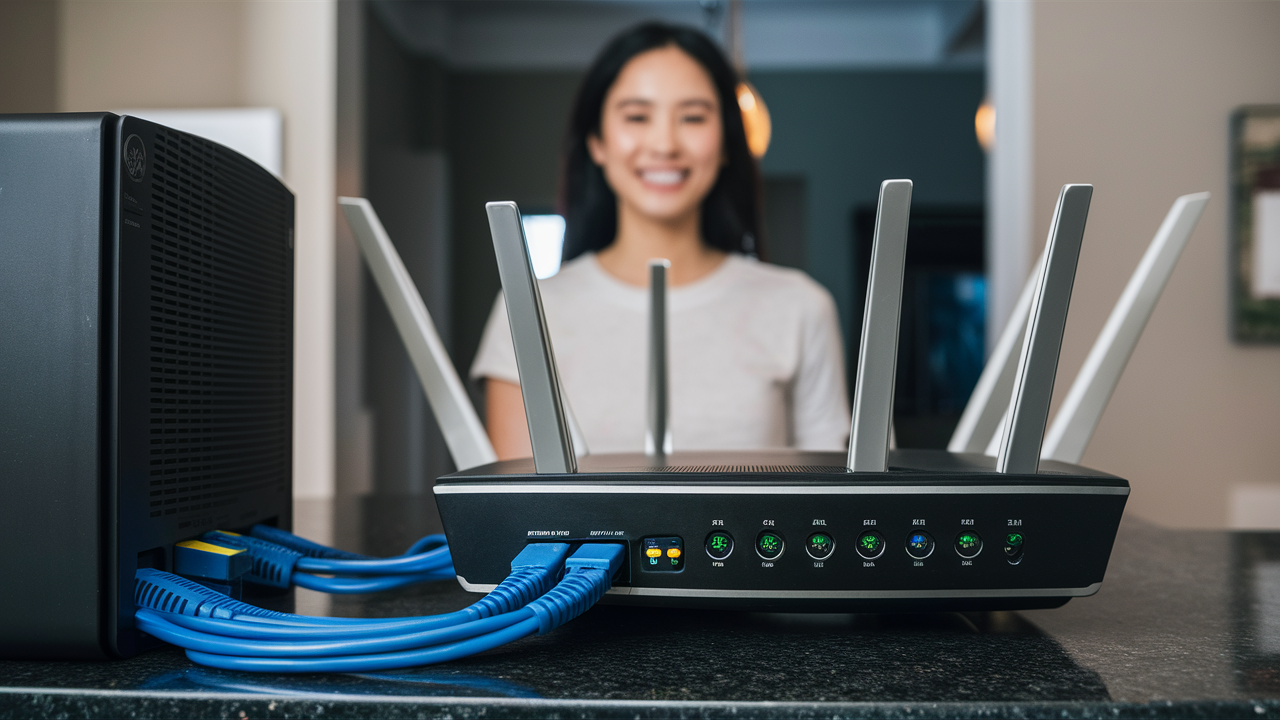
Understanding whether AT&T Fiber provides a router is crucial for new and existing customers. This guide comprehensively answers that question, detailing what AT&T includes, your options, and how to optimize your home network for blazing-fast fiber speeds. We aim to equip you with all the knowledge needed to make informed decisions about your internet service.
Does AT&T Fiber Provide a Router? The Direct Answer
Yes, AT&T Fiber generally provides a device that functions as both a modem and a router, commonly referred to as a gateway, when you sign up for their fiber internet service. This all-in-one unit is essential for establishing your internet connection and broadcasting your Wi-Fi signal throughout your home. While AT&T mandates the use of their gateway for the initial setup and to ensure service integrity, you often have the flexibility to use your own router in conjunction with it, offering greater control over your home network.
Understanding AT&T-Provided Equipment
When you subscribe to AT&T Fiber, the company installs a fiber optic line directly to your home. To translate the light signals from this fiber line into usable internet data, a specific piece of equipment is required. This equipment is AT&T's responsibility to provide and manage to ensure optimal performance and security of their network. They have standardized on a device that serves multiple purposes, simplifying the installation and setup process for their customers.
The equipment provided by AT&T for their fiber service is not just a simple modem. It's a sophisticated device designed to handle the high speeds and advanced protocols associated with fiber optics. This unit is the gateway to your home network, bridging the gap between the external fiber network and your internal devices. Understanding its capabilities and limitations is the first step to getting the most out of your AT&T Fiber connection.
What is Included in the Installation?
During a standard AT&T Fiber installation, a technician will run a fiber optic cable to a designated point in your home, typically where you want your primary internet connection to be. They will then connect this fiber line to the AT&T-provided gateway. This gateway is the central hub for your internet service. It contains the necessary components to convert the optical signal into an electrical one that your devices can understand. It also includes Wi-Fi broadcasting capabilities, allowing you to connect wirelessly.
The installation process is designed to be as seamless as possible. The technician will ensure the fiber is securely connected, the gateway is powered on and communicating with AT&T's network, and a basic Wi-Fi network is established. You'll typically receive the Wi-Fi network name (SSID) and password at this stage. The technician may also perform a speed test to confirm you are receiving the speeds you subscribed to.
Equipment Models and Features
AT&T has evolved its gateway hardware over time to support increasing speeds and new technologies. While specific models may vary depending on your location and the speed tier you select, common gateways provided for AT&T Fiber include models like the AT&T Internet Gateway (often referred to as the BGW series, such as BGW210, BGW320). These devices are designed with advanced features to handle multi-gigabit speeds.
Key features typically found in these AT&T Fiber gateways include:
- High-Speed Ethernet Ports: Usually, there are multiple Gigabit Ethernet ports for wired connections, which are ideal for devices that require the most stable and fastest connection possible, such as gaming consoles or desktop computers.
- Dual-Band Wi-Fi: Modern gateways support both 2.4 GHz and 5 GHz Wi-Fi bands. The 2.4 GHz band offers a wider range, while the 5 GHz band provides faster speeds over shorter distances, reducing interference.
- Wi-Fi 6 (802.11ax) Support: Newer models are equipped with Wi-Fi 6 technology, which offers significant improvements in speed, capacity, and efficiency compared to older Wi-Fi standards, especially in environments with many connected devices.
- Advanced Security Features: Built-in firewalls and security protocols help protect your network from external threats.
- Voice Capabilities: For customers who subscribe to AT&T's digital phone service (AT&T Phone), the gateway often includes ports for connecting traditional landline phones.
It's important to note that AT&T typically does not charge a separate monthly rental fee for the gateway with their fiber service, as it's considered part of the essential equipment for the service. However, there might be an initial one-time equipment fee depending on the specific promotion or plan. Always check the terms and conditions of your service agreement for the most accurate information.
The AT&T Gateway: More Than Just a Router
The term "gateway" is used by AT&T to describe their provided device because it encompasses more functionality than a traditional standalone router. It acts as the entry point for your internet service and manages the connection to AT&T's network, while simultaneously performing the routing and Wi-Fi broadcasting functions. This integrated approach simplifies setup and ensures compatibility.
Integrated Modem Functionality
At its core, the AT&T gateway includes the modem component necessary to translate the signals from the fiber optic line. Unlike DSL or cable internet where a separate modem is often required, fiber optic technology necessitates a specialized device at the customer's premises to convert light pulses into data. The AT&T gateway houses this crucial optical network terminal (ONT) functionality, either internally or as a directly connected component that works in tandem with the gateway unit. This integration is key to the high speeds and low latency that fiber offers.
Routing and Wi-Fi Capabilities
Beyond its modem-like function, the gateway is also a powerful router. It manages your local area network (LAN), assigning IP addresses to all your connected devices (computers, smartphones, smart TVs, etc.) via DHCP. It directs traffic between your devices and the internet, ensuring data packets reach their intended destinations.
Furthermore, the gateway broadcasts your Wi-Fi signal. Most AT&T Fiber gateways are dual-band, offering both 2.4 GHz and 5 GHz frequencies. The 2.4 GHz band provides better range and penetration through walls, while the 5 GHz band offers faster speeds and less interference, ideal for devices closer to the gateway. Newer models are increasingly featuring Wi-Fi 6 (802.11ax), which enhances performance in crowded wireless environments and supports higher device counts and speeds.
Advanced Features and Management
AT&T gateways often come with advanced features accessible through a web-based interface or the AT&T Smart Home Manager app. These features allow users to:
- View connected devices.
- Manage Wi-Fi network names (SSIDs) and passwords.
- Set up guest networks.
- Configure parental controls.
- Perform speed tests.
- Update gateway firmware.
- Access basic firewall settings.
This level of control is standard for modern networking equipment, and AT&T aims to provide a user-friendly experience for managing these settings.
Router vs. Modem vs. Gateway: Clarifying the Terms
It's common for users to get confused by these terms, especially when dealing with internet service providers. Understanding the distinction is vital for comprehending your AT&T Fiber setup.
What is a Modem?
A modem (modulator-demodulator) is a device that converts digital signals from your computer or network into analog signals that can be transmitted over telephone lines, cable lines, or fiber optic lines, and vice versa. It's the bridge between your home network and your Internet Service Provider's (ISP) network. For DSL and cable, it translates signals. For fiber, it's the optical network terminal (ONT) that converts light signals.
What is a Router?
A router is a device that directs data packets between computer networks. In a home setting, it connects to the modem and creates a local area network (LAN). It assigns IP addresses to devices on your network, manages traffic flow, and allows multiple devices to share a single internet connection. Routers also typically provide Wi-Fi connectivity, broadcasting a wireless signal.
What is a Gateway?
A gateway, in the context of home networking and ISPs like AT&T, is an all-in-one device that combines the functionality of a modem and a router. It serves as the entry point for your internet service from the ISP and also creates and manages your home network, including Wi-Fi. AT&T's "gateway" for fiber is precisely this type of integrated device. It handles the fiber optic signal conversion and provides routing and Wi-Fi capabilities.
Example:
- Cable Internet: You might have a separate cable modem and a separate Wi-Fi router, or an ISP-provided modem/router combo unit (a gateway).
- DSL Internet: Similar to cable, you could have a separate DSL modem and router, or an ISP-provided gateway.
- AT&T Fiber: AT&T provides a gateway that integrates the ONT (for fiber signal conversion) and the router/Wi-Fi access point.
Why AT&T Provides a Gateway for Fiber
AT&T's decision to provide a gateway for their fiber service is driven by several key factors, all aimed at ensuring a high-quality, reliable, and secure internet experience for their customers.
Ensuring Optimal Performance and Speed
Fiber optic technology is capable of delivering extremely high speeds and low latency. To achieve these performance metrics, the equipment at the customer's premises must be specifically designed and optimized for fiber. AT&T's gateways are engineered to seamlessly handle the optical signals and translate them into data at speeds that can reach multi-gigabit levels. By providing their own equipment, AT&T can guarantee that the hardware meets their stringent performance standards and is capable of delivering the advertised speeds. Using non-certified or incompatible third-party hardware could lead to significant performance degradation, packet loss, and an inability to reach the full potential of the fiber connection.
Network Compatibility and Stability
AT&T's fiber network is a complex infrastructure. The gateways they provide are tested and certified to be fully compatible with their network architecture. This compatibility ensures stability, reliability, and consistent connectivity. Different manufacturers' routers and modems can have varying implementations of networking protocols, which could lead to conflicts or instability when connected to AT&T's core network. By standardizing on their own gateway, AT&T minimizes these risks and ensures a more stable service for all users.
Security and Support
Security is a paramount concern for any ISP. AT&T's gateways are equipped with built-in security features, such as firewalls and encryption protocols, that are configured to meet AT&T's security standards. When AT&T provides the equipment, they can also push out firmware updates to address security vulnerabilities and improve performance. This centralized control over hardware and software allows AT&T to maintain a secure network environment.
Furthermore, providing their own equipment simplifies troubleshooting and customer support. When you encounter an issue, AT&T's support team can remotely diagnose problems with the gateway, guide you through settings, or dispatch a technician if necessary. If you were using your own equipment, diagnosing whether the issue lies with AT&T's network, your router, or your modem would be significantly more complex and time-consuming, potentially leading to longer resolution times and increased frustration.
Mandated for Initial Setup
For the initial activation of AT&T Fiber service, the use of their provided gateway is typically mandatory. This ensures that the connection is established correctly and that the service is provisioned properly on AT&T's network. Once the service is active and stable, customers may have the option to integrate their own router, but the AT&T gateway remains the primary interface with the fiber network.
Your Options for AT&T Fiber Networking
While AT&T provides a gateway, users often have choices regarding how they manage their home network. These options cater to different needs, from simplicity to advanced customization.
Option 1: Using the AT&T Gateway Exclusively
This is the simplest approach. You use the AT&T gateway for both internet connectivity and Wi-Fi. It's plug-and-play, requiring minimal technical expertise. The gateway handles everything from connecting to AT&T's network to broadcasting your Wi-Fi signal. This is ideal for users who:
- Have a smaller home or apartment.
- Have a modest number of connected devices.
- Don't require advanced network customization.
- Prefer a straightforward, no-fuss setup.
Pros:
- Easiest setup and management.
- AT&T support is fully equipped to handle issues.
- No additional equipment purchase required.
- Often includes the latest Wi-Fi standards like Wi-Fi 6.
Cons:
- Less control over advanced network settings.
- Wi-Fi coverage might be limited in larger homes.
- Features might be less extensive than high-end third-party routers.
Option 2: Using Your Own Router in Conjunction with the AT&T Gateway
This is a very popular option for users who want more control, better Wi-Fi coverage, or specific features not offered by the AT&T gateway. In this setup, the AT&T gateway remains connected to the AT&T fiber line and acts as a modem (or ONT pass-through). Your personal router then connects to the AT&T gateway via an Ethernet cable, and your devices connect to your personal router.
There are two primary ways to configure this:
- IP Passthrough (Recommended): In this mode, the AT&T gateway essentially passes the public IP address assigned by AT&T directly to your personal router. Your router then handles all Network Address Translation (NAT) and Wi-Fi. This is generally the preferred method as it allows your router to have a public IP address, which is beneficial for certain applications and network management.
- Cascading Routers (Less Recommended): In this setup, your personal router is connected to one of the LAN ports on the AT&T gateway. Both the gateway and your router will be performing NAT, creating a "double NAT" situation. This can sometimes cause issues with online gaming, VPNs, and certain other applications.
This option is suitable for users who:
- Have a large home requiring extended Wi-Fi coverage (mesh systems).
- Need advanced router features (e.g., VPN client/server, QoS, advanced firewall rules).
- Want to use a router with superior Wi-Fi performance or specific features.
- Are tech-savvy and enjoy customizing their network.
Pros:
- Greater control over network settings.
- Potentially better Wi-Fi performance and coverage.
- Access to advanced features.
- Can integrate with existing home network setups.
Cons:
- More complex setup process.
- Requires purchasing a compatible router.
- Troubleshooting can be more challenging as you need to identify issues between two devices.
- AT&T support may be limited for issues related to your personal router.
Option 3: Using a Mesh Wi-Fi System
A mesh Wi-Fi system consists of a main router and one or more satellite nodes that work together to create a single, seamless Wi-Fi network throughout your home. This is an excellent solution for larger homes or homes with dead zones where the single AT&T gateway's Wi-Fi signal doesn't reach effectively.
You would typically use the AT&T gateway in "IP Passthrough" mode and connect your mesh system's primary node to the gateway. The mesh system then takes over Wi-Fi broadcasting, providing robust coverage.
Pros:
- Excellent for large homes or challenging layouts.
- Provides a single, seamless network name (SSID) for easy roaming.
- Often offers advanced features and user-friendly apps.
Cons:
- Requires purchasing a mesh Wi-Fi system.
- Setup involves configuring IP Passthrough on the AT&T gateway.
Using the AT&T Gateway Out of the Box
For most users, the AT&T gateway will be sufficient for their internet needs. It's designed to provide a reliable connection and a decent Wi-Fi experience right from the start.
Initial Setup and Connection
The AT&T technician will handle the physical installation of the fiber line and the connection to the gateway. Once the gateway is powered on and connected, it will automatically configure itself and establish a connection to AT&T's network. You will be provided with the Wi-Fi network name (SSID) and password.
Connecting your devices is as simple as selecting the Wi-Fi network from your device's list of available networks and entering the password. For wired connections, you can plug an Ethernet cable from your computer or other device into one of the available LAN ports on the gateway.
Accessing Gateway Settings
To manage your AT&T gateway, you can typically access its web interface or use the AT&T Smart Home Manager app.
Web Interface:
- Open a web browser on a device connected to the AT&T Wi-Fi network.
- Type the gateway's IP address into the address bar. This is often 192.168.1.254 or attgateway.com.
- You will be prompted for a username and password. The default credentials are often found on a sticker on the gateway itself or in your AT&T welcome materials.
- Once logged in, you can access various settings, including Wi-Fi configuration, firewall rules, connected devices, and more.
AT&T Smart Home Manager App:
- Download the AT&T Smart Home Manager app from your device's app store (iOS or Android).
- Open the app and follow the on-screen instructions to connect to your AT&T gateway. You may need to scan a QR code on the gateway or enter credentials.
- The app provides a user-friendly interface to manage your Wi-Fi, view connected devices, run speed tests, and troubleshoot.
Basic Optimization Tips
- Placement: Position the gateway in a central, open location in your home, away from obstructions like thick walls, metal objects, or appliances that can cause interference (e.g., microwaves).
- Restarting: If you experience slow speeds or connectivity issues, a simple restart of the gateway can often resolve the problem. Unplug the power adapter, wait 30 seconds, and plug it back in.
- Wi-Fi Band Selection: If your devices support it, connect devices that are close to the gateway and require high speeds (like streaming devices or gaming consoles) to the 5 GHz band. Devices further away or that don't require maximum speed can use the 2.4 GHz band for better range.
- Firmware Updates: Ensure your gateway's firmware is up to date. AT&T typically pushes updates automatically, but you can check for them via the app or web interface.
Bringing Your Own Router to AT&T Fiber
Many users opt to use their own router to gain more control over their network or to improve Wi-Fi performance. AT&T Fiber generally supports this, but it requires specific configuration.
Compatibility Considerations
When choosing your own router, ensure it is compatible with high-speed internet connections. Look for routers that support Gigabit Ethernet ports and modern Wi-Fi standards like Wi-Fi 5 (802.11ac) or Wi-Fi 6 (802.11ax). For AT&T Fiber speeds of 1 Gbps or higher, a router capable of handling those speeds is essential to avoid bottlenecks.
Key Features to Look For:
- Gigabit Ethernet Ports: Essential for speeds over 100 Mbps.
- Dual-Band or Tri-Band Wi-Fi: For better performance and device management.
- Wi-Fi 6 (802.11ax): Recommended for future-proofing and better performance in crowded environments.
- Sufficient Processing Power: Especially important for multi-gigabit speeds and advanced features.
- Reputable Brands: Consider brands like ASUS, TP-Link, Netgear, and Google Nest Wifi.
Why Use Your Own Router?
- Enhanced Wi-Fi Performance: High-end routers often offer superior Wi-Fi range, speed, and stability compared to ISP-provided equipment.
- Advanced Features: Access to features like VPN support, advanced Quality of Service (QoS) settings, robust parental controls, and more sophisticated firewall configurations.
- Network Customization: Greater control over network settings, such as DNS servers, port forwarding, and network segmentation.
- Mesh Networking: Seamlessly integrate with a mesh Wi-Fi system for whole-home coverage.
- Future-Proofing: Invest in a router with the latest technology that can keep up with your internet speed upgrades.
Potential Drawbacks
- Cost: High-quality routers can be expensive.
- Complexity: Setup and management can be more complex than using the AT&T gateway alone.
- Support Limitations: AT&T support may not be able to assist with issues related to your third-party router.
- Double NAT: If not configured correctly (e.g., using IP Passthrough), you might encounter double NAT issues.
Steps to Connect Your Own Router
Connecting your own router to AT&T Fiber requires configuring the AT&T gateway to allow your router to manage the network. The most recommended method is using IP Passthrough.
Step 1: Configure IP Passthrough on AT&T Gateway
This is the crucial first step. You need to log into your AT&T gateway's administrative interface.
- Access Gateway Settings: Open a web browser and go to 192.168.1.254 or attgateway.com. Log in with your gateway's credentials.
- Navigate to Firewall Settings: Look for a section labeled "Firewall," "NAT/Gaming," or "IP Passthrough." The exact location can vary by gateway model.
- Enable IP Passthrough: Select "IP Passthrough" as the firewall mode.
- Select Device: You will need to specify which device on your network should receive the public IP address. This will be your own router. You can typically select it from a dropdown list of connected devices or enter its MAC address. Ensure your personal router is connected to the AT&T gateway via an Ethernet cable for this step.
- Save Settings: Apply and save the changes. The gateway may restart.
Step 2: Connect Your Router
Once IP Passthrough is configured on the AT&T gateway:
- Disconnect your personal router from the AT&T gateway if it was previously connected.
- Connect your personal router's WAN/Internet port to one of the LAN ports on the AT&T gateway.
- Power on your personal router.
- Access your personal router's settings: Open a web browser and go to your router's default IP address (e.g., 192.168.1.1 or 192.168.0.1, or a specific URL provided by the manufacturer).
- Configure WAN/Internet Connection: Your router should automatically detect the public IP address assigned by AT&T via DHCP. If not, you may need to manually set the connection type to "DHCP" or "Automatic IP."
- Set up Wi-Fi: Configure your Wi-Fi network name (SSID) and password on your personal router.
Step 3: Connect Devices to Your Router
Now, connect all your home devices (computers, phones, smart TVs, etc.) to the Wi-Fi network broadcast by your personal router, or via Ethernet cables plugged into your router.
Troubleshooting Your Setup
- No Internet: If you have no internet on your personal router, try restarting both the AT&T gateway and your router. Double-check that IP Passthrough is correctly configured and that your router's WAN port is connected to a LAN port on the gateway.
- Double NAT: If you suspect double NAT (e.g., online gaming issues), ensure IP Passthrough is enabled on the AT&T gateway and that your router is set to obtain an IP address via DHCP on its WAN port. Avoid enabling NAT on the AT&T gateway if IP Passthrough is active.
- Wi-Fi Issues: If your personal router's Wi-Fi is not working correctly, consult your router's manual or manufacturer support.
For detailed instructions specific to your AT&T gateway model, it's always best to consult AT&T's official support documentation or contact their customer service.
Optimizing Your Wi-Fi Network with AT&T Fiber
Achieving the best possible Wi-Fi experience with AT&T Fiber involves more than just connecting your devices. Strategic placement, configuration, and potentially upgrading your equipment can make a significant difference.
Placement is Key
The location of your AT&T gateway (or your personal router/mesh system) is critical for signal strength and coverage.
- Central Location: Place the device in a central area of your home to distribute the signal evenly.
- Elevated Position: Mounting the device on a shelf or wall, rather than on the floor, can improve signal propagation.
- Avoid Obstructions: Keep the device away from thick walls (especially concrete or brick), large metal objects (like filing cabinets or refrigerators), and other electronics that can cause interference (microwaves, cordless phones, Bluetooth devices).
- Open Spaces: Ensure the device is in an open area, not tucked away in a cabinet or closet.
Leveraging Dual-Band Wi-Fi
Most AT&T Fiber gateways and modern routers offer dual-band Wi-Fi (2.4 GHz and 5 GHz).
- 2.4 GHz Band: Offers a longer range and better penetration through walls and obstacles. It's suitable for devices that are further away or don't require the highest speeds, such as smart home devices (thermostats, smart plugs), older laptops, and smartphones.
- 5 GHz Band: Offers faster speeds and less interference but has a shorter range. It's ideal for devices that are closer to the router and require high bandwidth, such as streaming 4K video, online gaming, video conferencing, and newer laptops/smartphones.
You can often configure your router to broadcast separate SSIDs for each band or use a single SSID with band steering, where the router automatically directs devices to the optimal band.
Utilizing Wi-Fi 6 and Beyond
If your AT&T gateway or personal router supports Wi-Fi 6 (802.11ax), you'll benefit from several improvements:
- Increased Speed: Higher theoretical speeds, especially on the 5 GHz band.
- Better Capacity: More efficient handling of multiple devices simultaneously, reducing congestion.
- Improved Efficiency: Better battery life for connected devices due to more efficient data transmission.
- OFDMA Technology: Allows the router to communicate with multiple devices at once, reducing latency.
Ensure your devices are also Wi-Fi 6 compatible to take full advantage of these benefits.
Consider a Mesh Wi-Fi System
For larger homes or those with dead spots, a mesh Wi-Fi system is often the most effective solution. These systems use multiple nodes to create a single, unified Wi-Fi network that blankets your entire home with strong signal. They are generally easier to set up and manage than traditional range extenders.
Firmware Updates and Security Settings
- Keep Firmware Updated: Regularly check for and install firmware updates for your AT&T gateway and your personal router. These updates often include performance improvements, bug fixes, and critical security patches.
- Strong Wi-Fi Password: Use a strong, unique password for your Wi-Fi network (WPA2 or WPA3 encryption).
- Guest Network: If available, use the guest network feature to provide internet access to visitors without giving them access to your main network and devices.
Troubleshooting Common AT&T Fiber Networking Issues
Even with the best equipment, you might encounter occasional networking problems. Here's how to address some common issues.
Slow Internet Speeds
Possible Causes:
- Wi-Fi Congestion: Too many devices on the network, or interference from neighboring networks.
- Router Bottleneck: Your router may not be capable of handling the full speed of your AT&T Fiber plan.
- Device Limitations: The device you are using might have older Wi-Fi standards or limited processing power.
- Network Congestion (ISP side): Though less common with fiber, it can happen during peak hours in densely populated areas.
- Malware: Malicious software on a device can consume bandwidth.
Solutions:
- Test Wired: Connect a computer directly to the AT&T gateway (or your router) via Ethernet cable and run a speed test (e.g., speedtest.net). If speeds are good wired, the issue is likely Wi-Fi related.
- Restart Equipment: Power cycle your AT&T gateway and your router.
- Optimize Wi-Fi: Move closer to the router, connect to the 5 GHz band, or consider a mesh system.
- Check Device: Test with a different device.
- Scan for Malware: Run a full system scan.
- Contact AT&T: If wired speeds are consistently low, contact AT&T support.
Intermittent Connectivity Drops
Possible Causes:
- Loose Cables: Ensure all Ethernet cables are securely plugged in.
- Overheating Equipment: Devices can become unstable if they overheat.
- Wi-Fi Interference: Similar to slow speeds, interference can cause drops.
- Router Issues: An aging or faulty router can cause instability.
- ISP Equipment Problems: Issues with the AT&T gateway or the fiber line.
Solutions:
- Check Cables: Verify all connections.
- Ensure Ventilation: Make sure your gateway and router have adequate airflow.
- Restart Equipment: Power cycle your devices.
- Update Firmware: Ensure all firmware is up to date.
- Test Wired: If drops occur on Wi-Fi, test with a wired connection to isolate the problem.
- Contact AT&T: If wired connections also drop, it may indicate an issue with AT&T's service or equipment.
Wi-Fi Dead Zones
Possible Causes:
- Home Size and Layout: Large homes or homes with many walls and floors can create signal dead spots.
- Router Placement: The gateway is not centrally located or is obstructed.
- Interference: Other electronic devices or building materials can block the signal.
Solutions:
- Relocate Gateway/Router: Move the device to a more central and open location.
- Use a Mesh Wi-Fi System: This is the most effective solution for widespread coverage issues.
- Consider a Wi-Fi Extender: While less effective than mesh systems, an extender can help in smaller dead zones.
- Utilize Ethernet: For stationary devices in dead zones, running Ethernet cables can provide a reliable connection.
Unable to Access Gateway Settings
Possible Causes:
- Incorrect IP Address: You might be using the wrong IP address for the gateway.
- Wrong Network: You are not connected to the AT&T gateway's network (either wired or Wi-Fi).
- Firewall Blocking: Your computer's firewall might be blocking access.
- Gateway Malfunction: In rare cases, the gateway itself might have an issue.
Solutions:
- Verify IP Address: Use 192.168.1.254 or attgateway.com.
- Connect Directly: Ensure your device is connected to the AT&T gateway's Wi-Fi or via Ethernet.
- Check Firewall: Temporarily disable your computer's firewall to test.
- Restart Gateway: Power cycle the AT&T gateway.
- Factory Reset: As a last resort, you can perform a factory reset on the gateway (this will erase all custom settings). Consult AT&T documentation for the reset procedure.
Future-Proofing Your Home Network with AT&T Fiber
AT&T Fiber offers speeds that are far beyond what most households currently need, but technology evolves rapidly. To ensure your home network can keep pace, consider these strategies.
Invest in Next-Generation Wi-Fi
As mentioned, Wi-Fi 6 is becoming standard, but Wi-Fi 6E and Wi-Fi 7 are already emerging. Wi-Fi 6E adds a new 6 GHz band, offering even more capacity and reduced interference. Wi-Fi 7 promises even higher speeds and lower latency. While your current AT&T Fiber plan might not saturate Wi-Fi 6, investing in a Wi-Fi 6 or 6E router now will ensure your network is ready for future speed increases and the growing number of connected devices.
Consider Wired Connections for Critical Devices
While Wi-Fi is convenient, wired Ethernet connections remain the most reliable and fastest option for stationary devices that demand peak performance. For AT&T Fiber speeds of 1 Gbps or higher, ensure your home is wired with Cat 6 or Cat 6a Ethernet cables, which can support Gigabit speeds and beyond. Prioritize wired connections for gaming consoles, desktop computers, smart TVs, and home servers.
Plan for IoT and Smart Home Growth
The Internet of Things (IoT) is expanding rapidly, with more smart home devices entering the market every year. These devices, from smart thermostats and lights to security cameras and voice assistants, all connect to your Wi-Fi. A robust router, especially one supporting Wi-Fi 6 or higher, is essential for handling the increased number of connections without compromising performance. Consider a router with good Quality of Service (QoS) settings to prioritize critical traffic.
Consider Network Segmentation
As your network grows, especially with IoT devices, you might want to segment your network. This involves creating separate networks for different types of devices. For example, you could have one network for your primary computers and sensitive data, and another for guest access or less secure IoT devices. This enhances security by isolating potential threats. Advanced routers and mesh systems often support VLANs (Virtual Local Area Networks) or dedicated guest networks for this purpose.
Stay Informed About AT&T Upgrades
AT&T continues to invest in its fiber network. Keep an eye out for opportunities to upgrade your speed tier if your usage demands it. When you do upgrade, ensure your networking equipment (especially your router) can handle the new speeds to avoid becoming the bottleneck.
AT&T Fiber Router FAQs (2025-2026)
Here are some frequently asked questions regarding AT&T Fiber routers and networking equipment for the 2025-2026 period.
Do I have to use the AT&T Gateway?
For initial activation and to ensure compatibility with their network, AT&T requires you to use their provided gateway. However, you can often configure it to work with your own router by enabling IP Passthrough.
Can I use my own router with AT&T Fiber?
Yes, you can use your own router. You will typically need to set the AT&T gateway to IP Passthrough mode and then connect your router to the gateway.
What router does AT&T Fiber provide?
AT&T Fiber provides an integrated device called a gateway, which combines modem (ONT) and router functionalities. Models like the BGW210 and BGW320 are common.
Is there a monthly fee for the AT&T Fiber router?
Typically, there is no separate monthly rental fee for the AT&T gateway with their fiber service, as it's considered part of the essential equipment. However, always verify the terms of your specific plan.
How do I set up my own router with AT&T Fiber?
You need to log into your AT&T gateway, enable IP Passthrough mode, select your personal router to receive the public IP, and then connect your router to the gateway. Refer to the "Steps to Connect Your Own Router" section for detailed instructions.
What router speeds are needed for AT&T Fiber?
For AT&T Fiber plans of 1 Gbps or higher, you need a router with Gigabit Ethernet ports and Wi-Fi 5 (802.11ac) or Wi-Fi 6 (802.11ax) capabilities to avoid bottlenecks.
Can I disable Wi-Fi on the AT&T Gateway?
Yes, you can usually disable the Wi-Fi on the AT&T gateway through its administrative settings if you are using your own router for Wi-Fi. This prevents interference and simplifies your network.
What is IP Passthrough?
IP Passthrough is a feature on the AT&T gateway that allows it to pass the public IP address assigned by AT&T directly to another device (your personal router), enabling your router to manage your home network and its own public IP address.
Will AT&T support my personal router?
AT&T support is primarily for their own equipment. They can assist with configuring their gateway for IP Passthrough but will not provide support for the configuration or troubleshooting of your third-party router.
What are the benefits of mesh Wi-Fi with AT&T Fiber?
Mesh Wi-Fi systems provide extended and seamless Wi-Fi coverage throughout larger homes, eliminating dead zones and ensuring a strong signal wherever you are. They are an excellent complement to high-speed AT&T Fiber.
How do I check my AT&T Fiber speed?
You can check your speed using online speed test websites like speedtest.net or Fast.com, or by using the AT&T Smart Home Manager app. For the most accurate results, perform tests using a wired Ethernet connection directly to the gateway or your router.
In conclusion, AT&T Fiber does indeed provide a router, in the form of an integrated gateway device, which is essential for establishing your internet connection and Wi-Fi. While this gateway is capable of handling your networking needs, users have the flexibility to enhance their home network by connecting their own advanced router or mesh system, especially when using the IP Passthrough configuration. By understanding your equipment options and optimizing your network setup, you can fully leverage the incredible speeds and low latency that AT&T Fiber has to offer, ensuring a seamless and powerful online experience for all your devices.