Can you add a second router to ATT fiber?
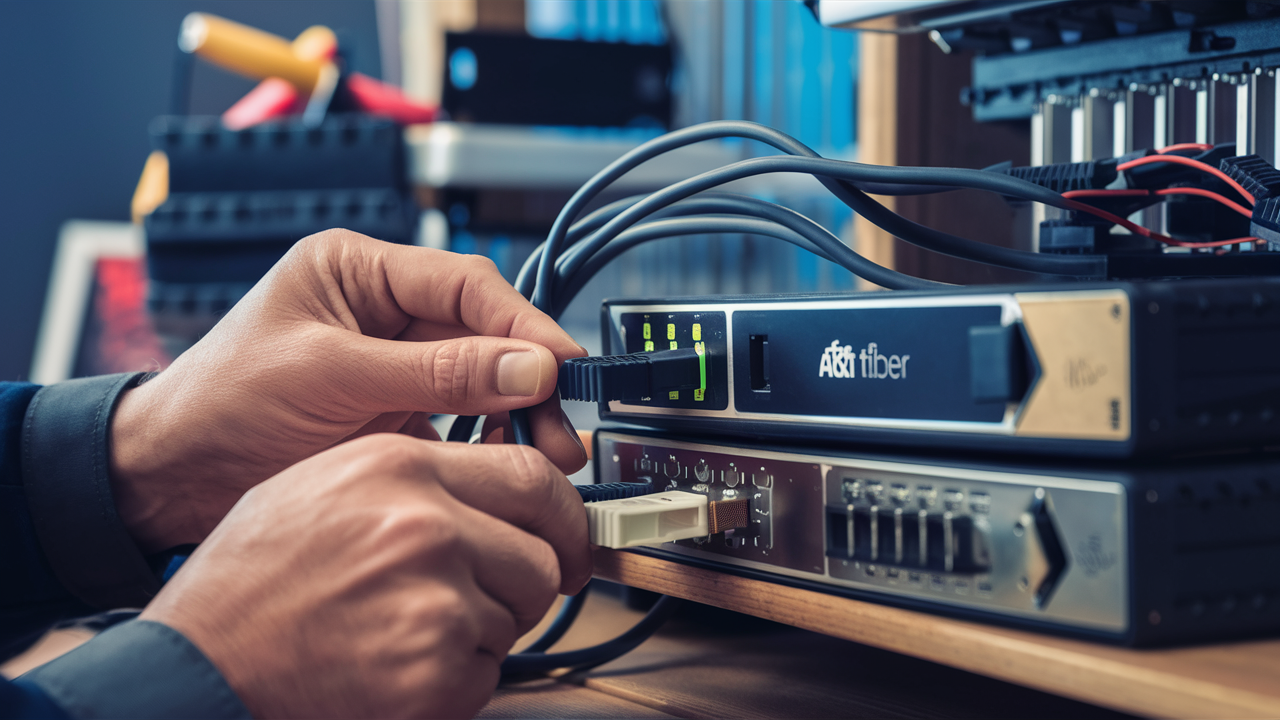
Expanding your home network with AT&T Fiber can be a game-changer for connectivity. If you're wondering, "Can you add a second router to AT&T Fiber?" the answer is a resounding yes, and this guide will show you how to do it effectively to boost your Wi-Fi coverage and manage your network more efficiently.
Understanding Your AT&T Fiber Network
AT&T Fiber, known for its lightning-fast speeds, typically utilizes a single gateway device provided by AT&T. This gateway acts as both a modem and a router, handling your internet connection and broadcasting your Wi-Fi signal. For many households, this single device is sufficient. However, as smart homes grow and device usage increases, users often encounter Wi-Fi dead zones or experience slower speeds in certain areas of their homes. Understanding the architecture of your AT&T Fiber setup is the first step to effectively expanding its reach. The AT&T gateway, often referred to as the "Smart Home Manager" or similar, is the central hub. It terminates the fiber optic cable and converts the signal into a usable internet connection for your devices. It also manages your home's Local Area Network (LAN), assigning IP addresses and routing traffic.
In 2025-26, AT&T continues to lead in fiber deployment, with many areas boasting symmetrical gigabit speeds (1000 Mbps download and upload). This high bandwidth is crucial for modern applications like 4K streaming, online gaming, video conferencing, and cloud backups. However, the range of a single Wi-Fi router, even a powerful one, can be limited by building materials, home size, and interference. This is where the need for network expansion arises. AT&T gateways are designed for ease of use, but they also offer flexibility for users who want to customize their network.
Why Add a Second Router to AT&T Fiber?
The primary motivation for adding a second router to an AT&T Fiber connection is to overcome the limitations of a single Wi-Fi signal. Several scenarios commonly necessitate this expansion:
- Extended Wi-Fi Coverage: The most frequent reason is to eliminate Wi-Fi dead zones. Large homes, multi-story houses, or homes with thick walls often suffer from weak or non-existent Wi-Fi signals in certain rooms. A second router, strategically placed, can extend the reach of your network.
- Increased Device Capacity: As the number of connected devices in a household grows (smart TVs, smartphones, tablets, smart home gadgets, gaming consoles), the demands on the primary router increase. A second router can help distribute the load, preventing network congestion and ensuring smoother performance for all devices. Statistics from 2025 indicate that the average US household has over 25 connected devices, a number that continues to rise.
- Improved Performance for Specific Areas: If you have a home office, a media room, or a gaming setup in a location far from the primary router, adding a second router closer to these areas can provide a more stable and faster connection.
- Network Segmentation (Advanced Users): For users with specific security or performance needs, a second router can be used to create a separate network segment, perhaps for IoT devices or guest access, isolating them from your main network.
- Utilizing Existing Hardware: Many users have older, but still functional, routers lying around. Instead of purchasing a dedicated mesh Wi-Fi system or a Wi-Fi extender, repurposing an old router can be a cost-effective solution.
While AT&T's own Wi-Fi extenders are an option, a second router often offers more control, better performance, and greater flexibility, especially when configured correctly. The key is understanding how to integrate it seamlessly without causing network conflicts.
Router Modes Explained: Access Point vs. Router Mode
When adding a second router to your AT&T Fiber network, the configuration mode you choose is critical. The two primary modes are Router Mode and Access Point (AP) Mode. Understanding the difference will help you achieve the desired network expansion without creating issues like double NAT or IP address conflicts.
Router Mode
In its default configuration, a router operates in Router Mode. This means it acts as a separate network device, creating its own subnet, assigning IP addresses (via DHCP), and performing Network Address Translation (NAT). If you connect a second router in Router Mode to your AT&T gateway, you will effectively have two separate networks. Your AT&T gateway will manage one network (e.g., 192.168.1.x), and the second router will create another (e.g., 192.168.0.x).
Pros of Router Mode:
- Network Segmentation: Allows for creating separate networks, which can be useful for guest Wi-Fi or isolating specific devices.
- Independent Control: The second router can have its own firewall settings, DHCP server, and Wi-Fi network names (SSIDs).
Cons of Router Mode:
- Double NAT: This is the most significant issue. Devices connected to the second router will be behind two NAT layers, which can cause problems with online gaming, port forwarding, and some VPNs.
- Device Discovery Issues: Devices on the AT&T network might not be able to easily discover or communicate with devices on the second router's network, and vice-versa.
- More Complex Setup: Requires careful IP address management to avoid conflicts.
Access Point (AP) Mode
When a router is configured in Access Point Mode, it essentially disables its routing functions (like NAT and DHCP) and acts as a bridge between your existing network and the devices connected to it. It receives an IP address from the main router (your AT&T gateway) and then broadcasts a Wi-Fi signal, extending your existing network. All devices will be on the same subnet, managed by the AT&T gateway.
Pros of AP Mode:
- Seamless Network: All devices are on the same network, allowing for easy communication and discovery.
- No Double NAT: Eliminates the problems associated with double NAT, ensuring smooth operation for online services and gaming.
- Simplified Management: The AT&T gateway remains the sole DHCP server, simplifying IP address management.
- Wider Coverage: Effectively extends your existing Wi-Fi network.
Cons of AP Mode:
- Less Network Control: You lose the ability to manage separate subnets or advanced routing features from the second device.
- Requires Router Support: Not all routers support AP Mode out-of-the-box; some may require custom firmware.
For most users looking to extend Wi-Fi coverage with an AT&T Fiber connection, **Access Point Mode is the recommended and preferred configuration**. It provides the benefits of extended Wi-Fi without the common pitfalls of Router Mode.
Setting Up a Second Router as an Access Point (Recommended)
Configuring a second router as an Access Point (AP) is the most common and recommended method for extending your AT&T Fiber network. This process integrates the second router seamlessly into your existing network, providing wider Wi-Fi coverage without creating network conflicts. The exact steps can vary slightly depending on the make and model of your second router, but the general principles remain the same.
Step-by-Step Guide to Setting Up AP Mode:
-
Prepare Your Second Router:
- Factory Reset: It's highly recommended to perform a factory reset on your second router. This ensures that any previous configurations are cleared, preventing potential conflicts. Refer to your router's manual for instructions on how to do this (usually involves holding a reset button for 10-30 seconds).
- Connect Directly: Connect your computer directly to one of the LAN ports of the second router using an Ethernet cable. Do NOT connect it to the WAN/Internet port at this stage.
-
Access the Router's Settings:
- Open a web browser on your computer and navigate to the router's default IP address. Common addresses include 192.168.1.1 or 192.168.0.1. Check your router's manual or the label on the device for the correct address and default login credentials.
- Log in using the default username and password.
-
Configure AP Mode:
- Look for a setting called "Operation Mode," "Wireless Mode," or "Router Mode." Select "Access Point Mode," "AP Mode," or a similar option. If your router doesn't have a dedicated AP Mode, you might need to manually disable its DHCP server and assign it a static IP address within your AT&T gateway's subnet.
- Disable DHCP Server: Crucially, ensure that the DHCP server on the second router is turned OFF. Your AT&T gateway will be the sole DHCP server for your network.
- Assign a Static IP Address (if not using dedicated AP Mode): If you are manually configuring it, assign the second router a static IP address that is within your AT&T gateway's IP range but outside of the DHCP pool. For example, if your AT&T gateway is 192.168.1.254 and its DHCP pool is 192.168.1.100-192.168.1.200, you could assign the second router 192.168.1.253. This prevents IP conflicts and allows you to access the router's settings later.
-
Configure Wi-Fi Settings:
- SSID (Network Name): You have two main options:
- Same SSID and Password: Using the same network name (SSID) and password as your AT&T gateway allows devices to roam more seamlessly between the two Wi-Fi signals. Your devices will automatically connect to the strongest signal.
- Different SSID: Using a different SSID (e.g., "MyNetwork_Upstairs") allows you to manually choose which access point to connect to. This can be useful for troubleshooting or ensuring specific devices connect to the stronger signal.
- Wi-Fi Channel: To minimize interference, choose Wi-Fi channels for your second router that are different from your AT&T gateway's channels, especially if you are using different SSIDs. For 2.4GHz, use channels 1, 6, or 11. For 5GHz, select less congested channels.
- Security: Ensure you use WPA2 or WPA3 security with a strong password.
- SSID (Network Name): You have two main options:
-
Connect the Routers:
- Disconnect your computer from the second router.
- Take an Ethernet cable and connect one end to a LAN port on your AT&T Fiber gateway.
- Connect the other end of the Ethernet cable to one of the LAN ports on your second router. Do NOT use the WAN/Internet port on the second router.
-
Test Your Connection:
- Power on both routers.
- Wait a few minutes for the devices to establish connections.
- On your computer or mobile device, search for your Wi-Fi network. If you used the same SSID, it should appear as one network. If you used a different SSID, select that one.
- Connect to the Wi-Fi network and try browsing the internet.
- Test the connection in areas where you previously had weak signals.
By following these steps, your second router will function as an extension of your AT&T Fiber network, providing enhanced Wi-Fi coverage and a more robust internet experience throughout your home.
Setting Up a Second Router as a Router (Advanced)
While Access Point Mode is generally preferred, some users may opt to set up a second router in Router Mode. This creates a separate network behind your AT&T gateway, which can be useful for specific advanced configurations but introduces potential complexities like Double NAT. This method is more suited for users who need granular control over their network segments or have a specific reason to isolate devices.
When to Consider Router Mode:
- Guest Network Isolation: You want a completely separate network for guests with different security policies.
- IoT Device Segmentation: You want to isolate your Internet of Things (IoT) devices for enhanced security, preventing them from directly accessing your main network.
- Specific VPN or Server Needs: In rare cases, users might require a separate public IP address or specific routing for servers or VPN configurations that are not easily achievable with AP mode.
Step-by-Step Guide to Setting Up Router Mode:
-
Prepare Your Second Router:
- Perform a factory reset on the second router.
- Connect your computer directly to one of the LAN ports of the second router.
-
Access the Router's Settings:
- Log in to the second router's web interface using its default IP address and credentials.
-
Configure WAN Settings:
- Navigate to the WAN (Wide Area Network) or Internet settings.
- Set the WAN connection type to "DHCP" or "Dynamic IP." This will allow the second router to obtain an IP address from your AT&T gateway.
-
Configure LAN Settings:
- Navigate to the LAN (Local Area Network) settings.
- Crucially, change the second router's LAN IP address range. This is vital to avoid IP conflicts with your AT&T gateway. For example, if your AT&T gateway uses 192.168.1.x, set the second router's LAN IP address to something like 192.168.2.1 and its DHCP server to assign addresses in the 192.168.2.x range.
- Ensure the DHCP server on the second router is enabled. It will now be responsible for assigning IP addresses to devices connected to it.
-
Configure Wi-Fi Settings:
- Set up your Wi-Fi network name (SSID) and password for the second router. You can use the same or a different SSID than your AT&T gateway.
- Choose appropriate Wi-Fi channels to minimize interference.
- Ensure strong security protocols (WPA2/WPA3) are enabled.
-
Connect the Routers:
- Take an Ethernet cable and connect one end to a LAN port on your AT&T Fiber gateway.
- Connect the other end of the Ethernet cable to the WAN/Internet port on your second router.
-
Test Your Connection:
- Power on both routers.
- Connect devices to the second router's Wi-Fi network.
- Verify that devices can access the internet.
- Be aware of Double NAT: If you plan to use services that require port forwarding, or play online games, you may encounter issues due to Double NAT. You might need to configure port forwarding on both your AT&T gateway and the second router, or use features like DMZ (Demilitarized Zone) on the AT&T gateway to forward all traffic to the second router's WAN IP.
This setup provides more isolation but requires a deeper understanding of network configurations. For most home users, the simplicity and compatibility of AP Mode are significantly more beneficial.
Choosing the Right Hardware for Your Extended Network
Selecting the appropriate hardware is crucial for a successful and high-performing extended network with your AT&T Fiber connection. While you can often repurpose older routers, modern devices offer significant advantages in speed, range, and features.
AT&T Gateway Considerations:
AT&T provides its own gateways, which are designed to work seamlessly with their fiber service. In 2025-26, these gateways typically support Wi-Fi 6 (802.11ax) or even Wi-Fi 6E, offering significant speed and capacity improvements over older standards. It's important to know the capabilities of your AT&T gateway, as this will influence the performance of your extended network. You can usually find information about your gateway model and its features through the AT&T Smart Home Manager app or by logging into its web interface.
Choosing Your Second Router:
When selecting a second router to add to your AT&T Fiber network, consider the following:
- Wi-Fi Standard: Ideally, choose a router that supports at least Wi-Fi 5 (802.11ac) or, even better, Wi-Fi 6 (802.11ax). This ensures compatibility with the speeds provided by AT&T Fiber and your AT&T gateway, and offers better performance for newer devices. A Wi-Fi 6 router will provide a more future-proof solution.
- Ethernet Ports: Ensure the router has Gigabit Ethernet ports for both its WAN and LAN connections. This is essential to take full advantage of AT&T's high-speed fiber service.
- Access Point Mode Support: Verify that the router explicitly supports Access Point (AP) Mode. While many routers can be manually configured, dedicated AP Mode simplifies the setup process significantly.
- Brand and Features: Consider reputable brands known for reliable networking equipment. Features like beamforming, MU-MIMO, and Quality of Service (QoS) can further enhance network performance.
- Mesh Compatibility (Optional): If you're looking for a more integrated and user-friendly solution, consider a mesh Wi-Fi system. Many mesh systems can be configured as access points and offer seamless roaming and centralized management. However, they are typically more expensive than a single standalone router.
Alternative Hardware Options:
- Dedicated Access Points (APs): For a more professional and robust solution, consider installing dedicated Wi-Fi Access Points. These devices are specifically designed to extend Wi-Fi coverage and often offer superior performance and management capabilities compared to repurposed routers. Brands like Ubiquiti UniFi, TP-Link Omada, and Aruba offer excellent AP solutions.
- Mesh Wi-Fi Systems: These systems consist of a main router and one or more satellite nodes that work together to create a single, unified Wi-Fi network. They are designed for seamless roaming and excellent coverage in larger homes. Many mesh systems can be configured to work in AP mode, connecting to your AT&T gateway via Ethernet. Popular options include Eero, Google Nest Wifi, and TP-Link Deco.
- Wi-Fi Extenders/Repeaters: While the simplest to set up, traditional Wi-Fi extenders often halve the available bandwidth and can create a less stable connection. They are generally not recommended for maximizing the performance of an AT&T Fiber connection.
For a balance of cost, performance, and ease of use, a Wi-Fi 6 router configured in AP Mode is often the best choice for extending your AT&T Fiber network. If budget allows and you prioritize a seamless experience, a mesh system or dedicated APs are superior options.
Troubleshooting Common Issues
Even with careful setup, you might encounter issues when adding a second router to your AT&T Fiber network. Here are some common problems and their solutions, particularly focusing on the recommended AP Mode configuration.
Issue 1: No Internet Connection on Devices Connected to the Second Router
-
Check Physical Connections:
- Ensure the Ethernet cable is securely plugged into a LAN port on the AT&T gateway and a LAN port on the second router (not the WAN port).
-
Verify AP Mode and DHCP:
- Double-check that the second router is indeed in Access Point Mode.
- Confirm that the DHCP server on the second router is disabled.
- If you manually assigned a static IP to the second router, ensure it's within the AT&T gateway's subnet and not in conflict.
-
Restart Devices:
- Power cycle your AT&T gateway, your second router, and the device you are using to test the connection. Wait a few minutes between each restart.
-
Test with a Wired Connection:
- Connect a computer directly to a LAN port on the second router using an Ethernet cable. If you get internet access this way, the issue is likely with the Wi-Fi configuration on the second router.
Issue 2: Slow Wi-Fi Speeds on the Second Router
-
Router Placement:
- Ensure the second router is placed strategically to maximize coverage without being too far from the AT&T gateway. Obstructions like thick walls, metal objects, and other electronics can degrade signal strength.
-
Wi-Fi Channel Interference:
- Use a Wi-Fi analyzer app on your smartphone to identify the least congested Wi-Fi channels in your area. Manually set the 2.4GHz and 5GHz channels on your second router to these less crowded channels. Avoid using the same channels as your AT&T gateway if possible, especially if using different SSIDs.
-
Router Capabilities:
- If your second router is significantly older than your AT&T gateway (e.g., Wi-Fi 4 vs. Wi-Fi 6), it might be a bottleneck. Consider upgrading the second router to a Wi-Fi 6 compatible model.
-
Ethernet Cable Quality:
- Ensure you are using a Cat 5e or Cat 6 Ethernet cable between the AT&T gateway and the second router. Damaged or low-quality cables can limit speeds.
Issue 3: Devices Cannot See Each Other (e.g., Printers, Network Drives)
-
Check SSID and Password:
- If you are using the same SSID and password on both routers, devices should ideally roam between them. If they don't, try restarting devices or forgetting and rejoining the network.
-
AP Mode is Key:
- This issue is almost always resolved by ensuring the second router is in AP Mode and its DHCP server is disabled. If the second router is in Router Mode, devices on different subnets (e.g., 192.168.1.x and 192.168.2.x) will not be able to communicate directly.
-
Firewall Settings:
- Check the firewall settings on both your AT&T gateway and the second router (if it's in Router Mode). Ensure that network discovery and file sharing are enabled.
Issue 4: Double NAT Errors (If Router Mode Was Used)
-
Switch to AP Mode:
- The most straightforward solution is to reconfigure the second router into Access Point Mode.
-
Port Forwarding/DMZ:
- If you must use Router Mode, you will need to configure port forwarding on both routers or set up a DMZ on your AT&T gateway to forward all traffic to the second router's WAN IP address. This is complex and can reduce security.
By systematically addressing these common issues, you can ensure your extended AT&T Fiber network functions reliably and efficiently, providing the robust connectivity you need.
Advanced Network Configurations for AT&T Fiber
For users who want to go beyond basic Wi-Fi extension, AT&T Fiber offers opportunities for more advanced network configurations. These setups can enhance security, optimize performance, and provide greater control over your home network.
1. VLANs (Virtual Local Area Networks)
VLANs allow you to segment your network into smaller, isolated broadcast domains. This is particularly useful for separating different types of traffic or devices. For example, you could create a VLAN for:
- Trusted Devices: Your primary computers, servers, and sensitive devices.
- IoT Devices: Smart home gadgets (thermostats, cameras, smart plugs) which are often less secure.
- Guest Network: For visitors.
How it works with AT&T Fiber: Implementing VLANs typically requires a managed switch and a router that supports VLAN tagging. Your AT&T gateway may not support VLANs directly. You would typically connect a managed switch to your AT&T gateway, and then connect your router (configured for advanced routing) and other network devices to the managed switch. The router would then be configured to handle traffic routing between VLANs. This is a complex setup and usually involves enterprise-grade or prosumer networking equipment.
2. VPN Client/Server Functionality
If your AT&T gateway doesn't offer robust VPN client or server features, you can achieve this with a second router.
- VPN Client: Configure your second router to act as a VPN client. All devices connected to this router will then have their internet traffic routed through the VPN, providing privacy and access to geo-restricted content. This is often done in Router Mode, with the second router's WAN port connected to the AT&T gateway's LAN port.
- VPN Server: Set up a second router as a VPN server. This allows you to securely connect to your home network remotely from anywhere in the world, accessing your files and devices as if you were at home. This also typically involves Router Mode.
Considerations: Running a VPN client on a router can sometimes reduce internet speeds due to the encryption/decryption overhead. Ensure your chosen router has sufficient processing power.
3. Quality of Service (QoS) Prioritization
While some AT&T gateways offer basic QoS, a more advanced router can provide granular control over network traffic. QoS allows you to prioritize certain types of traffic (e.g., video conferencing, online gaming) over less time-sensitive traffic (e.g., file downloads, software updates).
Implementation: If your AT&T gateway's QoS is insufficient, you can use a second router in Router Mode to implement more advanced QoS rules. This requires careful configuration to ensure the prioritization is effective without starving other essential services.
4. Link Aggregation (LAG) or Bonding
For extremely demanding use cases, some higher-end routers and switches support Link Aggregation. This allows you to combine multiple Ethernet connections into a single logical link, effectively increasing bandwidth and providing redundancy.
Relevance to AT&T Fiber: While AT&T Fiber typically provides a single fiber connection, LAG might be relevant if you have multiple high-speed links to a local server or NAS within your home network, or if you are using a multi-gigabit AT&T service and have a router capable of aggregating multiple 1Gbps or 2.5Gbps ports.
5. Dedicated Firewall Appliances
For maximum security, some users opt to replace their AT&T gateway's firewall capabilities with a dedicated firewall appliance (e.g., from pfSense, OPNsense, or Ubiquiti). This involves configuring the AT&T gateway into a "bridge mode" or "passthrough mode" (if supported) and letting the dedicated firewall handle all routing, NAT, and security functions.
Challenges with AT&T: AT&T's gateway configuration options can be limited, and forcing it into a true bridge mode might not always be straightforward or officially supported. This setup requires significant technical expertise.
These advanced configurations require a solid understanding of networking principles, IP addressing, subnetting, and potentially command-line interfaces. Always back up your configurations before making significant changes, and be prepared for a learning curve.
Future-Proofing Your Network with AT&T Fiber
As technology continues to evolve at a rapid pace, ensuring your home network is "future-proof" is a smart investment. With the blazing speeds offered by AT&T Fiber, your internet connection is likely ahead of many of your devices. The key to future-proofing lies in ensuring your internal network infrastructure can keep up.
Embrace Wi-Fi 6/6E/7 Standards
The Wi-Fi 6 (802.11ax) standard, and its successors like Wi-Fi 6E and the emerging Wi-Fi 7 (802.11be), are designed to handle the increasing density of devices and the demand for higher speeds.
- Wi-Fi 6: Offers better efficiency, capacity, and speed than previous standards, especially in crowded environments.
- Wi-Fi 6E: Adds the 6 GHz band, providing significantly more spectrum and reducing interference from older devices.
- Wi-Fi 7: Promises even higher throughput, lower latency, and advanced features like Multi-Link Operation (MLO).
When selecting a second router or access point, prioritizing Wi-Fi 6 or Wi-Fi 6E compatibility will ensure your network can leverage the full potential of your AT&T Fiber connection for years to come. Aiming for Wi-Fi 7 ready devices, if available and within budget, offers the most forward-looking solution.
Invest in Gigabit Ethernet Infrastructure
While Wi-Fi is convenient, wired Ethernet connections remain the most reliable and fastest way to connect devices.
- Gigabit Ports: Ensure all your networking equipment (AT&T gateway, second router, switches) has Gigabit Ethernet ports (1000 Mbps).
- Cat 6/6a Cabling: If you're running new Ethernet cables in your home, use Cat 6 or Cat 6a cables. These are rated for 10 Gbps speeds over shorter distances and are robust enough for future high-speed needs.
- Wired Backhaul for Mesh/APs: If using a mesh system or dedicated access points, using Ethernet backhaul (connecting the nodes/APs to your main router or switch via Ethernet cables) provides the best possible performance and stability.
Consider Higher Bandwidth Services
AT&T Fiber offers various speed tiers, from 300 Mbps to multi-gigabit services. As your usage grows and new applications emerge (e.g., higher resolution streaming, immersive VR experiences, cloud gaming), you may find yourself needing a faster plan. Your internal network setup should be able to support these upgrades without becoming a bottleneck. A well-configured network with Wi-Fi 6 and Gigabit Ethernet will be ready for future speed increases.
Security is Paramount
Future-proofing also means building a secure network.
- Strong Encryption: Always use WPA2 or WPA3 encryption for your Wi-Fi networks.
- Regular Firmware Updates: Keep the firmware on your AT&T gateway and any secondary routers or access points up to date. Manufacturers regularly release patches to address security vulnerabilities.
- Network Segmentation: As discussed in advanced configurations, using VLANs or separate networks for IoT devices can significantly enhance your security posture.
- Strong Passwords: Use unique, strong passwords for your Wi-Fi networks and router administration interfaces.
Scalability and Flexibility
Choose network hardware that allows for expansion. If you start with one second router, ensure your chosen system can accommodate additional access points or switches later if your needs change. Mesh systems and modular AP solutions offer excellent scalability.
By adopting these strategies, you can ensure that your AT&T Fiber connection delivers its maximum potential not just today, but for many years to come, supporting the ever-increasing demands of your digital life.
In conclusion, adding a second router to your AT&T Fiber network is a practical and effective way to enhance Wi-Fi coverage, improve performance, and manage a growing number of connected devices. By understanding the difference between Router Mode and Access Point Mode, and by carefully configuring your hardware, you can seamlessly extend your network's reach. For most users, setting up the second router in Access Point Mode is the recommended approach, as it avoids common issues like Double NAT and ensures all devices operate on a single, unified network. Always ensure your chosen hardware supports modern Wi-Fi standards like Wi-Fi 6 and Gigabit Ethernet to take full advantage of AT&T's high-speed fiber service. With the right setup, you can enjoy a robust and reliable internet experience throughout your entire home.