Can I use both 2.4 and 5GHz at the same time?
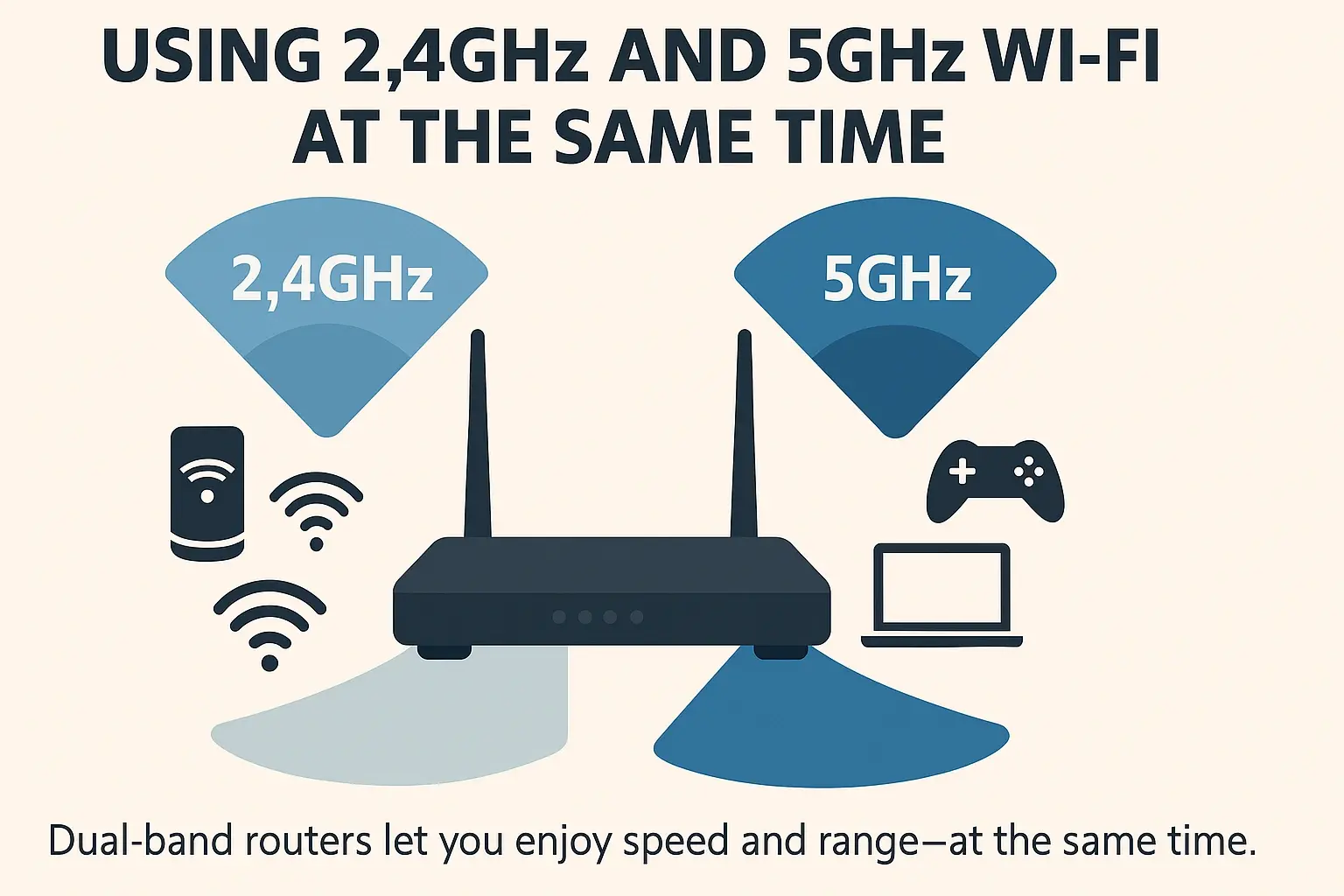
Unlock the full potential of your home Wi-Fi by understanding how to leverage both 2.4GHz and 5GHz bands simultaneously. This guide provides a comprehensive, actionable strategy for optimizing your network, ensuring seamless connectivity for all your devices.
Understanding Wi-Fi Bands: 2.4GHz vs. 5GHz
In the realm of wireless networking, Wi-Fi signals are transmitted across different frequency bands, primarily 2.4GHz and 5GHz. Each band possesses distinct characteristics that influence its performance, coverage, and suitability for various applications. Understanding these differences is the foundational step toward optimizing your home network. As of 2025-26, these two bands remain the workhorses of most residential Wi-Fi networks, with newer standards like Wi-Fi 6E and Wi-Fi 7 introducing the 6GHz band, but the principles of 2.4GHz and 5GHz optimization are still highly relevant.
The 2.4GHz Band: The Long-Haul Champion
The 2.4GHz band is characterized by its longer range and superior ability to penetrate solid objects like walls, floors, and furniture. This makes it ideal for devices located further away from the router or in areas where signal obstruction is a concern. Think of it as a wide, slow-moving river; it can reach far and bypass obstacles, but the data flow isn't as rapid.
- Range: Approximately 150 feet (45 meters) indoors, though this can be significantly reduced by interference and obstructions.
- Penetration: Excellent. It can easily pass through most common household materials.
- Speed: Slower speeds, with theoretical maximums typically around 450-600 Mbps for older standards (like 802.11n) and up to 1.3 Gbps for Wi-Fi 4.
- Interference: Highly susceptible to interference from other 2.4GHz devices, including microwaves, Bluetooth devices, cordless phones, and even neighboring Wi-Fi networks. This is a significant drawback in densely populated areas.
- Device Compatibility: Nearly all Wi-Fi-enabled devices, especially older ones, support the 2.4GHz band.
The 5GHz Band: The Speed Demon
In contrast, the 5GHz band offers significantly faster data transfer rates and less interference, but at the cost of reduced range and penetration capabilities. This band is akin to a fast, narrow highway; it allows for rapid transit but has fewer lanes and is more easily blocked by barriers.
- Range: Approximately 50 feet (15 meters) indoors, diminishing rapidly with distance and obstructions.
- Penetration: Poor. It struggles to pass through walls and other solid objects.
- Speed: Much faster speeds, with theoretical maximums ranging from 1.3 Gbps (802.11n) to over 3.5 Gbps (Wi-Fi 5/802.11ac) and even higher with Wi-Fi 6 (802.11ax).
- Interference: Less prone to interference from common household appliances compared to 2.4GHz, as fewer devices operate on this band. However, it can still be affected by other 5GHz Wi-Fi networks.
- Device Compatibility: Primarily supported by newer devices, including smartphones, tablets, laptops, smart TVs, and gaming consoles manufactured in the last decade.
Key Differences Summarized
To illustrate the core distinctions, consider this comparison:
| Feature | 2.4GHz Band | 5GHz Band |
|---|---|---|
| Range | Longer (up to 150 ft / 45m indoors) | Shorter (up to 50 ft / 15m indoors) |
| Speed | Slower (up to 600 Mbps - 1.3 Gbps) | Faster (up to 3.5 Gbps+ with Wi-Fi 5/6) |
| Penetration | Excellent (through walls, floors) | Poor (struggles with obstructions) |
| Interference | High (microwaves, Bluetooth, etc.) | Low (fewer interfering devices) |
| Device Support | Universal (older and newer devices) | Newer devices |
Can You Use Both 2.4GHz and 5GHz at the Same Time?
The definitive answer is a resounding yes. Most modern Wi-Fi routers are "dual-band" or "tri-band" devices, meaning they are equipped to broadcast Wi-Fi signals on both the 2.4GHz and 5GHz frequencies simultaneously. This capability is a cornerstone of contemporary home networking, designed to offer flexibility and optimize performance for a diverse range of devices and usage scenarios. The ability to utilize both bands at once isn't just a feature; it's a fundamental aspect of how contemporary routers are engineered to manage the demands of a connected household.
Dual-Band Routers Explained
A dual-band router has two separate transmitters: one for the 2.4GHz band and one for the 5GHz band. These transmitters can operate independently, allowing your router to create two distinct Wi-Fi networks, or they can be configured to broadcast a single network name (SSID) using a feature called "band steering."
- Separate SSIDs: In this configuration, you will see two different Wi-Fi network names in your device's available networks list. For example, "MyHomeWiFi_2.4GHz" and "MyHomeWiFi_5GHz." You manually choose which network to connect each device to.
- Single SSID (Band Steering): With band steering enabled, the router broadcasts a single network name. The router then intelligently directs devices to the optimal band based on their capabilities, signal strength, and network conditions. This simplifies the connection process for users, as they only need to select one network name.
As of 2025-26, the vast majority of new routers sold are dual-band, and many are even tri-band (adding a second 5GHz band or the 6GHz band for Wi-Fi 6E/7). This prevalence underscores the industry's recognition of the necessity and benefits of supporting both frequencies concurrently.
The Role of Your Devices
It's crucial to remember that your devices also need to support the 5GHz band to connect to it. Most smartphones, tablets, laptops, and smart TVs manufactured after 2013 are dual-band compatible. However, older devices or some budget-friendly smart home gadgets might only support the 2.4GHz band. This is why having both bands available is essential for a truly inclusive network.
Simultaneous Connection is the Norm
When you connect a dual-band capable device to a dual-band router (either with separate SSIDs or band steering), the device can, in essence, connect to both bands if configured appropriately or if band steering is active. However, a single device typically connects to only *one* band at any given moment. The "simultaneous use" refers to the router broadcasting both bands concurrently and your ability to have different devices connected to different bands, or for a single device to potentially switch between bands for optimal performance.
The Compelling Benefits of Using Both Bands
Leveraging both the 2.4GHz and 5GHz bands simultaneously offers a significant upgrade in your home's Wi-Fi performance, reliability, and user experience. This dual-band strategy addresses the limitations of each band by capitalizing on their respective strengths.
Enhanced Network Performance and Speed
By distributing your devices across both bands, you reduce congestion on each individual band. This is particularly impactful on the 2.4GHz band, which is often a bottleneck due to its susceptibility to interference and its use by a wider array of devices.
- Reduced Congestion: Devices that require higher speeds and are located closer to the router (e.g., streaming devices, gaming consoles, laptops for work) can be placed on the 5GHz band. This frees up the 2.4GHz band for less demanding devices (e.g., smart plugs, older printers, smart home sensors) or those further away.
- Faster Speeds: Devices connected to the 5GHz band will experience significantly faster download and upload speeds, leading to smoother video streaming, quicker file downloads, and more responsive online gaming.
- Improved Throughput: With less competition for airtime, the overall data throughput of your network increases, meaning more data can be transferred efficiently across all connected devices.
Improved Device Compatibility and Connectivity
A dual-band network ensures that all your devices, regardless of their age or capabilities, can connect to your Wi-Fi.
- Legacy Device Support: Older devices that only support 2.4GHz can still connect and function reliably without dragging down the performance of newer, faster devices.
- Newer Device Optimization: Cutting-edge devices that support 5GHz can take full advantage of the higher speeds and lower latency offered by this band, providing the best possible experience for demanding applications.
Increased Network Reliability and Stability
The ability to segregate traffic based on band and proximity significantly enhances network stability.
- Reduced Interference: By moving bandwidth-intensive and speed-sensitive devices to the less crowded 5GHz band, you minimize their exposure to the interference that plagues the 2.4GHz band. This leads to fewer dropped connections and more stable performance.
- Better Signal Management: Devices that are close to the router and have a strong signal can utilize the 5GHz band for optimal performance. As devices move further away or encounter obstructions, they can fall back to the 2.4GHz band, maintaining a connection even if at reduced speeds.
Efficient Bandwidth Management
Dual-band Wi-Fi allows for smarter allocation of your internet bandwidth.
- Prioritization: You can strategically assign devices to bands to prioritize critical tasks. For instance, ensuring your work laptop on 5GHz has ample bandwidth for video conferences, while your smart speaker on 2.4GHz handles background music.
- Load Balancing: Even with band steering, the router can intelligently distribute the load. If the 5GHz band becomes saturated, it might direct some less critical devices back to 2.4GHz, or vice versa, to maintain overall network responsiveness.
Future-Proofing Your Network
As the number of connected devices in our homes continues to grow exponentially (the average connected household in 2025-26 has over 40 devices, according to industry reports), a dual-band network is no longer a luxury but a necessity. It provides the foundational infrastructure to handle this increasing demand.
Consider the scenario of a busy household:
- Morning Rush: Multiple smartphones and tablets are used for news and social media (2.4GHz or 5GHz). A smart TV might be streaming a news channel (5GHz). A smart speaker plays music (2.4GHz).
- Work/School Day: Laptops and tablets are used for video conferencing and online learning (ideally 5GHz for stability and speed). Smart home devices like thermostats and security cameras operate in the background (2.4GHz).
- Evening Entertainment: A smart TV streams a 4K movie (5GHz). A gaming console is connected online (5GHz). Multiple smartphones and tablets are in use (2.4GHz or 5GHz).
Without the ability to utilize both bands, the 2.4GHz band would quickly become overwhelmed, leading to buffering, lag, and dropped connections for everyone. The dual-band approach effectively creates two highways, preventing traffic jams.
Enabling Dual-Band Wi-Fi: A Step-by-Step Guide
Activating and optimizing your dual-band Wi-Fi network is a straightforward process, typically managed through your router's web interface. While the exact steps may vary slightly depending on your router's manufacturer and model, the general principles remain consistent.
Step 1: Access Your Router's Settings
You'll need to log into your router's administrative panel.
- Find Your Router's IP Address: This is often printed on a sticker on the router itself or found in your router's manual. Common IP addresses include 192.168.1.1, 192.168.0.1, or 10.0.0.1.
- Open a Web Browser: On a device connected to your router's network (either via Wi-Fi or Ethernet cable), open a web browser (Chrome, Firefox, Safari, Edge).
- Enter the IP Address: Type the router's IP address into the browser's address bar and press Enter.
- Log In: You will be prompted to enter a username and password. These are also typically found on the router sticker or in the manual. If you've never changed them, default credentials are often "admin/admin" or "admin/password." It's highly recommended to change these for security.
Step 2: Locate the Wireless Settings
Once logged in, navigate through the router's interface to find the wireless or Wi-Fi settings. This section is usually clearly labeled. Look for options like "Wireless," "Wi-Fi," "WLAN," or "Advanced Wireless Settings."
Step 3: Configure the 2.4GHz and 5GHz Bands
Within the wireless settings, you should find options to configure both the 2.4GHz and 5GHz bands.
Option A: Separate SSIDs (Recommended for Manual Control)
This is often the most straightforward method for ensuring devices connect to the band you intend.
- Enable Both Bands: Ensure that both the 2.4GHz and 5GHz radios are enabled.
- Set Network Names (SSIDs): For each band, you'll have the option to set a unique Network Name (SSID). For example:
- 2.4GHz SSID:
MyHomeWiFi_2.4G - 5GHz SSID:
MyHomeWiFi_5G
- 2.4GHz SSID:
- Set Security and Passwords: For each SSID, configure your security settings (WPA2-PSK or WPA3 is recommended) and set a strong password. You can use the same password for both bands for convenience, or different ones if you prefer.
- Save Changes: Apply or save your settings. Your router may reboot.
Option B: Single SSID with Band Steering (Simplified Management)
Many modern routers offer "Band Steering," "Smart Connect," or "Auto-Band Selection."
- Enable Band Steering: Look for an option that combines the 2.4GHz and 5GHz bands under a single SSID.
- Set a Single Network Name (SSID): You'll enter one name for your Wi-Fi network (e.g.,
MyHomeWiFi). - Set Security and Password: Configure your security settings and password for this single network.
- Router Manages Band Assignment: The router will then automatically direct devices to the most appropriate band. This is convenient but offers less manual control over which device uses which band.
- Save Changes: Apply or save your settings. Your router may reboot.
Step 4: Connect Your Devices
Once your router is configured, you'll need to connect your devices.
- If using Separate SSIDs: On each device, scan for available Wi-Fi networks. Select the appropriate SSID (e.g.,
MyHomeWiFi_5Gfor your laptop if it's close to the router and you want speed, orMyHomeWiFi_2.4Gfor a smart plug in the garage). Enter the password. - If using Single SSID with Band Steering: On each device, scan for available Wi-Fi networks and select the single network name you created (e.g.,
MyHomeWiFi). Enter the password. The router will then assign the device to a band.
Step 5: Optimize Device Placement and Band Assignment
After connecting, you can further optimize performance by strategically assigning devices.
- High-Bandwidth Devices: Connect devices like smart TVs, gaming consoles, streaming boxes, and high-performance laptops to the 5GHz network.
- Distant Devices: Connect devices that are far from the router or have signal issues to the 2.4GHz network.
- Smart Home Devices: Many smart home devices (e.g., smart plugs, bulbs, sensors) only support 2.4GHz. Connect these to the 2.4GHz network.
- Review and Adjust: Periodically check which devices are connected to which band (this information is usually available in your router's status or client list) and make adjustments as needed.
Important Considerations:
- Router Firmware: Ensure your router's firmware is up to date. Manufacturers release updates to improve performance, security, and stability.
- Channel Selection: For the 2.4GHz band, manually selecting a less congested channel (typically 1, 6, or 11) can significantly reduce interference. For 5GHz, auto-selection is usually fine, but manual selection can sometimes help.
- Channel Width: The 5GHz band supports wider channels (e.g., 80MHz, 160MHz) which provide higher speeds. Ensure your router and devices support these wider channels for maximum performance.
Optimizing Device Placement for Peak Performance
Beyond configuring your router settings, the physical placement of your router and your connected devices plays a critical role in maximizing the benefits of a dual-band Wi-Fi network. Strategic placement ensures that devices can connect to the most appropriate band and receive the strongest possible signal.
Router Placement: The Central Hub
Your router is the heart of your wireless network. Its location dictates the reach and strength of your Wi-Fi signals.
- Central Location: Place your router in a central location within your home, ideally on the main floor. This provides the most balanced coverage across all areas. Avoid placing it in corners or at the far ends of your house.
- Elevated Position: Mount your router on a shelf or table, rather than on the floor. Wi-Fi signals tend to spread downwards. Elevating it helps the signal reach more effectively.
- Open Space: Keep your router in an open area, away from obstructions. Walls, large furniture, metal objects, and aquariums can significantly degrade Wi-Fi signals.
- Avoid Interference Sources: Do not place your router near appliances that emit electromagnetic interference, such as microwaves, cordless phones, Bluetooth devices, or even some older CRT televisions. These can disrupt both 2.4GHz and, to a lesser extent, 5GHz signals.
- Minimize Walls: The fewer walls a signal has to pass through to reach a device, the stronger it will be. If your home has thick walls or multiple floors, you might need to consider Wi-Fi extenders or a mesh system.
Device Placement Strategies for Each Band
Understanding the characteristics of each band allows you to make informed decisions about where to place devices.
5GHz Band Optimization:
Since the 5GHz band has a shorter range and poor penetration, it's best suited for devices that are relatively close to the router and in open line-of-sight.
- Primary Use: Connect devices that require high speeds and low latency, such as smart TVs for 4K streaming, gaming consoles for online multiplayer, and laptops for intensive work tasks (video editing, large file transfers).
- Placement: These devices should ideally be in the same room as the router or in adjacent rooms with minimal obstructions. For example, a smart TV in the living room situated on the same floor as the router.
- Band Steering: If using band steering, ensure these high-demand devices are within reasonable proximity to the router for them to be automatically steered to the 5GHz band.
2.4GHz Band Optimization:
The 2.4GHz band excels in range and penetration, making it the choice for devices that are further away or in areas where the signal needs to pass through obstacles.
- Primary Use: Connect devices that are not as demanding in terms of speed or latency, or those that are located at the fringes of your Wi-Fi coverage. This includes many smart home devices (smart plugs, light bulbs, thermostats, security cameras), older laptops, printers, and smartphones used in bedrooms or basements.
- Placement: Devices in basements, garages, attics, or rooms on opposite ends of the house from the router are prime candidates for the 2.4GHz band.
- Troubleshooting Weak 5GHz Signals: If a device consistently struggles to maintain a strong 5GHz connection due to distance or obstructions, and it's a device that doesn't strictly require the highest speeds (e.g., a tablet for casual browsing), consider connecting it to the 2.4GHz band for a more stable connection.
Using Wi-Fi Extenders and Mesh Systems
For larger homes or those with dead zones, simply optimizing router placement might not be enough.
- Wi-Fi Extenders (Repeaters): These devices capture your existing Wi-Fi signal and rebroadcast it, extending the network's reach. They are generally less expensive but can sometimes halve the bandwidth of the network they are extending. They typically connect to both bands.
- Mesh Wi-Fi Systems: These systems consist of a main router and one or more satellite nodes that work together to create a single, seamless Wi-Fi network throughout your home. They are more sophisticated than extenders, offering better performance and management. Most modern mesh systems are dual-band or tri-band and intelligently manage device connections across all nodes and bands. This is often the most effective solution for comprehensive coverage in larger homes.
Testing and Monitoring
Don't just set it and forget it. Regularly test your Wi-Fi speeds and signal strength in different locations and with different devices.
- Speed Test Apps: Use reputable speed test applications (e.g., Ookla Speedtest, Fast.com) on various devices and in different parts of your home.
- Router App/Interface: Most modern routers come with a mobile app or a detailed web interface that shows connected devices, their signal strength, and the band they are connected to. Use this to identify devices that might be better suited to a different band or location.
By thoughtfully considering both your router's placement and the location of your devices relative to its broadcast range, you can significantly enhance the effectiveness of your dual-band Wi-Fi network, ensuring optimal performance for every connected gadget.
Troubleshooting Common Dual-Band Wi-Fi Issues
While dual-band Wi-Fi offers numerous advantages, you might occasionally encounter issues. Fortunately, most common problems are resolvable with a systematic troubleshooting approach. As of 2025-26, these issues are well-understood and generally addressable.
Issue 1: Devices Not Seeing or Connecting to the 5GHz Network
This is a frequent problem, especially if you're using separate SSIDs.
- Device Compatibility: First, confirm that your device actually supports the 5GHz band. Check the device's specifications. Older or budget devices might only support 2.4GHz.
- Router Setting: Ensure the 5GHz radio is enabled in your router's settings. It might have been accidentally disabled.
- Distance and Obstructions: The 5GHz signal is weaker and doesn't penetrate walls well. If the device is too far from the router or there are multiple walls in between, it might not be able to detect the 5GHz network. Try moving the device closer to the router.
- Channel Congestion (Less Common for 5GHz): While less common than with 2.4GHz, if many nearby networks are using the same 5GHz channel, it can cause issues. Try changing the 5GHz channel in your router settings to a less used one (e.g., 36, 40, 44, 48 for DFS channels if your router supports them, or 149, 153, 157, 161 if available).
- Incorrect SSID/Password: Double-check that you are selecting the correct 5GHz SSID and entering the correct password.
Issue 2: Devices Connecting to 2.4GHz When They Should Be on 5GHz
This often happens with band steering or when a device defaults to the stronger 2.4GHz signal.
- Band Steering Issues: If you're using band steering, the router's algorithm might be misjudging the optimal band. Try disabling band steering temporarily to see if you can manually connect the device to 5GHz. If manual connection works well, the band steering algorithm might need an update or a firmware upgrade for your router.
- Signal Strength: The device might be prioritizing the stronger 2.4GHz signal over the weaker 5GHz signal, even if the 5GHz signal would offer better performance. Move the device closer to the router.
- Device Preference: Some devices have a preference for 2.4GHz. You might need to "forget" the 2.4GHz network on the device and then reconnect to the 5GHz network.
- Interference on 5GHz: While less common, interference on the 5GHz band (e.g., from radar, some cordless phones, or even certain USB 3.0 devices) can cause a device to switch back to 2.4GHz.
Issue 3: Slow Speeds on Both Bands
This can be frustrating and indicates a broader network problem.
- Internet Service Provider (ISP) Issue: First, test your internet speed directly connected to your modem via an Ethernet cable. If speeds are slow here, the problem is likely with your ISP.
- Router Overload: Too many devices actively using the network simultaneously can slow everything down. Try disconnecting some devices to see if speeds improve.
- Router Placement: Poor router placement can lead to weak signals throughout the house, resulting in slow speeds even if the internet connection itself is fast. Re-evaluate router placement.
- Outdated Router: Older routers may not support the latest Wi-Fi standards or have the processing power to handle a high number of connected devices efficiently. Consider upgrading to a Wi-Fi 6 or Wi-Fi 6E router.
- Interference: Significant interference on the 2.4GHz band can impact overall network performance, even for devices on 5GHz, as they share the same router. Try changing Wi-Fi channels.
- Firmware Update: Ensure your router's firmware is up to date. Updates often include performance enhancements.
- Malware: In rare cases, malware on a connected device could be consuming bandwidth. Run a virus scan on your devices.
Issue 4: Dropped Connections
Frequent disconnections can be caused by a variety of factors.
- Signal Strength: Weak or fluctuating signal strength is a primary cause. Ensure devices are within a reasonable range of the router or consider extenders/mesh systems.
- Interference: As mentioned, interference can disrupt connections. Try changing Wi-Fi channels or moving the router away from interfering devices.
- Device Power Saving Settings: Some devices, especially laptops and smartphones, have power-saving features that can temporarily disable Wi-Fi to conserve battery. Check your device's network adapter settings.
- Router Overheating: Ensure your router is in a well-ventilated area and is not overheating.
- Router Reboot: A simple reboot of your router and modem can often resolve temporary glitches causing dropped connections.
- Faulty Hardware: In rare cases, either the router or the device's Wi-Fi adapter might be faulty.
Troubleshooting Steps Checklist:
- Reboot: Always start by rebooting your modem and router, then your affected device.
- Check Router Settings: Verify that both bands are enabled, SSIDs are correctly configured, and security settings are appropriate.
- Check Device Compatibility: Confirm the device supports the band you're trying to connect to.
- Test Signal Strength: Use Wi-Fi analyzer apps or your router's interface to check signal strength.
- Move Closer: Temporarily move the device closer to the router to rule out range issues.
- Change Channels: Experiment with different Wi-Fi channels for both bands.
- Update Firmware: Ensure your router has the latest firmware.
- Isolate the Problem: Try connecting other devices to the same band to see if the issue is specific to one device or affects multiple devices.
- Factory Reset: As a last resort, consider performing a factory reset on your router (note: this will erase all your custom settings, so you'll need to reconfigure it from scratch).
By systematically working through these potential issues, you can effectively diagnose and resolve most common dual-band Wi-Fi problems, ensuring a stable and high-performing network.
Future Trends in Wi-Fi Technology
The evolution of Wi-Fi technology is relentless, driven by the ever-increasing demand for faster speeds, lower latency, and the ability to connect a growing number of devices. While 2.4GHz and 5GHz remain foundational, the landscape is rapidly expanding. As of 2025-26, several key trends are shaping the future of wireless networking, building upon and enhancing the capabilities of dual-band systems.
Wi-Fi 6E and Wi-Fi 7: The Next Frontiers
The most significant advancements are seen in the introduction and widespread adoption of newer Wi-Fi standards.
- Wi-Fi 6E: This standard builds upon Wi-Fi 6 (802.11ax) by adding support for the 6GHz frequency band. This new band offers significantly more contiguous spectrum, leading to less interference and wider channels, enabling even higher speeds and lower latency. Wi-Fi 6E routers and devices are becoming increasingly common, offering a dedicated, uncongested highway for compatible devices.
- Wi-Fi 7 (802.11be): The successor to Wi-Fi 6E, Wi-Fi 7 is poised to revolutionize wireless performance. It introduces several key technologies:
- Extremely High Throughput (EHT): Promises theoretical speeds of up to 46 Gbps, a massive leap from previous generations.
- Multi-Link Operation (MLO): Allows devices to connect to multiple bands (e.g., 5GHz and 6GHz) simultaneously, aggregating bandwidth and improving reliability. This is a significant evolution of band steering.
- Wider Channels: Supports 320MHz channels in the 6GHz band, doubling the channel width of Wi-Fi 6E.
- Advanced Modulation: Utilizes 4096-QAM for more efficient data transmission.
Increased Importance of the 6GHz Band
The 6GHz band, introduced with Wi-Fi 6E, is seen as the future for high-performance Wi-Fi. It offers a cleaner, less congested spectrum compared to the crowded 2.4GHz and 5GHz bands. As more devices become Wi-Fi 6E and Wi-Fi 7 compatible, this band will be crucial for demanding applications like high-resolution streaming, virtual reality (VR), augmented reality (AR), and real-time gaming.
AI and Machine Learning in Network Management
Future Wi-Fi systems will increasingly leverage Artificial Intelligence (AI) and Machine Learning (ML) for smarter network management.
- Predictive Optimization: AI can learn user behavior and network traffic patterns to proactively optimize channel selection, band steering, and device prioritization.
- Self-Healing Networks: AI-powered systems can detect network anomalies or performance degradation and automatically adjust settings to resolve issues before users even notice them.
- Enhanced Security: AI can be used to identify and mitigate emerging security threats more effectively.
Greater Integration with IoT Devices
The Internet of Things (IoT) continues to expand, with billions of devices expected to be connected in the coming years. Future Wi-Fi technologies will need to efficiently support this massive influx of low-power, often low-bandwidth devices.
- Improved Power Efficiency: Standards like Wi-Fi 6 introduced features like Target Wake Time (TWT) to improve battery life for IoT devices. Future standards will likely enhance these capabilities.
- Dedicated IoT Bands: While 2.4GHz is currently the primary band for many IoT devices, the 6GHz band and advancements in mesh networking could offer more dedicated or efficient ways to manage the sheer volume of IoT traffic.
Mesh and Seamless Roaming Enhancements
As homes become larger and more complex, mesh Wi-Fi systems will continue to evolve, offering more seamless roaming experiences.
- Faster Handover: Devices will transition between mesh nodes and even between bands (e.g., 5GHz to 6GHz) with greater speed and less interruption.
- Intelligent Node Placement: AI will assist users in optimally placing mesh nodes for maximum coverage and performance.
The Enduring Relevance of 2.4GHz and 5GHz
Despite the emergence of new standards and bands, the 2.4GHz and 5GHz bands are not going away anytime soon.
- Legacy Support: The vast installed base of devices that only support these bands ensures their continued relevance for many years.
- Range and Penetration: The 2.4GHz band's superior range and penetration capabilities will always make it valuable for devices located far from the router or in challenging environments.
- Cost-Effectiveness: 2.4GHz and 5GHz hardware is generally more mature and cost-effective, making it accessible for a wider range of devices and routers.
The future of Wi-Fi is about coexistence and intelligent management. The ability to use both 2.4GHz and 5GHz bands simultaneously is a critical stepping stone towards embracing these more advanced technologies. By understanding and optimizing your current dual-band network, you are laying the groundwork for a smoother transition to the even faster and more capable wireless future.
In conclusion, the ability to use both 2.4GHz and 5GHz Wi-Fi bands simultaneously is not just possible but highly recommended for any modern home network. This dual-band capability, inherent in most contemporary routers, allows for optimized performance, enhanced reliability, and broader device compatibility. By strategically assigning devices to the appropriate band based on their needs and proximity, you can significantly reduce network congestion, boost speeds, and ensure a seamless online experience for all your connected gadgets. Don't hesitate to explore your router's settings and implement these strategies to unlock the full potential of your home Wi-Fi.