Can I use a third party router with ATT fiber?
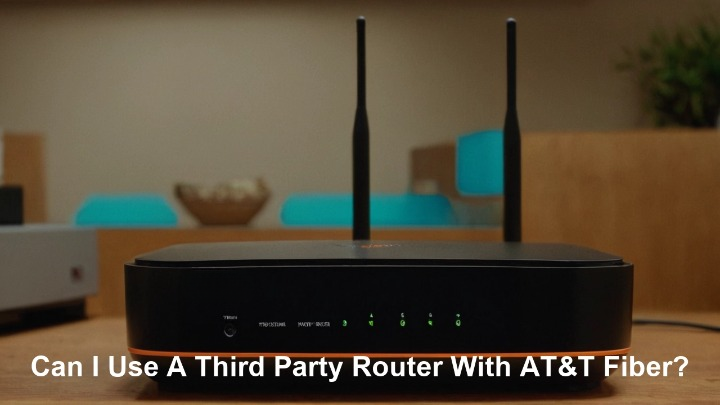
Considering using your own router with AT&T Fiber? This guide dives deep into the technicalities, benefits, and potential drawbacks. We'll explore compatibility, setup processes, and performance expectations, empowering you to make an informed decision for your home network.
Understanding AT&T Fiber and Routers
AT&T Fiber represents a significant leap in home internet technology, utilizing fiber-optic cables to deliver incredibly fast and reliable internet speeds. Unlike traditional copper lines, fiber optics transmit data as pulses of light, allowing for speeds that can reach up to 5 Gigabits per second (Gbps) in many areas. This high-speed capability is crucial for modern households with multiple connected devices, demanding applications like 4K streaming, online gaming, and extensive video conferencing.
At the heart of any home network is the router. The router's primary function is to create and manage your local area network (LAN), allowing your various devices (laptops, smartphones, smart TVs, gaming consoles) to communicate with each other and, more importantly, with the internet. It acts as the traffic controller, directing data packets to their intended destinations. For AT&T Fiber, the service is typically delivered to your home via an Optical Network Terminal (ONT), which converts the light signals from the fiber optic cable into electrical signals that your networking equipment can understand.
AT&T, like most internet service providers (ISPs), provides its customers with a piece of equipment that often serves as both a modem (or ONT interface) and a router. This all-in-one device is commonly referred to as a "gateway." The gateway provided by AT&T is specifically designed and configured to work seamlessly with their fiber optic network, ensuring optimal performance and ease of setup for the average user. However, for users with specific networking needs, advanced features, or a desire for greater control over their home network, the question naturally arises: can they replace or supplement this AT&T-provided gateway with their own, preferred third-party router? This is a common query for tech-savvy consumers looking to optimize their internet experience.
The Official AT&T Gateway Explained
When you subscribe to AT&T Fiber, the company typically installs and provides a device known as an AT&T Gateway. This unit is more than just a router; it's a comprehensive networking hub designed to handle the unique requirements of fiber optic internet. The primary function of the AT&T Gateway is to connect your home to AT&T's fiber network and then distribute that internet connection to your various devices.
Key Functions of the AT&T Gateway:
- ONT Integration: In many cases, the AT&T Gateway incorporates the Optical Network Terminal (ONT) functionality. This means it directly interfaces with the fiber optic cable coming into your home, converting the optical signals into electrical signals that your devices can use. This integration simplifies installation as you have fewer devices to manage.
- Routing: It acts as a router, creating your home's Wi-Fi network and managing the flow of data between your devices and the internet.
- Wi-Fi Provision: The gateway provides the wireless signal (Wi-Fi) that allows your devices to connect without cables. Newer AT&T Gateways often support advanced Wi-Fi standards like Wi-Fi 6 (802.11ax) to provide faster speeds and better performance in congested environments.
- DHCP Server: It assigns IP addresses to all devices connected to your network, ensuring they can communicate effectively.
- Firewall: Most gateways include a basic firewall to provide a layer of security against external threats.
AT&T provides these gateways to ensure a consistent and reliable service experience for their customers. They are pre-configured with the necessary settings to connect to the AT&T network, making the initial setup process relatively straightforward. For many users, the performance and features offered by the AT&T Gateway are sufficient for their daily internet needs. However, the limitations of ISP-provided equipment are well-documented, often including less robust Wi-Fi coverage, fewer advanced configuration options, and sometimes slower speeds than high-end third-party alternatives. This is where the desire to use a personal router often stems from.
Can I Use a Third-Party Router with AT&T Fiber? The Direct Answer
Yes, you can generally use a third-party router with AT&T Fiber, but with some important caveats and specific configurations. AT&T's network architecture allows for this flexibility, but it's not always a simple plug-and-play scenario. The primary consideration is how the AT&T network authenticates your internet connection.
Historically, ISPs would require their own modem to be used to authenticate your service. However, with fiber optic services, the authentication often happens at the ONT. AT&T's setup typically involves their provided gateway acting as the primary device that establishes the connection. To use your own router, you often need to configure the AT&T Gateway in a specific mode, usually called "IP Passthrough" or "Bridge Mode" (though AT&T officially refers to it as IP Passthrough).
IP Passthrough: This mode essentially allows the AT&T Gateway to pass the public IP address assigned by AT&T directly to your third-party router. The AT&T Gateway then acts more like a modem, with your own router taking over all the routing, Wi-Fi, and firewall functions. This is the most common and recommended method for integrating a third-party router with AT&T Fiber.
Direct ONT Connection (Less Common/Supported): In some very specific, often older, or business-oriented AT&T Fiber setups, it might be possible to connect a third-party router directly to the ONT via an Ethernet cable, bypassing the AT&T Gateway entirely. This requires the ONT to have a standard Ethernet port and for AT&T to provide you with the necessary PPPoE (Point-to-Point Protocol over Ethernet) credentials. However, this method is less common for residential AT&T Fiber installations and may not be supported by AT&T customer service. The IP Passthrough method is the standard and most reliable approach for most users.
It's crucial to understand that AT&T's support for troubleshooting issues when you're using your own router might be limited. They are responsible for the service up to the AT&T Gateway, but beyond that, the performance and configuration are your responsibility. This is a key trade-off to consider when deciding to use your own equipment.
Why Consider a Third-Party Router?
The decision to use a third-party router with AT&T Fiber is often driven by a desire for enhanced performance, greater control, and specific features that ISP-provided equipment may lack. While AT&T's gateways are designed for broad compatibility and ease of use, they may not cater to the nuanced needs of every user.
Superior Wi-Fi Performance: This is perhaps the most common reason. High-end third-party routers often feature more advanced Wi-Fi chipsets, better antenna designs, and support for the latest Wi-Fi standards (like Wi-Fi 6E and Wi-Fi 7, which were emerging in late 2023 and gaining traction in 2024-25) that can provide significantly better speed, range, and stability, especially in larger homes or environments with many connected devices. They may also offer more advanced Wi-Fi management features, such as dedicated backhaul for mesh systems, better Quality of Service (QoS) settings, and more granular control over Wi-Fi channels and power levels.
Advanced Networking Features: For users who need more than basic internet connectivity, third-party routers often provide a richer set of features. This can include:
- Advanced QoS (Quality of Service): Prioritize specific types of traffic (e.g., gaming, video conferencing) to ensure a smooth experience even when the network is busy.
- VPN Support: Built-in VPN client or server functionality for enhanced privacy and secure remote access.
- Parental Controls: More sophisticated tools for managing internet access for children.
- Guest Networks: Easier creation and management of separate Wi-Fi networks for visitors.
- Port Forwarding and DMZ: More flexible and robust options for users who run servers or require specific network configurations for applications.
- Custom Firmware: The ability to install custom firmware like DD-WRT or OpenWrt, which unlocks a vast array of advanced features and customization options.
Better Hardware and Future-Proofing: Premium routers are often built with higher-quality components, leading to better reliability and longevity. They may also come equipped with faster processors, more RAM, and more Ethernet ports (including 2.5GbE or 10GbE ports) that can take full advantage of multi-gigabit AT&T Fiber plans. As internet speeds continue to increase, a powerful third-party router can ensure your network hardware isn't a bottleneck.
Consolidating Equipment: If your AT&T Fiber installation requires a separate ONT device in addition to the gateway, using a third-party router can sometimes allow you to consolidate functionality. However, as noted, AT&T gateways often integrate the ONT, so this benefit is more pronounced if you can bypass the AT&T gateway entirely or put it in a true bridge mode where it's only acting as a modem.
Cost Savings (Long Term): While the initial investment in a high-quality router can be substantial, in the long run, it might save money by avoiding potential equipment rental fees from AT&T, especially if you plan to stay with the service for many years.
Personal Preference and Brand Loyalty: Many users simply prefer the interface, design, and ecosystem of specific router brands (e.g., ASUS, Netgear, TP-Link, Ubiquiti) and are willing to invest in them for a familiar and optimized user experience.
In 2025-26, with the increasing adoption of multi-gigabit internet plans and the proliferation of smart home devices, the demand for robust and feature-rich home networking solutions continues to grow, making third-party routers a compelling option for many AT&T Fiber subscribers.
Potential Drawbacks and Considerations
While the allure of a custom-built home network is strong, integrating a third-party router with AT&T Fiber isn't without its potential challenges. Understanding these drawbacks upfront is crucial for a smooth transition and a satisfactory experience.
Limited AT&T Support: This is a significant factor. When you use your own router, AT&T's technical support is generally limited to ensuring their gateway is functioning correctly and that the service is provisioned to your address. They will not typically troubleshoot issues related to your third-party router's configuration, Wi-Fi performance, or connectivity problems stemming from your own equipment. You will be solely responsible for diagnosing and resolving these issues.
Setup Complexity: While the IP Passthrough mode simplifies things compared to older methods, it still requires a degree of technical proficiency. You'll need to access your AT&T Gateway's administrative interface, find the IP Passthrough settings, and correctly configure your third-party router to obtain the public IP address. This can be daunting for users who are not comfortable with network settings.
Potential for Reduced Speeds (if not configured correctly): If your third-party router is not powerful enough, or if it's not configured properly, you might not achieve the full speeds that your AT&T Fiber plan offers. Older or lower-end routers may not have the processing power to handle multi-gigabit connections efficiently, or their WAN ports might be limited to 1Gbps.
Loss of AT&T Specific Features: Some AT&T Gateways come with integrated features like Wi-Fi extenders (e.g., AT&T Smart Wi-Fi Extender) or specific management apps. When you switch to a third-party router, you will lose access to these AT&T-provided services. You'll need to ensure your new router or a separate mesh system can provide equivalent coverage and features.
Compatibility Issues: While most modern routers are compatible, there's always a small chance of unforeseen compatibility issues between a specific third-party router model and AT&T's network or gateway firmware. This is more likely with older routers or those with very niche features.
Cost of Investment: High-quality, feature-rich routers capable of handling multi-gigabit speeds can be expensive. This initial outlay can be a significant barrier for some users, especially when AT&T's gateway is often included at no extra charge or a nominal monthly fee.
Firmware Updates and Maintenance: You will be responsible for keeping your third-party router's firmware updated to ensure security and optimal performance. This requires periodic checks and manual updates, unlike ISP-provided equipment where updates are often pushed automatically.
Multi-Gigabit WAN Port Requirement: For AT&T Fiber plans offering speeds above 1 Gbps (e.g., 2 Gbps, 5 Gbps), your third-party router *must* have a WAN (Internet) port that supports speeds greater than 1 Gbps. Most routers in the 2025-26 market that are designed for high-speed internet will have at least a 2.5Gbps WAN port, but it's essential to verify this specification.
AT&T Gateway Updates: AT&T may push firmware updates to their gateways that could, in rare instances, affect how they interact with third-party routers in IP Passthrough mode. While generally stable, this is a potential, albeit low-probability, risk.
Carefully weighing these potential downsides against the benefits will help you determine if the switch to a third-party router is the right choice for your AT&T Fiber connection.
Technical Requirements for Third-Party Routers
To successfully use a third-party router with AT&T Fiber, your chosen router needs to meet specific technical requirements. These ensure compatibility, performance, and the ability to leverage the full potential of your high-speed internet connection.
WAN Port Speed: This is paramount, especially for higher-tier AT&T Fiber plans.
- For 1 Gbps Plans: Your router needs at least a 1 Gbps WAN (Internet) port.
- For Multi-Gigabit Plans (2 Gbps, 5 Gbps, etc.): Your router *must* have a WAN port that supports speeds greater than 1 Gbps. The most common options in 2025-26 are 2.5 Gbps or 10 Gbps WAN ports. Ensure the router's internal processing power can also handle these speeds.
WAN Connection Type: Your router must support the connection type required by AT&T. In the context of IP Passthrough, your router will typically obtain an IP address via DHCP from the AT&T Gateway. However, if you were attempting a direct ONT connection (less common), it would require PPPoE support. For IP Passthrough, DHCP client functionality is essential.
DHCP Client Capability: When the AT&T Gateway is in IP Passthrough mode, it assigns the public IP address to the MAC address of your third-party router's WAN port. Your router needs to be able to act as a DHCP client to receive this IP address.
MAC Address Cloning (Optional but Recommended): In some cases, the AT&T Gateway might bind the public IP address to the MAC address of the device it's passing through. If you encounter issues where your router doesn't get an IP address, you might need to clone the MAC address of your third-party router's WAN port into the AT&T Gateway's IP Passthrough settings. Conversely, some routers allow you to clone the MAC address of the AT&T Gateway's WAN port onto your router's WAN port. This feature is crucial for troubleshooting connectivity.
Wi-Fi Standards: For optimal performance, especially with many devices, consider a router that supports the latest Wi-Fi standards.
- Wi-Fi 6 (802.11ax): Offers improved speed, efficiency, and performance in crowded environments.
- Wi-Fi 6E: Adds the 6 GHz band, providing more bandwidth and less interference.
- Wi-Fi 7 (802.11be): The newest standard (emerging in 2024 and gaining adoption in 2025-26), offering even higher speeds, lower latency, and increased capacity.
Processor and RAM: For multi-gigabit speeds and advanced features like VPNs or extensive QoS, a router with a powerful multi-core processor and ample RAM (e.g., 512MB or 1GB+) is essential. This prevents the router from becoming a bottleneck.
Quality of Service (QoS) Features: If you need to prioritize traffic for gaming, streaming, or video calls, ensure the router has robust and configurable QoS settings.
Security Features: Look for routers with built-in firewalls, WPA3 encryption support, and regular security firmware updates.
Ease of Management: A user-friendly web interface or mobile app can make setup and ongoing management much easier.
Mesh Compatibility (if needed): If you have a large home and need extensive Wi-Fi coverage, ensure the router is part of a mesh system or compatible with a mesh system from the same manufacturer.
By ensuring your chosen router meets these technical specifications, you significantly increase the likelihood of a successful and high-performing integration with your AT&T Fiber service.
Setting Up Your Own Router: A Step-by-Step Guide
This guide outlines the typical process for setting up a third-party router with AT&T Fiber using the IP Passthrough method. Steps may vary slightly depending on your specific AT&T Gateway model and your third-party router.
Before You Begin:
- Ensure you have your third-party router, its power adapter, and an Ethernet cable.
- Have access to a computer or smartphone for configuration.
- Note down the MAC address of your third-party router's WAN port (usually found on a sticker on the router or in its documentation).
Step 1: Connect Your Third-Party Router to the AT&T Gateway
- Disconnect all devices from your AT&T Gateway's Wi-Fi and Ethernet ports.
- Unplug the power from your AT&T Gateway.
- Connect one end of an Ethernet cable to one of the LAN ports on your AT&T Gateway.
- Connect the other end of the Ethernet cable to the WAN (Internet) port on your third-party router.
- Plug the power back into your AT&T Gateway and wait for it to fully boot up (usually indicated by stable lights).
- Plug in your third-party router and wait for it to boot up.
Step 2: Configure the AT&T Gateway for IP Passthrough
- Open a web browser on a device connected to your AT&T Gateway's Wi-Fi (or via Ethernet if you haven't powered on your third-party router yet).
- Enter the AT&T Gateway's IP address into the browser's address bar. Common addresses are 192.168.1.254.
- Log in using the gateway's administrator username and password. This is often found on a sticker on the gateway itself.
- Navigate to the gateway's settings. Look for sections like "Firewall," "NAT/Gaming," or "Home Network."
- Find the "IP Passthrough" or "DMZplus" option. (Note: AT&T's terminology might vary slightly by model).
- Enable IP Passthrough.
- In the IP Passthrough settings, you will typically need to specify which device should receive the public IP address. This is usually done by selecting the MAC address of your third-party router's WAN port. If your router is already connected and powered on, it might appear in a dropdown list. If not, you may need to manually enter the MAC address you noted earlier.
- Save the changes. The AT&T Gateway may reboot.
Step 3: Configure Your Third-Party Router
- Connect a computer to your third-party router using an Ethernet cable or connect wirelessly using its default Wi-Fi name and password (usually found on the router).
- Open a web browser and navigate to your third-party router's IP address (e.g., 192.168.1.1 for many ASUS routers, 192.168.0.1 for many Netgear routers). Consult your router's manual for the correct IP address and default login credentials.
- Log in to your router's administrative interface.
- Navigate to the WAN or Internet settings section.
- Ensure the WAN Connection Type is set to "DHCP" or "Automatic IP."
- If your router allows, ensure the "MAC Address Clone" option is set to "Use Default" or is disabled if the router correctly obtained the IP via DHCP. If you encounter issues, you might need to clone the MAC address of your third-party router's WAN port here, or sometimes, clone the MAC address of the AT&T Gateway's WAN port onto your router's WAN port. This is a troubleshooting step if direct DHCP doesn't work.
- Apply or save the settings. Your router will likely reboot.
Step 4: Verify the Connection
- Once both devices have rebooted, check the WAN status on your third-party router's interface. It should show an IP address that is not in the private range (e.g., it should be a public IP address assigned by AT&T, not starting with 192.168.x.x, 10.x.x.x, or 172.16.x.x to 172.31.x.x).
- Try browsing the internet on a device connected to your third-party router's Wi-Fi or Ethernet.
- Run a speed test (e.g., Speedtest.net) to confirm you are getting the expected speeds for your AT&T Fiber plan.
Troubleshooting Tips:
- No Internet: Power cycle both the AT&T Gateway and your third-party router. Double-check the Ethernet cable connection. Verify the MAC address entered in the AT&T Gateway's IP Passthrough settings is correct. Try cloning the MAC address of your third-party router's WAN port into the AT&T Gateway's IP Passthrough settings, or vice-versa, if your router supports it.
- Slow Speeds: Ensure your third-party router's WAN port is capable of the speeds you are paying for. Check if the router's firmware is up to date. Ensure the router's processor isn't overloaded.
- Wi-Fi Issues: Ensure your third-party router's Wi-Fi is configured correctly (SSID, password, security type). Try changing Wi-Fi channels to reduce interference.
If you continue to experience issues, consult the support documentation for both your AT&T Gateway model and your third-party router, or reach out to the manufacturer of your third-party router for assistance.
Router Recommendations for AT&T Fiber (2025-26)
Selecting the right third-party router for AT&T Fiber in 2025-26 involves balancing speed, features, and budget. With multi-gigabit plans becoming more common, routers with high-speed WAN ports and robust performance are key. Here are some categories and specific recommendations that are generally well-regarded for high-speed internet connections like AT&T Fiber.
For Multi-Gigabit Speeds (2 Gbps, 5 Gbps, 8 Gbps):
These plans require routers with at least a 2.5 Gbps WAN port, and ideally, a 10 Gbps WAN port for future-proofing or if AT&T offers even faster tiers.
- ASUS ROG Rapture Series (e.g., GT-AXE16000, GT-BE19000): ASUS's Republic of Gamers (ROG) line often features top-tier hardware. The GT-AXE16000 (Wi-Fi 6E) and the newer GT-BE19000 (Wi-Fi 7) typically include multiple 2.5 Gbps ports and often a 10 Gbps port for WAN or LAN, along with powerful processors and advanced gaming-focused features. They offer excellent firmware with extensive customization options.
- TP-Link Archer Series (e.g., Archer AX11000, Archer BE900): TP-Link offers a strong balance of performance and price. Models like the Archer AX11000 (Wi-Fi 6) and the Archer BE900 (Wi-Fi 7) often come with 2.5 Gbps WAN ports and robust feature sets, including advanced QoS and parental controls.
- Netgear Nighthawk Series (e.g., RAX120, RAXE500, MR1100 for mobile): Netgear's Nighthawk routers are known for their speed and gaming capabilities. High-end models often feature 2.5 Gbps or 10 Gbps WAN ports and support for Wi-Fi 6 or Wi-Fi 6E.
- Ubiquiti UniFi Dream Machine Pro (UDM-Pro) or UDM-SE: For users who want a more professional, integrated network solution, Ubiquiti's UniFi ecosystem is excellent. The UDM-Pro and UDM-SE offer powerful routing, firewall capabilities, and can manage UniFi access points for a unified Wi-Fi experience. They typically have 10 Gbps SFP+ ports that can be used for WAN connections with the right transceiver. This is a more advanced setup but offers unparalleled control and scalability.
For 1 Gbps Plans:
While a 1 Gbps WAN port is sufficient, a router with a 2.5 Gbps WAN port can offer some future-proofing.
- ASUS RT-AX86U/AX86S: These are very popular and capable Wi-Fi 6 routers that offer excellent performance for their price point, often featuring a 2.5 Gbps port that can be configured as WAN.
- TP-Link Archer AX73/AX90: Solid Wi-Fi 6 options that provide good speeds and features for a 1 Gbps connection.
- Google Nest Wifi Pro (Wi-Fi 6E): While primarily a mesh system, the Nest Wifi Pro offers Wi-Fi 6E and can be used as a single router. It's designed for ease of use and excellent coverage. Its WAN port is 1 Gbps.
Mesh Wi-Fi Systems:
If you have a larger home or multiple floors, a mesh system is often a better choice than a single high-powered router. Ensure the primary router unit in the mesh system has a WAN port that meets your AT&T Fiber speed requirements.
- ASUS ZenWiFi Series (e.g., XT8, ET8): These mesh systems offer Wi-Fi 6 and Wi-Fi 6E, respectively, and the main router node typically has a 2.5 Gbps WAN port.
- TP-Link Deco Series (e.g., Deco X90, Deco XE75): TP-Link's Deco line provides robust mesh solutions, with higher-end models supporting Wi-Fi 6 and Wi-Fi 6E, and often featuring 2.5 Gbps WAN ports.
- Eero Pro 6/6E: Amazon's Eero systems are known for their simplicity and strong performance, offering Wi-Fi 6 and Wi-Fi 6E. The Pro versions provide a dedicated wireless backhaul and typically have gigabit Ethernet ports.
Key Considerations for 2025-26:
- Wi-Fi 7 Adoption: While Wi-Fi 6 and 6E are mature, Wi-Fi 7 devices are becoming more prevalent. If you're investing in a new router and want the absolute latest, consider Wi-Fi 7, but ensure your devices also support it to benefit fully.
- Multi-Gigabit Ethernet Ports: Beyond the WAN port, having multiple LAN ports that support 2.5 Gbps or higher can be beneficial for wired devices like PCs, NAS drives, or gaming consoles.
- Security Updates: Check the manufacturer's reputation for providing timely security firmware updates.
Always check the specific specifications of any router you are considering to ensure it meets the WAN speed requirements for your AT&T Fiber plan and offers the features you desire.
Performance and Speed Expectations
When you transition from the AT&T Gateway to a third-party router, your performance and speed expectations should be carefully managed. The goal is typically to match or exceed the speeds provided by AT&T, with potential improvements in Wi-Fi coverage and stability.
Internet Speed:
- Matching AT&T Speeds: With a properly configured third-party router that has a sufficiently fast WAN port (e.g., 2.5 Gbps or 10 Gbps for multi-gigabit plans) and a powerful processor, you should be able to achieve speeds very close to, if not exactly matching, what your AT&T Fiber plan provides. For a 1 Gbps plan, you should consistently see speeds in the 900+ Mbps range. For multi-gigabit plans, you should see speeds in the 1.5-2 Gbps range for a 2 Gbps plan, and 3-5 Gbps for a 5 Gbps plan, depending on the specific router's capabilities and testing methodology.
- Wired vs. Wireless: Wired connections (Ethernet) from your router to devices will generally yield the most consistent and highest speeds, especially for multi-gigabit connections. Wireless speeds are subject to more variables.
- Bottlenecks: Ensure your third-party router's internal hardware (CPU, RAM) is robust enough to handle the high throughput without becoming a bottleneck. A router designed for gigabit speeds might struggle with 2 Gbps or 5 Gbps.
Wi-Fi Performance:
- Improved Coverage: Many users switch to third-party routers specifically to improve Wi-Fi coverage. High-end routers often have better antenna designs and more powerful radios, leading to a stronger signal throughout the home compared to the AT&T Gateway.
- Higher Speeds: With Wi-Fi 6, Wi-Fi 6E, or Wi-Fi 7, you can expect significantly faster wireless speeds, especially for devices that support these newer standards. This means quicker downloads, smoother streaming, and more responsive online gaming over Wi-Fi.
- Better Device Handling: Advanced routers are better equipped to handle a large number of connected devices simultaneously. Technologies like OFDMA (in Wi-Fi 6 and later) improve efficiency and reduce congestion, ensuring all your smart home gadgets, laptops, and phones perform well.
- Reduced Interference: Newer Wi-Fi bands (like 6 GHz in Wi-Fi 6E and 7) offer less crowded airwaves, leading to more stable and faster connections for compatible devices.
Latency:
- Stable Latency: While the AT&T Fiber connection itself typically offers very low latency, a well-configured third-party router can help maintain that low latency. Poorly performing routers or those with heavy QoS processing can sometimes introduce slight increases in latency.
- Gaming and Real-time Applications: For activities like online gaming, video conferencing, and VoIP calls, consistent low latency is critical. A powerful third-party router with good QoS can prioritize this traffic, ensuring a smooth experience.
Reliability and Stability:
- Hardware Quality: Higher-quality routers are built with better components, leading to greater reliability and fewer unexpected reboots or failures compared to some ISP-provided devices.
- Firmware Stability: While ISP gateways are generally stable, third-party routers from reputable brands often have well-tested firmware that provides a stable network environment.
Factors Affecting Performance:
- Router Hardware: The processor, RAM, and Wi-Fi chipsets in your router are critical.
- Router Configuration: Correctly setting up IP Passthrough and your router's WAN settings is essential.
- Wi-Fi Environment: The size and layout of your home, building materials, and interference from neighboring Wi-Fi networks all impact wireless performance.
- Device Capabilities: The Wi-Fi and Ethernet capabilities of the devices connecting to your network also play a role.
- AT&T Network Performance: While AT&T Fiber is generally very reliable, external factors on the ISP's network can occasionally affect speeds.
In summary, with the right third-party router and proper configuration, you can expect to achieve excellent performance that meets or exceeds your AT&T Fiber plan's advertised speeds, coupled with potentially superior Wi-Fi coverage and advanced features.
Troubleshooting Common Issues
Even with careful setup, you might encounter issues when using a third-party router with AT&T Fiber. Here's a guide to troubleshooting common problems:
1. No Internet Connection After Setup
- Check Physical Connections: Ensure the Ethernet cable between the AT&T Gateway and your third-party router's WAN port is securely plugged in at both ends. Try a different Ethernet cable.
- Power Cycle Everything: Turn off both the AT&T Gateway and your third-party router. Wait 30 seconds. Turn on the AT&T Gateway first and wait for it to fully boot up. Then, turn on your third-party router and wait for it to boot up.
- Verify IP Passthrough Settings: Log back into your AT&T Gateway. Double-check that IP Passthrough is enabled and that the correct MAC address for your third-party router's WAN port is entered.
- MAC Address Cloning: If the above doesn't work, try MAC address cloning.
- Option A: Clone Router MAC in Gateway: Ensure the MAC address of your third-party router's WAN port is correctly entered in the AT&T Gateway's IP Passthrough settings.
- Option B: Clone Gateway MAC in Router: Some users find success by cloning the MAC address of the AT&T Gateway's WAN port onto your third-party router's WAN port. This is usually done in your router's WAN or Internet settings.
- Check Router's WAN Status: Log into your third-party router's interface. Look at the WAN or Internet status. Does it show an IP address? If it's a private IP (like 192.168.x.x), it's not getting the public IP from AT&T.
- Reset Router to Factory Defaults: If you suspect your router's configuration is the issue, perform a factory reset on your third-party router and go through the setup process again.
2. Slow Internet Speeds (Wired or Wireless)
- Test Wired Connection: Connect a computer directly to one of your third-party router's LAN ports using an Ethernet cable. Run a speed test. If speeds are good here, the issue is likely with your Wi-Fi.
- Verify WAN Port Speed: Ensure your router's WAN port is capable of handling your AT&T Fiber speed. For example, if you have a 2 Gbps plan, your router needs at least a 2.5 Gbps WAN port.
- Check Router CPU Load: Some routers, especially older or less powerful ones, can become overloaded when trying to route multi-gigabit traffic. Check your router's system status for CPU usage.
- Update Router Firmware: Ensure your router is running the latest firmware from the manufacturer. Updates often include performance improvements and bug fixes.
- Wi-Fi Channel Interference: If Wi-Fi speeds are slow, try changing the Wi-Fi channel in your router's settings. Use a Wi-Fi analyzer app to find less congested channels.
- Device Limitations: Ensure the device you are testing with has the capability to receive high speeds (e.g., a gigabit Ethernet port or a Wi-Fi 6/6E/7 adapter).
- Test Different Locations: For Wi-Fi, test speeds in different parts of your home.
3. Wi-Fi Signal is Weak or Unreliable
- Router Placement: Ensure your router is placed in a central, open location, away from obstructions like thick walls, metal objects, and other electronics that can cause interference.
- Antenna Adjustment: If your router has external antennas, try adjusting their orientation.
- Wi-Fi Standard and Band: Ensure you are connecting to the appropriate Wi-Fi band (2.4 GHz for range, 5 GHz or 6 GHz for speed) and standard (Wi-Fi 6, 6E, 7) that your device supports.
- Mesh System Issues: If using a mesh system, ensure the satellite nodes are optimally placed and have a strong connection back to the main router.
- Interference: Other Wi-Fi networks, microwaves, Bluetooth devices, and cordless phones can interfere.
4. Certain Devices Cannot Connect or Work Properly
- Check Router's Device List: See if the device is recognized by your router.
- Reboot the Device: Sometimes, simply rebooting the problematic device can resolve connection issues.
- Firmware on Device: Ensure the device itself has up-to-date firmware.
- Router Security Settings: If you have very strict security settings on your router (e.g., MAC filtering), ensure the device is allowed.
- IP Address Conflicts: Although rare with DHCP, ensure no devices are manually assigned the same IP address.
5. AT&T Gateway Reverts Settings or Loses IP Passthrough
- Firmware Updates: AT&T gateways can receive automatic firmware updates. In rare cases, these might reset settings. You may need to re-enable IP Passthrough after an update.
- Contact AT&T: If the gateway consistently loses settings or behaves erratically, it might indicate a hardware issue with the gateway, and you may need to contact AT&T support.
When troubleshooting, remember to change only one setting at a time and test the connection after each change to isolate the cause of the problem.
Frequently Asked Questions
Q1: Will AT&T support my third-party router if I have issues?
A: Generally, AT&T's support is limited to their provided gateway and the service up to that point. They will not typically troubleshoot problems with your third-party router's configuration, Wi-Fi, or internal network. You will need to rely on the router manufacturer's support or online communities.
Q2: Do I need a separate modem if I use my own router with AT&T Fiber?
A: For AT&T Fiber, the AT&T Gateway often integrates the Optical Network Terminal (ONT) functionality. When using IP Passthrough, the AT&T Gateway acts as the bridge to the fiber network, and your third-party router handles everything else. You do not need a separate modem in the traditional sense, but you do need to use the AT&T Gateway in a specific mode.
Q3: Can I disable the Wi-Fi on the AT&T Gateway when using my own router?
A: Yes, most AT&T Gateways allow you to disable the Wi-Fi broadcast. This is recommended to avoid Wi-Fi interference between the AT&T Gateway and your third-party router. You can usually find this option in the Wi-Fi settings within the gateway's administrative interface.
Q4: What speeds can I expect from my third-party router?
A: With a router capable of handling your AT&T Fiber plan's speed (e.g., a 2.5 Gbps WAN port for a 2 Gbps plan) and proper configuration, you should expect to achieve speeds close to your subscribed rate, especially on wired connections. Wireless speeds will vary based on the Wi-Fi standard, your device's capabilities, and environmental factors.
Q5: Is it worth the cost to buy a third-party router?
A: This depends on your needs. If you require better Wi-Fi coverage, advanced features, higher performance for demanding applications, or simply prefer more control over your network, then yes, it can be worth the investment. If the AT&T Gateway meets your current needs, you might not need to upgrade.
Q6: What is IP Passthrough?
A: IP Passthrough is a setting on the AT&T Gateway that allows it to pass the public IP address assigned by AT&T directly to a specific device on your network (your third-party router's WAN port). This effectively makes the AT&T Gateway act more like a modem, with your own router taking over all routing, firewall, and Wi-Fi functions.
Q7: Do I need a router with a 10 Gbps port for AT&T's 5 Gbps plan?
A: For AT&T's 5 Gbps plan, a router with at least a 2.5 Gbps WAN port is the minimum requirement to get close to those speeds. However, for optimal performance and to fully utilize the speed, a router with a 10 Gbps WAN port is highly recommended. Many high-end routers offer both 2.5 Gbps and 10 Gbps ports, allowing you to configure one as WAN and others as LAN.
In conclusion, using a third-party router with AT&T Fiber is a viable and often beneficial option for users seeking enhanced network performance, greater control, and advanced features. By understanding the technical requirements, following the setup process diligently, and choosing a router that aligns with your specific AT&T Fiber speed tier, you can unlock a superior home networking experience. While AT&T's provided gateway serves its purpose, the flexibility and power of a custom-built network often outweigh the complexities involved in the transition.