Best Mediacom Compatible Modems in 2026 – Save on Rental Fees & Boost Speed
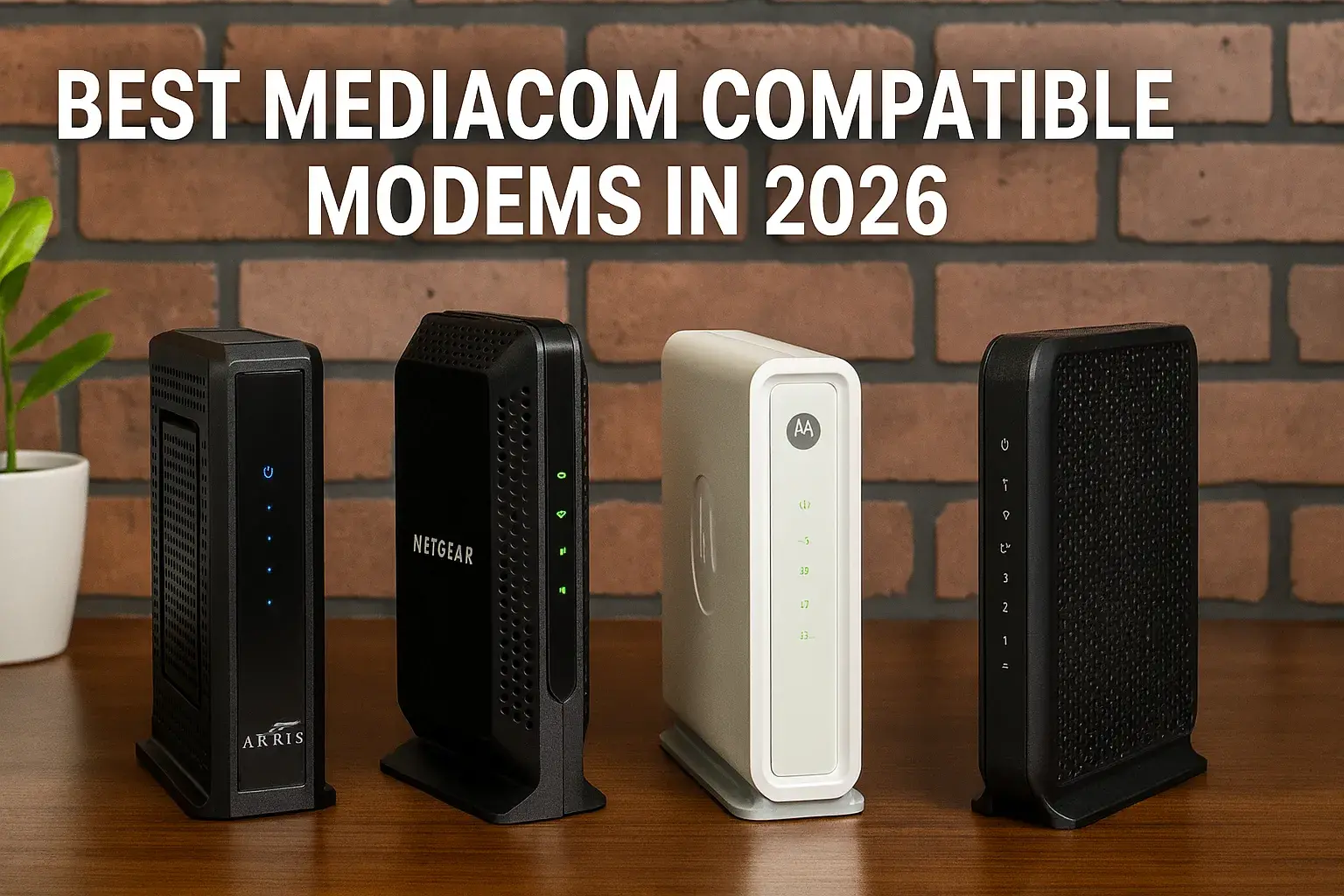
Looking for the best Mediacom compatible modems in 2026? This guide helps you ditch expensive rental fees and unlock blazing-fast internet speeds by choosing the right modem. Discover top models that meet Mediacom's requirements and offer superior performance for your home network.
Why Owning Your Mediacom Modem is a Smart Move in 2026
In the ever-evolving landscape of home internet, the decision of whether to rent or buy your modem can significantly impact your budget and internet experience. For Mediacom subscribers, especially as we head into 2026, owning your modem is increasingly becoming the financially savvy and performance-driven choice. Mediacom, like many Internet Service Providers (ISPs), offers modem rental services. While convenient, these monthly fees can accumulate substantially over time, often costing upwards of $10-$15 per month. Over a year, this translates to $120-$180, and over five years, it could reach $600-$900 or more. This is a considerable amount of money that could be better invested in a high-quality modem that not only meets Mediacom's standards but also enhances your internet speed and reliability.
Beyond the financial savings, owning your modem offers greater control and flexibility. You're not tied to the ISP's potentially outdated or basic equipment. Instead, you can select a modem that perfectly aligns with your internet plan's speed tier, your household's usage patterns, and your future networking needs. This allows for optimization, ensuring you're getting the most out of your subscription. Furthermore, when you own your modem, you can easily upgrade it when newer, faster technologies become available, or when Mediacom upgrades its network infrastructure. This proactive approach can lead to a consistently better internet experience, with less buffering during streaming, faster downloads, and more responsive online gaming. In 2026, with internet speeds becoming increasingly critical for remote work, online education, and entertainment, making the switch to owning your Mediacom modem is a strategic decision that pays dividends in both cost savings and performance.
Understanding Mediacom Modem Compatibility Requirements
Before diving into the best modem options, it's crucial to understand what makes a modem "Mediacom compatible." Mediacom, operating on a cable internet network, relies on specific DOCSIS (Data Over Cable Service Interface Specification) standards. These standards dictate the communication protocol between your modem and Mediacom's network. Using a modem that doesn't meet their current specifications will result in no internet connection or a severely degraded one.
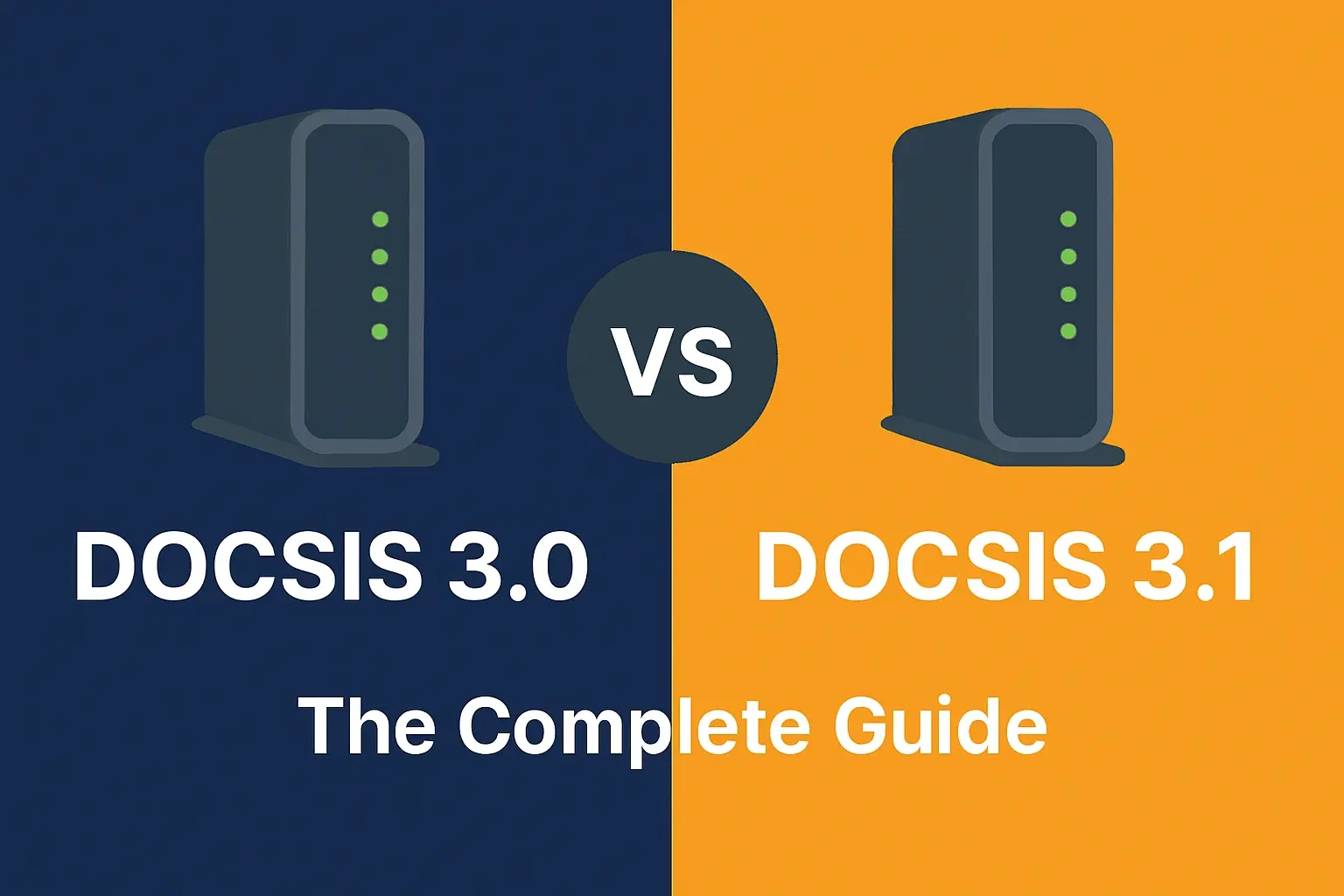
As of 2026, Mediacom primarily supports and recommends modems that adhere to the DOCSIS 3.0 standard. For subscribers with higher-speed internet plans (typically those exceeding 300 Mbps), Mediacom strongly advises, and sometimes requires, DOCSIS 3.1 modems. DOCSIS 3.1 is the latest iteration, offering significantly higher throughput, better efficiency, and improved performance, especially in congested network areas. It's backward compatible with DOCSIS 3.0, meaning a DOCSIS 3.1 modem will work on Mediacom's network even if it's still using some DOCSIS 3.0 infrastructure, but it's essential for future-proofing and maximizing speeds on their faster tiers.
Mediacom also maintains a list of approved modems. While not strictly mandatory for all users, consulting this list is highly recommended. This list ensures that the modems have been tested and verified to work seamlessly with Mediacom's network. You can usually find this list on Mediacom's official website under their support or equipment sections. Key specifications to look for on any modem you consider include:
DOCSIS Version: Ensure it's at least DOCSIS 3.0, and preferably DOCSIS 3.1 for higher speed plans.
Channel Bonding: For DOCSIS 3.0, look for modems with a high number of bonded channels. Common configurations are 8x4 (8 downstream, 4 upstream) for basic plans, 16x4 or 24x8 for mid-tier plans, and 32x8 for higher-end plans. More channels generally mean better speed and stability. DOCSIS 3.1 inherently supports a much larger number of channels and utilizes OFDM (Orthogonal Frequency-Division Multiplexing) for greater efficiency.
IPv6 Support: Essential for modern internet connectivity.
Gigabit Ethernet Ports: Ensure the modem has at least one Gigabit Ethernet port to support high-speed internet plans.
It's also important to note that Mediacom's network technology can vary slightly by region. While DOCSIS 3.0 and 3.1 are standard, some areas might still be transitioning or have specific equipment requirements. Therefore, checking Mediacom's official compatibility list or contacting their support directly with the model number of a potential modem is the most foolproof way to guarantee compatibility.
The Best Mediacom Compatible Modems of 2026
Selecting the right modem involves balancing performance, features, price, and compatibility. Based on current market trends and Mediacom's likely network standards for 2026, here are some of the top contenders. These recommendations cater to various speed tiers and user needs.
1. ARRIS SURFboard SB8200 (DOCSIS 3.1)
Overview: The ARRIS SURFboard SB8200 is a highly regarded DOCSIS 3.1 modem that is an excellent choice for Mediacom subscribers looking for future-proof performance and compatibility with higher-speed plans. It's a standalone modem, meaning it doesn't include a built-in router, which is ideal for users who prefer to use their own high-performance Wi-Fi router.
Key Features:
DOCSIS 3.1 and backward compatible with DOCSIS 3.0.
Supports speeds up to 1 Gbps.
2x2 OFDM DOCSIS 3.1 channels and 32x8 DOCSIS 3.0 channels.
Two Gigabit Ethernet ports, allowing for a direct connection to a router or a computer.
Easy setup process.
Why it's great for Mediacom: This modem is perfect for Mediacom's gigabit plans and any plan up to 1 Gbps. Its DOCSIS 3.1 capability ensures it can take full advantage of Mediacom's latest network upgrades, offering superior speed and stability. The two Ethernet ports offer some flexibility, though it's best used with a dedicated router.
2. NETGEAR CM1000 (DOCSIS 3.1)
Overview: Another excellent DOCSIS 3.1 option, the NETGEAR CM1000 is known for its reliability and performance. Like the SB8200, it's a modem-only device, providing a clean slate for your home network setup.
Key Features:
DOCSIS 3.1 and DOCSIS 3.0 compatible.
Supports internet speeds up to 1 Gbps.
Features one Gigabit Ethernet port.
Plug-and-play setup.
Robust build quality.
Why it's great for Mediacom: The CM1000 is a solid choice for Mediacom subscribers with plans up to 1 Gbps. Its DOCSIS 3.1 compliance ensures it's ready for the fastest speeds Mediacom offers. While it only has one Ethernet port, this is standard for modem-only devices and perfectly adequate when paired with a separate Wi-Fi router.
3. ARRIS SURFboard SBG10 (DOCSIS 3.0 - DOCSIS 3.1 Ready)
Overview: For users who want a more integrated solution but still want to avoid rental fees, the ARRIS SURFboard SBG10 is a viable option. It's a DOCSIS 3.0 modem with some DOCSIS 3.1 capabilities, acting as a gateway (modem + router). However, it's best suited for lower to mid-tier internet plans.
Key Features:
DOCSIS 3.0 with 16x4 channel bonding.
Integrated Wi-Fi 4 (802.11n) router.
One Gigabit Ethernet port.
Supports speeds up to 650 Mbps.
Why it's great for Mediacom: This gateway is a good fit for Mediacom plans up to around 300-400 Mbps. It simplifies setup by combining modem and router functions. However, for speeds above 400 Mbps, a dedicated DOCSIS 3.1 modem and a separate, more robust Wi-Fi router would be a better investment for optimal performance.
4. Motorola MG7700 (DOCSIS 3.0 - DOCSIS 3.1 Ready)
Overview: The Motorola MG7700 is a powerful DOCSIS 3.0 gateway that offers impressive Wi-Fi speeds and reliability. It's a good all-in-one solution for users who don't want the complexity of managing separate devices.
Key Features:
DOCSIS 3.0 with 24x8 channel bonding.
Integrated AC1900 dual-band Wi-Fi router.
Four Gigabit Ethernet ports.
Supports speeds up to 1 Gbps (modem capability), but Wi-Fi performance may cap out lower depending on plan.
Why it's great for Mediacom: With 24x8 channel bonding, the MG7700 can handle Mediacom plans up to around 600-700 Mbps effectively. The AC1900 Wi-Fi ensures good wireless coverage for most homes. It's a strong contender if you prefer an all-in-one device for plans that don't demand the absolute cutting edge of DOCSIS 3.1 speeds.
5. TP-Link TC7650 (DOCSIS 3.0)
Overview: TP-Link offers reliable networking equipment, and the TC7650 is a solid DOCSIS 3.0 modem choice for Mediacom subscribers on mid-tier plans.
Key Features:
DOCSIS 3.0 with 24x8 channel bonding.
Supports speeds up to 650 Mbps.
One Gigabit Ethernet port.
Compact design.
Why it's great for Mediacom: This modem is well-suited for Mediacom plans up to 400-500 Mbps. Its 24 downstream channels provide good bandwidth aggregation for stable performance. It's a cost-effective option if you plan to pair it with your own Wi-Fi router.
Comparison Table: Top Mediacom Compatible Modems in 2026
Model | DOCSIS Standard | Max Speed (Theoretical) | Channels | Ethernet Ports | Integrated Router | Best For Mediacom Plans |
|---|---|---|---|---|---|---|
ARRIS SURFboard SB8200 | 3.1 / 3.0 | 1 Gbps+ | 2x2 OFDM (3.1) / 32x8 (3.0) | 2 x GigE | No | 300 Mbps to 1 Gbps+ |
NETGEAR CM1000 | 3.1 / 3.0 | 1 Gbps | 2x2 OFDM (3.1) / 32x8 (3.0) | 1 x GigE | No | 300 Mbps to 1 Gbps |
ARRIS SURFboard SBG10 | 3.0 (DOCSIS 3.1 ready) | 650 Mbps | 16x4 | 1 x GigE | Yes (Wi-Fi 4) | Up to 300 Mbps |
Motorola MG7700 | 3.0 | 1 Gbps (modem) | 24x8 | 4 x GigE | Yes (AC1900) | Up to 700 Mbps |
TP-Link TC7650 | 3.0 | 650 Mbps | 24x8 | 1 x GigE | No | Up to 500 Mbps |
Choosing Based on Your Mediacom Speed Plan
The most critical factor in selecting a modem is matching it to your Mediacom internet plan's speed. Mediacom offers a range of plans, from basic internet to gigabit speeds. Using a modem that's too slow will bottleneck your connection, while an unnecessarily powerful one might be overkill and more expensive.
For Mediacom Plans up to 300 Mbps:
A solid DOCSIS 3.0 modem with at least 8x4 channel bonding is usually sufficient. However, models with 16x4 or 24x8 channels, like the TP-Link TC7650 or Motorola MG7700 (if you want an all-in-one), offer better performance and headroom. Even a DOCSIS 3.1 modem like the SB8200 or CM1000 will work perfectly and provide excellent future-proofing.
For Mediacom Plans between 300 Mbps and 700 Mbps:
This is where DOCSIS 3.0 modems with 16x4 or 24x8 channel bonding truly shine. Models like the Motorola MG7700 or TP-Link TC7650 are good choices. However, for the best performance and to be ready for potential speed upgrades, a DOCSIS 3.1 modem such as the ARRIS SB8200 or NETGEAR CM1000 is highly recommended. These will ensure you're not limited by your modem's capabilities.
For Mediacom Plans 700 Mbps and Above (including Gigabit):
DOCSIS 3.1 is essential. Mediacom's higher-tier plans are designed to leverage the capabilities of DOCSIS 3.1 technology. Modems like the ARRIS SURFboard SB8200 and NETGEAR CM1000 are ideal. They are built to handle multi-gigabit speeds and offer the efficiency and stability required for these top-tier plans. Using a DOCSIS 3.0 modem on these plans will severely limit your speeds.
Modem vs. Gateway: What's the Difference?
It's important to distinguish between a modem and a gateway. A modem is a device that translates the signal from your ISP's network into a format your devices can use. It typically has one Ethernet port to connect to a single device or, more commonly, to a router.
A gateway, also known as a modem/router combo, is a single device that combines both a modem and a Wi-Fi router. This means it handles the internet connection from your ISP and broadcasts your Wi-Fi signal simultaneously.
Pros of Owning a Modem Only:
Flexibility: You can choose the best router for your specific Wi-Fi needs (e.g., mesh systems for large homes, high-performance routers for gaming).
Performance: Often, separate, high-end routers offer superior Wi-Fi performance and features compared to integrated routers in gateways.
Easier Upgrades: If your router becomes outdated, you only need to replace that component, not the entire modem/router unit.
Pros of Owning a Gateway:
Simplicity: A single device means less clutter and easier setup.
Cost-Effective: Can be cheaper than buying a separate modem and router, especially for basic needs.
For Mediacom users aiming for the best speeds and network control in 2026, investing in a separate DOCSIS 3.1 modem and a high-quality Wi-Fi router is generally the recommended path. This allows you to tailor your network precisely to your requirements.
How to Choose the Right Modem for Your Mediacom Plan
Selecting the perfect modem involves more than just picking a DOCSIS standard. Here's a step-by-step guide to ensure you make the best choice for your Mediacom service in 2026.
Step 1: Identify Your Mediacom Internet Plan Speed
This is the most crucial step. Log in to your Mediacom account online or check your latest bill to confirm the exact download and upload speeds of your current internet plan. Knowing these numbers will dictate the minimum requirements for your modem.
Step 2: Check Mediacom's Official Compatibility List
Visit the Mediacom website and navigate to their support or equipment section. Look for a list of approved or compatible modems. While not always exhaustive, this list is your best first reference. If a modem you're interested in is on this list, it's a strong indicator of compatibility.
Step 3: Determine the Required DOCSIS Standard
Based on your plan speed and Mediacom's current network technology:
Plans up to ~300 Mbps: DOCSIS 3.0 is generally sufficient.
Plans from ~300 Mbps to ~700 Mbps: DOCSIS 3.0 with higher channel bonding (16x4 or 24x8) is recommended. DOCSIS 3.1 is ideal for future-proofing.
Plans above ~700 Mbps (including Gigabit): DOCSIS 3.1 is mandatory for optimal performance.
Step 4: Consider Channel Bonding (for DOCSIS 3.0)
More channels mean more capacity and better performance, especially during peak hours. For DOCSIS 3.0, aim for:
Basic Plans: 8x4 channels (minimum).
Mid-Tier Plans: 16x4 or 24x8 channels.
Higher-Tier Plans (if not using DOCSIS 3.1): 32x8 channels.
DOCSIS 3.1 inherently uses OFDM channels, which are far more efficient than DOCSIS 3.0 channels.
Step 5: Decide Between Modem-Only or Gateway
As discussed, a modem-only device offers more flexibility if you already have or plan to purchase a separate, high-quality Wi-Fi router. A gateway is simpler but may compromise on Wi-Fi performance for higher-speed plans.
Step 6: Read Reviews and Check for Reliability
Once you've narrowed down your choices, read user reviews and professional tech reviews. Look for common complaints about reliability, firmware issues, or customer support. Brands like ARRIS and NETGEAR generally have a strong reputation for cable modems.
Step 7: Factor in Future Needs
Even if your current plan is modest, consider upgrading to a DOCSIS 3.1 modem if your budget allows. Internet speeds are only going to increase, and a DOCSIS 3.1 modem will serve you well for years to come, saving you from another upgrade sooner.
Step 8: Verify with Mediacom Support
Before making a purchase, it's a good practice to contact Mediacom customer support with the specific model number of the modem you're considering. They can confirm its compatibility with their network in your area.
Example Scenario:
Let's say you have Mediacom's "Gigabit" plan, which offers up to 1 Gbps download speeds. Following the steps:
Plan Speed: 1 Gbps.
Compatibility List: You check Mediacom's list and see ARRIS SB8200 and NETGEAR CM1000 are listed.
DOCSIS Standard: For 1 Gbps, DOCSIS 3.1 is required.
Channel Bonding: Both SB8200 and CM1000 are DOCSIS 3.1.
Modem/Gateway: You decide to get a modem-only to pair with your existing high-end Wi-Fi 6 router.
Reviews: Both models have excellent reviews for performance and reliability.
Future Needs: DOCSIS 3.1 is the latest standard, so this is future-proof.
Verification: You call Mediacom, confirm both are compatible, and decide on the ARRIS SB8200 due to its two Ethernet ports for potential future use.
Mediacom Modem Installation and Setup Guide
Once you've purchased your new Mediacom-compatible modem, the next step is to get it up and running. The process is generally straightforward, but following these steps carefully will ensure a smooth transition.
Step 1: Unbox and Connect Your New Modem
Carefully unbox your new modem and its accessories. You'll typically find the modem, a power adapter, and an Ethernet cable. Connect the coaxial cable (the one that brings internet into your home) to the modem's coaxial port. Then, plug in the power adapter and connect it to a power outlet. Ensure the modem is placed in a well-ventilated area.
Step 2: Connect Your Router (if using a modem-only)
If you purchased a modem-only device, connect one end of the included Ethernet cable to the Ethernet port on your new modem and the other end to the WAN (or Internet) port on your Wi-Fi router. If you have a gateway, this step is integrated.
Step 3: Power On and Wait for Lights
Turn on your modem (and router, if separate). The modem will go through a boot-up sequence. You'll see various lights on the front panel blinking and then stabilizing. This process can take several minutes (5-15 minutes is common). Look for lights indicating power, downstream, upstream, and online status. A solid "Online" or "Internet" light usually signifies that the modem has successfully connected to Mediacom's network.
Step 4: Activate Your Modem with Mediacom
This is the most critical step for getting your internet service working with your new modem. Mediacom requires you to activate your modem on their network. There are typically two ways to do this:
Option A: Online Activation (Recommended)
Ensure your modem is powered on and connected as described above.
Open a web browser on a computer or device connected to your router (or directly to the modem if you don't have a router set up yet).
Try to navigate to a website like Google.com.
You should be redirected to Mediacom's self-activation portal. If not, you may need to manually enter the activation URL provided by Mediacom (often found on their website or a setup guide).
Follow the on-screen prompts. You will likely need to provide your Mediacom account information (account number, service address, etc.) and the modem's MAC address (usually found on a sticker on the bottom or back of the modem).
The portal will guide you through the activation process, which can take another 5-15 minutes.
Option B: Phone Activation
If online activation doesn't work or you prefer speaking to someone, find the Mediacom activation phone number. This is usually available on their website or your service agreement.
Call the number and follow the automated prompts or speak to a customer service representative.
You will need to provide your account information and the modem's MAC address.
The representative will guide you through the activation process.
Step 5: Test Your Internet Connection
Once activation is complete, your modem should be online. Test your connection by visiting various websites, streaming videos, or running a speed test (e.g., Ookla Speedtest). Ensure you are getting speeds close to what your Mediacom plan promises. If you're using a separate router, make sure your Wi-Fi is broadcasting and your devices can connect wirelessly.
Step 6: Configure Your Router (if applicable)
If you're using your own router, now is the time to configure its Wi-Fi settings (network name/SSID, password, security type). For advanced users, you might also want to explore Quality of Service (QoS) settings, port forwarding, or other features offered by your router.
Important Notes:
Return Your Rented Modem: Once your new modem is activated and working, remember to return your old rented modem to Mediacom to avoid ongoing rental charges.
Firmware Updates: Some modems automatically update their firmware, while others might require manual intervention. Check your modem's documentation or manufacturer's website for details.
Troubleshooting: If you encounter issues, refer to the troubleshooting section below or contact Mediacom support.
Troubleshooting Common Mediacom Modem Issues
Even with the best equipment, you might occasionally run into problems with your Mediacom internet connection. Here are some common issues and how to resolve them.
Issue 1: No Internet Connection / Modem Not Online
Symptoms: The "Online" or "Internet" light on your modem is off, blinking, or red. Websites won't load.
Solutions:
Check Connections: Ensure the coaxial cable is screwed in tightly at both the modem and the wall outlet. Verify the power adapter is securely plugged in.
Reboot Modem and Router: Unplug the power from both your modem and router. Wait for 30-60 seconds, then plug the modem back in. Wait for it to fully boot up (lights stabilize), then plug in your router.
Check Mediacom Status: Visit the Mediacom outage map or their social media channels to see if there's a known service outage in your area.
Verify Activation: If you recently installed a new modem, ensure it has been successfully activated with Mediacom. You may need to repeat the activation process or contact Mediacom support.
Test with Direct Connection: If you use a router, try connecting a computer directly to the modem via Ethernet cable. If you get internet this way, the issue might be with your router.
Issue 2: Slow Internet Speeds
Symptoms: Websites load slowly, videos buffer, downloads take a long time, speed tests show significantly lower speeds than your plan.
Solutions:
Run a Speed Test: Use a reliable speed test service (like Ookla Speedtest) connected directly to your modem via Ethernet. Compare the results to your subscribed plan speed.
Reboot Devices: A simple reboot of your modem and router can often resolve temporary performance glitches.
Check Wi-Fi Interference: If you're experiencing slow speeds over Wi-Fi, ensure your router isn't overloaded or in a location with too much interference (e.g., near microwaves, thick walls). Try moving closer to the router or testing with an Ethernet connection.
Too Many Devices: If many devices are actively using the internet simultaneously (streaming, downloading, gaming), it can slow down the connection for everyone.
Modem/Router Limitations: Ensure your modem and router are capable of handling your plan's speed. An older DOCSIS 3.0 modem on a gigabit plan will be a bottleneck. Check your modem's channel bonding.
Contact Mediacom: If speeds remain consistently low even when connected directly via Ethernet, and there are no known outages, contact Mediacom support. There might be an issue with the signal strength to your home or network congestion in your area.
Issue 3: Intermittent Connection Drops
Symptoms: Internet connection frequently disconnects and reconnects, often for short periods.
Solutions:
Check Cable Connections: Loose coaxial or Ethernet cables are a common cause of intermittent drops. Ensure all connections are snug.
Inspect Cables: Look for any visible damage to your coaxial cable (kinks, cuts, frayed wires). Damaged cables need to be replaced.
Power Cycle: Rebooting your modem and router can sometimes resolve temporary glitches causing drops.
Check Modem Lights: Observe the modem's lights during a drop. If the "Online" light flickers or goes out, it indicates a loss of connection to Mediacom's network.
Router Issues: If the drops only occur over Wi-Fi, your router might be overheating or malfunctioning. Try connecting directly via Ethernet to see if the problem persists.
Signal Issues: Intermittent drops can sometimes be due to fluctuating signal levels. Mediacom can test your signal strength remotely.
Issue 4: Wi-Fi Problems (if using a gateway or separate router)
Symptoms: Weak Wi-Fi signal, slow Wi-Fi speeds, devices unable to connect to Wi-Fi.
Solutions:
Router Placement: Position your router in a central, open location, away from obstructions and potential sources of interference.
Reboot Router: Turn off your router, wait 30 seconds, and turn it back on.
Change Wi-Fi Channel: In your router's settings, try changing the Wi-Fi channel. This can help avoid interference from neighboring networks.
Update Router Firmware: Ensure your router's firmware is up to date. Check the manufacturer's website for updates.
Consider a Mesh System: For larger homes or areas with dead spots, a mesh Wi-Fi system can provide much better coverage than a single router.
If you've tried these troubleshooting steps and are still experiencing issues, it's time to contact Mediacom customer support. Be prepared to provide them with details about your modem model, the troubleshooting steps you've already taken, and the specific symptoms you're observing. This will help them diagnose and resolve the problem more efficiently.
Future-Proofing Your Home Network with the Right Modem
The internet landscape is constantly evolving. Speeds are increasing, and new technologies are emerging. Investing in the right modem today is not just about meeting current needs but also about preparing for the future of your home network. As we look ahead from 2026, several factors highlight the importance of future-proofing.
The Rise of DOCSIS 3.1 and Beyond:
DOCSIS 3.1 is currently the gold standard for high-speed cable internet. It offers significantly more bandwidth and efficiency than its predecessor, DOCSIS 3.0. However, the cable industry is already working on the next generation, DOCSIS 4.0, which promises even higher speeds and lower latency. While DOCSIS 4.0 devices won't be mainstream for a few more years, choosing a DOCSIS 3.1 modem now ensures you're leveraging the most advanced technology readily available. Many DOCSIS 3.1 modems are designed to be upgradeable or are built with the underlying architecture that will make the transition to future standards smoother.
Increasing Internet Demands:
Our reliance on high-speed internet continues to grow. With the proliferation of 4K and 8K streaming, cloud gaming, virtual reality experiences, and the increasing number of smart home devices, the demand for bandwidth is only going to increase. Remote work and online education are also becoming more ingrained in our daily lives, requiring stable and fast connections. A modem that can handle gigabit speeds or more today will be better equipped to handle the demands of tomorrow.
Mediacom's Network Evolution:
ISPs like Mediacom are continuously investing in their infrastructure to offer faster speeds and better service. They are rolling out DOCSIS 3.1 technology across their network, and eventually, DOCSIS 4.0. By purchasing a compatible DOCSIS 3.1 modem, you are ensuring that you can take advantage of these upgrades as soon as they become available in your area, without needing to purchase new equipment.
The Financial Advantage of Owning:
As previously discussed, the cost savings from owning your modem are substantial. Over the lifespan of a modem (typically 3-5 years), the money saved on rental fees can often offset the cost of a high-end DOCSIS 3.1 modem. This allows you to invest in better technology without incurring additional long-term expenses. When you own your modem, you also have the freedom to upgrade it when you see fit, rather than being tied to whatever Mediacom offers.
Choosing for the Long Term:
When selecting a modem in 2026, prioritize DOCSIS 3.1 compatibility, especially if you have or anticipate needing internet speeds above 300-400 Mbps. Look for modems that are from reputable manufacturers known for quality and support. While a DOCSIS 3.0 modem might seem sufficient now, a DOCSIS 3.1 modem is a more robust investment for the future. It ensures you are not only getting the best performance today but are also prepared for the technological advancements that will shape your internet experience in the coming years.
Conclusion
Navigating the world of Mediacom compatible modems in 2026 can seem daunting, but the benefits of owning your equipment are clear: significant cost savings and enhanced internet performance. By understanding Mediacom's DOCSIS requirements, particularly the shift towards DOCSIS 3.1 for higher speed tiers, you can make an informed decision. Top-tier modems like the ARRIS SURFboard SB8200 and NETGEAR CM1000 stand out for their DOCSIS 3.1 capabilities, offering the speed and reliability needed for today's demanding online activities.
Remember to always check Mediacom's official compatibility list and consider your specific internet plan speed. Whether you opt for a modem-only device to pair with a custom router or a gateway for simplicity, the key is to match the modem's specifications to your needs. Installation is typically a straightforward process, and troubleshooting common issues can often be resolved with simple steps. By investing in the right modem now, you're not only saving money on rental fees but also future-proofing your home network for the evolving demands of digital life. Make the smart switch to owning your Mediacom modem and experience a faster, more reliable, and more cost-effective internet connection in 2026 and beyond.