5 Reasons Why Your Internet Keeps Disconnecting—and How You Can Fix It
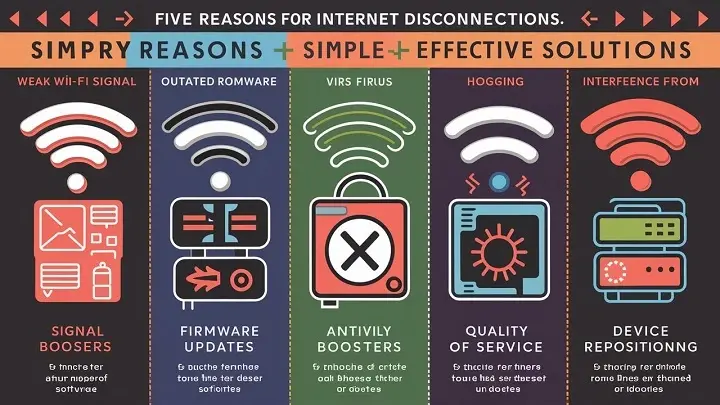
Tired of your internet cutting out at the worst possible moments? This comprehensive guide dives deep into the top 5 reasons your connection is unstable and provides actionable, step-by-step solutions you can implement today. Say goodbye to frustrating disconnections and hello to reliable Wi-Fi.
1. Router Issues: The Heart of Your Network
Your router is the central hub of your home network, managing all incoming and outgoing internet traffic. When it malfunctions, your entire internet connection suffers. These issues can range from simple software glitches to hardware failures. Understanding common router problems is the first step to a stable connection.
Firmware Glitches and Outdated Software
Like any computer, your router runs on software called firmware. Over time, bugs can appear, or new security vulnerabilities might be discovered. Manufacturers regularly release firmware updates to fix these issues, improve performance, and add new features. An outdated firmware can lead to instability, slow speeds, and unexpected disconnections.
How to Check and Update Router Firmware
The process for updating firmware varies by router model, but generally involves these steps:
- Access your router's admin panel: Open a web browser and type your router's IP address (usually 192.168.1.1 or 192.168.0.1) into the address bar. You'll need your router's username and password (often found on a sticker on the router itself or in its manual).
- Locate the firmware update section: This is typically found under "Administration," "System Tools," "Advanced Settings," or a similar category.
- Check for updates: Most routers have an option to automatically check for new firmware online. If not, you may need to visit the manufacturer's website, download the latest firmware file for your specific model, and then upload it through the admin panel.
- Install the update: Follow the on-screen prompts. Crucially, do not interrupt the process by turning off or unplugging your router during the update. This can permanently damage your router.
2025 Stat: According to a recent survey by TechInsights, approximately 45% of home routers are running firmware that is over a year old, contributing to a significant portion of reported home network issues.
Overheating
Routers generate heat as they operate. If they are placed in a poorly ventilated area, such as a closed cabinet, behind other electronics, or in direct sunlight, they can overheat. Overheating can cause performance degradation, unexpected shutdowns, and even permanent hardware damage. In 2025, with more connected devices generating continuous traffic, routers are working harder than ever.
Preventing Router Overheating
- Ensure proper ventilation: Place your router in an open area with good airflow. Avoid enclosed spaces.
- Keep it away from heat sources: Do not place your router near radiators, ovens, or in direct sunlight.
- Regular cleaning: Dust can accumulate and block vents. Gently clean your router with a soft, dry cloth or compressed air periodically.
- Consider a router stand: Some stands improve airflow by elevating the router.
Router Hardware Failure
Like any electronic device, routers have a lifespan. Components can degrade over time, leading to intermittent or complete failure. Symptoms of a failing router can include frequent reboots, dropping connections, inability to connect to the internet, or lights on the router behaving erratically.
When to Consider a Router Replacement
If you've tried updating firmware, checked for overheating, and are still experiencing persistent issues, your router might be nearing the end of its life. Consumer routers typically last between 3 to 5 years. If your router is older than this, or if it's a budget model that has been under heavy load, replacement might be the most cost-effective solution.
Tip: When purchasing a new router, consider one that supports the latest Wi-Fi standards (like Wi-Fi 6 or Wi-Fi 6E in 2025) to ensure better performance and longevity for your home network.
Router Placement and Signal Strength
The physical location of your router significantly impacts Wi-Fi signal strength and stability. Walls, large furniture, and even certain appliances can obstruct the signal, leading to dead zones and dropped connections.
Optimizing Router Placement
- Central location: Place your router in a central location in your home, as close to the center of your living space as possible.
- Elevated position: Routers generally perform better when placed on a shelf or table, rather than on the floor.
- Avoid obstructions: Keep the router away from thick walls, metal objects, mirrors, and large appliances like refrigerators or microwaves.
- Antenna orientation: If your router has external antennas, try adjusting their positions. For single-story homes, pointing them vertically might be best. For multi-story homes, orienting one vertically and one horizontally can help cover different floors.
2. Wi-Fi Interference: The Invisible Culprits
Wi-Fi signals operate on specific radio frequencies. Unfortunately, many other devices in your home also use these same frequencies, leading to interference. This interference can degrade your Wi-Fi signal, causing slow speeds and disconnections. Identifying and mitigating these sources is crucial for a stable connection.
Other Wireless Devices
The 2.4 GHz Wi-Fi band, commonly used by many routers, is also used by a wide array of household devices. These include:
- Microwave ovens
- Bluetooth devices (speakers, headphones, keyboards)
- Cordless phones
- Baby monitors
- Wireless security cameras
- Some older wireless game controllers
When these devices are active, they can "jam" or interfere with your Wi-Fi signal, especially if they are close to your router or devices connected to your Wi-Fi.
Neighboring Wi-Fi Networks
In densely populated areas like apartment buildings or close-knit neighborhoods, your Wi-Fi signal can overlap with your neighbors' networks. If multiple networks are operating on the same or adjacent channels, it creates congestion and interference. This is particularly problematic on the crowded 2.4 GHz band.
Managing Wi-Fi Channels
Routers broadcast their Wi-Fi signal on specific channels within the available frequency bands. The 2.4 GHz band has 11 channels (in North America), but only channels 1, 6, and 11 are truly non-overlapping. If your router is set to automatically select a channel, it might choose a congested one. Manually selecting a less crowded channel can significantly improve performance.
How to Change Wi-Fi Channels:
- Access your router's admin panel (as described in the firmware section).
- Navigate to the Wireless settings.
- Look for "Channel" or "Wi-Fi Channel" settings.
- For the 2.4 GHz band, try selecting channels 1, 6, or 11.
- For the 5 GHz band, there are more channels, and interference is generally less of an issue, but you can still experiment if needed.
- Save your changes and reboot your router.
Tip: You can use Wi-Fi analyzer apps on your smartphone or computer to scan for neighboring networks and identify the least congested channels in your area.
Dual-Band and Tri-Band Routers: Leveraging 5 GHz and 6 GHz
Modern routers often support multiple bands: 2.4 GHz, 5 GHz, and newer tri-band routers also include 6 GHz. The 5 GHz and 6 GHz bands offer more channels and are less prone to interference from household devices compared to 2.4 GHz. They also generally offer faster speeds.
When to Use 5 GHz or 6 GHz
- For devices close to the router: 5 GHz and 6 GHz signals have a shorter range than 2.4 GHz. They are ideal for devices that are relatively close to the router and require high speeds (e.g., streaming devices, gaming consoles, laptops).
- To reduce interference: If you have many 2.4 GHz devices causing issues, shifting your primary devices to the 5 GHz or 6 GHz band can alleviate congestion.
- For faster speeds: If your router and devices support Wi-Fi 5 (802.11ac) or Wi-Fi 6/6E (802.11ax), you'll experience significantly higher speeds on the 5 GHz or 6 GHz bands.
2025 Stat: The adoption of Wi-Fi 6E, which utilizes the 6 GHz band, is rapidly increasing. Reports indicate that over 30% of new router shipments in 2025 will support this standard, offering a significant reduction in interference for compatible devices.
Physical Obstructions
Beyond interference from other electronic devices, physical objects can also block or weaken Wi-Fi signals. These include:
- Thick concrete or brick walls
- Metal objects (filing cabinets, refrigerators, structural beams)
- Large bodies of water (aquariums)
- Mirrors and some types of insulation
Each material absorbs or reflects radio waves differently. If your router is behind a thick wall or surrounded by metal, the signal strength will diminish significantly, leading to unreliable connections.
3. ISP Problems: When the Signal Isn't Coming From You
Sometimes, the issue isn't with your home network at all, but with the service provided by your Internet Service Provider (ISP). These problems can manifest as slow speeds, intermittent outages, or complete loss of connectivity. It's essential to rule out ISP issues before spending too much time troubleshooting your own equipment.
Service Outages in Your Area
ISPs experience outages for various reasons, including equipment failures at their data centers, maintenance work, power outages affecting their infrastructure, or damage to their fiber optic or cable lines. These outages can affect a small neighborhood or a large region.
How to Check for ISP Outages
- ISP's website or app: Most ISPs have a status page or a mobile app where you can check for reported outages in your area.
- Social media: ISPs often post updates about widespread outages on their official social media channels (e.g., Twitter).
- Third-party outage trackers: Websites like Downdetector aggregate user reports to show if an ISP is experiencing widespread issues.
- Contact customer support: If you suspect an outage and can't find information online, call your ISP's customer service line.
Tip: Keep your ISP's customer service number handy for quick access during an outage.
Modem Issues
Your modem is the device that connects your home network to your ISP's network. If your modem is malfunctioning, outdated, or not properly provisioned by your ISP, it can cause connection problems. This is distinct from your router, though many modern devices combine both modem and router functions into a single "gateway" unit.
Troubleshooting Your Modem
- Check the lights: Most modems have indicator lights for power, internet connection, and activity. Consult your modem's manual to understand what each light signifies. If the internet or online light is off or blinking erratically, it indicates a problem.
- Power cycle: Unplug your modem (and router, if separate) from the power outlet. Wait for at least 30 seconds, then plug the modem back in. Wait for it to fully boot up (all lights stable), then plug in your router. This is often the first and most effective troubleshooting step.
- Check cable connections: Ensure the coaxial cable (for cable internet) or Ethernet cable (for fiber or DSL) is securely connected to both the modem and the wall outlet.
- ISP-provided equipment: If your ISP provided the modem, they may be able to remotely diagnose and fix issues. If it's your own modem, ensure it's compatible with your ISP's service and speed tier.
Bandwidth Limitations and Throttling
Your internet plan has a maximum speed (bandwidth). If you're trying to use more bandwidth than your plan allows, you'll experience slowdowns and potential disconnections, especially if multiple devices are active simultaneously. ISPs may also "throttle" your connection if you exceed certain data usage limits or if their network is heavily congested.
Understanding Your Plan and Usage
- Check your plan details: Know the advertised download and upload speeds of your internet plan.
- Monitor data usage: Many ISPs provide tools to track your monthly data consumption.
- Speed tests: Regularly run speed tests (e.g., using Ookla Speedtest or Fast.com) at different times of the day to see if you're getting the speeds you're paying for. Compare these results to your plan's advertised speeds.
- Contact your ISP: If your speeds are consistently lower than expected, contact your ISP to inquire about potential throttling or network congestion issues.
2025 Stat: With the rise of 4K streaming and cloud gaming, the average household internet speed demand has increased by nearly 20% since 2023. Many users are finding their existing plans insufficient, leading to perceived "disconnections" due to buffering and slow loading times.
Signal Quality Issues (Cable/DSL)
For cable and DSL internet connections, the quality of the signal traveling from your ISP to your home is paramount. Damaged cables, faulty connectors, or issues with the wiring in your home or on the street can degrade the signal, leading to intermittent drops and slow speeds.
Identifying Signal Quality Problems
- Check physical cables: Inspect the coaxial cable (for cable internet) or phone line (for DSL) leading to your modem for any visible damage, kinks, or loose connections.
- Splitters: If you use cable internet, ensure you're using a high-quality splitter rated for the correct frequency range. Too many splitters or low-quality ones can degrade the signal.
- Wiring inside your home: Older wiring can sometimes be a source of signal degradation.
- ISP technician: If you suspect signal quality issues, your ISP will likely need to send a technician to test the line quality from the street to your home.
4. Device Malfunctions: The Weakest Link
While the router and ISP are critical, the devices connecting to your network can also be the source of your disconnection woes. A faulty network adapter, outdated drivers, or software conflicts on your computer, smartphone, or other devices can lead to them dropping off the network.
Outdated or Corrupted Network Drivers
Your device's network adapter (Wi-Fi card or Ethernet port) relies on software drivers to communicate with the operating system and the network. If these drivers are outdated, corrupted, or incompatible, they can cause connectivity issues. This is a common culprit for specific devices experiencing disconnections while others remain connected.
Updating Network Drivers
The process for updating drivers varies by operating system:
For Windows:
- Device Manager: Right-click the Start button and select "Device Manager."
- Network Adapters: Expand the "Network adapters" section.
- Update Driver: Right-click on your Wi-Fi adapter (e.g., "Intel(R) Dual Band Wireless...") and select "Update driver."
- Search Automatically: Choose "Search automatically for drivers." Windows will try to find and install the latest driver.
- Manual Update: If Windows can't find a driver, you may need to visit your device manufacturer's website (e.g., Dell, HP, Lenovo) or the network adapter manufacturer's website (e.g., Intel, Realtek) to download the latest driver for your specific model and operating system. Install it manually.
For macOS:
macOS generally handles driver updates automatically through system updates. Ensure your macOS is up-to-date by going to System Settings > General > Software Update.
For Mobile Devices (iOS/Android):
Wi-Fi drivers are typically updated as part of the operating system's firmware updates. Ensure your phone or tablet is running the latest version of its OS.
Software Conflicts and Malware
Certain software applications, particularly those that manage network connections, VPNs, firewalls, or antivirus programs, can sometimes conflict with your Wi-Fi adapter or operating system, leading to disconnections. Malware can also interfere with network services.
Resolving Software Conflicts
- Temporarily disable security software: As a test, try temporarily disabling your antivirus and firewall software to see if the connection stabilizes. If it does, you may need to adjust the settings of your security software or consider an alternative.
- Uninstall recent software: If disconnections started after installing a new application, try uninstalling it to see if that resolves the issue.
- Check VPNs: VPNs can sometimes cause connection instability. Try disconnecting from your VPN to see if your internet becomes stable.
- Run a malware scan: Use a reputable antivirus and anti-malware program to scan your device for any malicious software that might be interfering with your network.
Hardware Failure of Network Adapters
Just like any other component, your device's internal Wi-Fi card or Ethernet port can fail. If multiple devices in your home are experiencing similar disconnection issues, it's less likely to be a device-specific hardware problem. However, if only one device is consistently disconnecting, its network adapter might be faulty.
Diagnosing Hardware Issues
- Test on another network: If possible, try connecting the problematic device to a different Wi-Fi network (e.g., a friend's house, a public Wi-Fi hotspot) to see if the issue persists. If it does, the problem is almost certainly with the device itself.
- External adapter: For laptops or desktops with internal Wi-Fi card issues, you can purchase an inexpensive USB Wi-Fi adapter as a temporary or permanent replacement.
- Professional repair: If you suspect a hardware failure, consider taking your device to a professional repair shop.
Power Management Settings
Some operating systems have power-saving features that can turn off or reduce the power to network adapters to conserve battery life. This can sometimes cause unexpected disconnections, especially on laptops.
Adjusting Power Management Settings (Windows Example)
- Go to "Device Manager."
- Expand "Network adapters."
- Right-click on your Wi-Fi adapter and select "Properties."
- Go to the "Power Management" tab.
- Uncheck the box that says "Allow the computer to turn off this device to save power."
- Click "OK."
2025 Stat: A recent study found that approximately 15% of intermittent Wi-Fi disconnects reported by laptop users were traced back to aggressive power-saving settings on their network adapters.
5. Network Congestion: Too Many Cooks in the Digital Kitchen
Even with a perfectly functioning router, a stable ISP connection, and healthy devices, your internet can still feel slow or disconnect if your network is overloaded. Network congestion occurs when there are too many devices trying to use the available bandwidth simultaneously, or when a single device is consuming an excessive amount of bandwidth.
Too Many Connected Devices
In 2025, the average household has numerous connected devices: smartphones, tablets, laptops, smart TVs, gaming consoles, smart home devices (thermostats, lights, speakers, security cameras), and more. Each device requires a portion of your internet bandwidth. When many of these devices are actively using the internet at the same time, it can saturate your connection.
Managing Device Load
- Identify bandwidth hogs: Use your router's admin interface to see which devices are using the most bandwidth.
- Schedule heavy usage: If possible, schedule large downloads, software updates, or cloud backups for times when fewer people are using the internet (e.g., overnight).
- Prioritize devices (QoS): Many routers offer Quality of Service (QoS) settings. This allows you to prioritize certain devices or types of traffic (e.g., video streaming, gaming) over others, ensuring that essential activities remain stable even when the network is busy.
- Disable unnecessary devices: If a device isn't actively being used for internet tasks, consider disconnecting it from the Wi-Fi to free up bandwidth.
Bandwidth-Intensive Applications
Certain applications and online activities are inherently more demanding on your internet connection than others. These include:
- 4K/8K Video Streaming: Services like Netflix, YouTube, and Disney+ consume significant bandwidth, especially at higher resolutions.
- Online Gaming: While the game itself might not use massive amounts of data, real-time multiplayer gaming requires a stable, low-latency connection.
- Video Conferencing: High-definition video calls (Zoom, Microsoft Teams, Google Meet) can consume substantial upload and download bandwidth.
- Large File Downloads/Uploads: Downloading large software updates, movies, or uploading large video files to cloud storage can temporarily consume all available bandwidth.
- Peer-to-Peer (P2P) File Sharing: These applications can be major bandwidth consumers.
2025 Stat: Global IP traffic is projected to reach 207 exabytes per month by the end of 2025, with video streaming accounting for over 80% of consumer internet traffic. This highlights the immense pressure on home internet connections.
Network Congestion Within Your Home
This is different from ISP congestion. It refers to the internal traffic management within your home network. If your router is older or has limited processing power, it might struggle to manage traffic efficiently between multiple devices, even if your internet connection itself is robust.
Optimizing Internal Network Traffic
- Upgrade your router: If your router is several years old, it might not be equipped to handle the demands of modern, multi-device households. Upgrading to a Wi-Fi 6 or Wi-Fi 6E router can significantly improve internal network performance and traffic management.
- Use wired connections where possible: For stationary devices that require a stable connection and high speeds (e.g., smart TVs, gaming consoles, desktop computers), using an Ethernet cable directly to the router is always more reliable and faster than Wi-Fi.
- Mesh Wi-Fi systems: For larger homes or areas with poor Wi-Fi coverage, a mesh Wi-Fi system can provide a more robust and consistent signal throughout the house, reducing the strain on a single router.
Bandwidth Throttling by ISP (Revisited)
As mentioned earlier, your ISP might throttle your connection if you exceed data caps or if their network is overloaded. This can feel like your internet is disconnecting or becoming unusable, especially during peak hours when many users in your area are online.
What to Do About ISP Throttling
- Understand your plan: Be aware of any data caps or fair usage policies associated with your internet plan.
- Consider a plan upgrade: If you consistently exceed data limits or experience slowdowns during peak times, upgrading to a plan with higher data allowances or higher speeds might be necessary.
- Contact your ISP: If you suspect unfair throttling or network congestion issues on their end, contact your ISP's customer support to discuss the problem.
Comparison: Router vs. ISP Issues
| Symptom | Likely Router Issue | Likely ISP Issue |
|---|---|---|
| Frequent, random disconnections affecting all devices | Yes (overheating, firmware, hardware failure) | Yes (local outage, line issue) |
| Slow speeds, but connection remains stable | Yes (outdated firmware, old router) | Yes (throttling, network congestion) |
| Specific devices disconnecting, others fine | No (usually device-specific) | No (usually device-specific) |
| Internet completely unavailable for hours | No (unless router is completely dead) | Yes (widespread outage) |
| Wi-Fi signal is weak or drops in certain areas | Yes (router placement, old router) | No (internal network issue) |
Conclusion
Experiencing intermittent internet disconnections can be incredibly frustrating, impacting work, entertainment, and communication. We've explored the five most common culprits: router malfunctions, Wi-Fi interference, ISP problems, device issues, and network congestion. By systematically diagnosing these areas, you can pinpoint the source of your connectivity woes. Often, a simple router reboot or firmware update can resolve the problem. If not, investigating interference, checking with your ISP, ensuring your devices are up-to-date, and managing your network load are crucial next steps. Remember to optimize router placement, leverage the 5 GHz and 6 GHz bands, and consider upgrading your equipment if it's outdated. Taking a methodical approach empowers you to reclaim a stable and reliable internet connection, ensuring you stay connected when it matters most.