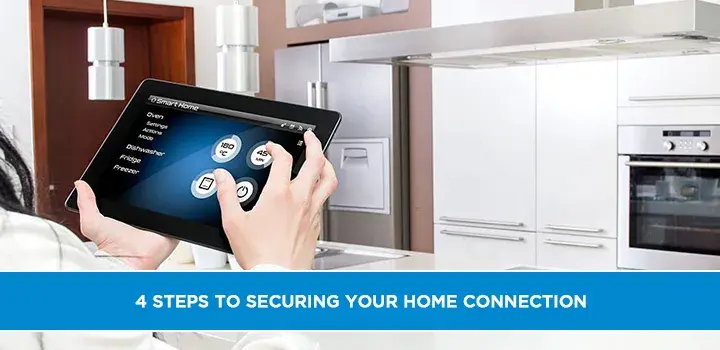
Securing your home internet connection is paramount in today's digital landscape. This guide offers a clear, actionable, four-step strategy to fortify your network against threats, ensuring your online activities remain private and safe from cyber intrusions.
Step 1: Fortify Your Wi-Fi Network
The first line of defense for your home internet is your Wi-Fi network itself. A weak or improperly configured Wi-Fi can be an open door for unauthorized access. In 2025, with the proliferation of smart home devices, securing this initial point of entry is more critical than ever. Many users underestimate the vulnerability of their wireless signal, assuming that a password is all that's needed. However, the type of encryption, the strength of your password, and the network name (SSID) all play significant roles in its overall security.
Understanding Wi-Fi Encryption Standards
Wi-Fi encryption is the technology that scrambles your data, making it unreadable to anyone without the correct key. Over the years, several standards have emerged, each offering varying levels of security. It's crucial to understand which ones are still considered secure and which should be avoided.
WEP (Wired Equivalent Privacy)
WEP is an outdated encryption protocol that was introduced in 1997. It was designed to provide a level of security similar to a wired network. However, WEP has significant security flaws and can be easily cracked by modern hacking tools in a matter of minutes. You should never use WEP for your home Wi-Fi network. If your router still supports WEP, it's a strong indicator that it's time for an upgrade.
WPA (Wi-Fi Protected Access)
WPA was developed as a successor to WEP, aiming to address its security vulnerabilities. It introduced improved encryption and authentication mechanisms. While WPA was a step up from WEP, it also had some weaknesses, particularly in its TKIP (Temporal Key Integrity Protocol) implementation, which could be vulnerable.
WPA2 (Wi-Fi Protected Access II)
WPA2, introduced in 2004, is the current industry standard for Wi-Fi security. It uses AES (Advanced Encryption Standard) encryption, which is widely regarded as very secure. WPA2 offers two main modes:
- WPA2-Personal (WPA2-PSK): This mode uses a pre-shared key (PSK), which is the password you enter to connect to your Wi-Fi network. It's suitable for most home users.
- WPA2-Enterprise: This mode uses a more robust authentication system, typically involving a RADIUS server, and is more common in corporate environments.
For home users, ensuring your router is set to WPA2-Personal is a fundamental security measure.
WPA3 (Wi-Fi Protected Access III)
WPA3 is the latest generation of Wi-Fi security, released in 2018. It offers significant improvements over WPA2, including:
- Enhanced encryption: WPA3 provides stronger encryption, even for networks with weaker passwords.
- Protection against brute-force attacks: It uses Simultaneous Authentication of Equals (SAE) to prevent offline dictionary attacks.
- Individualized data encryption: Even on open networks, WPA3 can encrypt individual data streams, enhancing privacy.
While WPA3 offers superior security, its adoption is still growing. As of 2025, many routers and devices support WPA2, and many newer ones are WPA3-certified. Ideally, you should use WPA3 if your router and devices support it. If not, WPA2 is the next best option. Never use an open or WEP-encrypted network.
Choosing a Strong Wi-Fi Password (SSID Password)
Your Wi-Fi password, or pre-shared key (PSK), is the primary barrier against unauthorized access to your network. A weak password can be easily guessed or cracked through brute-force attacks.
Characteristics of a Strong Password:
- Length: Aim for at least 12-15 characters. Longer passwords are exponentially harder to crack.
- Complexity: Use a mix of uppercase and lowercase letters, numbers, and symbols.
- Uniqueness: Avoid common words, personal information (names, birthdays), or sequential numbers.
- Randomness: The more random the password, the better.
Many people opt for easy-to-remember passwords, which is a major security risk. For instance, a password like "password123" or "yourdog'sname" is extremely vulnerable. According to cybersecurity reports from 2025, the average time to crack a 6-character password with common characters is mere seconds, while a 15-character complex password could take billions of years to crack with current technology.
Tip: Consider using a password manager to generate and store strong, unique passwords for your Wi-Fi and other online accounts. This ensures you don't have to remember dozens of complex passphrases.
Changing Your Network Name (SSID)
Your SSID is the name of your Wi-Fi network that appears when you scan for available networks. While changing your SSID doesn't directly encrypt your data, it can add a layer of obscurity.
- Avoid Default SSIDs: Routers often come with default SSIDs (e.g., "Linksys," "NETGEAR," "TP-LINK"). These default names can sometimes indicate the router model, which may have known vulnerabilities.
- Don't Use Personal Information: Similar to passwords, avoid using your name, address, or any easily identifiable information in your SSID.
- Consider Disabling SSID Broadcast (with caution): Some users choose to hide their SSID by disabling broadcast. While this makes the network invisible to casual scans, it's not a robust security measure. Advanced users can still detect hidden networks, and it can sometimes cause connectivity issues for certain devices. It's generally recommended to keep SSID broadcast enabled and rely on strong encryption and passwords.
Guest Networks
Most modern routers offer a guest network feature. This allows you to create a separate Wi-Fi network with its own password, which you can share with visitors. The key benefit of a guest network is that it isolates guest devices from your main network, preventing them from accessing your personal files, printers, or other connected devices.
Recommendation: Always enable and use a guest network for visitors. This is a simple yet highly effective way to maintain the security of your primary network. Ensure the guest network also uses strong WPA2 or WPA3 encryption and a robust password.
Step 2: Secure Your Router Settings
Your router is the gateway to your home network and the internet. It's a powerful device that, if not properly configured, can become a significant security risk. Many users overlook router security, treating it as a "set it and forget it" device. However, regularly reviewing and updating your router's settings is crucial for maintaining a secure connection.
Accessing Your Router's Administration Interface
To manage your router's settings, you need to access its web-based administration interface. This is typically done by typing your router's IP address into a web browser.
- Default IP Addresses: Common default IP addresses include 192.168.1.1, 192.168.0.1, or 10.0.0.1. You can usually find this information in your router's manual or by searching online for your router model.
- Login Credentials: You'll need a username and password to log in. Routers also come with default credentials (e.g., "admin/admin," "admin/password").
Critical Security Step: Change the default router login credentials immediately. Leaving them as default makes it incredibly easy for someone to access and reconfigure your router.
Changing Default Router Login Credentials
This is one of the most important steps you can take. Just like your Wi-Fi password, your router's login password needs to be strong and unique.
- Find the Setting: Look for "Administration," "System," or "Security" settings within your router's interface.
- Create a Strong Password: Use the same principles as creating a strong Wi-Fi password: length, complexity, uniqueness, and randomness.
- Document It Securely: Store this password in a secure password manager.
In 2025, many routers offer two-factor authentication (2FA) for their administrative login, adding an extra layer of security. If available, enable it.
Updating Router Firmware
Router manufacturers regularly release firmware updates to fix bugs, improve performance, and patch security vulnerabilities. Running outdated firmware is like leaving known security holes open in your network.
- Check for Updates: Most routers have an option within their administration interface to check for and install firmware updates.
- Automatic Updates: If your router supports automatic firmware updates, enable this feature.
- Manual Updates: If automatic updates aren't available, periodically check the manufacturer's website for the latest firmware for your specific router model and follow their instructions for manual installation.
According to cybersecurity analyses in 2025, a significant percentage of home networks remain vulnerable due to unpatched router firmware. Prioritizing firmware updates is essential.
Disabling Unnecessary Services
Your router may have various services enabled by default that you don't use, such as UPnP (Universal Plug and Play), WPS (Wi-Fi Protected Setup), or remote administration. Each of these services can potentially be exploited.
UPnP (Universal Plug and Play)
UPnP allows devices on your network to automatically discover and connect to each other, and it can also allow devices to open ports on your router without manual configuration. While convenient, UPnP has a history of security vulnerabilities. In 2025, it's still a common vector for malware to spread and for attackers to gain unauthorized access.
Recommendation: Disable UPnP unless you have a specific, well-understood need for it. If you disable it, you may need to manually configure port forwarding for certain applications or devices.
WPS (Wi-Fi Protected Setup)
WPS is a feature designed to simplify connecting devices to your Wi-Fi network, often using a PIN or a push-button method. While convenient, the PIN-based WPS implementation has been found to be vulnerable to brute-force attacks.
Recommendation: Disable WPS, especially the PIN method. Rely on entering your Wi-Fi password for device connections.
Remote Administration
Remote administration allows you to access your router's settings from outside your home network. While useful for some, it significantly increases your router's exposure to the internet.
Recommendation: Disable remote administration unless you absolutely need it and understand the risks. If you do enable it, ensure it's secured with a very strong password and ideally restricted to specific IP addresses.
Firewall Configuration
Your router's built-in firewall acts as a barrier between your home network and the internet, blocking unauthorized traffic. Most routers have a firewall enabled by default, but it's worth checking.
- Ensure it's Enabled: Verify that the firewall is active in your router's settings.
- Understand Port Forwarding: Port forwarding allows specific types of traffic to bypass the firewall to reach a particular device on your network. Use this feature cautiously and only when necessary for applications like gaming servers or remote access to specific devices.
- DMZ (Demilitarized Zone): Avoid placing devices in the DMZ unless you fully understand the implications. A DMZ exposes a device directly to the internet, bypassing most firewall protections.
Network Segmentation (Advanced)
For users with more complex needs or a high number of IoT devices, network segmentation can be a valuable security measure. This involves creating separate subnets or VLANs (Virtual Local Area Networks) for different types of devices.
- IoT Network: Create a separate network for your smart home devices (smart TVs, thermostats, cameras, etc.). These devices are often less secure and can be a gateway for attackers.
- Guest Network: As mentioned, use a dedicated guest network.
- Main Network: Keep your computers, smartphones, and sensitive devices on your primary, most secure network.
Implementing network segmentation typically requires a more advanced router or a dedicated firewall appliance, but it offers a significant boost in security by isolating potential threats.
Step 3: Implement Device-Level Security
Securing your Wi-Fi and router is fundamental, but the security of your home connection ultimately depends on the security of the individual devices connected to it. In 2025, with an average of 20-30 connected devices per household, this becomes a significant undertaking. Each device is a potential entry point for malware and unauthorized access.
Keep All Devices Updated
This principle applies to everything from your smartphones and computers to your smart TVs, gaming consoles, and IoT devices.
- Operating System Updates: Ensure your Windows, macOS, iOS, and Android devices are set to receive and install the latest operating system updates. These often include critical security patches.
- Application Updates: Regularly update your web browsers, productivity software, and any other applications you use.
- Firmware for IoT Devices: Many smart home devices have their own firmware that needs updating. Check the manufacturer's app or website for updates.
According to the 2025 Internet Security Threat Report, a substantial number of cyberattacks exploit known vulnerabilities in unpatched software and devices.
Use Strong, Unique Passwords for All Devices and Accounts
This cannot be stressed enough. Every device and every online account should have a strong, unique password.
- Device Passcodes: Set strong passcodes or biometric locks (fingerprint, facial recognition) on your smartphones, tablets, and computers.
- Application Logins: Use strong passwords for email accounts, social media, banking apps, and any other online service.
- IoT Device Passwords: Many smart home devices have default passwords that users never change. Always change these to something strong and unique.
Password Managers: As mentioned earlier, a reputable password manager is an invaluable tool for generating, storing, and autofilling strong, unique passwords across all your devices and accounts.
Install and Maintain Antivirus and Anti-Malware Software
Antivirus and anti-malware software are essential for protecting your computers and, in some cases, your mobile devices from malicious software.
- Reputable Software: Choose well-known and reputable antivirus solutions.
- Real-time Protection: Ensure the software is configured for real-time scanning, which detects threats as they attempt to enter your system.
- Regular Scans: Schedule regular full system scans to catch anything that might have slipped through.
- Keep Definitions Updated: Antivirus software relies on updated threat definitions to recognize new malware. Ensure your software is set to update automatically.
While mobile malware is less common than on desktops, it's on the rise. Consider mobile security solutions for your smartphones and tablets as well.
Enable Two-Factor Authentication (2FA)
Two-factor authentication adds an extra layer of security to your online accounts. It requires you to provide two forms of verification to log in, typically something you know (password) and something you have (a code from your phone, a hardware token).
Recommendation: Enable 2FA on all your important accounts, including email, banking, social media, and cloud storage. This significantly reduces the risk of account compromise, even if your password is stolen.
Be Cautious with Smart Home (IoT) Devices
The convenience of smart home devices comes with inherent security risks. These devices are often designed with connectivity in mind, sometimes at the expense of robust security.
- Research Before Buying: Look for brands that have a good reputation for security and provide regular updates.
- Change Default Passwords: As highlighted before, this is critical.
- Isolate Them: Consider placing them on a separate guest network or VLAN.
- Limit Permissions: Only grant devices the permissions they absolutely need.
- Disable Unused Features: Turn off any features you don't use, such as remote access if you don't need it.
A 2025 study found that over 70% of IoT devices had significant security vulnerabilities. Treat them with caution.
Secure Mobile Devices
Your smartphone and tablet are often gateways to your online life.
- Screen Lock: Use a strong passcode, pattern, or biometric authentication.
- App Permissions: Be mindful of the permissions you grant to apps. Does a flashlight app really need access to your contacts?
- Download from Official Stores: Only download apps from official app stores (Google Play Store, Apple App Store) to minimize the risk of malware.
- Enable Remote Wipe: Configure your device to allow remote wiping in case it's lost or stolen.
Virtual Private Networks (VPNs)
While not strictly a "connection" security measure in the same way as router settings, a VPN enhances your privacy and security when you're online, especially on public Wi-Fi.
- Encrypts Traffic: A VPN encrypts your internet traffic, making it unreadable to your ISP, network administrators, or anyone monitoring the network.
- Masks IP Address: It masks your real IP address, making it harder to track your online activities.
- Public Wi-Fi Safety: Essential for using public Wi-Fi hotspots at cafes, airports, or hotels.
For home use, a VPN can add an extra layer of privacy, especially if you're concerned about your ISP monitoring your activity.
Step 4: Practice Safe Online Habits
Technology and security settings are only part of the equation. Human behavior is often the weakest link in cybersecurity. Developing and maintaining safe online habits is crucial for protecting yourself and your home connection from threats.
Be Wary of Phishing and Social Engineering
Phishing attacks are designed to trick you into revealing sensitive information, such as passwords, credit card numbers, or personal details. Social engineering uses psychological manipulation to gain access to systems or information.
- Scrutinize Emails and Messages: Look for poor grammar, generic greetings, urgent requests, and suspicious links or attachments. If an email claims to be from your bank or a service you use, but looks suspicious, don't click anything. Go directly to the company's website by typing the URL into your browser.
- Verify Requests: If you receive an unexpected request for information or action, verify it through a separate, trusted channel.
- Hover Over Links: Before clicking a link in an email or on a website, hover your mouse over it to see the actual URL it will take you to.
- Never Share Passwords: Legitimate organizations will never ask you for your password via email or phone.
In 2025, phishing remains one of the most prevalent cyber threats, with attackers constantly evolving their tactics.
Be Cautious with Downloads and Attachments
Malware is often distributed through malicious downloads or email attachments.
- Download from Trusted Sources: Only download software from official websites or reputable app stores.
- Scan Downloads: Use your antivirus software to scan any downloaded files before opening them.
- Avoid Suspicious Attachments: Do not open email attachments from unknown senders or if the content seems unexpected or suspicious, even if it appears to be from someone you know (their account might be compromised).
Secure Your Browsing Habits
How you use your web browser significantly impacts your online security.
- Use HTTPS: Always look for "https://" at the beginning of a website's URL and a padlock icon in the address bar. This indicates that the connection to the website is encrypted.
- Be Careful with Public Wi-Fi: As mentioned, use a VPN when connecting to public Wi-Fi. Avoid accessing sensitive accounts (banking, email) on unsecured public networks.
- Clear Cache and Cookies Regularly: While not a direct security threat, clearing your browser's cache and cookies can help protect your privacy by removing stored data that websites can use to track you.
- Use Browser Extensions Wisely: Some browser extensions can enhance security (e.g., ad blockers, script blockers), but be sure to download them from trusted sources and review their permissions.
Secure Your Online Transactions
Shopping and banking online require extra vigilance.
- Use Secure Websites: Only shop and bank on websites that use HTTPS.
- Monitor Bank Statements: Regularly review your bank and credit card statements for any unauthorized transactions.
- Avoid Public Wi-Fi for Transactions: Never conduct financial transactions on public Wi-Fi.
- Strong Passwords for Financial Accounts: Use unique, strong passwords for all your financial accounts and enable 2FA.
Educate Your Household
If you have other people living in your home, it's essential that they are also aware of online security risks and best practices.
- Share This Information: Discuss these steps with your family members.
- Set Rules: Establish clear rules for internet usage, especially for children.
- Supervise Children's Online Activity: Use parental controls and monitor their online activities.
Regularly Review Connected Devices
Periodically check your router's list of connected devices. If you see any unfamiliar devices, it could indicate unauthorized access to your network.
How to Check: Log in to your router's administration interface and look for a "Connected Devices," "DHCP Clients," or "Client List" section.
If you find an unknown device, change your Wi-Fi password immediately and consider disabling WPS or UPnP if they are enabled.
Consider a Network Security Audit
For those who want an extra layer of assurance, consider a professional network security audit. Experts can identify vulnerabilities you might have missed and provide tailored recommendations.
In summary, securing your home connection is an ongoing process, not a one-time task. By implementing these four steps – fortifying your Wi-Fi, securing your router, securing your devices, and practicing safe online habits – you can significantly reduce your risk of cyber threats and enjoy a safer, more private online experience.
Conclusion
In the ever-evolving digital landscape of 2025-26, safeguarding your home internet connection is not merely a technicality; it's a fundamental necessity for privacy, security, and peace of mind. We've explored a comprehensive four-step strategy designed to empower you against the myriad of online threats. By diligently fortifying your Wi-Fi network with robust encryption and strong passwords, diligently securing your router's settings through firmware updates and credential changes, implementing device-level security with diligent updates and multi-factor authentication, and consistently practicing safe online habits, you build a formidable defense. Remember, each step is a critical layer. Neglecting any one can compromise the entire structure. Take proactive measures today to ensure your digital life remains protected.