Setting up your Cox Contour Stream Player is straightforward with this comprehensive guide. We'll walk you through each step, from unboxing to enjoying your favorite channels, ensuring a seamless streaming experience. Get ready to unlock the full potential of your new device.
Understanding the Cox Contour Stream Player
The Cox Contour Stream Player is a modern, versatile device designed to bring your favorite entertainment directly to your television. It acts as a gateway to live TV, on-demand content, and a vast ecosystem of streaming applications. Unlike traditional cable boxes, the Stream Player leverages your internet connection to deliver a seamless, integrated viewing experience. In 2025-26, with the continued rise of cord-cutting and the demand for personalized entertainment, devices like the Contour Stream Player are becoming central to the home entertainment setup. Cox has invested heavily in its Contour platform, aiming to provide a user-friendly interface that consolidates all your viewing options. This guide is specifically tailored to help you navigate the initial setup process, ensuring you can start enjoying your content without frustration. We will cover everything from the essential items you need to have ready to detailed, step-by-step instructions for connecting, configuring, and personalizing your device.
What You'll Need Before You Start
Before embarking on the setup process for your Cox Contour Stream Player, ensure you have the following items readily available. Having these at hand will significantly streamline the installation and configuration, preventing interruptions and potential delays. This proactive approach is key to a smooth setup experience.
- Your Cox Contour Stream Player and Accessories: This includes the player itself, the power adapter, the remote control, and any included HDMI cables. Verify that all components are present in the box.
- A Television with an HDMI Port: The Contour Stream Player connects to your TV via an HDMI cable. Most modern televisions are equipped with at least one HDMI port.
- Your Wi-Fi Network Name (SSID) and Password: If you plan to connect wirelessly, you'll need your network's name and password. Ensure you have the correct credentials.
- An Active Cox Internet Service: The Contour Stream Player relies on your Cox internet connection for streaming. Confirm your service is active and functioning correctly.
- Your Cox Account Credentials: You will need your username and password to sign in to your Cox account during the setup process. This links the device to your subscription.
- A Stable Internet Connection: While not a physical item, a stable and reasonably fast internet connection is crucial for optimal performance. Cox recommends a minimum download speed of 25 Mbps for a smooth HD streaming experience, and ideally 50 Mbps or higher for 4K content and multiple devices in 2025-26.
Unboxing and Initial Setup
The unboxing experience for the Cox Contour Stream Player is designed to be intuitive. Upon opening the box, you should find the following items neatly organized:
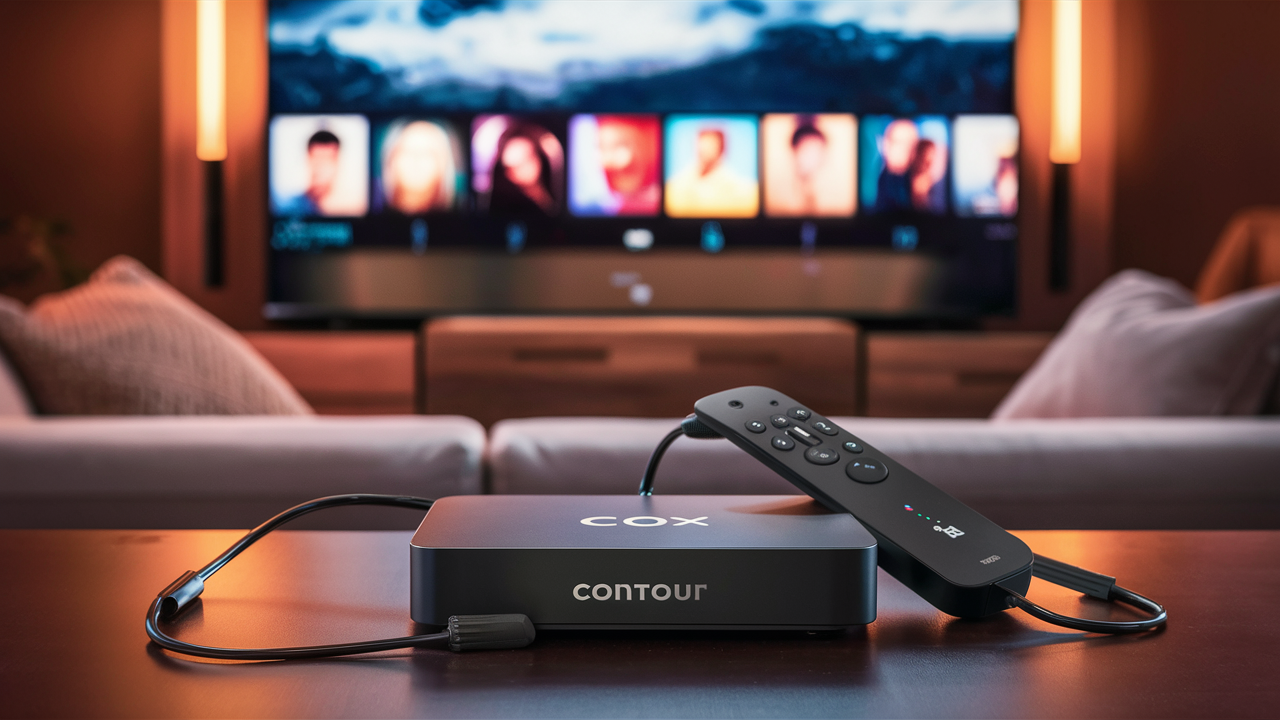
- The Cox Contour Stream Player unit
- Power adapter
- Remote control (with batteries, usually)
- HDMI cable
- Quick Start Guide
Carefully remove all components from the packaging. It's a good practice to keep the original packaging for a short period, just in case you need to return or exchange the device. Before proceeding to connections, take a moment to familiarize yourself with each component. Ensure the power adapter cable is securely connected to the player if it's not pre-attached. Check the remote control for any protective plastic films that need to be removed from the battery compartment or buttons.
Connecting Your Stream Player
This section details the physical connections required to get your Cox Contour Stream Player up and running. Following these steps carefully ensures that your device is properly linked to your television and power source.
Physical Connections
Connecting the Contour Stream Player is a simple process involving just a few cables. Ensure your television is powered off before making any connections to avoid potential electrical surges.
- Connect to Your TV: Take the provided HDMI cable. Plug one end into the HDMI OUT port on the back of the Contour Stream Player. Plug the other end into an available HDMI IN port on your television. Note which HDMI port you use (e.g., HDMI 1, HDMI 2) as you'll need to select it on your TV's input settings later.
- Connect to Power: Plug the power adapter into the POWER port on the back of the Contour Stream Player. Then, plug the other end of the power adapter into a working electrical outlet. Avoid using surge protectors that might filter power, as some devices can be sensitive.
- Optional: Connect via Ethernet (Recommended for Stability): For the most stable and fastest internet connection, consider using an Ethernet cable. Plug one end into the ETHERNET port on the back of the Stream Player and the other end into an available LAN port on your Wi-Fi router or modem. If you prefer to use Wi-Fi, you can skip this step and configure the wireless connection during the on-screen setup.
Powering On and Initial Boot
Once all physical connections are made, it's time to power on your devices.
- Turn on Your Television: Power on your TV and use your TV's remote control to select the correct HDMI input source that you connected the Stream Player to (e.g., HDMI 1, HDMI 2).
- Power on the Stream Player: Press the power button on the Contour Stream Player or its remote control. The device will begin its boot-up sequence.
The initial boot process can take several minutes. You will typically see a Cox logo followed by a welcome screen or a setup wizard. During this time, the device is loading its operating system and preparing for configuration. Be patient and do not unplug the device during this process. If the device seems stuck on a particular screen for an extended period (more than 10-15 minutes), you may need to power cycle it by unplugging the power adapter, waiting 30 seconds, and plugging it back in.
Navigating the On-Screen Setup
Once the Contour Stream Player has booted up, you'll be guided through a series of on-screen prompts to configure its settings. This interactive setup ensures your device is personalized and ready for use.
Language Selection
The first step in the on-screen setup is usually selecting your preferred language. Use the directional buttons on your Contour Stream Player remote to highlight your desired language and press the OK or Select button. This will set the language for the device's interface, menus, and any on-screen text.
Network Connection: Wi-Fi vs. Ethernet
The setup wizard will then prompt you to connect your Stream Player to your home network. You'll typically have two options:
- Ethernet Connection: If you've already connected an Ethernet cable from your router to the Stream Player, the device may automatically detect the connection and proceed. If not, you'll see an option to select "Ethernet" or "Wired Connection." Choose this if you prefer a wired setup for maximum stability and speed.
- Wi-Fi Connection: If you prefer a wireless connection, select "Wi-Fi" or "Wireless Connection." The device will scan for available Wi-Fi networks. A list of nearby networks (SSIDs) will appear. Use the remote to navigate to your home Wi-Fi network name, select it, and then enter your Wi-Fi password using the on-screen keyboard. Be precise when entering your password, as it is case-sensitive.
Recommendation for 2025-26: While Wi-Fi is convenient, an Ethernet connection is still recommended for the most reliable streaming experience, especially for 4K content and during peak internet usage times. Many users in 2025-26 are experiencing increased bandwidth demands due to higher resolution streaming and multiple connected devices, making a stable wired connection invaluable.
Signing In to Your Cox Account
This is a critical step that links your Contour Stream Player to your Cox subscription services. You will be prompted to enter your Cox username and password. Ensure you have these credentials ready. If you don't have them or have forgotten them, you may need to visit the Cox website or contact Cox customer support to reset them. Entering the correct credentials will authenticate your device and unlock your subscribed channels and services.
Tip: If you're unsure about your Cox account login details, it's best to look them up or reset them before starting the Stream Player setup to avoid delays.
Pairing Your Remote
Your Contour Stream Player remote control might need to be paired with the device. The on-screen instructions will guide you through this process. Typically, this involves pressing and holding a specific combination of buttons on the remote until a confirmation message appears on the screen. This pairing process enables advanced features like voice control and ensures reliable communication between the remote and the player.
Personalizing Your Experience
Once the initial setup is complete, you can tailor the Contour Stream Player to your preferences, making it a truly personal entertainment hub.
Setting Up Profiles
The Contour Stream Player allows you to create individual user profiles. This is particularly useful for households with multiple users, as each profile can maintain its own viewing history, personalized recommendations, and app preferences. To set up a profile, navigate to the settings menu, select "User Profiles" or a similar option, and follow the on-screen prompts to create a new profile, assign a name, and potentially an avatar.
Downloading Your Favorite Apps
The Contour Stream Player is more than just a TV box; it's a smart device that can run a variety of streaming applications. Access the "Apps" section or the "App Store" within the Contour interface. Browse or search for your preferred streaming services like Netflix, Hulu, Disney+, Max, YouTube, and more. Select an app and follow the prompts to download and install it. You will then need to sign in to each app with your respective service credentials.
Popular Apps in 2025-26: Beyond the major players, consider exploring apps like Peacock, Paramount+, Apple TV+, and specialized sports or news apps that cater to your interests. The availability of apps continues to expand, so check the app store regularly for new additions.
Configuring Parental Controls
For households with children, setting up parental controls is essential. This feature allows you to restrict access to certain channels, programs, or apps based on ratings or specific content. Navigate to the "Settings" menu, then find "Parental Controls." You'll likely be prompted to create a PIN code. Once set, you can configure restrictions for TV-MA, R-rated movies, and other content. This ensures a safe viewing environment for younger family members.
Troubleshooting Common Issues
Even with a smooth setup, occasional issues can arise. Here are solutions to common problems encountered with the Cox Contour Stream Player.
No Power or No Signal
- Check Power Connections: Ensure the power adapter is securely plugged into both the Stream Player and a working electrical outlet. Try a different outlet to rule out a faulty socket.
- Check HDMI Connection: Verify that the HDMI cable is firmly seated in both the Stream Player and the TV. Try a different HDMI cable if available.
- Select Correct TV Input: Make sure your TV is set to the correct HDMI input source that the Stream Player is connected to.
- Power Cycle: Unplug the power adapter from the Stream Player, wait 30 seconds, and plug it back in. Then, restart your TV.
Network Connectivity Problems
- Check Router/Modem: Ensure your internet modem and router are powered on and functioning correctly. Restart them if necessary.
- Verify Wi-Fi Password: Double-check that you have entered the correct Wi-Fi password. Passwords are case-sensitive.
- Signal Strength: If using Wi-Fi, ensure the Stream Player is within a reasonable range of your router. Consider moving the player closer or using a Wi-Fi extender if the signal is weak.
- Ethernet Connection: If experiencing Wi-Fi issues, try connecting via Ethernet cable for a more stable connection.
- Restart Stream Player: Perform a power cycle on the Stream Player as described above.
Remote Not Working
- Check Batteries: Ensure the remote control has fresh batteries and they are inserted correctly.
- Pairing Issue: The remote may have lost its pairing. Try re-pairing the remote by following the instructions in the "Pairing Your Remote" section or in the device's settings menu.
- Obstructions: Ensure there are no objects blocking the line of sight between the remote and the Stream Player.
- Infrared vs. Bluetooth: Some remotes use infrared (IR) which requires line of sight, while others use Bluetooth which does not. Check your remote type and ensure proper operation.
App Issues
- App Updates: Ensure the specific app is up to date. You can usually check for app updates in the device's app store or settings.
- Clear Cache/Data: For some apps, clearing their cache or data can resolve issues. This option is usually found in the device's application settings.
- Reinstall App: Uninstall the problematic app and then reinstall it from the app store.
- Check Internet Connection: App issues can sometimes stem from a poor internet connection.
- Device Restart: A full restart of the Contour Stream Player can often resolve temporary app glitches.
Maximizing Your Cox Contour Stream Player in 2025-26
As streaming technology evolves, so do the capabilities of devices like the Cox Contour Stream Player. Here's how to get the most out of your device in the coming years.
Leveraging Voice Commands
The Contour Stream Player remote often includes a microphone for voice control. This feature is incredibly powerful for quickly finding content, changing channels, or even controlling playback. Simply press and hold the voice command button on your remote and speak your command clearly. For example, you can say "Play The Mandalorian on Disney+" or "Show me live sports." Mastering voice commands can significantly enhance your viewing efficiency.
Exploring On-Demand Content
Beyond live TV, the Contour platform offers a vast library of on-demand movies and TV shows. Explore the "On Demand" section to find content you might have missed or want to rewatch. Many apps also have their own extensive on-demand libraries. In 2025-26, the integration of personalized recommendations within these on-demand sections is becoming more sophisticated, suggesting content based on your viewing habits across different services.
Integrating with Smart Home Devices
In 2025-26, the lines between entertainment and smart home technology are blurring. The Contour Stream Player may offer integrations with popular smart home ecosystems like Amazon Alexa or Google Assistant. This allows for more advanced voice control, such as asking your smart speaker to turn on your TV to a specific channel or play a movie through your Contour Player. Check your device's settings and the Cox support website for compatibility information.
Understanding Your Cox Account and Billing
While not directly related to the Stream Player's setup, understanding your Cox account and billing is crucial for managing your services. You can typically access your account information, view bills, and manage your subscriptions through the Cox website or the Cox app. Familiarize yourself with your current TV package to ensure you're getting the most value and to understand what content is available to you through the Stream Player.
Comparing Contour Stream Player with Alternatives
The Cox Contour Stream Player operates within a competitive landscape of streaming devices and smart TV platforms. Understanding its position helps in appreciating its value proposition. Here's a brief comparison:
| Feature | Cox Contour Stream Player | Other Streaming Devices (e.g., Roku, Fire TV, Apple TV) | Smart TV Built-in OS (e.g., Google TV, webOS) |
|---|---|---|---|
| Primary Function | Integrated Cox TV service, app streaming | App streaming, live TV via apps/services | App streaming, live TV via apps/services |
| Cox Service Integration | Deep integration, unified interface for Cox TV | Requires separate Cox app (if available), less integrated | Requires separate Cox app (if available), less integrated |
| User Interface | Cox's proprietary Contour interface | Platform-specific (Roku OS, Fire OS, tvOS) | Manufacturer-specific OS |
| App Availability | Select apps, growing library | Extensive app stores | Extensive app stores |
| Voice Control | Integrated voice remote | Platform-dependent voice assistants | Platform-dependent voice assistants |
| Hardware Performance | Varies by model, generally good | Varies widely by model and price | Varies widely by TV model |
| Cost | Often included with Cox TV packages or a monthly fee | One-time purchase ($30 - $200+) | Included with TV purchase |
The key differentiator for the Contour Stream Player is its seamless integration with Cox's own TV services, offering a unified experience for both live TV and streaming apps. For users heavily invested in the Cox ecosystem, this integration provides a significant advantage in terms of ease of use and access to features like DVR management and channel guides. Other streaming devices offer broader app selection and platform independence, while smart TV built-in operating systems provide convenience but can sometimes lag in performance or app updates compared to dedicated streaming boxes.
Conclusion: Your Streaming Journey Begins
Setting up your Cox Contour Stream Player is a gateway to a more integrated and flexible entertainment experience. By following the steps outlined in this guide, from unboxing and physical connections to navigating the on-screen setup and personalizing your device, you're well on your way to enjoying all the features it offers. Remember to leverage voice commands, explore the extensive on-demand libraries, and configure parental controls for a safe and enjoyable viewing environment. In the dynamic landscape of 2025-26, the Contour Stream Player stands out for its cohesive integration with Cox services, making it a compelling choice for existing Cox customers seeking a streamlined way to access live TV and their favorite streaming apps. Should you encounter any issues, the troubleshooting section provides practical solutions to get you back to streaming quickly. Embrace the convenience and power of your new Contour Stream Player and enjoy your enhanced entertainment journey.